Label Sheet Layouts
Print product labels on the sheet you actually have: rows, columns and margins in millimetres, a start position on a used sheet, one label per page for rolls
Request a live demo · Odoo.sh or On-Premise only, not Odoo Online (SaaS).
0.4 mm
the largest gap between the printed label grid and the numbers on the form, measured on real PDFs of 7 layouts with a separate script
5 + 2
sheets in the made-up shop database: four starter layouts, one of ours, a QR sheet and a very small one; a layout that does not fit the page is refused
30
automated tests in the app, none failing; 7 were added to pin the limits stated on this page
1,000
labels with barcodes to a 48 page PDF in 31.9 s on Odoo 19 and 3.8 s on Odoo 20 on the test machine; larger prints not tested
0
products, prices or stock changed: it writes only its own sheet records and makes no network call
No
warning when a name, a barcode or the padding does not fit inside a label (see the known limits)
Label stock comes in sizes Odoo's built-in layouts do not match, and a label that lands across the cut line is a wasted sheet. This app adds a Custom sheet format to Odoo's own Print Labels window: you describe the sheet once in millimetres, print a numbered test sheet on plain paper to check it, and then print product labels on it. This page walks through it with screenshots of an Odoo 19 database holding a made-up garden and gift shop, crops of the real PDFs the app produced, and tables rendered from real readings of the same runs; each picture says which it is.
It reads products and prices and writes only its own sheet records. This page also says where it stays silent: a barcode left out of a small label, a name cut after two lines, padding that leaves no room.
Install it and a menu appears under Inventory, Configuration, Products: Label Sheets. It needs only Inventory. Inventory managers define sheets; every internal user can print on them.
How it works
What it keeps, what it changes, what it does not
Each line was tested or read in the code.
1 Describe the sheet in millimetres
Use it when your label stock is not one of the built-in sizes.Writes the sheet
Label stock comes in many sizes, and the only fix without an app is a developer and a new report.
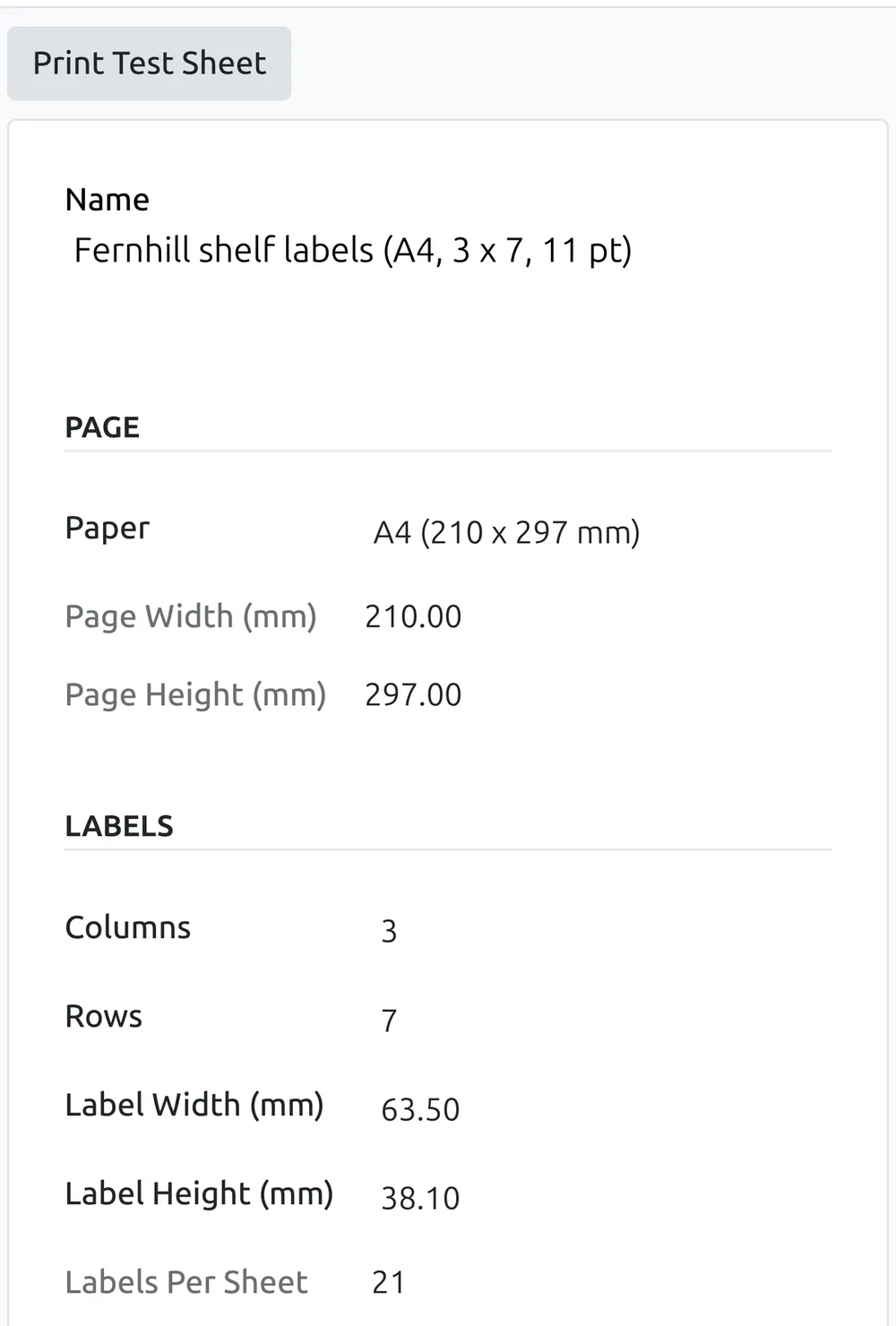
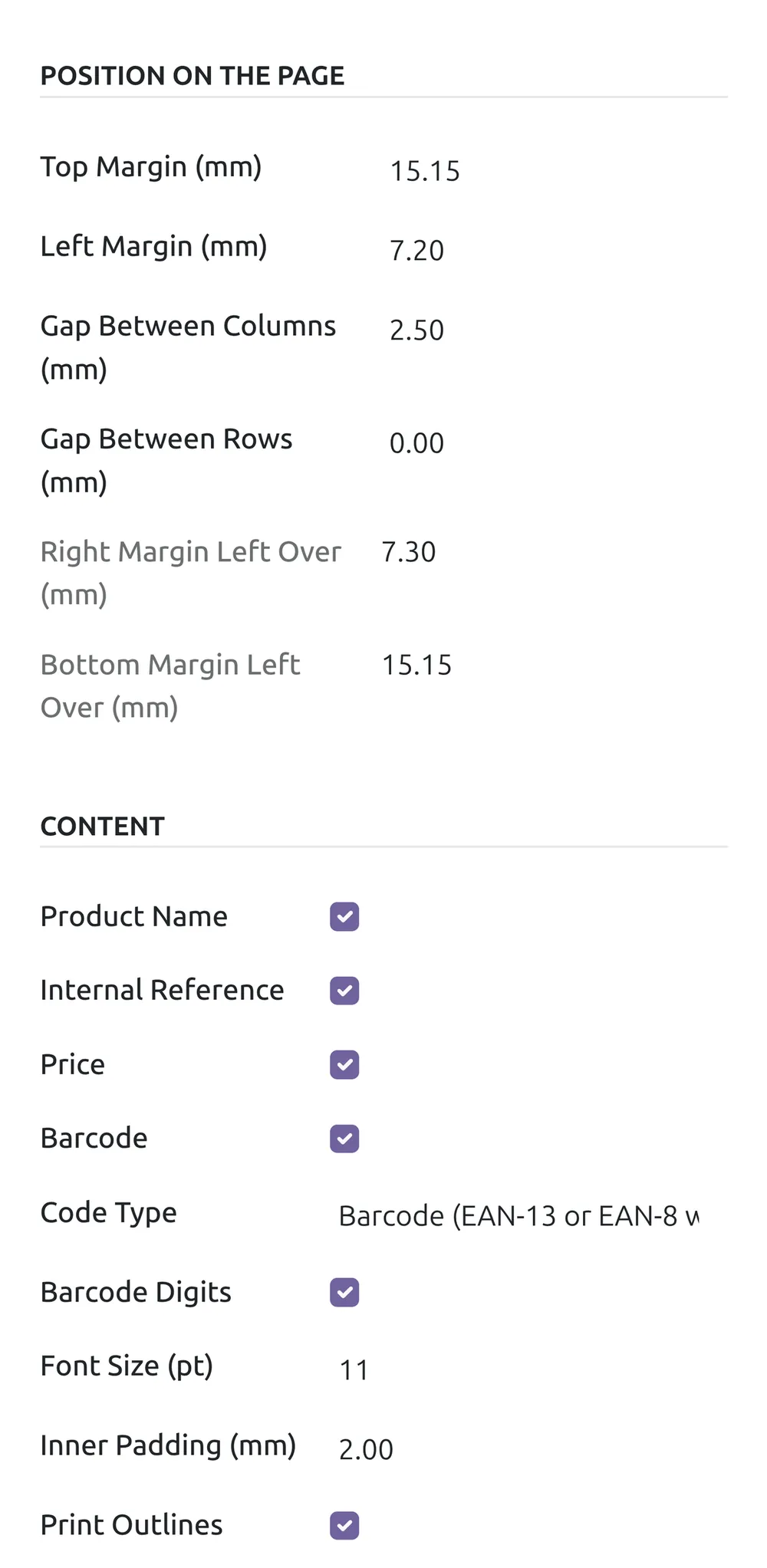
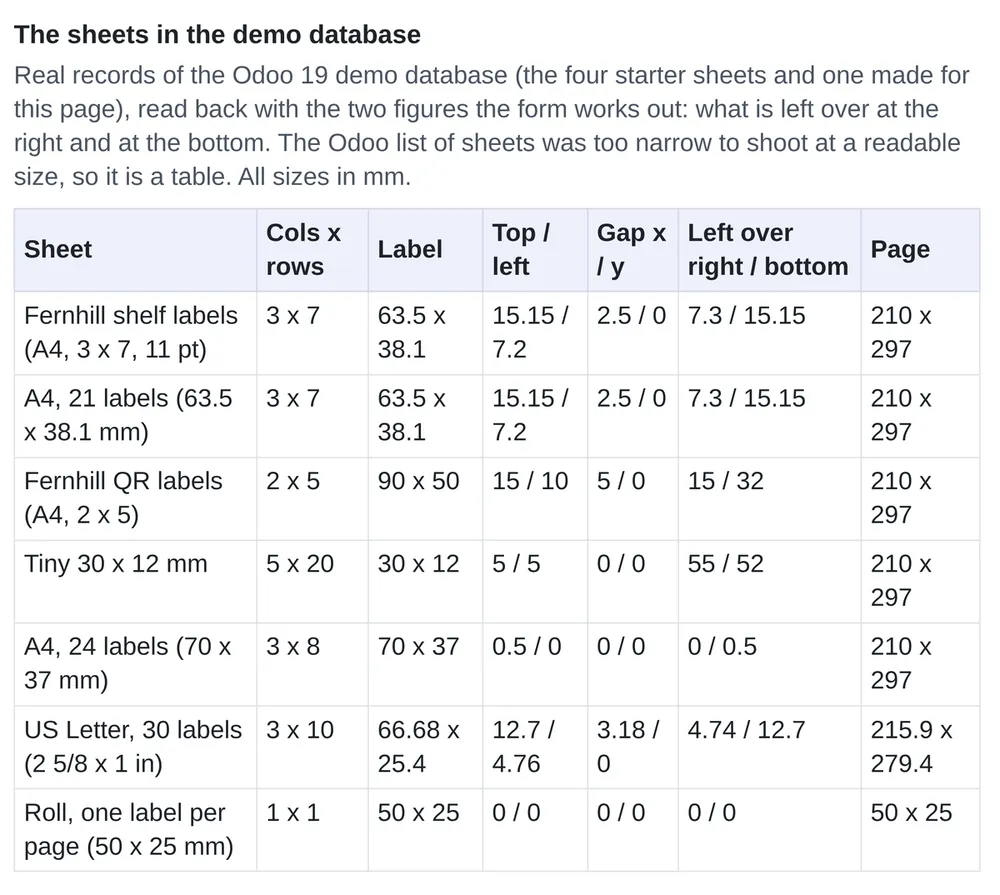
A sheet is a record: the paper (A4, US Letter or a custom size), columns and rows, label width and height, top and left margin, the gap between columns and rows, inner padding, font size and what a label shows. The form works out the number of labels per sheet and what is left over at the right and at the bottom, so you can compare it with the maker's data sheet. These are screenshots from Odoo 19 of the sheet made for this page, split in two to stay readable. The table lists the demo database's sheets.
The Odoo list of sheets is not shown as a screenshot. Sheets have no company: every company sees every sheet.
The page and label size part of the form, with a Print Test Sheet button. Real Odoo screen.
Position on the page and the content switches. Real Odoo screen.
The sheets of the demo database. Evidence table (the Odoo list was too narrow to shoot readably).
2 What the form refuses
Use it when you want a wrong measurement caught before a sheet is wasted.Refuses on save
A layout that runs off the page prints labels cut in half.
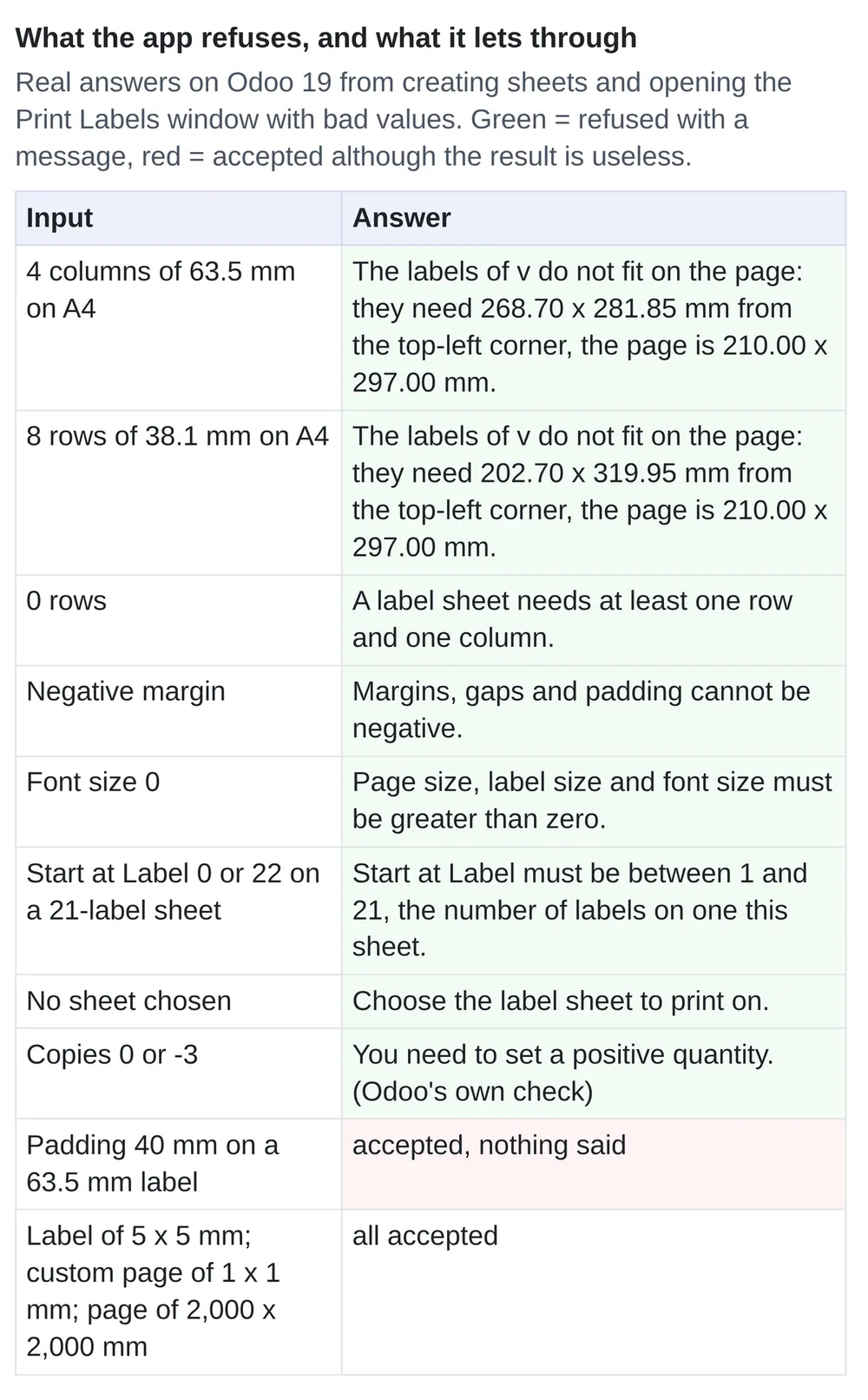
A layout whose labels do not fit on the page is refused with the size it needs against the size of the page; rows and columns must be at least 1, sizes and font above zero, margins, gaps and padding not negative. In the window, Start at Label must lie between 1 and the labels on one sheet. The table lists real answers. It also shows what is let through: padding larger than the label, and absurd sizes.
It does not check that padding leaves room inside a label, or that a label is big enough for its content.
What the app refuses and what it lets through. Evidence table.
3 Print a test sheet and hold it against the stock
Use it when you want to check the layout on plain paper before using real labels.Prints a PDF
The numbers on a label sheet's data sheet are not always the numbers of the sheet in your hand.
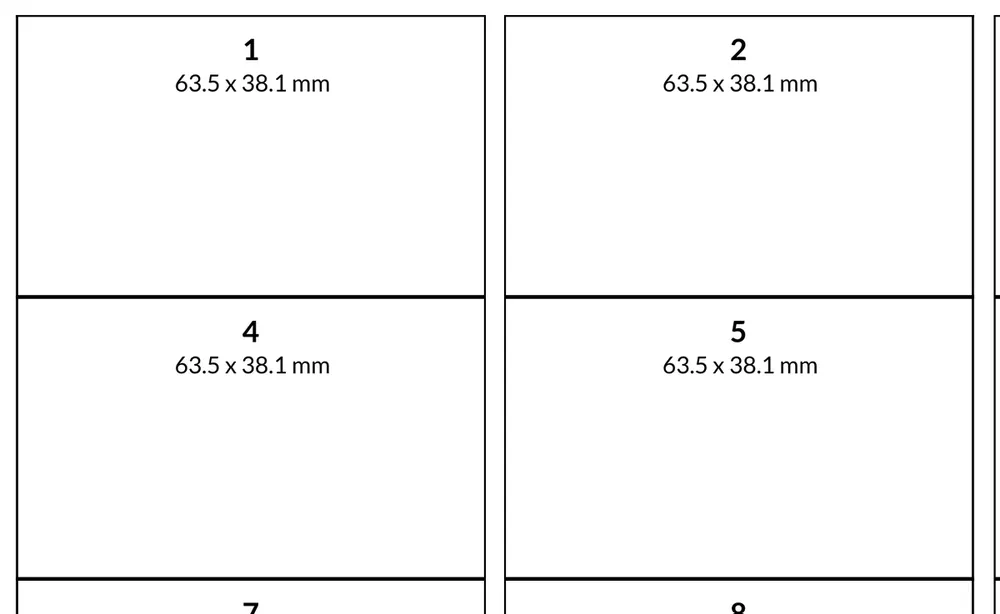
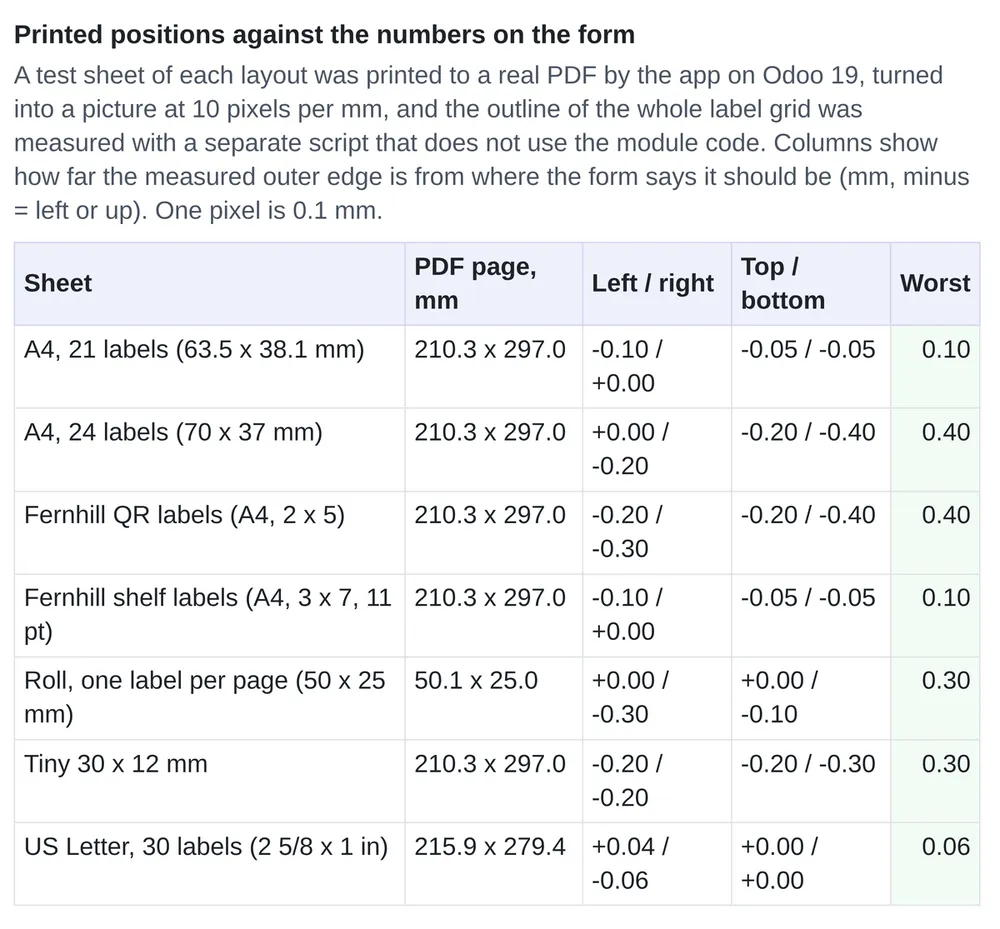
Print Test Sheet makes a page with every slot outlined and numbered, with the label size, using the page size of the sheet (A4 comes out as 210.3 mm wide, a whole number of PDF points). The first picture is a crop of that real PDF. To check it independently, test sheets of seven layouts were printed, turned into pictures at 10 pixels per mm and measured with a separate script: the outer edges of the grid were within 0.4 mm of the form's numbers on both Odoo versions. Nothing was held against paper: that depends on your printer.
A printer's own margins and scaling are not part of the check; print at 100% with no page scaling.
Crop of the real test sheet PDF (first two columns, 14.4 px text at display width). Real PDF.
Measured against the form's numbers. Evidence table.
4 Choose Custom sheet when you print
Use it when you print labels from a product or a list of products.Opens the window
People already know the Print Labels window; a second place to print would be one more thing to learn.
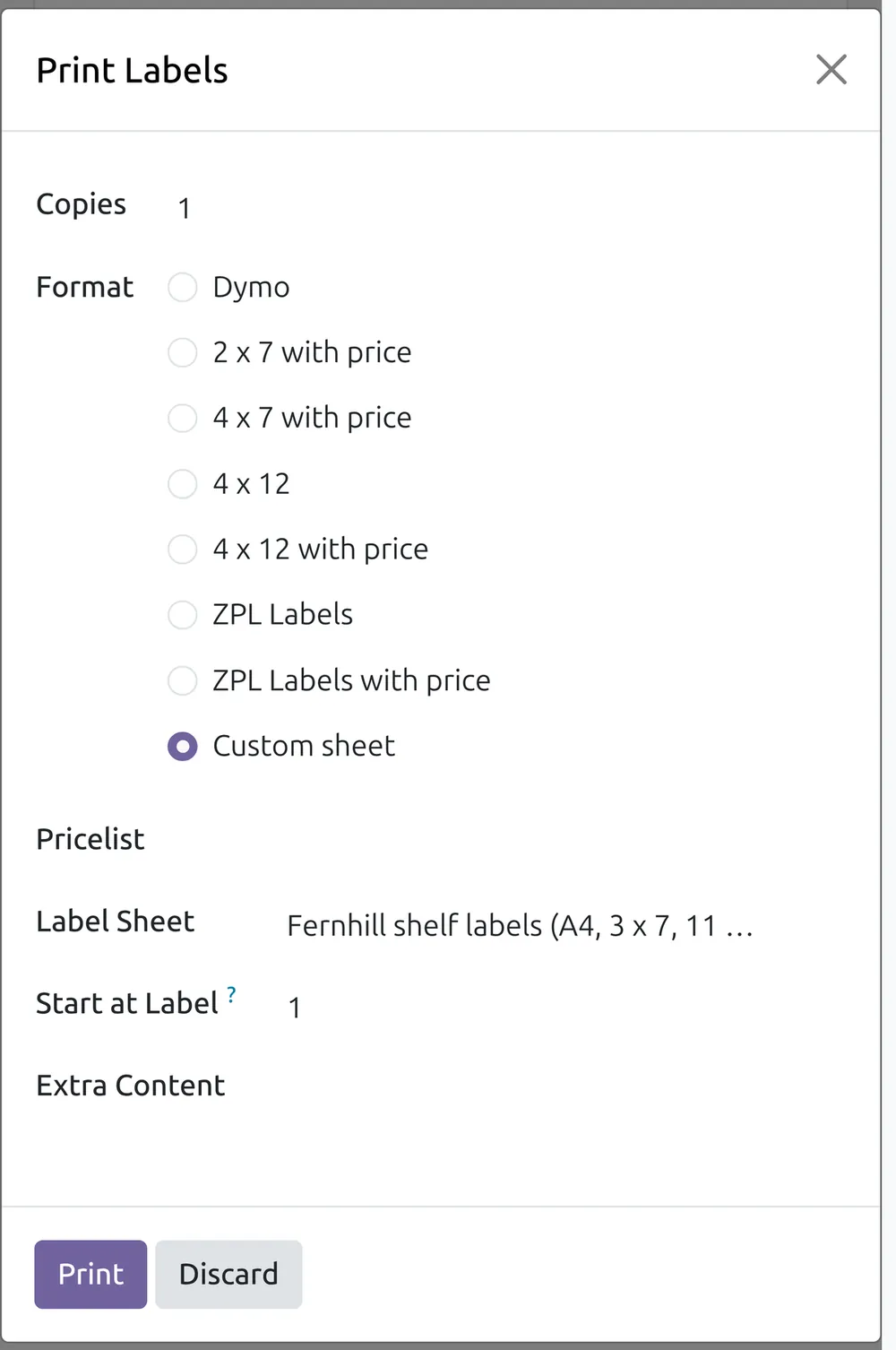
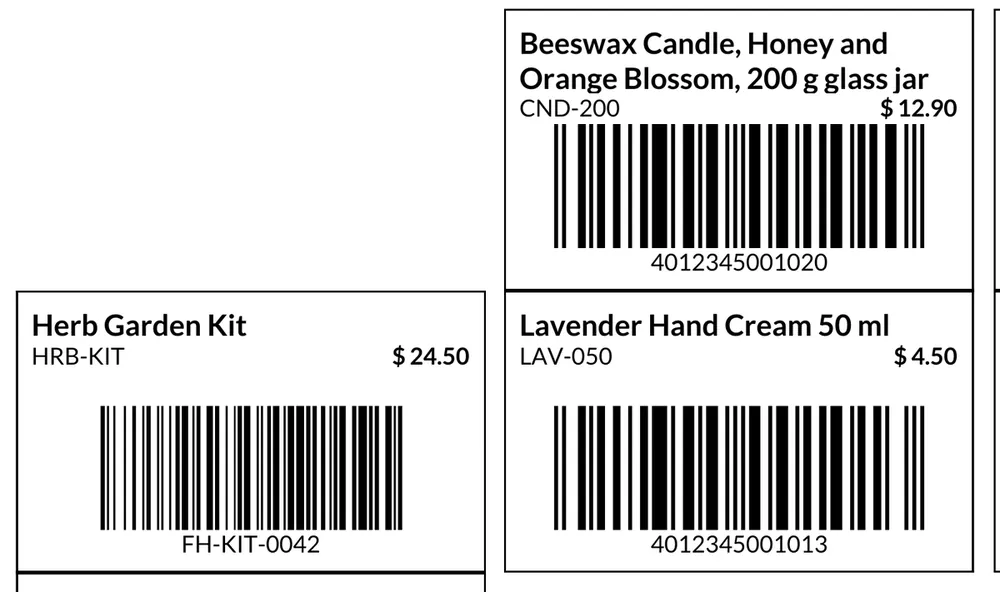
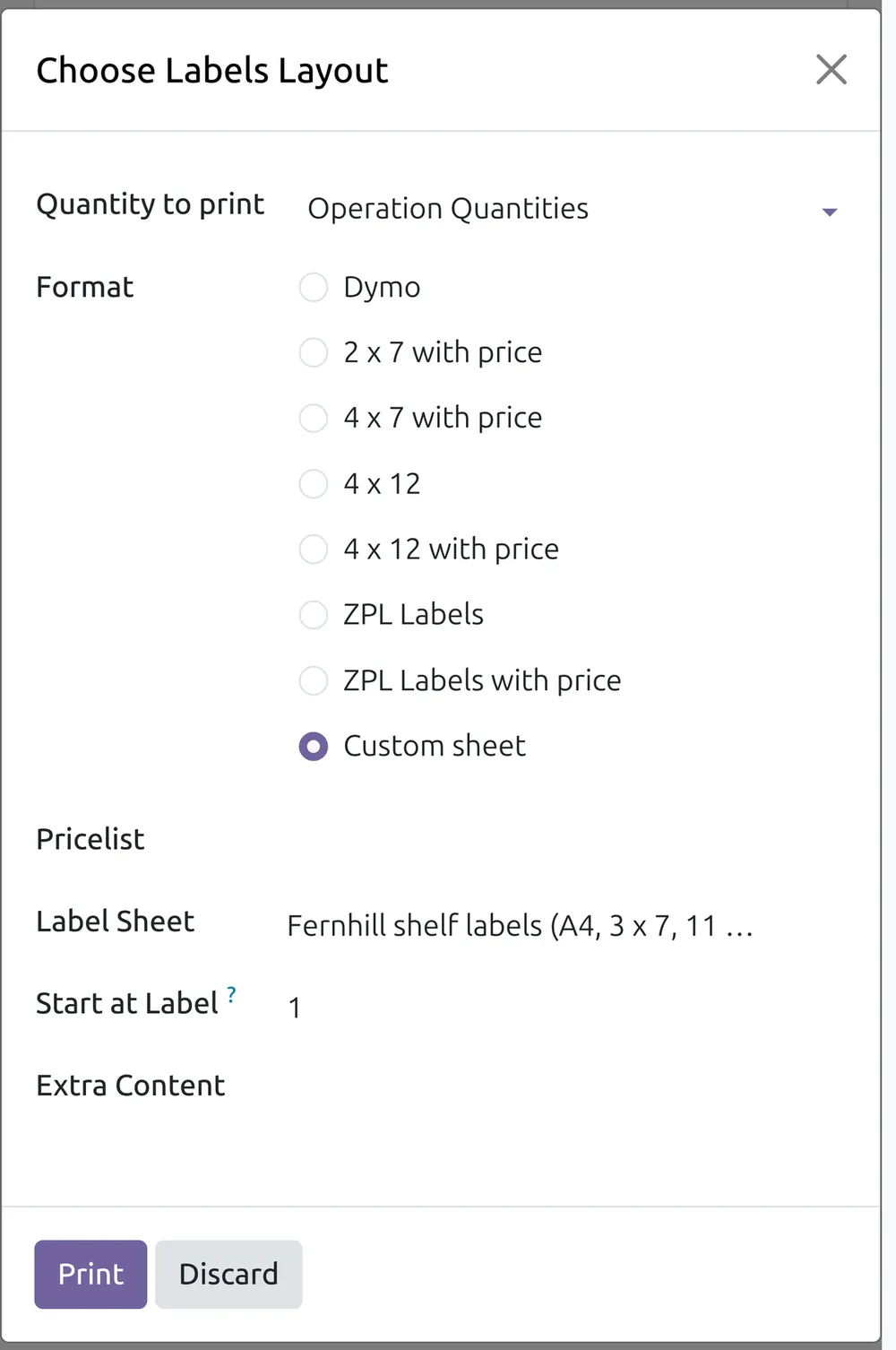
The Custom sheet format sits in Odoo's own Print Labels window with a Label Sheet field and Start at Label. On a product it is reached from the Action menu. Start at Label skips the slots already used on a part-used sheet, counted left to right then top to bottom; the offset applies to the first page only. The picture shows a print of six products from slot 5: the first four slots are left empty. Odoo 19 screenshot, then a crop of the real PDF.
A long product name is cut after two lines with no ellipsis, as the Beeswax Candle shows.
The Print Labels window with Custom sheet. Real Odoo screen (Odoo 19).
Six products from slot 5. Crop of the real PDF (first two columns).
5 What a label shows
Use it when you want the name, reference, price and code your way.Per sheet
A shelf label, a stockroom label and a gift tag need different content.
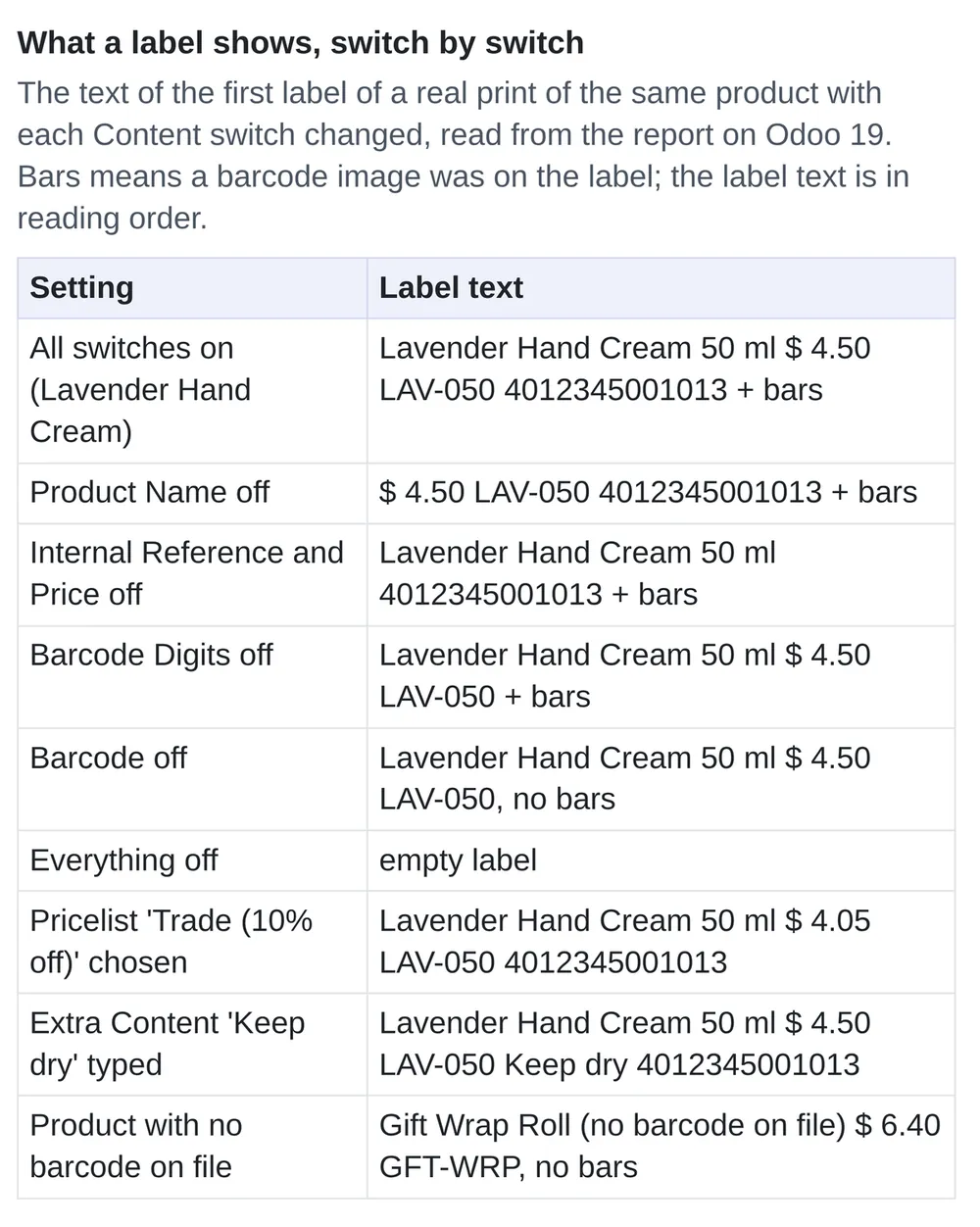
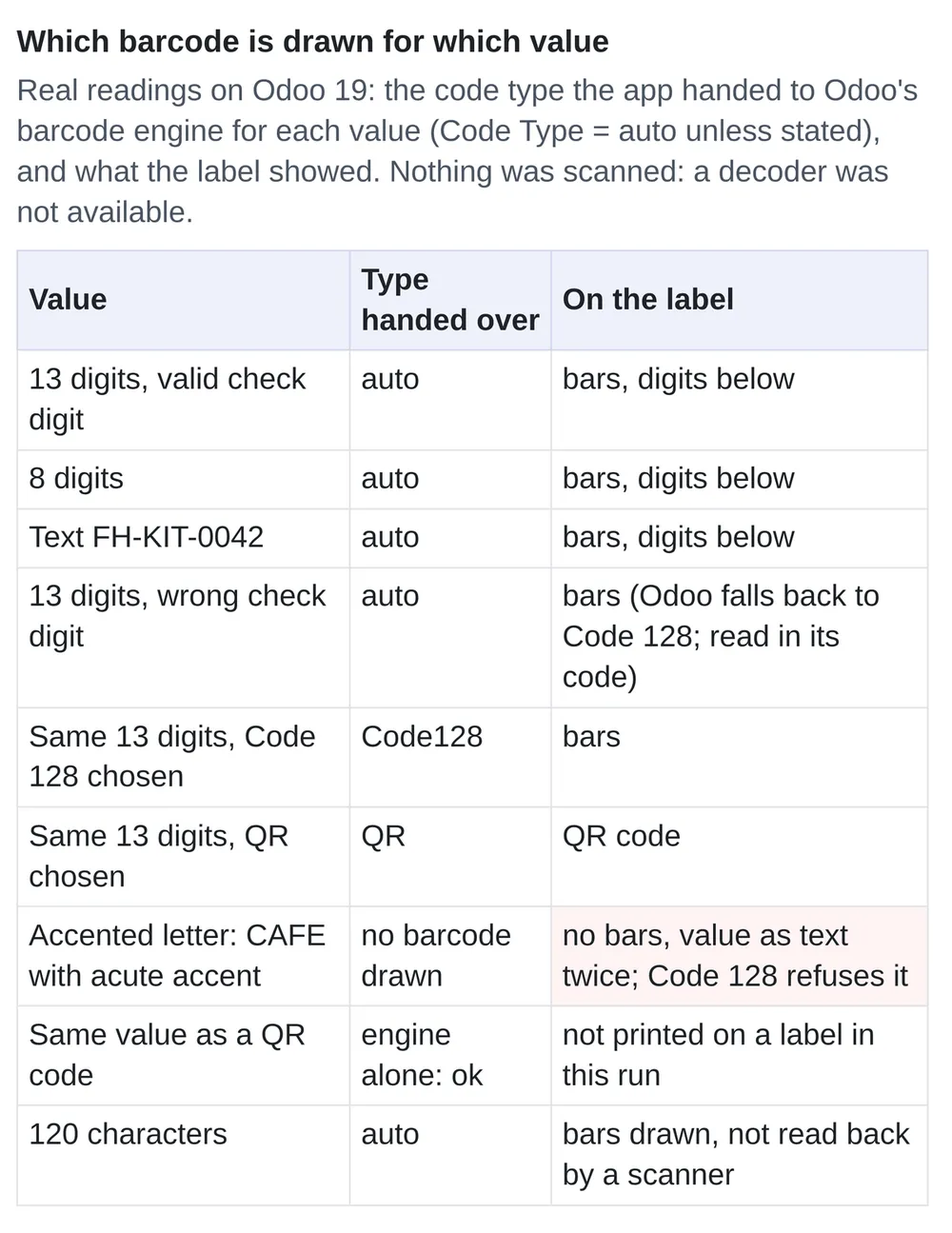
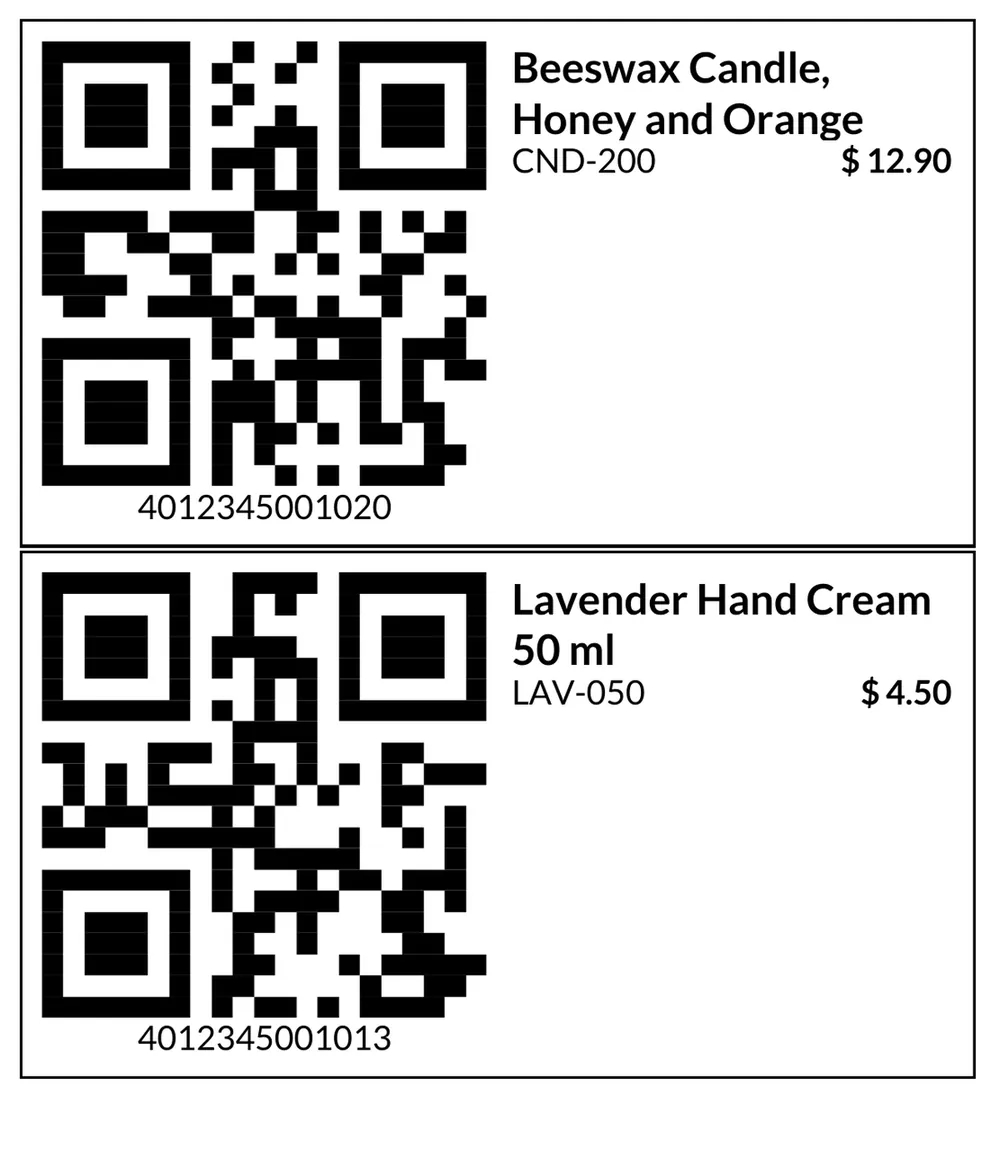
Each sheet has switches: product name, internal reference, price, barcode, barcode digits, plus the Extra Content typed in the window, a font size and optional outlines. The price comes from the pricelist chosen in the window, else the sales price. The code can be a barcode or a QR code: with auto, Odoo's engine draws EAN-13 or EAN-8 for 13 or 8 digits and Code 128 otherwise. On a wide label the QR code sits left of the text. The first table lists the text of a real label for each switch; the second the code type handed to Odoo's barcode engine for each value. Nothing was scanned.
It does not scan-test anything and it does not warn when a code cannot be drawn.
Label text per switch. Evidence table.
Code type per value. Evidence table.
QR sheet, 90 x 50 mm labels. Crop of the real PDF.
6 Roll labels: one label per page
Use it when your printer takes a roll through its normal driver.Prints a PDF
A roll printer wants a page the size of one label.
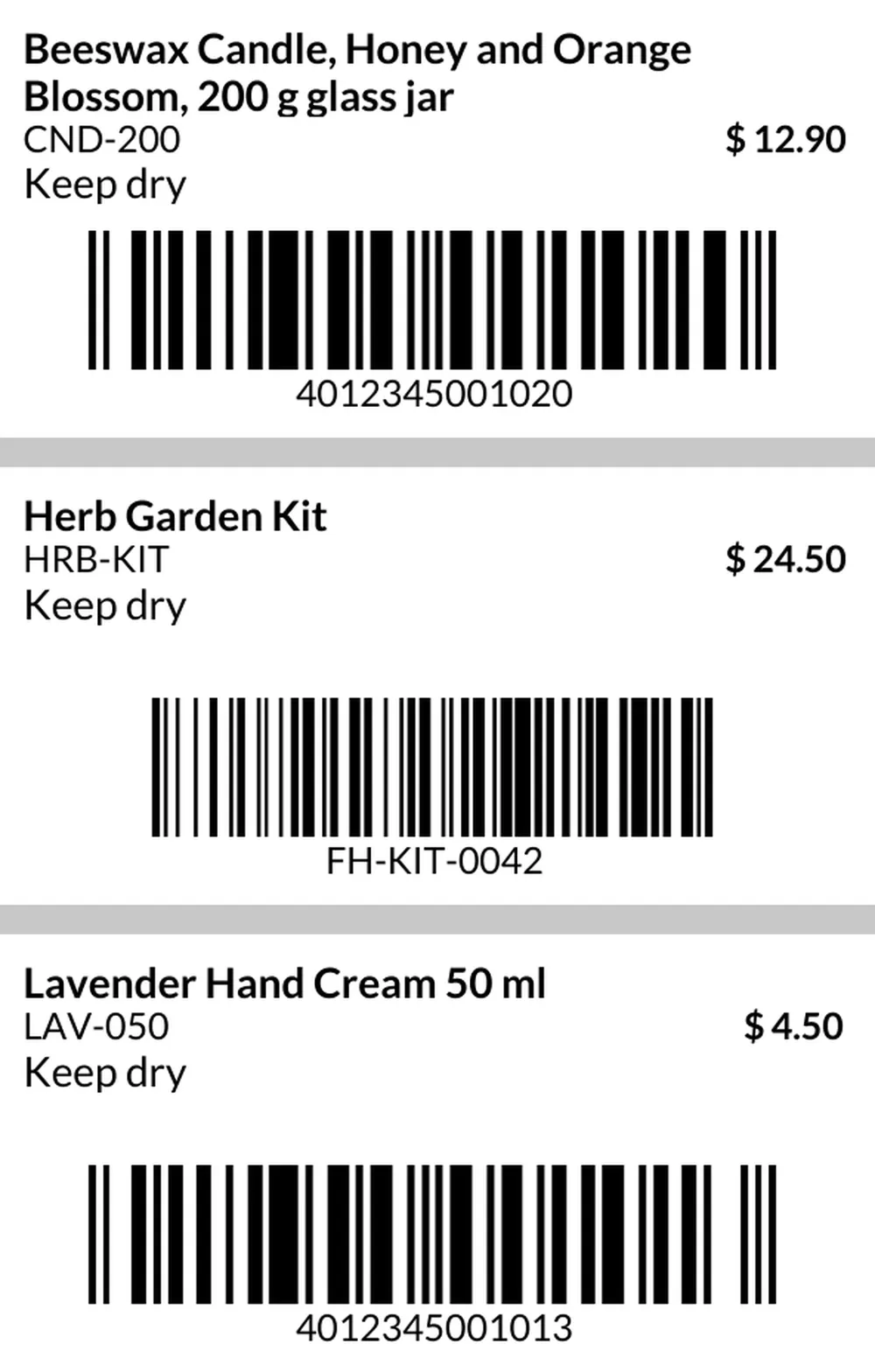
A sheet of one row and one column on a custom page size prints one label per page. Three copies on the 50 x 25 mm starter sheet gave a 3 page PDF of 50 x 25 mm pages (the three pages are stacked below, with the Extra Content line 'Keep dry'). The PDF goes through your browser and the printer driver like any Odoo PDF; the app does not talk to a printer and makes no ZPL.
Three pages of the roll sheet. Crop of the real PDF (24.7 px text at display width).
7 Print from a receipt: quantities and lots
Use it when you label what has just come in.Opens the window
A receipt of 12 items in two lots should give 12 labels, with the lot as the barcode.
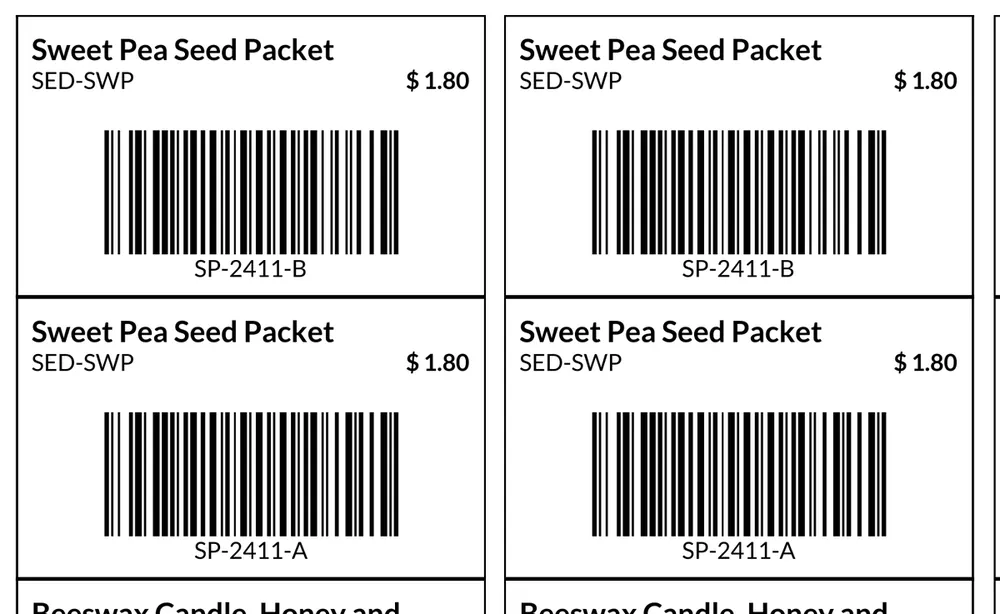
From a receipt, Action, Print, Labels opens the same window with Quantity to print set to Operation Quantities. Each product gets one label per whole unit and a lot-tracked product one label per lot unit with the lot as the barcode. The demo receipt (4 hand cream, 3 candles, 5 seed packets in lots A and B) gave 12 labels. The order of labels follows Odoo's data: on Odoo 19 the last receipt line first and the lots in reverse, as in the picture. Quantities are Odoo's whole numbers: a line of 2.5 units printed 2 labels, 0.4 units none, 2 dozen 2 labels.
Lot/SN labels, location, package and packaging labels keep Odoo's own formats; the Custom sheet is not tested with them.
The window opened from a receipt. Real Odoo screen (Odoo 19).
The first labels of the receipt print. Crop of the real PDF.
8 Who can use it
Use it when you want to know who can change a sheet and who can print.Read-only
A sheet that anyone can edit is a sheet that changes under you.
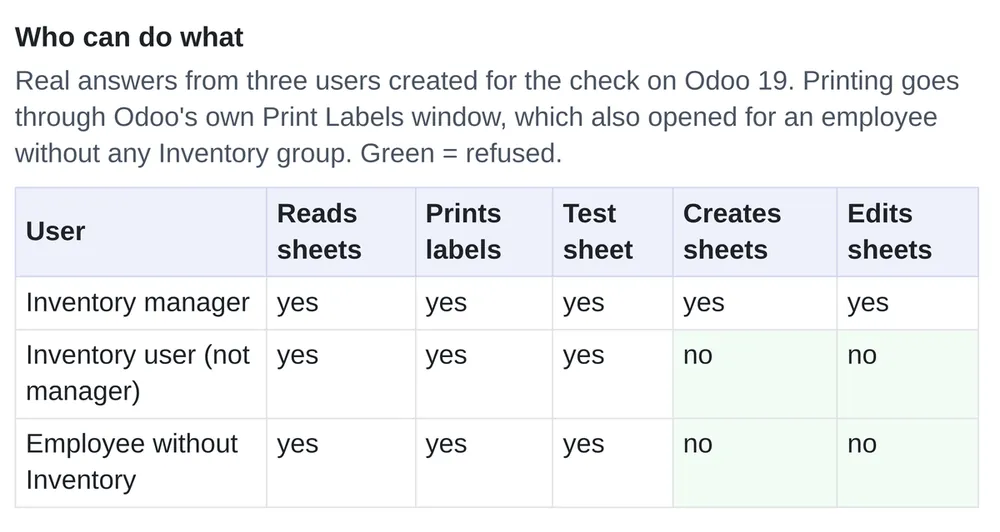
Inventory managers create, edit and delete sheets. Every internal user can read them. A user with the Inventory User group and an employee without any Inventory group both printed through the window and opened the test sheet, and both were refused when creating or editing a sheet. The table is from three users created for the check.
Sheets are not per company, and the menu entry is hidden from non-managers by its group (not tested in a browser).
Who can do what. Evidence table.
Screenshots
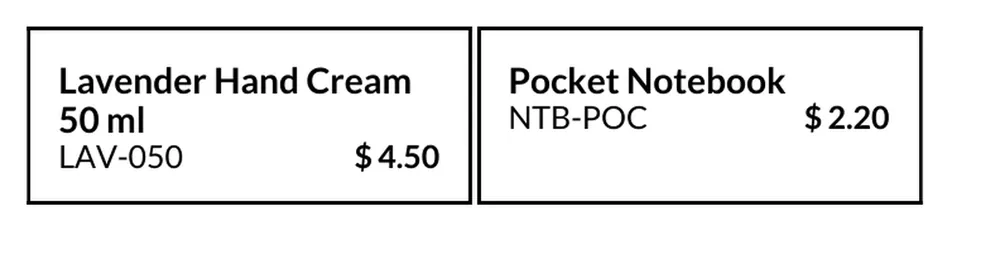
What it does not do
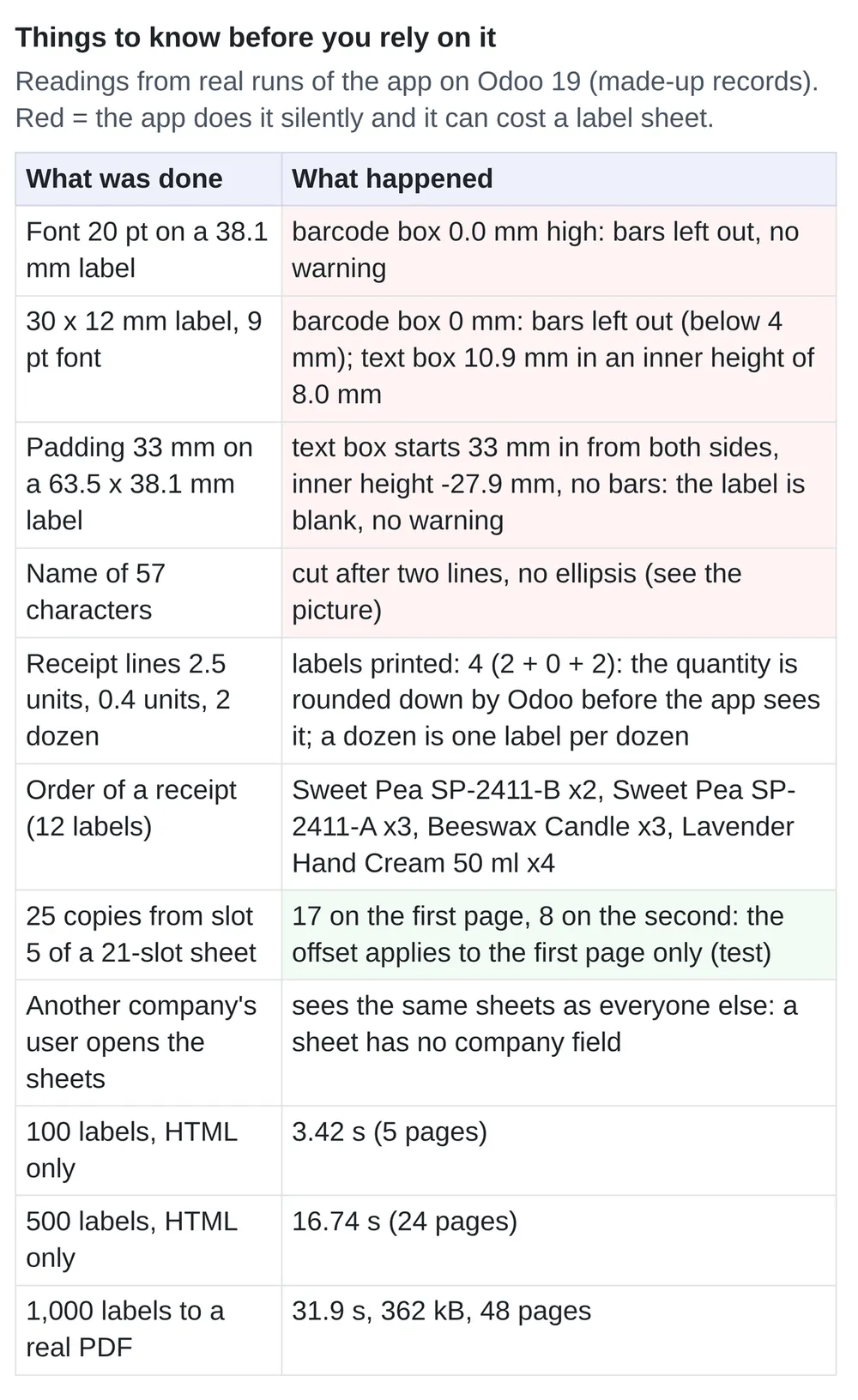
- Each of these was reproduced in a run of the app on Odoo 19. Seven are covered by tests that pass; none is changed in this version.
- Readings from real runs. Evidence table.
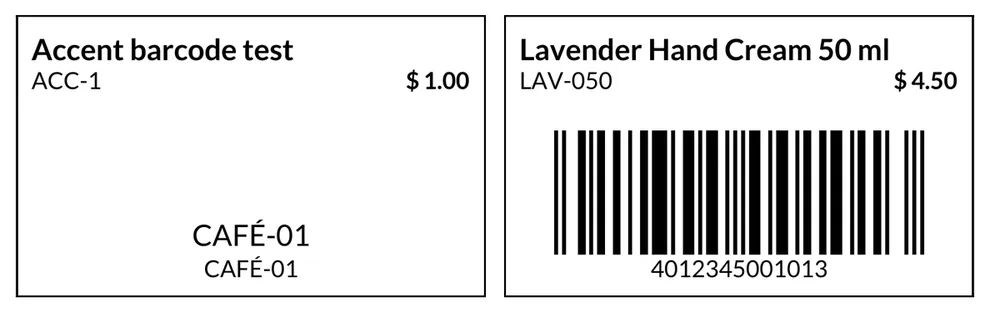
- A value Code 128 cannot draw prints as text with no bars. Crop of the real PDF.
- 30 x 12 mm labels at 7 pt: text only, no barcode. Crop of the real PDF.
Requirements
- Odoo 19.0 or 20.0. The App Store sells each version separately, so buy the one that matches your database.
- Odoo.sh or On-Premise only. Third-party apps cannot be installed on Odoo Online (SaaS) databases. Check your hosting before buying.
- Module
mh_label_sheet_layouts, version 19.0.1.0.3, licensed OPL-1.