Access Explorer
Who can really do what in Odoo: every user against every sensitive model, resolved through groups and record rules, with the findings written out in plain words
Request a live demo · Odoo.sh or On-Premise only, not Odoo Online (SaaS).
15
sensitive models checked by default
4
permissions resolved per user and model: read, write, create, delete
0
permissions or groups changed, ever
17
automated tests, none failing
3
ways to read it: summary, grants list, CSV
52
grants found for 6 made-up users in the screenshots
Access Explorer is for the person who has to answer one question: who in this database can read, change, create or delete what? You choose the users, press Review Access, and the app asks Odoo, as each of them, what they can do on the models that matter most. You get one row per user and model, a short summary of what stood out, a side-by-side comparison of any two people, and a CSV for the auditor. It reports. It never changes a permission.
The screenshots were taken on Odoo 19 in a database seeded with made-up data: six fictitious users (a salesperson, a sales manager, an accountant, an HR officer, a Settings administrator and a plain internal user) and one over-grant planted on purpose, so the review has something to find. The data is synthetic, and every number quoted beside a screenshot is read off that screenshot.
How it works
The question a user-by-user check cannot answer
In Odoo, what one person can do is never written in one place. It comes from the groups they belong to and the groups those groups imply, from the access rights on each model, from the record rules that narrow which rows they may touch, and from fields that only some groups can see. To answer "can Lena delete attachments?" you open all of those and combine them in your head, once per person and once per model.
Checking user by user also has a blind spot: it only finds what you already suspected. It cannot find the grant that reaches every user in the database, because any single user you open is supposed to have it. And it will not tell you who can delete accounting entries until you think to ask about that person and that model.
Access Explorer turns the question around. It sweeps the users you choose against the models that matter, asks Odoo what each of them can really do, and tells you what stood out.
1 One menu entry, one record: pick the users and press Review Access
Use it when you are about to start a quarterly access review, or someone new has joined and you want to know what they can actually reach.Read-only (writes only its own review rows)
An access review that lives in a spreadsheet is out of date the day after. A review that is a record in the database, with a name and a date, can be reopened, rerun and shown to an auditor.
It also has to be limited to the right people. The review describes who can reach what, which is itself sensitive.
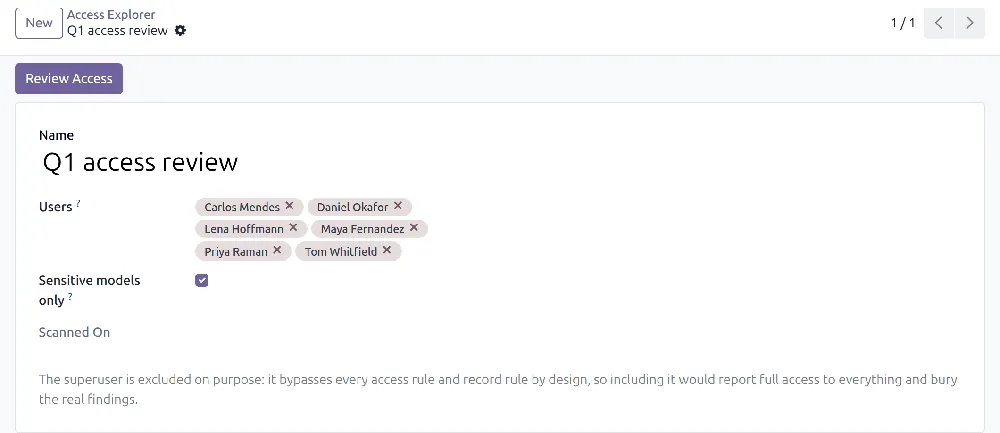
The entry is under Settings > Access Explorer . A review is a form with a Name, a Users field and one tick box, Sensitive models only , on by default. Leave Users empty and the review covers every active internal user.
Review Access is the only button until a review has run. After a run, Compare Two Users and Export appear beside it, a Grants button shows how many rows were found, and the form fills with the totals and the summary. Pressing Review Access again on the same record replaces its rows with a fresh run.
Only Settings administrators have access rights to the app's records.
The entry sits in the Settings menu bar.
A review before its first run: name, users, the Sensitive models only tick box, and one button.
Priya is the Settings administrator at a made-up company. At quarter end she opens the menu, presses New, names the review Q4 access review , picks the six users to review and leaves Sensitive models only ticked. One press of Review Access later the record holds 52 grants.
She then makes two more: Finance team, full inventory for two users with the tick box off, and Lena Hoffmann, new starter check for one. All three stay in the list with their dates, so next quarter she opens them instead of starting over.
a saved review with a name, the users you chose, the date and time it ran, and every grant it found.
The review is a snapshot of the moment you pressed Review Access. If you change a group or a rule afterwards, press Review Access again; the old rows are replaced, not kept.

2 What stood out: the findings in plain words
Use it when you want the answer first and the detail second.
A table of 52 rows is an answer only for someone willing to read every one of them. What a reviewer needs first is a short list of the things worth a second look.
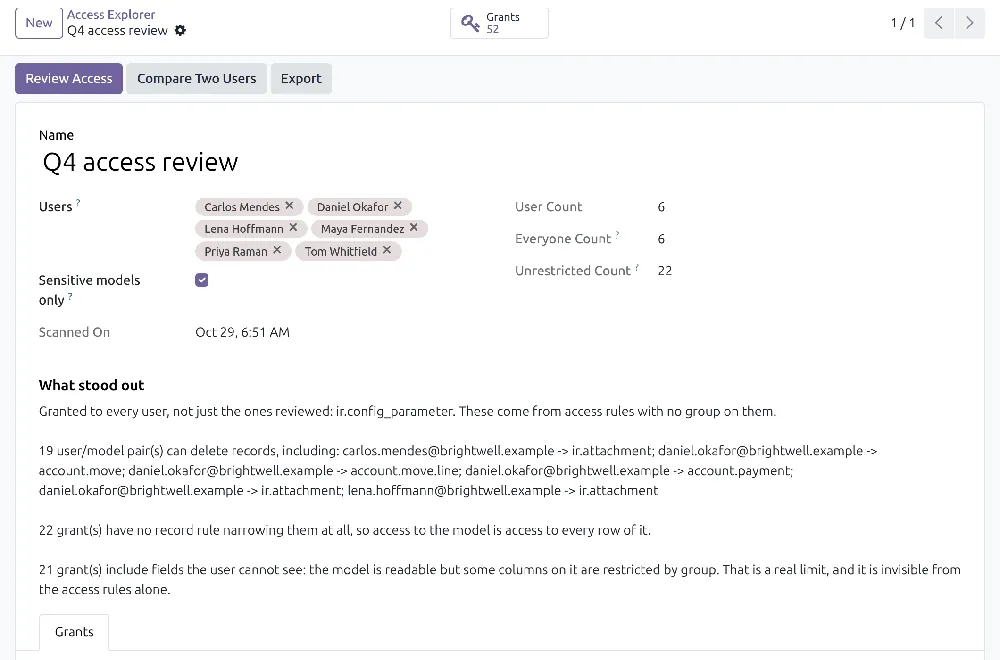
After a run the form shows three totals and a block titled What stood out . User Count is the number of users that have at least one grant. Everyone Count is the number of user and model rows that come from a grant reaching every user. Unrestricted Count is the number of rows where nothing narrows which records the user can read.
The summary is built from up to four short paragraphs, each only when it applies. One names the models whose grant reaches every user, up to eight of them. One counts the user and model pairs that can delete and gives up to six examples, as login and model. One counts the grants with no record rule. One counts the grants that include fields the user cannot see. If none of these apply it says so: Nothing stood out in the models reviewed.
The finished review: three totals and the summary, in sentences.
Priya's Q4 review covers six users and finds 52 grants. The first sentence says Granted to every user, not just the ones reviewed: ir.config_parameter . That is the planted over-grant: one grant that reaches all six, and the Everyone Count of 6 is the six rows it creates. Nobody would have found it by opening a single user.
The next sentence counts 19 user and model pairs that can delete, with six examples, from carlos.mendes on attachments to daniel.okafor on journal entries and payments. It is followed by 22 grants with no record rule and 21 grants that include fields the user cannot see.
three totals and up to four sentences that say what is worth acting on, named by model and by user.
The delete sentence shows six examples sorted by login, not the six most serious. The full set is on the Grants button, delete rows first.
3 The grants list: every user and model, worst first
Use it when a number in the summary needs to be traced to a person and a model.
Odoo shows you the access rights on a model, and the groups on a user. It does not show you one row that says: this person, on this model, can read, write, create and delete.
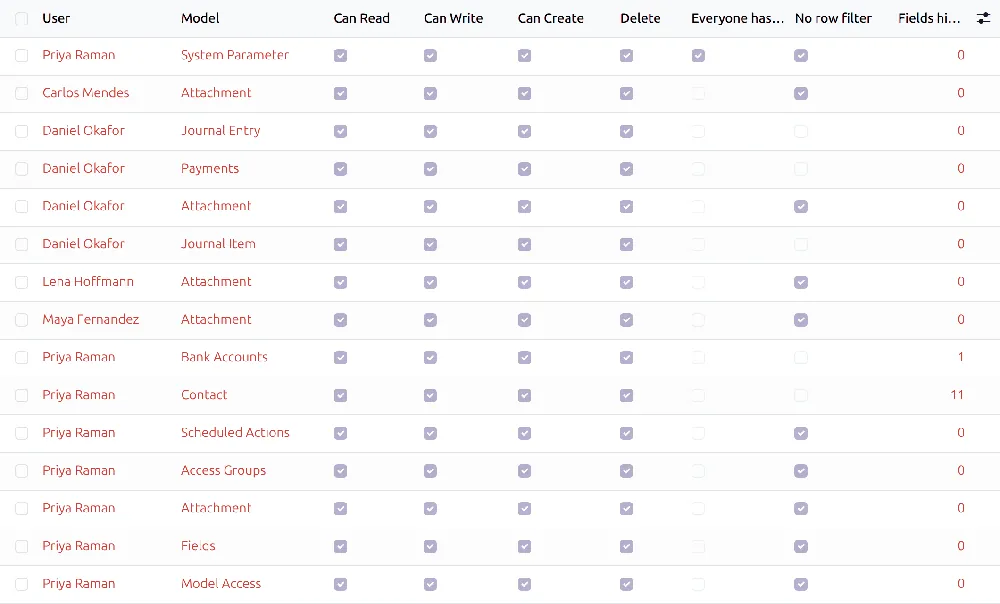
The list has one row per user and model, and only for models where the user can do at least one of the four things. A model a user has no access to at all is left out. Columns: User, Model, Can Read, Can Write, Can Create, Delete, Everyone has this , No row filter and Fields hidden .
The rows are ordered with the delete rights first, then the rows everybody has, then the rest. A row where the user can delete is drawn in red, and an everyone row that cannot delete in amber, so the dangerous ones are the first thing on the screen.
The first screen of a six-user review: red rows are delete rights, and Priya's System Parameter row has Everyone has this ticked.
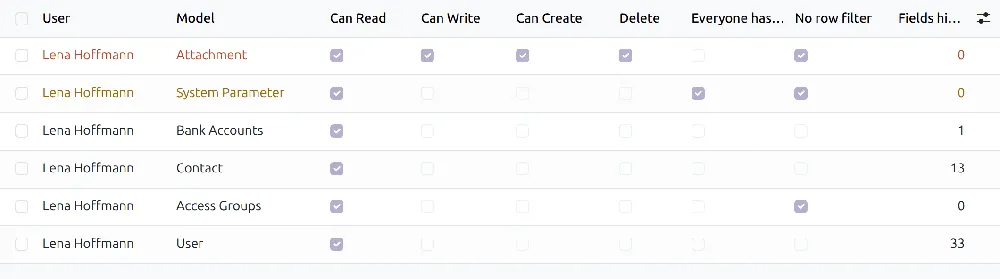
A one-user review: six rows for a plain internal user. System Parameter is amber and has Everyone has this ticked.
Priya makes a one-user review for Lena Hoffmann, who has just joined as a plain internal user. It finds six rows. Lena can read, write, create and delete attachments and no record rule narrows them, so Attachment is red with No row filter ticked. Her other rows are read-only or read and write.
The System Parameter row is the interesting one: Lena should not read system parameters, yet the row has Everyone has this ticked. Section 5 explains why.
one row per user and model with four permissions, two flags and a count of hidden fields, the dangerous rows first.
The list has no search fields of its own. To filter it, use the custom filter in the search bar, or make a smaller review, as above.
4 Row filters and hidden fields: what a grant really reaches
Use it when a grant exists, but you need to know whether it reaches every record or only some.
"Lena can read contacts" can mean every contact in the database, or only the ones her company owns. Those are very different findings, and the model-level access right does not tell them apart.
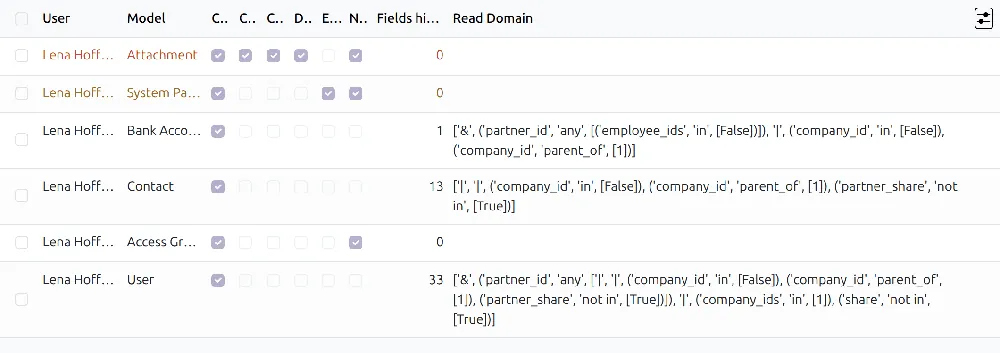
No row filter is ticked when the user can read the model and no record rule narrows which rows they can read. Where a filter exists, the optional column Read Domain shows it, in Odoo's own notation, as it applies to that user.
Fields hidden counts the fields on that model that carry a group restriction the user does not satisfy, so the model is readable but those columns are not. The optional column Hidden Fields names up to twelve of them. It is read from the field definitions Odoo is running, so a restriction added by any installed module is counted.
Lena's review with the Read Domain column switched on. Where a row has a filter, it is written out.
Lena's review has three grants with no row filter (Attachment, System Parameter and Access Groups). Her other rows carry a Read Domain, and the hidden-field counts differ from row to row: Contact shows 13 hidden fields and User shows 33. A Contact row with 13 hidden fields tells you Lena can open the contact but not, for example, its credit-related columns, which the access rights alone would never show.
for every readable model, a yes or no on a row filter, the filter itself when there is one, and a count of the fields the user cannot see.
No row filter and Read Domain describe the read side only. A user may be allowed to write or delete fewer rows than they can read, and the review does not show that.
5 Grants that reach every user
Use it when you suspect a permission was handed to the whole database, and checking one user will never show it.
An access rule with no group on it is the most common accidental over-grant in Odoo, and the hardest to spot. Any single user you check is supposed to have what they have. Only the comparison of the grant against the whole database shows that nobody was ever meant to be left out.
An access rule left without a group applies to every user in the database. The review finds every such rule on the models it covers and ticks Everyone has this on each row where the user holds one of the permissions that rule gives. The first sentence of the summary lists those models, and Everyone Count counts the rows.
Everyone Count counts rows, not models: one grant on one model reaching six reviewed users makes six.
For the screenshots one access rule was created with no group, giving read access on System Parameter, the table that holds configuration keys. The Q4 review names ir.config_parameter in its first sentence, Everyone Count is 6, and Lena's row for System Parameter is amber with Everyone has this ticked. Comparing Priya and Lena (section 6) shows the rule at work: neither differs on read for that model.
the models whose grant reaches every user, named in the first sentence, and a tick on every row it creates.
The flag is about the grant, not about danger. A model everybody legitimately reads will be flagged too; the review tells you where to look, not that it is wrong.
6 Compare two users: why can she do that and he can't?
Use it when someone asks why one colleague can do something another cannot.
The question an access review is really asked is a comparison. Comparing two long lists by eye is where the mistakes happen.
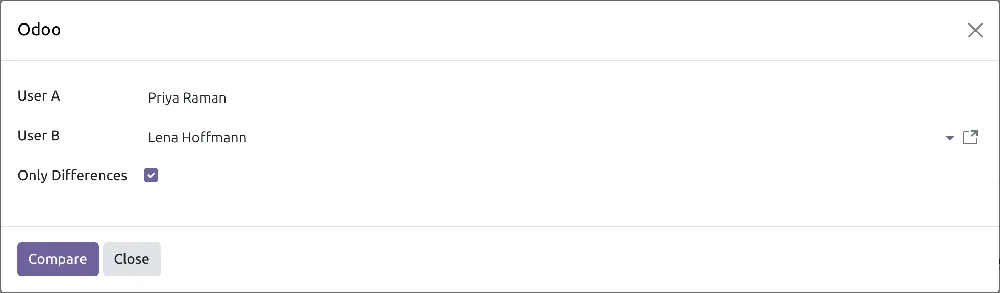
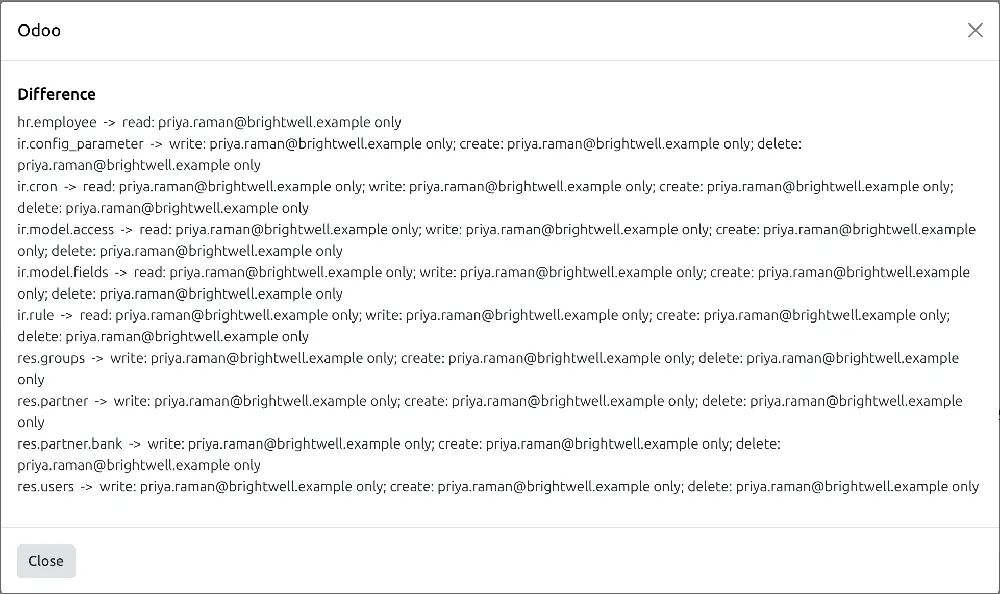
Compare Two Users opens a small dialog on a run review with User A, User B and a tick box Only Differences , on by default. Press Compare and the same dialog shows a block titled Difference : one line per model, with the permissions that only one of the two has, named by login.
With Only Differences off, identical models are listed too, marked identical .
The dialog: two users, one tick box and a Compare button.
The result, in the same dialog. Each line names the model and who alone has each permission.
Priya compares herself with Lena. The difference lists ten models: Priya has read, write, create and delete on ir.cron, ir.model.access, ir.model.fields and ir.rule, and write, create and delete on res.users, res.groups, res.partner, res.partner.bank and ir.config_parameter, which Lena can read. Hr.employee shows only read, because Priya can read employees and Lena cannot. Both can read the System Parameter table, because of the grant in section 5, so it is missing from the read part of the line.
a line per model, each saying which of read, write, create and delete only one of the two users has, by login.
A user who is not in the review shows as having no access at all, so every model would read as a difference. Put both users in the review. If neither is in it, the app refuses and says so instead of reporting no difference.
7 Sensitive models only, or the full inventory
Use it when you want a fast, readable review, or a complete inventory for an audit file.
A review of every model is complete and almost unreadable; a review of the few that matter is readable and misses the rest.
With Sensitive models only ticked, the default, the review covers 15 models: res.users, res.groups, ir.model.access, ir.rule, ir.config_parameter, ir.cron, ir.model.fields, ir.attachment, account.move, account.move.line, account.journal, account.payment, res.partner, res.partner.bank and hr.employee. It is a list of places where an unexpected grant matters, not a security policy. Models from apps you have not installed are skipped, so a database without Accounting or Employees reviews fewer than 15.
With the box unticked, the review covers every model that is not a temporary wizard model. The field's own help text warns that this is much larger and slower. The summary and totals work the same way over the larger set.
Run the sensitive review first and act on it. For an audit file, make a second review, untick the box, run it and export it (section 8) rather than reading hundreds of rows on screen.
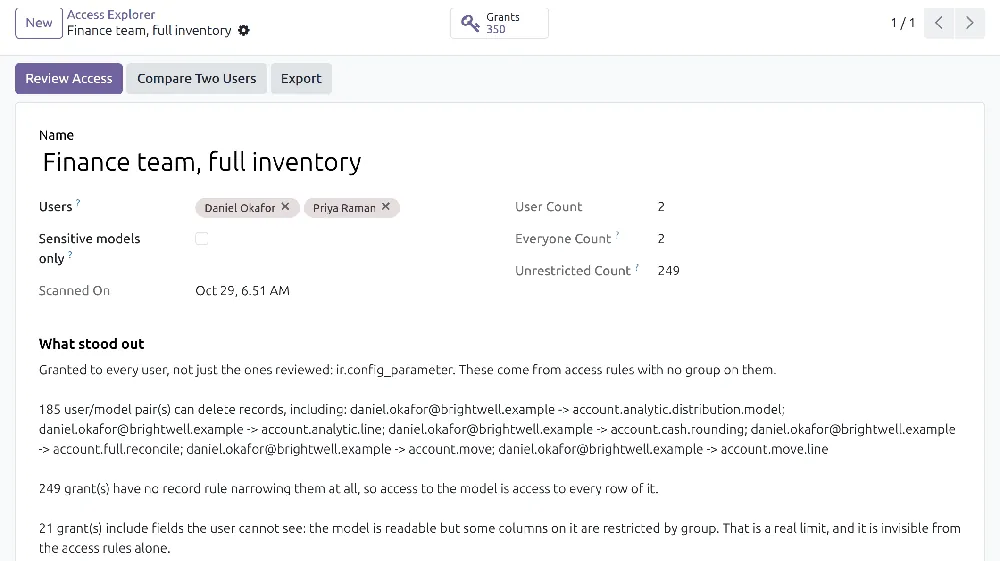
The same two finance users with the tick box off: 350 grants instead of a short list.
The Finance team, full inventory review covers Daniel (accountant) and Priya (administrator) with the tick box off. It finds 350 grants, of which 249 have no record rule, and the summary notes 185 user and model pairs that can delete. Read on screen that is a lot; as a CSV it is a file for the auditor.
a complete inventory when you want one, and a short readable review when you do not.
A full inventory is much larger and slower than the sensitive review, and most of its rows are ordinary. Use it for an audit file, not as the daily check.
8 Export the review to CSV
Use it when the auditor or the board wants the result in a spreadsheet.Writes a CSV file
An access review is evidence, and evidence has to leave the screen.
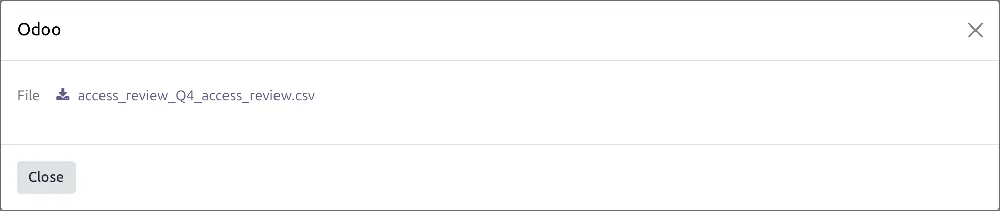
Export opens a small dialog with an Export button. Press it and the dialog shows a download link named access_review_ followed by the review's name, with spaces replaced by underscores.
The file has a header and one row per grant. Columns: user, login, model, read, write, create, delete, everyone_has_it, no_row_filter, hidden_fields and row_filter. The yes or no columns are written as True or False. It is saved as UTF-8 with a byte order mark, so a spreadsheet reads a non-English user name correctly.
Run the review, press Export , then Export again in the dialog, and click the file name to download it.
The finished export: one link, named after the review.
Priya exports the Q4 review. The file is called access_review_Q4_access_review.csv and has 52 data rows under its header, the same as the Grants button shows. She attaches it to the quarterly access-review ticket.
one CSV row for every grant in the review, including the row filter and any hidden fields.
Export before the first run is refused with a message, so you never save an empty file. The file is a snapshot of the last run.
Who it is for
It is not a replacement for a security review by someone who knows your business. It tells that person where to look.
Questions buyers ask
Does it change any permission?
No. It only reports. Apart from its own review rows, the only thing it produces is the CSV file you ask for.
Does it include the administrator account?
It includes any other administrator. The built-in superuser, user id 1, is always left out because it bypasses every rule; Odoo does not even let you pick it in the Users field.
What if I leave the Users field empty?
The review covers every active internal user, minus the superuser. Portal users are not included in that case.
Does it keep history so I can compare quarters?
Each review stays as a record with its date, and a rerun replaces that record's rows. The app does not compare two reviews for you; keep both records, or export the CSV, and compare them yourself.
Does it cover field-level restrictions?
Partly. It counts the fields a user cannot see because of a group restriction on the field, and names up to twelve. It does not report other field rules.
Requirements
- Odoo 19.0 or 20.0. The App Store sells each version separately, so buy the one that matches your database.
- Odoo.sh or On-Premise only. Third-party apps cannot be installed on Odoo Online (SaaS) databases. Check your hosting before buying.
- Module
mh_access_explorer, version 19.0.1.0.15, licensed OPL-1.