Direct Print
Print an Odoo PDF report straight to a network printer from the Odoo server, with a job queue, honest job states and an audit log
Request a live demo · Odoo.sh or On-Premise only, not Odoo Online (SaaS).
3
ways to reach a printer: IPP, IPPS and raw port 9100
Once
a job whose outcome is unknown is never sent a second time
87
automated tests, none failing
1-5-15-60
minutes between retries while a printer is not ready
Private
networks only, unless a manager ticks Allow this address
None
printer passwords stored by the app
Odoo hands a PDF report to the browser to download, open and print by hand. Direct Print adds a destination. For the reports you choose, the Print button sends the PDF from the Odoo server to the office printer, over IPP, IPPS or raw port 9100, and tells the user where it went. This page walks through every part with screenshots of an Odoo 19 database seeded with made-up data and wired to a test CUPS queue and two test servers that simulate failures. No physical printer was used, and the page says so wherever it matters.
Install it and a Direct Print menu appears with Print jobs, Printers and Report rules. The Odoo server must be able to reach the printer or CUPS server.
How it works
Why the Print button should print
A report in Odoo ends as a PDF in the browser. Someone downloads it, opens it, picks a printer and prints it, on a computer that has the printer set up. For the delivery note that must come out of the warehouse printer every morning, or the invoice run that goes to the front desk, that hand-off is the slow, error-prone part.
1 Printers: where the document goes
Use it when you have a laser printer or a CUPS server on the network and want Odoo to print to it.Configuration only
Every office has a printer that matters and a handful of people allowed to use it. The setting should say which one, how to reach it, who may use it and what it prints by default, in one place a manager can read.
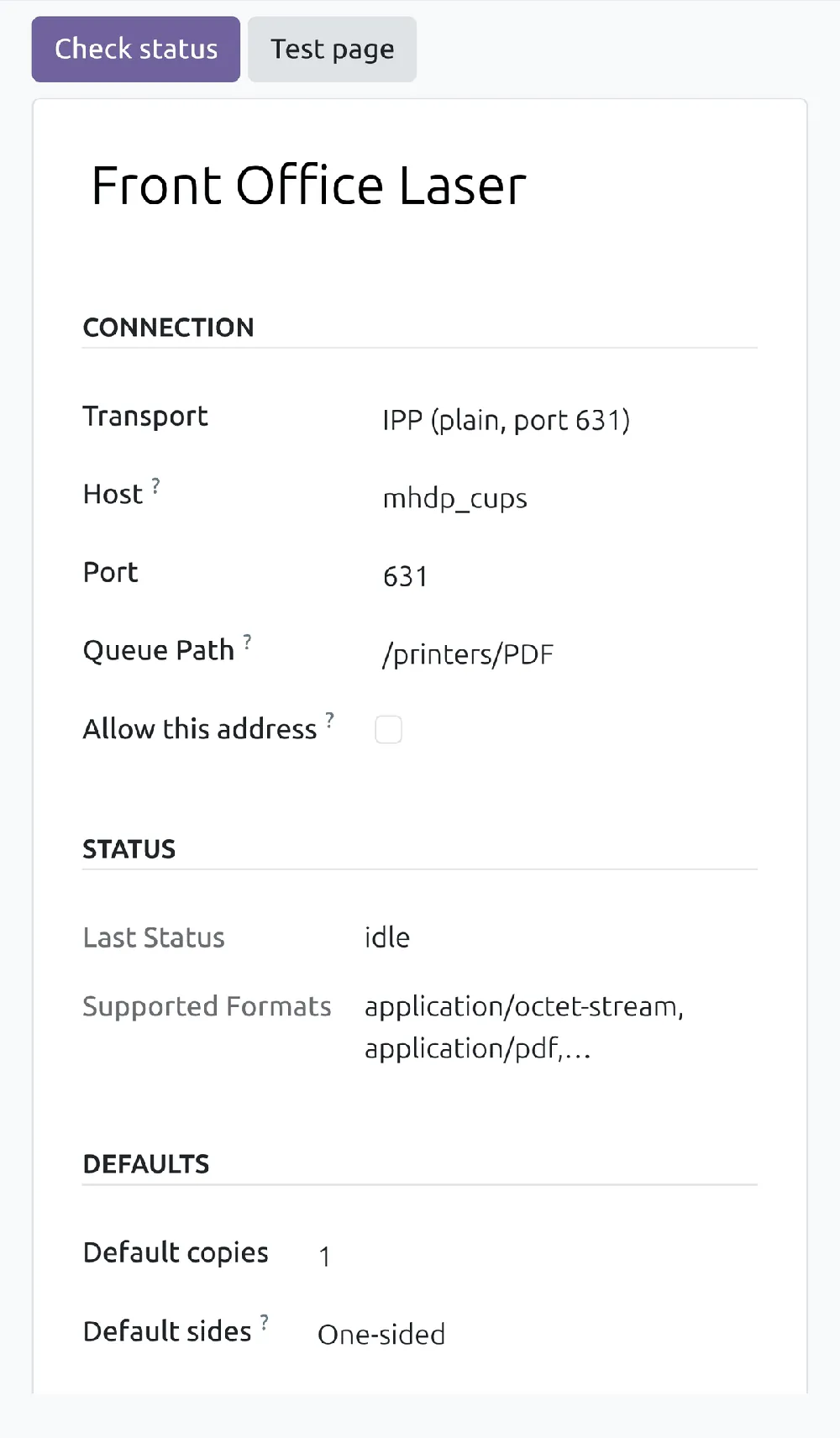
Open Direct Print > Printers . A printer has a transport (IPP on port 631, IPPS with TLS, or a raw socket on port 9100), a host, a port and, for IPP, a queue path: for CUPS that is /printers/<queue name> . Defaults set the number of copies and the sides. Allowed groups limits who may print there; empty means every Direct Print user, and a printer can belong to one company.
Check status asks the printer for its state and the formats it accepts, and stores the answer on the printer with the time. Test page sends a one-page PDF after a confirmation. Both are for managers only. A raw socket cannot report its state, so for those the check only says the port is reachable.
A printer set up against a test CUPS queue. Status idle, and the formats the queue accepts are listed, application/pdf among them.
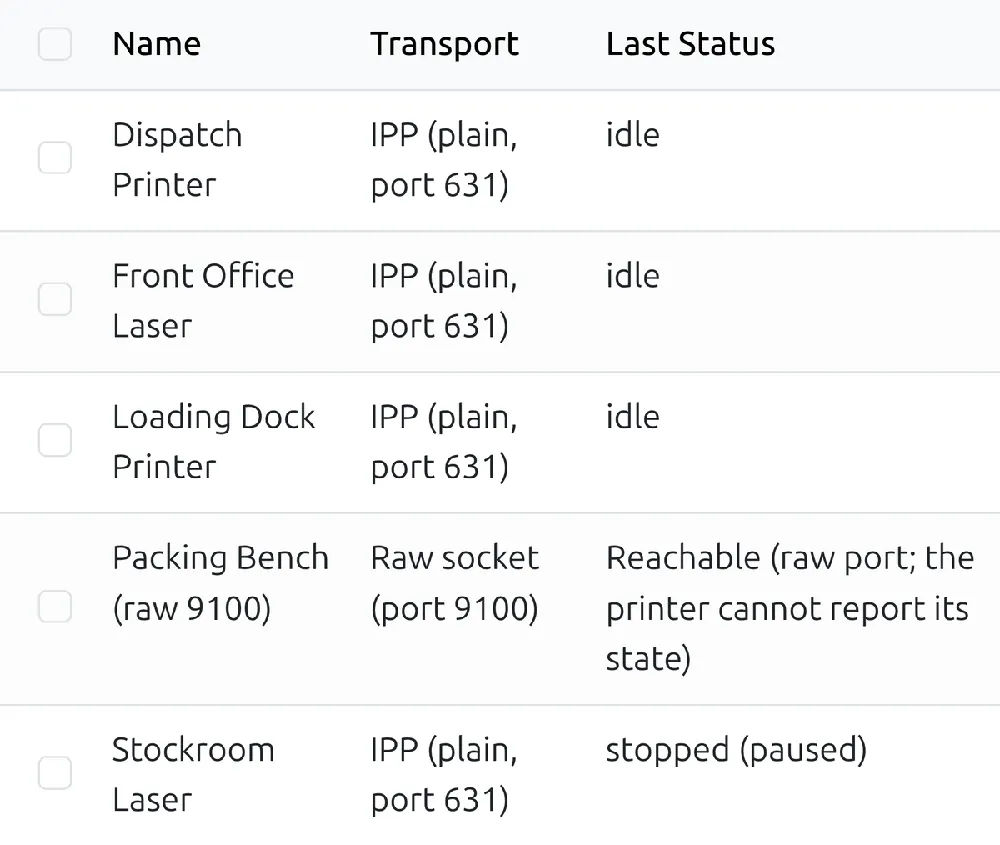
Five test printers in one list, with the status each one reported when it was last checked.
Front Office Laser is an IPP printer on the host mhdp_cups , port 631, queue /printers/PDF , one-sided, one copy. Pressing Check status stored "idle" and the list of formats the queue offers. A printer that does not offer application/pdf is refused before anything is sent, with a message that says it needs a CUPS server in front of it.
No printer user name or password is stored: the app uses unauthenticated IPP or raw on a network you trust, or IPPS with a certificate that verifies. There is no tray or paper selection.
The status shown is what the printer said at the moment of the check, not a live feed. The job states in section 4 are what you rely on.
2 Report rules: which report goes where
Use it when you want the delivery slip to print on one printer and let people choose for everything else.Configuration only
Printing every report automatically would be a mistake, and so would asking the same question on every click. A rule decides, per report, which of the two happens and where it goes.
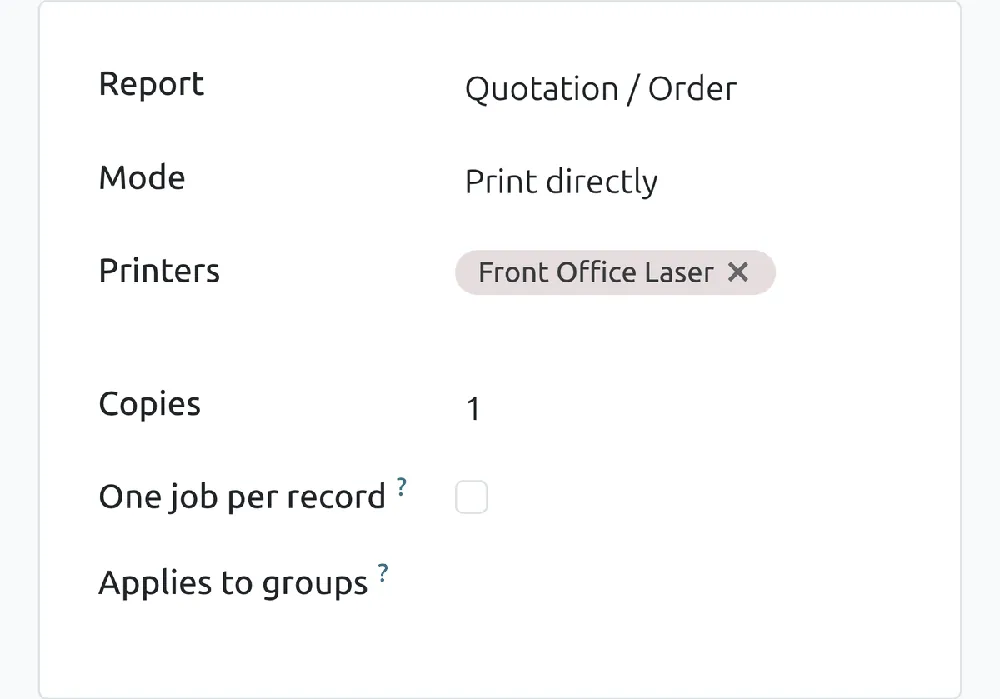
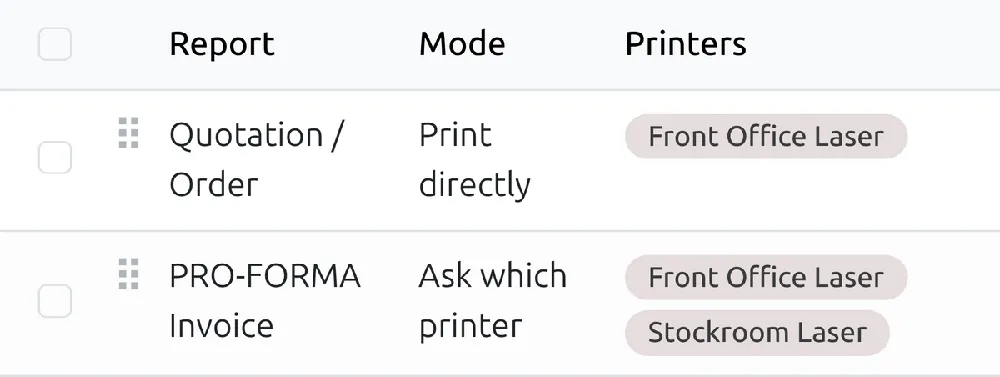
Open Direct Print > Report rules . A rule names a PDF report and one or more printers, and a mode: Print directly sends the report to the first printer the user may use, Ask which printer opens a small dialog. It also sets the copies, can apply to chosen groups and one company, and has an option to print one job per record instead of one merged job for a selection. Rules are tried in the order of their sequence, and the first one that applies to the user and has a printer they may use wins.
Only PDF reports can have a rule. The same rules show on the printer form under Report rules.
A rule that sends the Quotation / Order report straight to Front Office Laser.
Two rules: one report prints directly, the other asks.
Quotation / Order prints directly on Front Office Laser. The pro-forma invoice asks, offering Front Office Laser and Stockroom Laser. A salesperson who is not in a rule's groups sees no change: for them the report downloads as it always did.
A rule cannot choose a printer by who is logged in beyond groups and company, and it does not pick trays or paper. A report without a rule is never touched.
3 The Print button: one click, one notice
Use it when your users should print from the document they are looking at and get a clear answer.Creates a print job
A user who clicks Print wants to know one thing: did it go. A silent download leaves them guessing, and a toast that disappears before they read it is not much better.
With a Print directly rule the Print menu entry for that report sends the PDF to the printer and answers with a notice: Sent to Front Office Laser once the printer has confirmed the job completed. When the outcome is anything else the notice says what happened instead and stays on screen until it is closed.
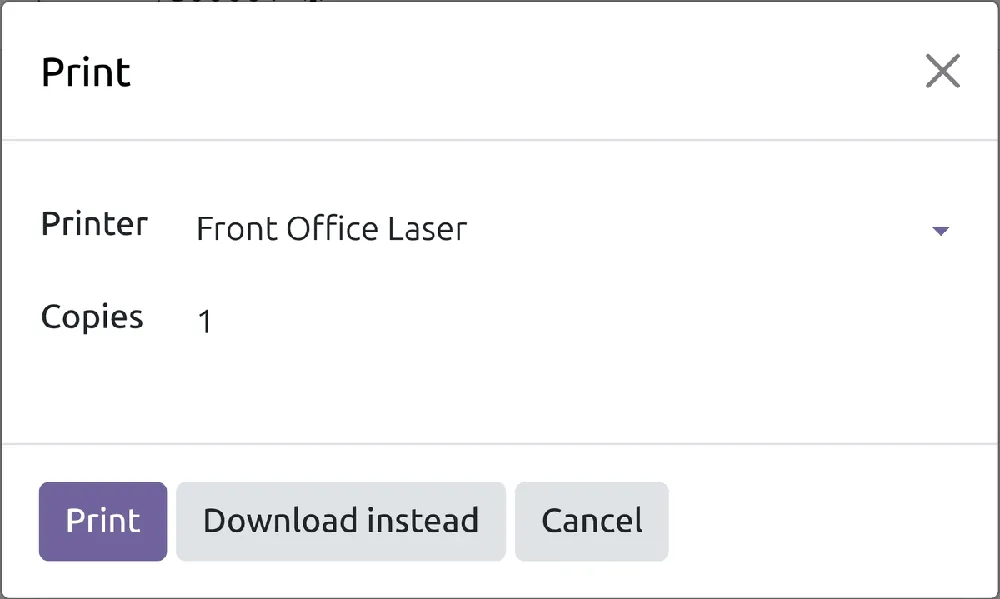
With an Ask rule, the Print entry opens a dialog with the printer (only those the user may use), the number of copies, and three buttons: Print , Download instead and Cancel. Download instead is Odoo's normal download, so nobody is ever stuck without a PDF.
The report is rendered as the user who clicked, so they can print exactly what they could already download, and a record they cannot read is refused rather than printed blank. If the server cannot even queue the job, the browser falls back to the normal download and warns.
The notice after a click on Print for a report with a direct rule.
The dialog of an Ask rule.
Maya opens a quotation, clicks Print and chooses Quotation / Order. The server renders the PDF as Maya, sends it to Front Office Laser, reads the job state until the printer says completed, and shows the notice. The quotation PDF was never downloaded.
The notice reports what the printer said, not what came out of the tray. A printer that says completed and jams is beyond what any software can see.
the answer to "did it print" in the same place the click happened, with a download one button away.

4 Job states: what is known, and what is not
Use it when you need to know, per print, whether it really printed, and what to do when it did not.Audit log, read-only
A printer accepting a job is not the same as a printer printing it. A job number proves nothing: a damaged file is accepted and fails afterwards, and a stopped printer accepts jobs it will never print. Treating "accepted" as "printed" is how pages go missing without anyone noticing.
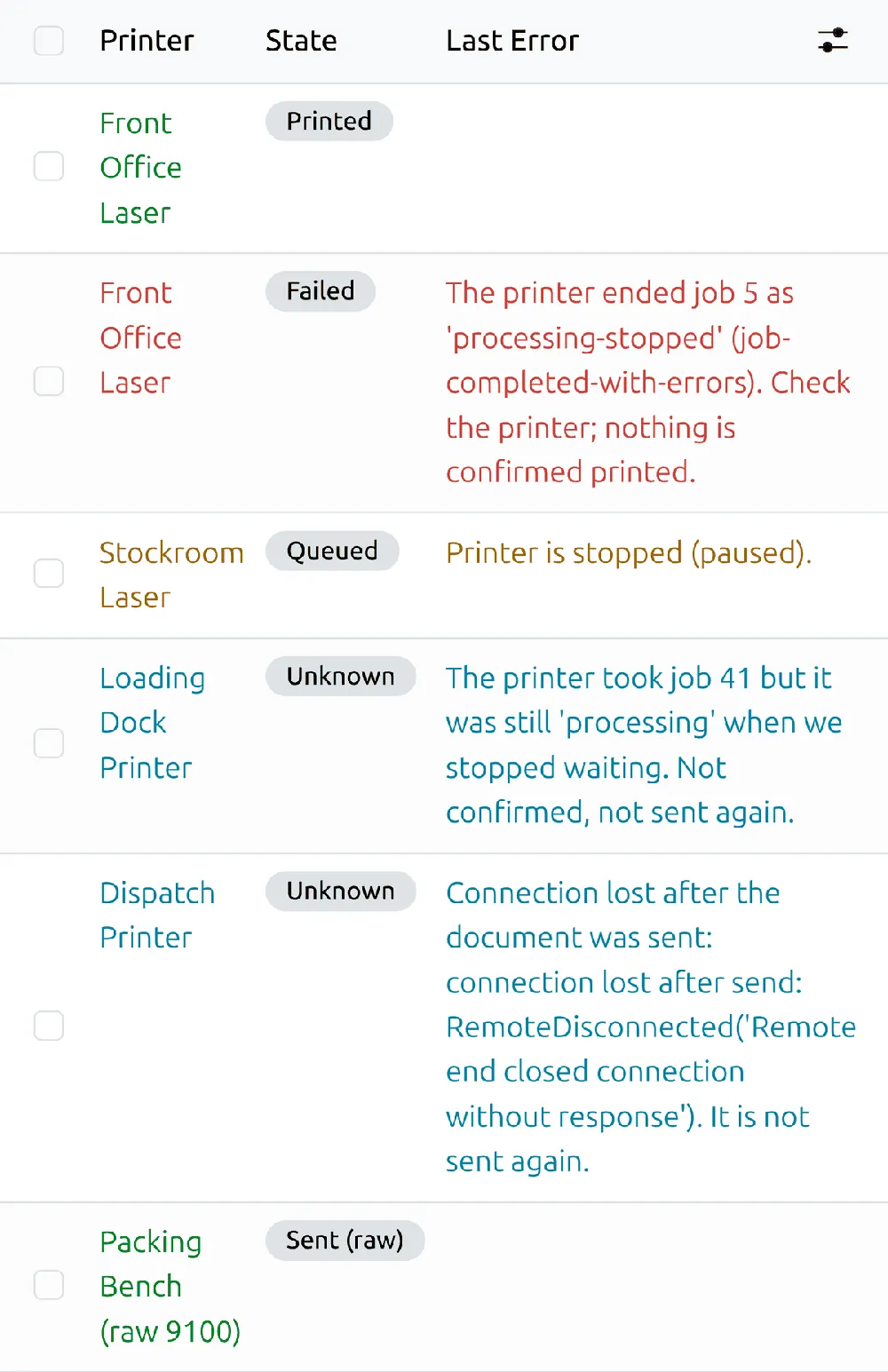
Direct Print > Print jobs lists every job, coloured by state: Printed , Sent (raw) , Queued (sending is the moment in between), Failed , Unknown and Cancelled . Filters pick Needs attention, Queued and Mine, and the list groups by state, printer, user or report.
For IPP and CUPS printers the app does not stop at the job number. After sending, it asks the printer for the job's state until the printer reports completed , ends the job badly, or the wait runs out (15 seconds by default, a system parameter). Only completed becomes Printed. A job the printer ends as processing-stopped, aborted or canceled is Failed. A job still not finished when the wait ends is Unknown. The job form shows the printer's own job id, the attempts, the times and the last message.
One list, every outcome: jobs by Maya, Dev and Priya printed, a raw job that can only say Sent, two Unknown, one Queued and one Failed.
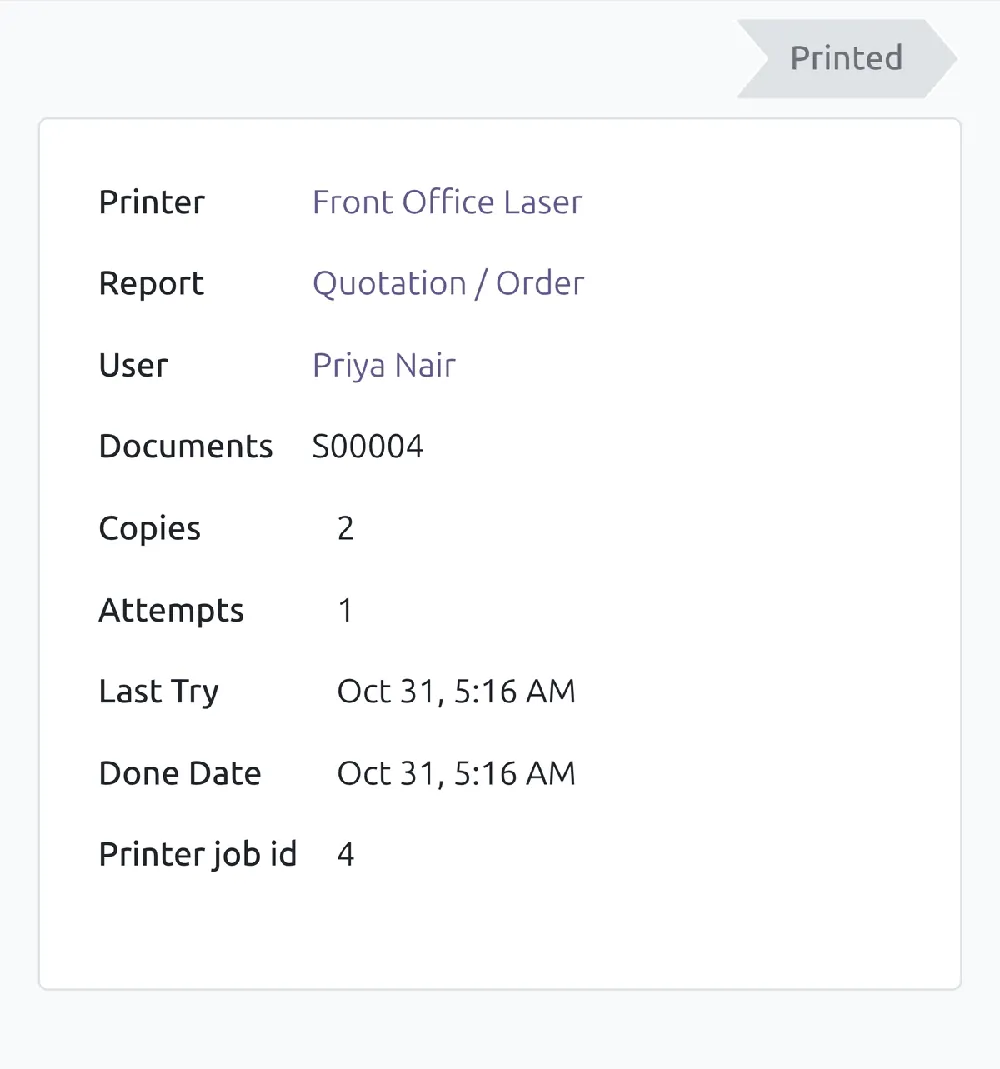
A job that finished: the printer reported completed.
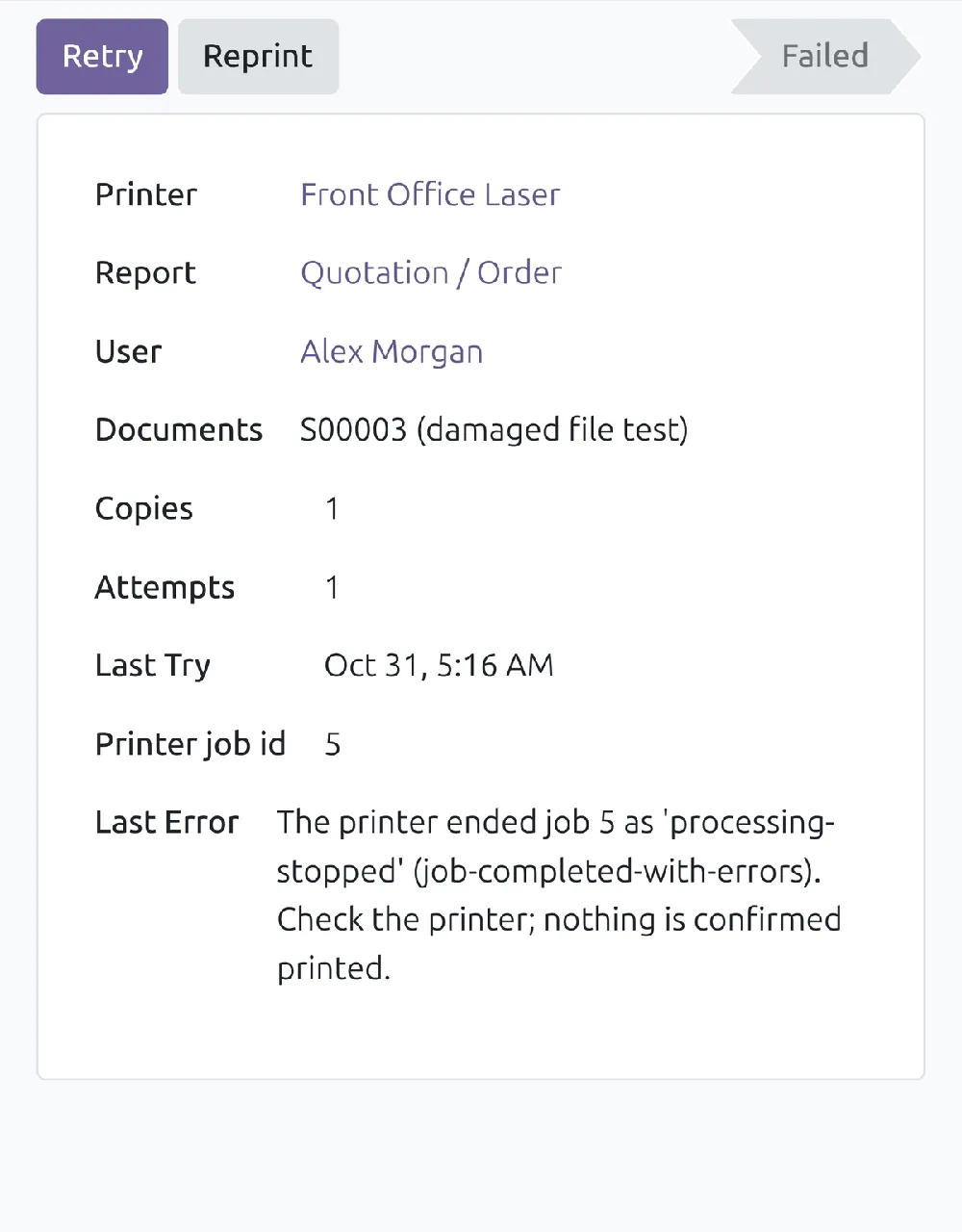
The damaged file: accepted by the queue, then ended as processing-stopped. Failed, not printed.
Several quotations went to Front Office Laser, a CUPS queue with a PDF-writer backend, and are Printed. A fifth job sent a damaged copy of a document. The queue accepted it and then ended it as processing-stopped, so the job is Failed, with the printer's own words in the last error, and not "printed".
A raw port 9100 printer cannot report anything back, so those jobs end at Sent (raw) and never at Printed. Several copies of a PDF cannot be sent to a raw printer, and the app says so instead of guessing.
5 Printer not ready: queue and retry
Use it when the printer is off, out of paper or being serviced when someone clicks Print.Retries by itself
A stopped printer still accepts jobs. They sit there and never print, and the user saw a green notice. An off printer, on the other hand, should not lose the document.
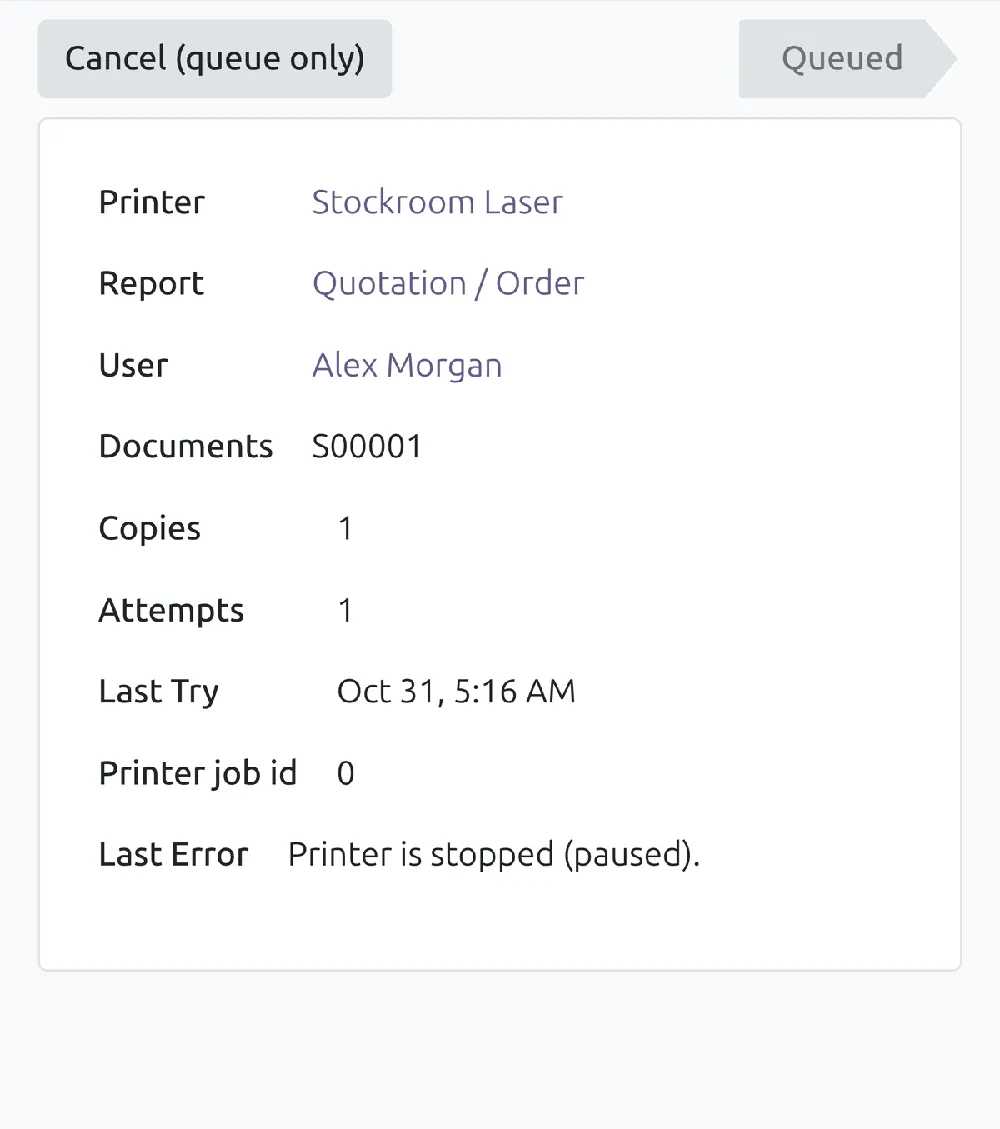
Before sending anything to an IPP printer the app asks for its state. A stopped printer, or one that is not accepting jobs, means the job is Queued with the reason, such as "Printer is stopped (paused)". The PDF is kept. A scheduled action retries it after 1, 5, 15 and 60 minutes; after five attempts the job is Failed with the last reason, and a manager can press Retry . A printer that cannot be reached at all is treated the same way, because nothing has left the server yet, so trying again is safe.
While a job is queued a manager can Cancel (queue only) . That removes it from the Odoo queue, nothing more: the button says so, and a job already on the printer has no cancel at all. Once a job is Printed, the stored PDF is deleted.
A queue on the test CUPS server was paused. The job waits, with the reason, and can be cancelled from the queue.
The Stockroom Laser queue was stopped on the CUPS server. A click on Print produced a Queued job with "Printer is stopped (paused)" and nothing was sent. Starting the queue again lets the next retry send it; until then the job shows when it will try next.
It does not move a job to another printer on its own.
A job that fails is not retried by itself forever: five attempts, then Failed. A manager decides what happens next.
6 Unknown outcome: never printed twice by accident
Use it when a connection drops after the document was sent, and you do not want a second copy on the tray.A decision stays with a manager
If the network breaks after the document left the server, nobody knows whether the printer got it. A retry might print it again, a hundred invoices twice. Not retrying might lose them. Software cannot know, so it should not guess.
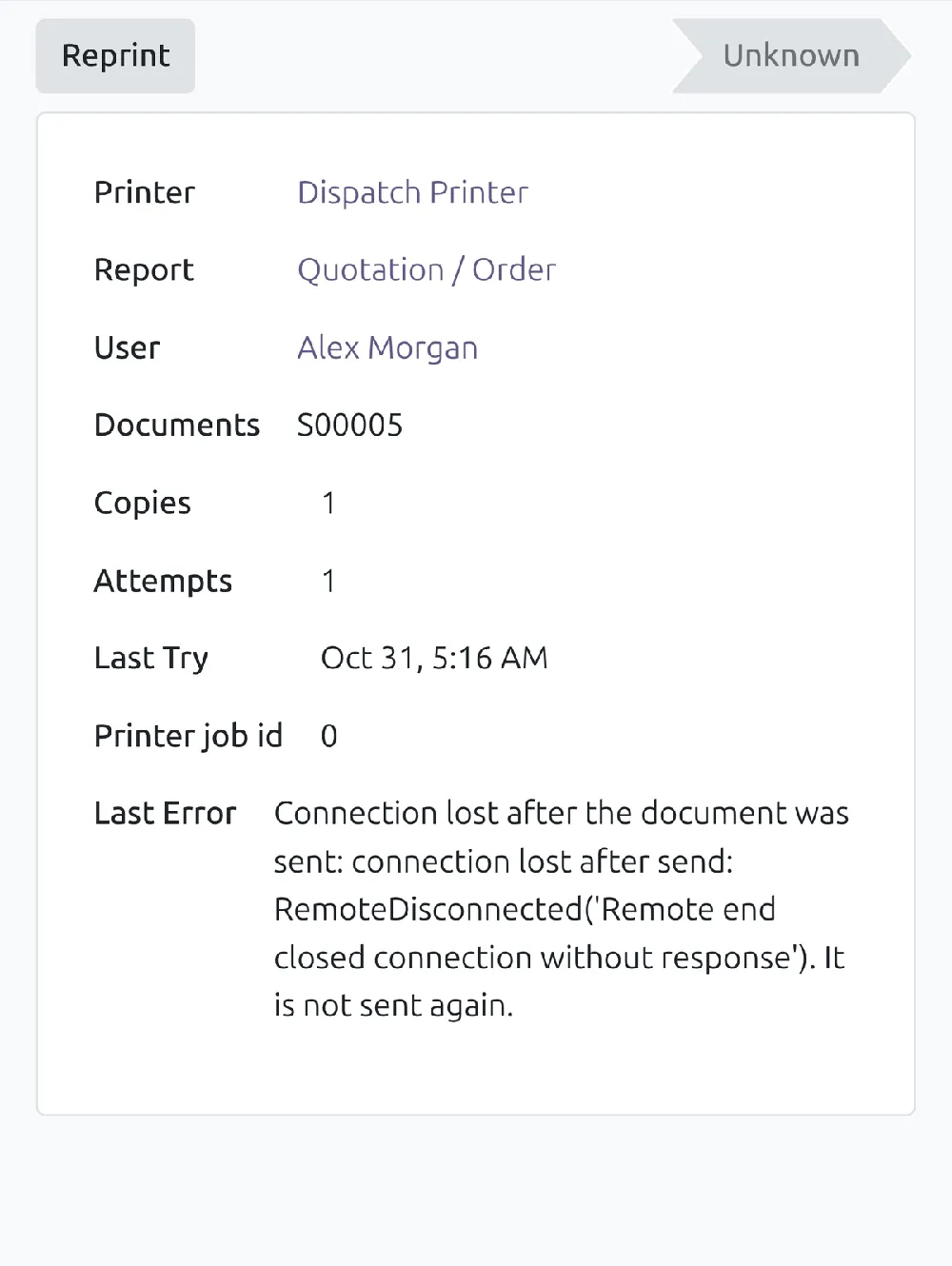
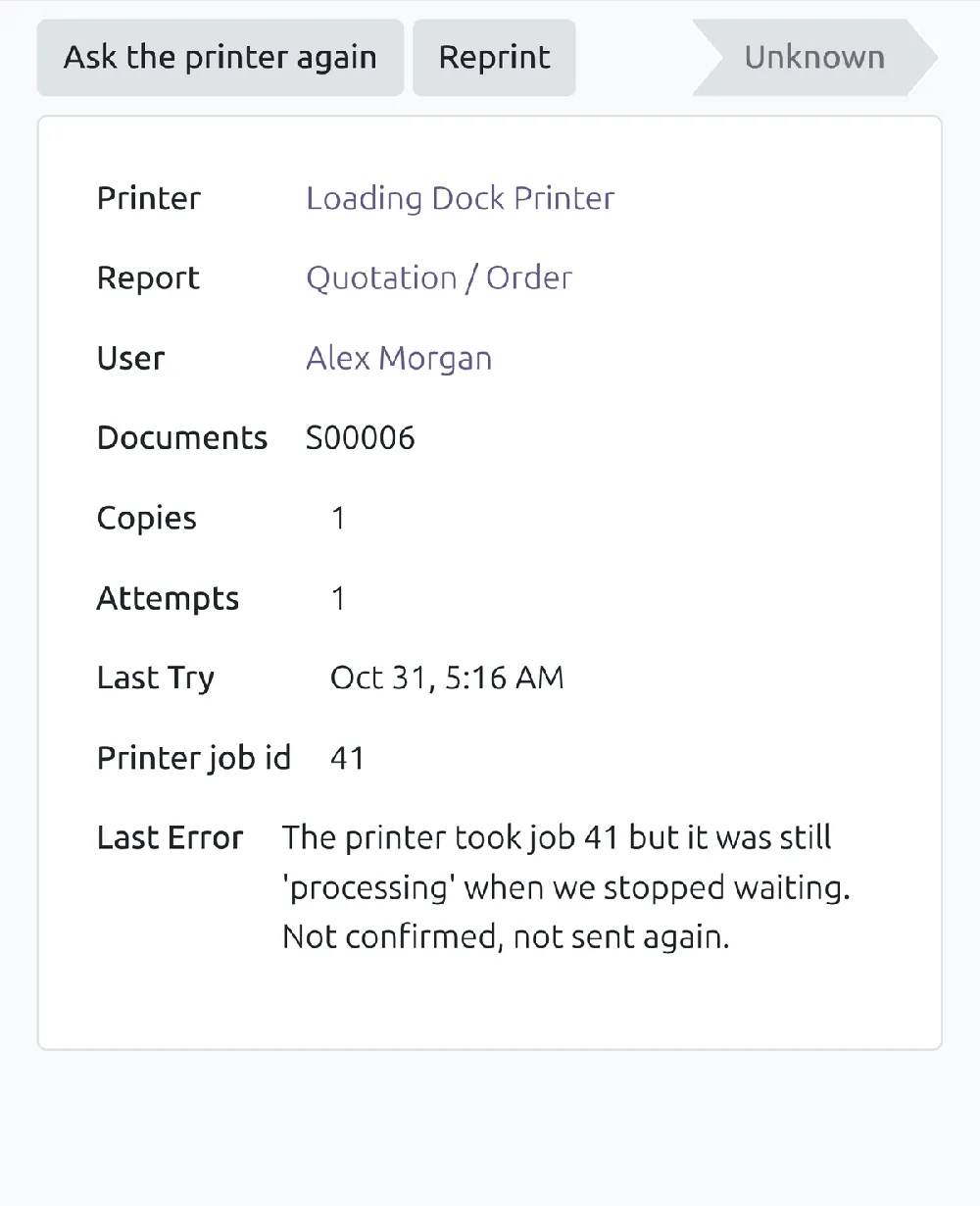
The job becomes Unknown . No retry and no scheduled action sends it again: this is enforced twice, when the retry list is built and again at every send attempt. The last error says exactly what happened, for example "Connection lost after the document was sent" or "The printer took job 41 but it was still 'processing' when we stopped waiting. Not confirmed, not sent again."
A manager then decides. Ask the printer again (shown when the printer gave a job id) only asks for the job's state and sends nothing; if the printer now says completed the job becomes Printed. Reprint sends the stored document again as a new job linked to the original, after a confirmation that says the first copy may already have printed.
A test server took the document and dropped the connection without a reply. Unknown, not sent again.
A test server accepted the job and never finished it. Unknown, with Ask the printer again available.
The Dispatch Printer test server read the whole document and closed the connection with no answer. The job is Unknown after one attempt and stays so. The Loading Dock test server answered with a job id and then reported "processing" forever; after the wait the job is Unknown too, but because there is a job id the manager also gets Ask the printer again.
It cannot tell you whether paper actually came out of an Unknown job. That is a human check at the printer, and that is the point.
no second copy unless a person decides there should be one, and the log shows who reprinted what.
7 Made to be pointed at a network: the address guard
Use it when you let managers add printers and do not want a printer address to become a way into your own network.Checked on save and on send
A printer record is a server making outbound connections to an address somebody typed. Pointed at a cloud metadata address or at a service on the server itself, that is a way to reach things the user should never reach.
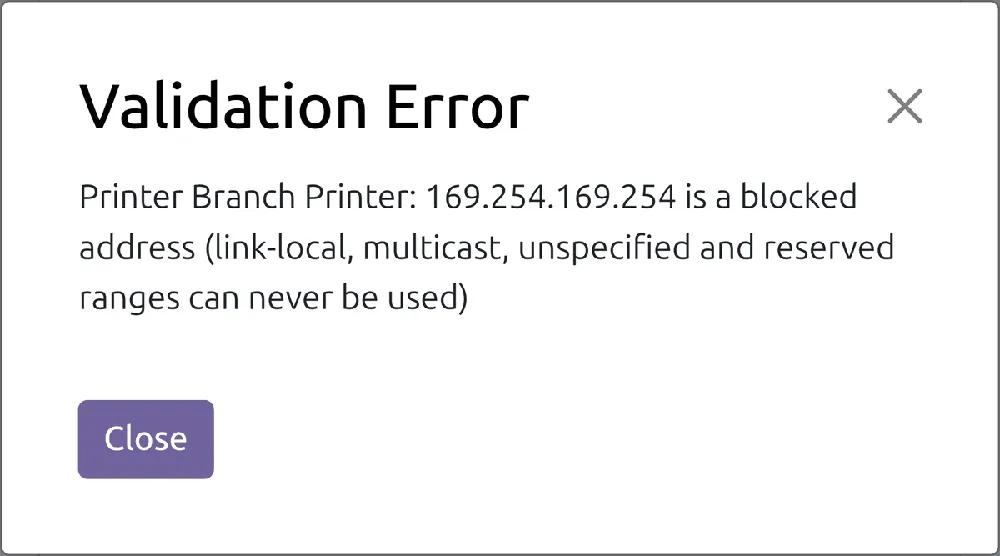
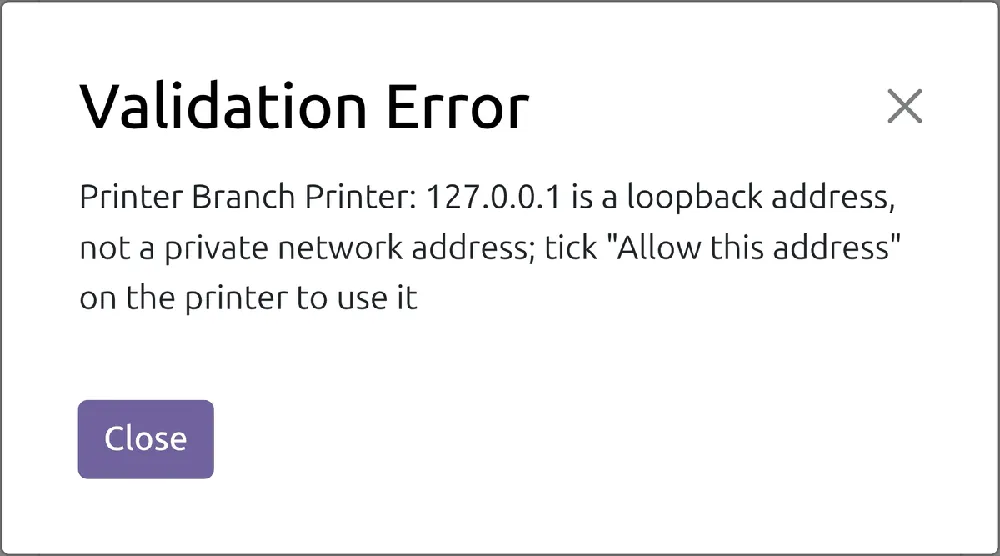
Only managers set up printers. By default an address must be on a private network: 10.x, 172.16-31.x, 192.168.x or an IPv6 unique-local address. Loopback and public addresses need the explicit Allow this address tick on the printer. Link-local addresses such as the cloud metadata address 169.254.169.254, multicast and reserved ranges are never allowed, tick or not. The host is checked when the printer is saved and again before every send, because DNS can change in between; the connection goes to the address that was checked, not to a second lookup; redirects are not followed. An optional list of allowed networks (a system parameter) narrows it further. Odd spellings of an address, in decimal, hexadecimal or octal, or IPv6-mapped forms, are refused.
The cloud metadata address cannot be saved as a printer.
A loopback address is refused until a manager ticks Allow this address.
A manager types 169.254.169.254 as a new printer host and saves: refused, and no tick unlocks it. Typing 127.0.0.1 is refused with the instruction to tick Allow this address, which is the right way to use a CUPS server running on the Odoo server itself.
The guard decides which addresses a printer may have. It does not secure the printer itself: no user name or password is stored, and an IPPS printer's certificate is always verified, with a self-signed one trusted only by pasting its CA certificate on the printer.
8 Print with nobody at a browser
Use it when a delivery should print itself when it is validated, with no one clicking Print.Queues one job per batch
Some prints are a consequence, not a decision: the picking list that prints when an order is confirmed. They should not wait for a person, or for a printer.
The app adds a Print Report action type to Odoo's server actions. It needs a report and a printer, a number of copies and an option to print one job per record. Used from an automated action or as a button, it queues a job for the triggering records and returns immediately; the scheduled action sends it, so the user never waits for a printer.
A report that cannot be rendered leaves a Failed job in the log instead of raising an error into the caller, so a stock validation does not fail because a printer is off.
It has no screenshot on this page: it is an Odoo server action with three extra fields, and it is covered by automated tests (one queued job, printed once by the scheduled action, per-record split, a failed render leaves a failed job).
9 Access and audit
Use it when several people and companies print, and you want to know who printed what.Two groups
Printing is a way to move company documents onto paper. Who can print what, and where, needs the same care as who can read it.
The app has two groups under Direct Print: User prints to the printers their groups allow and sees their own jobs, and Manager sets up printers and rules, sees all jobs of their companies, and can retry, cancel and reprint. Administrators are managers. Printers, rules and jobs are company-isolated, and portal users have no access.
The job log is an audit log: nobody can delete a job, and nobody, managers included, can edit one. Only finished jobs (Printed, Sent and Cancelled) older than 90 days are purged, by a scheduled action, and the number of days is a system parameter. Failed, Unknown and Queued jobs are kept. A document is limited to 20 MB.
What it does not do
- It cannot print to a printer the Odoo server cannot reach. Hosted Odoo normally cannot reach a printer on your office network without a VPN or a CUPS server it can reach, and there is no desktop agent. An IPP printer must accept PDF; one that does not needs a CUPS server in front of it. Raw 9100 jobs are Sent, never confirmed Printed. There is no cancel for a job that is already on the printer. There is no label designer or ZPL, no tray or paper selection and no printer password.
- It was tested against a CUPS queue with a PDF-writer backend and against test servers that simulate failures. It has not been tested on physical printer models.
Questions buyers ask
Does it work with my printer?
It talks IPP, IPPS and raw port 9100. An IPP printer must accept PDF, and the Check status button lists the formats it reports. One that does not needs a CUPS server in front of it. It was tested against a CUPS queue and test servers, not against physical printer models.
Can I print from Odoo.sh or Odoo Online?
Not Odoo Online. On Odoo.sh the server must be able to reach the printer, which an office printer normally is not without a VPN or a CUPS server it can reach.
Does it change my reports?
No. It does not edit a report, and a report without a rule downloads as before. The Download instead button is the normal download.
What if the printer is off?
The job is queued with the reason, the PDF is kept, and it is retried after 1, 5, 15 and 60 minutes, five attempts in all. Then it is Failed and a manager can retry it.
Could a job print twice?
Not by itself. A job whose outcome is unknown is never sent again by any retry. A manager can reprint on purpose, after a confirmation.
Where does my data go?
The PDF is sent from the Odoo server to the printer or CUPS server a manager configured, and to nowhere else. The app opens no inbound port and contacts no third-party service. Until a job is printed, its PDF is kept as an attachment.
Requirements
- Odoo 19.0 or 20.0. The App Store sells each version separately, so buy the one that matches your database.
- Odoo.sh or On-Premise only. Third-party apps cannot be installed on Odoo Online (SaaS) databases. Check your hosting before buying.
- Module
mh_direct_print, version 19.0.1.0.3, licensed OPL-1.