List View Layouts
Request a live demo · Odoo.sh or On-Premise only, not Odoo Online (SaaS).
11
automated tests, none failing
2
modes: a starting point, or kept applied
1
hook: the method Odoo uses for optional columns
1
model, no wizards, no scheduled jobs
2
modules it depends on: base and web
19.0
Odoo version of this build
Choose which columns each team opens a list with, once, from a screen. Odoo remembers column choices per person and per browser; this makes them a team decision, with a mode that keeps the layout in place
List View Layouts is for the administrator who keeps being asked to "make everyone's quotation list look like this" on an Odoo 19 database. Odoo hides or shows the optional columns of a list according to what is saved in each person's own browser, so the choice belongs to one person on one machine and is gone when the cache is cleared. You pick a model, tick the optional columns that should be visible, name the groups it is for and decide whether it is a starting point or is kept applied. This page walks through each step with screenshots of an Odoo 19 database seeded with made-up data, and says plainly where the limits are, including three that you should read before you buy.
Install it and a List View Layouts entry appears under Settings, for administrators only. It depends on Odoo's base and web modules and nothing else. The screenshots were taken in an Odoo 19 Community database with the Sales and Contacts apps installed for the examples: a fictitious office-supply company with one salesperson, one sales manager and an administrator. The data is synthetic, and every column name and number quoted beside a screenshot is read off that screenshot or off the test it came from.
How it works
Why a team cannot share a column choice in standard Odoo
Use it when a new starter asks which columns the rest of the team looks at, and the honest answer is "switch them on yourself".Explains the gap, changes nothing
Most Odoo lists carry a few columns that are optional. A small control at the right of the header opens a menu of ticks, one per optional column, and ticking a box shows the column. That is a useful feature for one person. It is not a team feature, because where the choice is stored is the person's own browser: it is per person, per browser, and it is lost when the browser cache is cleared or when the same person signs in from another machine.
The consequences are small each time and constant over a year. A new salesperson opens Quotations and sees whatever Odoo ships by default, then spends a few minutes finding the Customer Reference column that the whole team works from. A manager asks for the untaxed amount to be visible and is told to tick it, on every machine, for every person. Someone clears their browser data and the list is back to the default. There is no way to say "everyone in Sales opens quotations with these columns" in one place.
It is that one place. A layout is one record: a model, the optional columns that should be visible, the groups it is for and a sequence number. When a list of that model opens, the layout decides which optional columns start visible. It does this through the same method Odoo itself calls to decide which optional columns start visible, so there is nothing to redraw and no flicker, and a model without a layout behaves exactly as it does today.
You also decide how firm the layout is. A layout can be a starting point, which people can then adjust and which Odoo then remembers for them as usual, or it can be kept applied, which puts it back every time the list is drawn. The rest of this page shows both, with the screens.
1 Write a layout: model, columns and groups
Use it when you know which columns a team should open a list with and who that team is.Saves one layout record
A column decision is normally made verbally ("we all use the customer reference") and then lives in nobody's notes. When the auditor, the new starter or the next administrator asks why a list looks as it does, there is nothing to open.
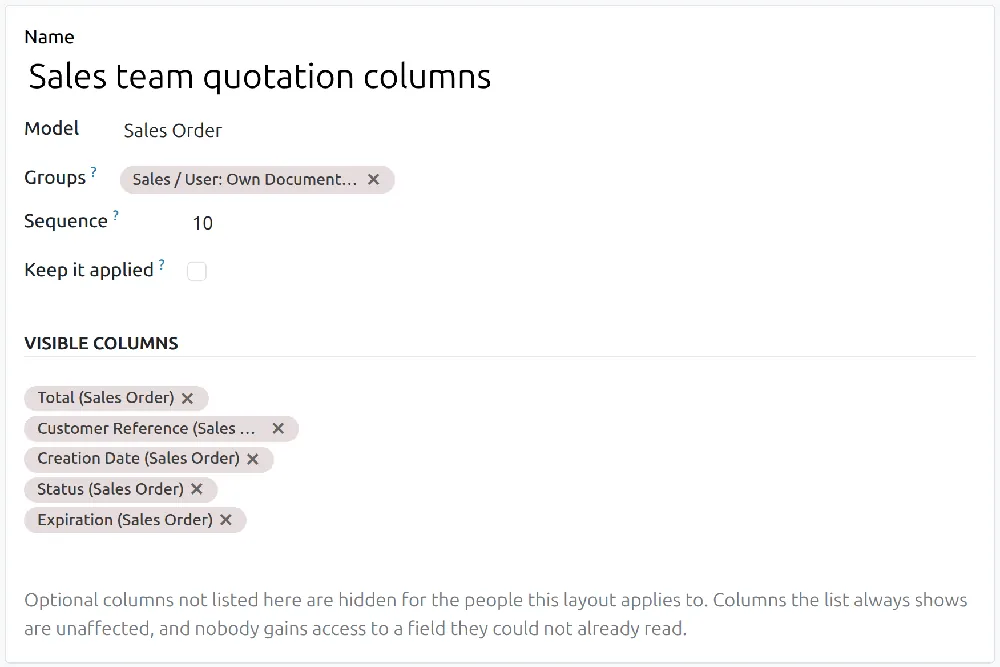
The form is one short screen. The title holds the layout's name, with a hint such as "e.g. Sales team quotation columns". Under it come the Model , the Groups as tags, the Sequence and the Keep it applied tick, and then a Visible Columns area where each chosen column is a tag. A note at the foot says that optional columns not listed are hidden for the people the layout applies to, that columns the list always shows are unaffected, and that nobody gains access to a field they could not already read.
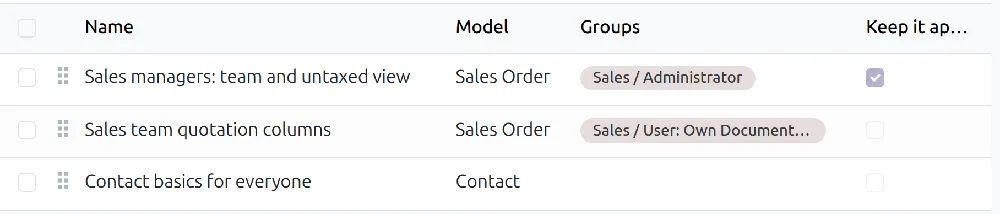
The list of layouts is ordered by sequence and shows the name, the model, the groups and whether the layout is kept applied. A drag handle sits at the left of every row, so reordering layouts is a drag, not a number you retype. The menu entry is under Settings and is for administrators only; every internal user can read layouts, which is what makes the lookup work, and only Settings administrators can create, change or delete one.
The form protects you from two mistakes. If you change the model, the columns picked for the old model are cleared, because they would never match anything on the new one. And if a column from another model reaches the record some other way, the save is refused with a message that names the columns, so a layout cannot be stored that silently never applies.
The layout list: name, model, groups and Keep it applied. The first row has the lowest sequence.
One layout: model, group, sequence, the Keep it applied tick and five visible columns.
Northfield Office Supply's salespeople all work from the customer's purchase order number. The administrator opens Settings > List View Layouts , presses New and calls it Sales team quotation columns . The model is Sales Order . For the columns she ticks Creation Date , Customer Reference , Expiration , Total and Status . She names the group Sales / User: Own Documents Only , leaves Keep it applied off and saves. Nobody has been told anything, and nothing has been installed on anyone's machine.
A layout does not add columns a list never had. It decides which of the list's own optional columns start visible, and it leaves the columns the list always shows alone.
a layout written down with its model, columns, groups, sequence and mode, which applies from the next time a list of that model is opened.
The Visible Columns picker lists stored fields only. A column that Odoo computes on the fly, without storing it, cannot be chosen, and it is therefore hidden for everyone the layout applies to. Section 6 shows the visible effect and the Limits section lists it.
2 The list opens with the team's columns
Use it when a salesperson opens Quotations for the first time, or from a new browser.Changes what is shown, not what exists
Without a layout, a person who opens a list gets Odoo's defaults. The defaults are sensible for a company nobody knows, and they are wrong for yours in two or three columns, every time, for every starter.
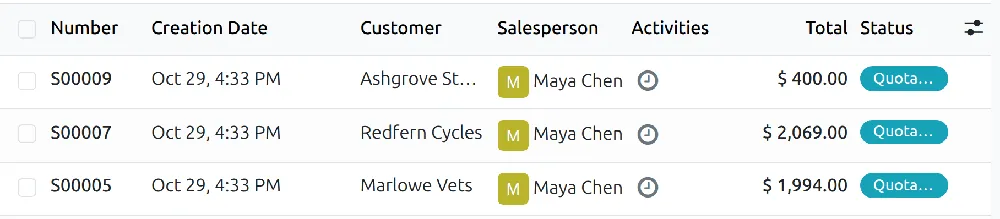
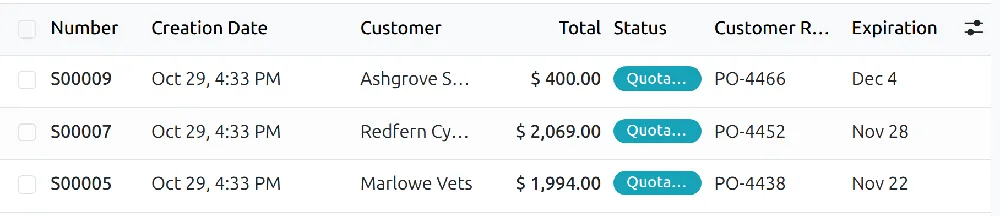
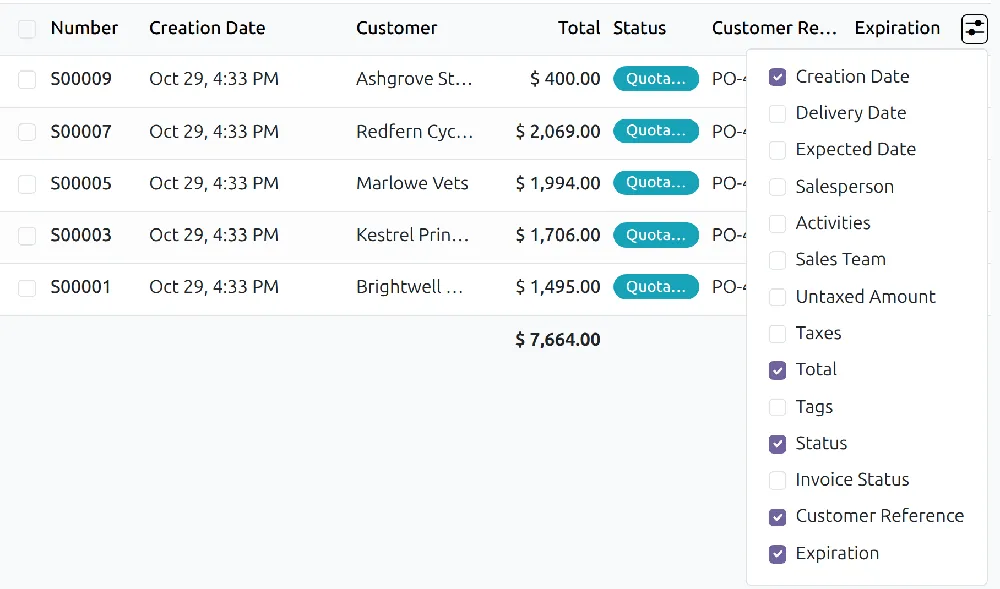
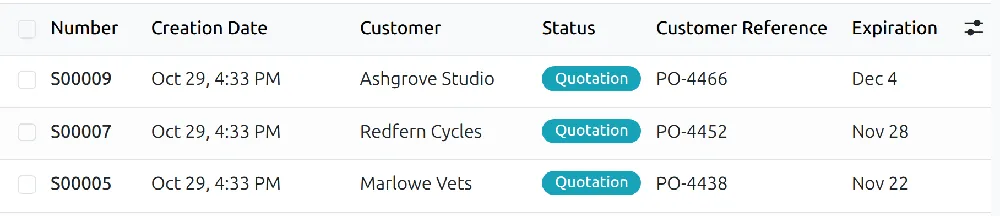
With the layout above saved, Maya Chen, a salesperson, opens Sales > Orders > Quotations . Before the layout the list showed Number, Creation Date, Customer, Salesperson, Activities, Total and Status. After it, the list shows Number, Creation Date, Customer, Total, Status, Customer Reference and Expiration. Salesperson and Activities have gone from the default, and the two columns the team works from have come in.
Look at the two screenshots at the same row, S00009 for Ashgrove Studio at $ 400.00. It is the same record in the same list for the same person. Only the columns changed. Number and Customer are columns the list always shows, which is why they stay.
The layout reaches Maya although she is in the group Sales / User: All Documents and not in the one named in the layout. That is intended: the group in a layout also covers every group that includes it, so naming the basic Sales group covers the people with the wider rights too.
Before: Odoo's default optional columns for Quotations.
After: the same rows, with the columns the team chose.
A second salesperson starts on Monday. Nobody shows her which boxes to tick. She signs in, opens Quotations, and sees the Customer Reference and Expiration columns straight away, exactly as everyone on her team does. The next person to join does the same, from a different laptop, and sees the same list. Until now the only way to get that was to sit next to the new starter and click through the column menu with them.
It does not change which records a person sees, and it does not change the order or the width of the columns. Odoo does not give a list a per-user column order or width to set, so the app does not pretend to.
every person the layout names opens the list with the same optional columns, on any browser, with nothing to set up on their side.
The layout is read once for each model each time the page loads and is then kept for that page. After you change a layout, people see the change the next time they reload the page or sign in again, not in a list that is already open.
3 Two layouts, one person: the lowest sequence wins
Use it when managers need a different list from their team, for the same model.Reads layouts, changes none
Teams overlap. A sales manager is also a salesperson in every sense that matters to Odoo, so a layout written for the sales team reaches the manager too. If a layout could only be broad or narrow, you would have to choose between giving managers the team's list and writing an exception into every layout.
Layouts are tried in order of sequence, lowest first, and the first one that fits the person is the one they get. A layout with no groups fits everybody, so it works as the general default at the bottom; a layout for a smaller group sits above it with a lower number.
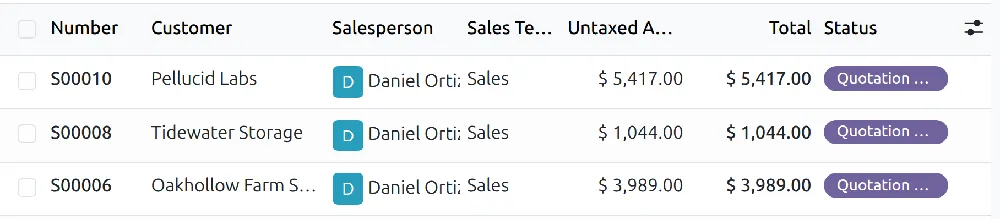
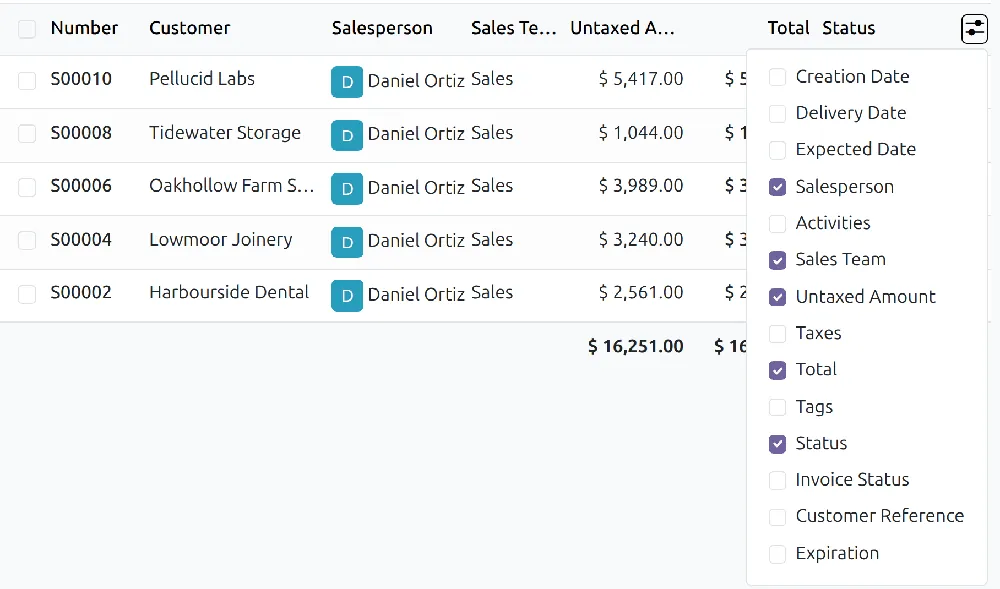
In the example there are two layouts for Sales Orders. Sales managers: team and untaxed view has sequence 1 and names Sales / Administrator . Sales team quotation columns has sequence 10 and names the basic Sales user group. Daniel Ortiz is a sales manager, so both fit him, and the lower number wins. His list shows Number, Customer, Salesperson, Sales Team, Untaxed Amount, Total and Status, and not the Creation Date, Customer Reference and Expiration that Maya's list shows. Each of them gets exactly one layout. The layouts are never merged.
The manager's list: the sequence 1 layout beats the sequence 10 team layout.
The column picker on Maya's list: the five ticks are the five columns the layout named.
Northfield also wants all staff to see the same columns on contacts, so the administrator adds a third layout for the Contact model with no groups and sequence 20: Email, Phone, City and Country. It reaches everybody who opens a list of contacts, because it names nobody in particular. If the finance team later needs its own contact columns, she adds a layout for that group with a lower sequence, and finance gets it while everybody else keeps the general one.
It does not combine two layouts into one, and it has no per-person exceptions: a layout is a model, some columns and some groups, and that is the whole language.
one layout per person, chosen by order, so a specific team can have its own list without the general layout being rewritten.
Layouts are per model and not per list. A layout for Sales Order applies to every list of sales orders, such as Quotations and Orders, and not just the one you were looking at when you wrote it. There is no way to give two lists of the same model two layouts.
4 A starting point that people can still change
Use it when you want a good first list, and you are happy for people to adjust it afterwards.Their own choice is respected
Some people really do want one column fewer. If every layout overrode them for ever, the first person to be annoyed would ask for it to be removed, and the layout would not be worth keeping.
With Keep it applied off, which is the default, the layout is the starting point only. It applies the first time a person opens a list. As soon as that person ticks or unticks a column in the column picker, Odoo saves their choice in their browser, and from then on the layout leaves that list alone and their own choice is what they get.
In the screenshot Maya has unticked Total in the column picker and reloaded. Her list has no Total column, and the other four optional columns from the layout are still there. The layout did its job once and then stepped back. Odoo's own behaviour takes over, which is what a person who made a choice would expect.
After unticking Total and reloading, her choice is kept: no Total column, everything else as the layout set it.
Maya never looks at totals, because her customers pay by purchase order and she checks amounts in the order form. She unticks Total once. The layout does not bring it back the next time she signs in, and her team-mates, who never touched the picker, still see Total, because their browsers have no saved choice. One person's change stays one person's change.
It does not reset what people have already chosen, and it cannot see their saved choices: the choice lives in the browser, and the server is never told about it.
a good first list for everyone, and people who change it keep the change.
Once a person has made their own choice in a browser, a later change to the layout no longer reaches them in that browser. If you rewrite a layout and some people do not see the change, that is the reason. Switching on Keep it applied is the way to reach them.
5 Keep it applied: the list does not drift
Use it when a shared screen, a reporting list or a team standard has to look the same for everyone, every time.Layout wins over the picker
A list that is projected in a meeting, or that a manager compares across people, is only useful when everyone's copy looks alike. Left alone, a list drifts one person at a time: somebody hides a column to make room, somebody else shows one for a task and forgets, and a month later nobody's list matches.
With Keep it applied ticked, the layout is reapplied each time Odoo draws the list. The column picker is still there and still opens, but it no longer changes anything that lasts: the layout is put back at once.
In the screenshot Daniel, whose layout is kept applied, has unticked Salesperson . The picker shows Salesperson ticked again and the column is still on the list. His click had no lasting effect. The only way a column leaves or enters his list is for an administrator to change the layout.
Kept applied: Daniel clicked Salesperson, and the picker shows it ticked and the column in place.
The sales managers review quotations together every Monday, with the list on a shared screen. Their layout is kept applied, so Salesperson, Sales Team, Untaxed Amount, Total and Status are on everyone's copy, and a manager who forgot what they had hidden last week does not hold the meeting up. When the meeting wants Creation Date as well, the administrator adds it to the layout, and it appears for every manager the next time they reload.
It does not lock the list against everything. People can still filter, sort, group and search as usual, and it does not stop a person from reading a column through an export or a record form. It decides which optional columns the list shows, and nothing else.
the same list for everyone the layout names, however many times they open it, and a column picker that cannot undo it.
While a layout is kept applied the column picker still lets a person click a column, and the click is undone straight away. The picker does not grey out or say why. Tell the people the layout covers, or leave Keep it applied off for them.
6 Lists inside forms follow the layout too
Use it when you want a layout for the lines of a document, and not only for the main list.Applies to every list of the model
Documents carry lists of their own. A quotation has order lines, an invoice has invoice lines, and each of those lists has optional columns. Teams argue about the order lines at least as much as about the main list, and the column menu on a line list is just as personal as the one on Quotations.
The layout is looked up by model, whichever list asks. So a layout for Sales Order Line reaches the order lines inside a quotation form, because that list shows lines of that model. In the example the administrator adds a layout called Order lines: amounts first for the basic Sales group with three columns: Description, Taxes and Amount.
The two screenshots show the same quotation, the same two lines, Standing Desk and Office Chair. Before the layout the first column is Product. After it the first column is Description. Quantity and Unit Price are columns the list always shows and stay where they were.
Before: the order lines carry a Product column.
After: Description takes the place of Product.
Northfield wants the line description and the tax visible on every quotation, because customers query both. The administrator writes one layout for Sales Order Line. Every salesperson who opens a quotation after that has those columns on the lines, without ever opening the column menu.
It cannot show or hide a column that is not optional, and it cannot choose between two lists of the same model. If you do not want the layout to reach a list inside a form, do not write a layout for that model.
the same layouts for the lines of a document as for its main list, written in the same screen.
Look closely at the screenshot. The Product column went. Product on an order line is a computed column that Odoo does not store, so it cannot be ticked in the layout, and a layout hides every optional column that it does not list. Description was ticked, and is shown. Before you write a layout for a model, open the list as a test user and check that nothing you need has dropped out.


7 Layouts change columns, never access
Use it when someone asks whether hiding a column here keeps the data private.Shows or hides columns, nothing more
It is tempting to read "hide a column" as "keep it private". A hidden column is a column that is not drawn. The value is still in the database, and the field can still be exported, searched or read through the API by anyone who is allowed to read it.
This app deliberately does not pretend otherwise. A layout works on the optional columns that the list already has, and on nothing else: it never adds a field to a view, so it cannot show a person a field their access rights would keep from them. Access rights, record rules and field groups remain the way to decide who can read what, and a layout is never part of that decision.
The layout record has two permissions. Every internal user can read layouts, because the list reads them as that user when it opens, and only a Settings administrator can create, change or delete one. A test checks that an ordinary user can read the layouts and is refused when they try to create one. A person who is not allowed to open a list never has a layout applied to it, because the layout only runs when that list is drawn.
If the lookup fails for any reason, such as a lost network connection, the list opens with Odoo's own columns. A layout that cannot be read does not leave a person with an empty list.
The finance lead asks whether the layout for the sales team stops them from seeing the untaxed amount. It does not: the column is not on their list, but a record form or an export still shows the field, as it always did. To stop that, she would restrict the field itself, with a field-level access rule. The two jobs are different, and each is done in the place built for it: layouts decide what a list shows first, and access rights decide what a person may read.
Who it is for
Use it when you are the person who gets asked to fix a list for somebody else.A buying guide, not a feature
The Odoo administrator who is asked, again, to make everyone's list look the same. One layout, one group, and the question is answered for good rather than person by person.
The consultant who sets up several databases and wants a client's list conventions written down in a list of records, where the client's next administrator can read them, rather than in an email.
The team lead who runs a weekly review from a shared screen and needs every copy to look alike. Keep it applied is for exactly that.
It is not for end users: only administrators can open it. If your goal is for each person to save their own favourite columns, that is a different job, and the free List View Manager is for it.
What this app does not do
Use it when you want to know where the edges are before you buy.Read this before you buy
It changes column visibility, never access. Nobody sees a field they could not already read, and hiding a column is not a security control. Use record rules, access rights and field-level rules for that.
It handles optional columns only. A column that the list always shows cannot be hidden by a layout, and a layout cannot add a column that a list does not have.
Only stored fields can be picked. Optional columns that Odoo computes without storing, such as Product on the order lines of a quotation or Expected Date on a quotation list, cannot be ticked in the layout. A layout can never show such a column, and one that Odoo would normally show is hidden for the people the layout covers. Check each list as a test user before you roll a layout out.
A layout covers every list of its model, including lists inside forms. It is not per menu, per action or per list.
A layout with no columns ticked hides every optional column, because a column that is not listed is hidden. An empty layout is rarely what you want.
With Keep it applied on, the column picker still accepts clicks and undoes them at once, with no message.
With Keep it applied off, people who have already made their own choice in a browser are not reached by later changes to the layout in that browser.
A change reaches a person when the page is reloaded, not in a list that is already open.
It does not set column order or column width. Odoo does not expose either per user, so the app leaves both alone.
It has no history of its own beyond Odoo's standard record tracking, and it does not report who has what layout.
Odoo 19.0 and the other version
Use it when you run more than one Odoo version.Each version is its own listing
This page is for the Odoo 19 build. The Odoo Apps store lists and sells each Odoo version separately; the Odoo 20 build has its own page and its own purchase. The layout form, the lookup, the two modes and the way the layout is applied to the list work the same way on both. The only difference is how each version of Odoo names its access-rights file: this build ships security/ir.model.access.csv.
Questions buyers ask
Is this different from the column menu Odoo already has?
Yes. The column menu changes what one person sees in one browser. A layout is written once, by an administrator, for a model and a set of groups, and it applies to everyone it names on any browser.
Where do the layouts live?
In your Odoo database, as ordinary records under Settings. Nothing is sent anywhere, and the app calls no outside service.
Does a layout apply to every list of a model?
Yes. It is looked up by model, so every list of that model is covered, including a list inside a form such as the lines of a quotation. It cannot be restricted to one menu or one action.
What happens to a model that has no layout?
Nothing. The list behaves exactly as it did before the app was installed.
What if a person is in two of the groups?
They get the layout with the lowest sequence number among those that fit them. The layouts are not merged.
Can people still change their columns?
With Keep it applied off, yes, and Odoo remembers it for them. With it on, the picker still opens but the layout is put back at once.
Why did a column disappear that I did not untick?
A layout hides every optional column it does not list. If the column is one that Odoo computes without storing, it cannot be listed, so it is hidden. Check the list as a test user.
Do I need to restart Odoo after changing a layout?
No restart. People see the change when they reload the page.
Does it make a column private?
No. A hidden column is only not drawn. Use access rights, record rules and field-level rules to keep data private.
What happens if I uninstall it?
Every list goes back to Odoo's own defaults and to each person's own saved choices. Nothing in your records was changed.
Requirements
- Odoo 19.0 or 20.0. The App Store sells each version separately, so buy the one that matches your database.
- Odoo.sh or On-Premise only. Third-party apps cannot be installed on Odoo Online (SaaS) databases. Check your hosting before buying.
- Module
mh_list_view_layouts, version 19.0.1.0.16, licensed OPL-1.