Accessibility Auditor
Find missing alt text, unlabeled form fields and heading-order jumps in the pages your Odoo website actually serves, one list, one row per element
Request a live demo · Odoo.sh or On-Premise only, not Odoo Online (SaaS).
6
tests on a page's HTML, each named on this page
3
severity levels: high, medium, low
24
automated tests in the app, none failing
Daily
scheduled scan, plus Run Scan Now when you want it
0
outbound requests: the scan is Odoo asking itself for each page
Not
a verdict: a finding is one failed test, never a statement that a site is compliant
A website page can look finished and still have an image with no alt text, a form whose boxes carry only a placeholder, or a heading that jumps from level 1 to level 3. Nothing in Odoo lists those. Accessibility Auditor requests each published page of your website the way a visitor's browser does, reads the HTML that comes back, and writes one row for every element that fails one of six tests. This page walks through it with screenshots of an Odoo 19 database holding a made-up furniture shop, where every row was produced by the app's own scan.
It reports what its tests find. It does not tell you that a site is accessible or compliant with any standard or law, and an empty list means only that these six tests found nothing.
Install it and an Accessibility menu appears with Issues and Run Scan Now, for Website / Designer users and Settings administrators. It needs only Odoo's Website app.
How it works
What the scan reads
The scan takes every website page that is published, belongs to a website and has a URL, and requests it through Odoo's own request pipeline, inside the same Odoo process and without logging in. What comes back is the rendered page: the content you wrote, plus Odoo's own header and footer. The HTML source of the template is never parsed, so what is checked is what a visitor's request receives.
1 The list: every finding, by page
Use it when you want to know where to start on a website you did not build.Reading only
Nobody opens every page with a checklist. Problems sit in a form on one page, an image on another, and in the header of all of them.
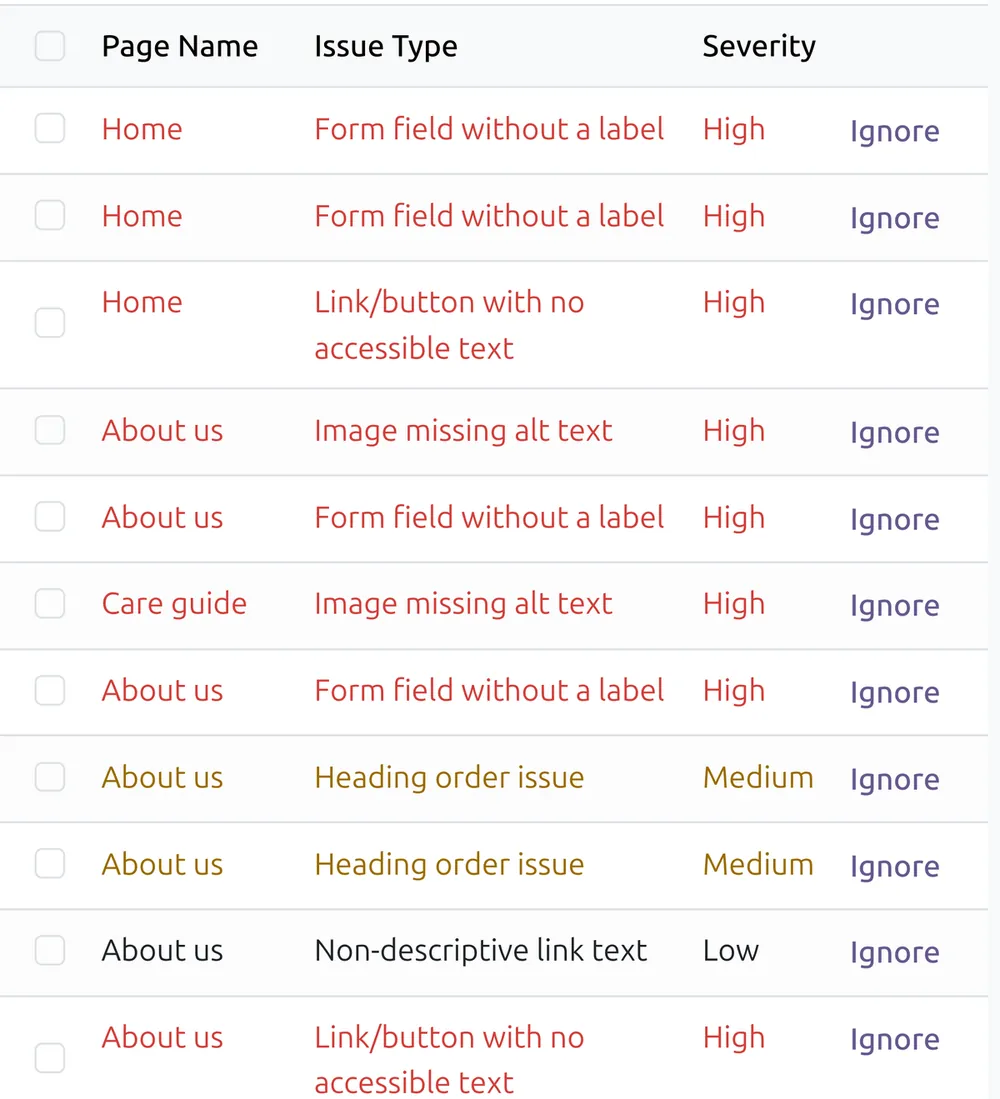
Open Accessibility > Issues . The list opens on the open issues. Group it by page to see where the findings are, or by issue type or severity. Rows are coloured by severity while they are open: red for high, amber for medium. Missing alt text, an unlabeled field, a link or button with no text and a missing language attribute are high; a heading-order jump is medium; vague link text is low. Filters show open, fixed and ignored issues, and search finds a page or a type.
On a fresh Odoo database with only the Website app added, the first scan of the default homepage already lists three findings, all in Odoo's own header: two search boxes with no label and an icon-only search link with no text.
It does not rank pages or give a score, and it does not tell you which findings matter most to your visitors.
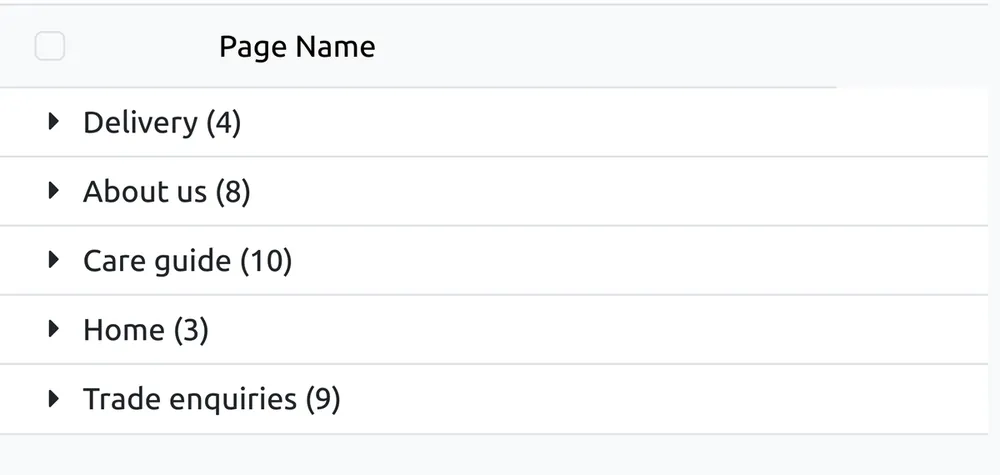
Grouped by page: the five published pages of the demo shop and how many open findings each has.
The open list. The Home rows are Odoo's own search box in the header; the others are the demo shop's pages.
2 One finding in detail
Use it when you need to find the element and decide what to do with it.Reading only
A line such as unlabeled field does not tell a designer which box on which page.
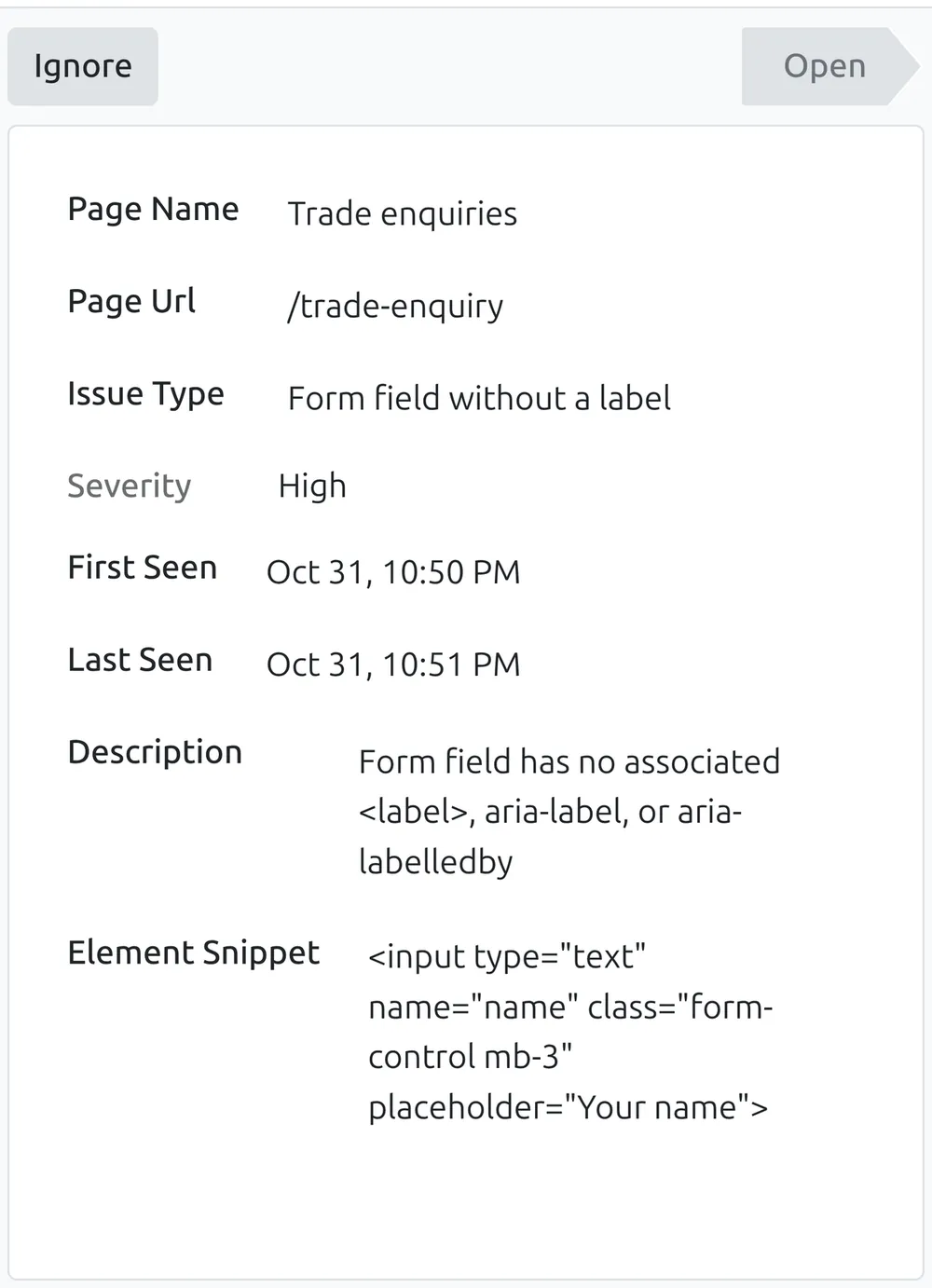
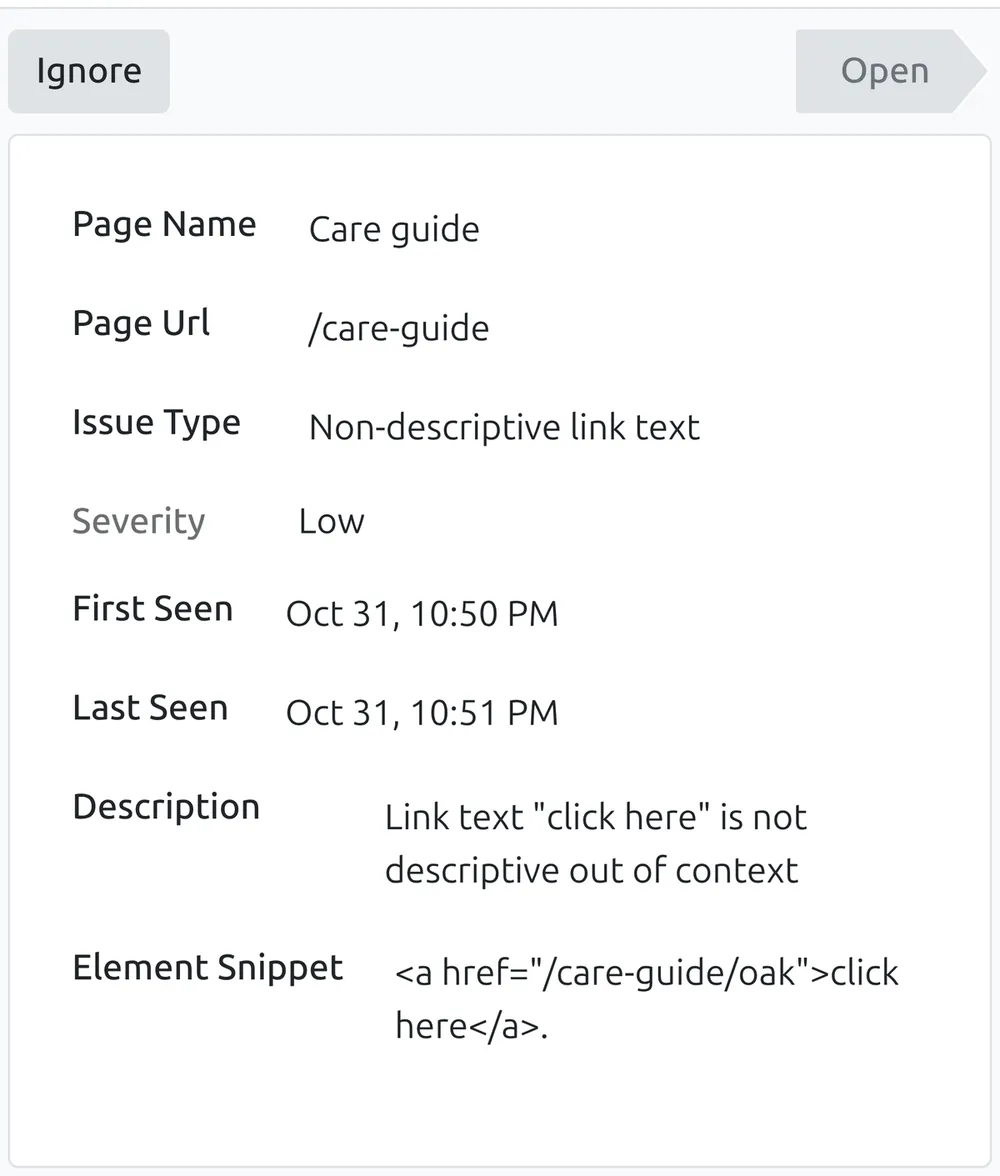
Open a row. The form shows the page and its URL, the issue type and severity, when the finding was first and last seen, a description and the element's HTML. The description names the rule: for a vague link it quotes the link text. The element is the first 300 characters of its HTML, so you can search the page for it.
Three identical elements on one page give one row, because the row is keyed on the page, the type and the element's HTML. Two different elements whose first 300 characters match also give one row.
A form field with no label: the box that asks for a name carries a placeholder and nothing else.
Non-descriptive link text: the description quotes the words the link uses.
3 Fix the page, scan again
Use it when you changed a page and want to know whether the findings went away.Writes when saved
A list of problems that never closes becomes a list nobody reads.
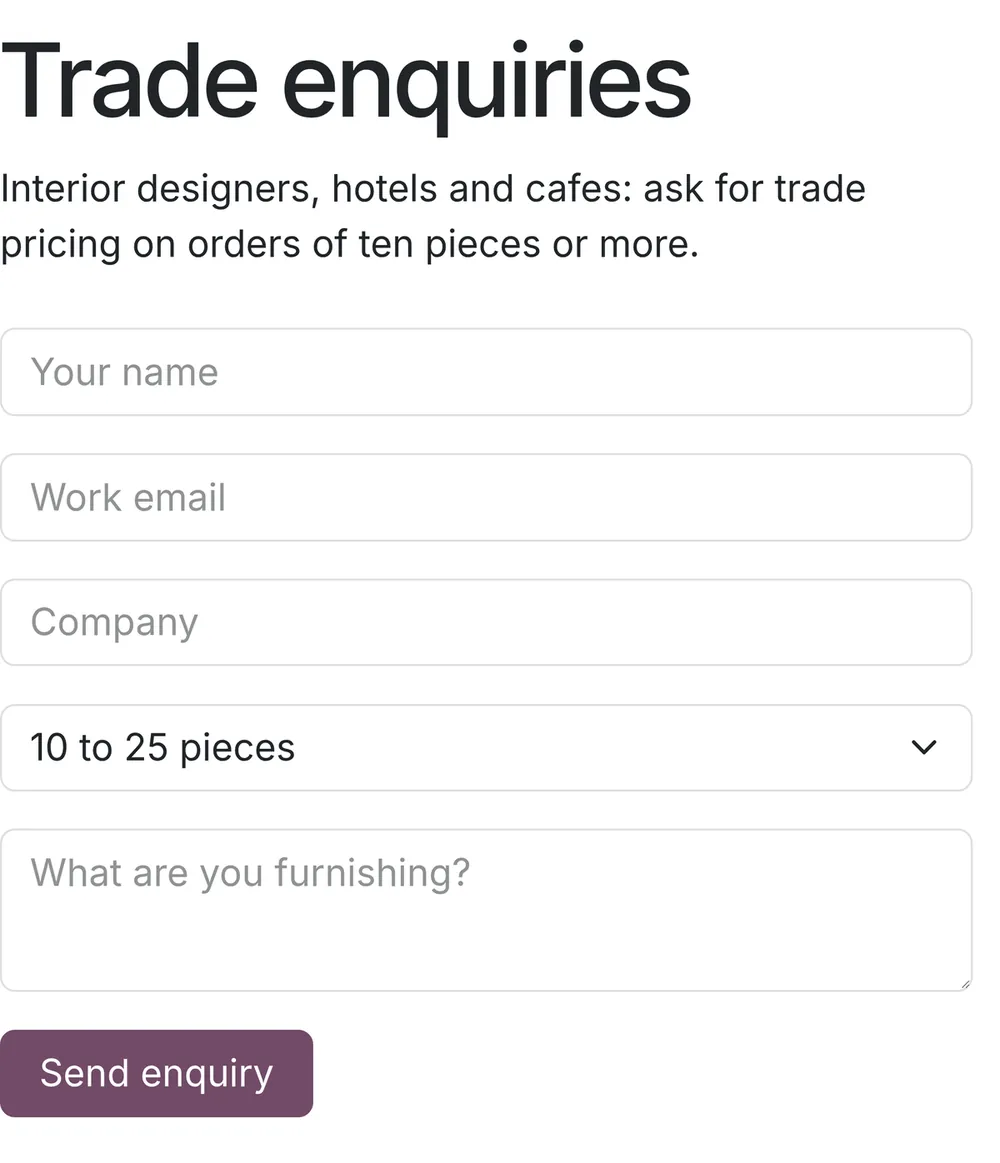
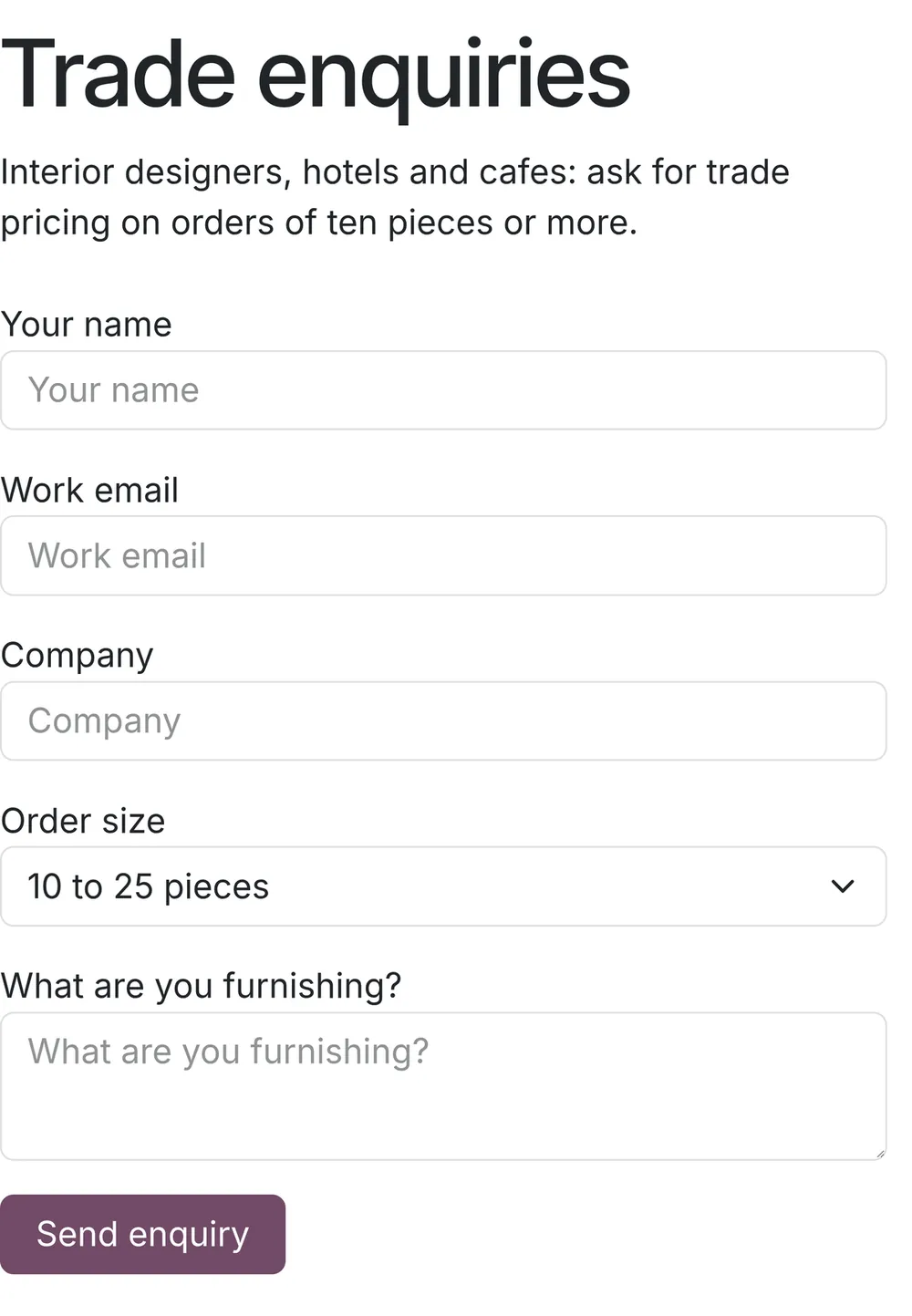
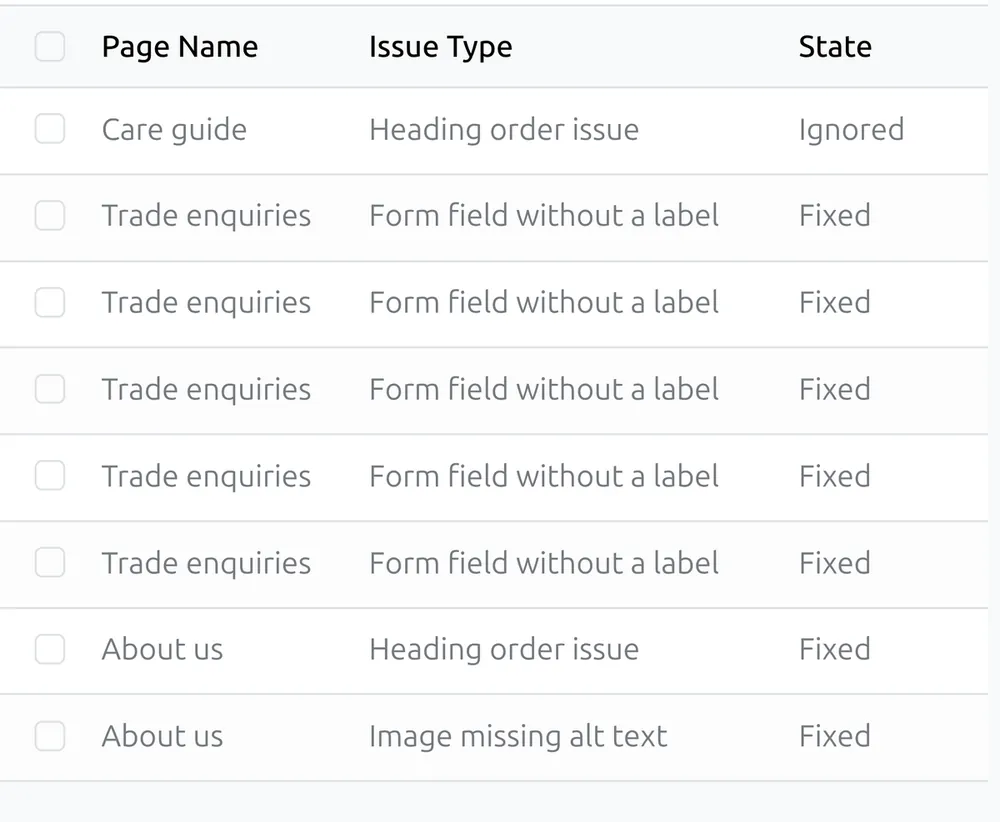
On the demo shop the trade enquiry form had three text boxes, a dropdown and a message box with placeholders and no labels. A visitor sees words in the boxes, so the page looks fine; the HTML has nothing that names the boxes, and the scan listed five findings. The designer added a label to each box, gave the photo on the About page an alt text and put its heading at the right level. At the next scan those seven rows moved to Fixed.
An open issue that is no longer found on a page that was scanned becomes Fixed. A fixed issue that returns is reopened. The designer also pressed Ignore on one finding, the second top-level heading on the Care guide page, which is meant. An ignored issue stays ignored, whether the element is fixed or comes back.
Ignore has no note and no record of who pressed it beyond Odoo's own change log. If a page can no longer be scanned, for example because it was unpublished, its open issues stay Open.
The page before: placeholders only.
The page after: a label for every box.
After the next scan: seven rows Fixed and the one Ignored row left alone.
4 Who can use it
Use it when the list should be in the hands of the people who edit the website.Group settings
A list of every markup problem on a public site belongs with the web team, not with every user.
Website / Designer users and Settings administrators can read, change and ignore issues, and only they see the Accessibility menu. An internal user without those groups gets an access error on the issues and does not see the menu. Run Scan Now ran without error when pressed through the web interface on both Odoo versions.
It adds no group of its own, and it adds nothing to the website: no widget, no overlay and no change for visitors.
What is not scanned
These limits were measured in the run behind this page, or read from the code. None of them is fixed in this version.
Questions buyers ask
Does it make my site accessible or compliant?
No. It finds markup problems with six tests and lists them. It does not fix pages, add an overlay, or say that a site meets any standard or law.
Does it check colour contrast?
No. Contrast needs the stylesheet cascade and a rendering engine, so the app does not guess. Keyboard use, focus order and the quality of alt text are not checked either.
Which pages are scanned?
Published website pages that belong to a website and that an anonymous request can open. Shop, blog and product routes are not website pages and are not scanned.
Does it work with several websites?
Not reliably. In the test, pages that exist only on a second website with its own domain were not scanned. One website per database is the tested case.
Does it send my pages anywhere?
No. The scan is Odoo requesting its own pages, and the module imports no network library. It stores a copy of up to 300 characters of the failing element.
Can I ignore a finding?
Yes, with the Ignore button. An ignored finding stays ignored through later scans.
Requirements
- Odoo 19.0 or 20.0. The App Store sells each version separately, so buy the one that matches your database.
- Odoo.sh or On-Premise only. Third-party apps cannot be installed on Odoo Online (SaaS) databases. Check your hosting before buying.
- Module
mh_a11y_auditor, version 19.0.1.0.11, licensed OPL-1.