Attachment Versioning
Upload a file with the same name to a record and it becomes the next version of that file - the chatter shows the current one, and every earlier version is one click away
Request a live demo · Odoo.sh or On-Premise only, not Odoo Online (SaaS).
3
versions kept after three uploads of one name, each with its own content
1
file in the chatter's list for those three versions: the current one
19
automated tests in the app, none failing (2 of them need the free Duplicate File Guard and Employees installed, and were run that way too)
0.9 ms
extra per attachment created, measured on 1,000 files in one batch
0
files deleted when a version is added or restored
Not
an undo for Odoo's own delete: a version you delete is gone, and the next upload can reuse its number
A revised contract or drawing gets attached to the record again under the same file name. Odoo keeps both side by side and nothing says which one is current, so sooner or later somebody opens, or sends, the old one. Attachment Versioning turns that second upload into version 2 of the first, keeps the earlier file, and puts a Restore button on every older version. People keep attaching files exactly as they do today. This page walks through it with screenshots of an Odoo 19 database holding a made-up logistics customer, and with readings from a real run.
It never deletes a file on its own. This page also says what happens when you do delete one, and what Restore does and does not record.
Install it and nothing changes in the menus: the badge appears on a file the second time it is uploaded under the same name. A setting in General Settings lets you leave models out. It needs only Odoo's Discuss and chatter module (mail), which every database has.
How it works
What it keeps, what it changes, what delete does
Each line was tested.
1 Upload again under the same name
Use it when a contract, drawing or price list changes and gets attached to the record again.Writes when a file is attached
A second "Site plan.png" sits next to the first, and nobody can tell which one is current.
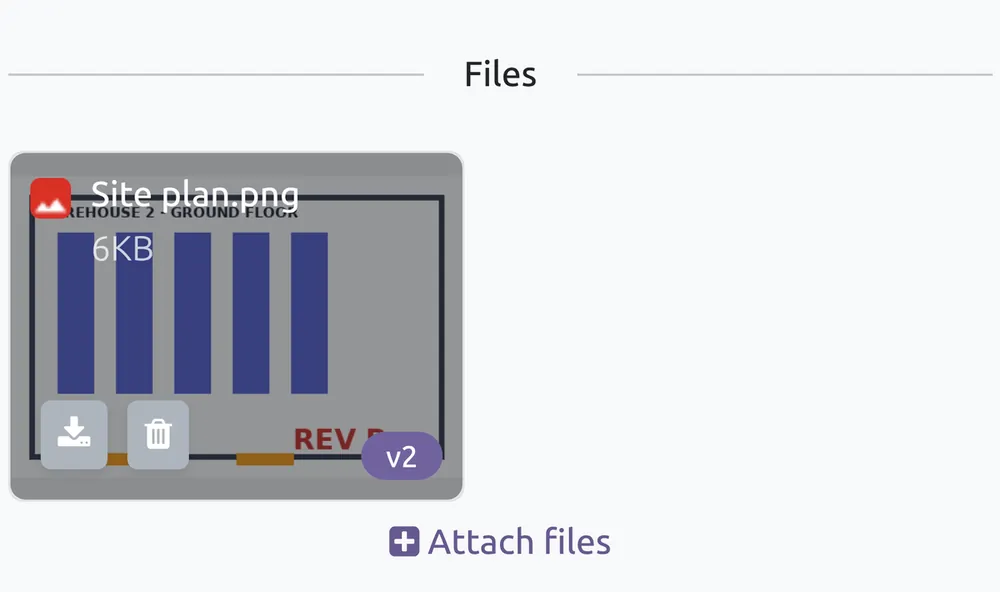
Attach the file the way you always do: the chatter's Attach files button, the Log note or Send message composer, or any other attachment created on a record by Odoo or by code. If the record already holds a file with exactly that name, the new file becomes the next version of it. In the run behind this page, a file uploaded twice through Log note under the same name showed a v2 badge. Files attached through message_post, which is what the chatter does when you send or log with a file, became versions 1, 2 and 3 of one file.
Files that were on the record before you installed the app are numbered oldest first when the next same-name file arrives. Until then they are not grouped.
It matches the exact name on the same record: "supplier contract.txt", "Supplier contract v2.txt" and a name with a trailing space were separate files in the test, and the same name on another record is never a version of this one. Uploading byte-identical content under the same name still makes a new version.
The file list after the same name was uploaded twice through the Log note composer.
2 The file list shows the current version
Use it when you open a record and want the file that is current.Read-only
A list that shows every upload makes you read file dates to find the right one.
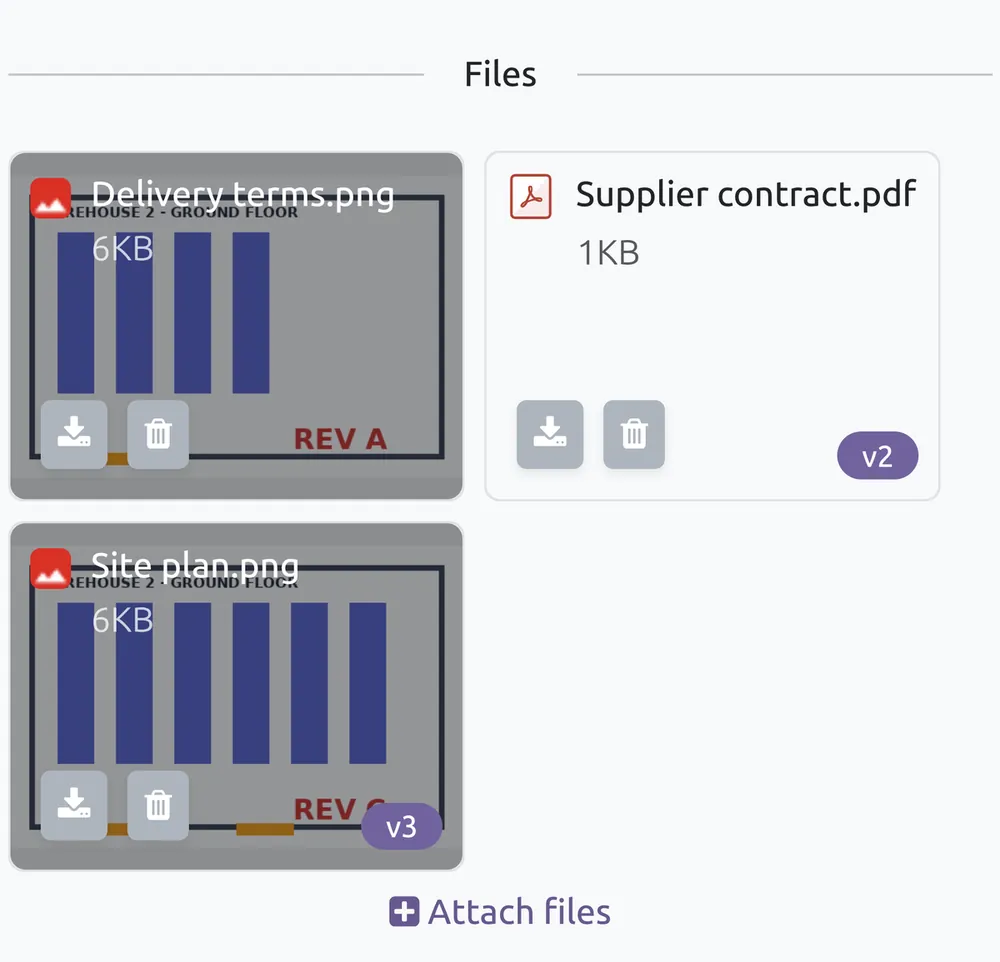
The paperclip in the chatter opens the record's file list. Each file appears once, newest version only. Once a file has more than one version a badge such as v3 sits on its tile (bottom right on this Odoo 19 page). A file with one version has no badge.
Older versions are not shown here. They stay in the database and in the history dialog.
Three files: two have versions, one has only one.
3 Open the history
Use it when you need an older version, or want to know who uploaded what.Read-only
Finding last month's contract means scrolling the whole chatter.
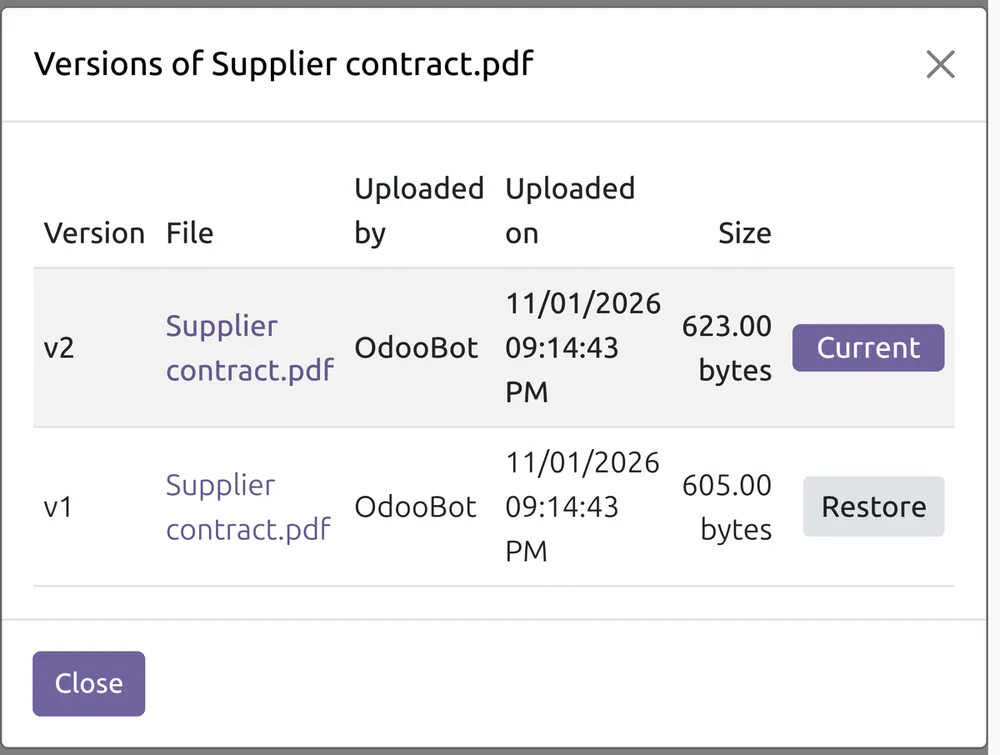
Click the badge. A dialog called Versions of the file lists every version, newest first: the version, the file with a download link, who uploaded it, when, its size, and either a Current mark or a Restore button. Anyone who can read the record can open it.
It does not compare or merge the contents of two versions.
The history of a contract uploaded twice.
4 Restore an older version
Use it when the newer file was wrong and the old one is the one to use.Writes when you click
Going back to an earlier file usually means uploading it again, which only adds another copy.
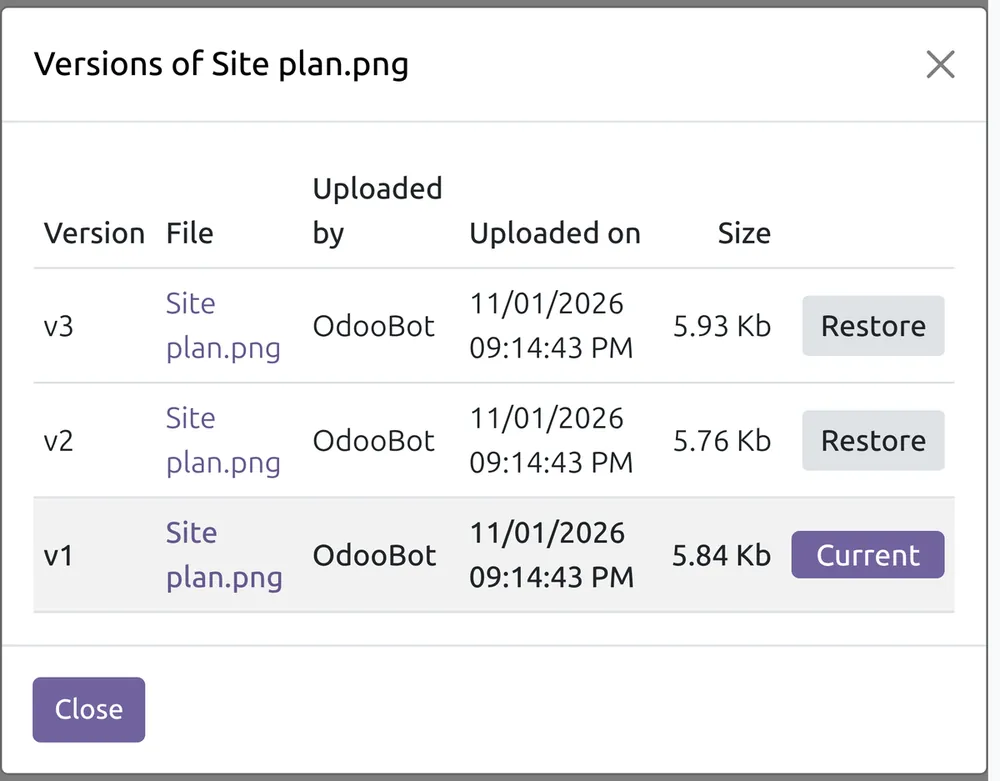
Press Restore on an older row. That version becomes the current one, the file list in the open chatter updates without a reload, and nothing is deleted or renumbered: in the test, restoring version 1 of a three-version file left versions 2 and 3 in place, and the next upload became version 4. Restoring needs write access to the record. The row for the restored file now reads Current.
It does not record who restored or when. A user with only read access gets an access error.
Version 1 of the plan restored; versions 2 and 3 are still there.
5 Messages keep what they carried
Use it when you want to see exactly what was sent with an earlier message.Read-only
If the old file in an old message silently changed to the newest one, the record of what was sent would be wrong.
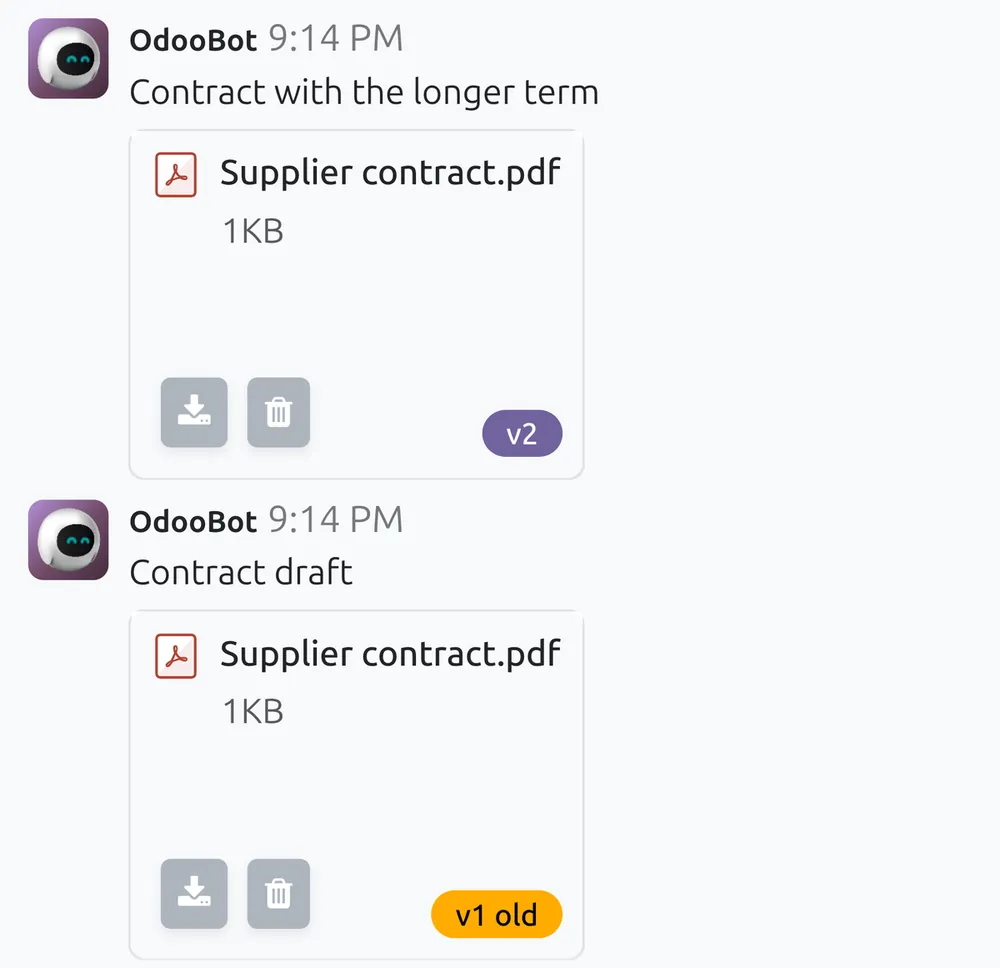
A message keeps the exact file it was sent with. Inside a message, an older version carries an old badge (v1 old), and the current one carries its version number.
Two messages that carried a contract: the older one is marked old.
6 Leave models out
Use it when some records should keep standard Odoo behaviour.Writes when saved
Not every attachment is a document: some models attach files that should simply stay separate.
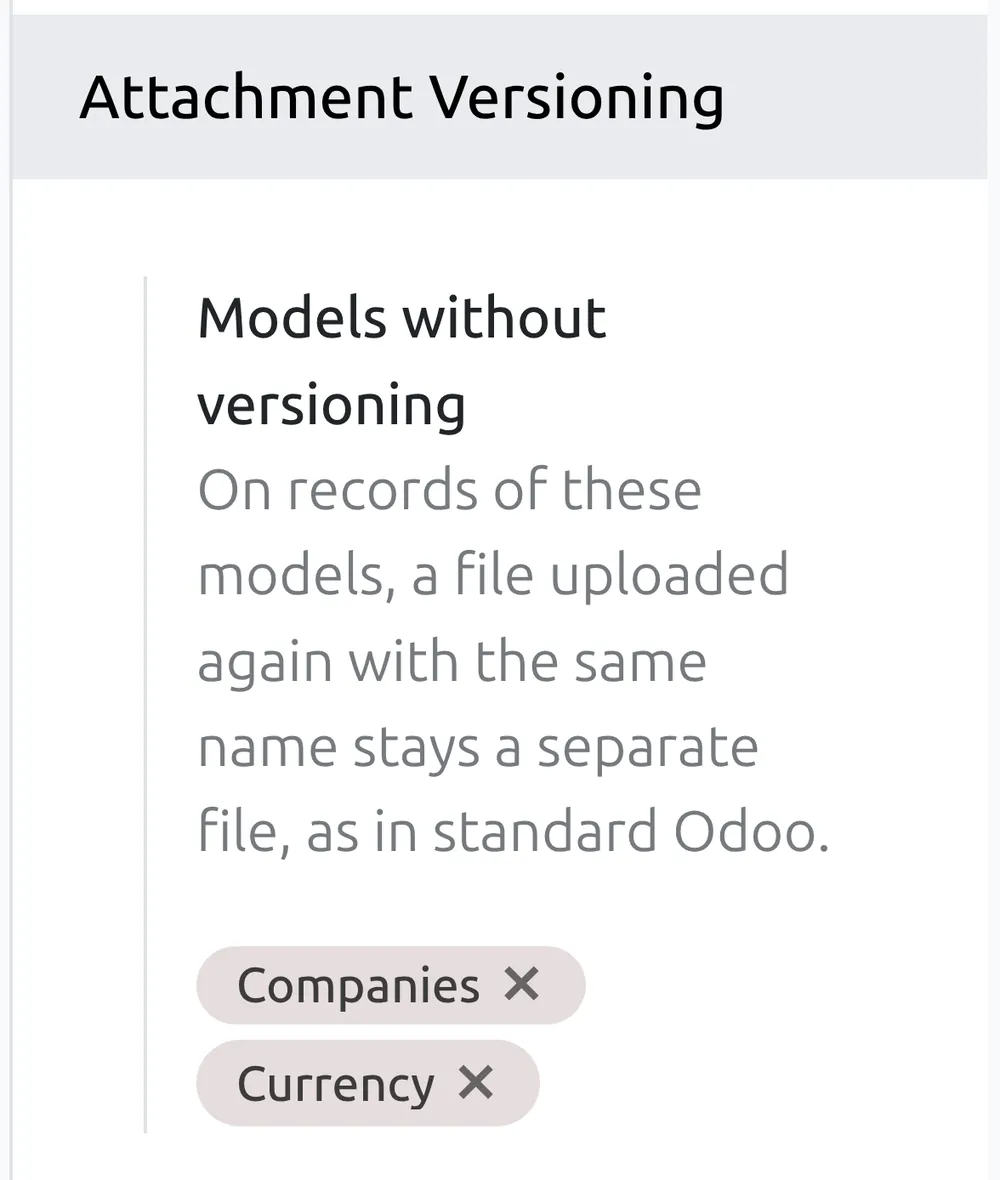
In General Settings , under Attachment Versioning, name the models to leave out. On records of those models a same-name upload stays a separate file, as in standard Odoo. Never versioned, whatever the setting: the values of binary fields (a contact's image), links, files on Discuss channels and on messages, and the PDFs Odoo saves itself when a report prints with Save as Attachment. The record's main attachment (the document shown beside a vendor bill or an employee contract) follows the current version; that was tested with Employees installed.
The setting. Company and Currency were picked for the picture only.
What it does not do
- These were measured in the test run or read from the code. None is fixed in this version.
Questions buyers ask
Does it delete the old file when I upload a new one?
No. Every version stays, with its own content, uploader and date. The older ones are hidden from the chatter's file list, not removed.
Can I get an older version back?
Yes. Open the history from the badge and press Restore on the version you want. Nothing is deleted or renumbered.
What happens if I delete the current version?
Odoo deletes it for good, and the newest remaining version becomes current. The next upload can reuse the deleted number.
Is a restore recorded?
No. The dialog shows who uploaded each file and when, but nothing records who restored a version.
Which files are versioned?
Files attached to a record under a name the record already holds. Binary field values, links, Discuss files, files on messages and report PDFs saved by Odoo are not.
What happens to files that were there before I installed it?
They are numbered oldest first when the next same-name file arrives. Until then they appear as separate files.
What happens if I uninstall it?
Every version stays as an ordinary attachment of the record, and files with the same name show again as separate files.
Does it work with Duplicate File Guard?
Yes. In the tests with both installed, a byte-identical upload was still blocked and a changed file still became a version.
Requirements
- Odoo 19.0 or 20.0. The App Store sells each version separately, so buy the one that matches your database.
- Odoo.sh or On-Premise only. Third-party apps cannot be installed on Odoo Online (SaaS) databases. Check your hosting before buying.
- Module
mh_attachment_versioning, version 19.0.1.0.3, licensed OPL-1.