GDPR Breach Clock
A 72-hour countdown for a personal data incident, with a reminder and a printable summary of what you typed
Request a live demo · Odoo.sh or On-Premise only, not Odoo Online (SaaS).
72 h
from the date and time you enter to the deadline, exactly 72 hours; 6 of 6 records matched an independent recompute of the deadline and the countdown text
1 / hour
a scheduled action makes one reminder activity per incident once an open, un-notified one is within 24 hours of the deadline or past it
19
automated tests in the app, none failing; 8 were added this version (one for the fix below, the rest pin the limits on this page)
0
notifications sent: the app contacts no authority and no data subject; it records what you press and print
Tracker
it adds 72 hours to the date you enter. It does not know any law, decide whether you must notify or check what you write; you remain responsible for notifying
When a personal data incident is found, the clock people watch is the 72 hours after they became aware of it. GDPR Breach Clock keeps that clock inside Odoo: you log the incident with the date and time you became aware, it adds exactly 72 hours, shows the hours and minutes left (or overdue) in the list and on the form, makes a reminder activity for the responsible person once the deadline is within 24 hours, records when you say the authority and the data subjects were told, and prints the fields you typed under four headings. This page walks through it with screenshots of an Odoo 19 database holding a made-up online retailer and six made-up incidents, and with tables rendered from real readings of the same run; each picture says which it is.
It is a tracker, not a compliance or legal tool. It does not know any law, any authority or any national rule, does not decide whether you must notify anyone, does not check or send a notification, and no authority has accepted anything it prints. You are responsible for deciding whether to notify and for notifying, and for whether the date you enter as the moment you became aware is the right one.
Install it and a GDPR Breaches menu appears for members of the Data Protection Officer group and Settings administrators. It needs only the Mail module.
How it works
What it keeps, what it changes, what it does not
Each line was tested or read in the code.
1 Log an incident
Use it when someone has found or been told of a personal data incident and you want it on record with a deadline.Writes the incident
An incident handled in a mailbox has no clock, no owner and no single record of what was known when.
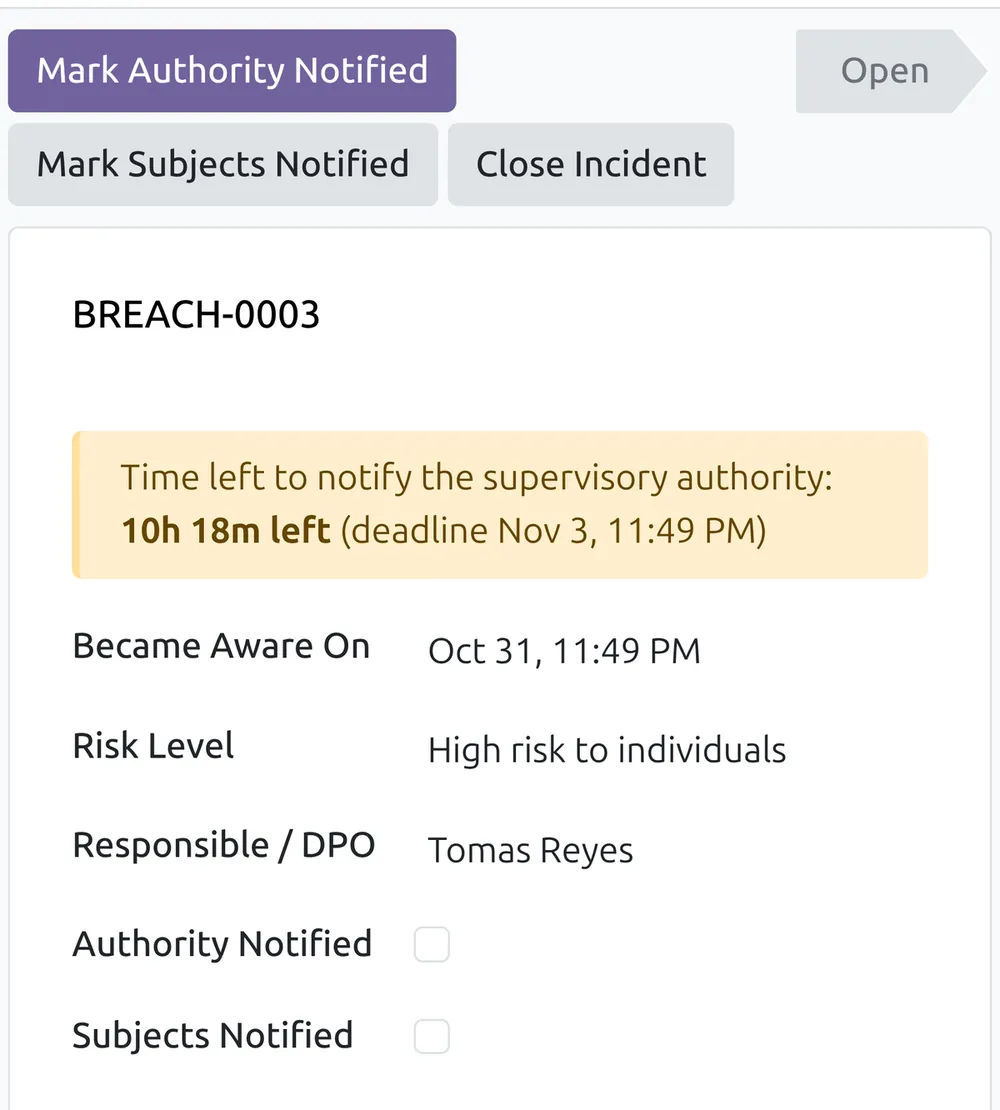
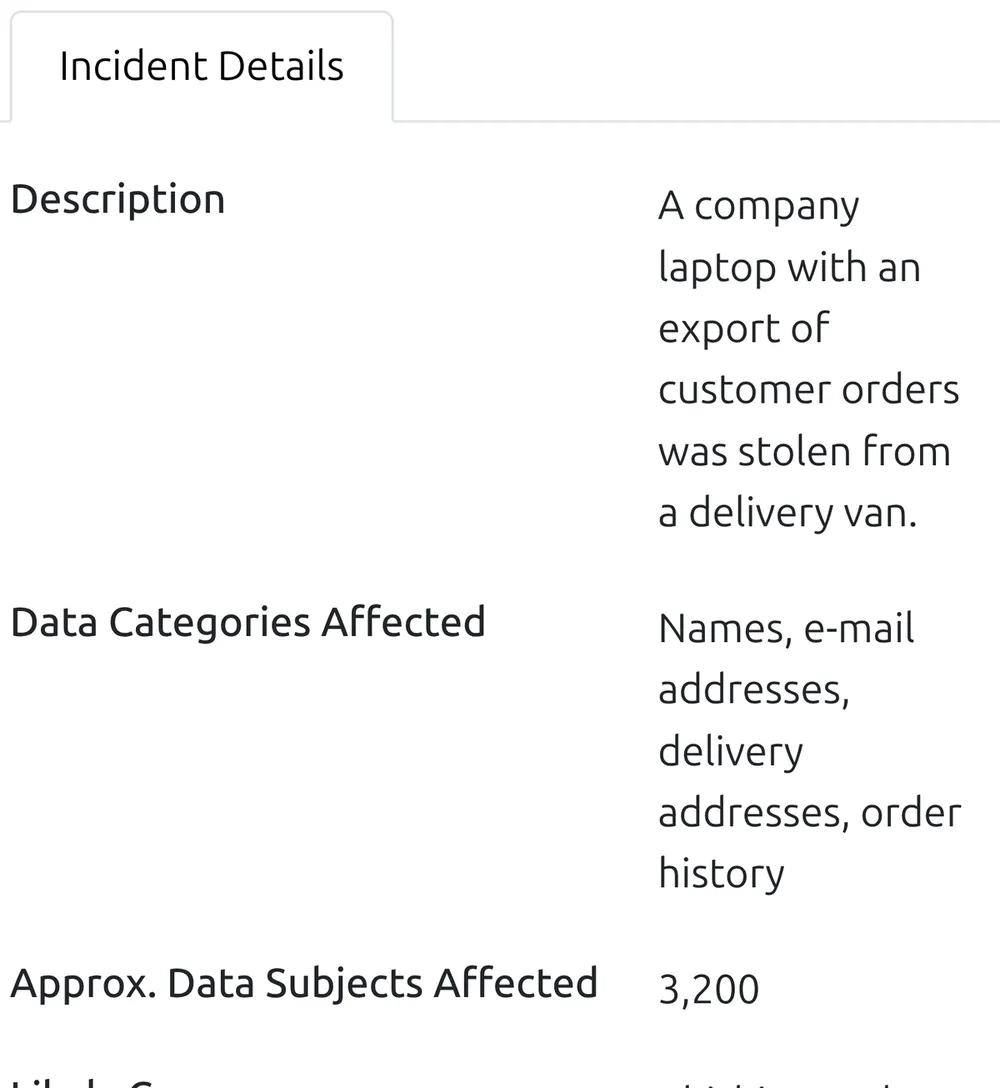
Open GDPR Breaches, Data Breaches and create a record. The reference (BREACH-0001 and on) is given from a sequence, Became Aware On starts at the moment you open the form and can be changed, and the deadline is that date plus 72 hours exactly (across a clock change it is still 72 real hours). Set the risk level (Low or High risk to individuals), the responsible user (you, by default) and, on the Incident Details tab, the description (required), categories of data, approximate number of people, likely consequences and measures. The first picture is an open incident ten hours from its deadline; the second is its details tab. Both are real screens from Odoo 19.
The app does not decide what you became aware of or when; it uses the date you enter, and changing it moves the deadline (the change is logged in the chatter).
An open incident with its countdown. Real Odoo screen (Odoo 19).
The details tab. Real Odoo screen.
2 See what is left, and what is late
Use it when you want to see at a glance which incidents are close to the deadline or past it.Read-only
A deadline in someone's head is missed or remembered too late.
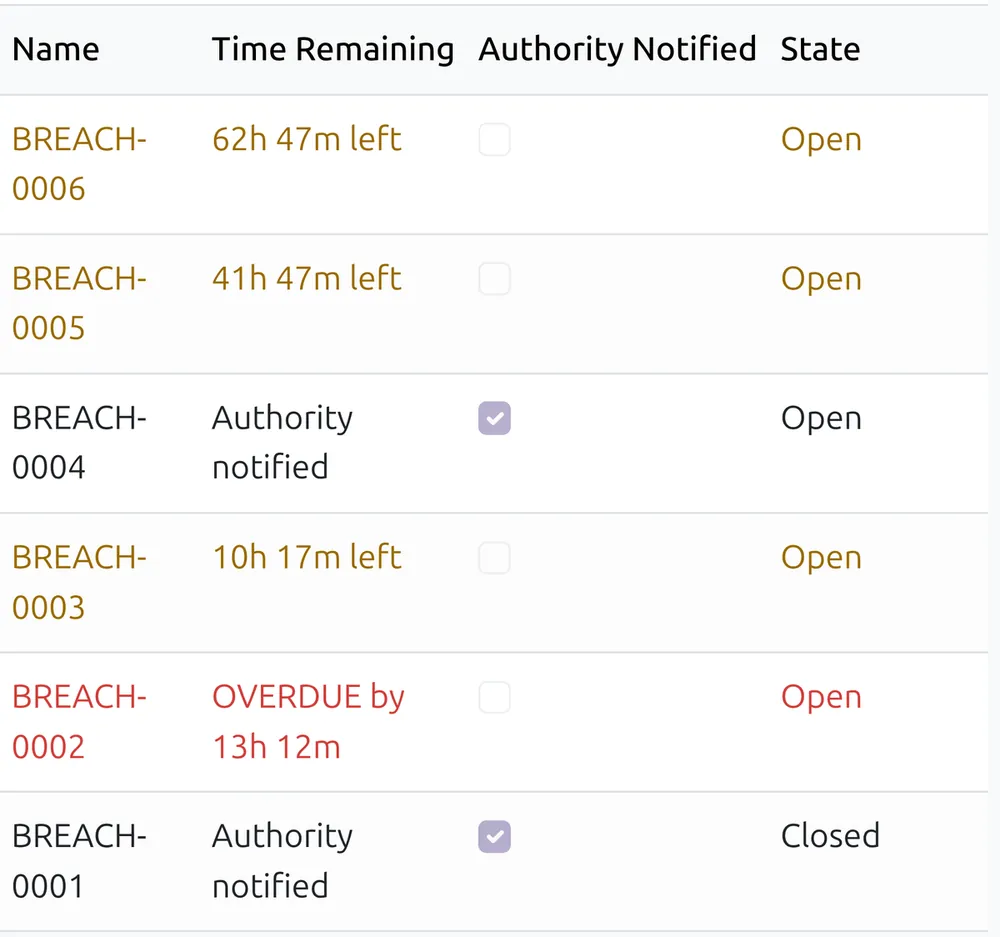
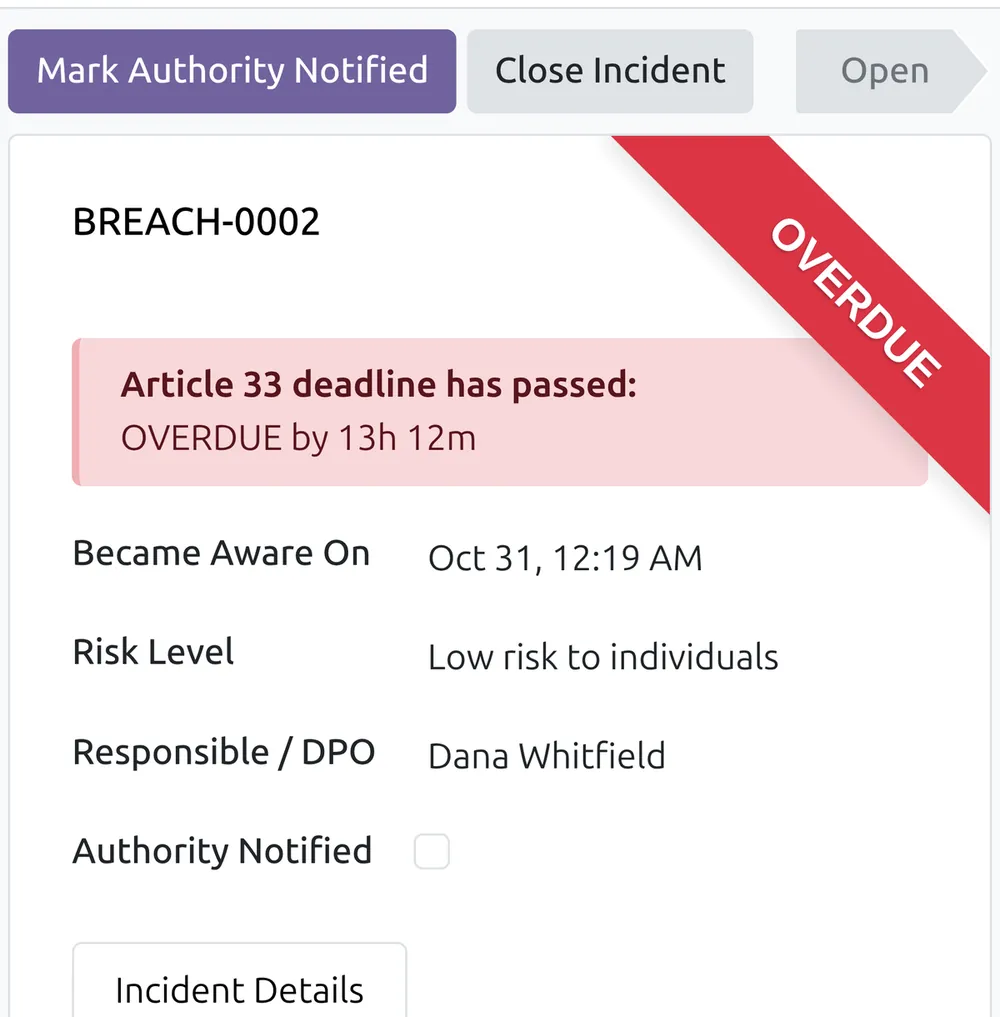
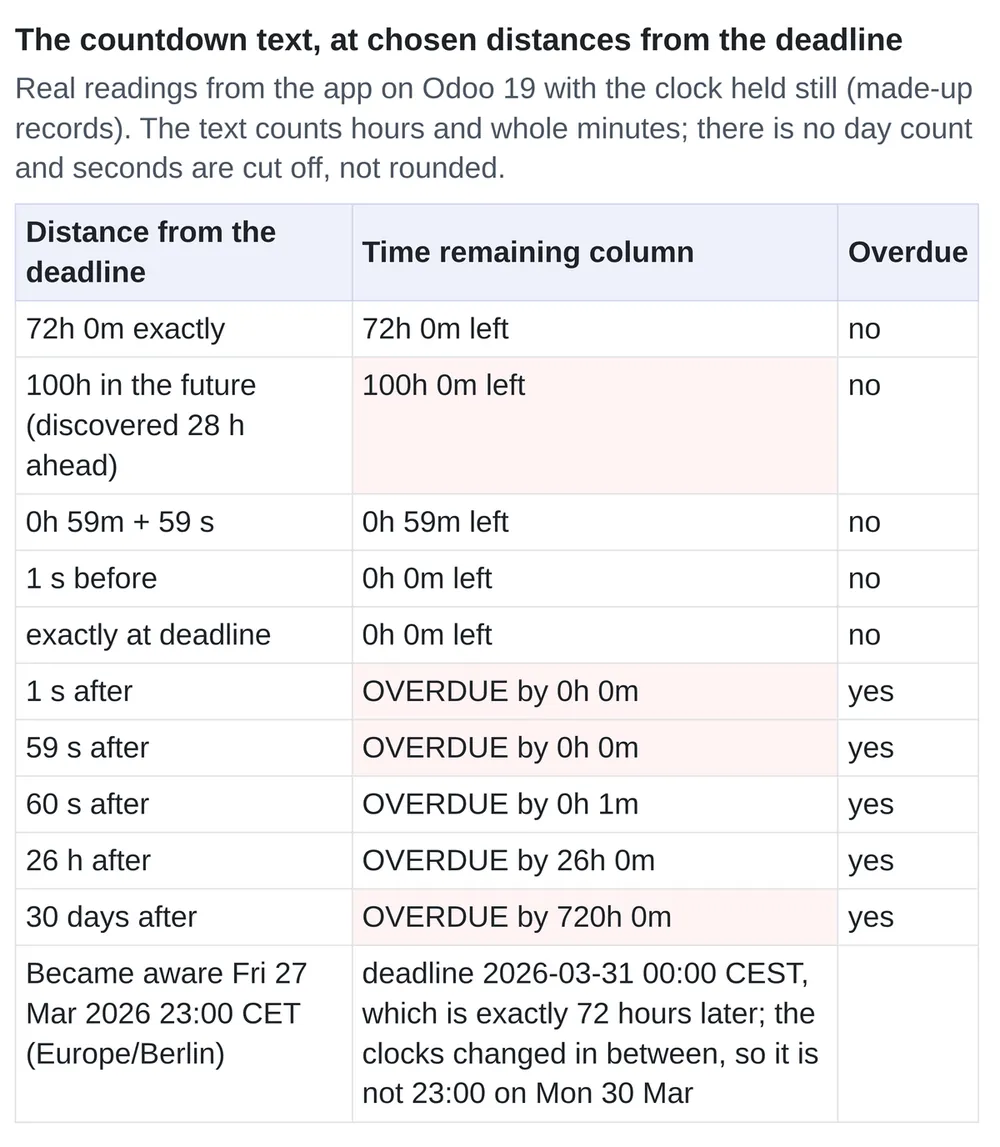
The list shows each incident's countdown: yellow while time is left, red once the deadline has passed and the authority is not marked notified. The form shows an amber box with the time left and the deadline, or a red box and an Overdue ribbon. After Mark Authority Notified the text reads Authority notified and the incident is never overdue. The text is worked out when the screen loads, in hours and whole minutes. The table gives readings at chosen distances from the deadline, with the clock held still.
It counts hours, not days, and cuts seconds off. The Overdue state cannot be searched, filtered or grouped. The list has no dashboard.
The six made-up incidents. Real Odoo screen (Odoo 19); rows are coloured as the app colours them.
An overdue incident. Real Odoo screen.
The countdown text at chosen distances. Evidence table.
3 Record that you told the authority or the people
Use it when someone has notified the supervisory authority or the data subjects outside Odoo and you want the record to show it.Writes the box and date
Proof that the clock was watched is the date next to the record, not a memory.
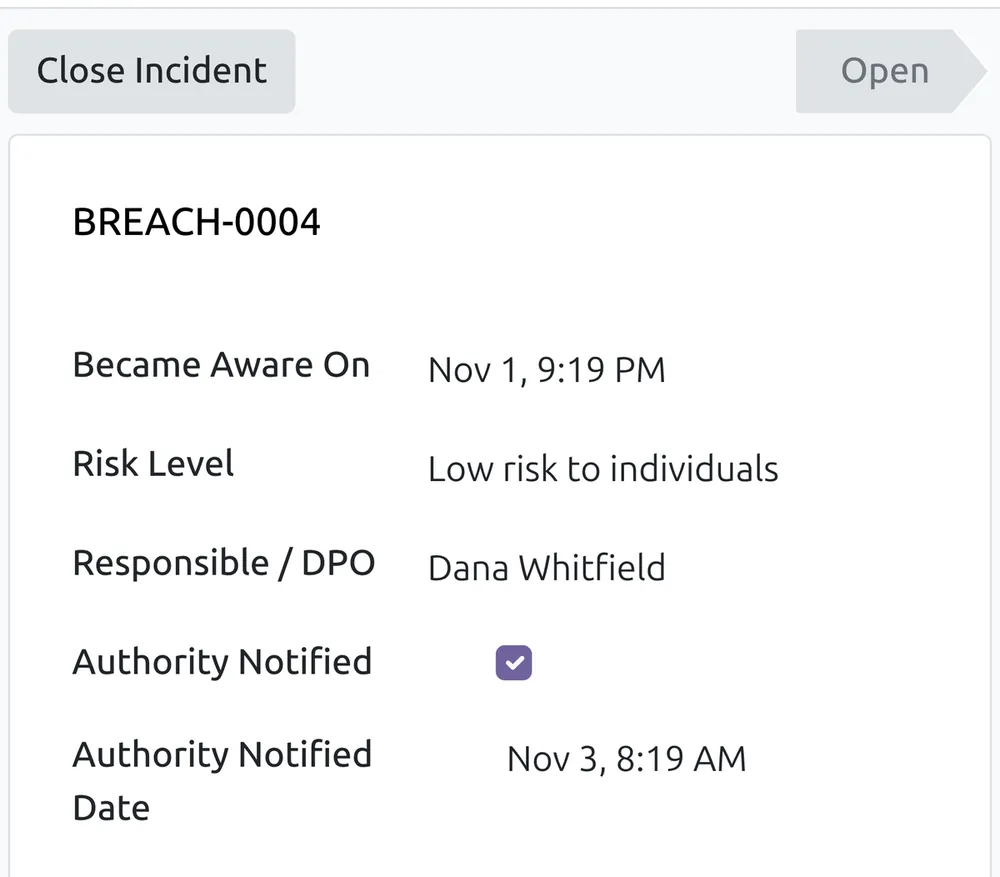
Mark Authority Notified ticks the box and stamps the date and time now; the countdown then reads Authority notified. Mark Subjects Notified does the same for the data subjects and appears only on an incident with High risk. Close Incident sets the state to Closed. These buttons record what you say happened; they send nothing and check nothing.
A notification made late reads the same as one made in time (there is no late flag; the dates are on the form). A box ticked by hand sets no date. You can close an incident without marking the authority notified, and it still reads OVERDUE.
A notified incident. Real Odoo screen (Odoo 19).
4 A reminder before it lapses
Use it when you want somebody nudged without having to look at the list.Writes an activity
A list nobody opens does not warn anyone.
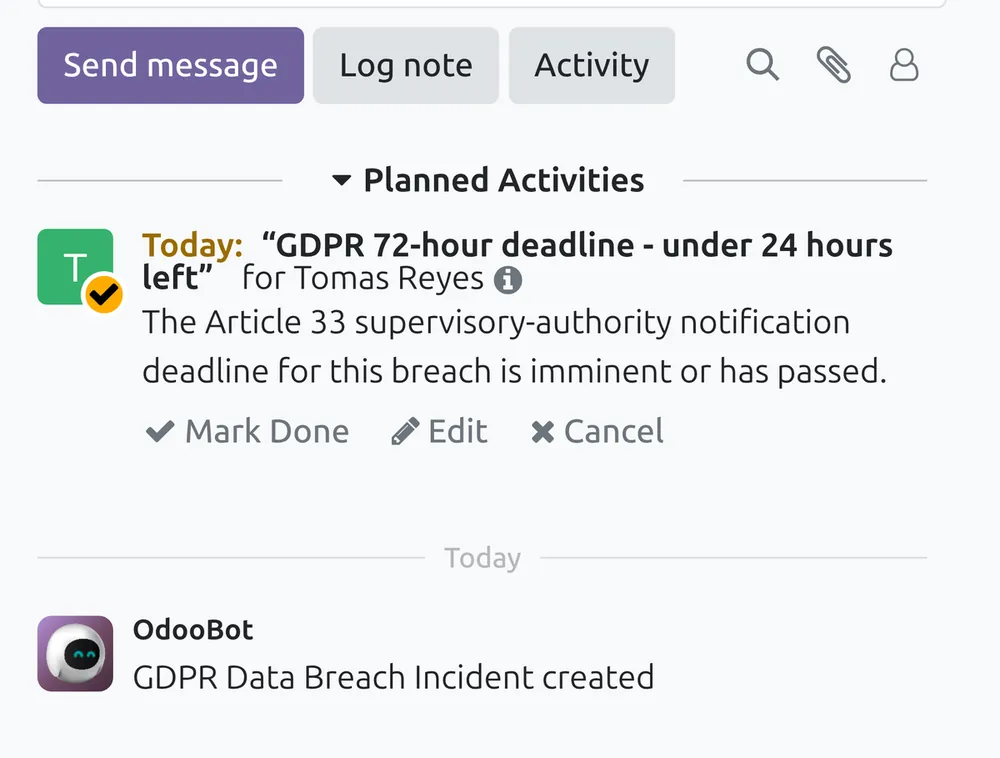
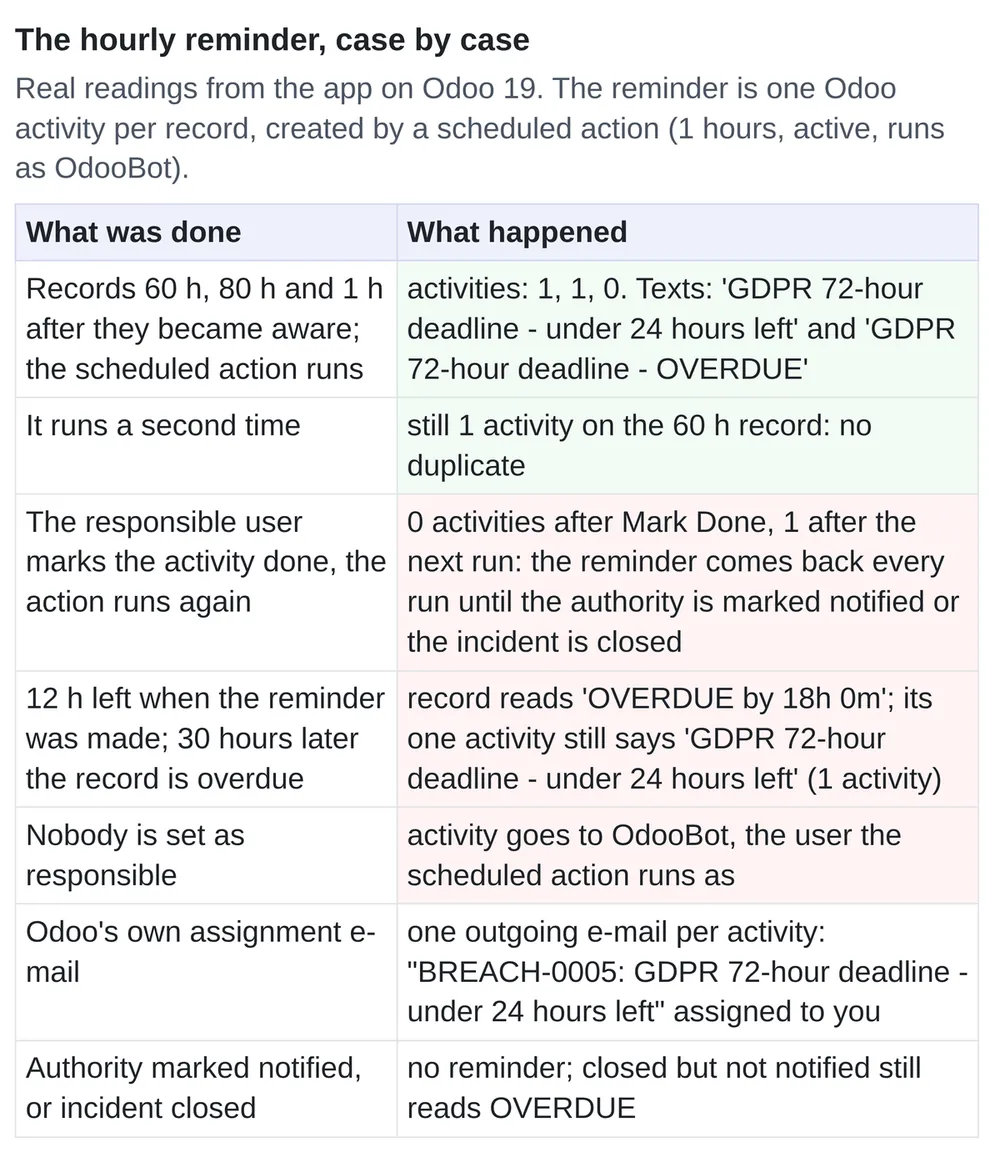
A scheduled action runs every hour (as OdooBot). For each incident that is Open, not marked notified and has 24 hours or less to its deadline, or is past it, and has no reminder yet, it makes one To Do activity for the responsible user, GDPR 72-hour deadline - under 24 hours left or - OVERDUE , and Odoo's usual assignment e-mail follows. The first picture is the activity on an incident; the table walks through the cases.
If the responsible user marks the activity done it is made again on the next run, until the authority is marked notified or the incident is closed. Its text is never updated, and nobody else is told.
The reminder on an incident. Real Odoo screen (Odoo 19).
The reminder, case by case. Evidence table.
5 Print what you typed
Use it when you want the incident's fields as a document to review, copy from or attach.Read-only
The same facts get typed again into a letter or a web form.
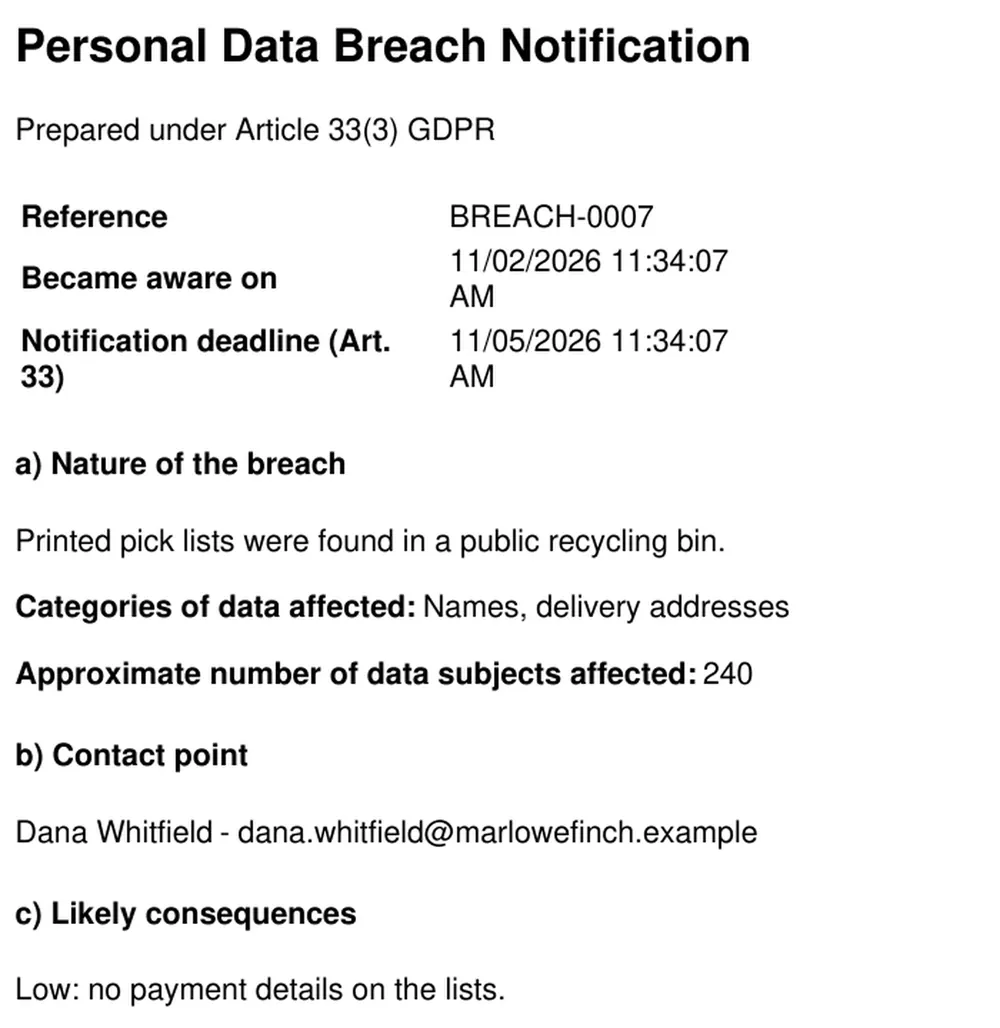
Print, then Article 33 Notification, gives a PDF named GDPR Notification - BREACH-xxxx with the reference, the date you became aware, the deadline and four headed parts: nature of the breach (description, categories, approximate number of people), contact point (the responsible user's name and e-mail), likely consequences, and measures taken or proposed. The picture is a crop of the real PDF; the measures part follows below the crop. The report prints exactly what was typed; it does not check that anything is filled in, has no risk level, notification date or Article 34 text, and no authority has accepted it.
It does not send anything; you decide what, if anything, to submit.
The top of the printed PDF for a made-up incident. Real wkhtmltopdf output.
6 Who can see it
Use it when incident records are sensitive and you want to know who can open them.Read-only
Incident details are the last thing to leave in a shared list.
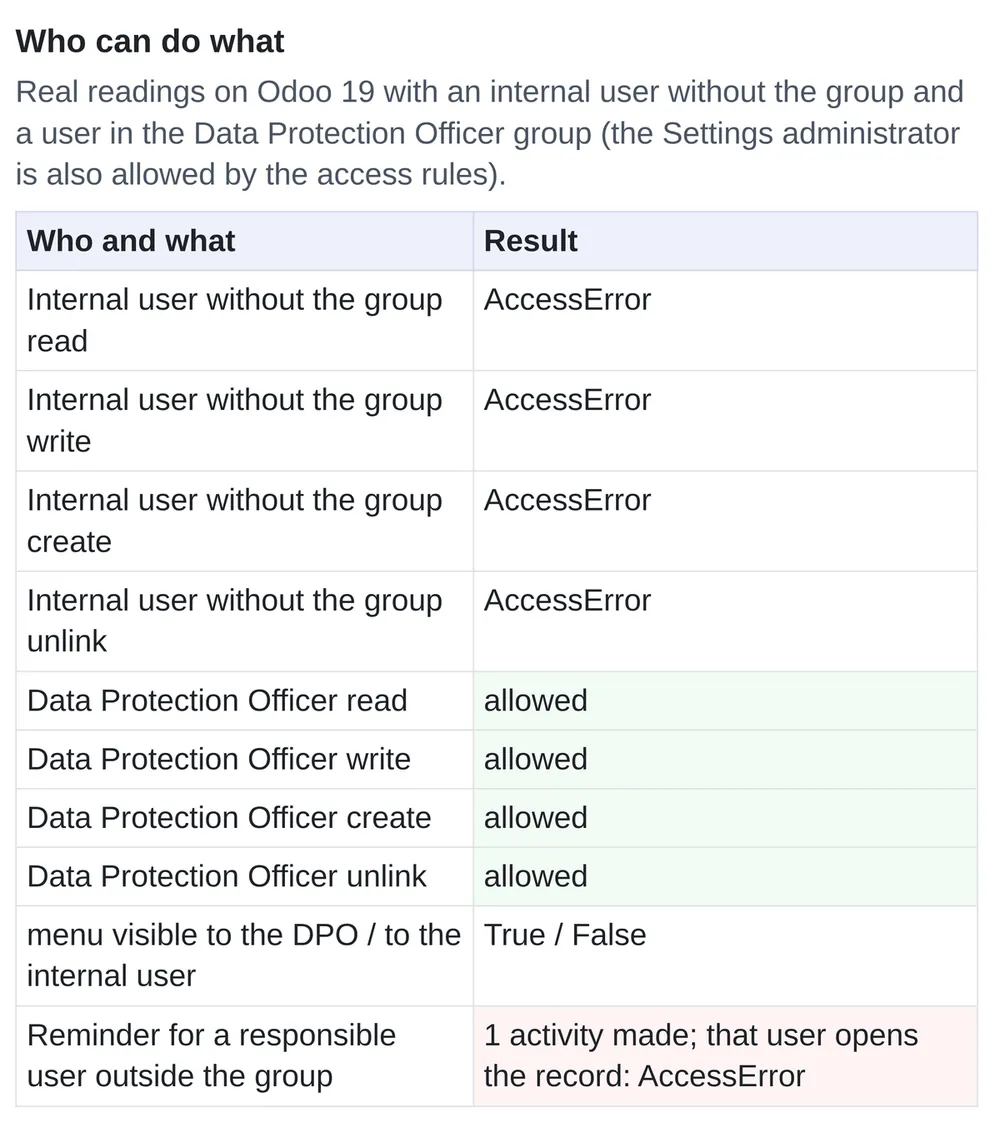
Members of the Data Protection Officer group and Settings administrators can read, change, create and delete incidents, and only they see the menu. An internal user without the group cannot read, change, create or delete them. The table is from a run with one user of each kind.
There is no company field and no record rule, so a Data Protection Officer of any company sees every incident, and anyone in the group can delete one. The user named as responsible gets the reminder even without the group, and then cannot open the record.
Who can do what. Evidence table.
7 Checked against the database
Use it when you want to know the arithmetic is right before you rely on it.Read-only
A deadline that is an hour out is worse than none.
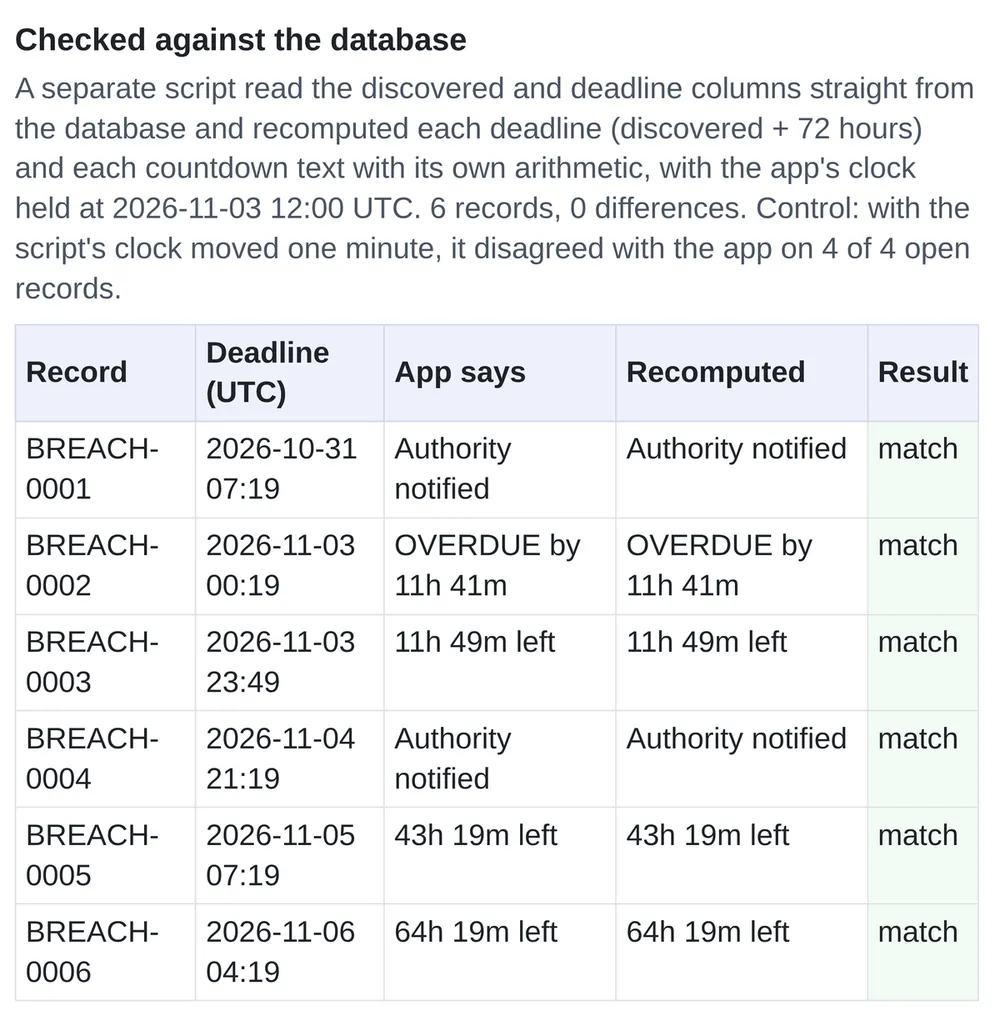
A separate script read the date columns straight from the database and recomputed every deadline (became aware plus 72 hours) and every countdown text with its own arithmetic, with the app's clock held at one instant. All six records matched on Odoo 19 and Odoo 20. With the script's clock moved by one minute it disagreed on all four open records. This checks the arithmetic of the app; it says nothing about whether 72 hours from the date you enter is the period that applies to you.
Six of six matched. Evidence table.
What changed in this version
Version 1.0.10 fixes one defect: Duplicate on an incident used to copy the notified boxes and their dates, so a copy of a notified incident read Authority notified from the moment it was made; the copy now starts open and un-notified (it keeps the date you became aware, so a copy of an old incident reads OVERDUE until you change it). It adds eight automated tests (one for the fix, seven for the limits above), a new icon, a new banner and this page, and takes no feature out. The demo video and the form picture of an earlier version are kept as they were and were not re-recorded.
Screenshots
What it does not do
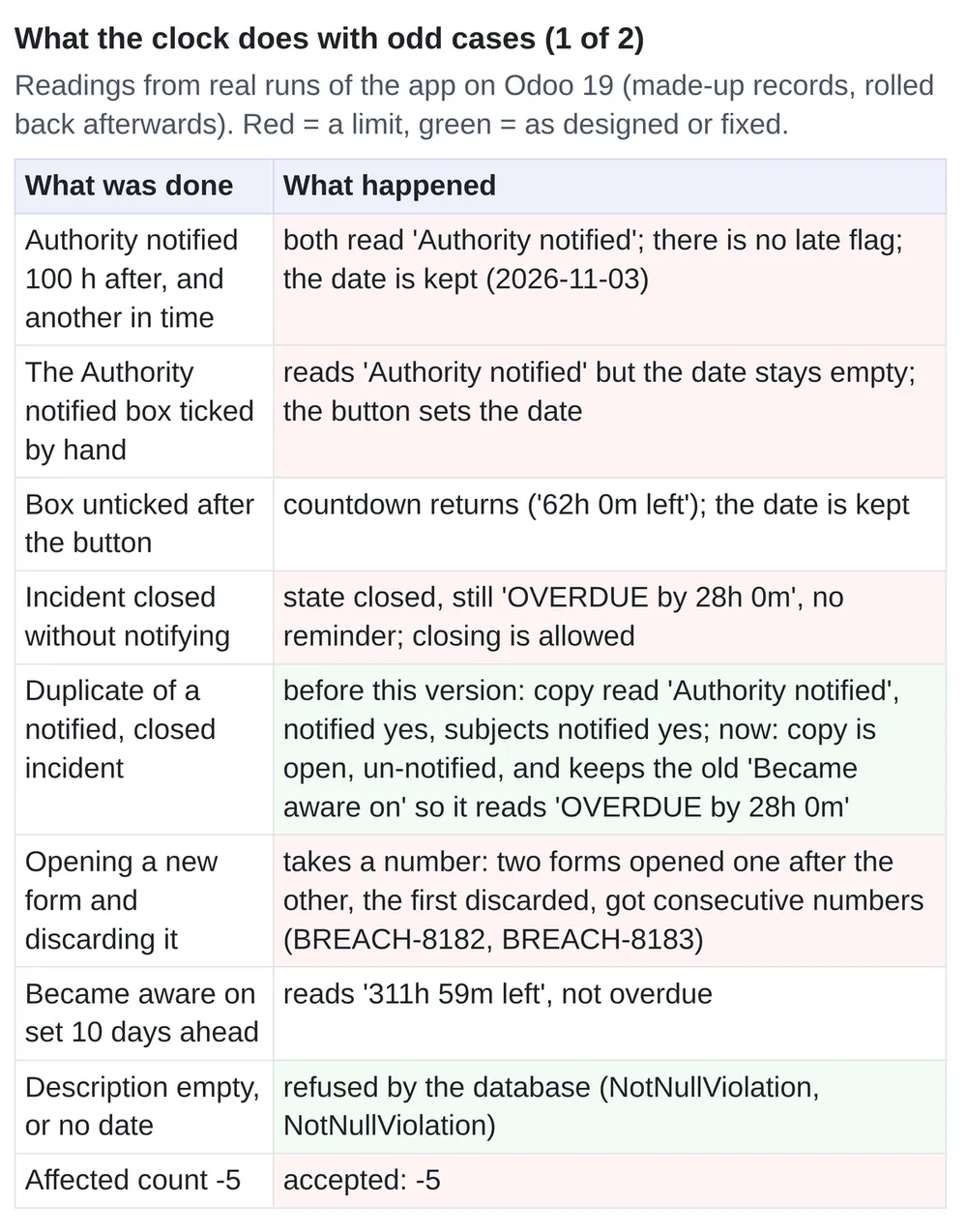
- Each of these was reproduced in a run of the app on Odoo 19 and the main ones are pinned by tests that pass; none is changed in this version except the duplicate case, which is fixed.
- Nine readings from real runs. Evidence table.
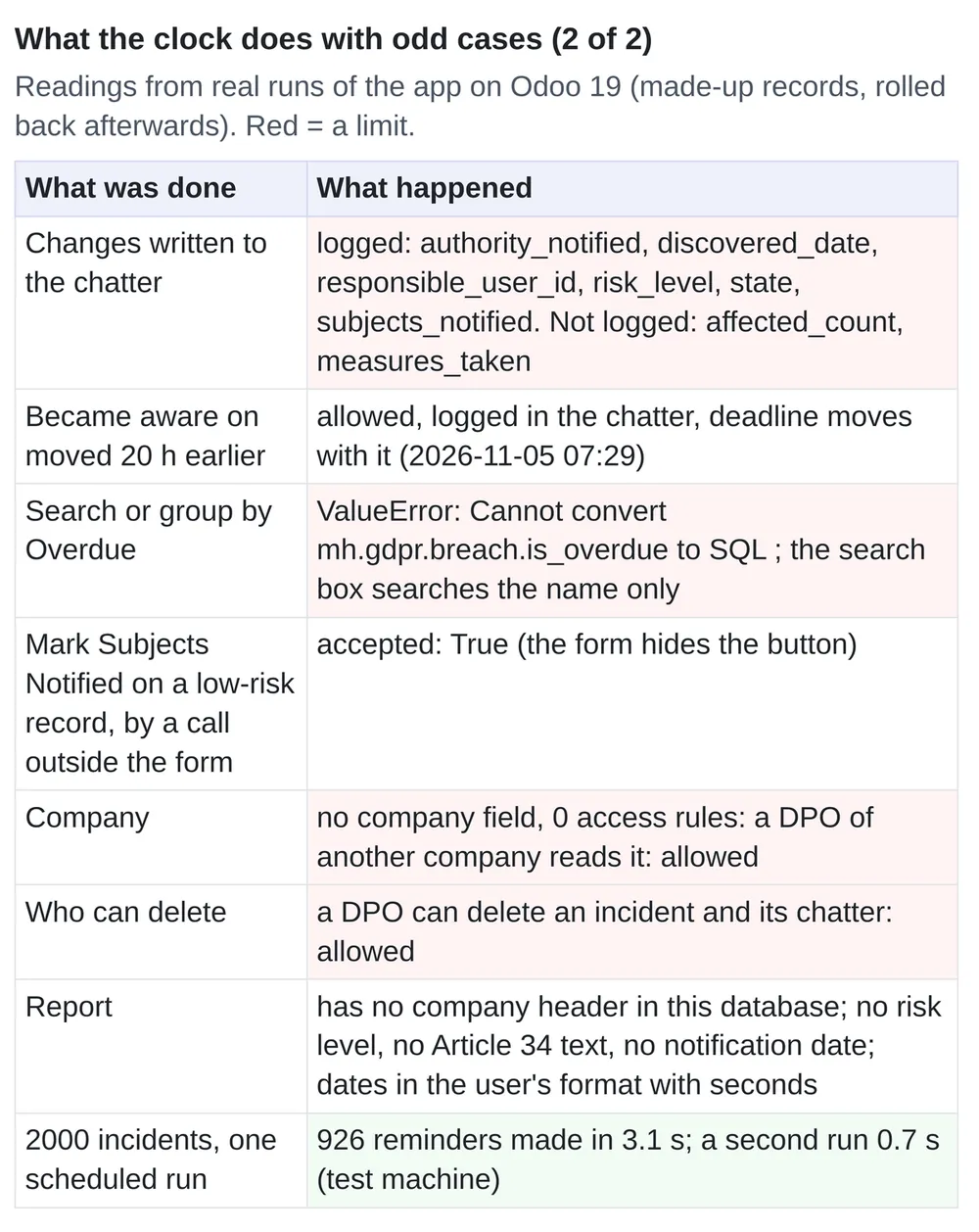
- Eight more readings from real runs. Evidence table.
Requirements
- Odoo 19.0 or 20.0. The App Store sells each version separately, so buy the one that matches your database.
- Odoo.sh or On-Premise only. Third-party apps cannot be installed on Odoo Online (SaaS) databases. Check your hosting before buying.
- Module
mh_gdpr_breach_clock, version 19.0.1.0.11, licensed OPL-1.