eCommerce Category Sync
Build the shop categories from the internal product categories you already have, and file every product in them
Request a live demo · Odoo.sh or On-Premise only, not Odoo Online (SaaS).
420 of 420
categories and products matched an independent recompute from the raw tables over 3 random trees of 60 internal categories
1.9 s
to sync 310 internal categories and file 3,000 products into them on Odoo 19 (test machine, one run)
25
automated tests in the app, none failing; 11 were added, each pinning a limit stated on this page
0
eCommerce categories deleted and products taken out of a shop category by the sync (one switch you turn on removes the category of the one a product left)
0
defects fixed in this version: none was found that justified a behaviour change; six limits are recorded below
Not
undone by Keep Out of Shop once a category is linked, and not run by a Sales administrator who lacks product rights (see the known limits)
Odoo keeps two category trees that never talk to each other: internal product categories for inventory and accounting, eCommerce categories for the shoppers. A shop with a full internal tree builds the same tree again by hand and files every product twice. eCommerce Category Sync links each internal category to an eCommerce category, creates the missing ones under the same parent, files the products, and can keep doing it as you add categories and products. This page walks through it with screenshots of an Odoo 19 database holding a made-up home and garden shop, and with tables rendered from real readings of the same run; each picture says which it is.
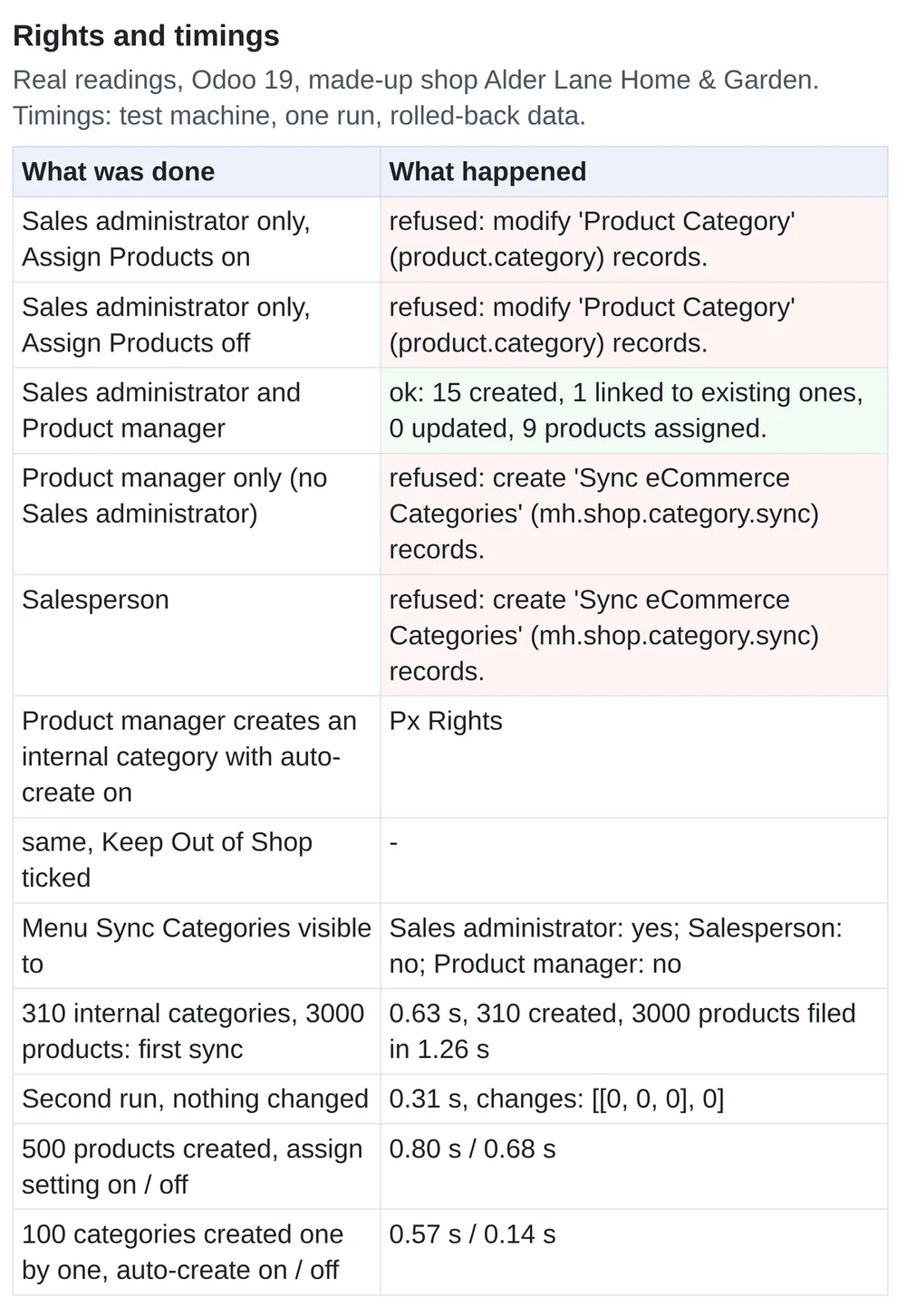
The page also says where the app stops: Keep Out of Shop does not unfile a category that is already linked, same-named categories share one eCommerce category, renames are not followed on their own, and the sync needs product rights as well as the Sales administrator group.
Install it and an internal category gets a Shop Category field and a Keep Out of Shop box, Website, eCommerce, Products gets a Sync Categories entry, and Website settings gets two switches. It needs only the eCommerce app (website_sale).
How it works
What it keeps, what it changes, what it does not
Each line was tested or read in the code.
1 Mirror the internal tree in one click
Use it when you already have a tree of internal product categories and the shop has none, or a partial one.Writes when you press Sync
Building the same tree again under Website, category by category, takes an afternoon and goes stale the next week.
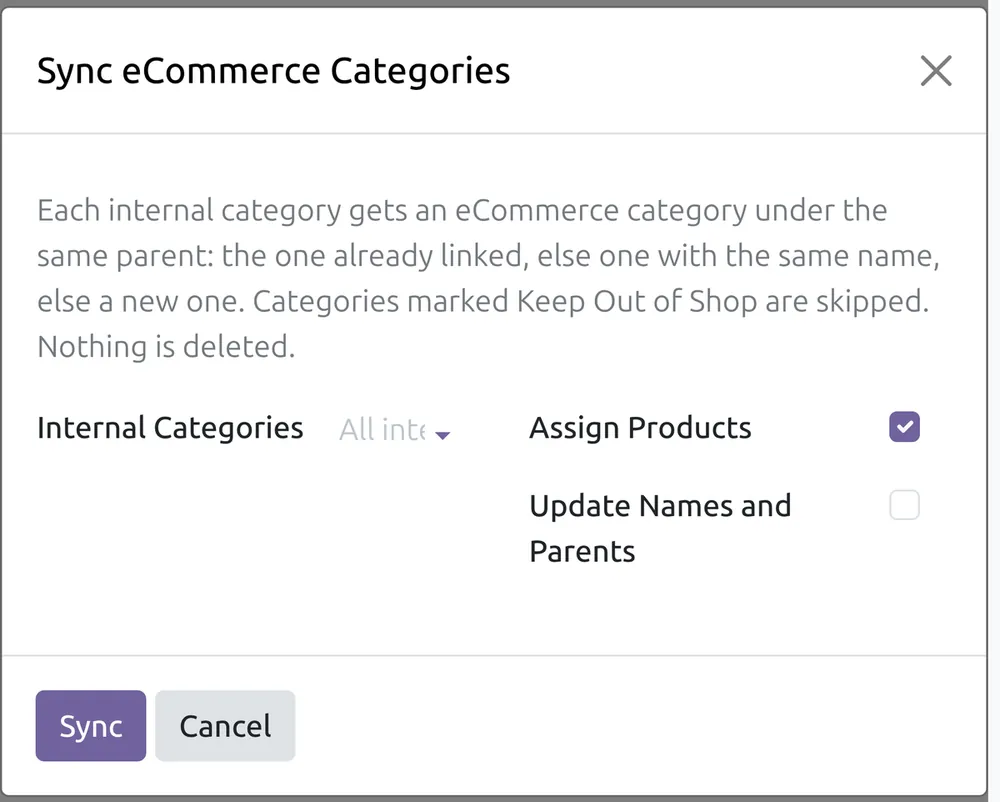
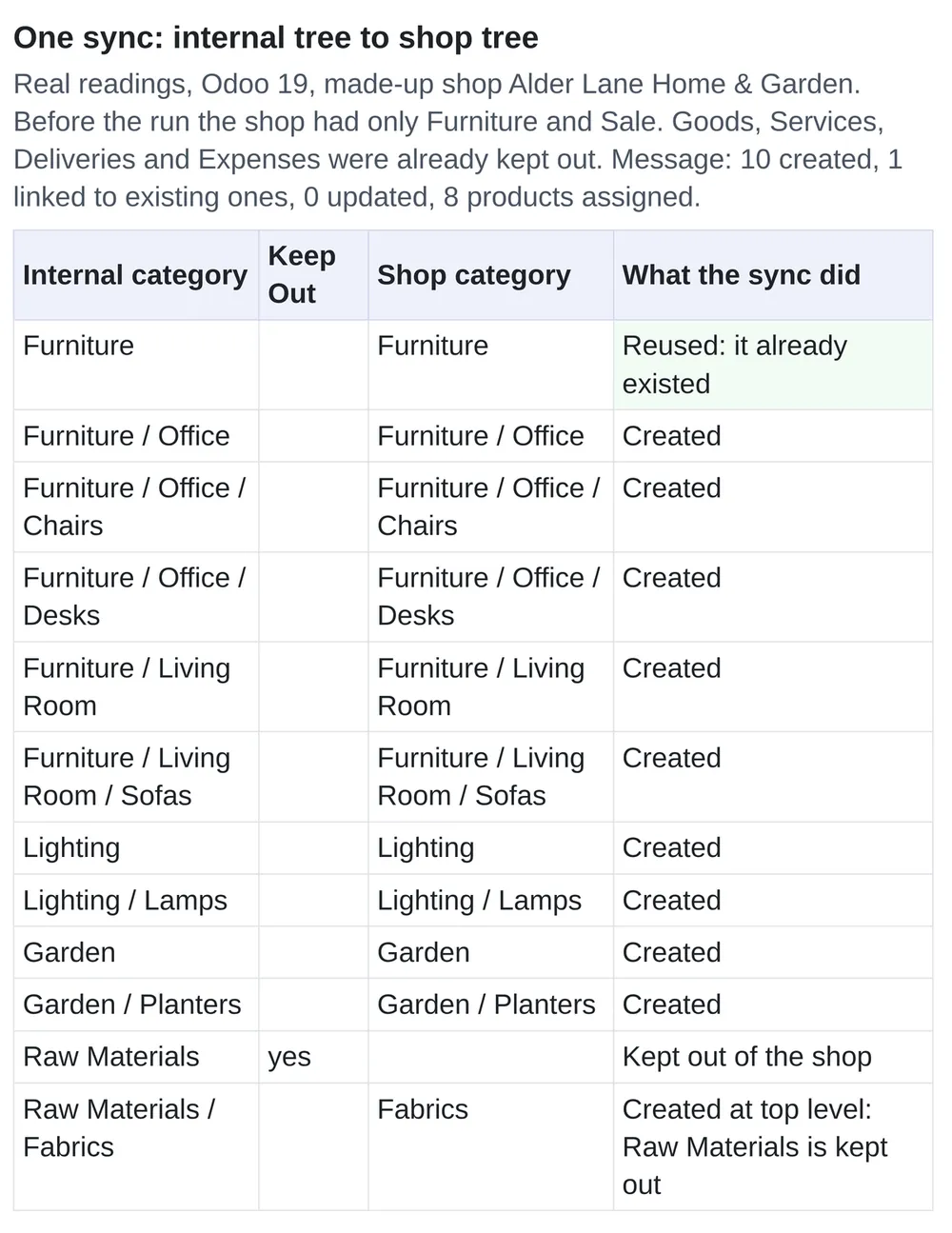
Open Website, eCommerce, Products, Sync Categories (or select categories in the internal category list and use the Action menu). The dialog has the categories to sync (empty means all), Assign Products (on) and Update Names and Parents (off). Press Sync: every internal category gets an eCommerce category under the same parent, the one already linked, else one with the same name, else a new one, and a message says how many. In the demo the shop had only Furniture and Sale; the run created 10, linked 1 (Furniture), updated 0 and filed 8 products. Running it again changes nothing (0, 0, 0, 0). The table lists every category and what happened to it.
It never deletes an eCommerce category, copies no translations, descriptions or images and sends nothing anywhere.
The dialog. Real Odoo screen (Odoo 19).
The message after Sync. Real Odoo screen.
What happened to each internal category. Evidence table.

2 See the link on both sides
Use it when you want to check which shop category an internal category points to.Read-only
A tree you cannot inspect is a tree you cannot trust.
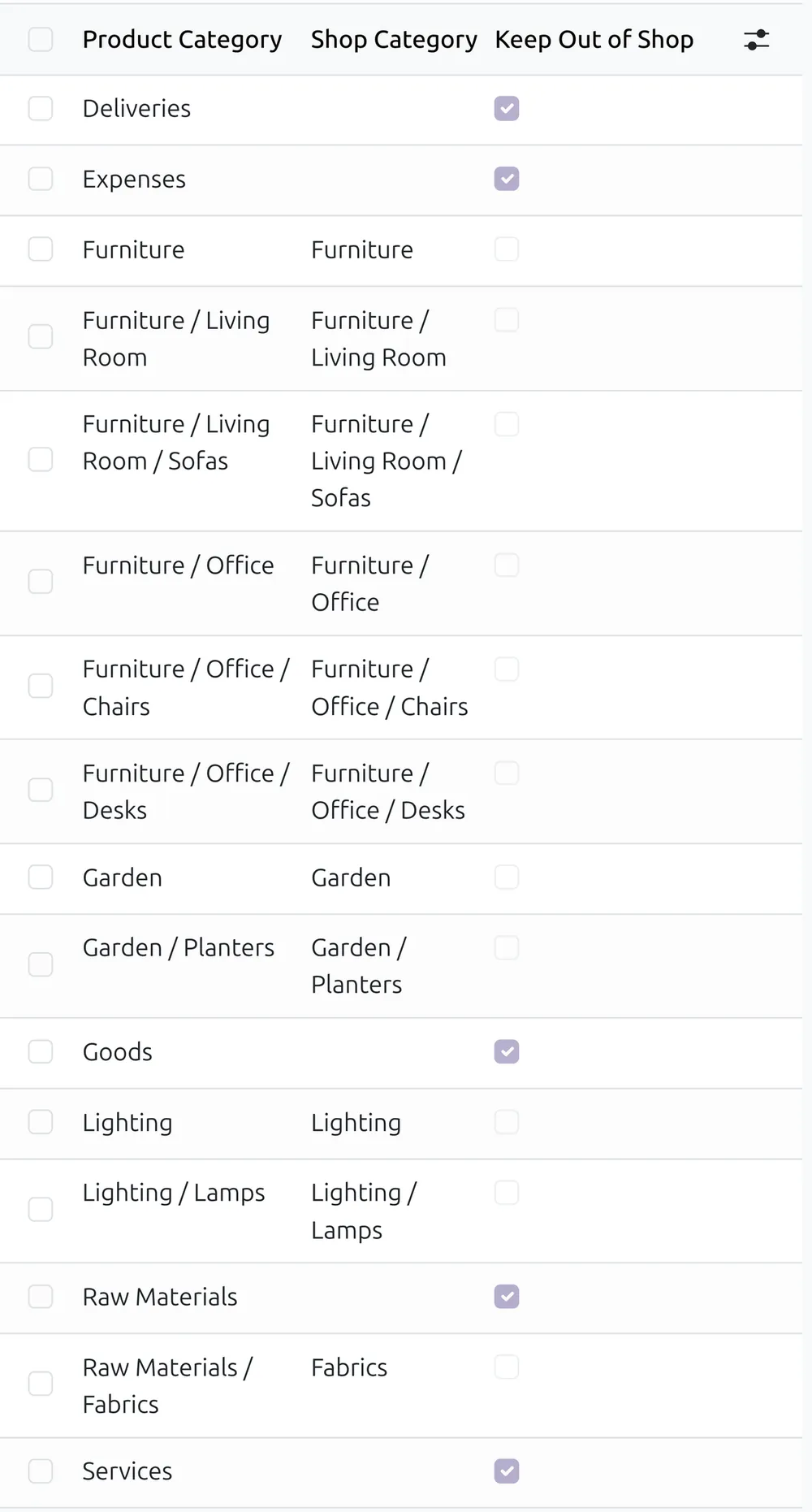
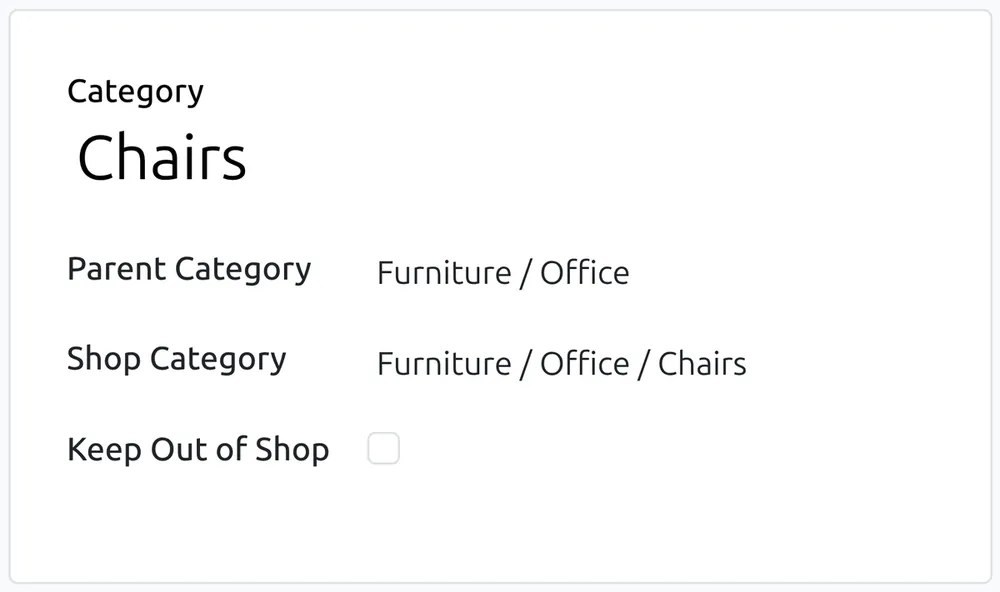
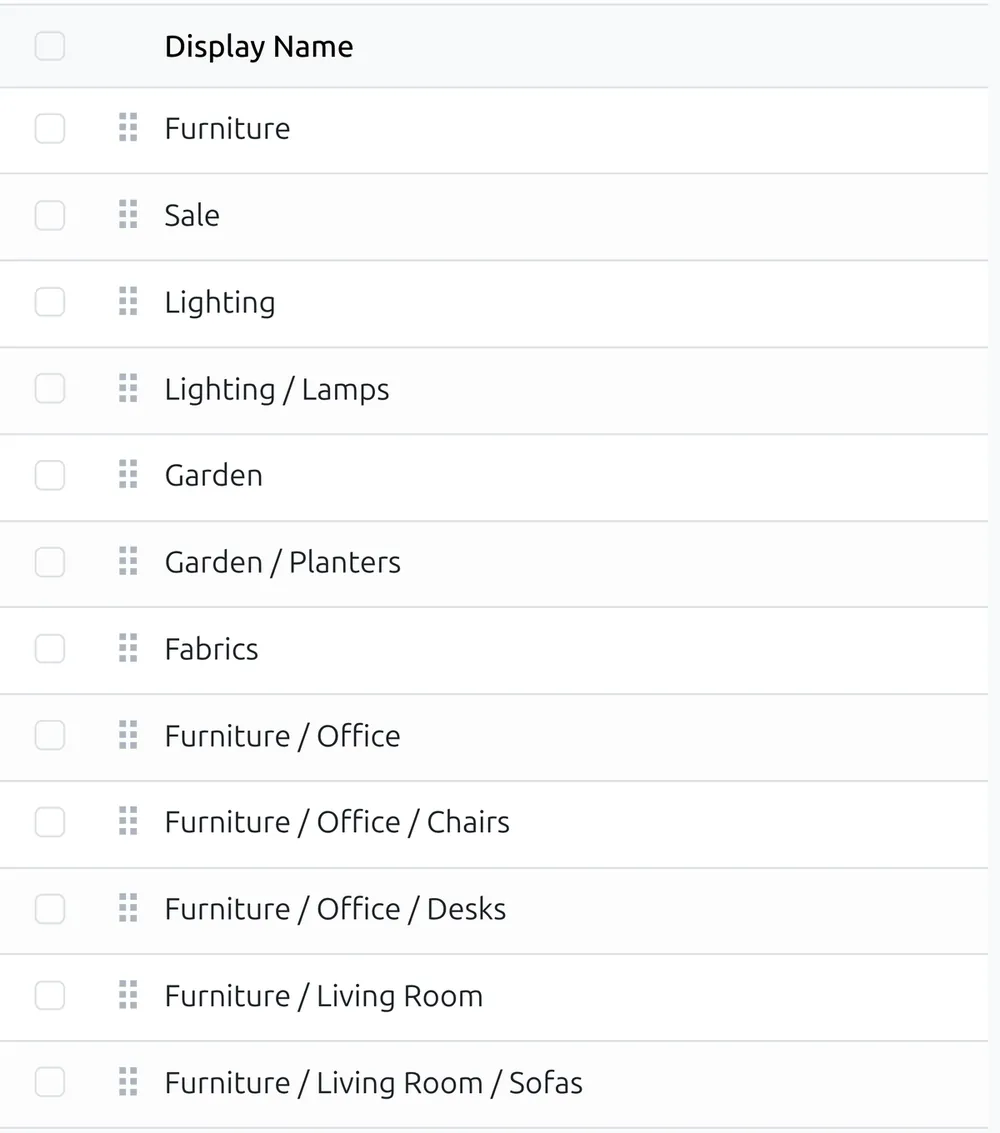
The internal category list and form show the new Shop Category and Keep Out of Shop columns. The eCommerce Categories list shows the tree the sync built, with the two categories you made by hand (Furniture, reused, and Sale) beside the new ones. You can also pick any existing eCommerce category in the Shop Category field to link it by hand. The lists are shown cropped to the table; in the internal list Goods, Services, Deliveries and Expenses are kept out.
A category that is linked by hand to a differently named shop category is renamed if you later sync with Update Names and Parents.
Internal categories with their linked shop category. Real Odoo screen.
One internal category linked to its shop category. Real Odoo screen.
The shop tree after the sync. Real Odoo screen.
3 Products are filed for you, and the shop shows it
Use it when each product has to be in the shop category that matches its internal category.Writes when you press Sync
Filing every product twice is slow, and one forgotten product is a product shoppers cannot find.
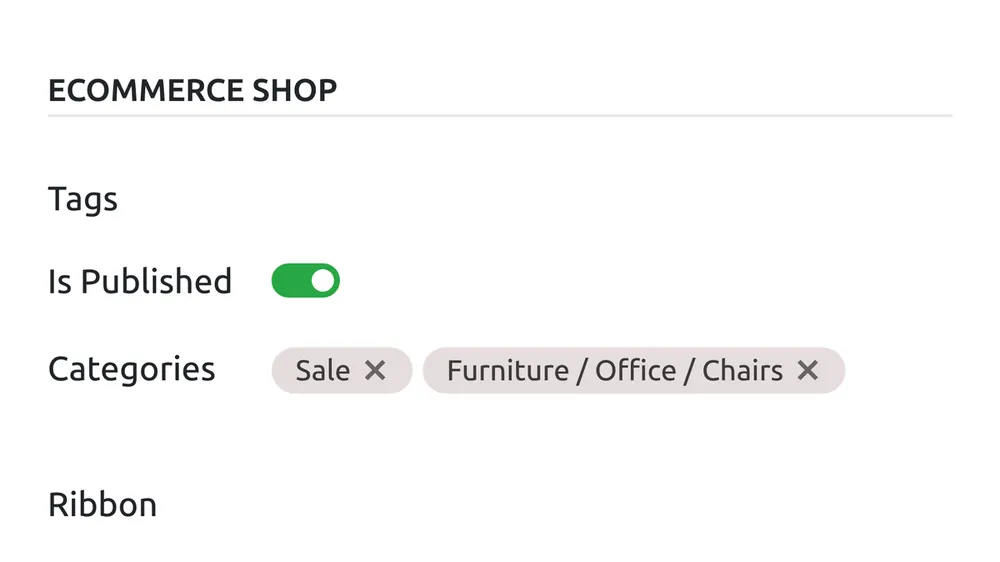
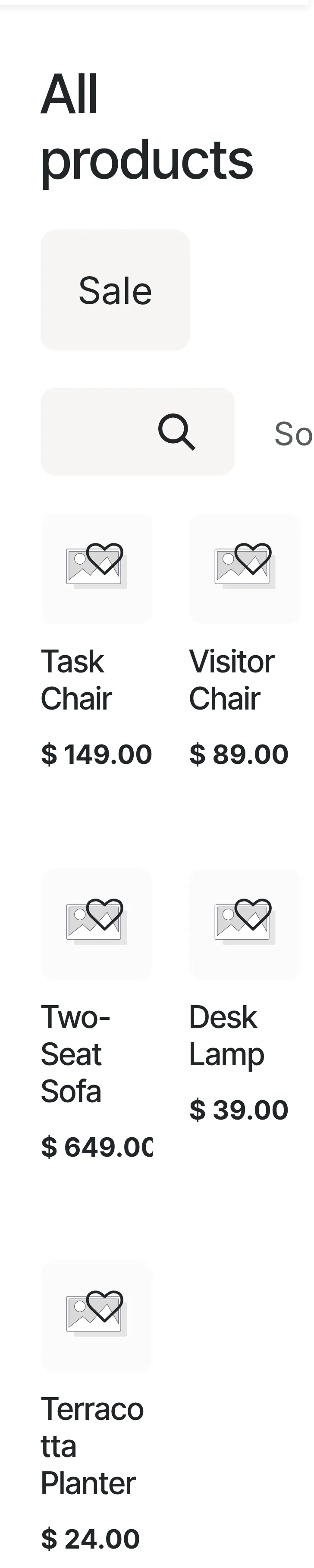
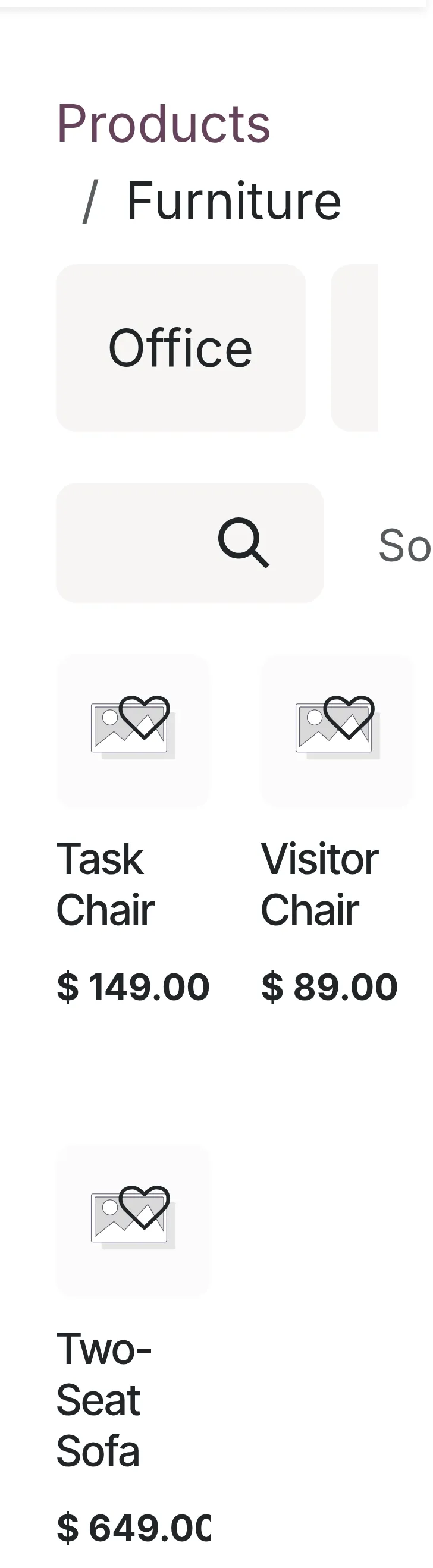
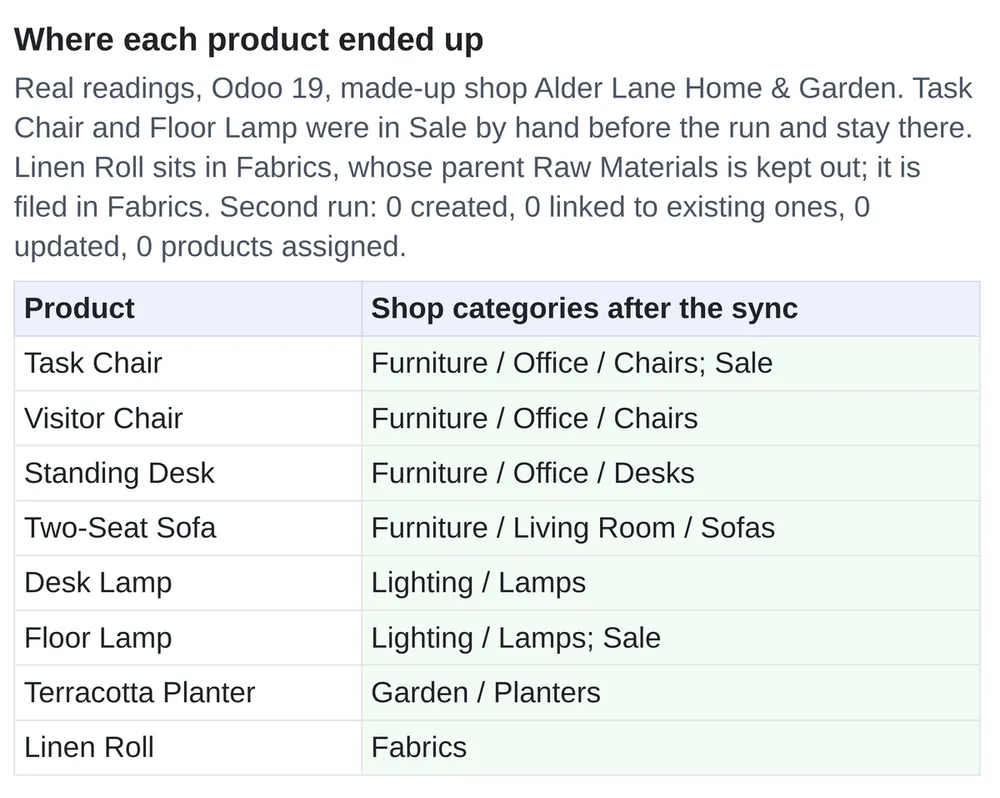
With Assign Products on, each product is added to the eCommerce category of its internal category, and the eCommerce categories already on the product stay: Task Chair kept Sale and gained Furniture / Office / Chairs. A visitor sees the result on the shop page: before the sync the shop listed only a Sale button; the page of Furniture then lists the four products filed in its sub-categories (chairs, desk, sofa) and links to Office and Living Room. The product form shows the eCommerce categories in its Sales tab. Archived products are not assigned.
It does not publish products and does not change prices or stock.
A product after the sync. Real Odoo screen.
The shop before the sync, as a visitor. Real Odoo screen (real headless Chrome, not logged in).
The shop page of Furniture after the sync, as a visitor. Real Odoo screen.
Where each product ended up. Evidence table.
4 How an existing shop category is recognised
Use it when the shop already has some categories you do not want duplicated.Read-only
A sync that makes a second 'Furniture' next to yours is worse than no sync.
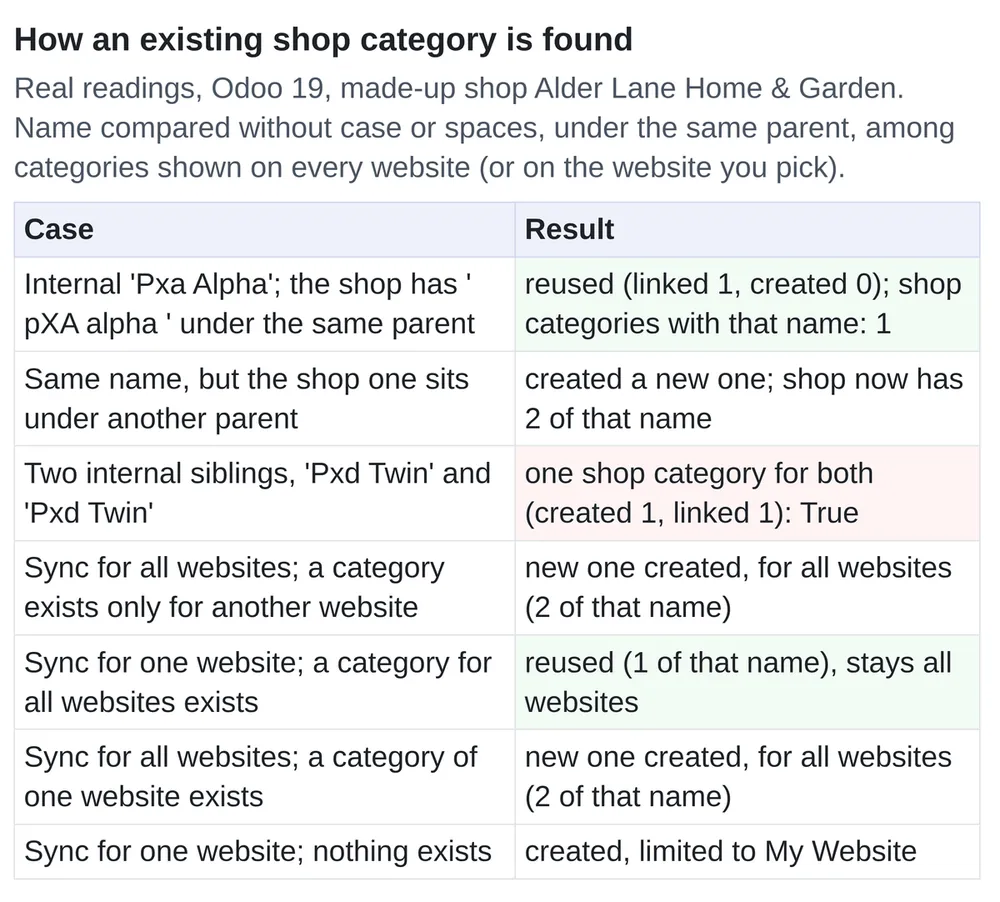
The sync looks for a shop category with the same name, compared without case or spaces, under the same parent, among the categories shown on every website (or the website you pick). It then reuses it. A same-named category under another parent is not reused; one that belongs to another website is not reused; a category for all websites is reused by a sync for one website. The table lists each case with the reading.
Two internal siblings with the same name share one shop category.
How an existing shop category is found. Evidence table.
5 Keep some categories out of the shop
Use it when some internal categories (raw materials, expenses, internal use) are not for shoppers.Writes when saved
Mirroring everything puts Raw Materials in front of shoppers.
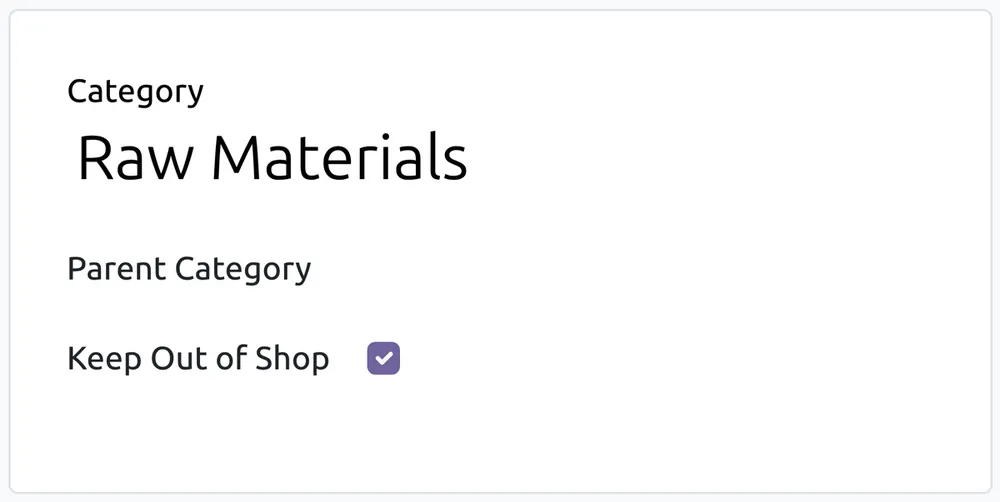
Tick Keep Out of Shop on an internal category and the sync never creates a link for it; its sub-categories go under the nearest ancestor that has one (in the demo, Fabrics sits at the top of the shop because its parent Raw Materials is kept out). Products created in a kept-out, unlinked category get no shop category. Odoo's Expenses category is marked on install; on a fresh database a full sync mirrors Goods, Services and Deliveries too (and Donations on Odoo 20), so mark the ones you do not want first.
Ticking it on a category that is already linked leaves the link and the products filed (see the known limits).
A kept-out category. Real Odoo screen.
6 Keep up from then on
Use it when new categories and products are added every week.Writes on create and change
A sync you have to remember to run drifts.
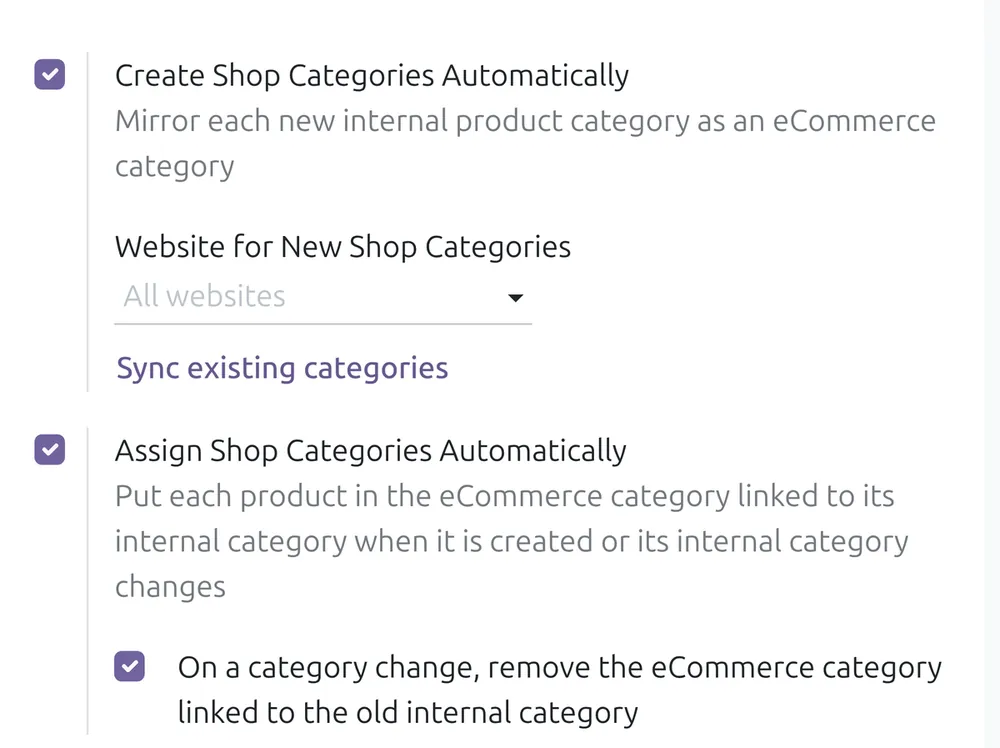
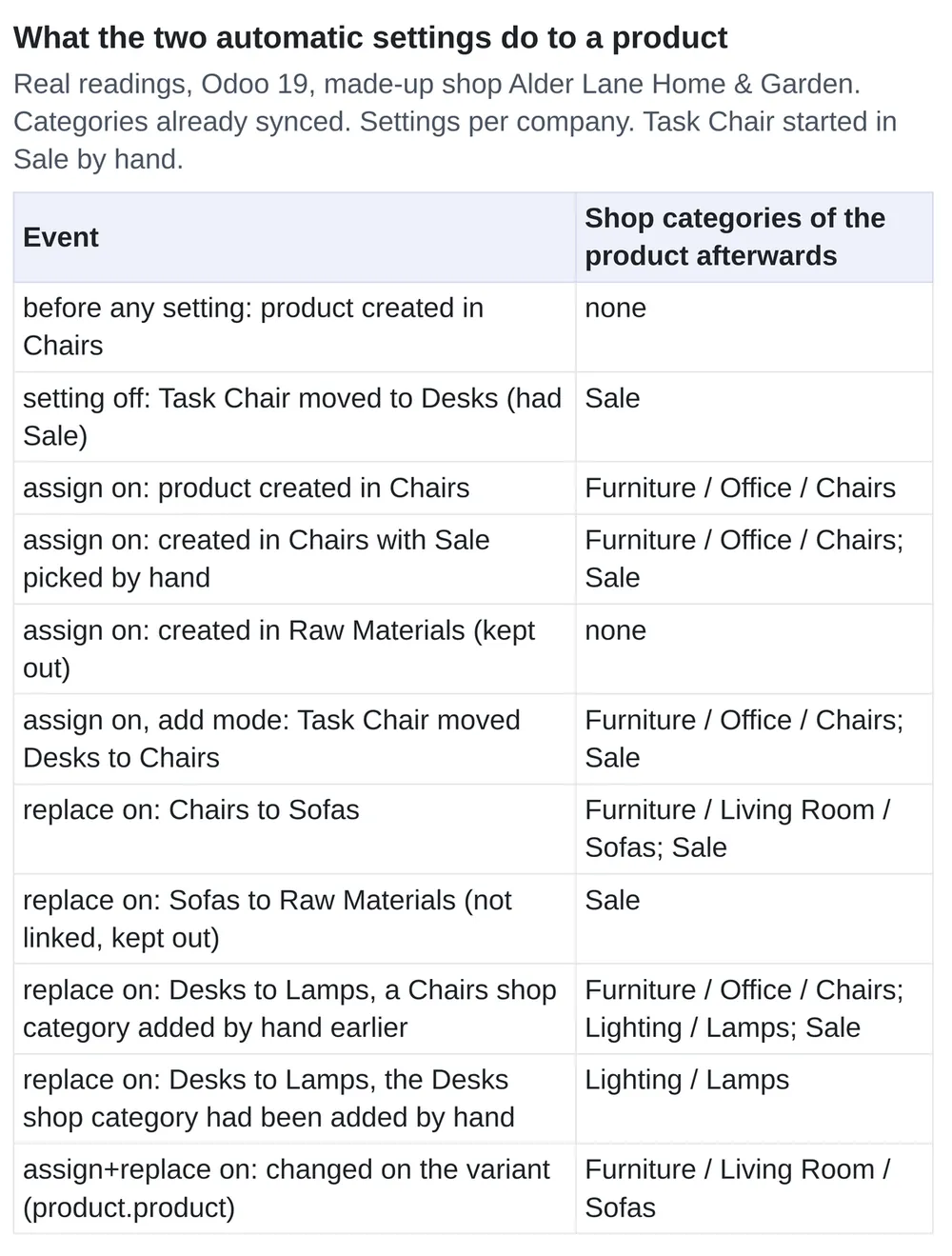
Two settings per company in Website settings: Create Shop Categories Automatically (optionally for one website) mirrors each new internal category, and Assign Shop Categories Automatically files a product when it is created or its internal category changes. Under it, a switch removes the eCommerce category linked to the old internal category when a product moves. With it off, the old one stays. The table shows each case, including a product moved on its variant and a product in a kept-out category. A user who can create internal categories but has no shop rights still gets the shop category made.
Renaming or moving an internal category is not followed by these settings.
The settings, cropped out of the Website settings page (the other settings are left out). Real Odoo screen.
What the two settings do to a product. Evidence table.
7 Renames, moves and what is never deleted
Use it when you reorganised the internal tree and want the shop to follow.Writes when you press Sync
Trees change; a mirror that never follows is a second tree again.
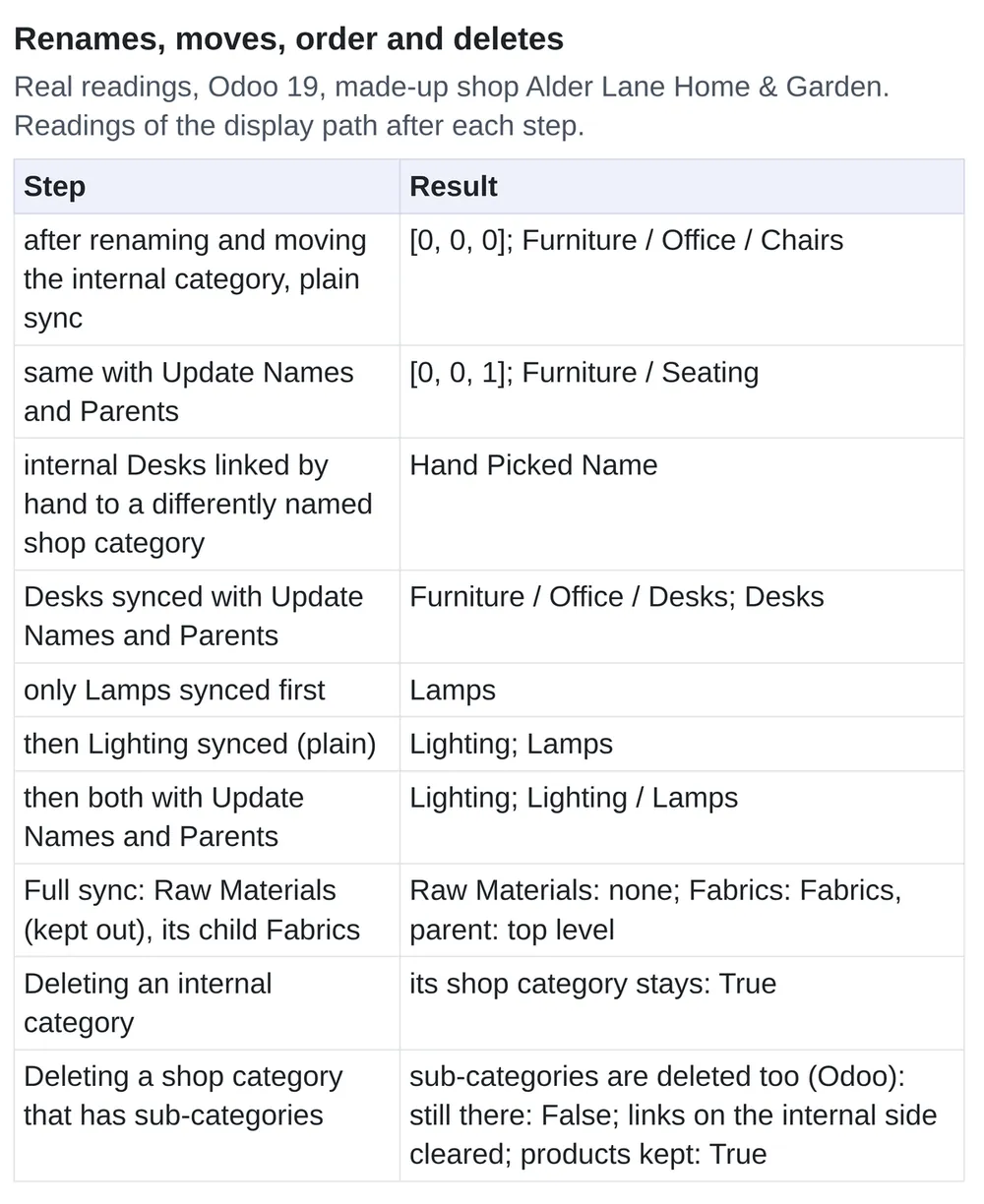
Run Sync with Update Names and Parents : linked shop categories are renamed and moved to match (an internal Chairs renamed Seating and moved under Furniture became Furniture / Seating; without the option nothing changed). If you sync a subset before its parent, the child sits at the top until you sync with the option. Deleting an internal category leaves its shop category; deleting a shop category deletes its sub-categories (that is Odoo's behaviour), clears the links and keeps the products.
Renames, order and deletes. Evidence table.
8 Checked against the raw tables
Use it when you want to know the tree is built the way the page says.Read-only
A sync that is almost right puts products in the wrong place without telling anyone.
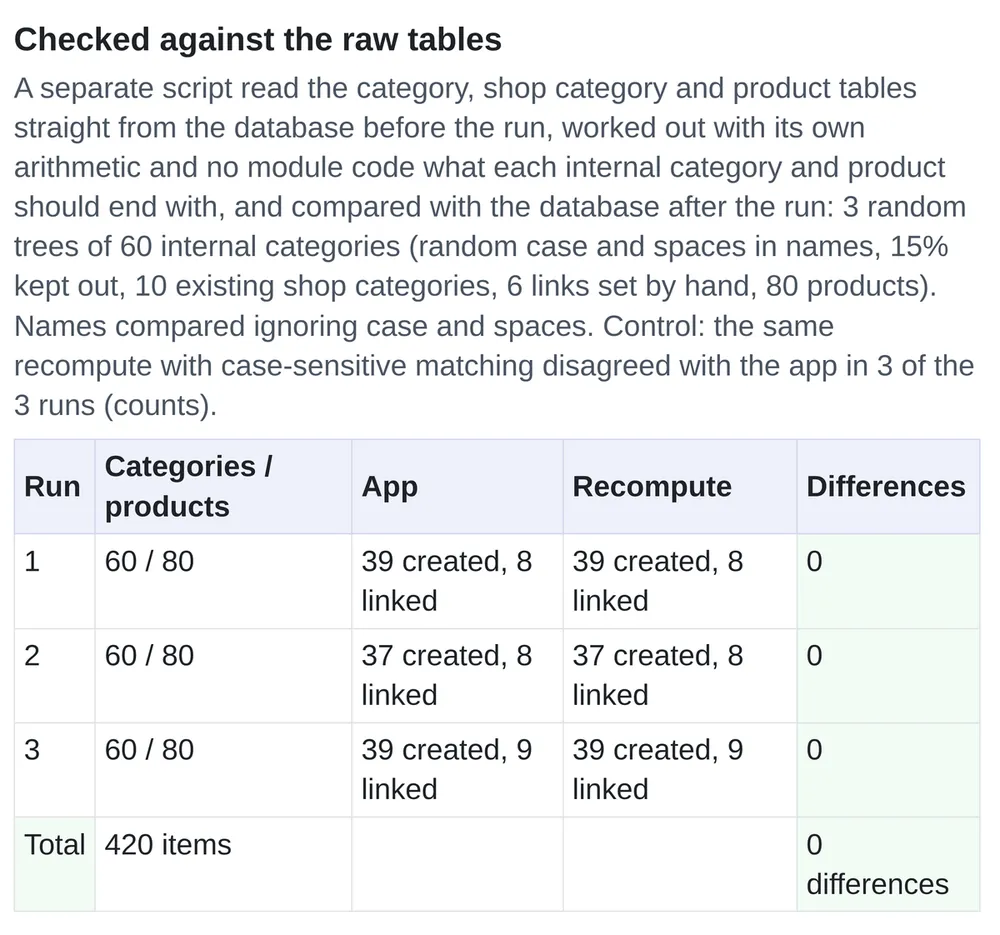
A separate script read the category, shop category and product tables straight from the database before a run, worked out with its own arithmetic and no module code what every internal category and product should end with, and compared it with the database afterwards: 3 random trees of 60 internal categories (random case and spaces in names, some kept out, existing shop categories, links set by hand, 80 products). 420 items, 0 differences, the same created and linked counts. The same recompute with case-sensitive matching disagreed with the app in all 3 runs. At scale, 310 categories and 3,000 products took 1.9 s on Odoo 19 (test machine, one run).
Three random trees against an independent recompute. Evidence table.
What changed in this version
Version 19.1.0.2 changes no behaviour. It adds eleven automated tests that pin the limits above, replaces the screenshots, icon, banner and page text with checked ones, and removes the unverified claim that it works on Odoo Enterprise. The demo video of an earlier version is kept as it was and was not re-recorded.
Screenshots
What it does not do
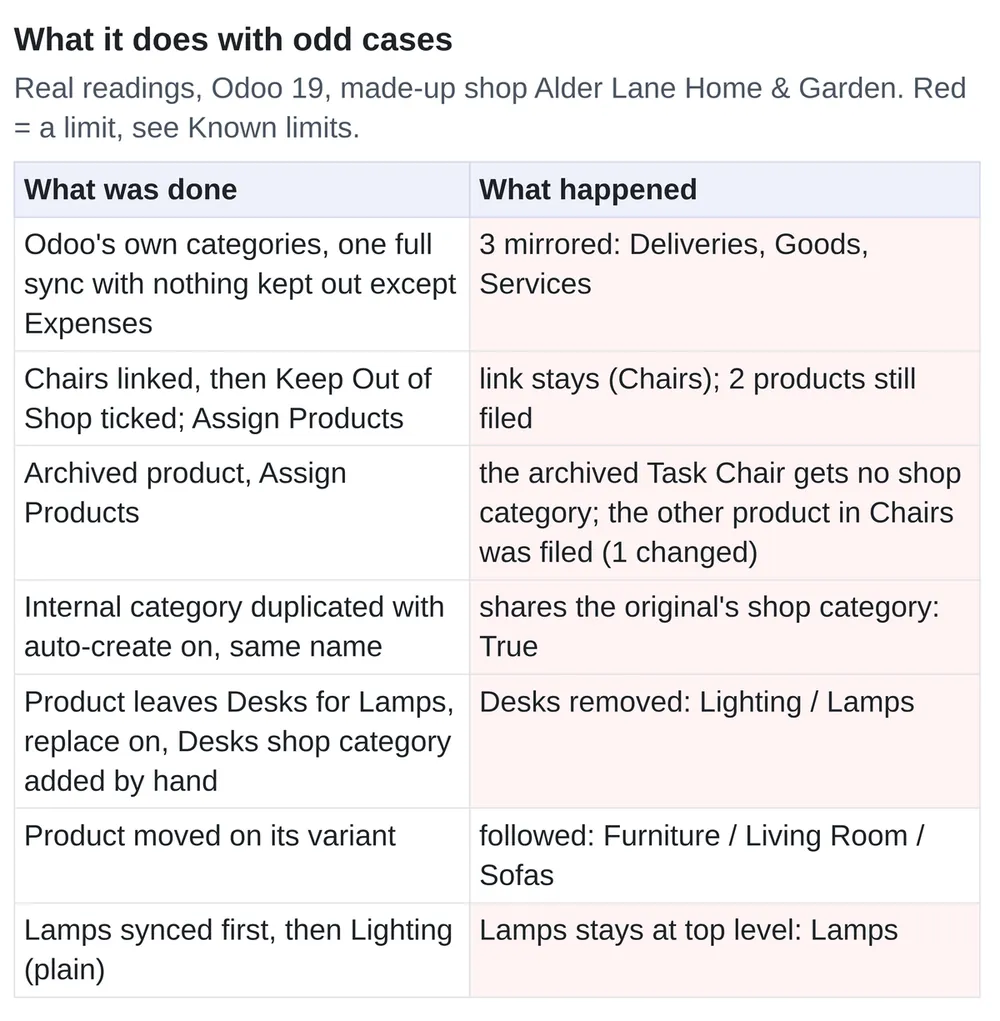
- Each of these was reproduced in a run of the app on Odoo 19 and is pinned by a test that passes; none is changed in this version.
- Seven readings from real runs. Evidence table.
- Rights and timings. Evidence table.
Requirements
- Odoo 19.0 or 20.0. The App Store sells each version separately, so buy the one that matches your database.
- Odoo.sh or On-Premise only. Third-party apps cannot be installed on Odoo Online (SaaS) databases. Check your hosting before buying.
- Module
mh_website_category_sync, version 19.0.1.0.2, licensed OPL-1.