Group Membership Bulk
Add or remove many users from many groups at once, after reading exactly who gains and loses what
Request a live demo · Odoo.sh or On-Premise only, not Odoo Online (SaaS).
16 + 8
memberships the example change would write and leave alone, listed by user and group before anything is saved
Add / Remove
only the memberships you name move; every other group a user holds is left alone
29
automated tests, none failing; 12 of them new in this version
1 box
to tick before a group is left with nobody in it
0
memberships written by planning; Apply refuses a plan that no longer matches the selection
3
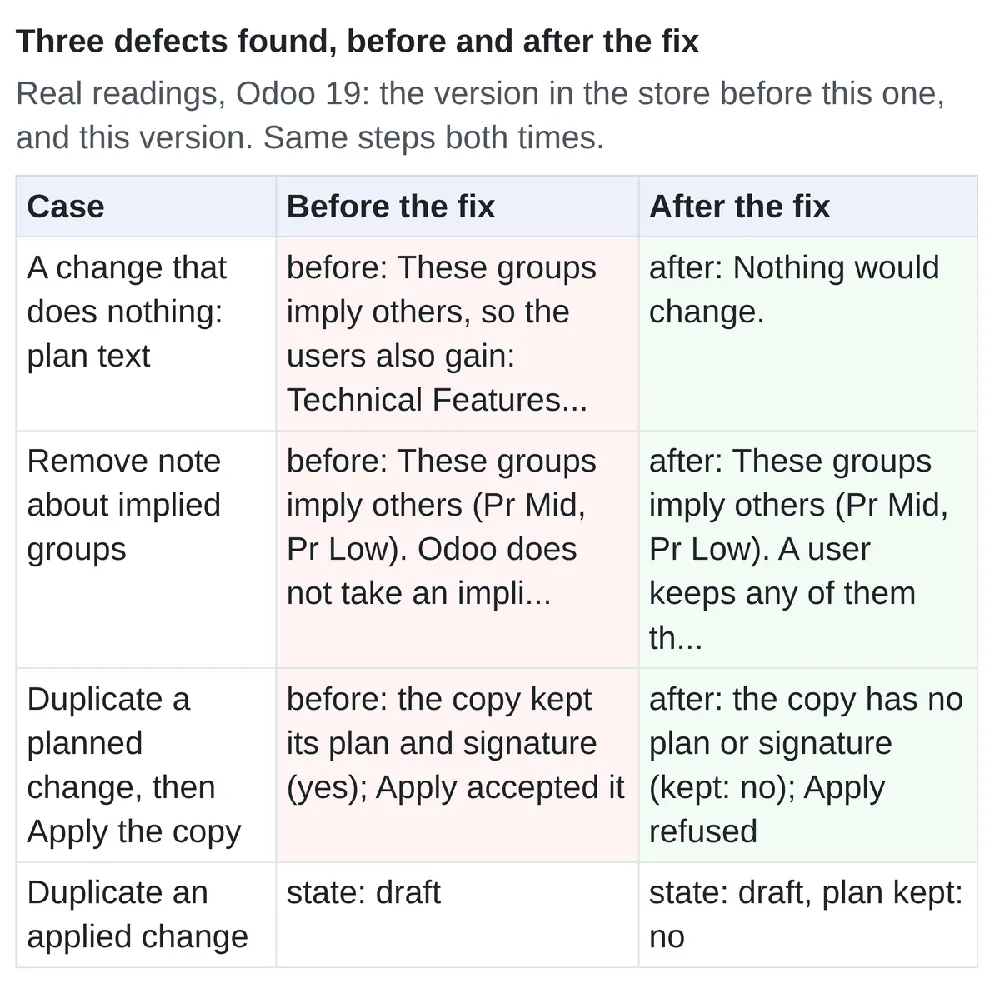
defects found while building this page, fixed in this version and listed below
Odoo changes group membership one user form at a time, so standing a project team down means a dozen forms and no list of what was done. Group Membership Bulk takes the users, the groups and Add or Remove, and lists every membership it would change, user by user, before it writes anything. This page walks through one real change in an Odoo 19 database seeded with made-up data, says what the plan reads and does not read, and lists the defects found and fixed while checking it.
How it works
Why a plan comes first
Group membership is access. A change that looks like three tick boxes per person can take away or hand out far more than that, so the plan turns it into lines you can read.
1 Pick users, groups and the operation
Use it when a team, a department or a set of contractors needs the same groups added or removed.Writes nothing yet
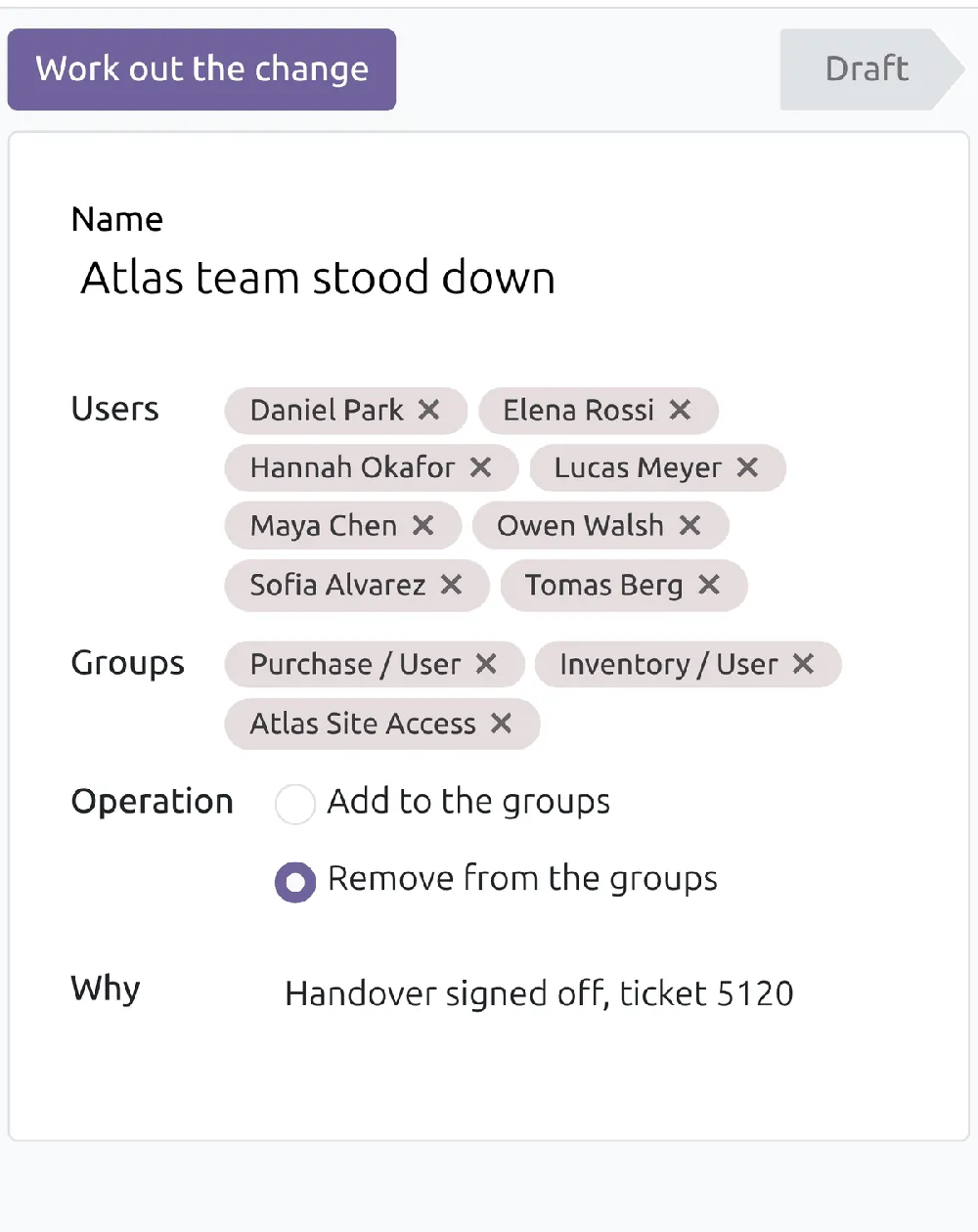
Open Settings > Group Membership and create a change: Users , Groups , Add to the groups or Remove from the groups , and a Why note for whoever reads it later.
The user picker offers internal users only.
A draft: eight users, three groups, Remove.
2 Read the plan
Use it when you want the exact list of memberships before anyone loses or gains access.Plan only, no writes
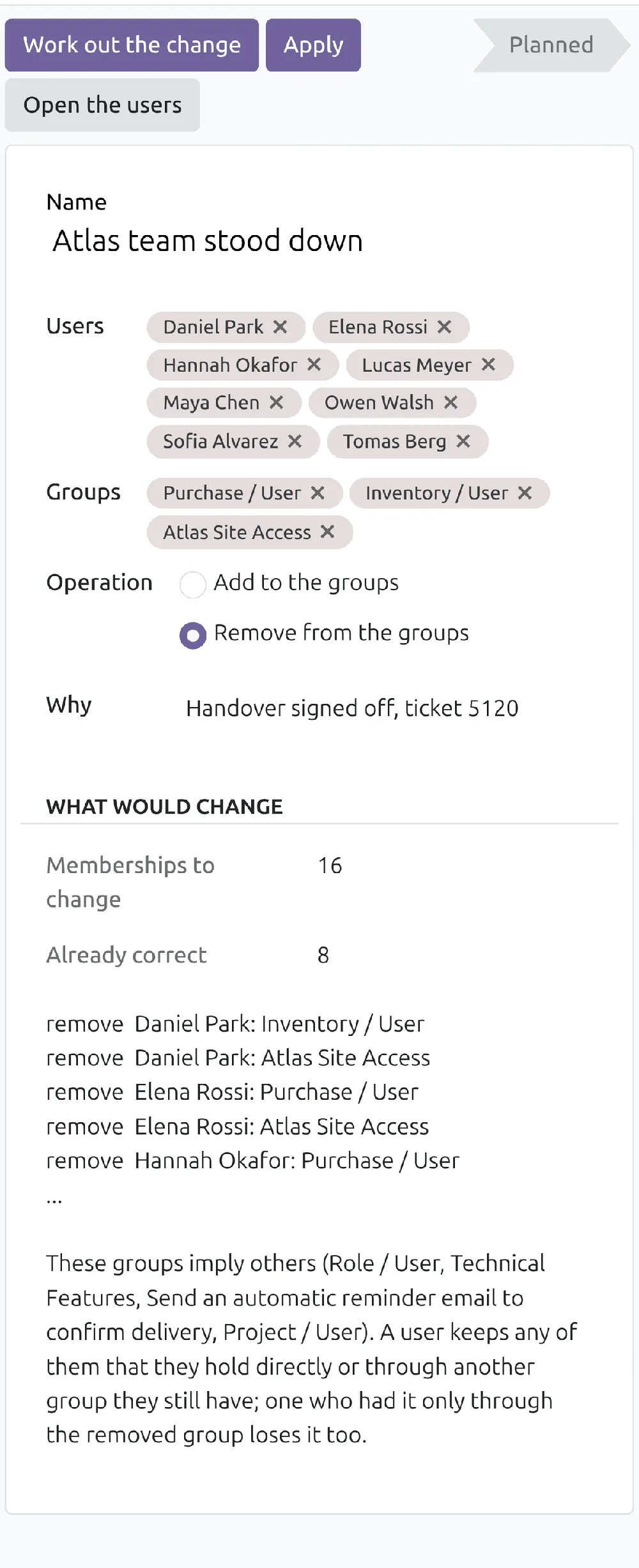
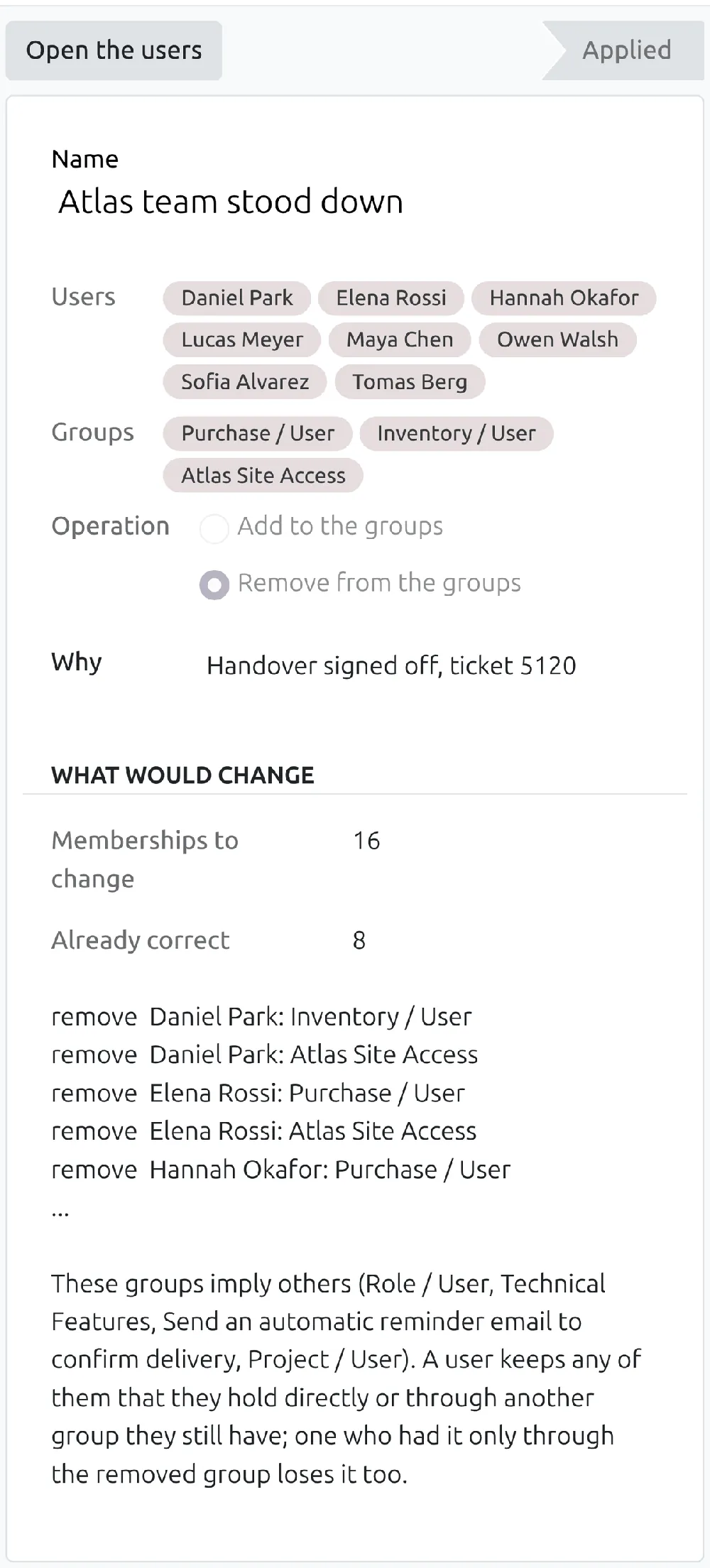
Work out the change counts the memberships it would change and the ones that are already the way you asked, then lists each one. In this run it would change 16 and leave 8 as they are. The picture shows the first five lines and the last two; the real plan lists all 16 (screen-only edit).
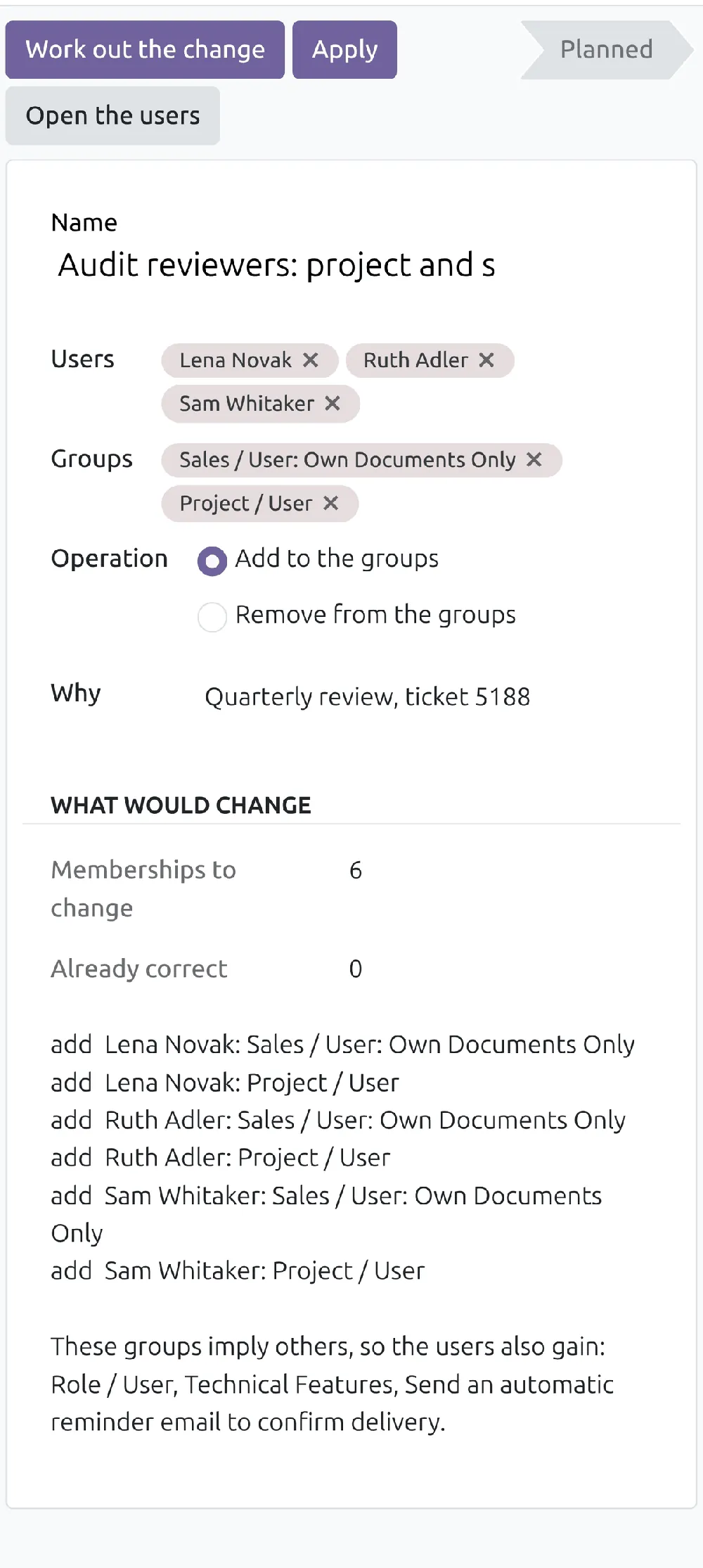
The same screen for an Add: three reviewers, two groups, six lines.
Planning writes nothing. The list shows at most 200 lines and says how many more there are; Apply writes all of them (tested with 205).
The plan for the team change.
An Add plan with the groups that come along.
3 Groups that imply other groups
Use it when a group you add or remove carries other groups with it.Named in the plan
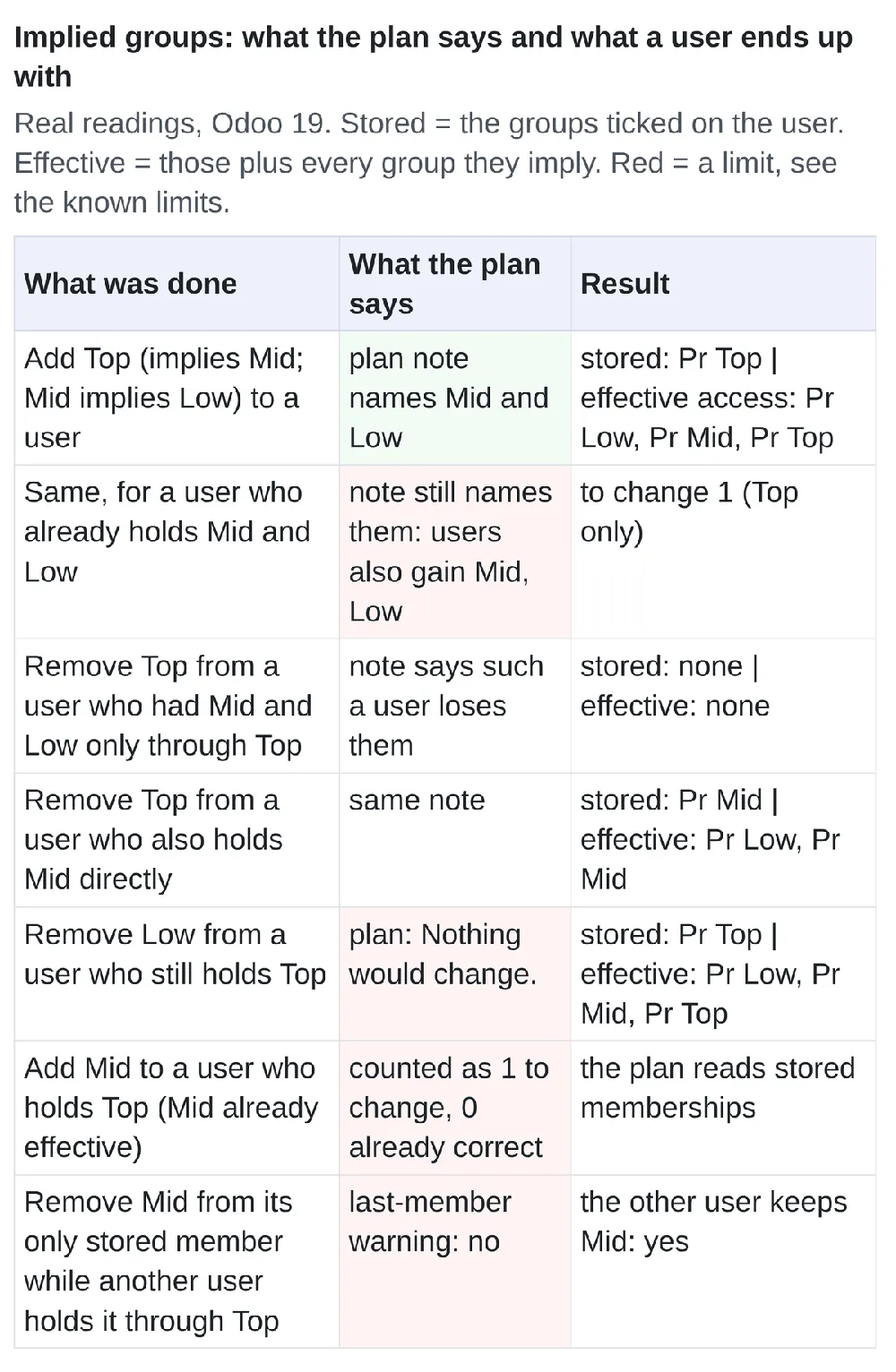
Odoo works out implied groups from the groups a user holds. Adding a group gives the user the groups it implies, and the plan names them. Removing a group takes away the implied groups too, unless the user holds them directly or through another group they keep; the plan says so. The table is a real reading of both.
Stored memberships and effective access, before and after.
The plan reads the groups ticked on each user, not the groups they get through another group. Removing a group a user still gets through another one shows no line, and the note on an Add names implied groups some users already have.
4 A group left with nobody in it
Use it when you remove the last members of a group and want to be told.Needs a tick
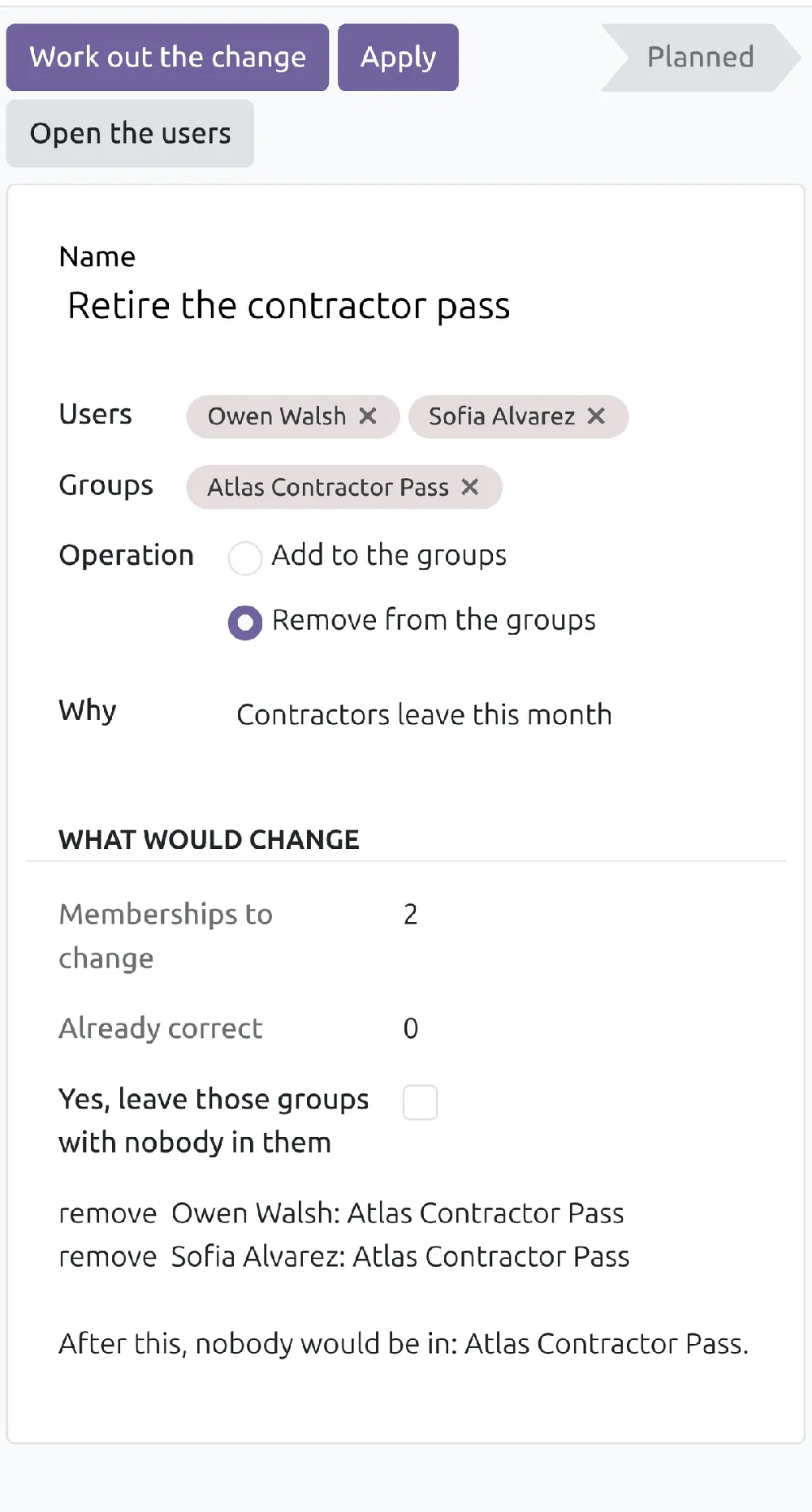
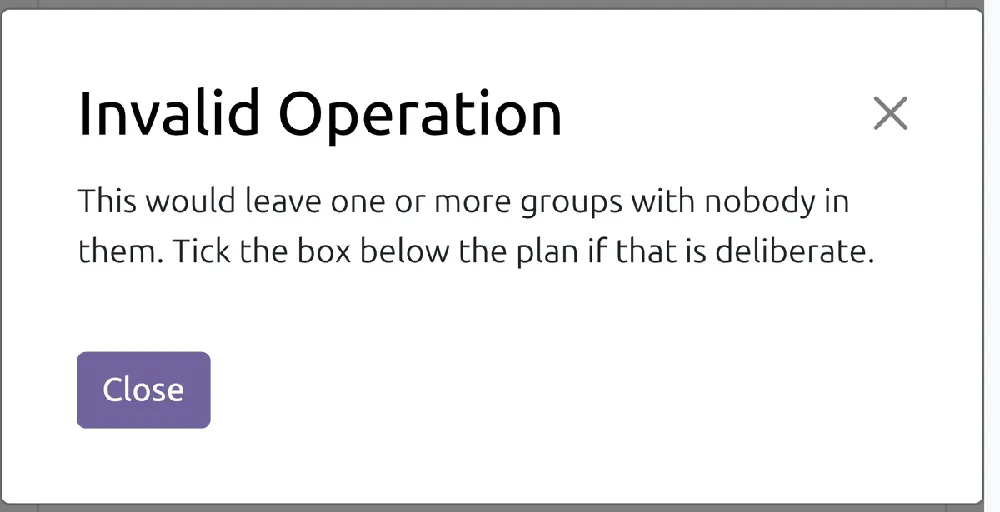
If a removal would leave a group with no active member, the plan says so, a box appears, and Apply is refused until it is ticked.
Removing a group from everyone who holds it: the plan warns and shows the box.
Apply without the tick: refused.
5 A selection that moved
Use it when somebody edits the change after the plan was read.Refused
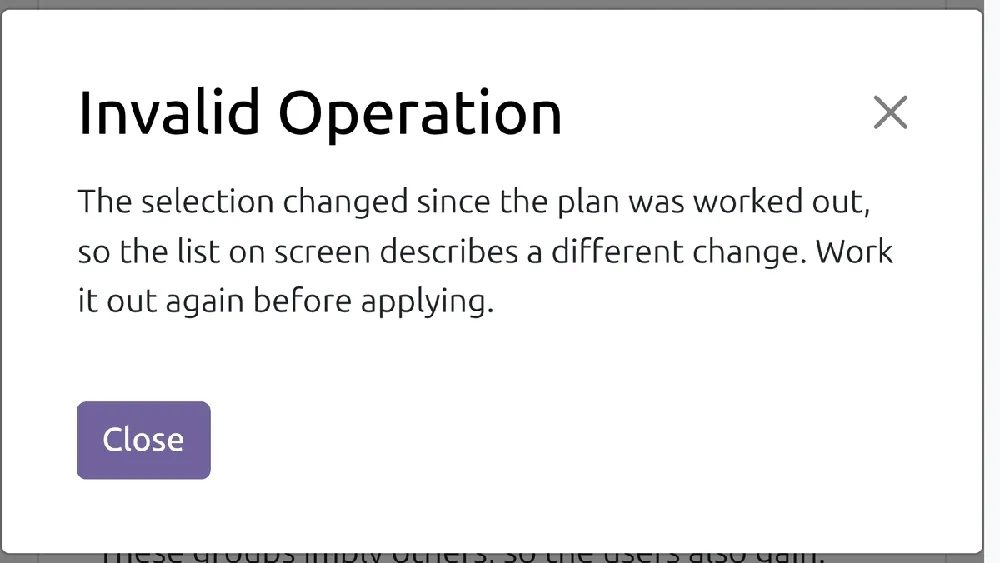
Apply is refused until the change has been worked out, and refused again if the users, the groups or the operation moved afterwards.
Removing a user after planning, then pressing Apply: refused.
6 Apply and check
Use it when the plan reads right and you want it written.Writes memberships
Apply asks for confirmation and writes the memberships; people gain or lose access at once. Open the users lists the users in the change. The record stays in the list as Applied, with its Why note.
Odoo's own rules still apply when it writes. Adding Portal to an internal user is refused by Odoo, nothing is written and the change stays planned; the last Settings administrator cannot be removed even with the box ticked.
The change after Apply.
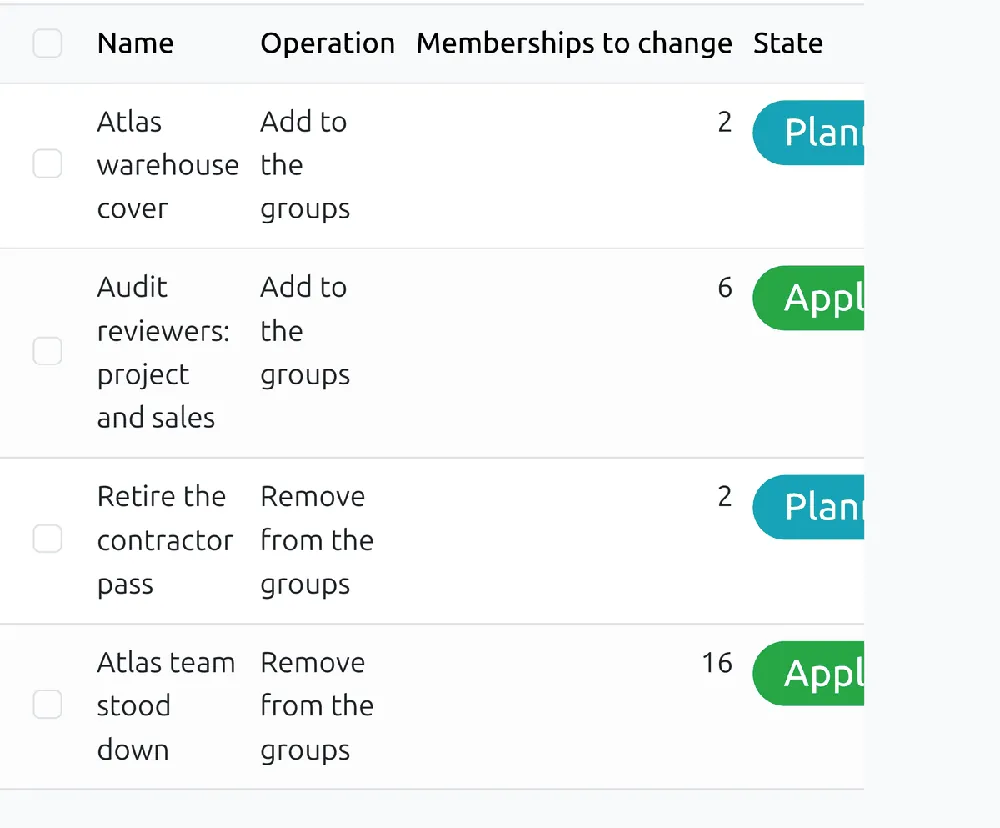
The list of changes, each with its state.
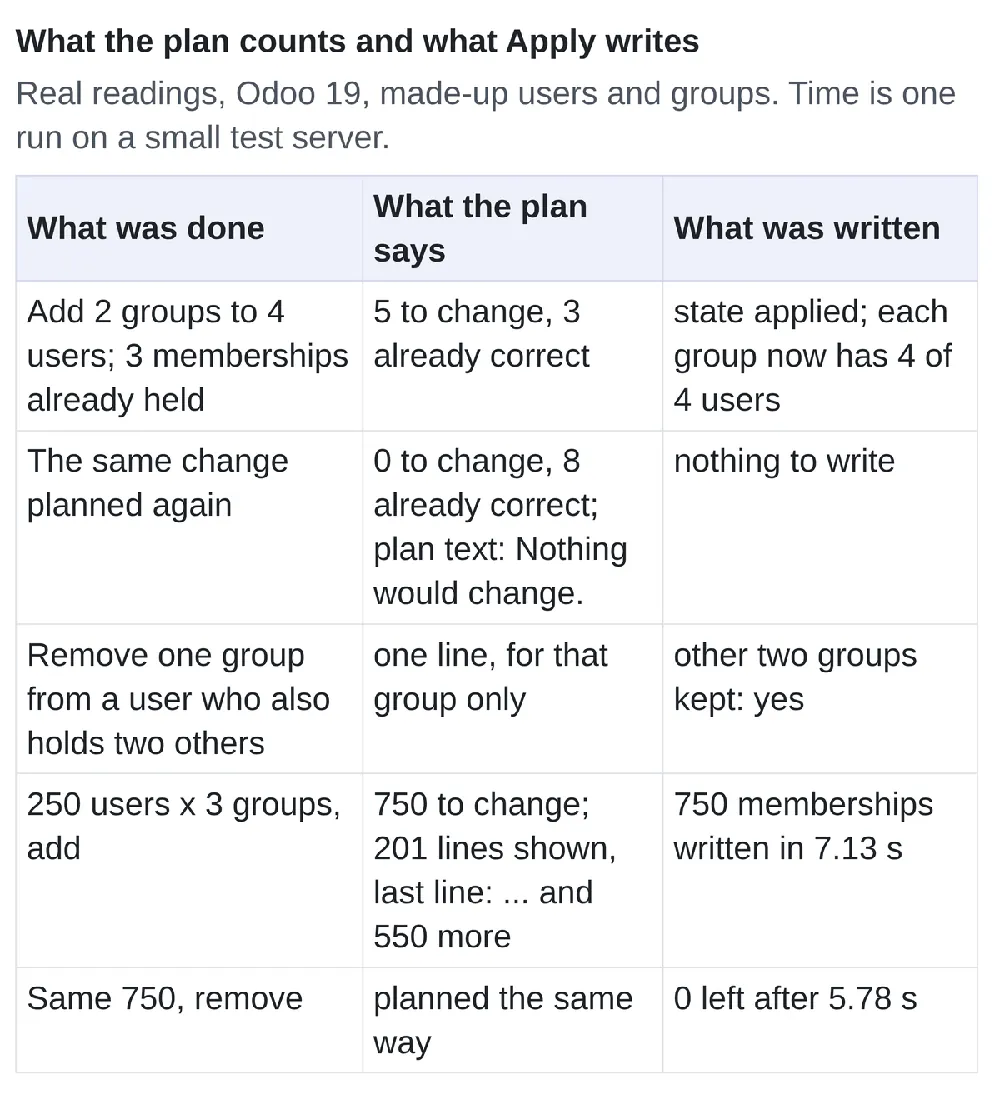
Counts, writes and timings from real readings.
7 Defects found, and where it stops
Use it when you are deciding whether this covers your access work.Tested limits
Before and after, same steps.
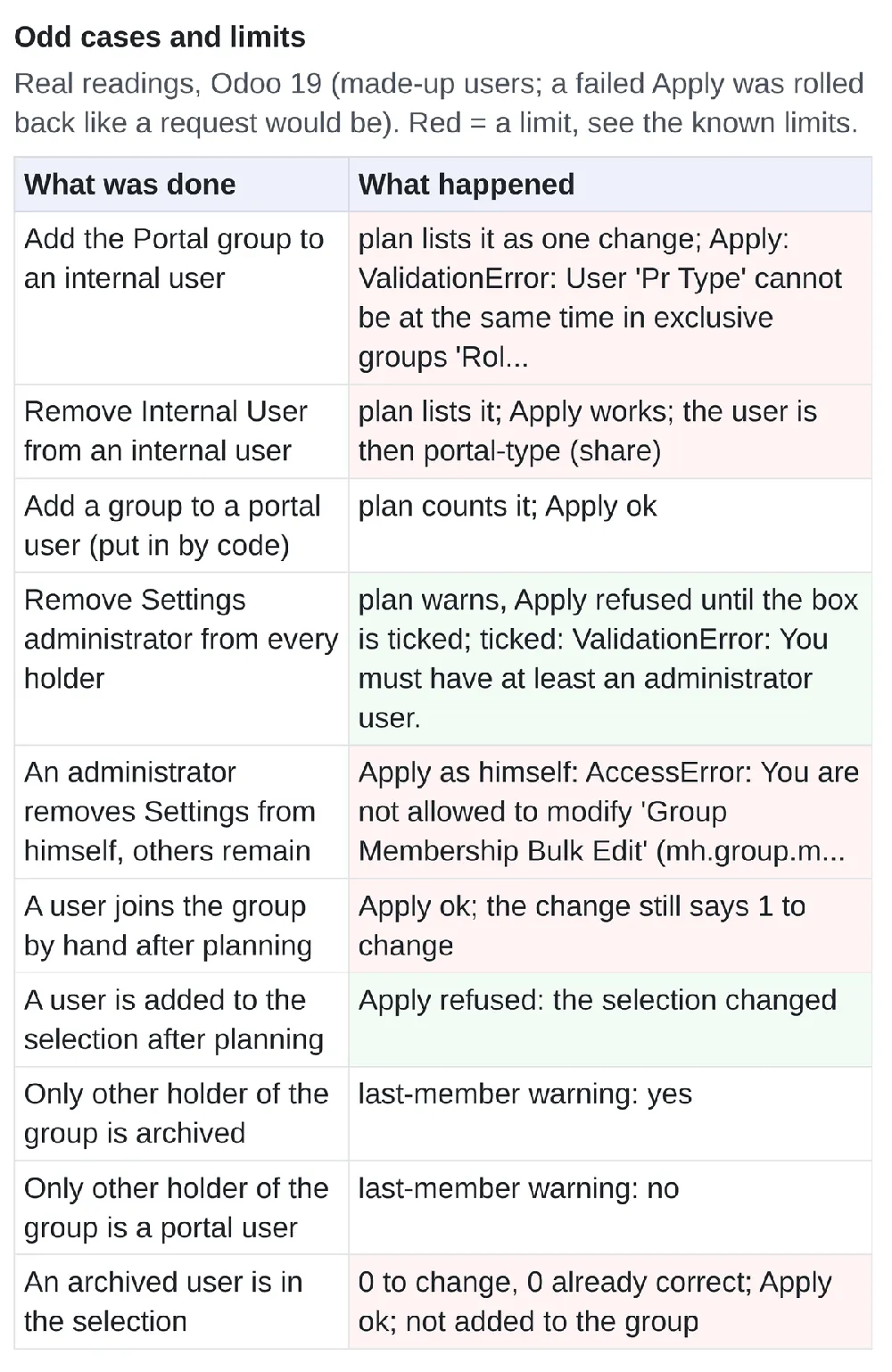
Odd cases with real readings.
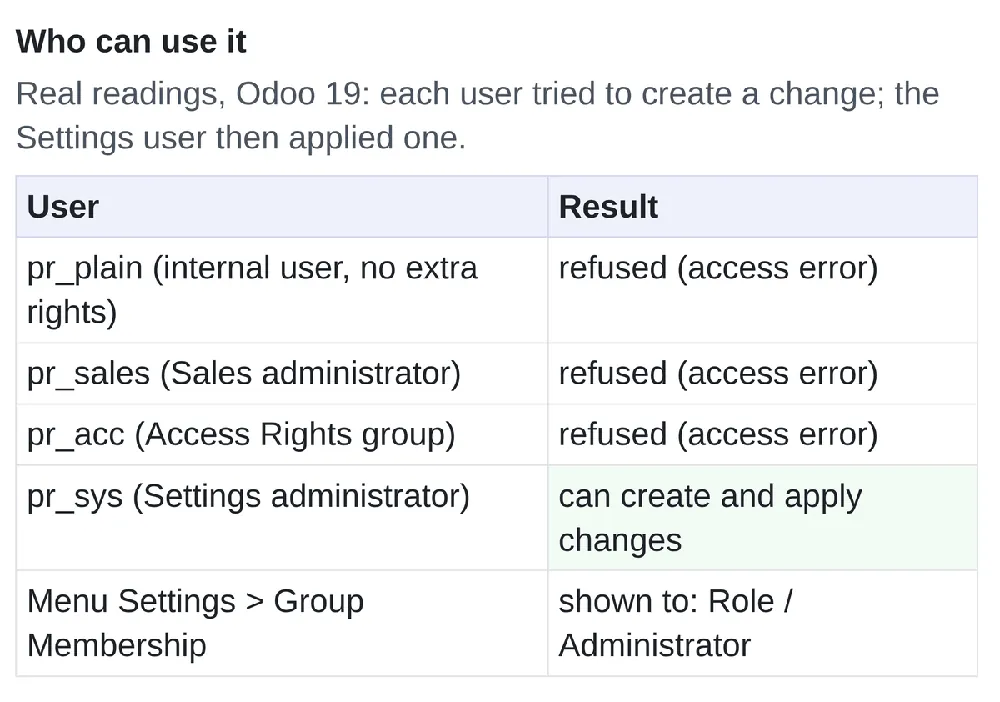
Who can use it
Only users in the Settings group can see the menu or create a change.
Four users tried; only the Settings administrator could.
Screenshots
What it does not do
- The groups ticked on the users you select: it adds or removes the memberships you named, as a Settings administrator would on each user form. It adds one record per change.
- Every other membership of those users, and every other user. It writes no access rights, record rules or field access.
- The memberships it wrote; they are ordinary group memberships. The change records go.
- Section 7, with real readings: implied groups, archived users, user-type clashes, the last administrator, removing your own Settings access, a plan older than the data, a 200-line plan, and 750 memberships in one Apply (about 7 seconds on a small test server).
- Odoo.sh, Odoo Enterprise, several companies in real use, more than 750 memberships in one change, other languages.
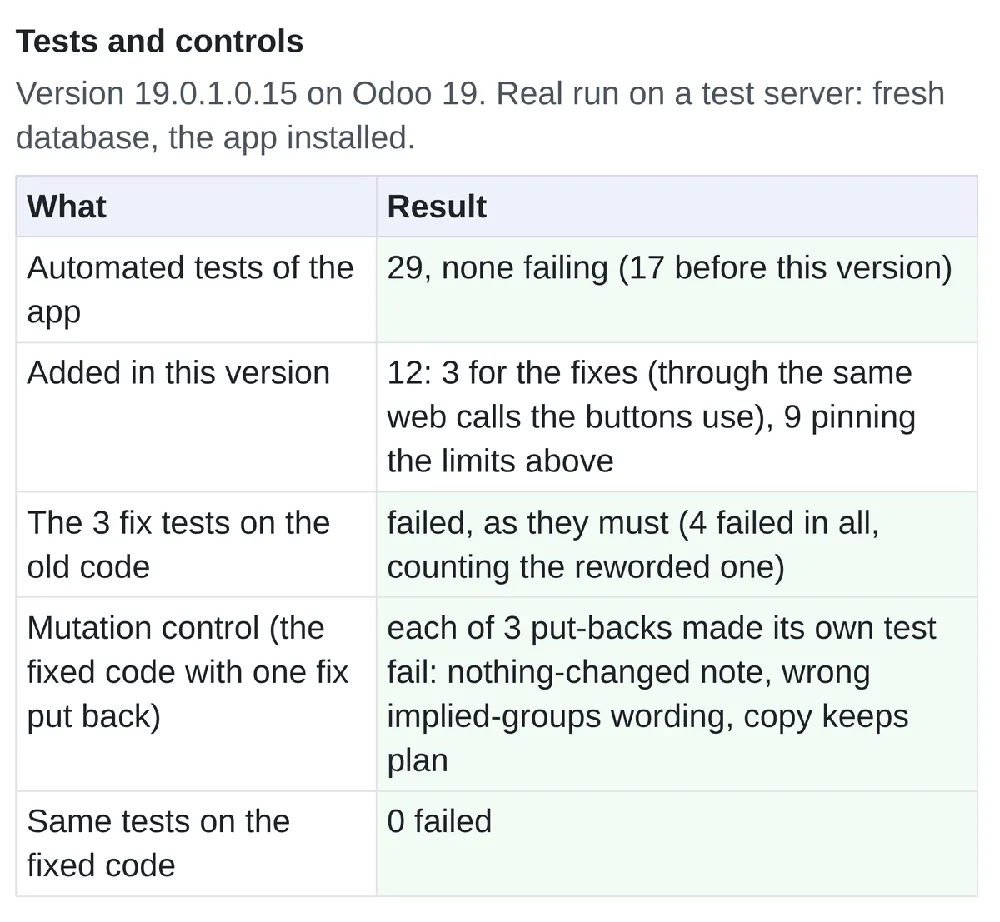
- Tests, fix tests on the old code and mutation controls.
Questions buyers ask
Does Remove take away other groups the user holds?
No. Only the memberships you named move. Groups the user gets only through a removed group go with it.
Can I undo an applied change?
There is no undo button. Make an Add change for the same users and groups and read its plan.
What does uninstalling do?
The memberships it wrote stay.
Who can use it?
Users in the Settings group.
Requirements
- Odoo 19.0 or 20.0. The App Store sells each version separately, so buy the one that matches your database.
- Odoo.sh or On-Premise only. Third-party apps cannot be installed on Odoo Online (SaaS) databases. Check your hosting before buying.
- Module
mh_group_membership_bulk, version 19.0.1.0.15, licensed OPL-1.