Invoice Split
Cut a draft customer invoice, vendor bill or credit note in two: chosen lines, part quantities or a percentage
Request a live demo · Odoo.sh or On-Premise only, not Odoo Online (SaaS).
11,040.00
example invoice cut into 9,844.00 and 1,196.00; the sales order still shows every line invoiced
2 ways
to split: a quantity per line, or a percentage of every line
59
automated tests, none failing; 13 of them new in this version
1 check
that the two drafts add up in untaxed, tax and total, or nothing changes
300
lines cut and checked in 2.4 seconds in the largest run
3
defects found while building this page, fixed in this version and listed below
A customer wants the furniture on one invoice and the installation on another, or half of a vendor bill belongs to a different cost centre. Odoo has no way to cut an existing draft in two: you delete lines and retype them, and the sales or purchase order can lose track of what was invoiced. Invoice Split adds a Split button to the draft, builds the second draft from the first, and checks that the two add up before it keeps anything. This page walks through one real split in an Odoo 19 database seeded with made-up data, says what the new draft carries over, and lists the defects found and fixed while checking it.
How it works
Why a split keeps the order in step
Invoicing part of an order is easy to do by hand and easy to get wrong: the quantity invoiced on the order drifts, a tax is lost, the totals no longer match. The app does the cut from the invoice itself.
1 Open the draft and press Split
Use it when a draft invoice, bill or credit note has to become two.Nothing written yet
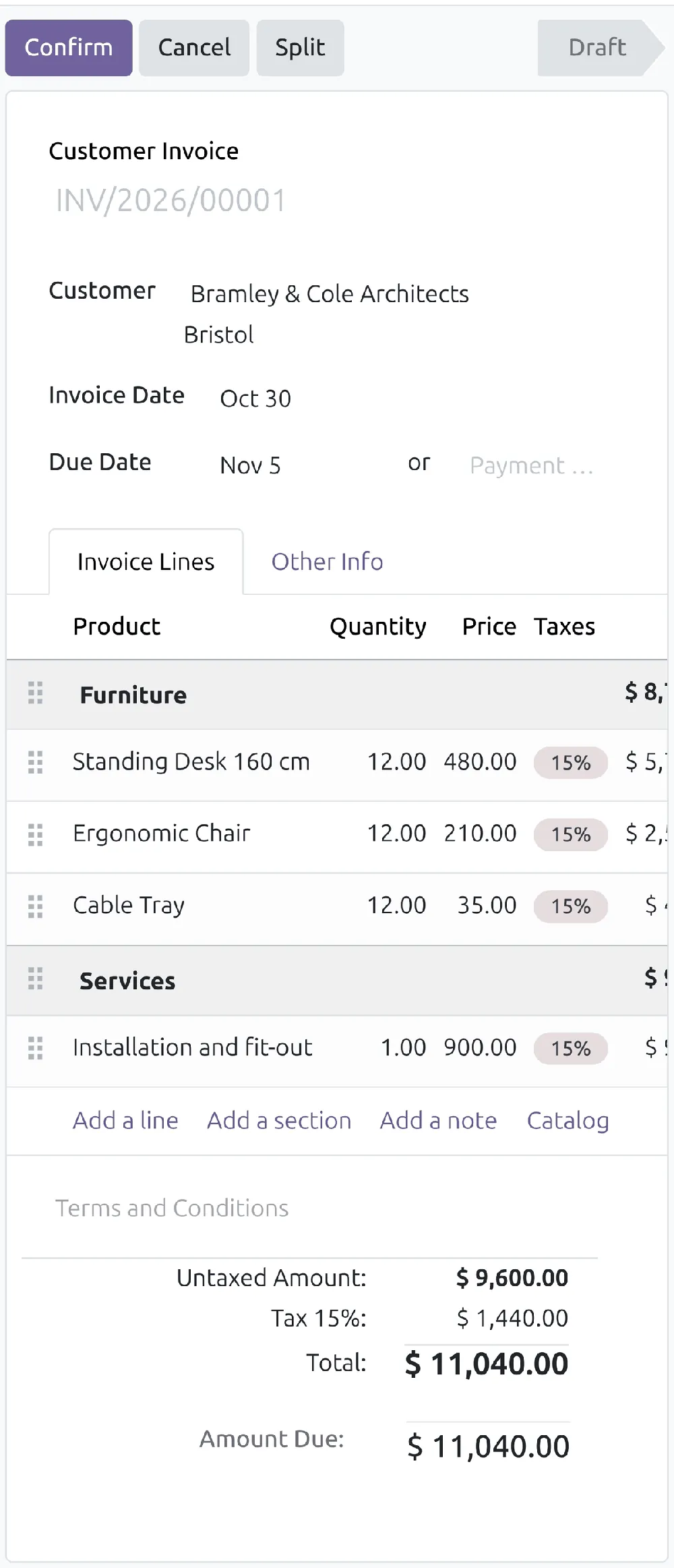
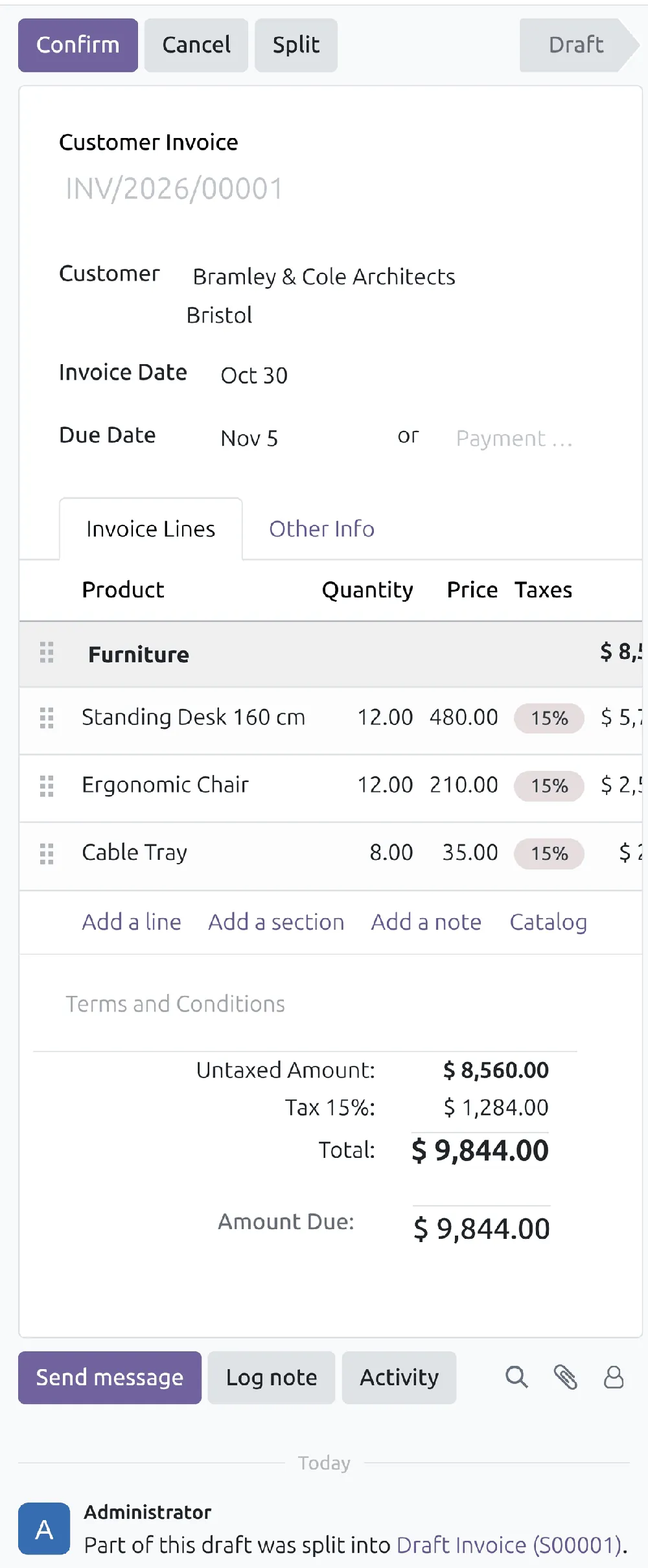
On a draft customer invoice, vendor bill or credit note the form header gets a Split button next to Confirm and Cancel. The example is a customer invoice made from a sales order: 12 standing desks, 12 chairs, 12 cable trays and 1 installation, 11,040.00 with 15% tax.
The draft, with the Split button in the header.
2 Choose quantities
Use it when one customer needs part of the invoice on a separate document.Per line
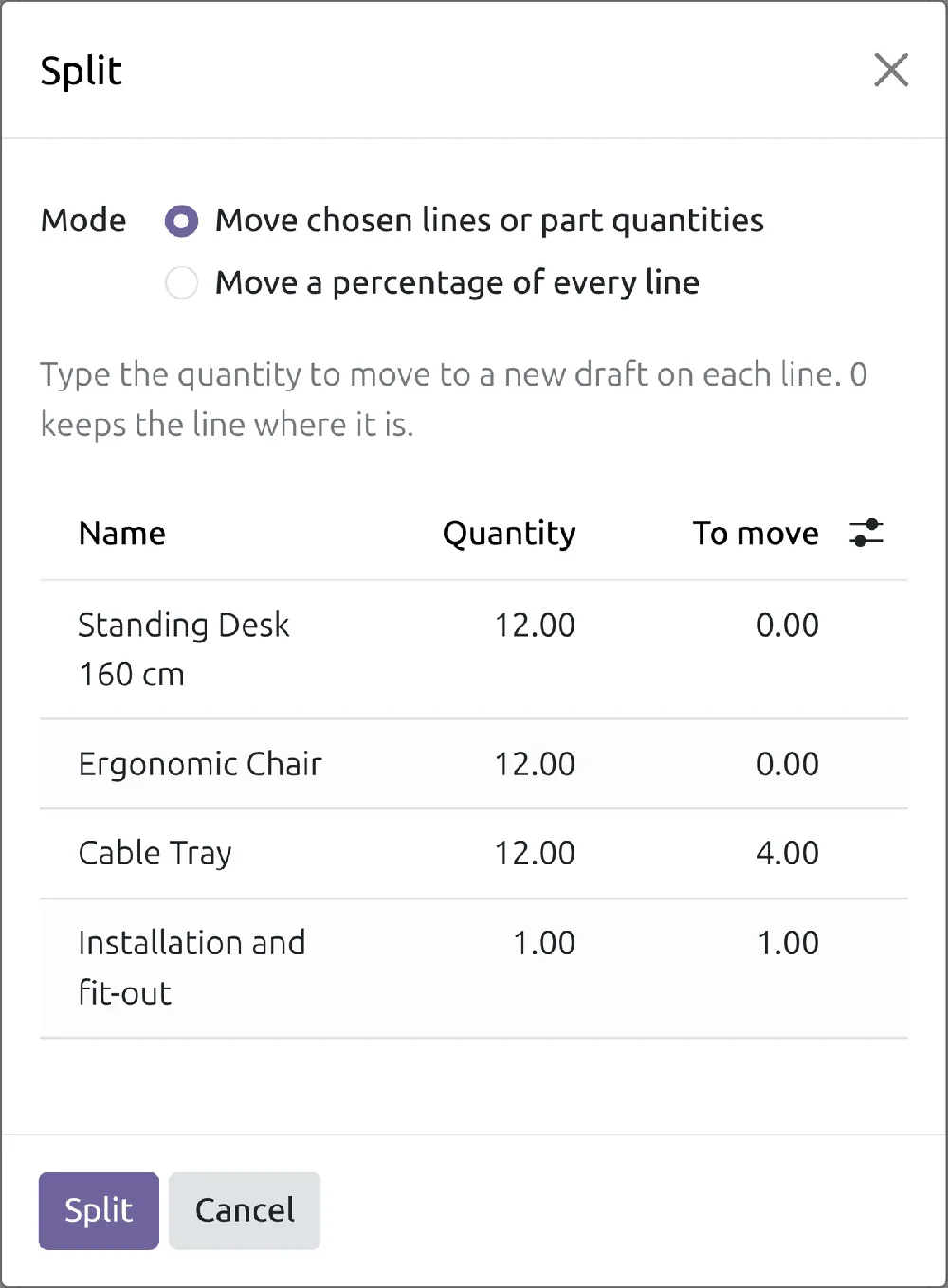
The dialog lists each product line with its quantity and a To move column. Type the quantity that goes to the new draft; 0 keeps the line where it is. Here 4 cable trays and the installation move.
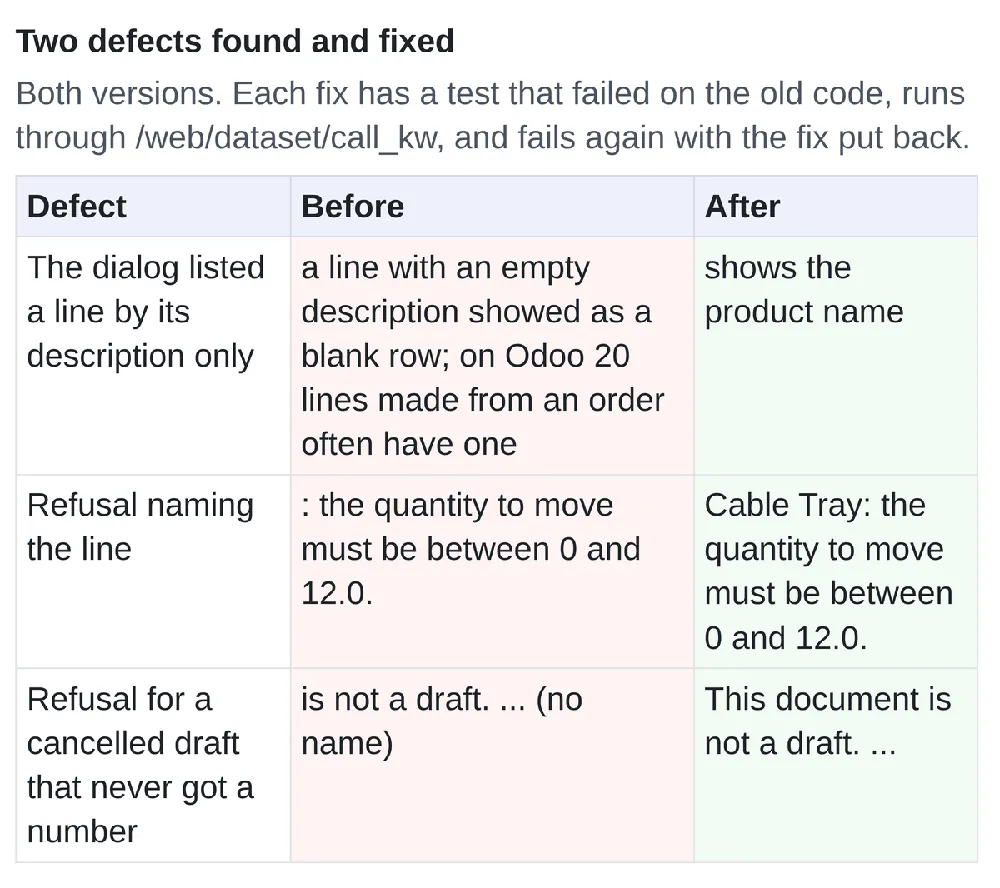
A line can move whole or in part. A line shows its product name when its description is empty (fixed in this version, section 8).
The dialog with quantities typed.
3 Or choose a percentage
Use it when every line goes in the same share, for example a 40% invoice.Whole invoice
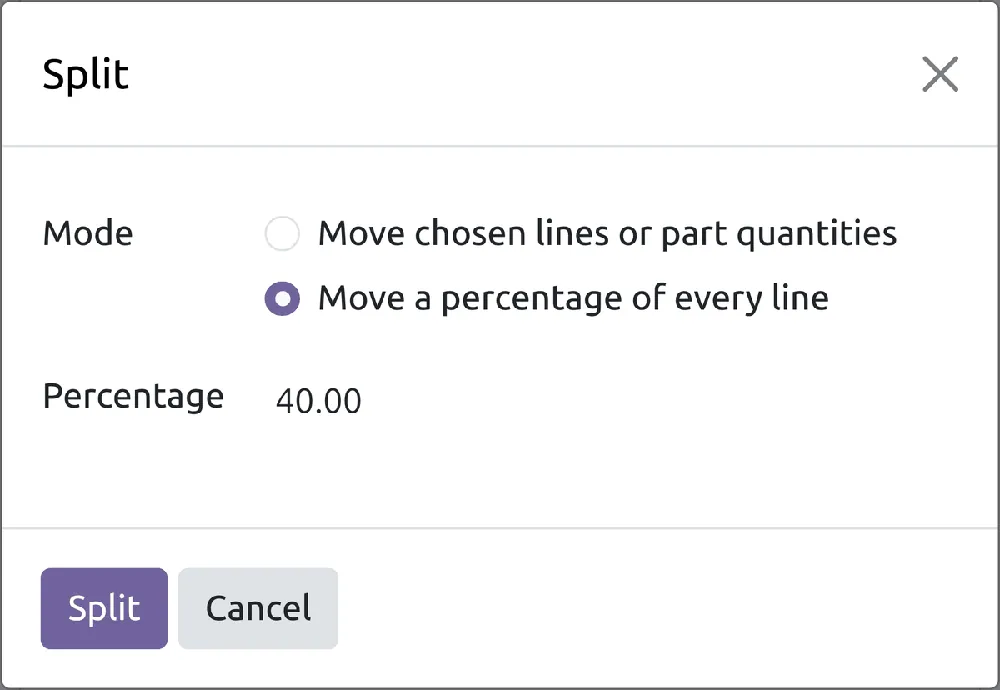
Switch to Move a percentage of every line and type a share above 0 and below 100. Each line is cut by it. The share is rounded to the unit precision and the original keeps the exact remainder, so the two never drift apart.
Percentage mode, 40.
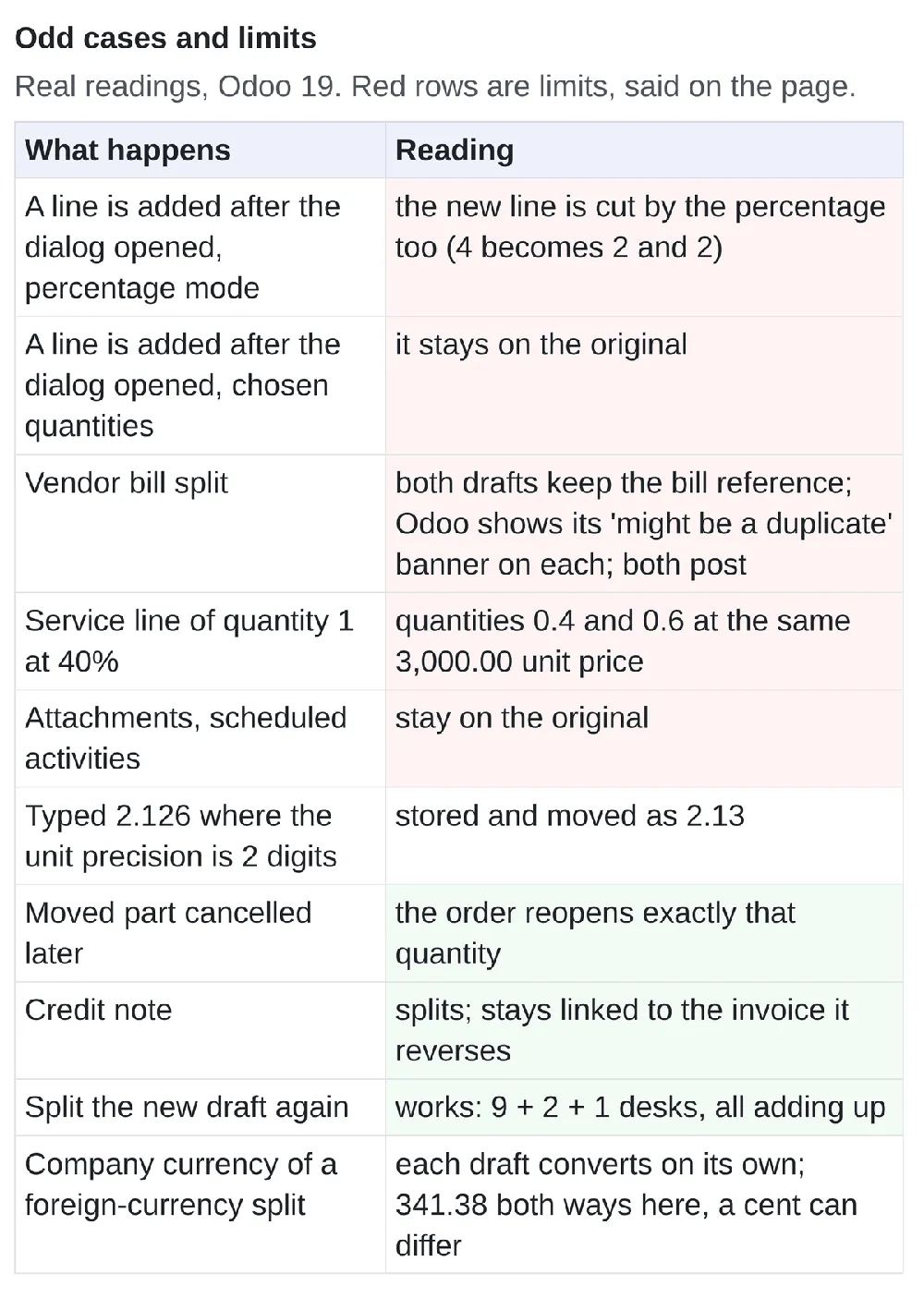
A line of quantity 1 (a fee, a down payment) is cut into fractions at the same unit price: 40% of a 3,000.00 line gives quantity 0.4 and 0.6. Use chosen quantities if you want whole lines.
4 The new draft and the original
Use it when you want to see what the split produced.Two drafts
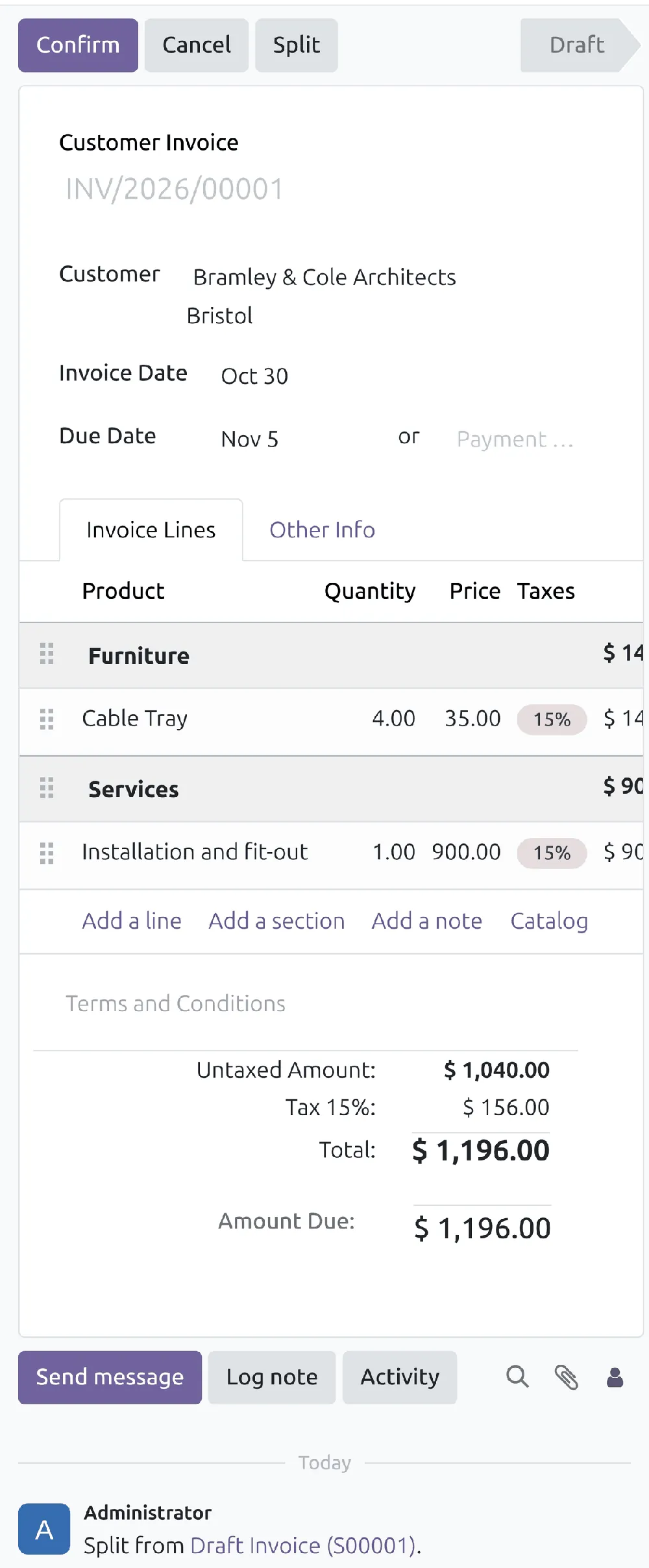
The new draft opens with the moved lines. Its chatter says it was split from the original. The Furniture section came along because part of its lines moved; the Services section moved with its only line.
The original keeps its own number and the rest of the lines. 9,844.00 plus 1,196.00 is 11,040.00, tax included.
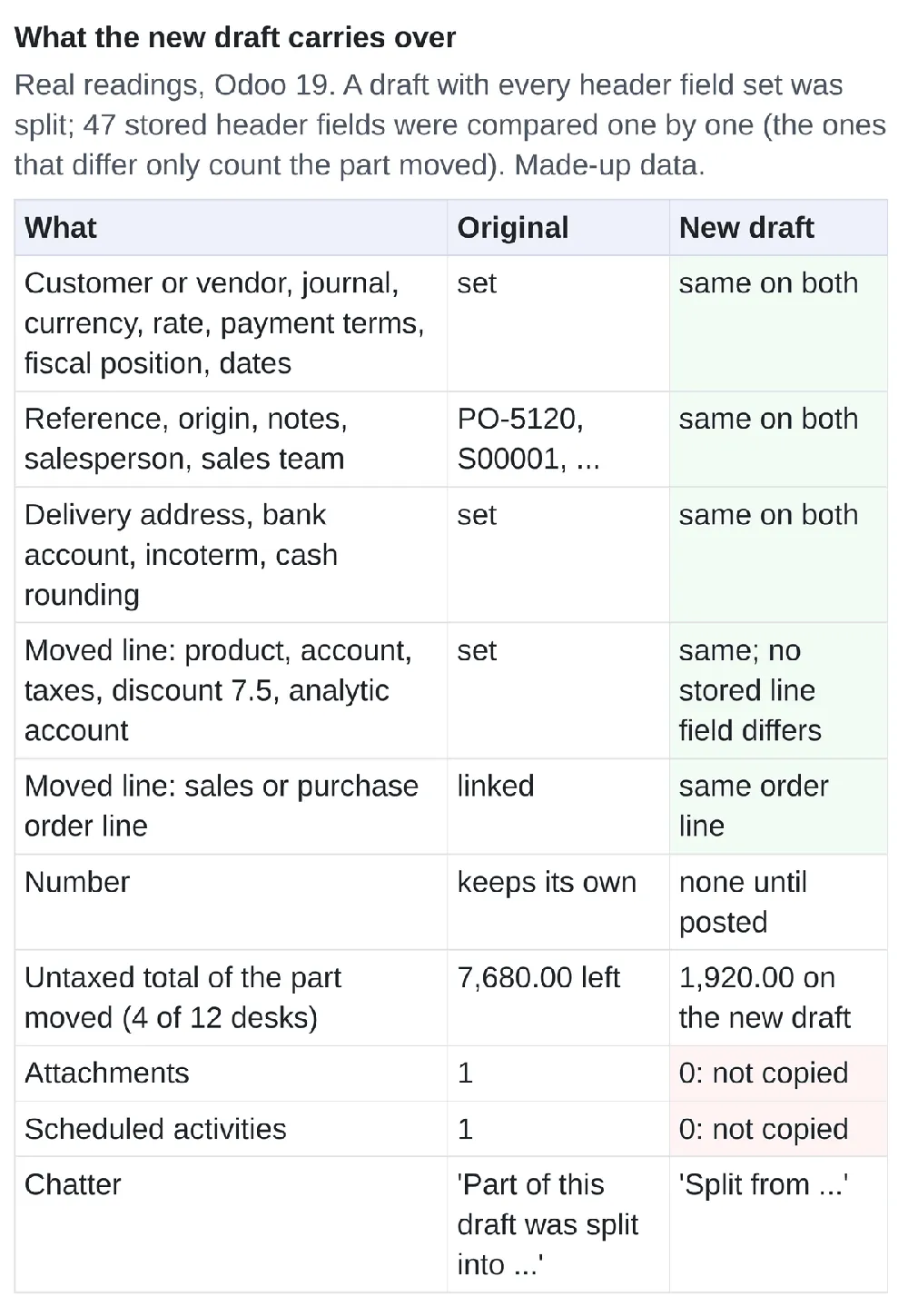
What the second draft carries over, from a draft with every header field set, compared field by field:
The new draft: 1,196.00.
The original: 9,844.00.
Header and line fields, real readings.
5 The order stays right
Use it when the invoice comes from a sales or purchase order.Links kept
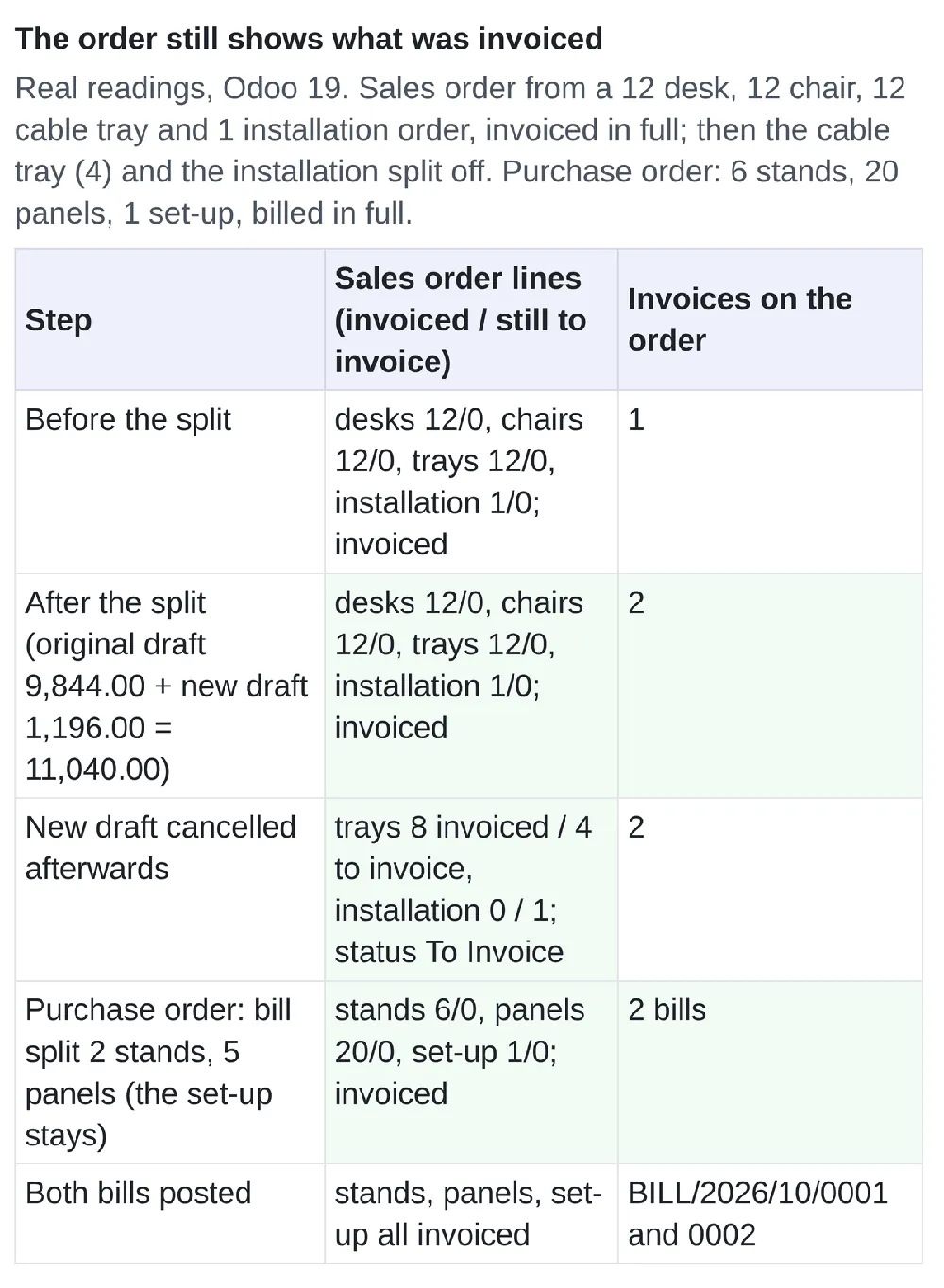
A moved line keeps its sales order line or purchase order line, so the quantity invoiced on the order is the same before and after the split and the order lists both drafts. Cancel one draft later and Odoo reopens exactly the quantity it carried. The table is a real reading of a sales order and a purchase order.
Order lines before and after.
6 When it says no
Use it when you want to know what the app refuses and why.Nothing is changed
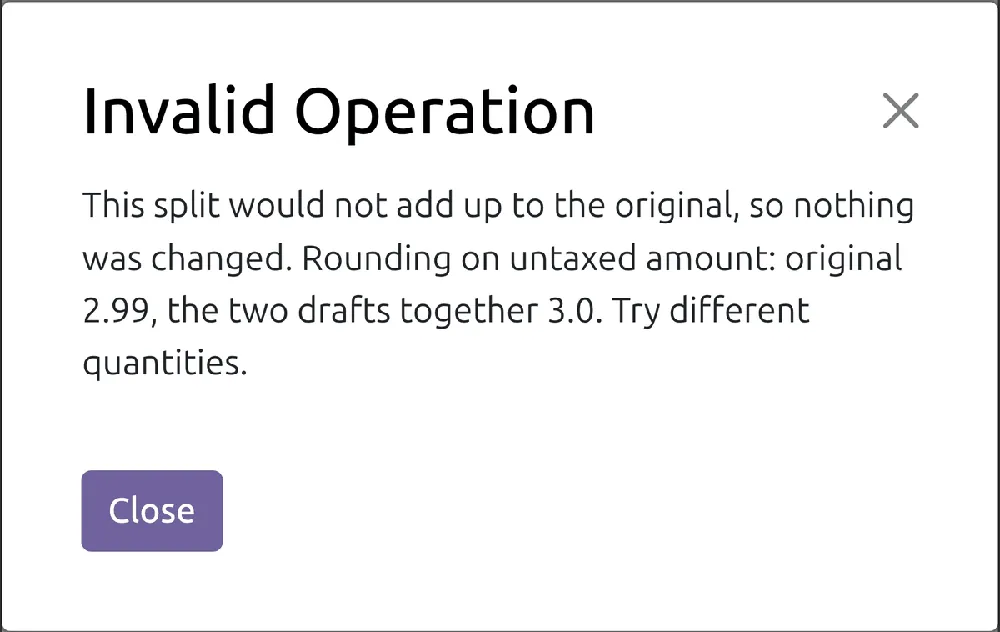
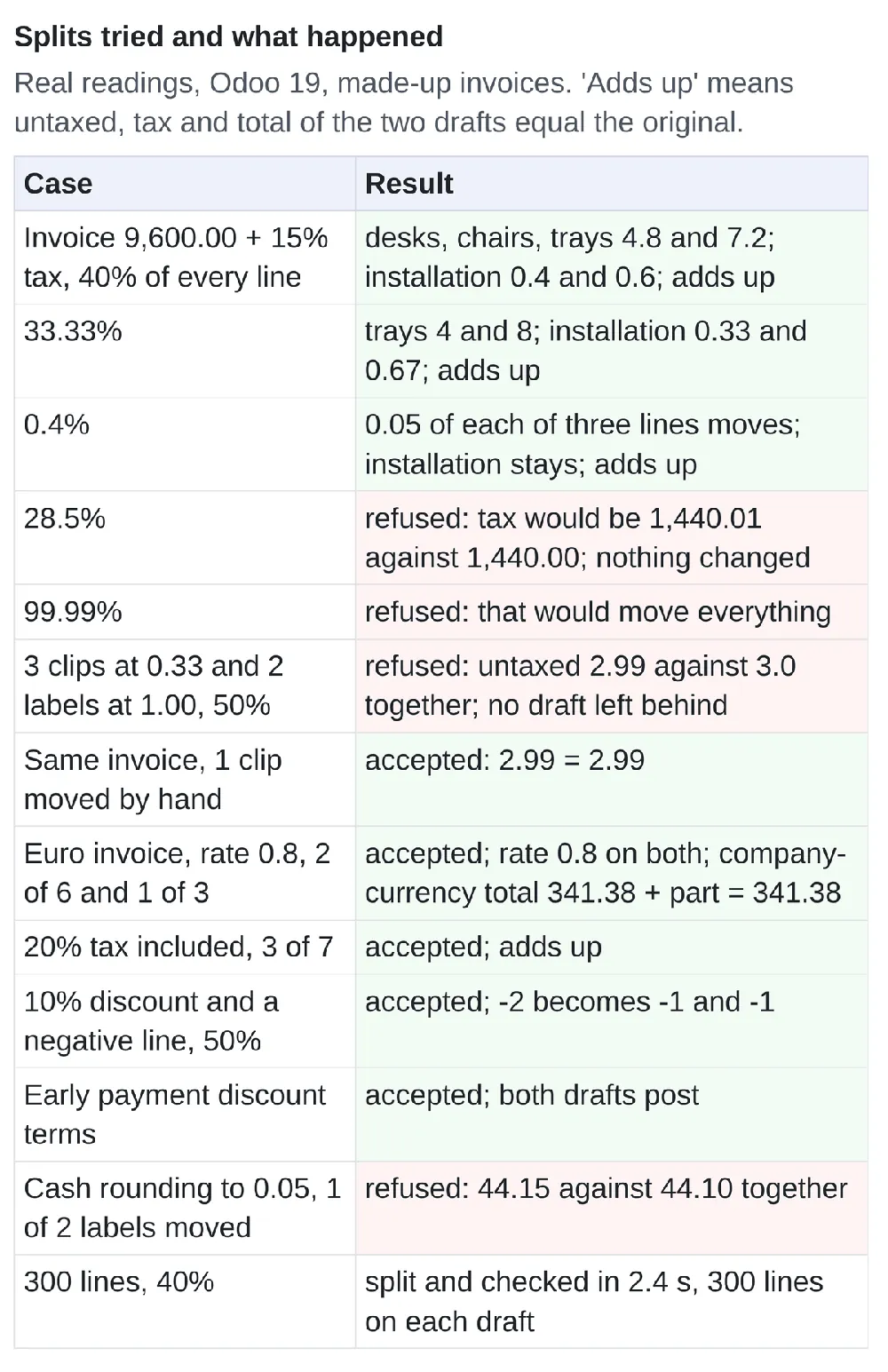
If the two drafts would not add up, it stops with the difference and keeps nothing, not even a half-made draft. This invoice has 3 clips at 0.33 and 2 labels at 1.00; half of each rounds to 3.00 on one side and 2.99 in total.
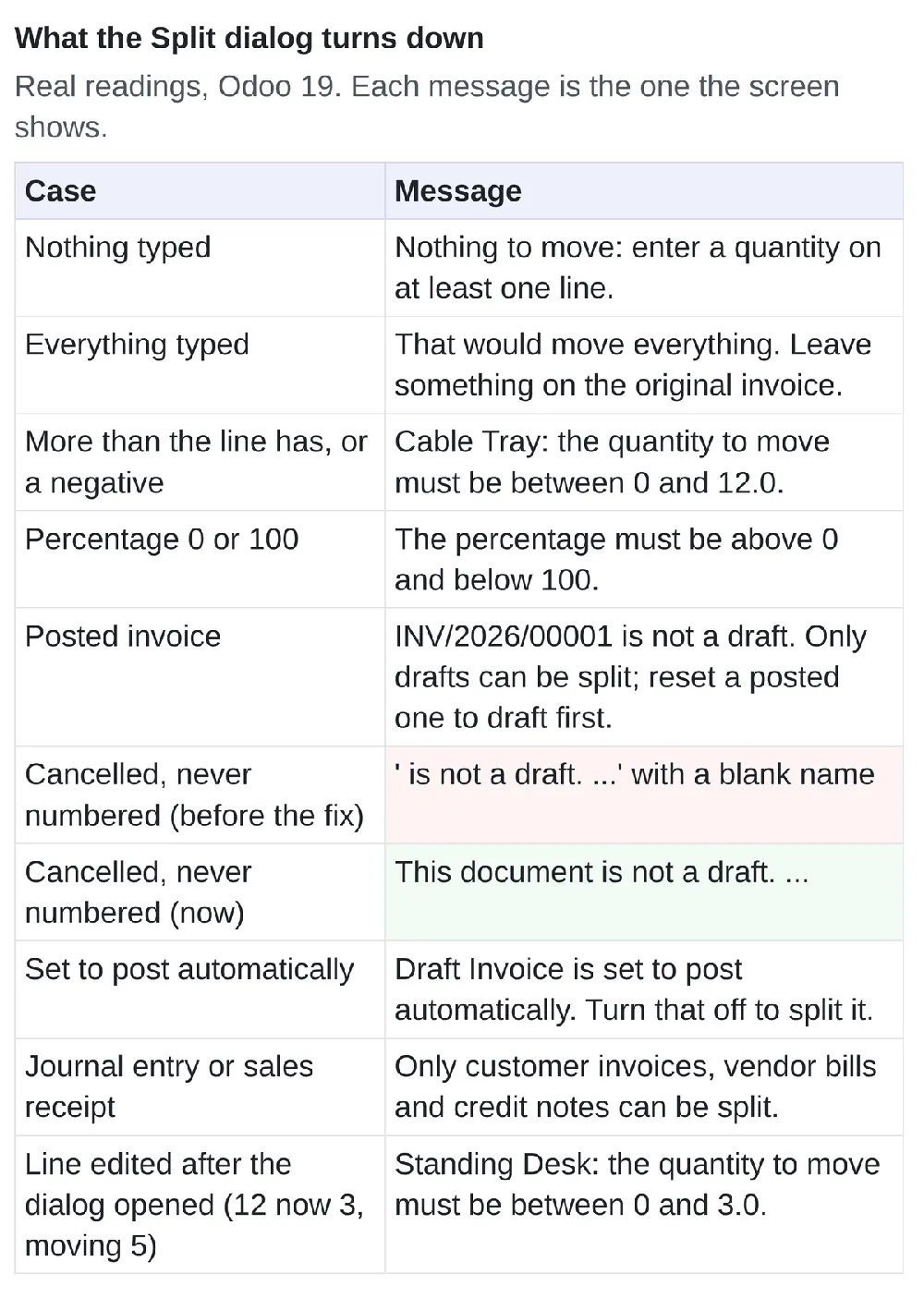
The other refusals, and a list of splits tried with what happened:
A split refused: 2.99 against 3.0.
Refusal messages.
Percentages, rounding, currencies and taxes.
7 Vendor bills
Use it when part of a supplier bill belongs to another cost centre.Same dialog
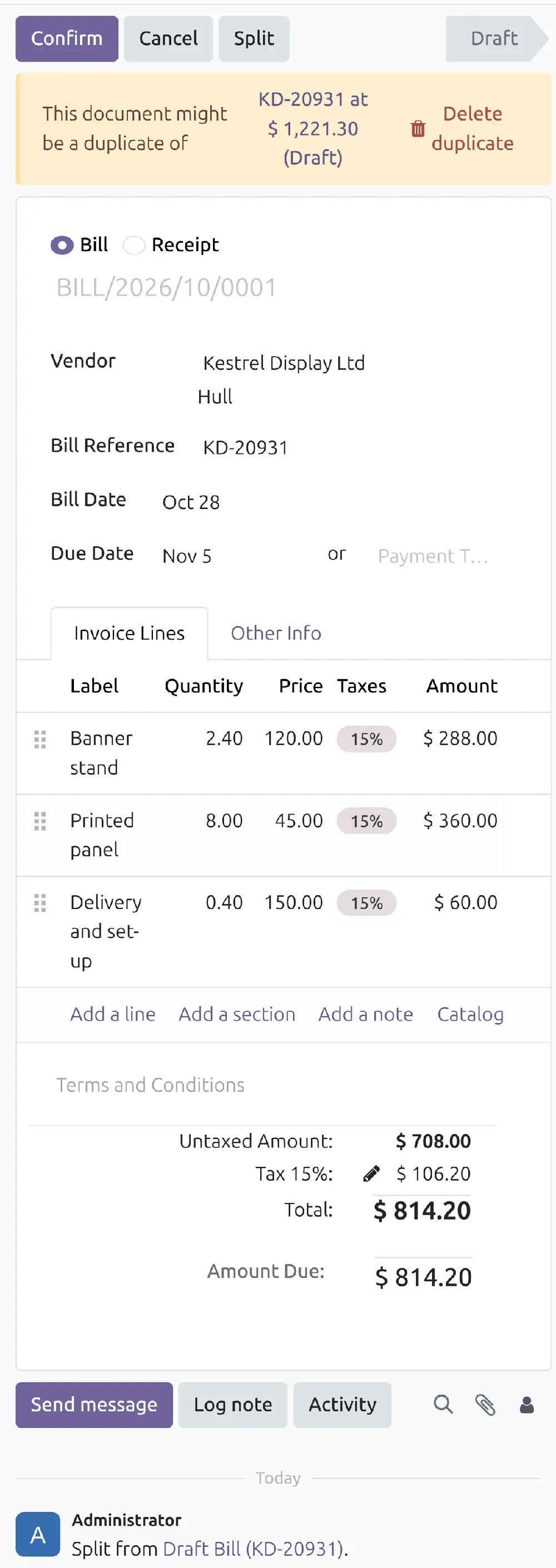
The same button and dialog work on vendor bills and on both kinds of credit note. Here 40% of a bill for banner stands, printed panels and delivery moves. Both drafts keep the bill reference, so Odoo shows its own duplicate warning on them; both post normally.
The new bill: Odoo's duplicate banner shows, because the reference is copied.
8 Defects found, and where it stops
Use it when you are deciding whether this covers your invoicing.Tested limits
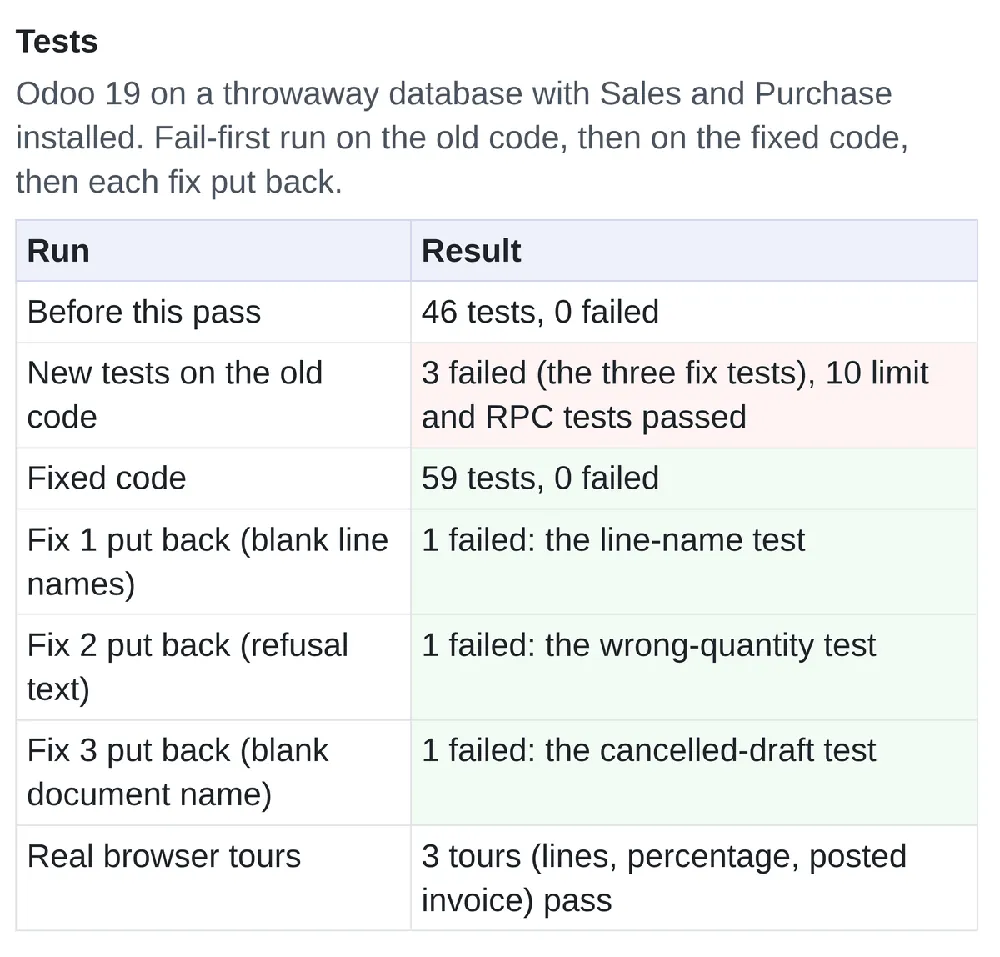
Before and after, same steps.
Odd cases with real readings.
Who can use it
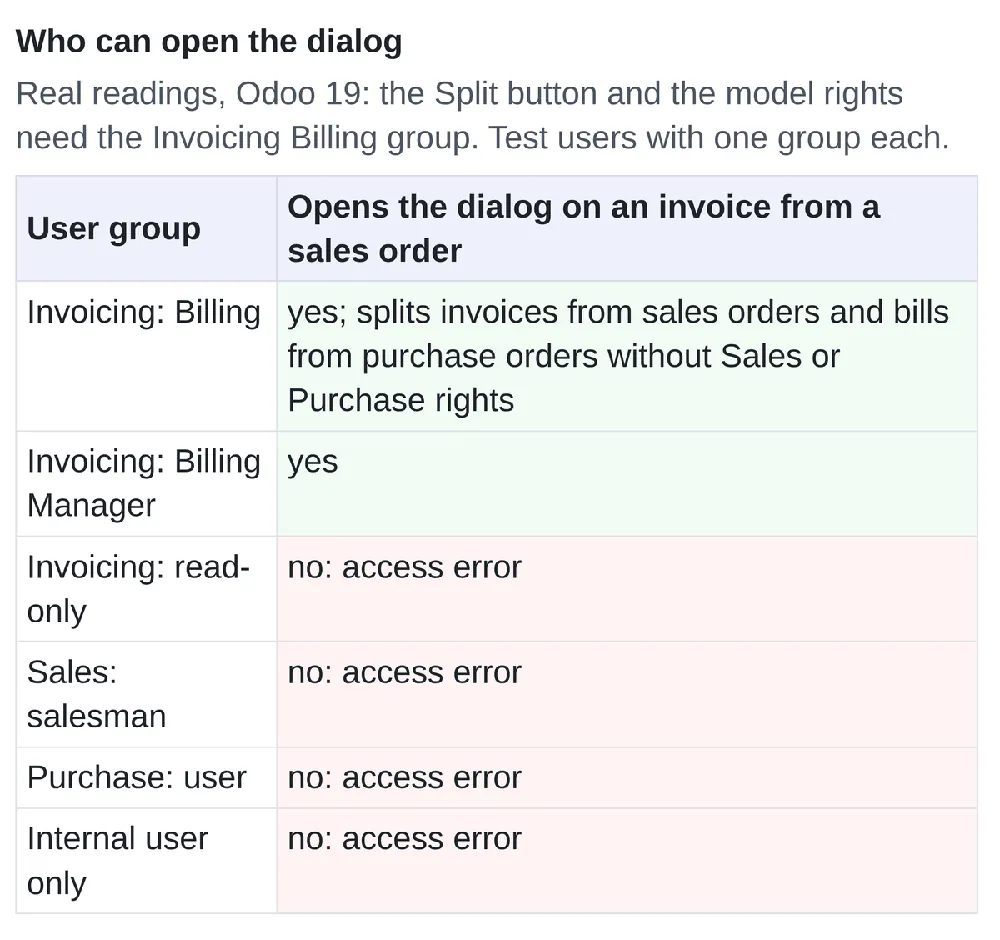
The Split button and the dialog need the Invoicing Billing group or above. A Billing user can split an invoice from a sales order and a bill from a purchase order without any Sales or Purchase rights.
Six test users, one group each.
Screenshots
What it does not do
- The draft you split: moved quantities come off its lines, and a section or note that has no lines left under it goes too. It creates one new draft invoice and a note in each chatter. It adds a button to the invoice form and two dialog models; it adds no fields to invoices.
- The original number, the order links, taxes, accounts, analytic distribution and the header fields listed in section 4. Posted invoices are never touched.
- Both drafts, as ordinary invoices.
- Section 8, with real readings: cash rounding, rounding that does not add up, quantity-1 lines, lines added while the dialog is open, vendor bill duplicates, attachments, and 300 lines in one split (about 2.4 seconds on a small test server).
- Odoo.sh, Odoo Enterprise, several companies in real use, invoices with lines linked by other apps (timesheets, expenses, subscriptions), e-invoicing data, other languages.
- Tests, fix tests on the old code and mutation controls.
Questions buyers ask
Does the sales order still show what was invoiced?
Yes. Moved lines keep their order lines.
Can I split a posted invoice?
No. Reset it to draft first.
What does uninstalling do?
Both drafts stay as ordinary invoices.
Who can use it?
The Invoicing Billing group and above.
Requirements
- Odoo 19.0 or 20.0. The App Store sells each version separately, so buy the one that matches your database.
- Odoo.sh or On-Premise only. Third-party apps cannot be installed on Odoo Online (SaaS) databases. Check your hosting before buying.
- Module
mh_invoice_split, version 19.0.1.0.1, licensed OPL-1.