Journal Control
Bank charges on payments, matched journal transfers, and journals hidden from other users
Request a live demo · Odoo.sh or On-Premise only, not Odoo Online (SaaS).
3
jobs in one app: payment fee, internal transfer, journal restriction
Accountant
group the restriction applies to in Odoo 19
14
automated tests, none failing
2
lines in the separate entry that books each fee
2
linked payments created by one internal transfer
Hides
a restricted journal is kept off screens, not locked
A payment records the amount that moved. Three jobs usually end up by hand around it: booking the processing fee the bank or gateway keeps, moving money between your own bank and cash journals, and keeping one journal away from most of the team. Journal Control covers those three with journal entries and payments you can open. This page walks through each one with screenshots of an Odoo 19 database seeded with made-up data, and says where each one stops.
How it works
Why these three belong together
All three work on the same thing: where a payment lands and who can see the journal it lands in. Each one is small, and each one writes ordinary Odoo records rather than a report of its own.
1 Payment fee: book the bank's charge with the payment
Use it when customers pay by card or through a gateway and the bank keeps a processing fee.Posts one extra entry
When the bank or gateway keeps a processing fee, the payment is for the full amount and the fee is an expense on top. Done by hand, that is a second journal entry typed after every payment.
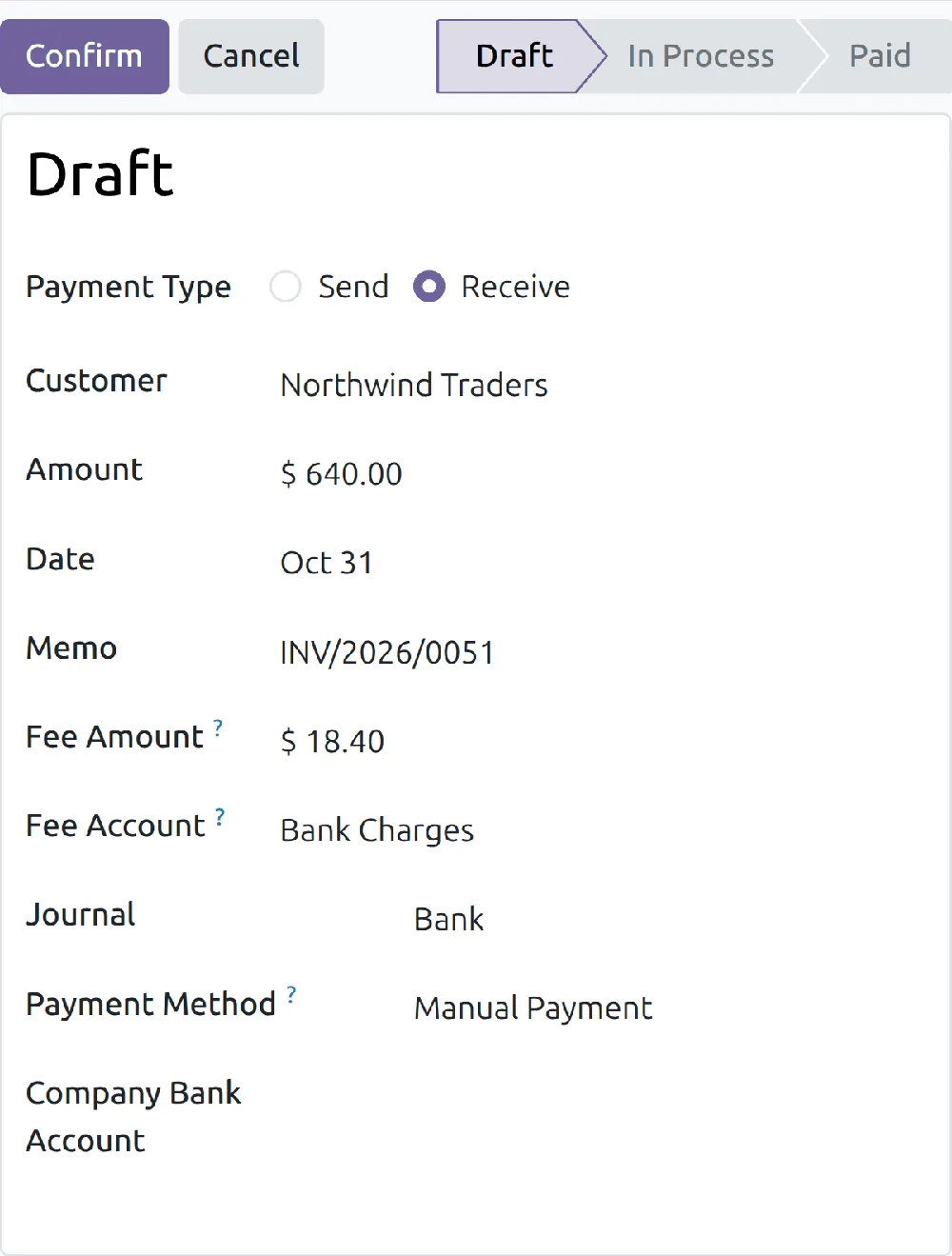
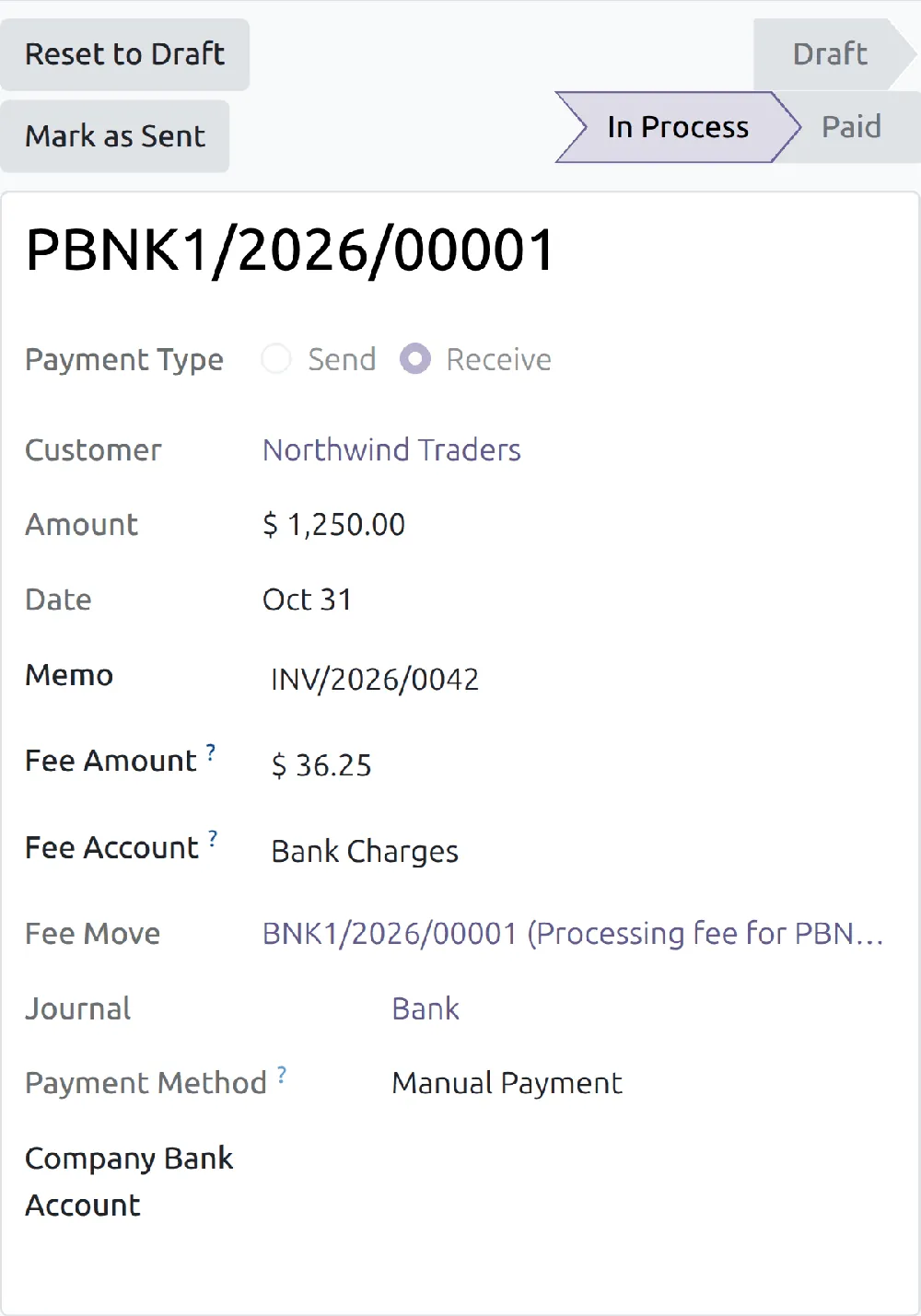
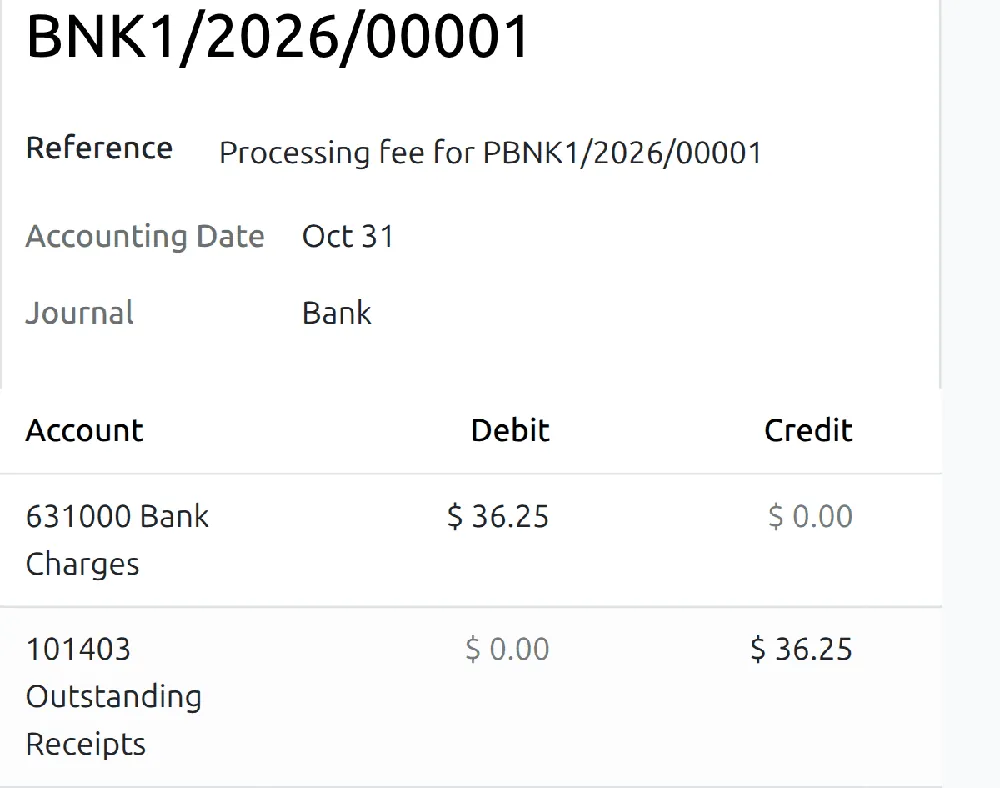
On a payment, two fields sit under Memo: Fee Amount and, once an amount is typed, Fee Account , an expense account. When the payment is posted, a separate two-line entry is posted in the payment's journal on the payment's date: the fee account is debited and the journal's outstanding account is credited. Its number appears in Fee Move .
A fee is booked only when the payment has both a Fee Amount and a Fee Account, and only once.
A draft customer payment with a fee typed in. Fee Move stays hidden until the payment is posted.
The same fields after posting: the Fee Move field now names the entry.
The fee entry itself: Bank Charges debited, Outstanding Receipts credited.
A 1,250.00 customer payment to the Bank journal with a Fee Amount of 36.25 and the account 631000 Bank Charges. Posting it created entry BNK1/2026/00001 in the Bank journal: 631000 Bank Charges debit 36.25, 101403 Outstanding Receipts credit 36.25. An 840.00 vendor payment with a 12.00 fee booked its 12.00 against Outstanding Payments instead.
Resetting a payment to draft leaves the fee entry posted, and a fee typed after the payment is posted is not booked. With a Fee Amount and no Fee Account nothing is booked and no message appears. Matching the fee or the net amount against a bank statement was not tested.
A fee in a foreign currency is booked as the same number in company currency, with no conversion. Do not rely on it for foreign-currency payments.
2 Internal transfer: move money between your own journals
Use it when cash goes to the bank, or the bank tops up petty cash, and both journals must show it.Creates two posted payments
Moving money between your own bank and cash journals is not a customer or vendor payment, but it still has to leave one journal and arrive in the other, and the two sides have to point at each other.
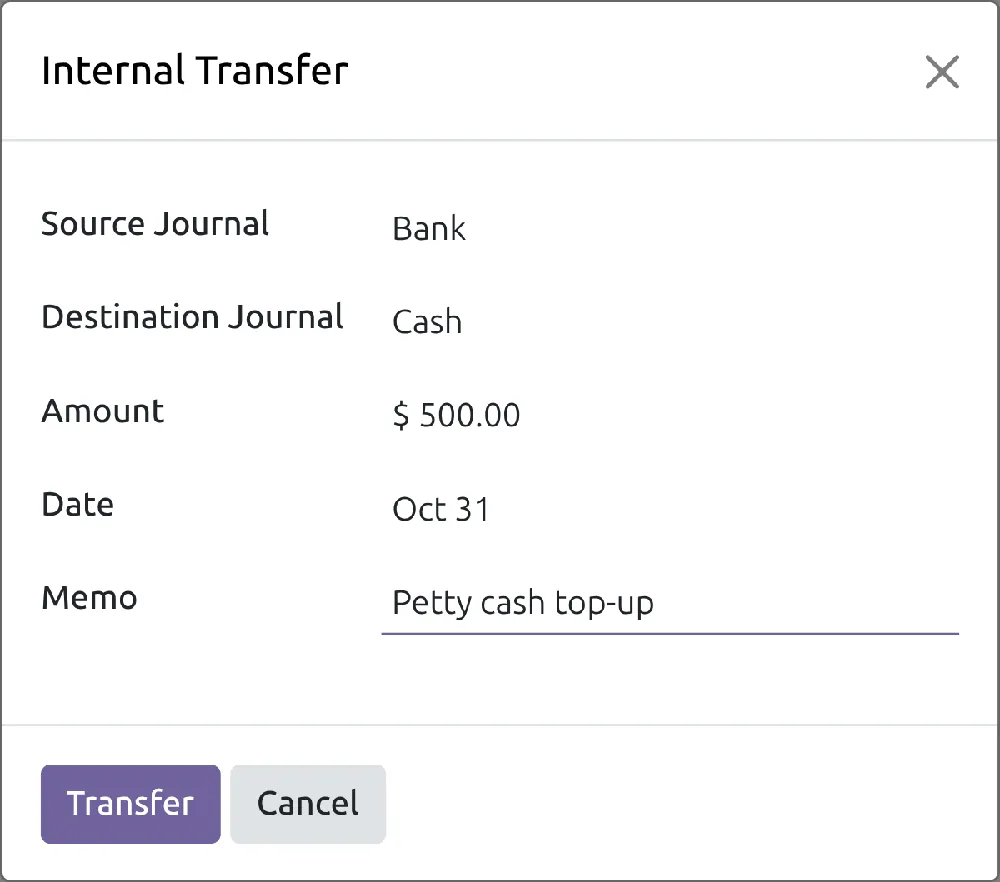
Open Invoicing > Internal Transfer , which Accountants and Accounting Administrators can see. The dialog asks for a source journal and a destination journal (bank or cash journals only), an amount, a date and a memo. Transfer creates an outbound payment from the source and an inbound payment to the destination, links the two to each other, posts both and opens them. The same journal on both sides, or an amount of zero or less, is refused with a message.
The dialog filled in: 500.00 from Bank to Cash.
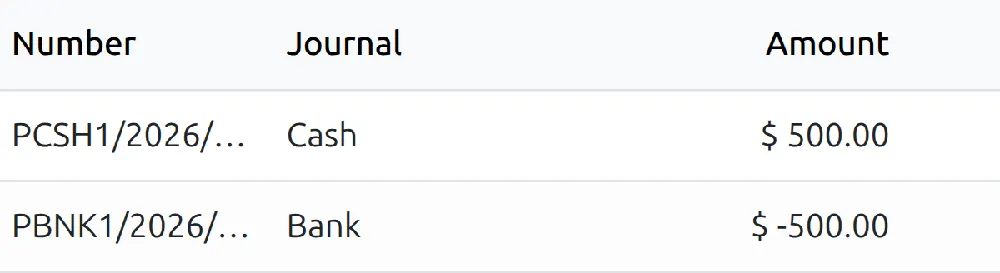
The pair that Transfer opened: Cash +500.00 and Bank -500.00.
500.00 from Bank to Cash with the memo Petty cash top-up produced two payments, Bank -500.00 and Cash +500.00, each pointing at the other. In this Odoo 19 run both ended In Process.
The two payments carry no partner, and they are a vendor-type and a customer-type payment, so they appear in payment lists next to the others. Transfers were tested in the company currency only.
3 Journal restriction: keep a journal off most screens
Use it when a journal such as payroll is meant for two people, not for the whole accounting team.Hides, does not lock
Accounting access is set by group, and a journal has no list of users of its own. A payroll journal then shows up for everyone who can see journals.
Open a journal and use the Access Restriction tab. Restricted To takes users. Left empty, nothing changes for anyone. With names in it, users who are not on the list do not see that journal in lists and pickers. In Odoo 19 the rule applies to users in the Accountant group; an Accounting Administrator who is not also an Accountant sees every journal.
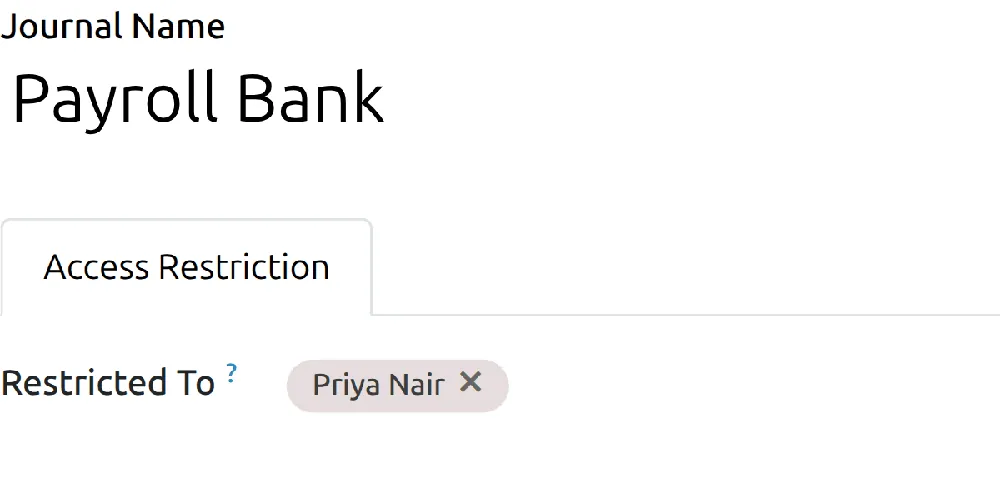
Payroll Bank restricted to one user.
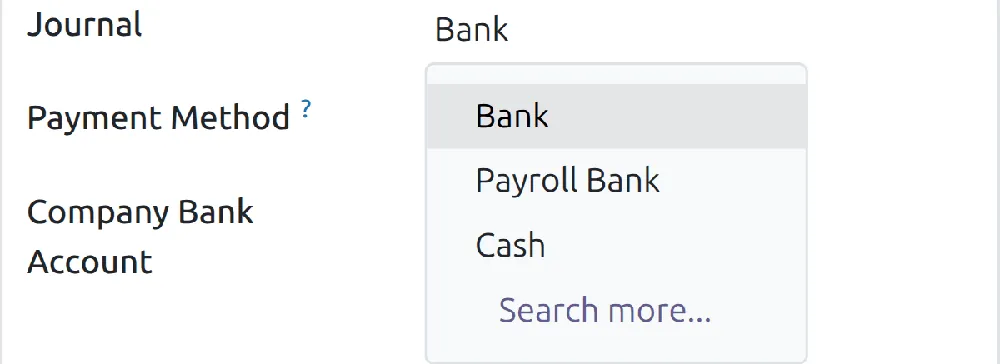
The Journal picker on a new payment, as the listed user: Payroll Bank is there.
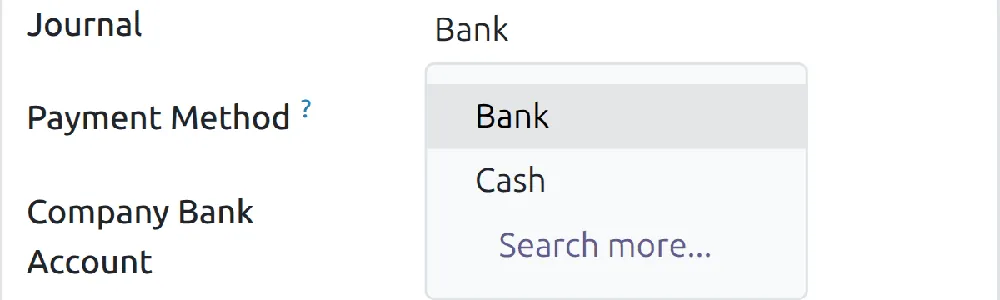
The same picker as an Accountant who is not on the list: Payroll Bank is gone.
Payroll Bank is restricted to Priya Nair. In a new payment, the Journal picker offers Bank, Payroll Bank and Cash to Priya, and Bank and Cash to Tom Reyes, an Accountant who is not on the list.
It is not a posting lock. In Odoo 19 a Billing-only user still sees a restricted journal, and a user who is both Accountant and Accounting Administrator is restricted too.
This hides a journal; it does not lock it. A user who is not on the list can still create and post an entry that carries the journal's id through the API, and can still read its existing entries.
Questions buyers ask
Does it change my existing payments?
No payment is edited. The app adds a Fee Amount, a Fee Account and a Fee Move field to payments and a Restricted To list to journals; a payment with no fee amount behaves as before and books no entry.
Is the fee a real accounting entry?
Yes. It is a posted journal entry in the payment's journal, dated like the payment, with the reference "Processing fee for" and the payment's number.
Does it work with my chart of accounts?
It was tested with Odoo's generic chart of accounts and, in the unit tests, with no chart at all. A local chart was not tested.
Can I rely on the restriction to stop posting?
No. It hides the journal from users who are not on its list. A call that supplies the journal's id was not refused in testing.
Requirements
- Odoo 19.0 or 20.0. The App Store sells each version separately, so buy the one that matches your database.
- Odoo.sh or On-Premise only. Third-party apps cannot be installed on Odoo Online (SaaS) databases. Check your hosting before buying.
- Module
mh_accounting_journal_control, version 19.0.1.0.11, licensed OPL-1.