Payment Allocation
One bank transfer, several invoices, and you choose what each invoice receives
Request a live demo · Odoo.sh or On-Premise only, not Odoo Online (SaaS).
3 of 3
allocated invoices matched, to the cent, the amounts typed in the wizard when read back with a separate SQL query on the reconciliation table
1
payment is created per run, for the full amount you typed, however many invoices or bills it is spread over
27
automated tests in the app, none failing, two of them real browser tours; 5 were added for the limits stated on this page
15.6 s
to create one payment spread over 164 invoices in the test run (about 0.1 s per row); larger runs not tested
0
fields added to invoices, payments or partners: it writes the payment, its reconciliation and a chatter note, and makes no network call
No
credit notes, write-off or several partners in one payment (see the known limits)
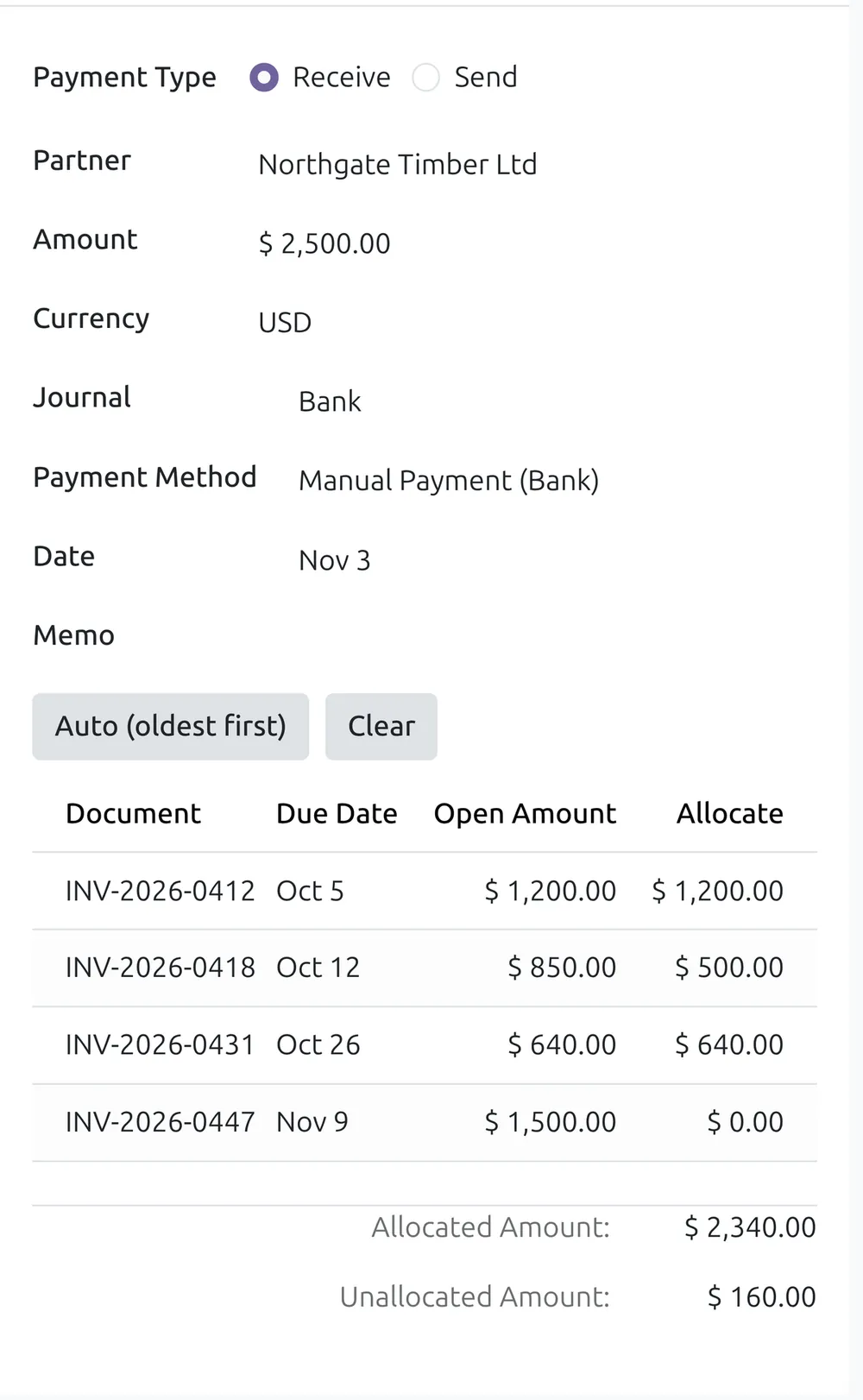
A customer sends one transfer of 2,500.00 for four open invoices. It matches no invoice amount: 1,200.00 for the first, 500.00 of the second, 640.00 for the third. Odoo's Register Payment has no amount per invoice: with several invoices selected it pays each one in full or, with Group Payments on, spreads one total from the oldest invoice on. Payment Allocation adds an Allocate Payment wizard that lists the partner's open invoices (or vendor bills), lets you type the amount each one receives, and creates one payment that is matched to each invoice for exactly that amount. This page walks through it with screenshots of an Odoo 19 database holding a made-up joinery, and with tables rendered from real readings of the same run; each picture says which it is.
The matching is done by Odoo's own reconciliation, so partial status and exchange differences are Odoo's. This page also says where the wizard stops: credit notes, one partner and one currency per payment, no write-off, journal entries, running the same wizard twice and how long a very long payment takes.
Install it and an Allocate Payment entry appears under Accounting, Customers and under Accounting, Vendors, and in the Actions menu of the invoice and bill lists. It needs only Accounting (the account module) and has no settings.
How it works
1 Open the wizard from the menu or from the list
Use it when you have a transfer to match and want to start from the partner or from the invoices.Opens a window
Matching a transfer starts from two places: the partner who paid, or the invoices the remittance advice names.
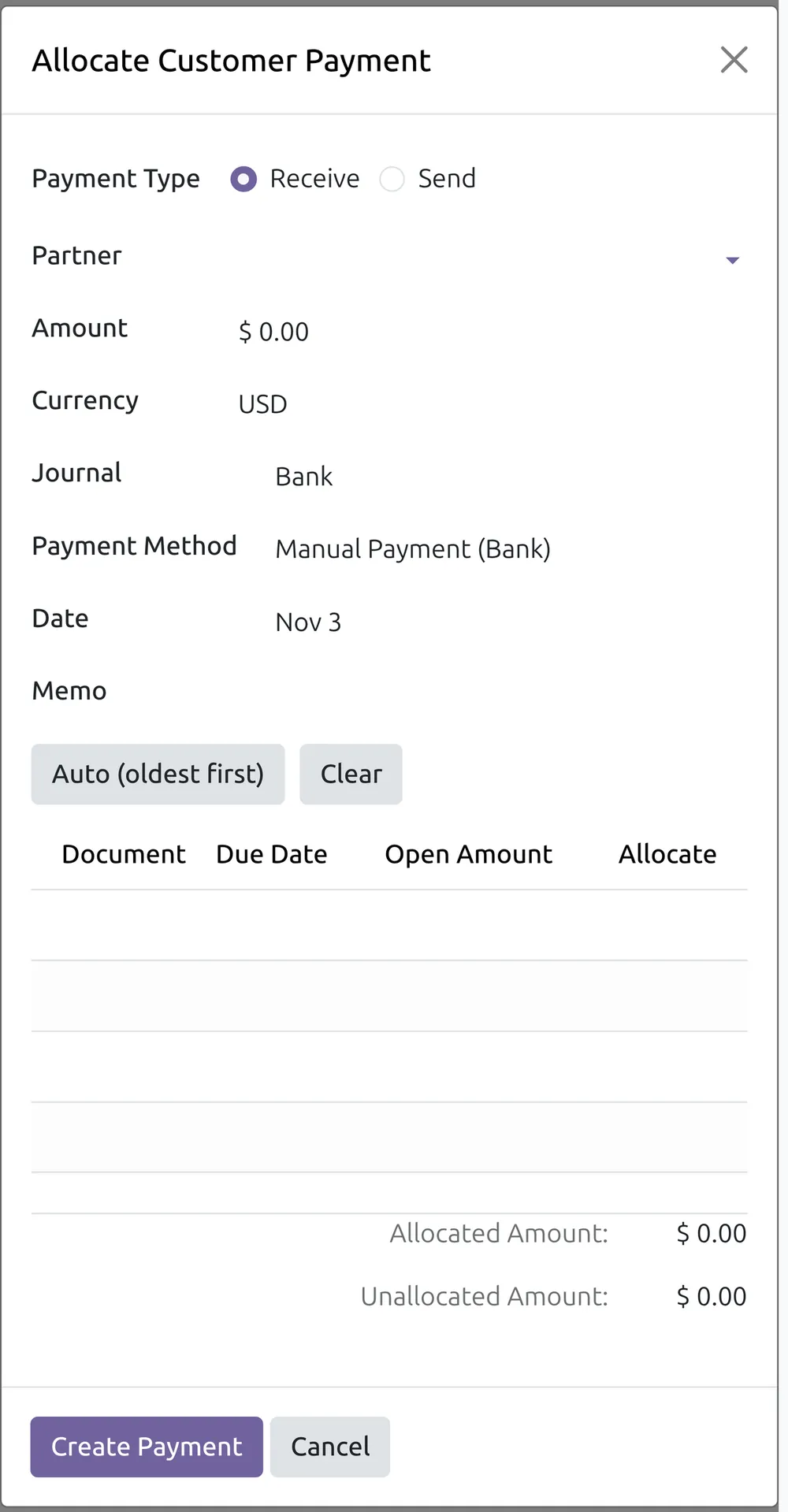
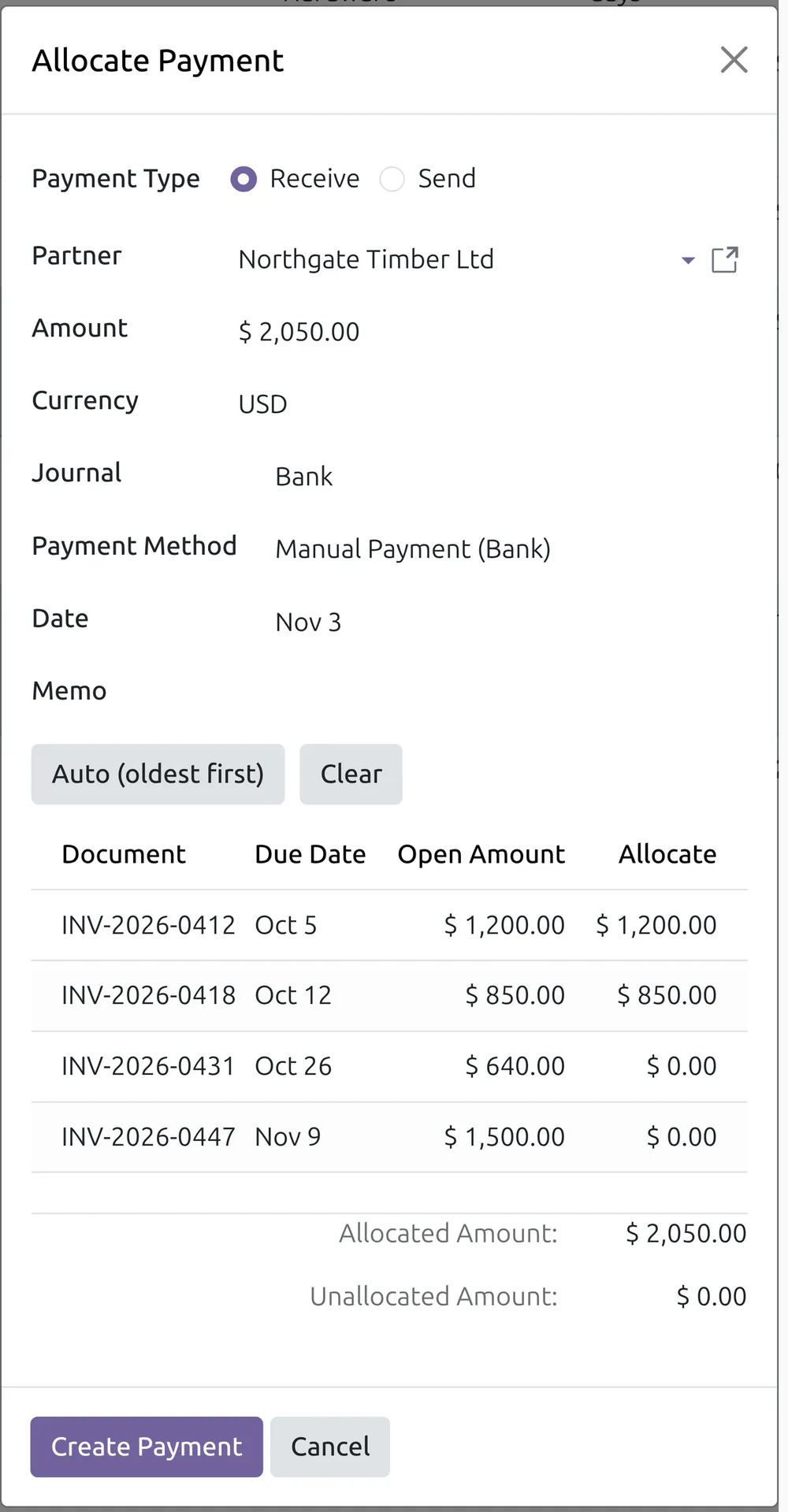
Accounting, Customers, Allocate Payment opens the wizard for a customer payment (Receive); Accounting, Vendors, Allocate Payment for a vendor payment (Send). The wizard asks for the partner, the payment amount, the journal and payment method (a bank or cash journal), the date and an optional memo; the currency field appears when Multi-Currencies is on. The first picture is the empty wizard. From the invoice or bill list you can instead tick the documents and use Actions, Allocate Payment: the wizard opens with those documents filled in with their full open amount and the payment amount set to their total (second picture; one partner, one currency and customer invoices only or bills only, otherwise it says so). Paid or draft documents in the selection are ignored.
A selection that mixes invoices with credit notes or bills, or several partners, is refused with a message.
The empty wizard opened from Accounting, Customers. Real Odoo screen (Odoo 19).
Opened from two ticked invoices with Actions, Allocate Payment: amount 2,050.00 (1,200.00 + 850.00), each row filled in. Real Odoo screen (Odoo 19).
2 Type what each invoice receives
Use it when the transfer does not match any invoice and you know from the remittance advice what it is for.Fills a window
A transfer of 2,500.00 for invoices of 1,200.00, 850.00, 640.00 and 1,500.00 matches none of them, and nothing in the stock payment form lets you say that 500.00 of it belongs to the second invoice.
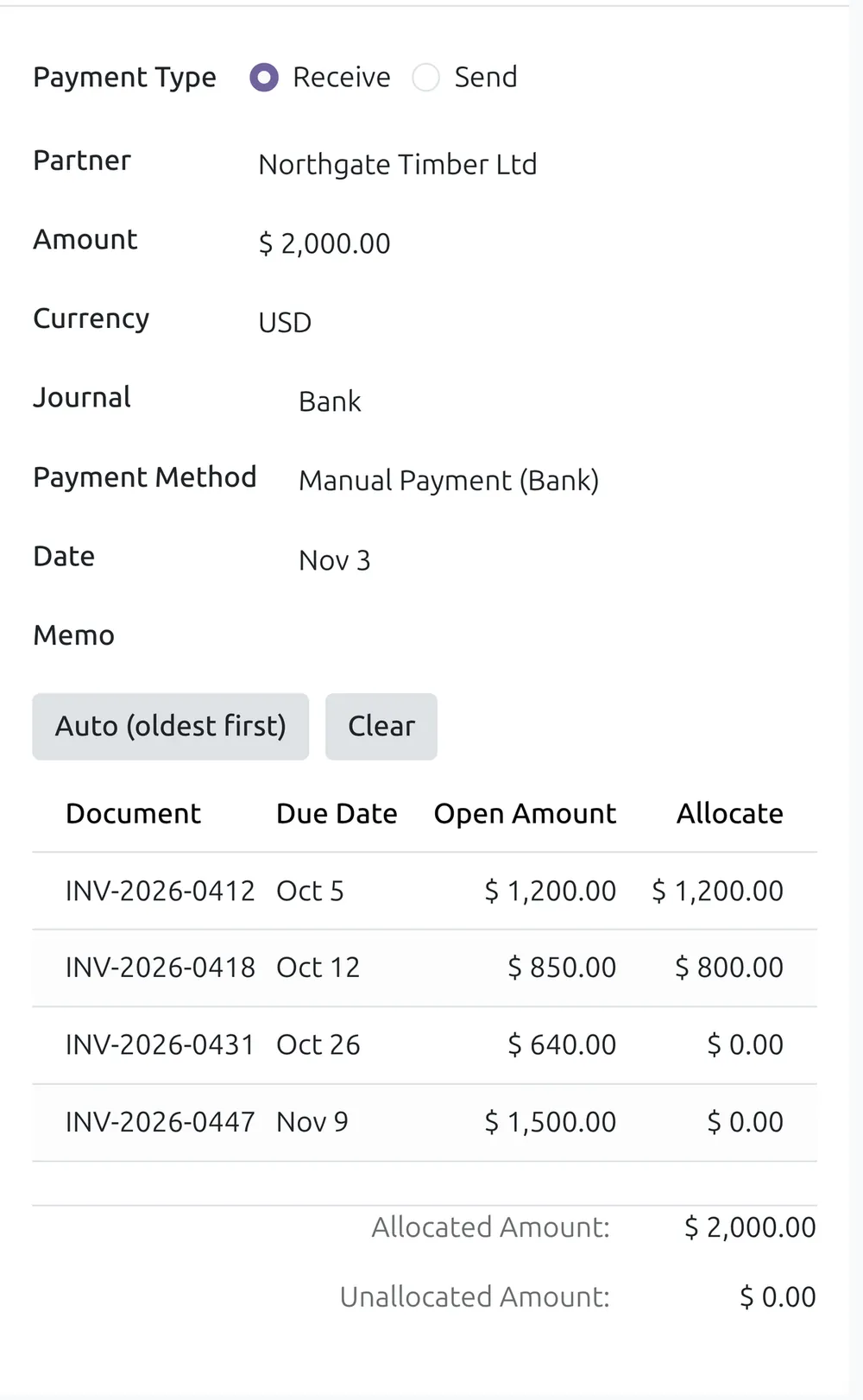
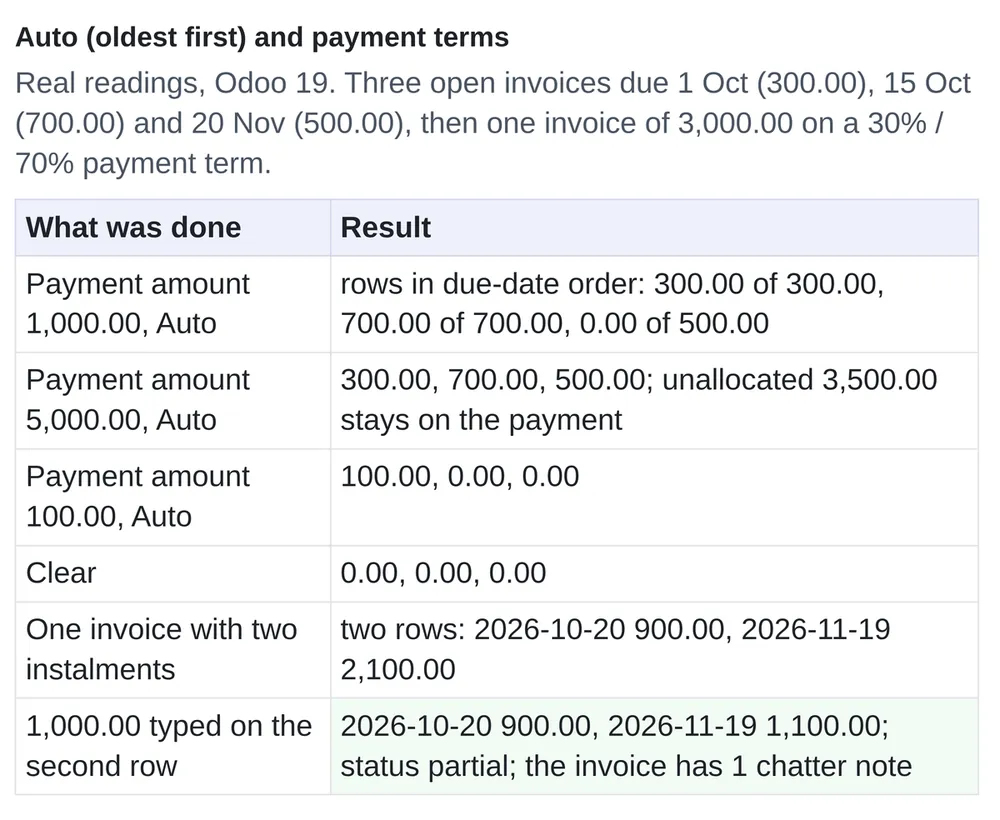
Pick the partner and the payment amount; the open items are listed with due date and open amount, oldest due date first. Type the amount each row receives in the Allocate column. The totals under the list read Allocated Amount and Unallocated Amount: here 2,340.00 and 160.00, the 160.00 staying on the payment. Auto (oldest first) fills the rows by due date until the amount is used up, Clear empties the column. The first picture has typed amounts, the second has had Auto pressed for 2,000.00 (1,200.00 to the oldest, 800.00 to the next).
Auto reads the payment amount when you press it; if you change the amount afterwards, press it again. A row cannot be negative or above its open amount, and the rows cannot add up to more than the payment.
Typed amounts: 1,200.00, 500.00, 640.00 and 0.00. The wizard window with the amounts filled in (Odoo 19); the page form is the same wizard, opened as a page so that it can be shown readably.
After Auto (oldest first) for 2,000.00. The wizard window with the amounts filled in (Odoo 19); the page form is the same wizard, opened as a page so that it can be shown readably.
Auto and Clear, and one invoice with two instalments. Evidence table.
3 Create Payment: one payment, exact matches
Use it when you have typed the amounts and want the books to say exactly that.Writes the payment
Several small payments do not match the single line on the bank statement.
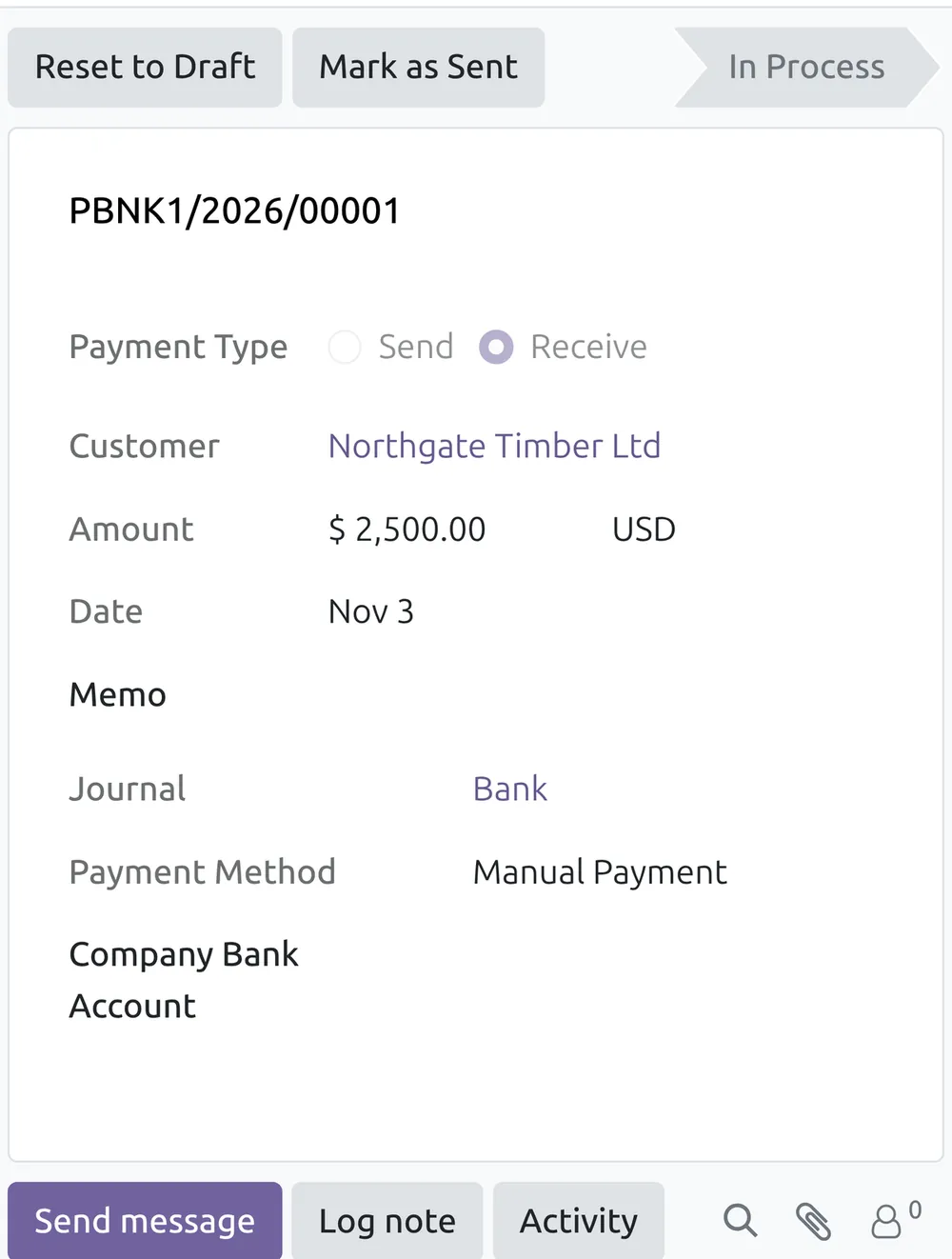
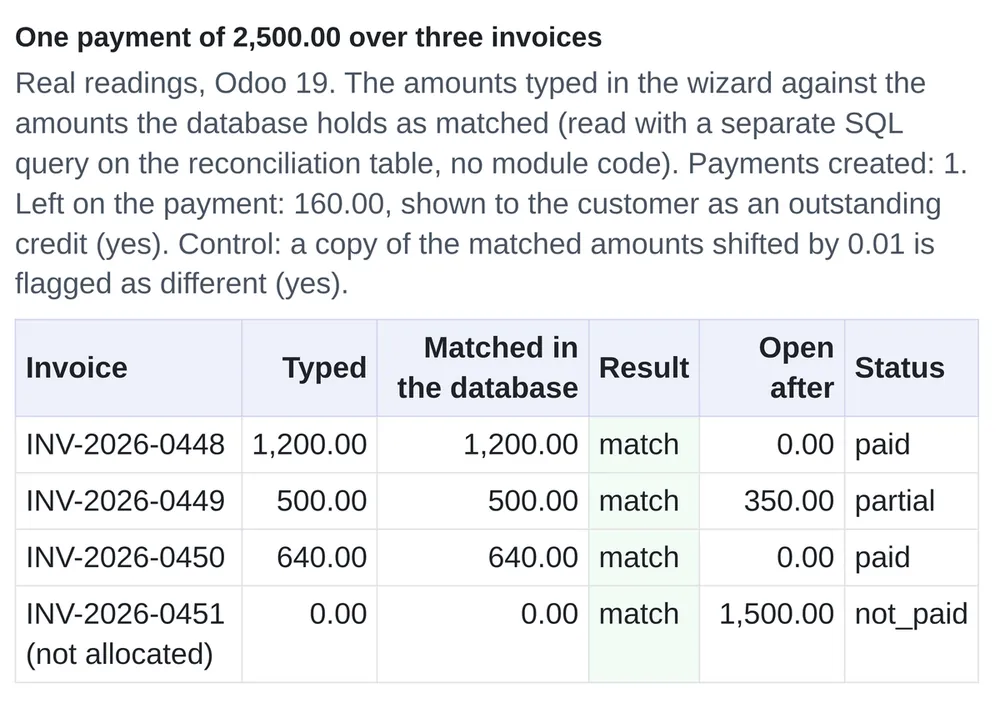
Create Payment makes ONE payment for the full amount, posts it, and matches each row you filled for exactly the amount typed on it. You land on the posted payment (its status is In Process on Odoo 19). The table is the check: the typed amounts against the amounts the database holds as matched, read with a separate SQL query and no module code. The three allocated invoices matched to the cent, the fourth was untouched, and the 160.00 stayed on the payment.
It does not write off a difference: an invoice is never closed for less than its open amount.
The payment that Create Payment made: one payment of 2,500.00. Real Odoo screen (Odoo 19).
Typed against matched in the database. Evidence table, with a control.
4 What the invoices show afterwards
Use it when you want the invoices to tell the story without opening the payment.Odoo's own screens
A partial payment that leaves no trace on the invoice is a support call.
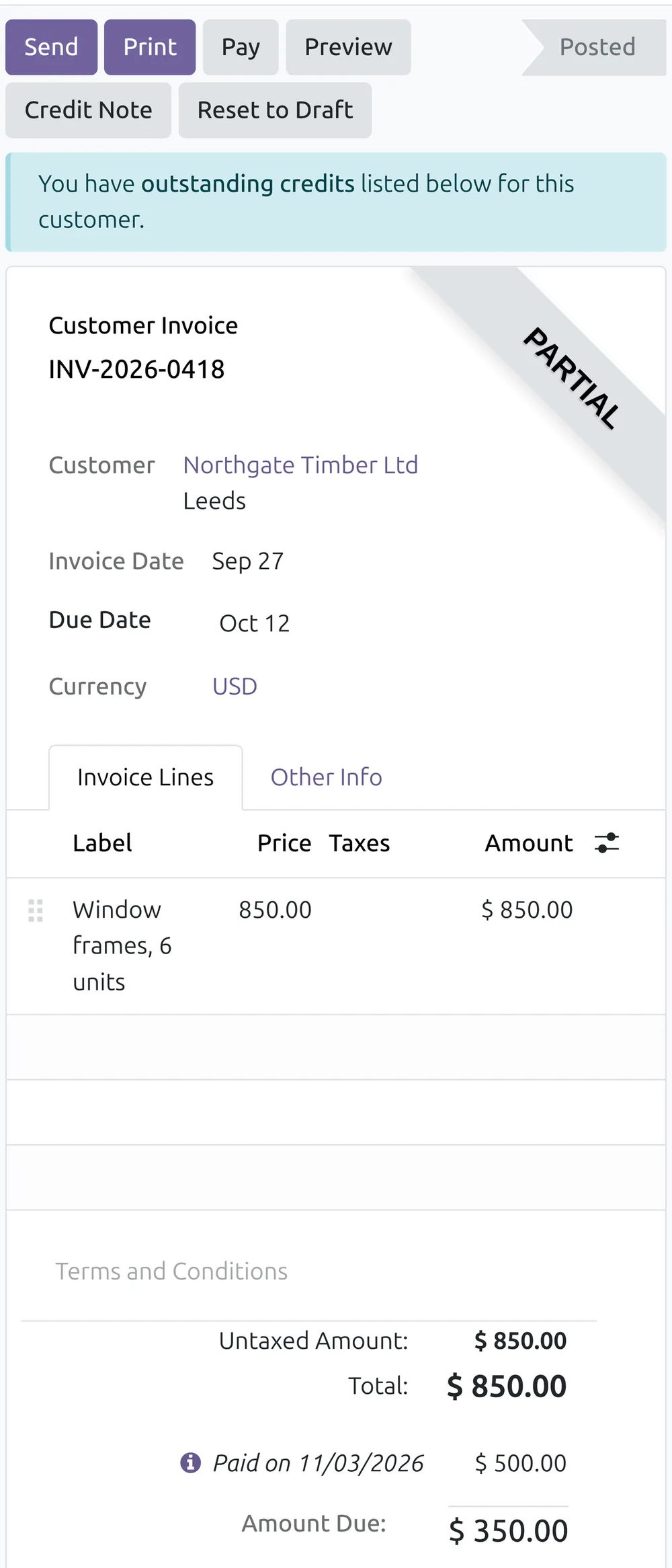
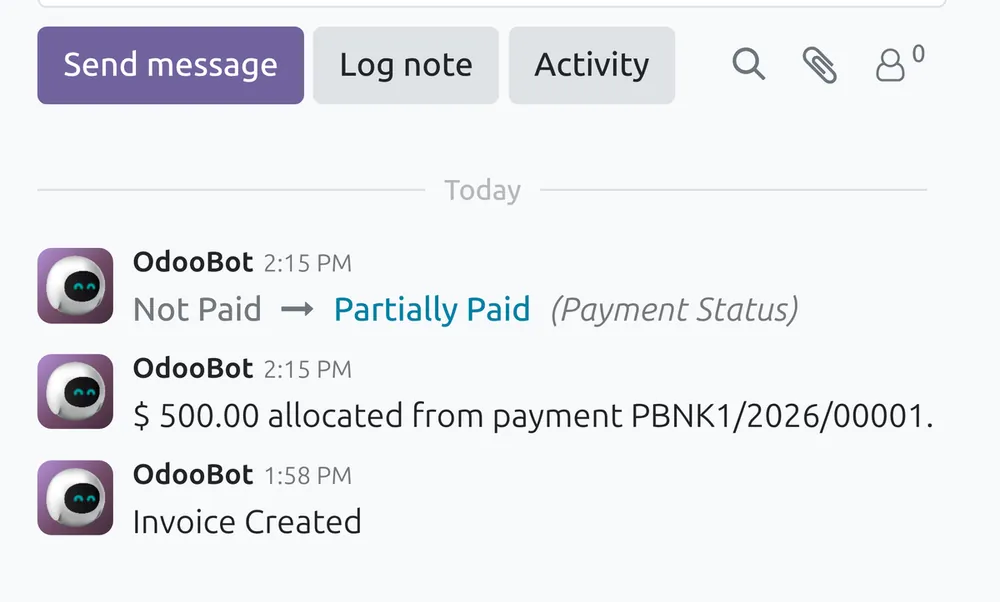
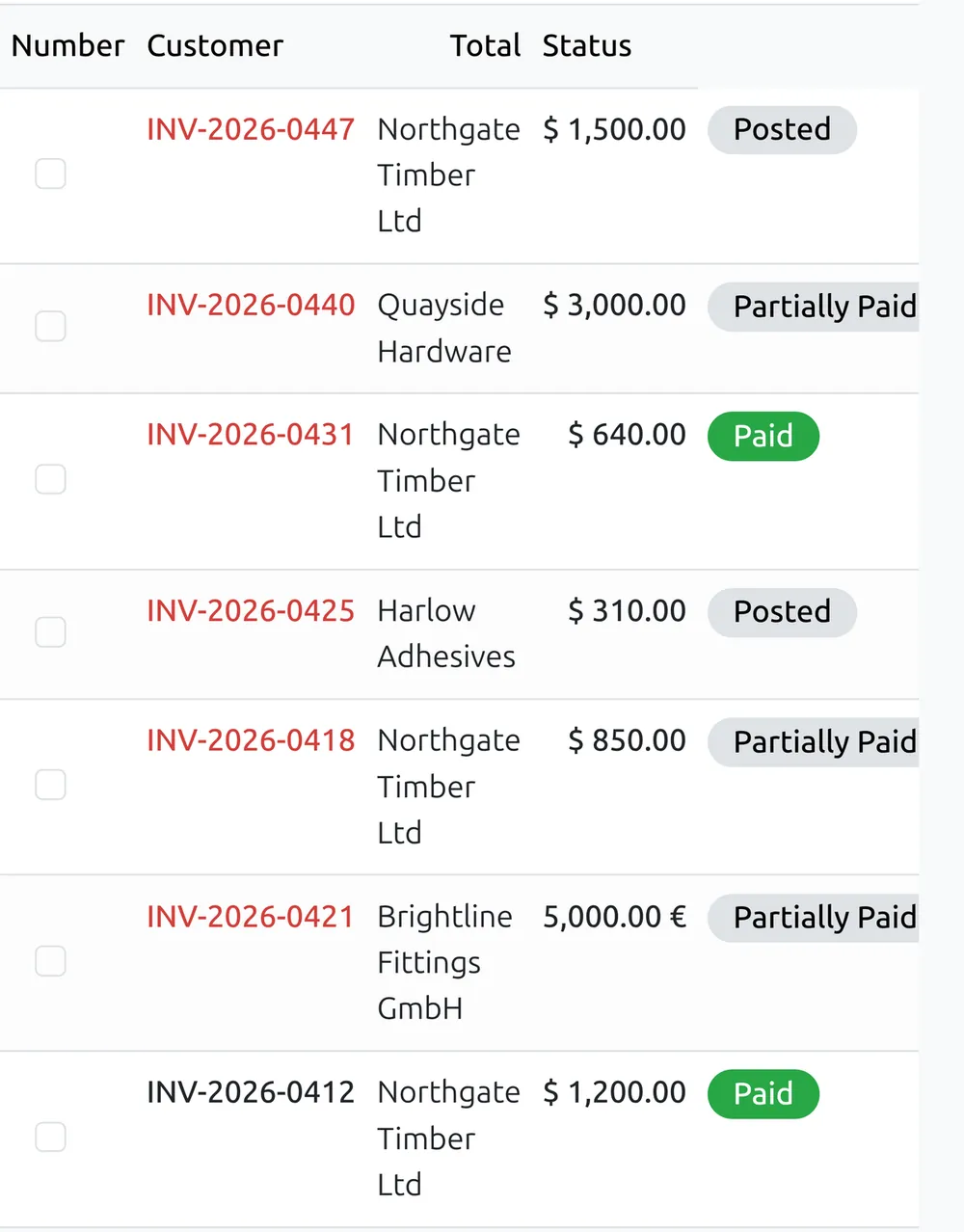
An invoice matched for less than its open amount reads Partially Paid with the remainder as Amount Due: here 500.00 of 850.00 paid, 350.00 due. The chatter of each allocated invoice has a note naming the amount and the payment; invoices that received nothing get no note. Because 160.00 is still on the payment, Odoo shows the customer's other open invoice with an outstanding credit. The list shows the status of every invoice.
A payment cancelled afterwards puts the invoices back to open, as in any Odoo payment; the chatter notes stay.
The partly paid invoice. Real Odoo screen (Odoo 19).
The chatter note on the invoice. Real Odoo screen (Odoo 19).
The invoice list after the allocations. Real Odoo screen (Odoo 19).
5 Vendor bills
Use it when you pay one transfer to a vendor against several bills.Writes the payment
The same question from the other side: one transfer to a vendor, several bills, a different amount on each.
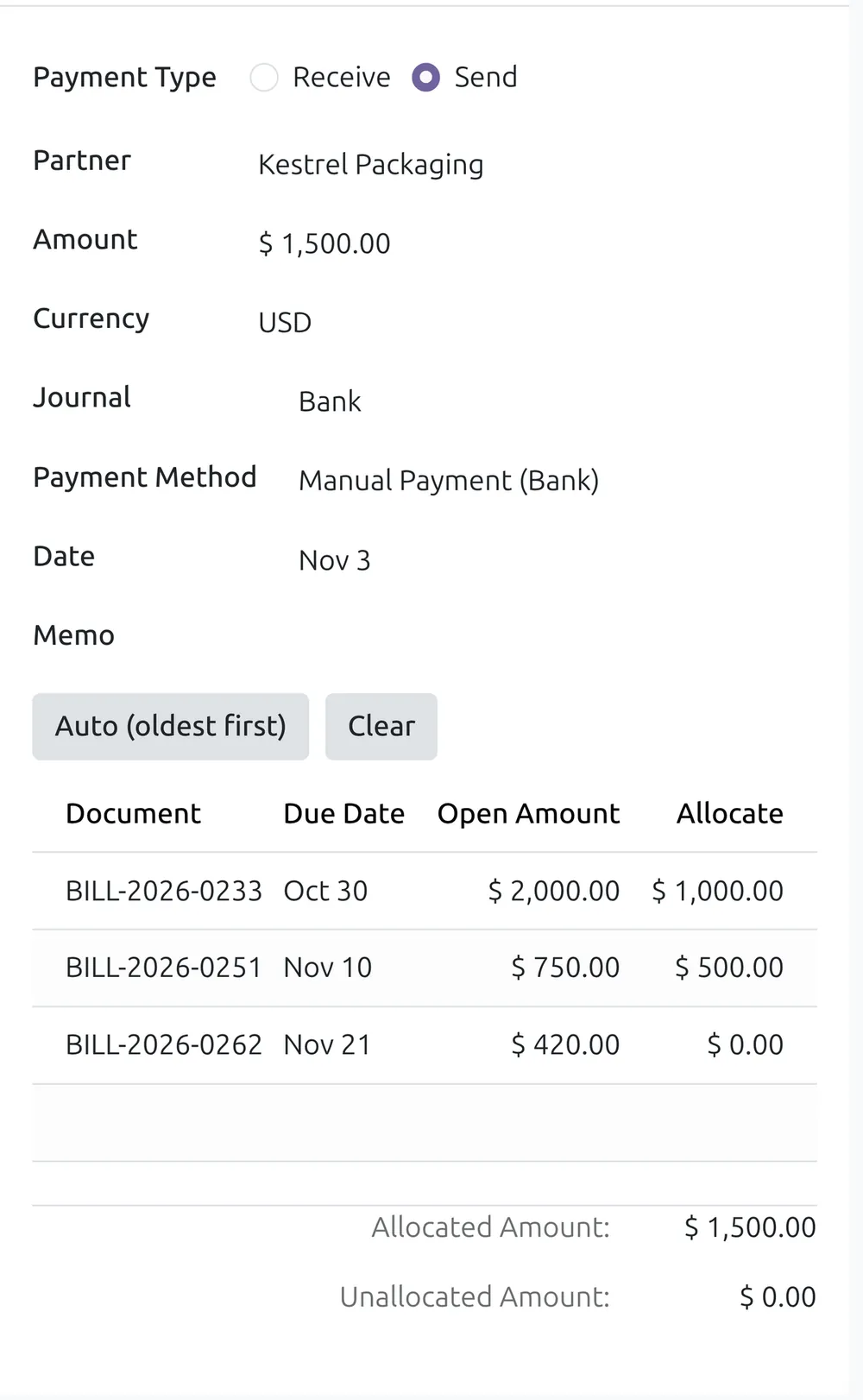
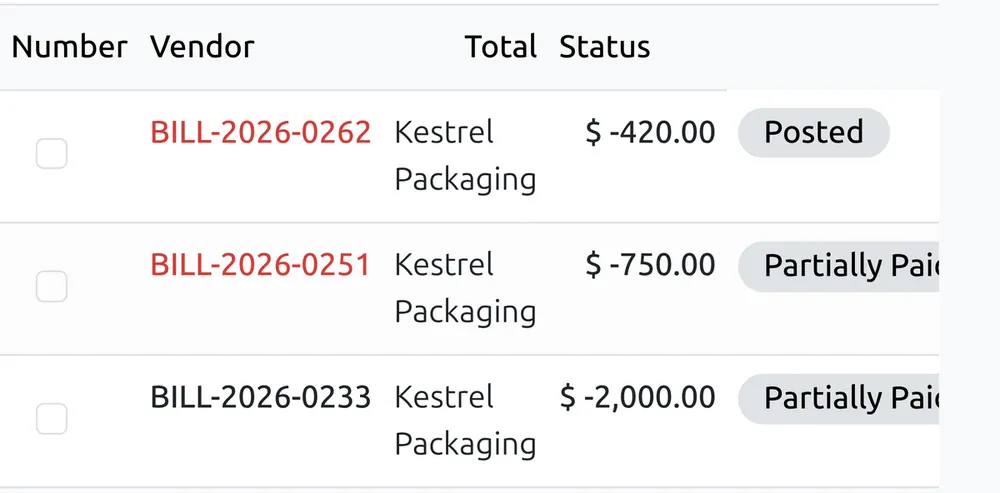
Accounting, Vendors, Allocate Payment (or Send in the wizard) lists the vendor's open bills; the rest works the same and makes an outbound payment to a supplier. In the made-up run 1,500.00 went 1,000.00 to a 2,000.00 bill and 500.00 to a 750.00 bill; a third bill of 420.00 stayed untouched.
Vendor credit notes are not listed.
The vendor wizard. The wizard window with the amounts filled in (Odoo 19); the page form is the same wizard, opened as a page so that it can be shown readably.
The bill list after the payment. Real Odoo screen (Odoo 19).
6 Foreign currency and payment terms
Use it when you invoice in another currency or on instalments.Writes the payment
A 5,000.00 EUR invoice paid in parts at a different rate, or an invoice split in two instalments, should not need a second tool.
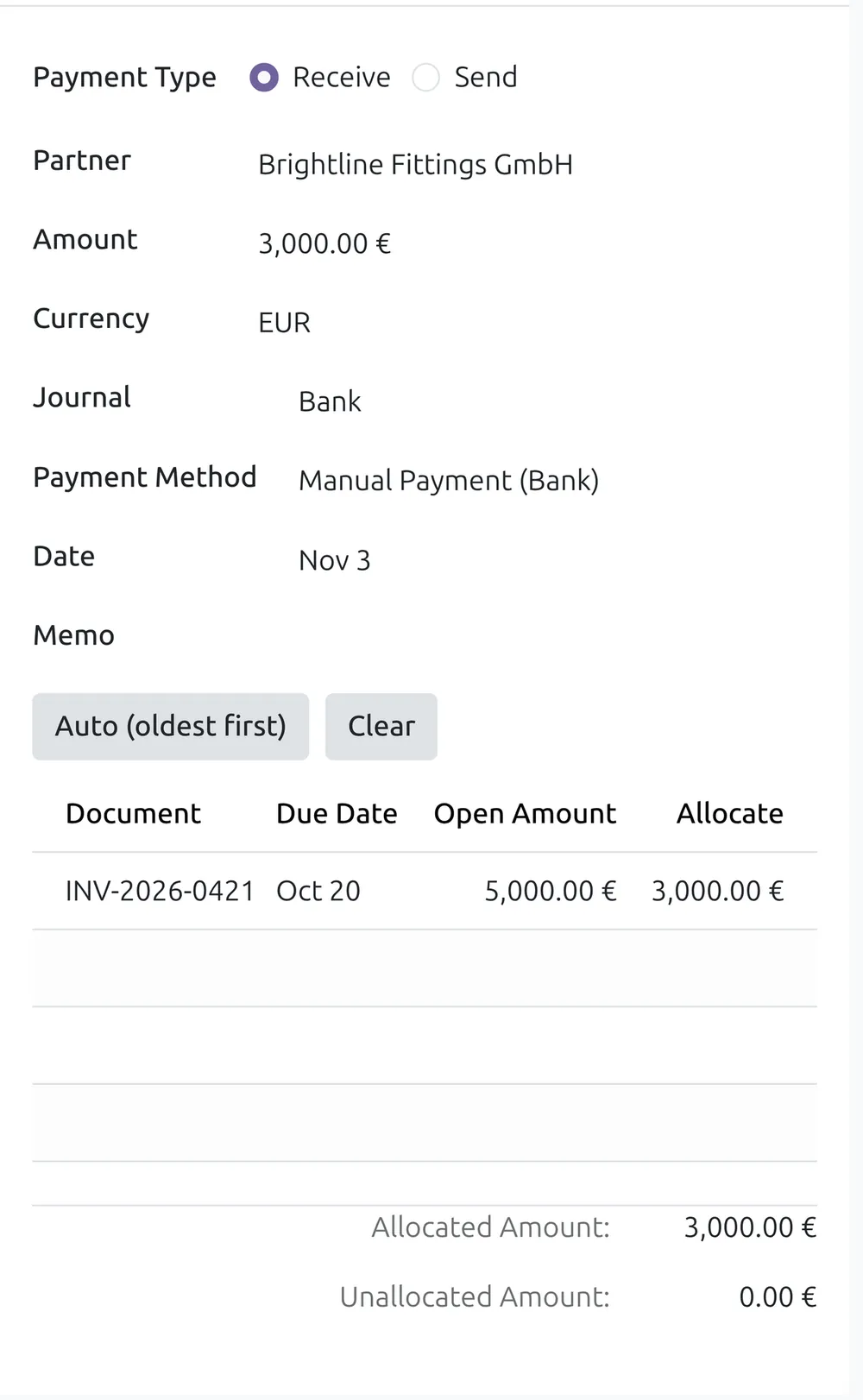
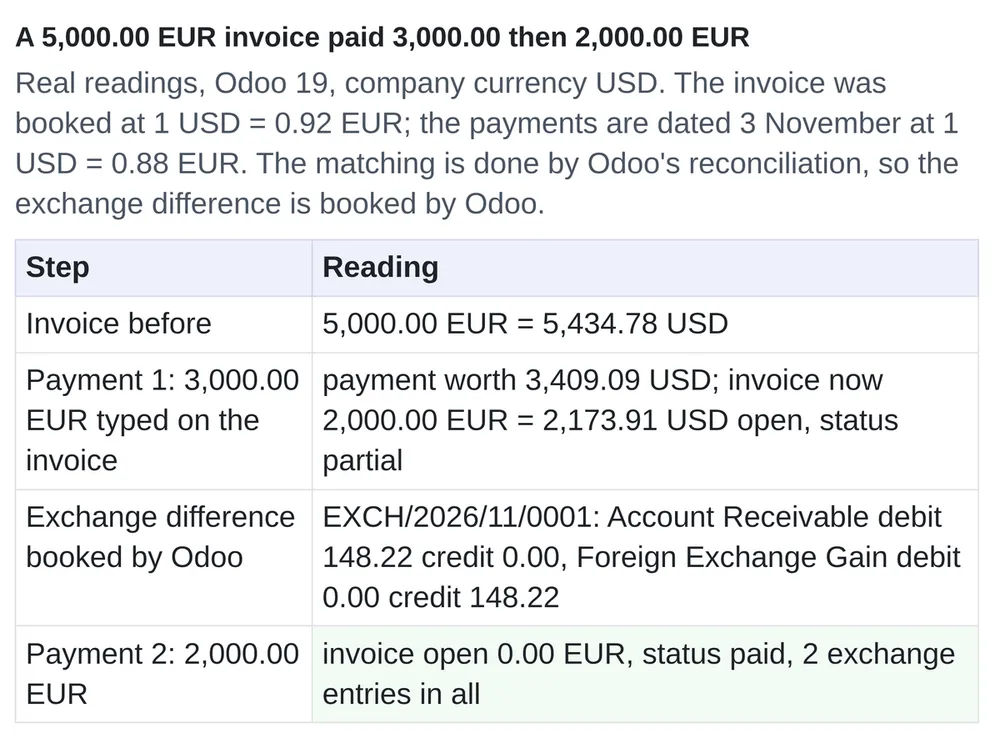
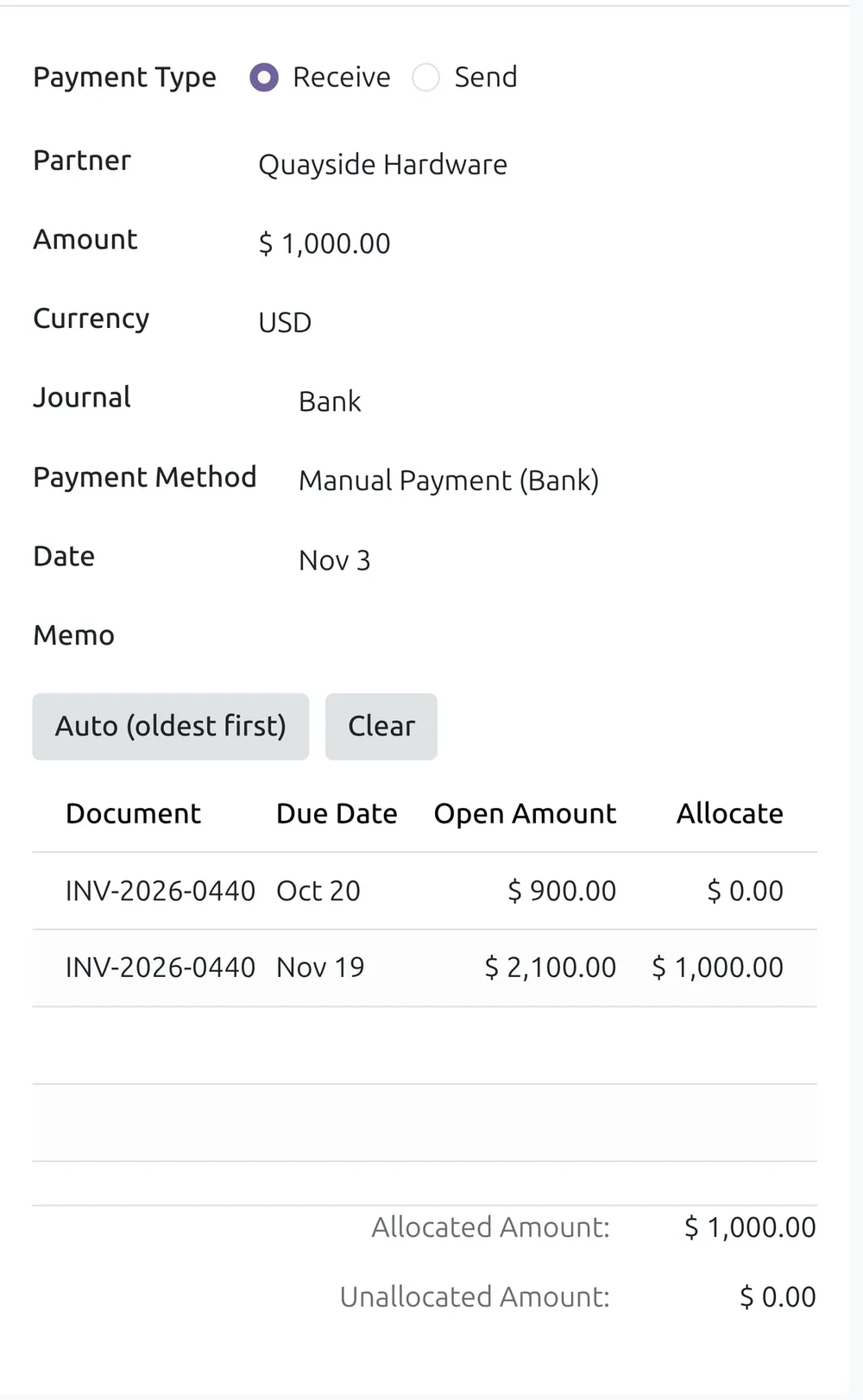
The wizard works in one currency, the company's by default: pick EUR and the EUR documents are listed. In the made-up run a 5,000.00 EUR invoice booked at 0.92 was paid 3,000.00 EUR on a day when the rate was 0.88; 2,000.00 EUR stayed open and Odoo booked a gain of 148.22 on the exchange difference, then 2,000.00 EUR more closed the invoice. An invoice on payment terms with two instalments shows one row per instalment (900.00 and 2,100.00 here) so you can pay the second one first.
One currency per payment: a USD payment cannot settle EUR documents, and cash basis taxes were not tested.
The EUR wizard. The wizard window with the amounts filled in (Odoo 19); the page form is the same wizard, opened as a page so that it can be shown readably.
The reconciliation of the EUR invoice. Evidence table.
One invoice, two instalment rows. The wizard window with the amounts filled in (Odoo 19); the page form is the same wizard, opened as a page so that it can be shown readably.
7 What it lists, and what it leaves out
Use it when you want to know which documents will show up before you rely on it.Read-only
A wizard that silently drops or adds documents is worse than none.
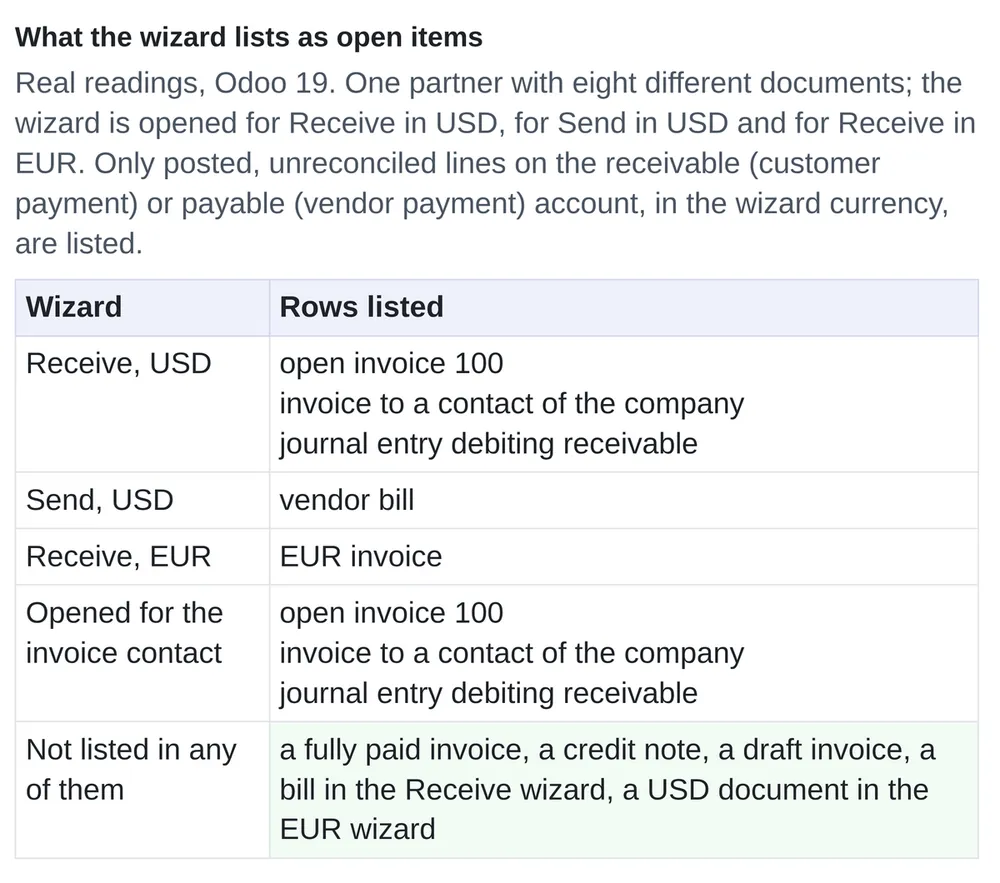
The table reads the same partner with eight kinds of document. Receive in USD lists the open invoice, an invoice addressed to a contact of the company and a journal entry that debits the receivable account (an opening balance, for example); Send lists the vendor bill; Receive in EUR lists the EUR invoice. A fully paid invoice, a credit note, a draft invoice, and documents in another currency are not listed.
Credit notes are not listed: use Odoo's outstanding credits for those.
What each wizard lists. Evidence table.
8 What it refuses
Use it when someone types a wrong amount or the books move while the window is open.Nothing is written
A payment built on a wrong allocation is expensive to unpick.
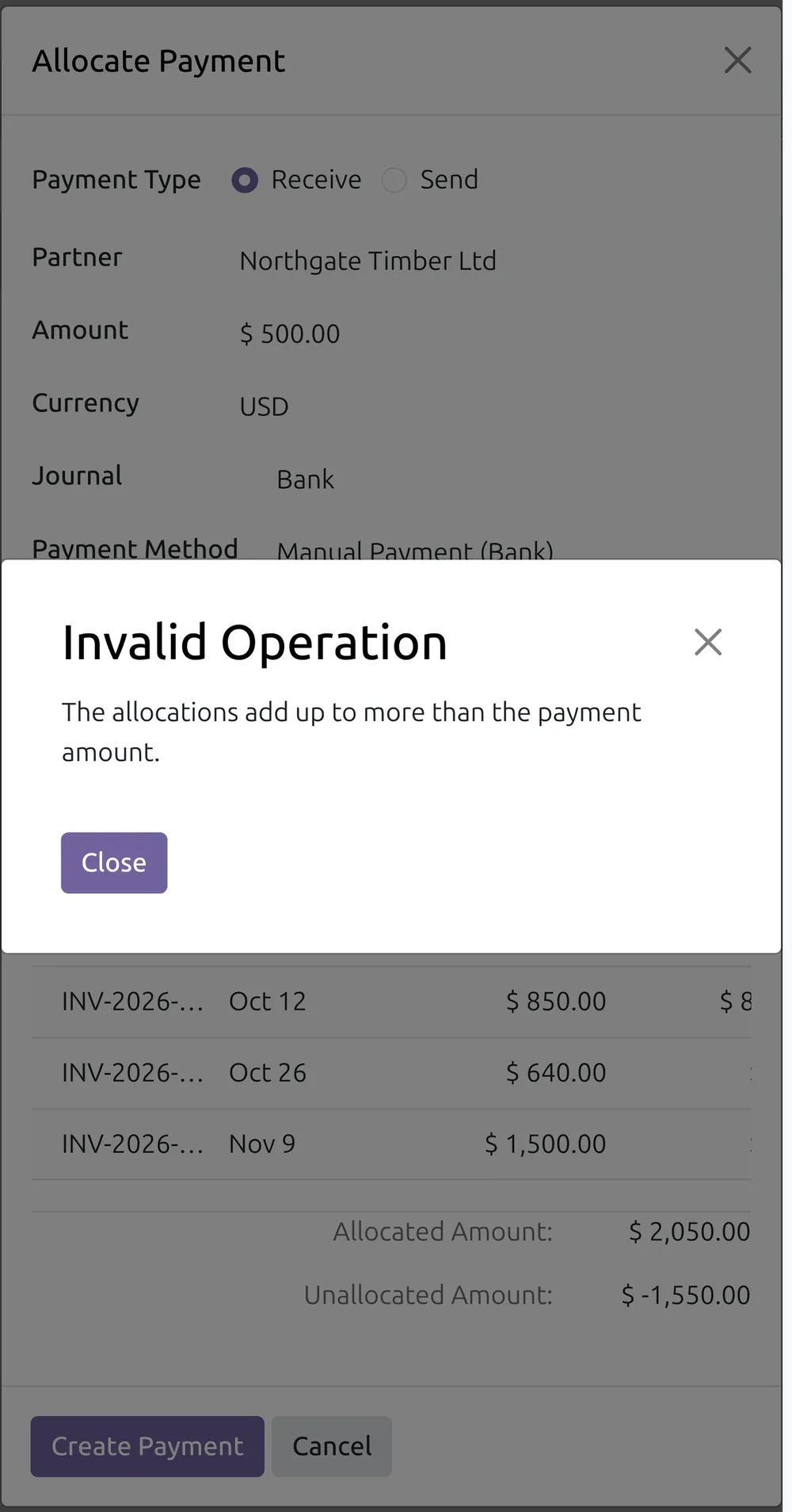
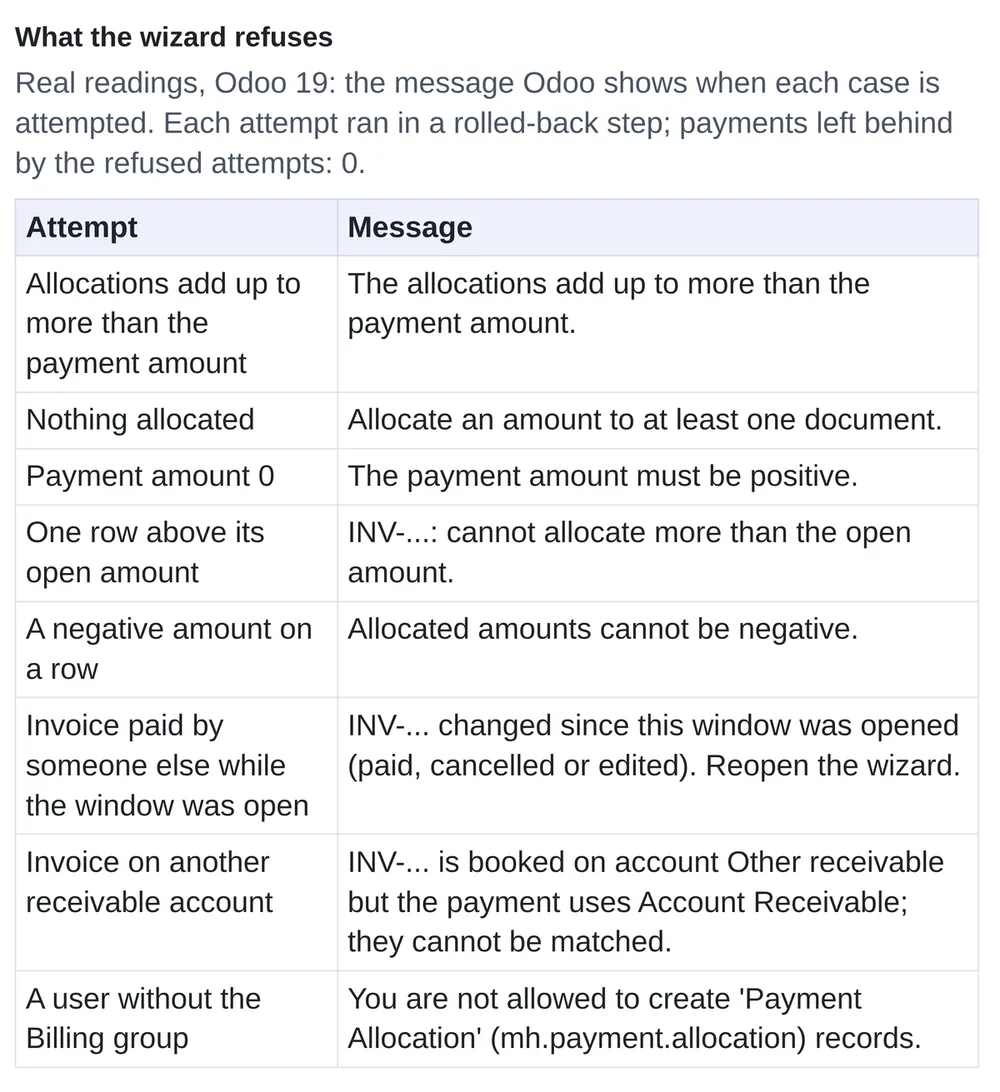
The first picture is the real message: with the payment amount lowered to 500.00 while 2,050.00 is allocated, Create Payment answers "The allocations add up to more than the payment amount." (the unallocated figure reads -1,550.00 while you type). The table lists the other refusals as Odoo showed them, among them an invoice paid by someone else while the window was open and an invoice on another receivable account; the refused attempts left no payment behind.
A user without the Billing group cannot open the wizard at all.
A refusal in the browser. Real Odoo screen (Odoo 19).
What the wizard refuses. Evidence table.
9 Without the app
Use it when you wonder whether Odoo's own Register Payment already does this.Read-only
The stock payment form is built for one payment per invoice or one total per group.
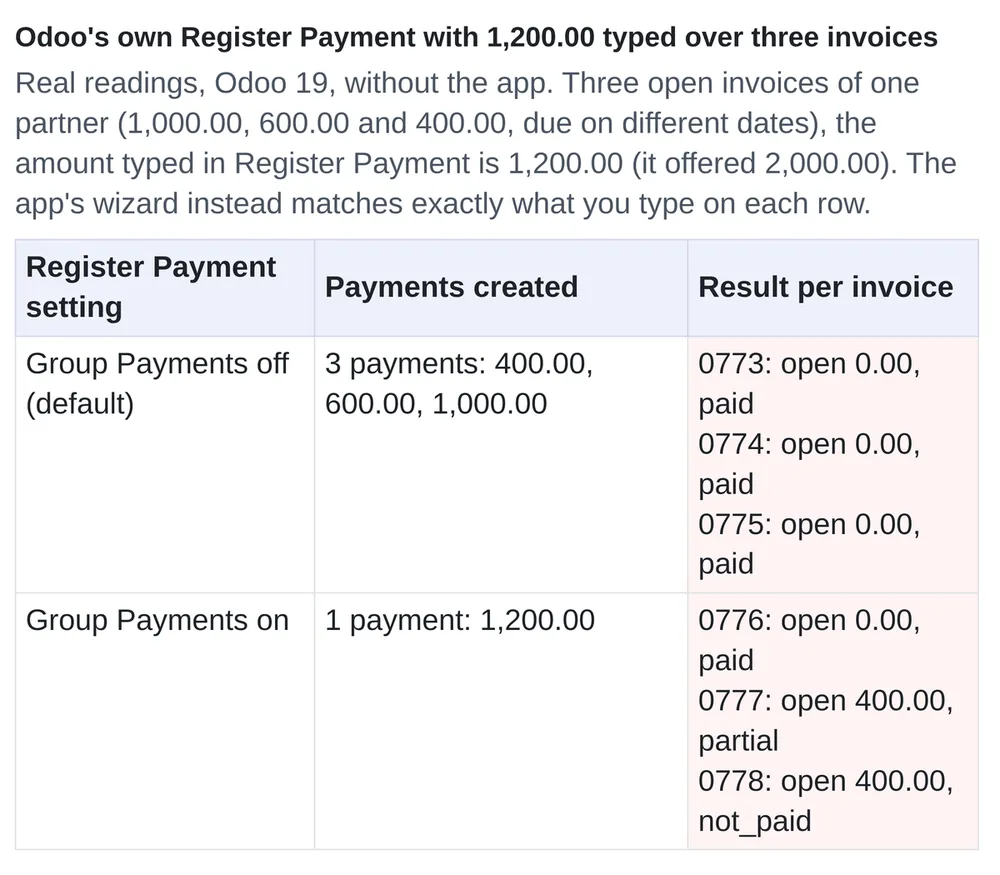
The table is Odoo's own Register Payment on three open invoices of one partner (1,000.00, 600.00 and 400.00) with 1,200.00 typed. With Group Payments off, the default, it made three payments of 1,000.00, 600.00 and 400.00 and paid all three in full. With Group Payments on it made one payment of 1,200.00 and filled the invoices in order: 1,000.00 on the first, 200.00 on the second. Neither lets you say what each invoice receives.
Odoo's own Register Payment, without the app. Evidence table.
What changed in this version
Version 1.0.2 changes no behaviour of the app. It adds five automated tests that pin the limits above, replaces the screenshots and the page text with checked ones, and rewrites the manifest description to what the code does (the sentence about cash basis taxes is removed because it was not tested). The demo video of an earlier version is kept as it was and was not re-recorded.
Screenshots
What it does not do
- What it changes, what it keeps, and what was and was not tested. Each line was tested or read in the code.
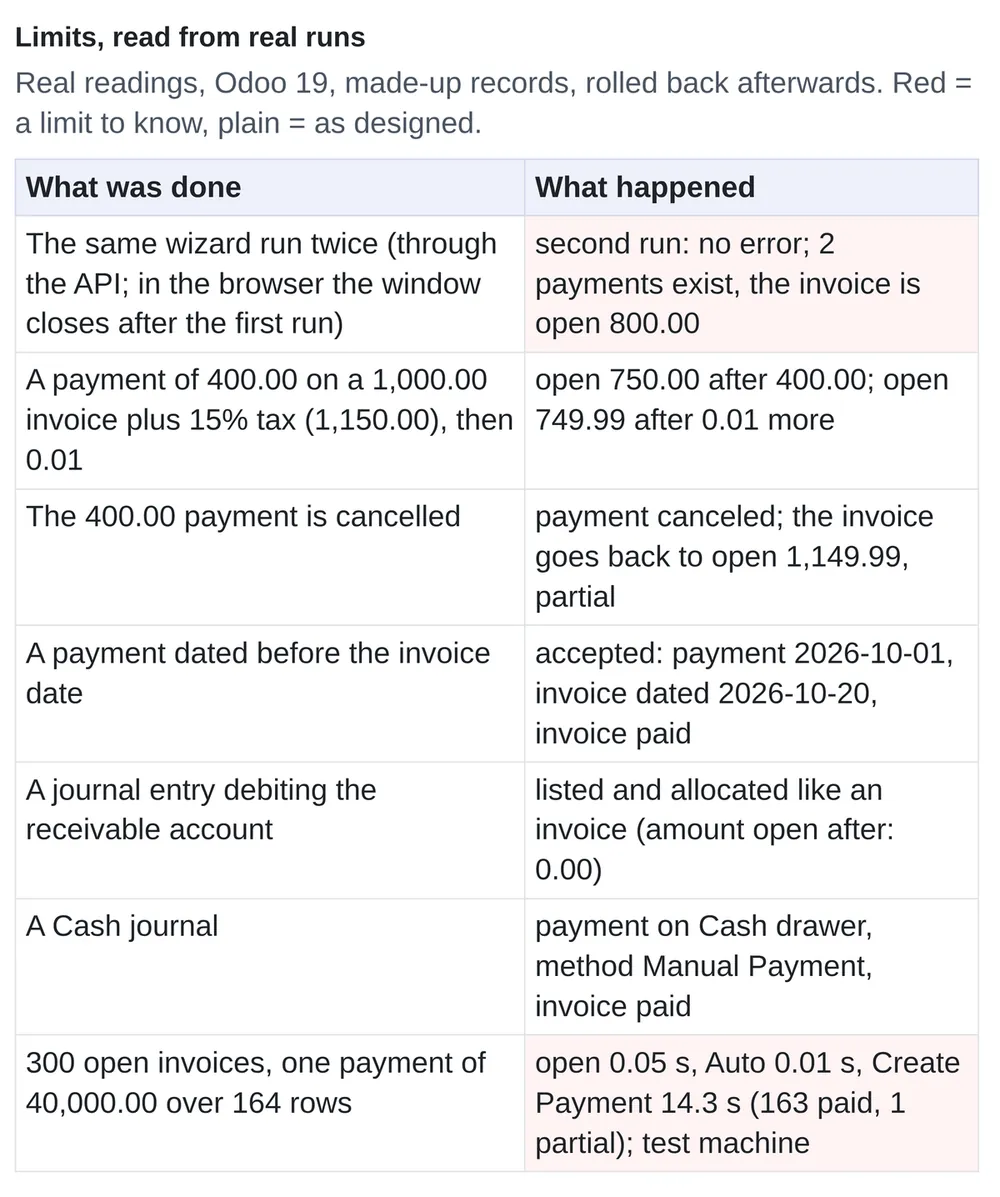
- Each of these was reproduced in a run of the app on Odoo 19; the first five are pinned by a test that passes, and none is changed in this version.
- Readings from real runs. Evidence table.
Requirements
- Odoo 19.0 or 20.0. The App Store sells each version separately, so buy the one that matches your database.
- Odoo.sh or On-Premise only. Third-party apps cannot be installed on Odoo Online (SaaS) databases. Check your hosting before buying.
- Module
mh_payment_allocation, version 19.0.1.0.3, licensed OPL-1.