Payment Fees & Discounts
A fee or a discount for each payment method, shown before the customer pays and added to the order as one line
Request a live demo · Odoo.sh or On-Premise only, not Odoo Online (SaaS).
12 of 12
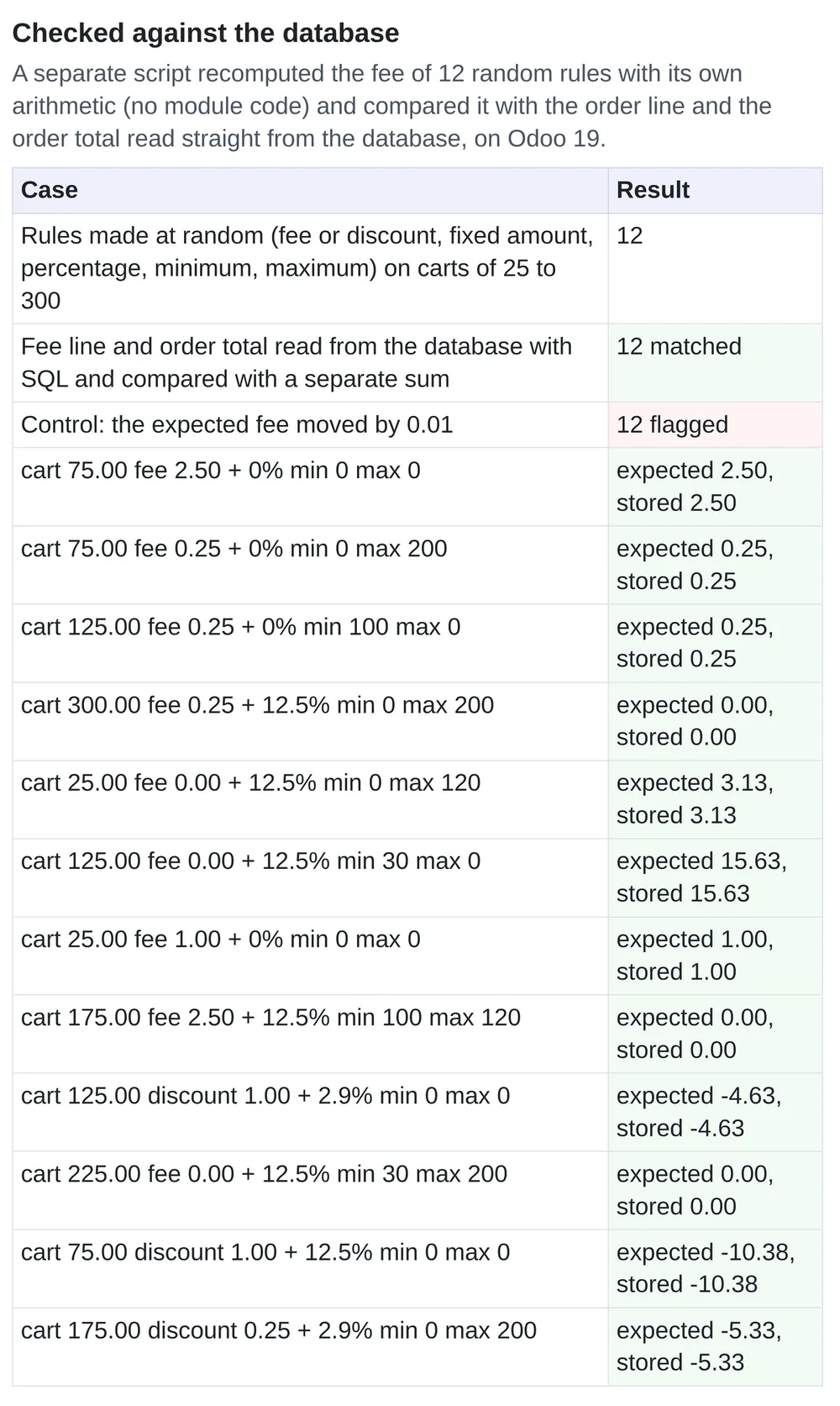
random rules matched an independent recompute of the fee and the order total read from the database
1 line
is all the app adds to an order: one ordinary order line, with the tax of the product you choose
30
automated tests in the app, none failing; 10 were added for the limits stated on this page
First
matching rule wins; rules are never added together, and a matching rule worth 0.00 hides the later ones
-10.00
is the order total you can get when a discount is larger than the order and the fee product carries a tax; found and recorded, not fixed (see the known limits)
Not
charged to express checkout buttons: they pay the order total without any fee or discount
Odoo's checkout charges every payment method the same order total. Payment Fees & Discounts lets you set, for a payment provider and some or all of its methods, a fixed amount and/or a percentage of the order total, as a fee (a card processing fee, a cash handling charge) or as a discount (a cheaper bank transfer). On the shop's payment page each method shows its amount; when the customer picks a method the amount is added to the order as one line and the page reloads with the new total. This page walks through it with screenshots of an Odoo 19 database holding a made-up shop (Fernbrook Coffee Roasters), and with tables rendered from real readings of the same run; each picture says which it is.
This app adds the amount you set; it does not check any law. Rules on surcharges differ by country and by card scheme, and the app knows none of them. It was run with Odoo's own payment form and its Demo payment provider only, not with real providers, and express checkout buttons are not charged the fee.
Install it and you get Payment Fees and Discounts under Website, Configuration, eCommerce, and a Fees and Discounts tab on each payment provider. It needs only the Odoo eCommerce (website_sale) module.
How it works
What it keeps, what it changes, what it does not
Each line was tested or read in the code.
1 Set the rules per provider and method
Use it when you want a processing fee, a handling charge or a discount that depends on how the customer pays.Writes the rule
Odoo charges every method the same total, so a card fee or a bank-transfer discount has to be a manual price change or a custom job.
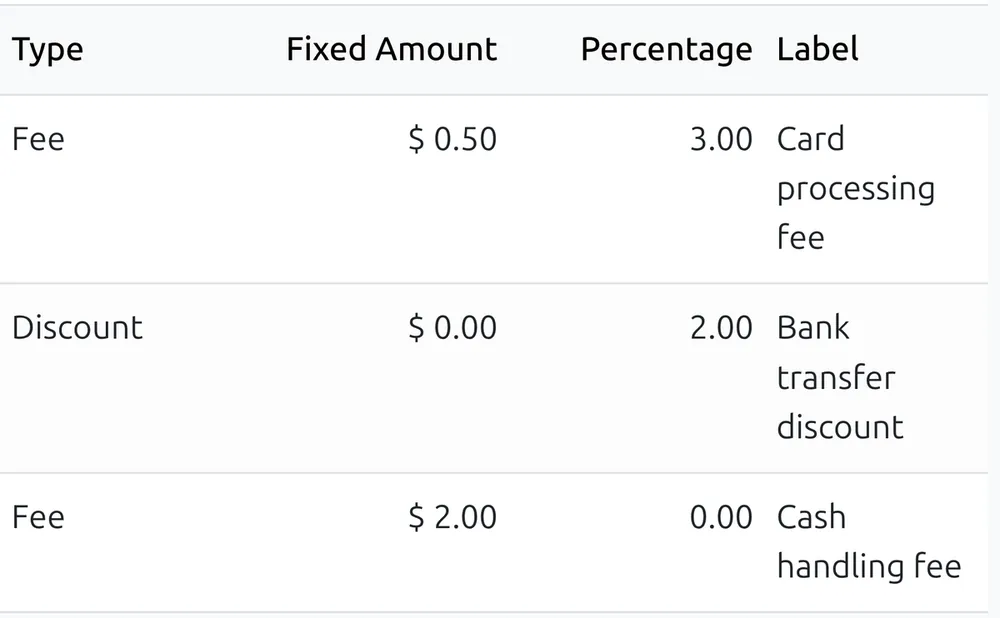
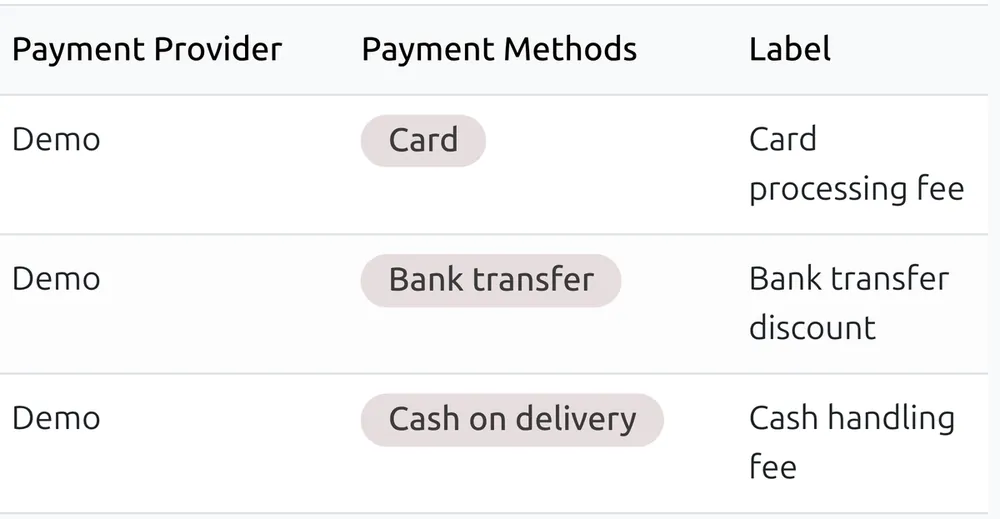
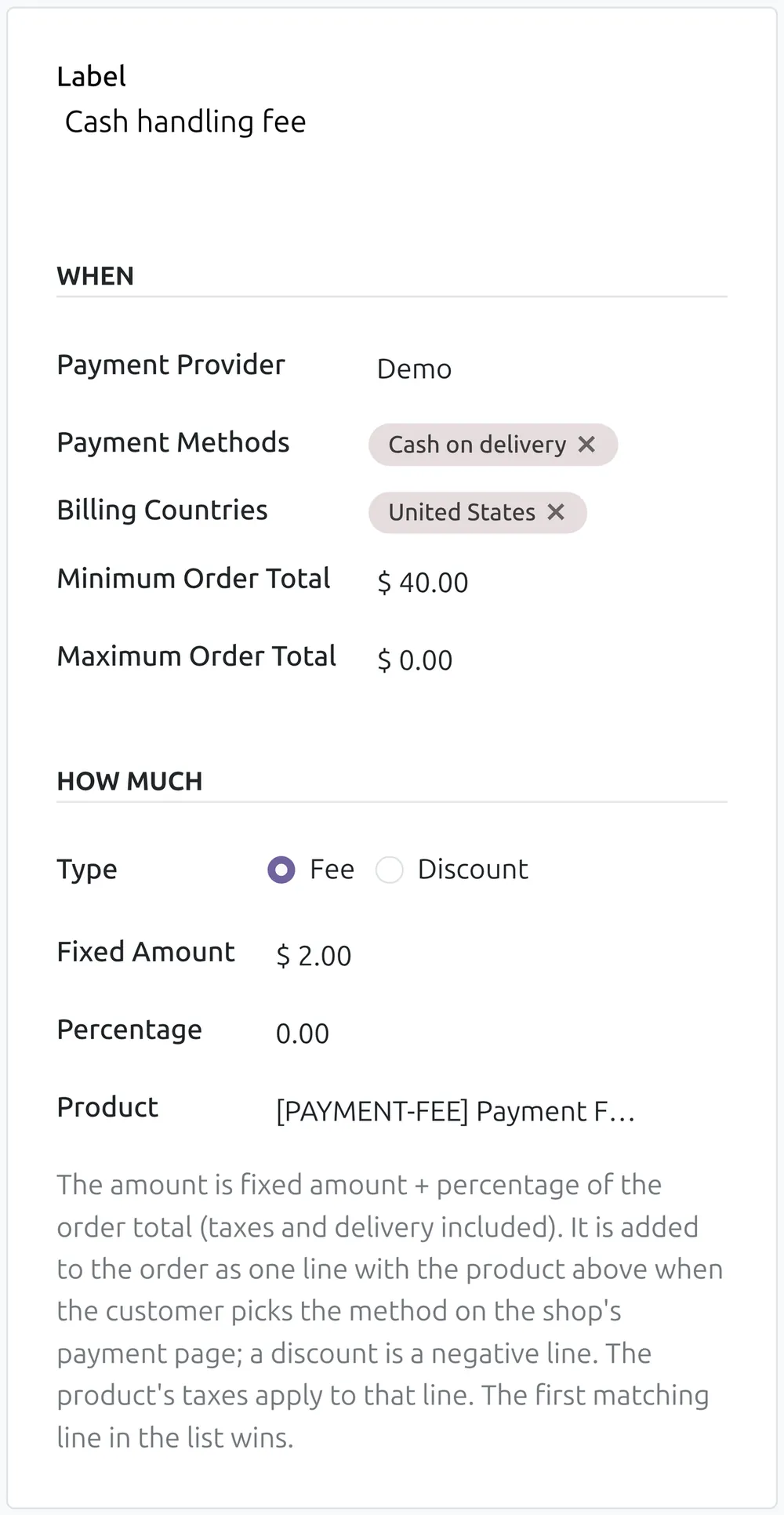
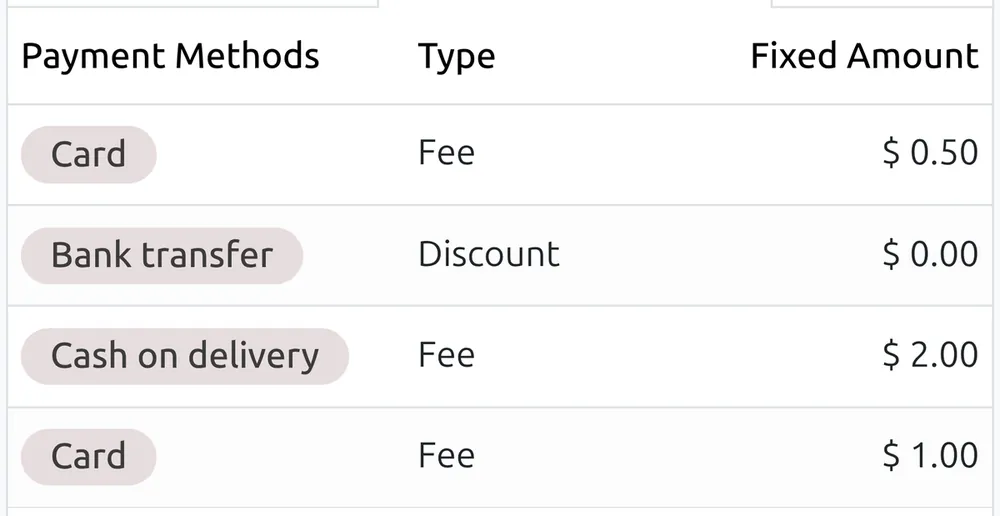
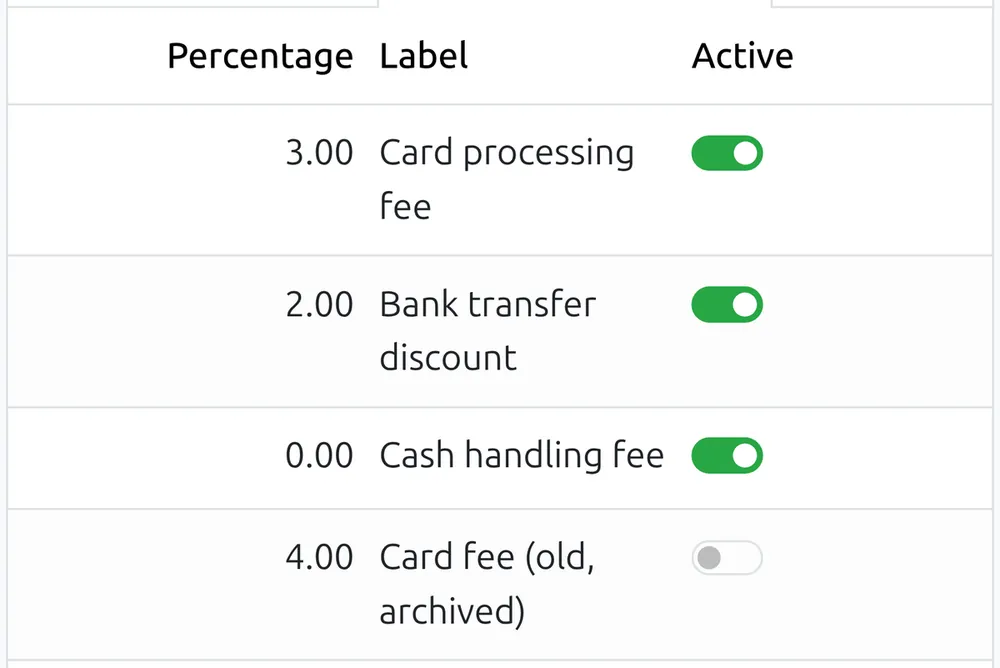
Under Website, Configuration, eCommerce, Payment Fees and Discounts each rule has a label, a payment provider, optional payment methods (empty means every method of the provider), a type (Fee or Discount), a fixed amount, a percentage, an optional minimum and maximum order total, optional billing countries, a position in the list and the product used for the order line. The provider's own form has a Fees and Discounts tab with the same rules. The pictures are the list in two column groups, one rule (Cash handling fee: United States only, from 40.00) and the tab on the Demo provider, which also lists an archived rule.
Percentage must be 0 to 100 and the fixed amount 0 or more; a discount is made with the type, not with a negative amount. A rule cannot be limited to products, categories, pricelists or a website.
The rules list, type and amounts (the Odoo list has more columns; this shows four). Real Odoo screen (Odoo 19).
The same list, methods and provider. Real Odoo screen.
One rule. Real Odoo screen.
The Fees and Discounts tab of a payment provider (methods, type, fixed amount). Real Odoo screen.
The same tab (percentage, label, active). Real Odoo screen.
2 What the customer sees
Use it when you want the customer to see the amount before choosing, and to pay the total that includes it.Adds the order line
A fee that appears only after the click, or an amount the form does not know about, loses customers or fails the payment.
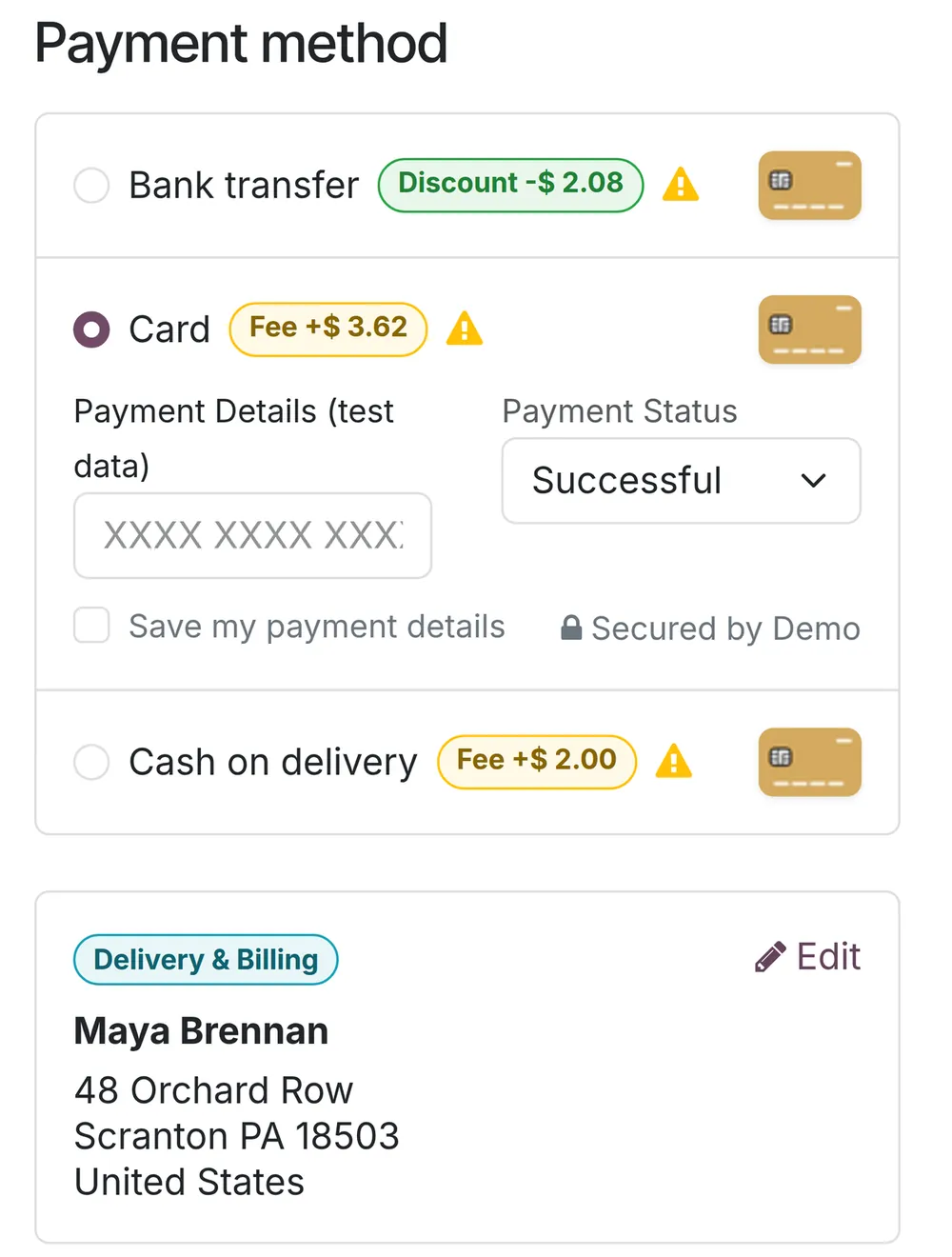
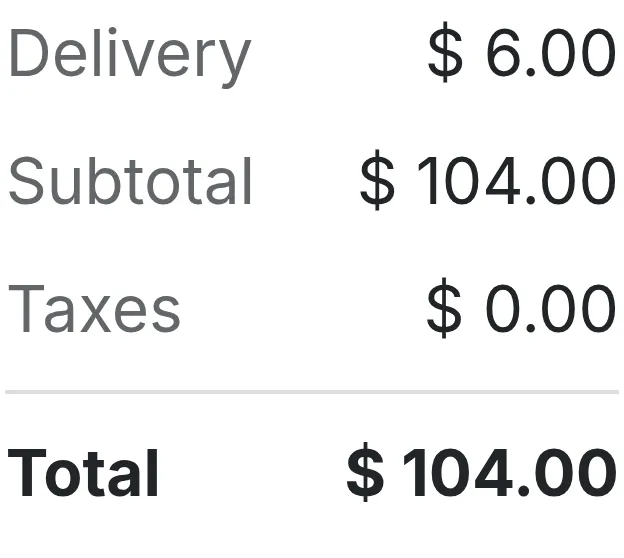
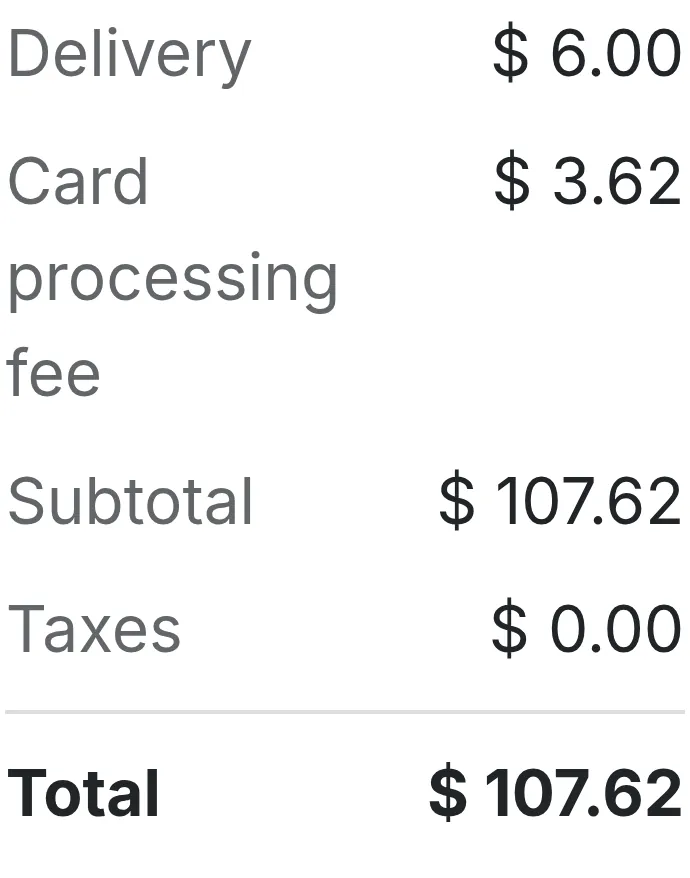
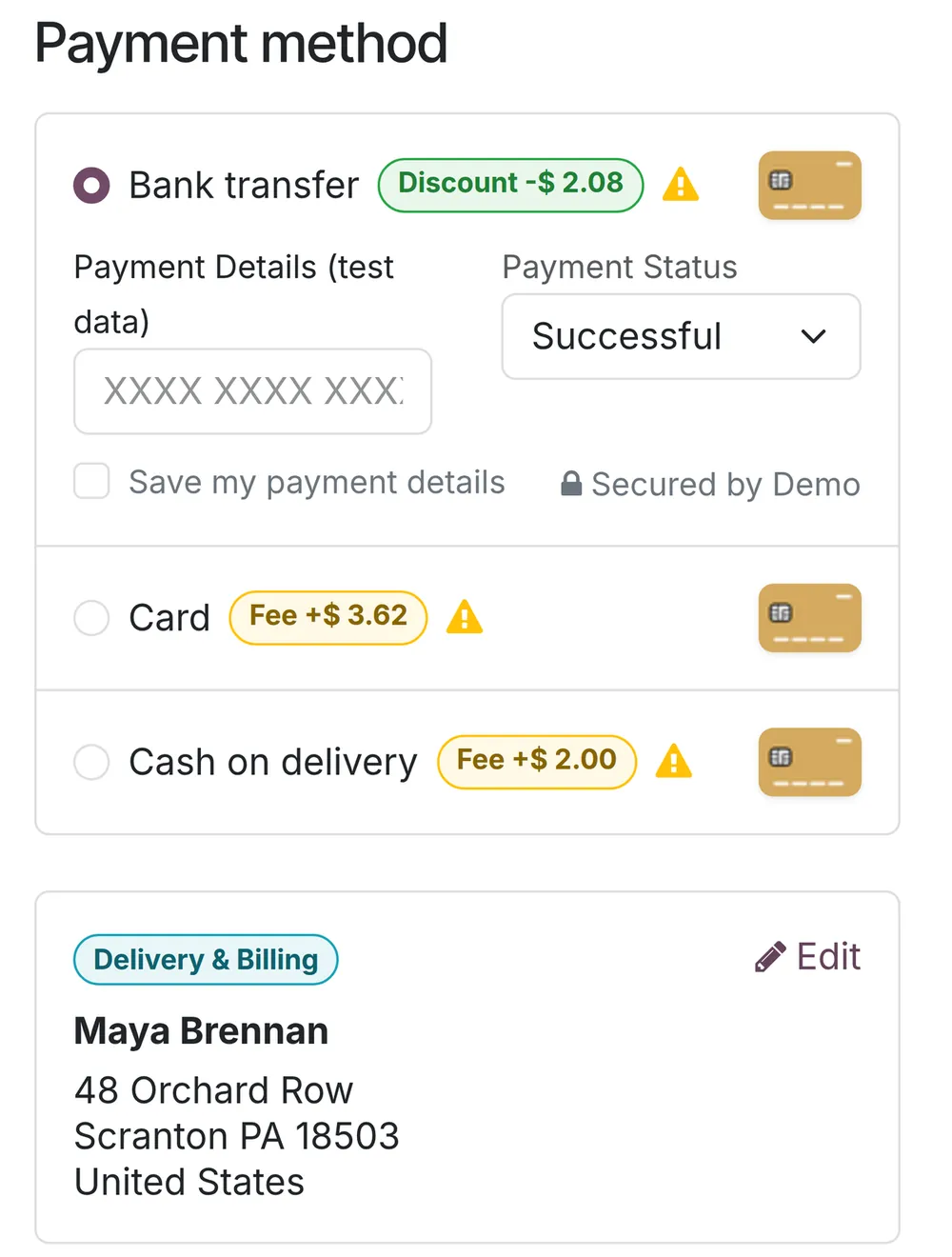
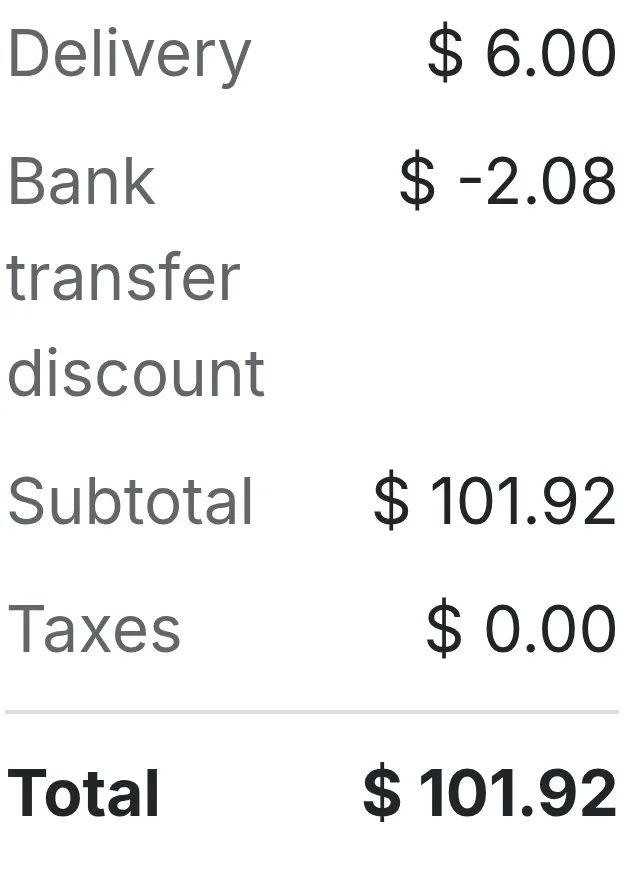
On the shop's payment page each method carries a badge with its amount (Fee +3.62 amber, Discount -2.08 green, computed for the order as it stands) and nothing is added until a method is chosen. Choosing a method calls the server, which adds the line and says whether the page must reload; the page then reloads once with the method still selected, so the payment form, the order summary and any provider form carry the new total. The pictures are the made-up cart of 104.00 (two bags of beans, a brew kit, 6.00 delivery): the methods with Card chosen, the totals before anything is chosen, the totals with Card chosen (107.62) and the methods and totals with Bank transfer chosen (101.92). The shop page is shown in parts because it was too wide to shoot readably in one piece.
It does not charge express checkout buttons the fee: they post no amount and are paid the order total. It works on the website checkout only, not on quotations paid from the customer portal, invoices, the back office or the Point of Sale.
The methods, Card chosen. Real Odoo screen, shopper view.
The totals before a method is chosen. Real Odoo screen.
The totals with Card chosen. Real Odoo screen.
The methods, Bank transfer chosen. Real Odoo screen.
The totals with Bank transfer chosen. Real Odoo screen.
3 Which rule applies
Use it when you have several rules for one provider and want to know which one wins.Read-only
Two rules that both match must not both charge the customer.
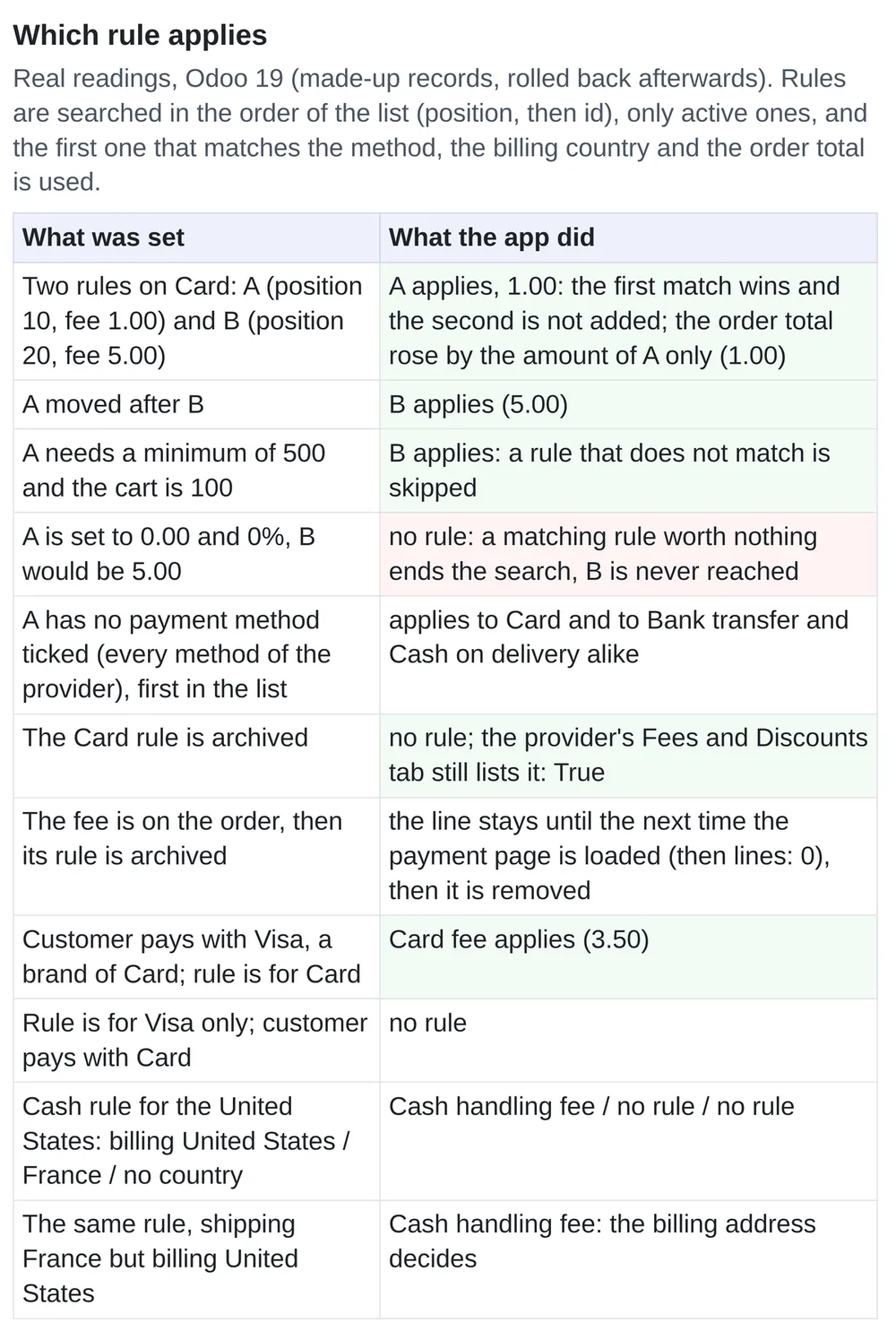
The active rules of the chosen provider are read in list order (position, then id) and the first one that matches is used. A rule matches when its payment methods are empty or include the chosen method (or the primary method it is a brand of: a rule for Card matches a Visa brand of Card), when its billing countries are empty or include the country of the invoice address, and when the order total is inside its bounds. A rule that does not match is skipped; a matching rule worth 0.00 ends the search. The table is real readings of these cases.
Rules are never added together. The shipping country is not read: the billing (invoice) address decides, and an address with no country matches no rule that lists countries. Archiving or changing a rule takes effect when the payment page is next loaded.
Which rule applied in each case. Evidence table.
4 The amount, the tax and the cap
Use it when you want to know exactly how many cents the customer is charged, with tax.Read-only
A percentage fee on a taxed order, a discount larger than the order and a rounding step can each surprise.
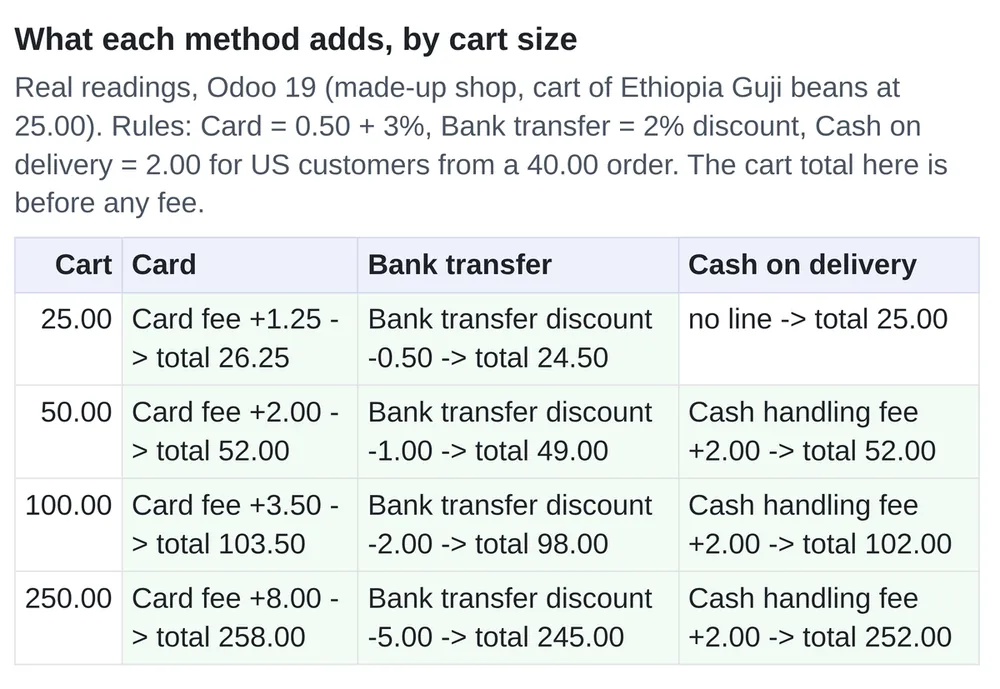
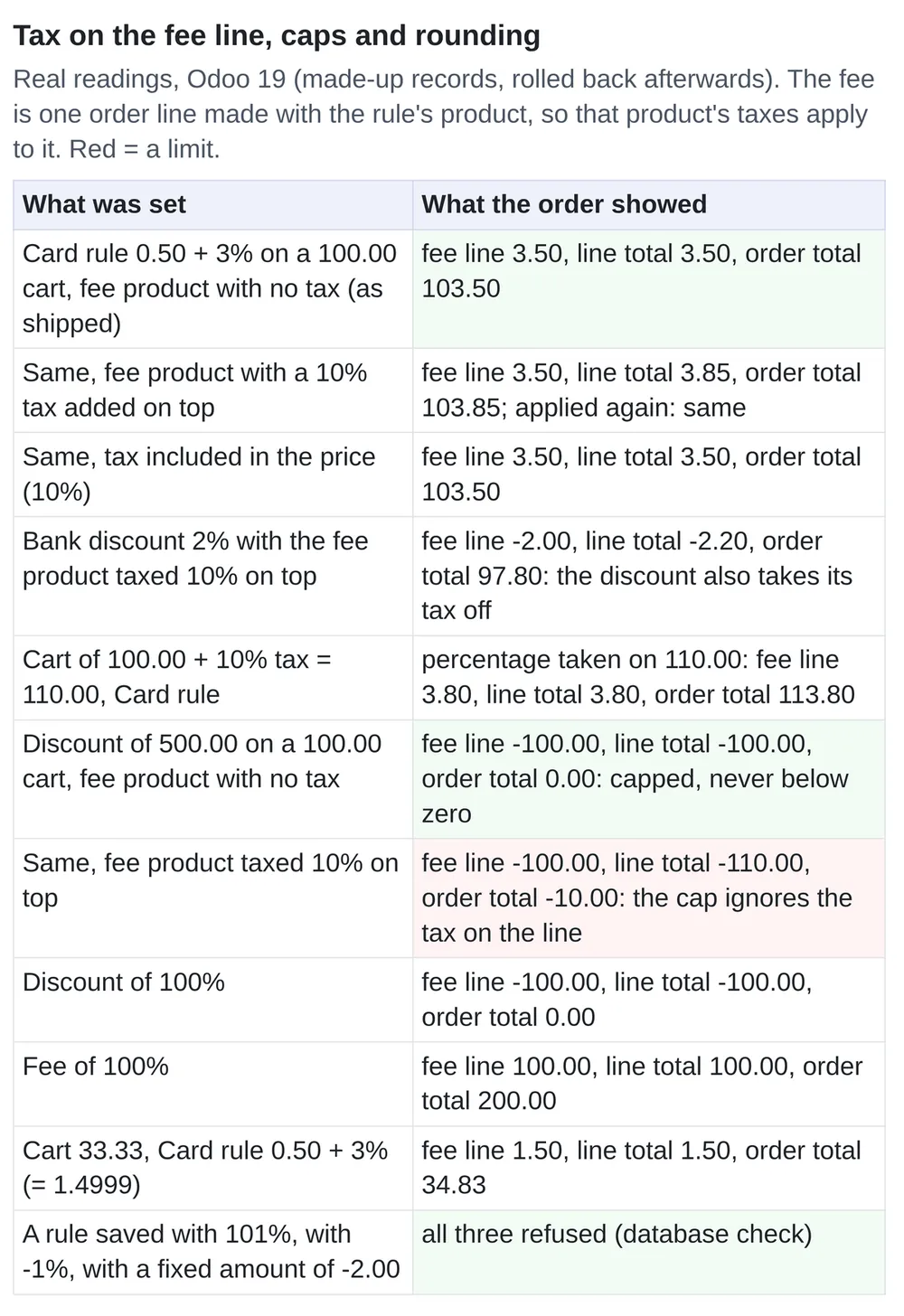
The amount is the fixed amount plus the percentage of the base, rounded to the order currency. The base is the order total with taxes and delivery, without any fee already on the order, so choosing a method again gives the same figure. The line is made with the rule's product and that product's taxes apply to it: the shipped product has none; a 10 percent tax added on top turns 3.50 into 3.85. A discount is capped at the order total before tax. The first table is what each method adds on four cart sizes; the second the tax, cap and rounding cases, including the one limit that can make the total negative.
A discount larger than the order is capped before tax: with a 10 percent tax on the fee product a 500.00 discount on a 100.00 cart gave a line total of -110.00 and an order total of -10.00 (red row). With the shipped product, which has no tax, the same discount gives 0.00.
What each method added on four carts. Evidence table.
Tax, cap and rounding readings. Evidence table.
5 Bounds, delivery and currency
Use it when a fee should apply only from or up to some order size, or you sell in more than one currency.Read-only
A minimum that is compared with the wrong total, or a fee in the wrong currency, charges the wrong amount.
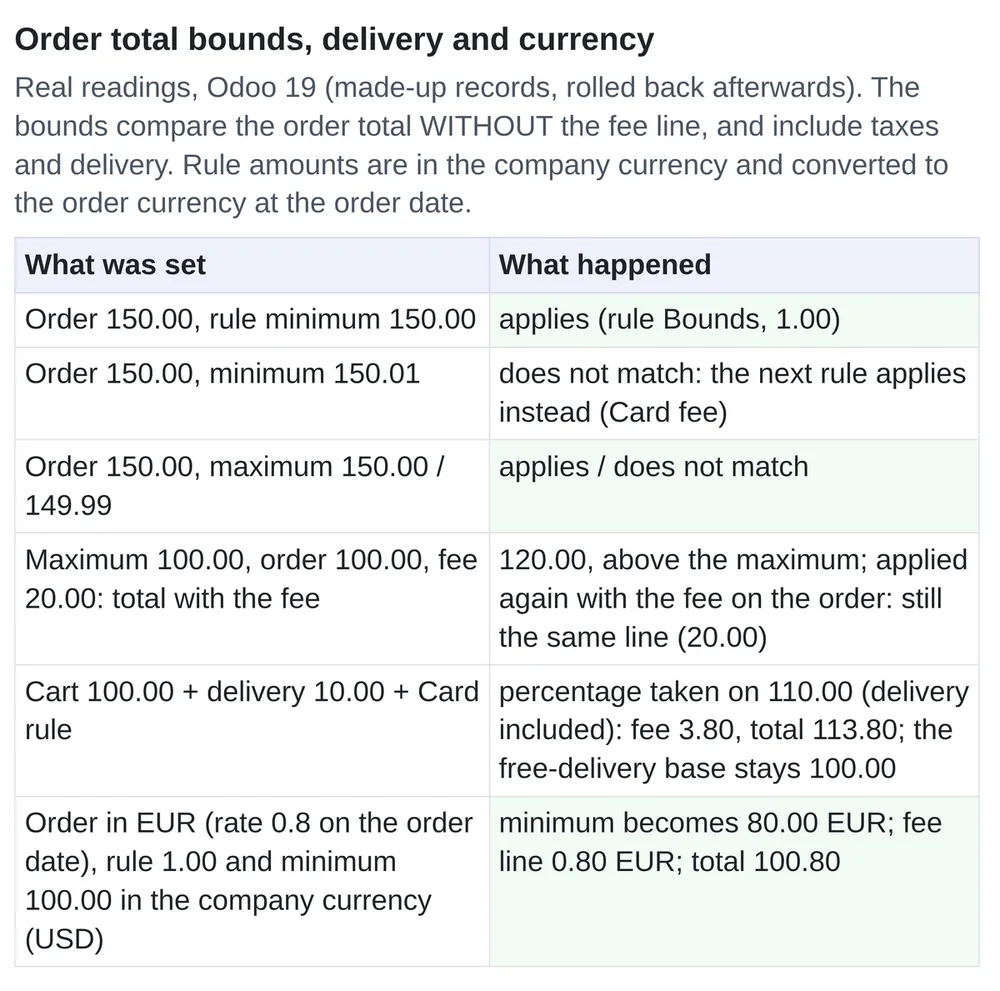
The minimum and maximum order total are inclusive and compared with the order total without the fee line, including taxes and delivery (the percentage is taken on the same figure). Rule amounts and bounds are in the company currency and are converted to the order currency at the order date: on an order in EUR at a rate of 0.8, a 1.00 fee became 0.80 and a 100.00 minimum 80.00. The fee line does not count toward the amount used for free-delivery thresholds.
A rule with a maximum of 100.00 still applies to an order that totals 120.00 with its own fee, because the fee line is left out of the comparison.
Bounds, delivery and currency. Evidence table.
6 Checked before the customer pays
Use it when you want to be sure the form cannot charge an amount the customer did not see.Refuses a payment
If the payment form submitted the total without the fee while the order carries it, the transaction would not match the order.
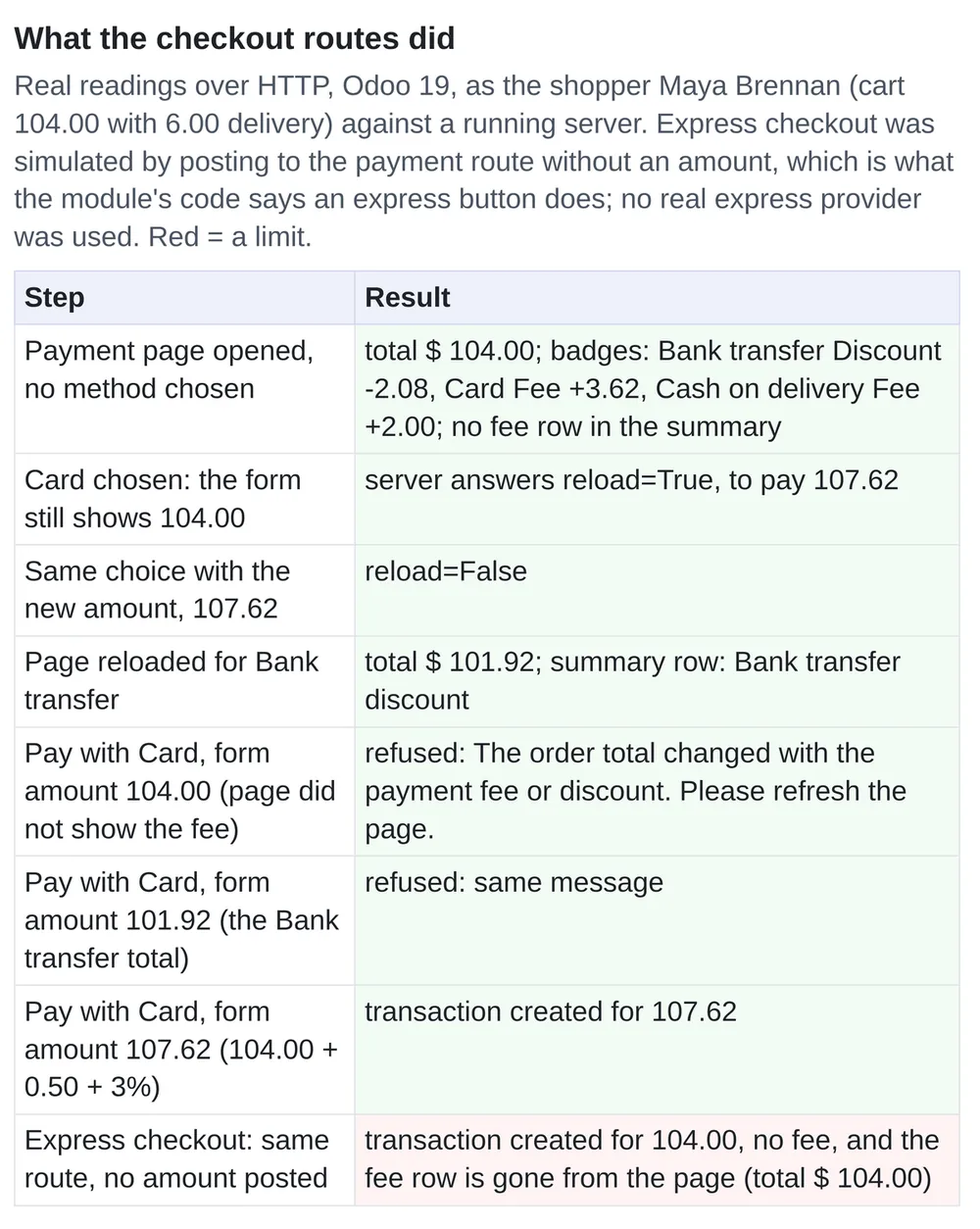
The server refuses a payment whose amount is not the order total with the chosen method's fee: in the readings a form amount of 104.00 (a page that did not show the fee) and of 101.92 (the other method's total) were refused for Card with the message to refresh the page, and 107.62 created a transaction for 107.62. The table is the readings over HTTP, as the shopper, against a running server. Three real tours also pay through Odoo's own payment form with the Demo provider: with a fee after switching methods, with a discount and with a method that has no fee. Changing the cart removes the fee until a method is chosen again.
Express checkout was simulated by posting to the payment route without an amount, which is what the code says an express button does; no real express provider was used. It is paid the order total with no fee, and the fee row is gone from the page.
What the checkout routes did. Evidence table.
7 The line on the order
Use it when you want to see, and invoice, what was charged.One order line
A fee kept in a side table is not on the invoice.
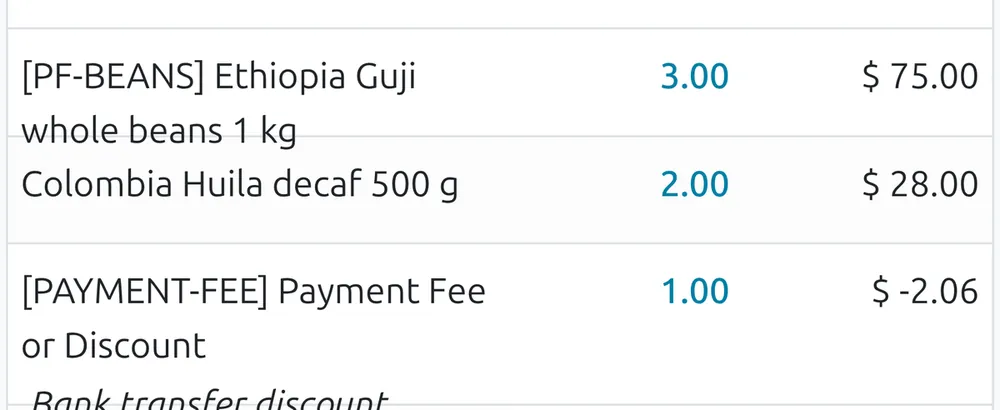
The fee or discount is one ordinary order line (quantity 1) with the rule's label, made with the rule's product, flagged so the app can replace it. In the shop's order summary it is its own row, like delivery, not a cart item; a pricelist recompute leaves it alone; it reaches the invoice (a 100.00 order with an 11.00 fee invoices 111.00). The picture is the back-office order lines of a made-up confirmed order (three bags and two decaf bags, 2 percent bank transfer discount, -2.06 of 103.00). That order was confirmed by a seed script after choosing the method through the app's own function, not by paying in a browser.
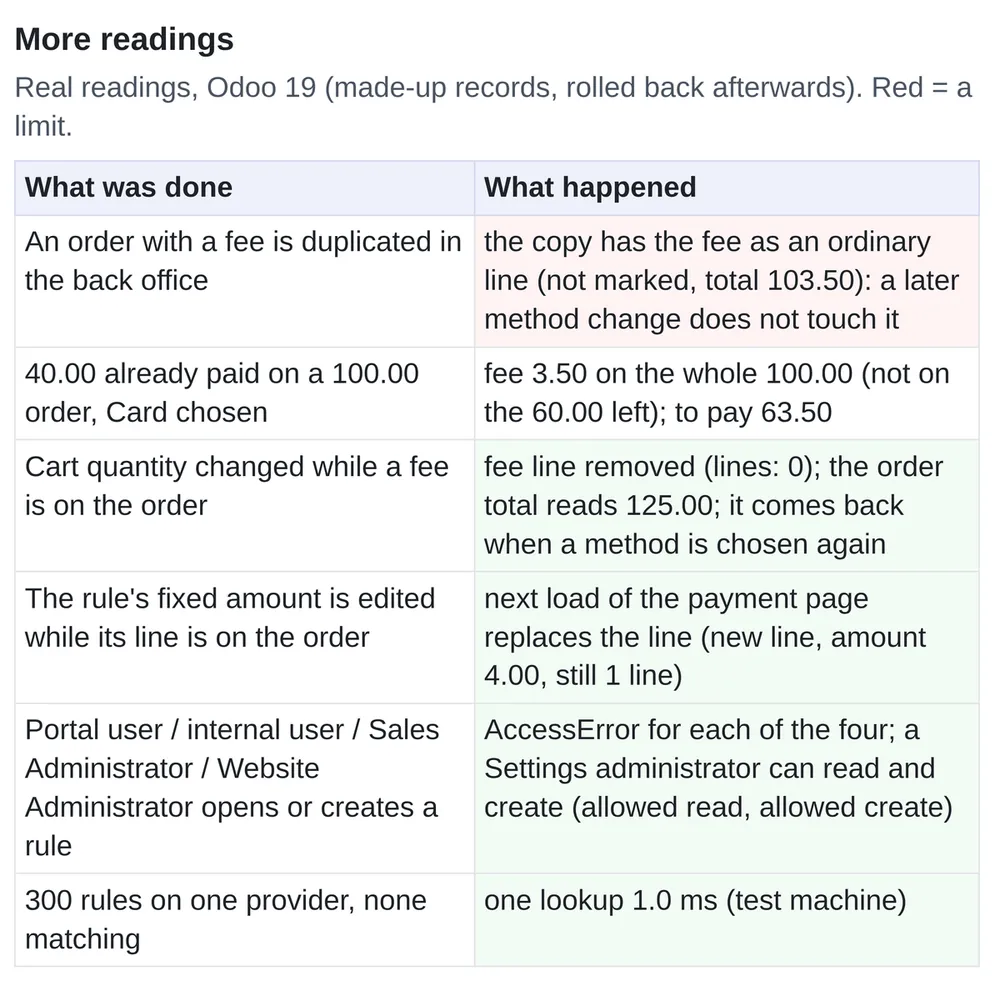
Duplicating an order in the back office copies the fee as an ordinary line that the app no longer manages (see the known limits).
The order lines in the back office. Real Odoo screen.
8 Checked against the database
Use it when you want to know the arithmetic is right before you rely on it.Read-only
A fee is only as good as the sum behind it.
A separate script made 12 rules at random (fee or discount, fixed amount, percentage, minimum, maximum) and recomputed the fee of each with its own arithmetic, no module code, then compared it with the order line and the order total read straight from the database with SQL, on Odoo 19. All 12 matched, including the cases outside the bounds, where the fee is 0. As a control the same check with every expected fee moved by 0.01 flagged all 12.
What was checked. Evidence table.
What changed in this version
Version 19.0.1.0.2 changes no behaviour of the app. It adds 10 automated tests that pin the limits above, replaces the screenshots, the icon and the banner, and rewords the description: the earlier text stated that card surcharges are banned in the EU and the UK, which this version does not claim, and it now lists the limits tested. The demo video and the YouTube card are those of an earlier version and were not re-recorded or checked against the new text.
Screenshots
What it does not do
- Each of these was reproduced in a run of the app on Odoo 19 and is pinned by a test that passes; none is fixed in this version.
- More readings from real runs. Evidence table.
Requirements
- Odoo 19.0 or 20.0. The App Store sells each version separately, so buy the one that matches your database.
- Odoo.sh or On-Premise only. Third-party apps cannot be installed on Odoo Online (SaaS) databases. Check your hosting before buying.
- Module
mh_payment_fee_discount, version 19.0.1.0.3, licensed OPL-1.