Portal Partial Payment
Let a customer pay part of an invoice, or tick several invoices and pay them in one online payment, from the portal
Request a live demo · Odoo.sh or On-Premise only, not Odoo Online (SaaS).
2
real payments made in a browser through Odoo's portal and the Demo payment provider (900.00 on one invoice, then 1,500.00 over three); the books were read back afterwards
Oldest first
a lump sum over several invoices is settled by Odoo's own matching, oldest due date first; you cannot give each invoice its own amount
39
automated tests in the app, none failing, including two browser tours that pay with the Demo provider; 11 were added for the fixes and limits on this page
3
defects found while building this page and fixed in this version: infinity as an amount, a stray invoice id, an amount shown with no currency symbol
Not
tested with a real payment provider: every payment here used Odoo's Demo provider in test mode
Possible
to overpay: two tabs that both hold a draft for the full amount can both be paid. Odoo's own Pay Now does the same
Odoo's customer portal lets a customer pay one invoice in full, or its next instalment, or all overdue invoices at once. A customer who can pay 900 of a 2,875 invoice today, or who wants to settle three of five open invoices, has to ask you for a payment link. Portal Partial Payment adds a Pay a different amount field to the Pay Now dialog and a tick box per invoice with a Pay selected button. Both lead to a pay page that uses Odoo's own payment form and payment transaction, so the payment is posted and reconciled by Odoo. This page shows it with screenshots of an Odoo 19 database holding a made-up studio (Brightwater Studio) and a made-up customer (Harbor & Pine Ltd), and with tables rendered from real readings of the same runs; each picture says which it is.
Every payment on this page was made with Odoo's Demo payment provider in test mode. A payment cannot be completed against a real provider from a test machine, so the behaviour with your own provider (card, bank redirect, tokens, fees) was not tested: try it in your provider's test mode first.
It needs Odoo's Invoicing with online payment (the account_payment module) and at least one payment provider that you have enabled.
How it works
What it keeps, what it changes, what it does not
Each line was tested or read in the code.
1 Pay a different amount from the invoice
Use it when a customer can pay part of one invoice today.Creates a payment transaction
Odoo's Pay Now dialog asks for the whole amount (or the next instalment). A customer who can pay less has to write to you.
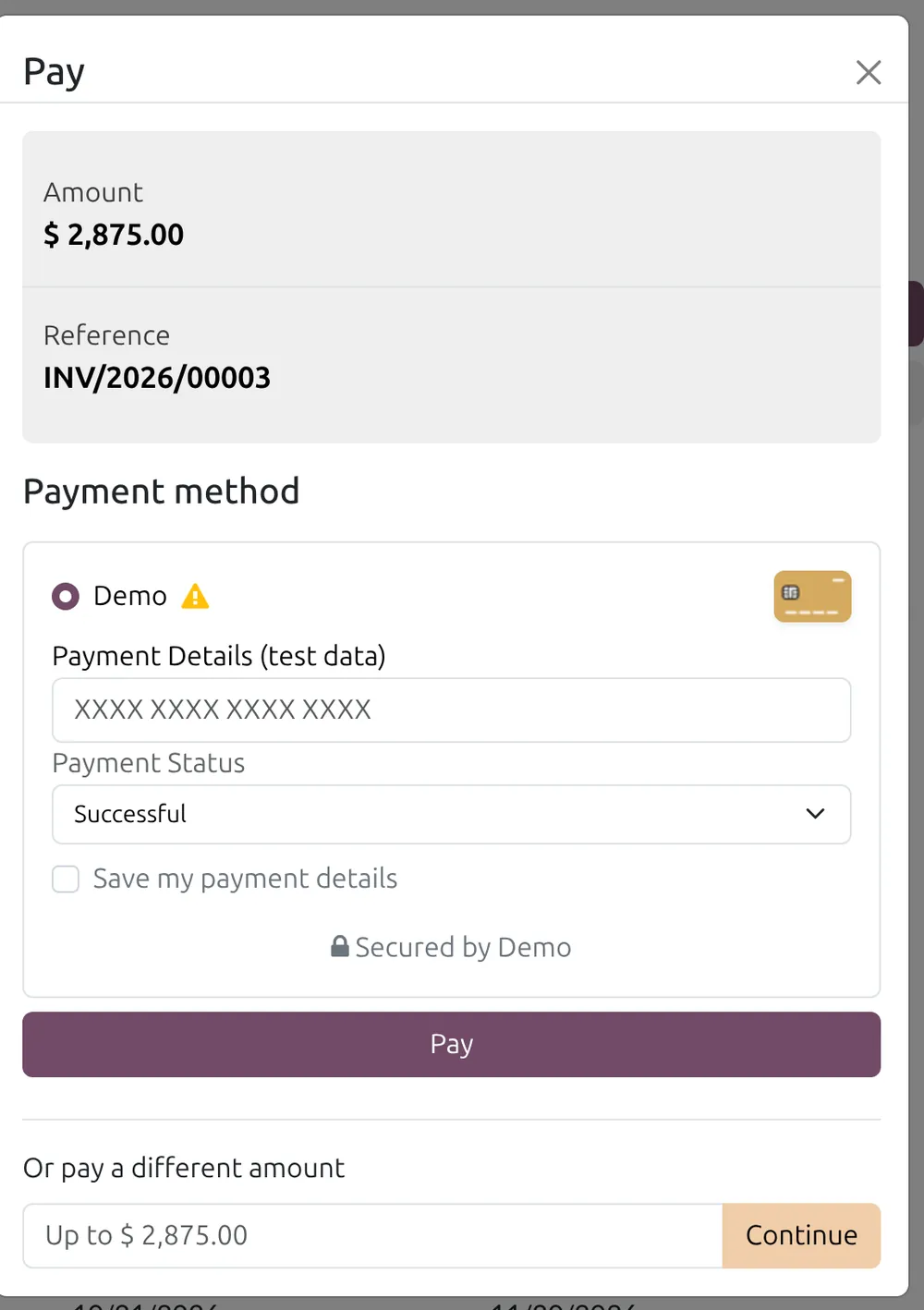
On an invoice page, the Pay Now dialog gets, under Odoo's own payment form, a field Or pay a different amount with the amount due as its placeholder (including the currency symbol: this version) and a Continue button. Continue opens the pay page with that amount. The field is only offered to a logged-in portal customer, when the switch is on and Odoo would let him pay the invoice. A visitor who opens the invoice from an e-mailed link without logging in only gets Odoo's own full-amount Pay Now.
It does not offer a minimum, an instalment plan or a reminder.
The Pay Now dialog of a 2,875.00 invoice with the new field at the bottom. Real Odoo screen (Odoo 19).
2 Tick several invoices and pay them together
Use it when a customer wants to settle some of the open invoices in one payment.Creates one transaction
To pay three invoices the customer has to pay three times, or ask for a payment link.
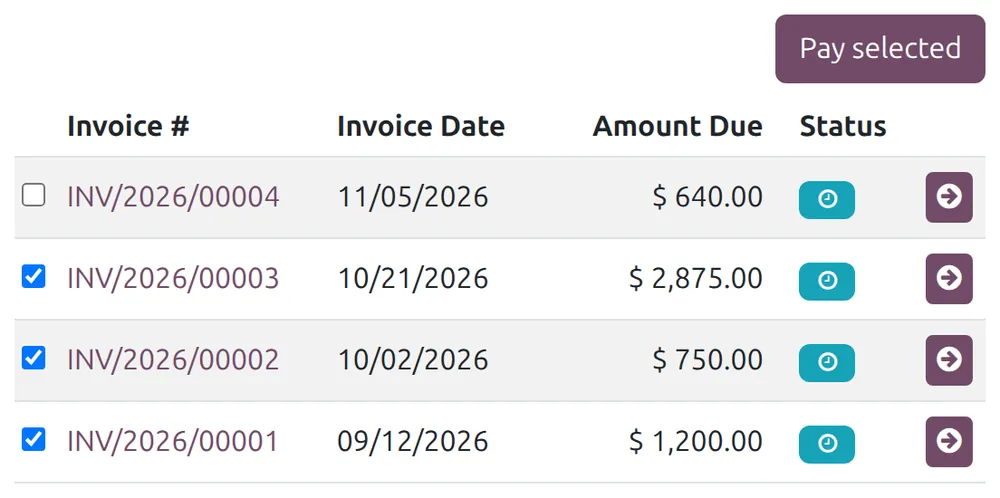
My Invoices gets a tick box in front of every invoice Odoo would let the customer pay and a Pay selected button above the list. It is a plain form with no JavaScript. The picture shows three of four open invoices ticked. The list shows the invoices of the page being looked at (Odoo lists 80 to a page), so a selection is made within one page.
A paid, pending or cancelled invoice gets no tick box. There is no select-all box.
My Invoices with three invoices ticked. Real Odoo screen (Odoo 19).
3 The pay page
Use it when the customer wants to see what is being paid and set the amount before paying.Read-only until Pay
A customer should see which invoices and how much before the payment form takes the money.
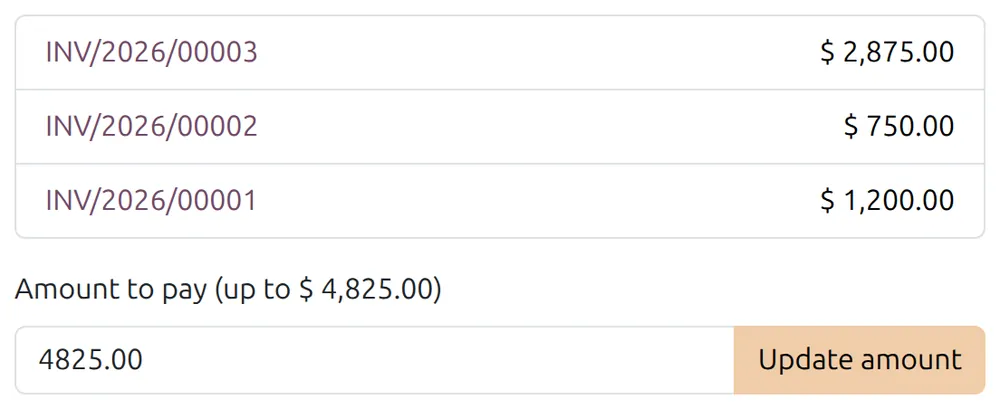
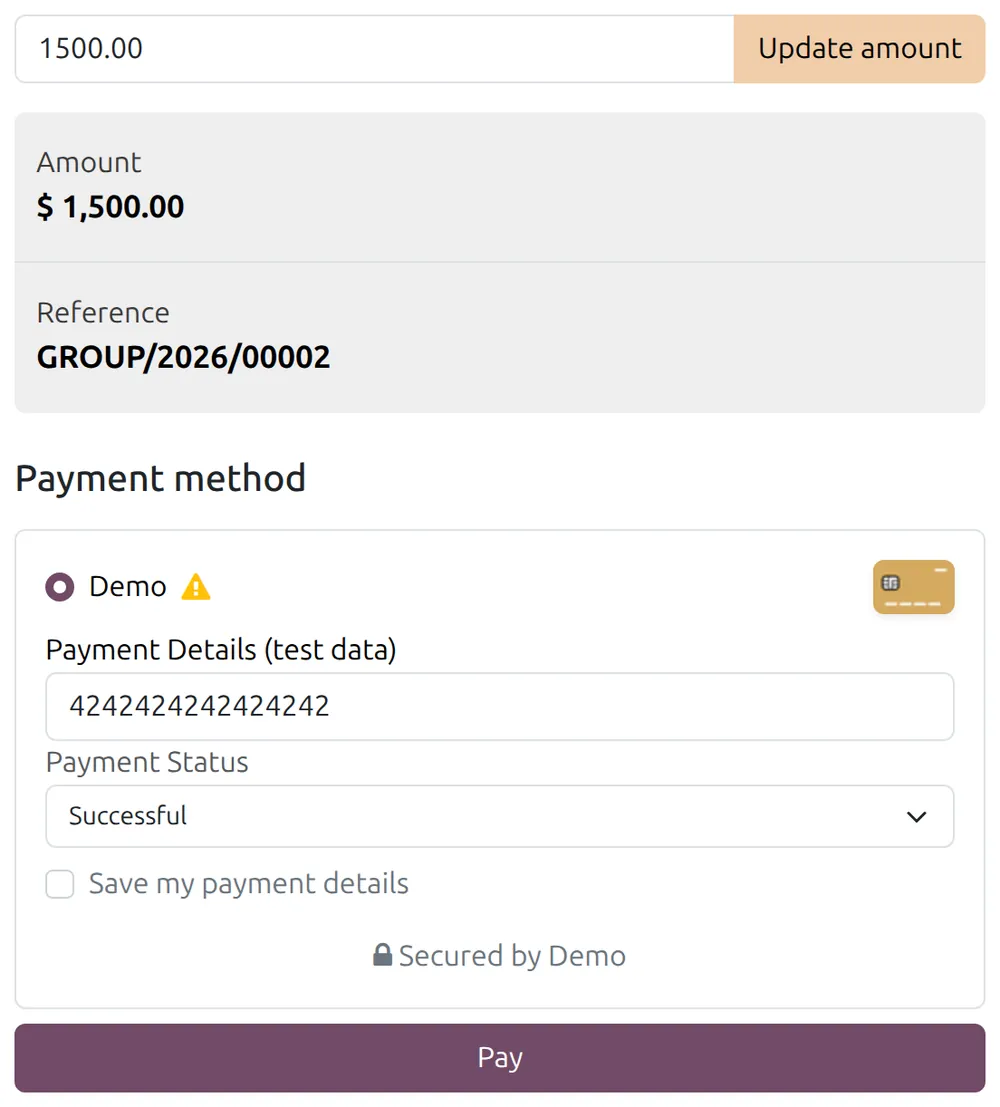
Both entry points lead to /my/invoices/pay. It lists the invoices with their amounts due, shows the amount to pay (the total due by default) with an Update amount button, a summary box with the amount and a reference (the invoice number for one invoice, a GROUP/year/number reference for several), and Odoo's payment form below. The providers offered are those that accept the amount being paid, not the total due. The second picture shows the page for 1,500.00 with the Demo method chosen and the test card filled in.
Every view of a page for several invoices (and every Update amount click) uses up one GROUP reference number, so the numbers have gaps.
The pay page for three invoices, the total due by default. Real Odoo screen (Odoo 19).
The same page with 1,500.00, the Demo provider chosen and the test card typed in. Real Odoo screen.
4 An amount that is too high, zero or not a number
Use it when you want to know a customer cannot pay more than is due.Read-only
An amount field typed or edited by hand can hold anything.
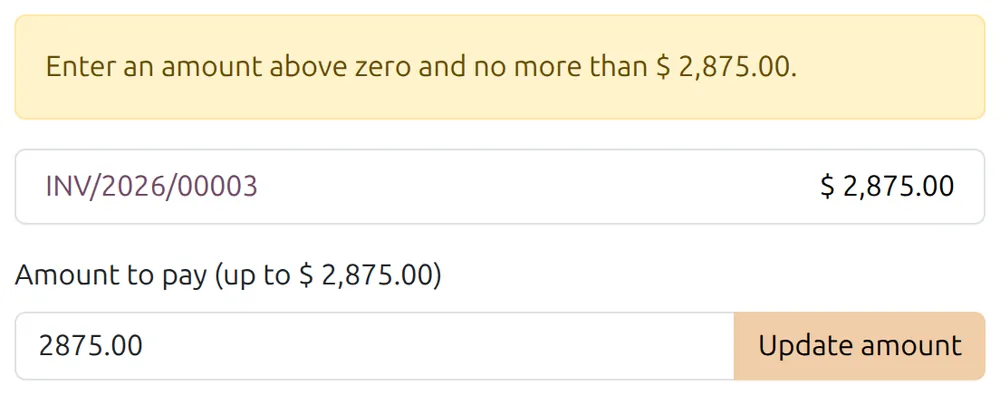
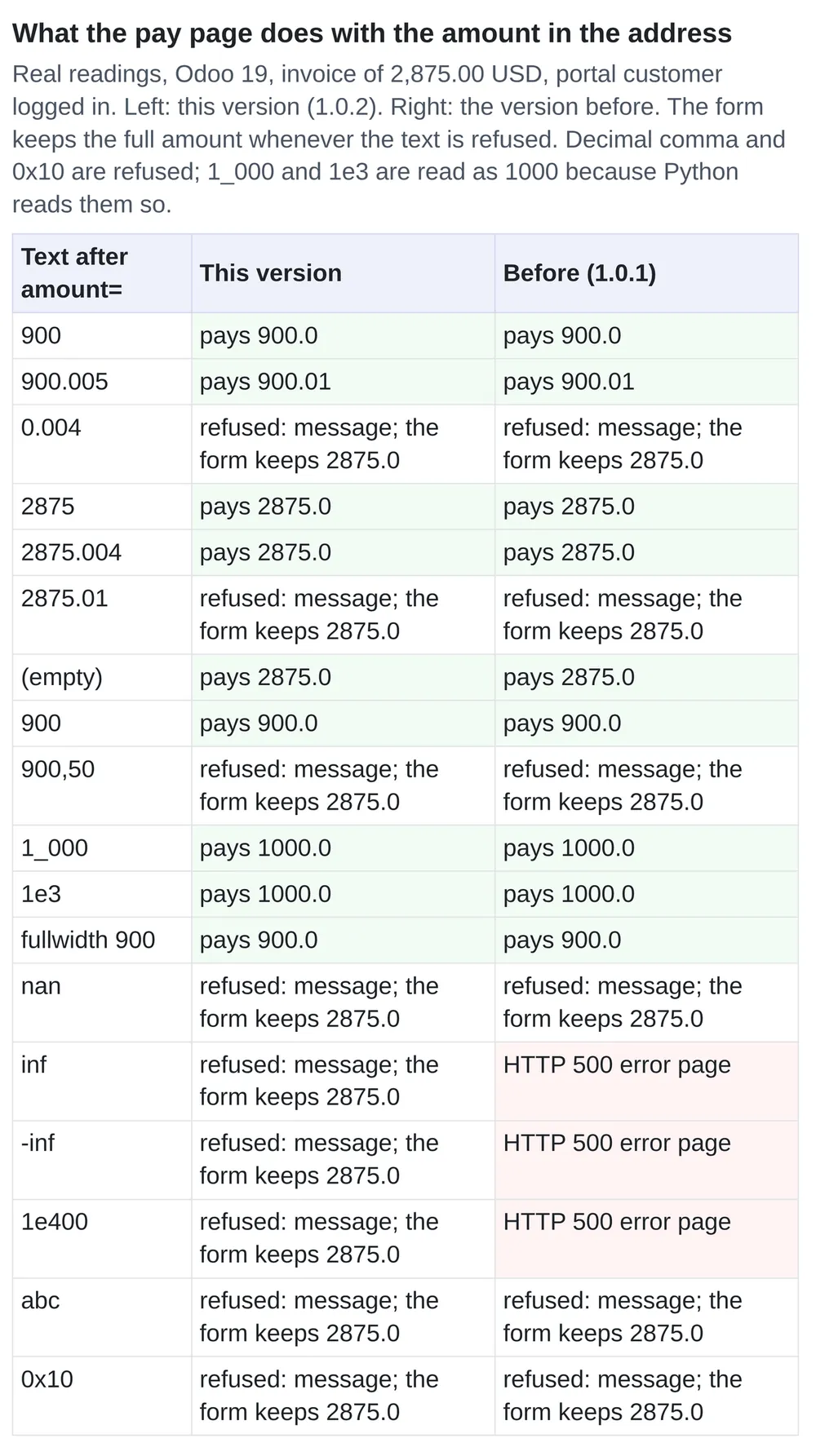
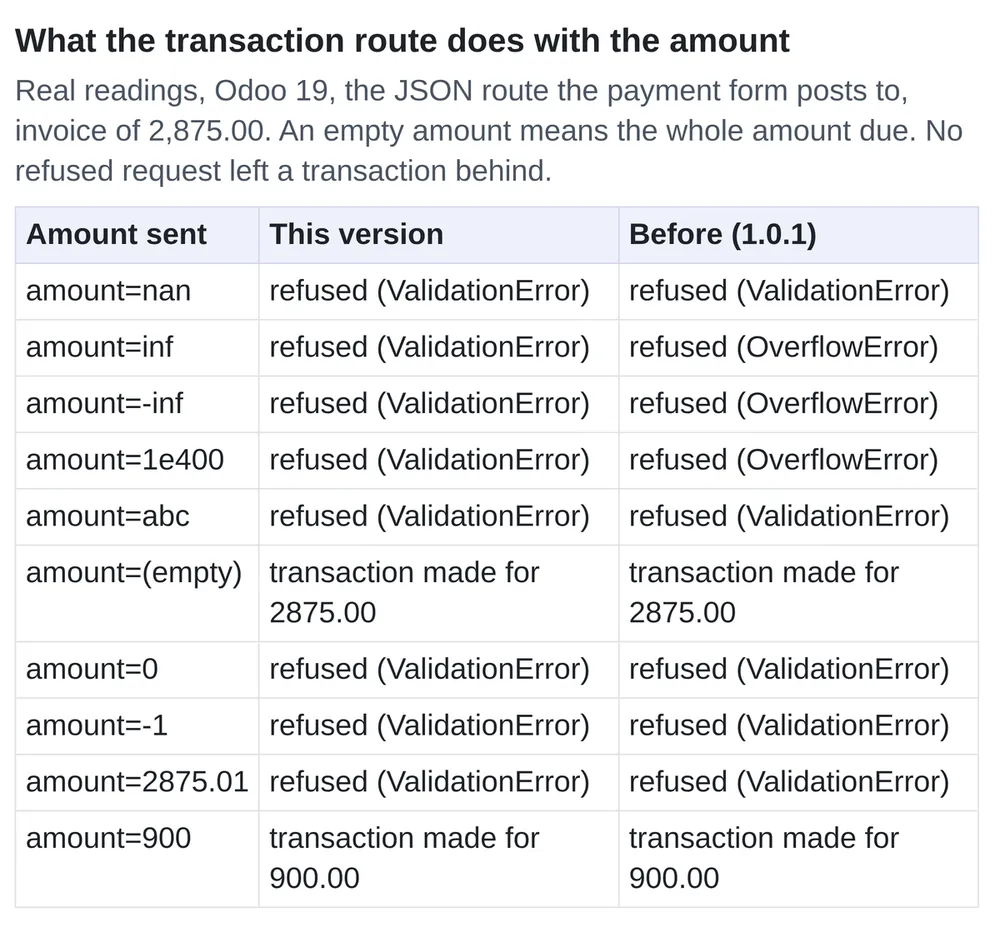
If the amount is zero, negative, above the amount due, not a number or (new in this version) infinite, the page shows a message and keeps the full amount in the form. The check is made again on the route the payment form posts to, so editing the page does not get around it: a refused request leaves no transaction behind. Amounts are rounded to the currency's decimals first (2875.004 is 2,875.00 and allowed; 2875.01 is refused). The tables show what every kind of text did, before and after this version.
It reads the amount the way Python reads a number: 1_000 and 1e3 are read as 1000, a decimal comma (900,50) is refused. It does not check the amount against the invoice again after the payment form has been shown.
The refusal for 9999 on a 2,875.00 invoice. Real Odoo screen (Odoo 19).
Amount texts on the pay page, this version and the one before. Evidence table.
Amounts sent to the route the payment form posts to. Evidence table.
5 Pay it: two real payments and the books afterwards
Use it when you want to see what the books look like after a partial payment.Odoo posts the payment
A partial online payment is only useful if it lands on the right invoices.
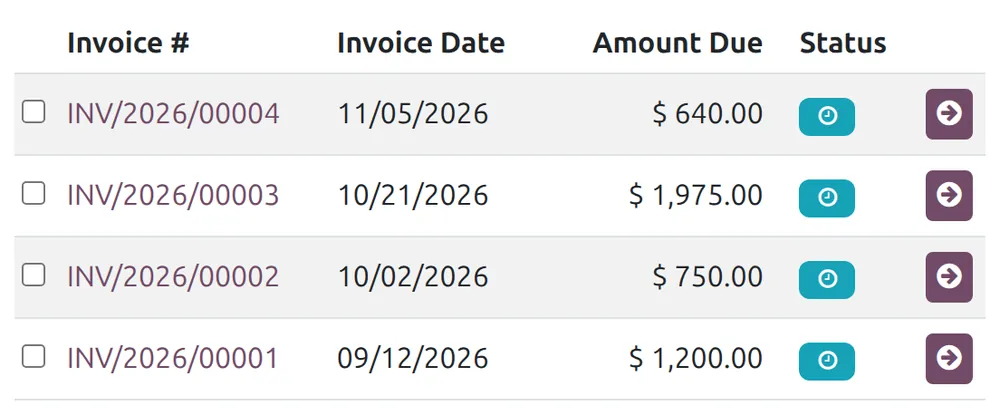
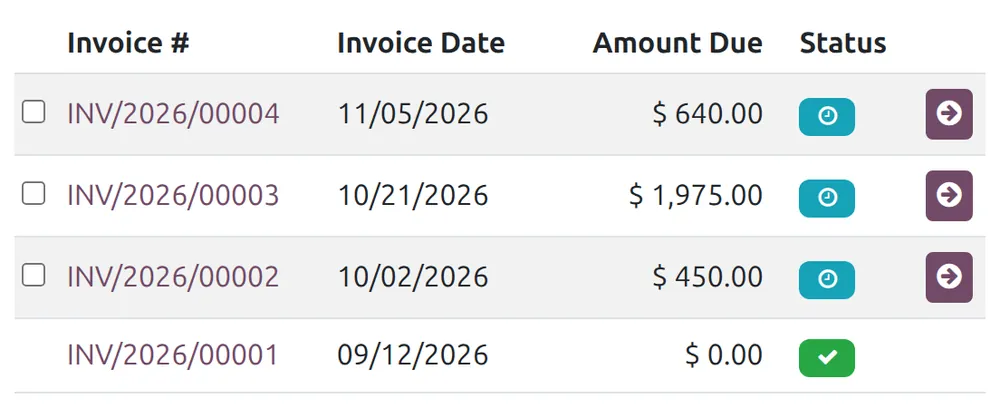
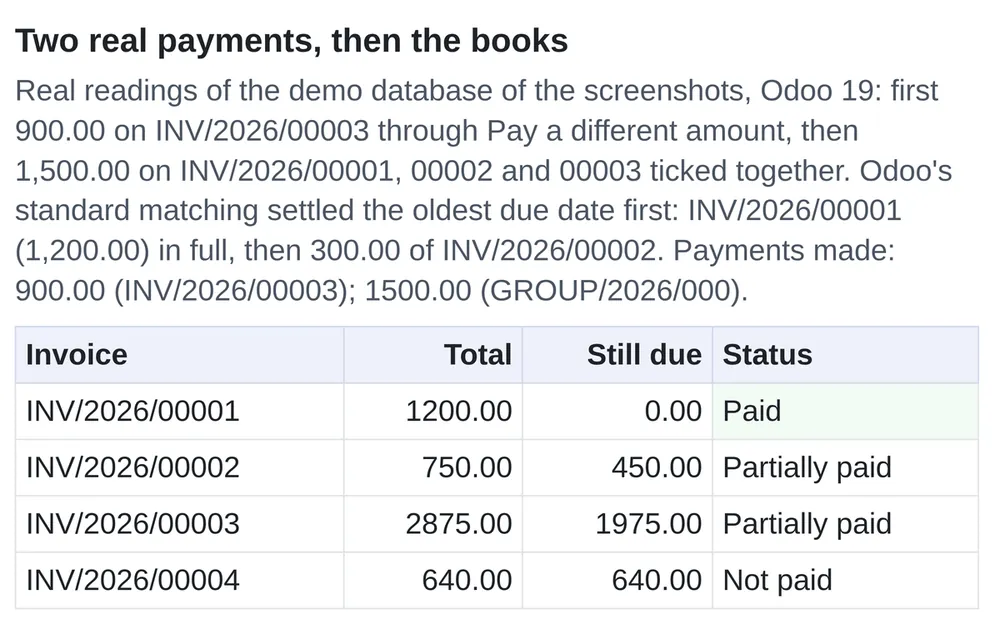
In a real browser we paid 900.00 on INV/2026/00003 through the new field, then ticked INV/2026/00001, 00002 and 00003 and paid 1,500.00, both with the Demo provider. Odoo's own code posted both payments. The first picture is My Invoices after the 900.00 payment (INV/2026/00003 now owes 1,975.00); the second is the same list after the 1,500.00 payment, which settled INV/2026/00001 (1,200.00, the oldest due date) in full and 300.00 of INV/2026/00002, leaving INV/2026/00003 at 1,975.00. The table is read from the database afterwards.
A lump sum is not split per invoice. In a multi-invoice payment you cannot give each ticked invoice its own amount.
After 900.00 on one invoice. Real Odoo screen (Odoo 19).
After 1,500.00 over three invoices: the oldest due date is settled first. Real Odoo screen.
The books after the two payments, read from the database. Evidence table.
6 The switch
Use it when you want to turn it off, for one company, without uninstalling.Writes the setting
A new option on a customer-facing page should be one click to turn off.
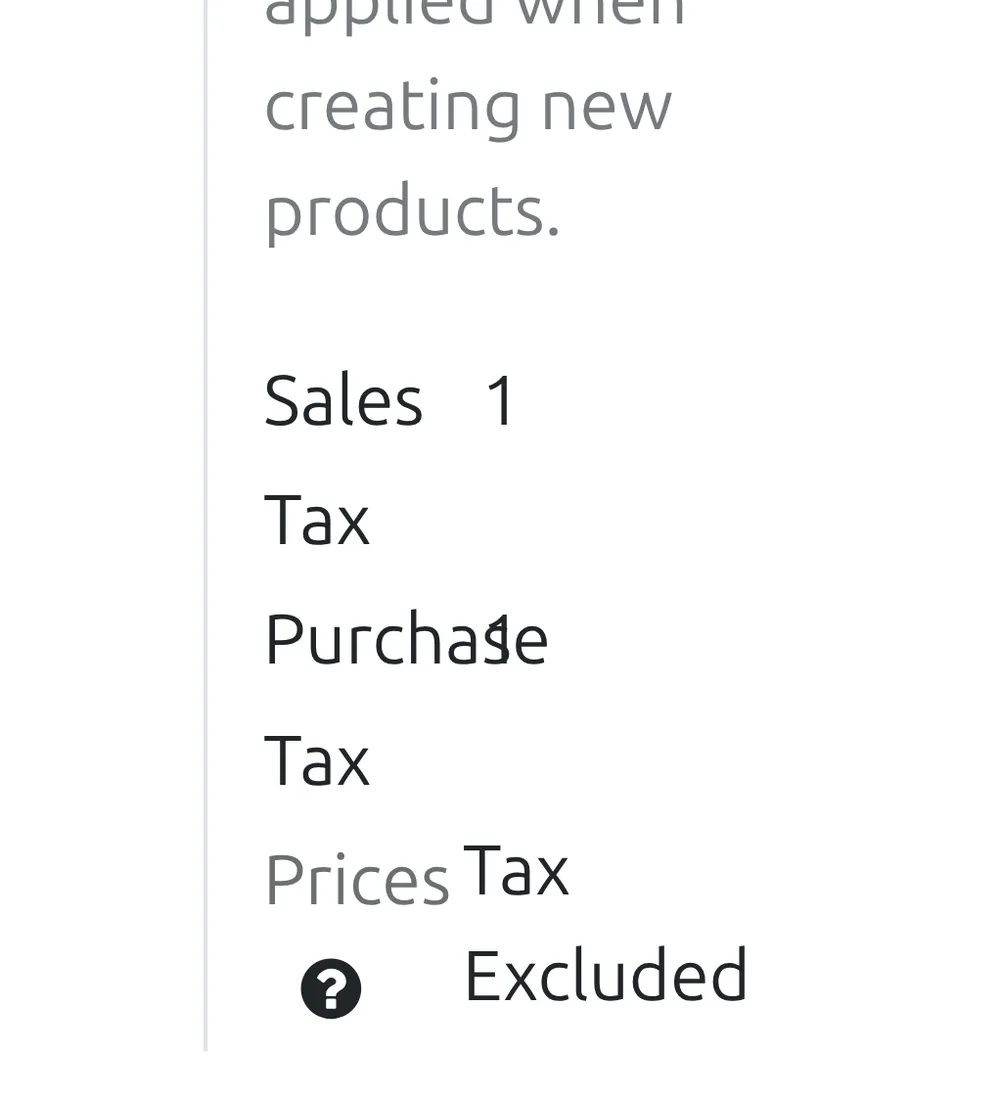
Accounting > Settings > Customer Payments has a switch Partial and selected-invoice payment , on by default and kept per company (it shows when online payment is enabled). Off, the different-amount field, the tick boxes and the Pay selected button disappear and the pay page sends the customer back to My Invoices; a request to the transaction route is refused. The switch is read from the invoice's own company.
It does not decide who may use it beyond Odoo's own portal access rules.
The switch. Real Odoo screen (Odoo 19).
7 Which invoices cannot be chosen
Use it when you want to know a customer cannot reach someone else's invoice.Read-only
A selection travels in the address, and anything in an address can be edited.
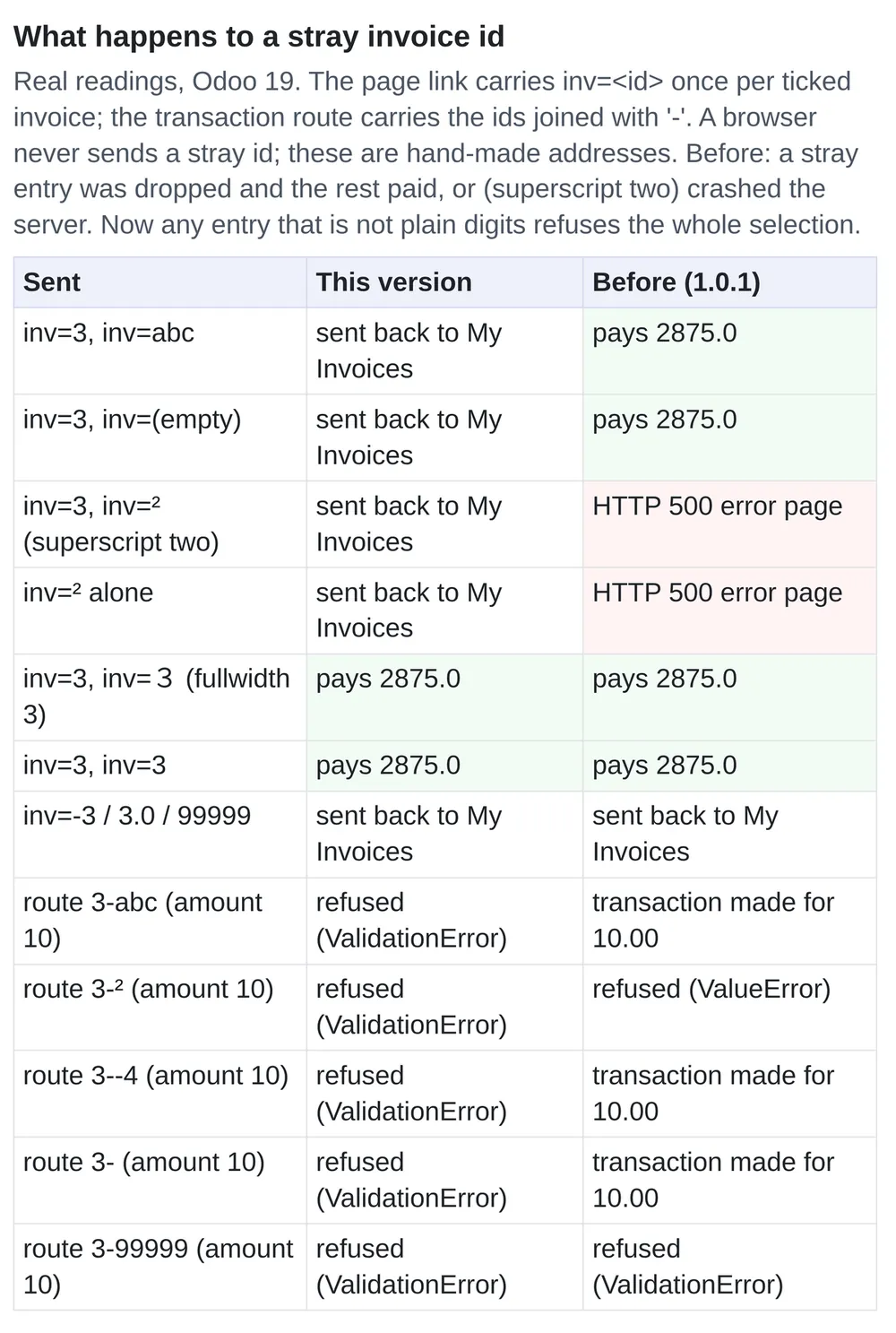
The invoices are looked up with the customer's own access and only among those of his own customer. Another customer's invoice, an unknown id, an invoice with a payment already pending, an invoice that is not payable, or a mix of two currencies or two companies refuses the whole selection and sends the customer back to My Invoices. As of this version a stray entry in the list of ids does the same: before, it was dropped and the other invoices were paid. The table shows addresses made by hand, before and after.
The check relies on Odoo's own portal access: a user who can read another customer's invoice still cannot pay it from here.
Hand-made invoice ids. Evidence table.
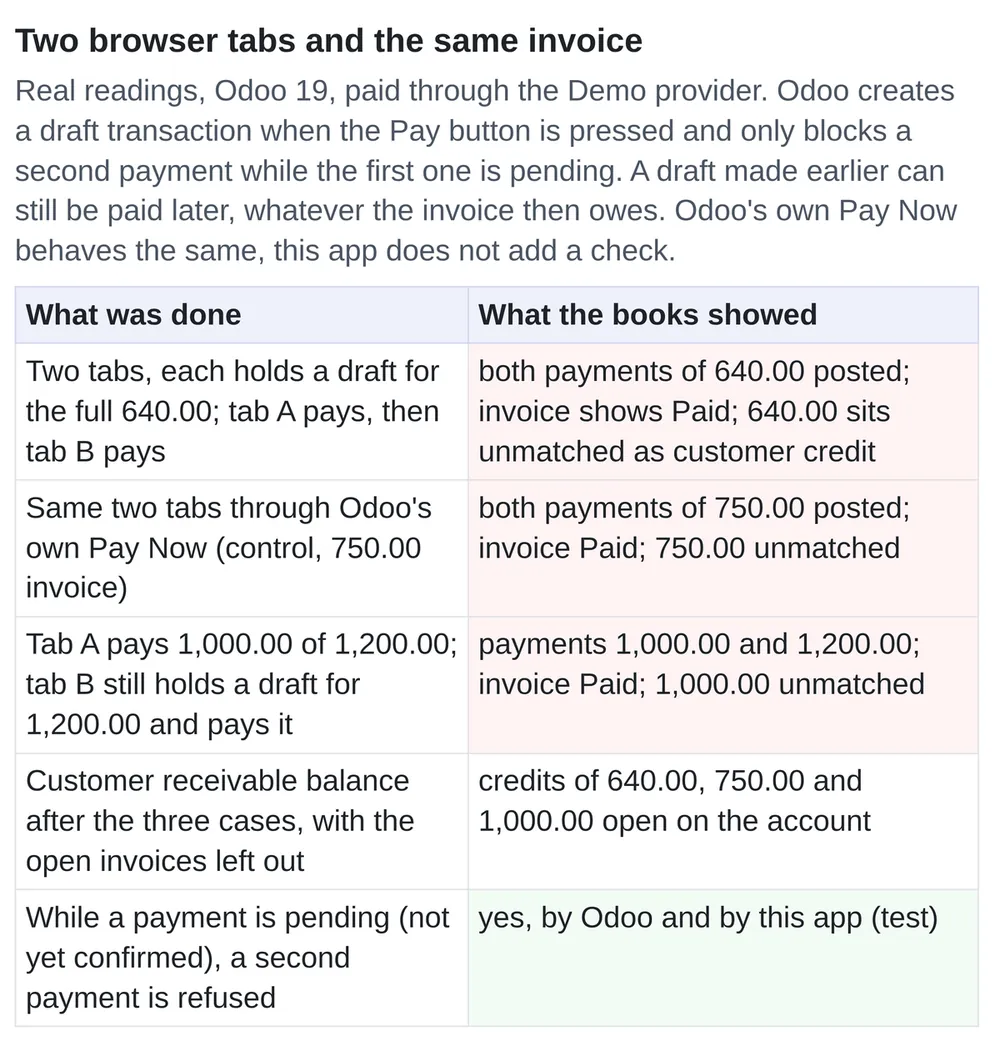
8 Two tabs, one invoice
Use it when you want to know what happens when the same invoice is paid twice.Read-only
Odoo makes a draft transaction when the Pay button is pressed, and only blocks a second payment while the first one is pending.
We opened two payments for the same invoice before either was paid, paid one, then the other. Both payments were posted: the invoice shows Paid and the second amount is left on the customer's account as unmatched credit. We did the same through Odoo's own Pay Now and got the same result, so this is Odoo's behaviour that the app inherits, not one it adds. It means a customer who pays part in one tab and has another tab with the old full amount open can pay more than he owes. The app does not check again when the payment is confirmed.
It does not prevent this and does not refund or match the extra amount: that is done in the backend, as for any unmatched payment.
Two tabs on one invoice, this app and Odoo's own Pay Now. Evidence table.
Checked
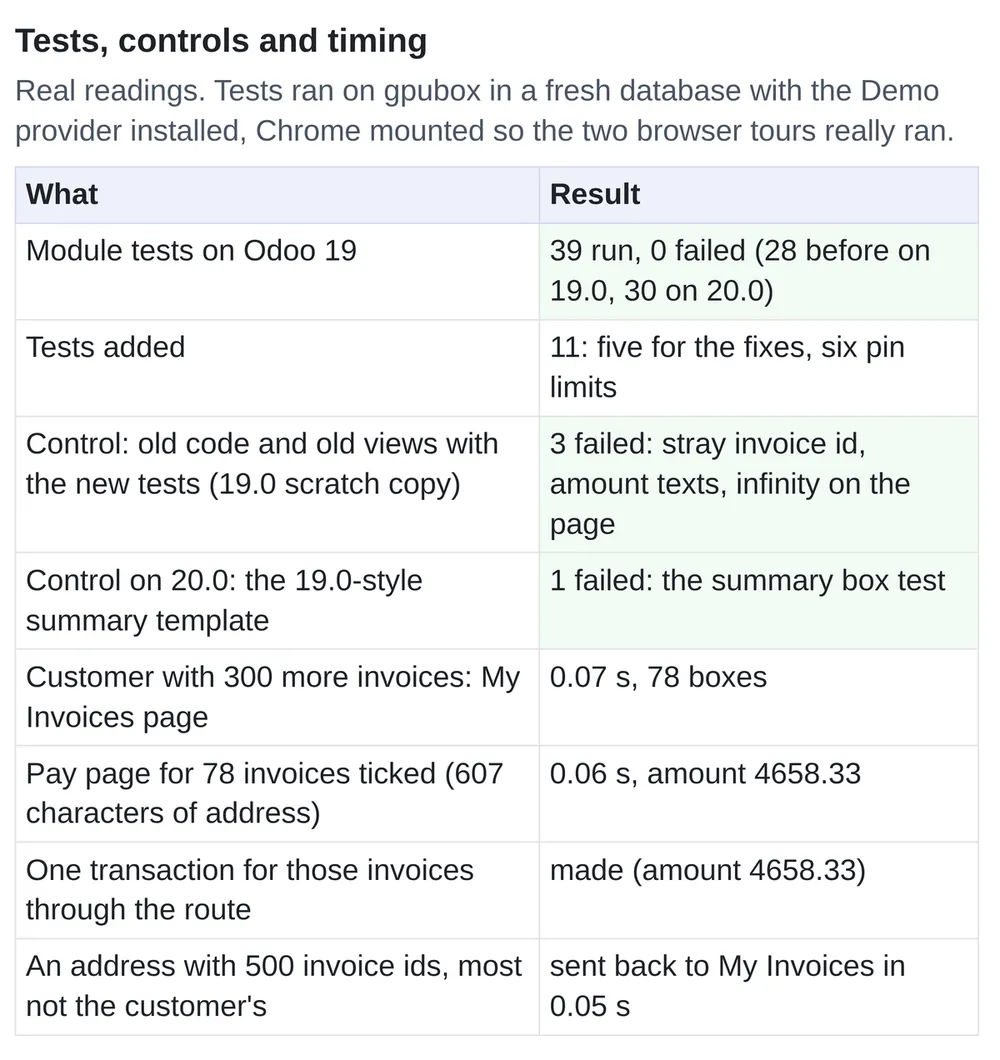
39 automated tests run in each version with none failing, including two browser tours that tick invoices, type an amount and pay with the Demo provider. Eleven tests were added for this page: five for the fixes and six that pin limits above. A scratch copy of the old code made 3 of the fix tests fail. For a customer with 300 more invoices the invoice list took 0.05 to 0.7 s, a pay page for 78 ticked invoices 0.02 to 0.08 s, and one transaction was made for them.
Tests, controls and timing. Evidence table.
What changed in this version
Version 19.1.0.2 fixes four things found while building this page: an amount of inf or 1e400 returned a server error instead of the refusal message; a stray entry in the list of invoices was silently dropped (so the rest was paid) and a superscript digit crashed the server; the dialog placeholder showed 2875.0 and the refusal message 2,875.00 $ where a currency symbol and separators belong. No payment amount, allocation or posting behaviour was changed. It adds 11 tests, replaces the screenshots, the icon and the banner, and rewords the description. The demo video and the YouTube card are those of an earlier version and were not re-recorded or checked against the new text.
Screenshots
What it does not do
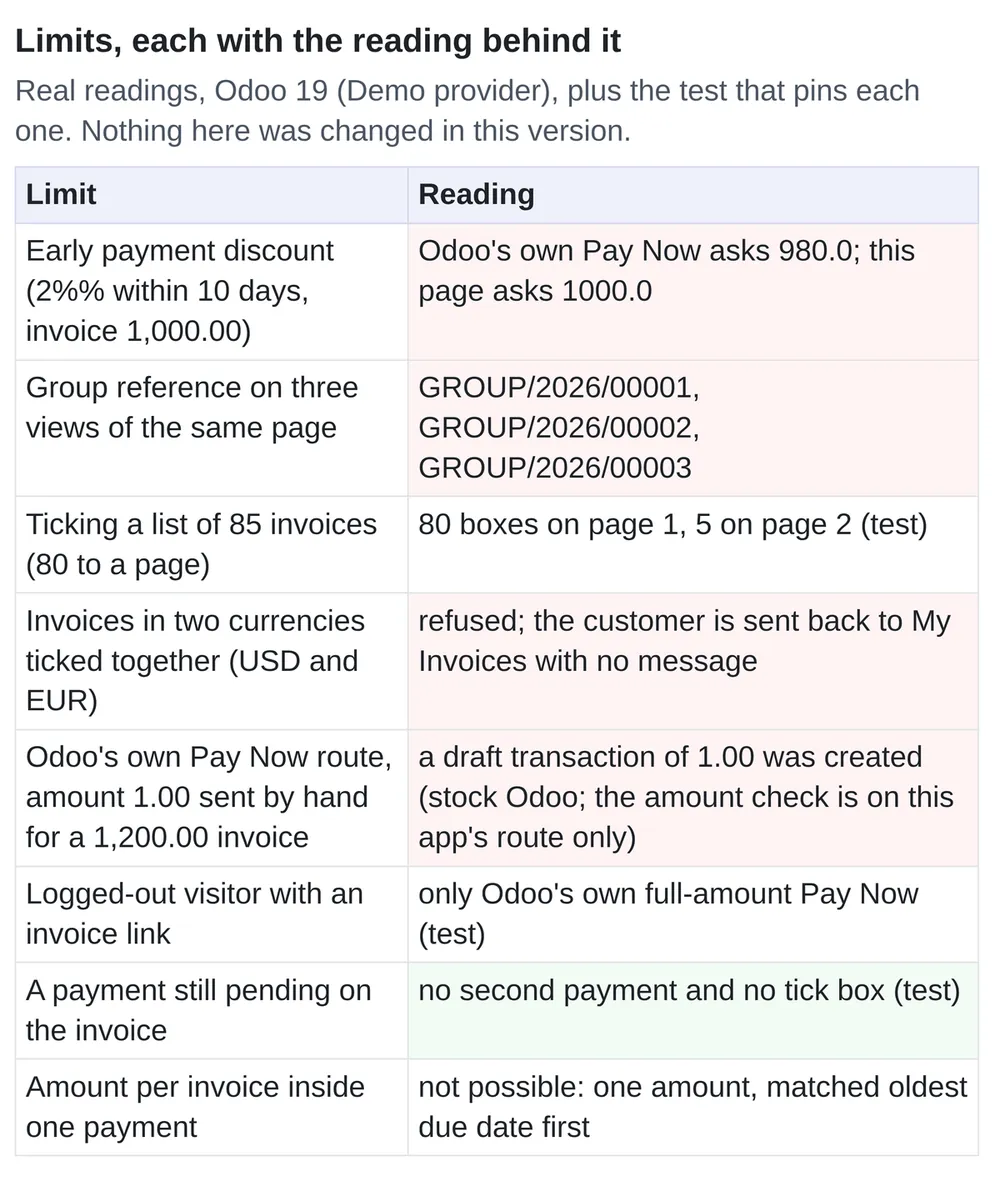
- Each of these was read in a run on Odoo 19 and is pinned by a test that passes, except where it says otherwise.
- Limits with the reading behind each. Evidence table.
Requirements
- Odoo 19.0 or 20.0. The App Store sells each version separately, so buy the one that matches your database.
- Odoo.sh or On-Premise only. Third-party apps cannot be installed on Odoo Online (SaaS) databases. Check your hosting before buying.
- Module
mh_portal_partial_payment, version 19.0.1.0.3, licensed OPL-1.