POS Invoice Journal
Choose the invoice journal for each POS order: several sales journals per point of sale, a selector on the payment screen, and a separate invoice number series for each journal
Request a live demo · Odoo.sh or On-Premise only, not Odoo Online (SaaS).
3
invoice number series from one till in the demo: Retail, B2B and Wholesale, each counting on its own (INV/, B2B/, WHS/)
19
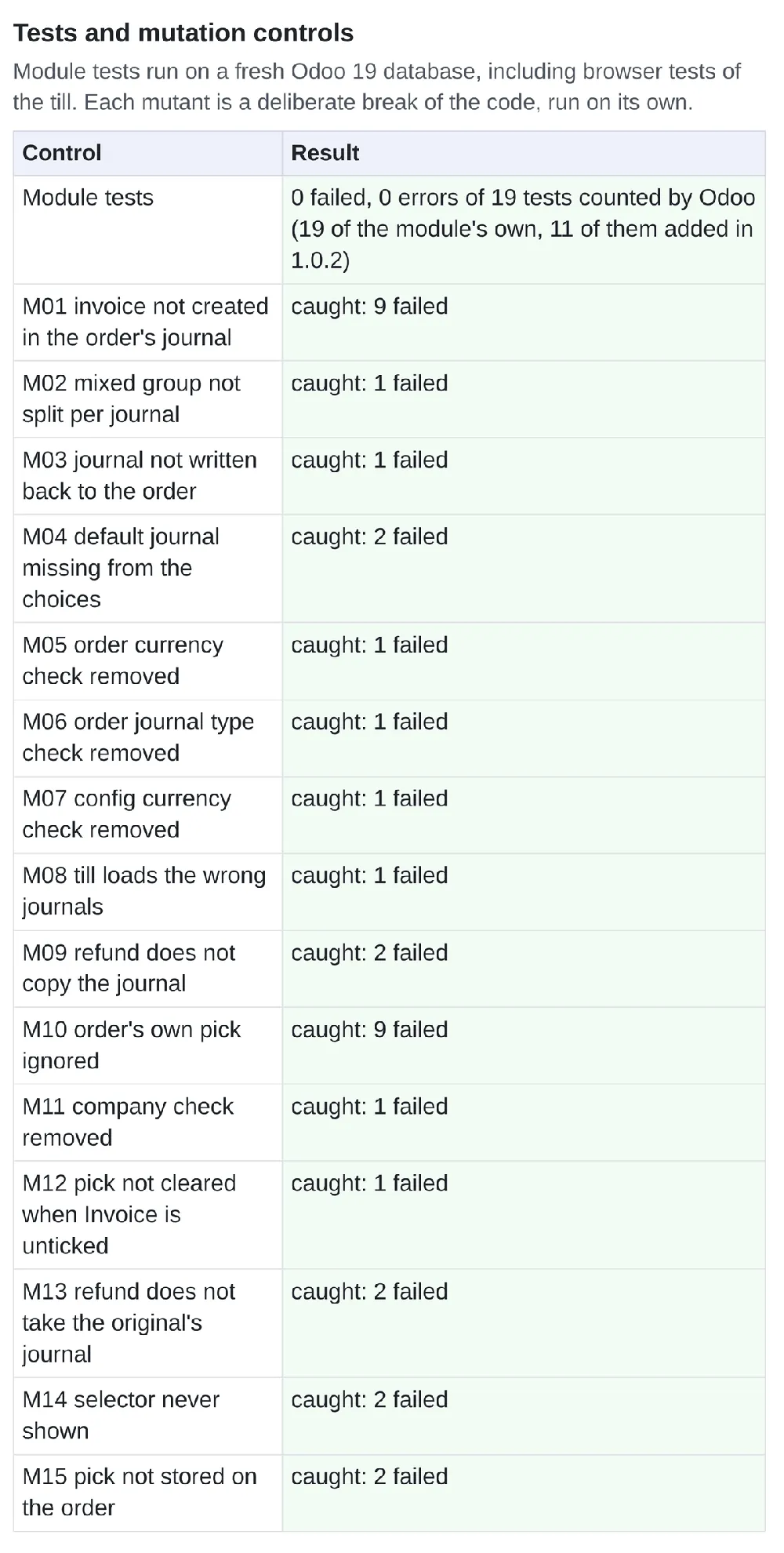
tests in the run, none failing, including browser tests of the till (11 added in this release)
150
orders synced from the till into 3 journals in about 30 seconds, and 150 uninvoiced orders turned into 3 invoices in under 12 seconds (one run, made-up data)
0
network calls, scheduled actions, or changes to prices, taxes and payments
1
display defect fixed in this release: the credit-note selector showed the wrong journal (section 5)
Not
checked: Enterprise, Odoo.sh, several companies in real use, localization numbering rules, restaurant and kiosk (see Before you install)
Odoo invoices every order of a point of sale in one journal, so business and private customers, or tax invoices and simplified invoices, share one numbering series. With this app a point of sale lists more sales journals, the cashier picks one on the payment screen when the order is invoiced, and the invoice is created in that journal with that journal's next number. This page walks through it with screenshots of a real cashier session on an Odoo 19 database holding a made-up office-supply shop, with readings taken from the database afterwards, and with the limits found when it was tested.
Invoice numbers are accounting records, so this page also says what the app changes, what it keeps, and what it does not check.
Install it and the point of sale's Settings gain Other invoice journals , the payment screen gains an Invoice journal selector, and the order gains an Invoice Journal field, list column, search field and group-by. It needs Odoo's own Point of Sale and nothing else.
How it works
1 List the journals a point of sale may use
Use it when you keep more than one invoice series.Writes settings
Odoo gives a point of sale one journal for its invoices, so every invoice shares one number series.
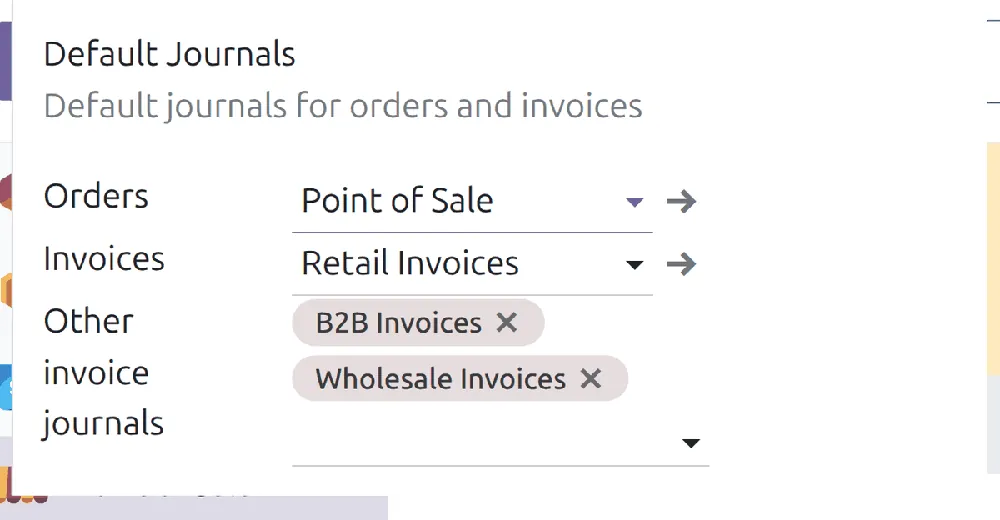
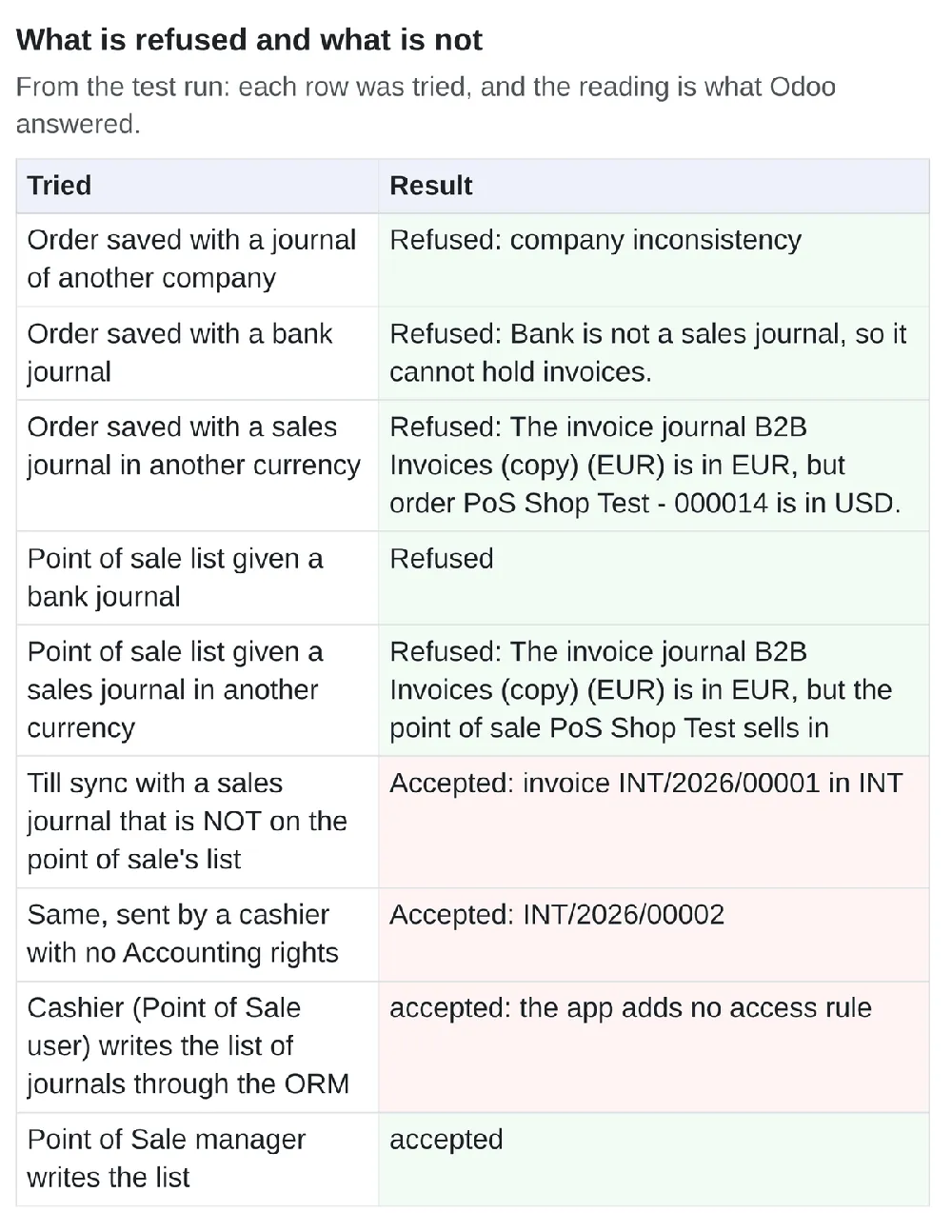
Open Point of Sale > Configuration > Settings and pick the point of sale. Under Default Journals, next to the point of sale's own Invoices, a new line Other invoice journals takes more sales journals. Only sales journals of the same company are offered, and a journal with its own currency must match the point of sale's currency; a bank journal or a sales journal in another currency was refused. The point of sale's own journal stays the default. The list is a plain field of the point of sale, so whoever may write the point of sale may change it (section 6).
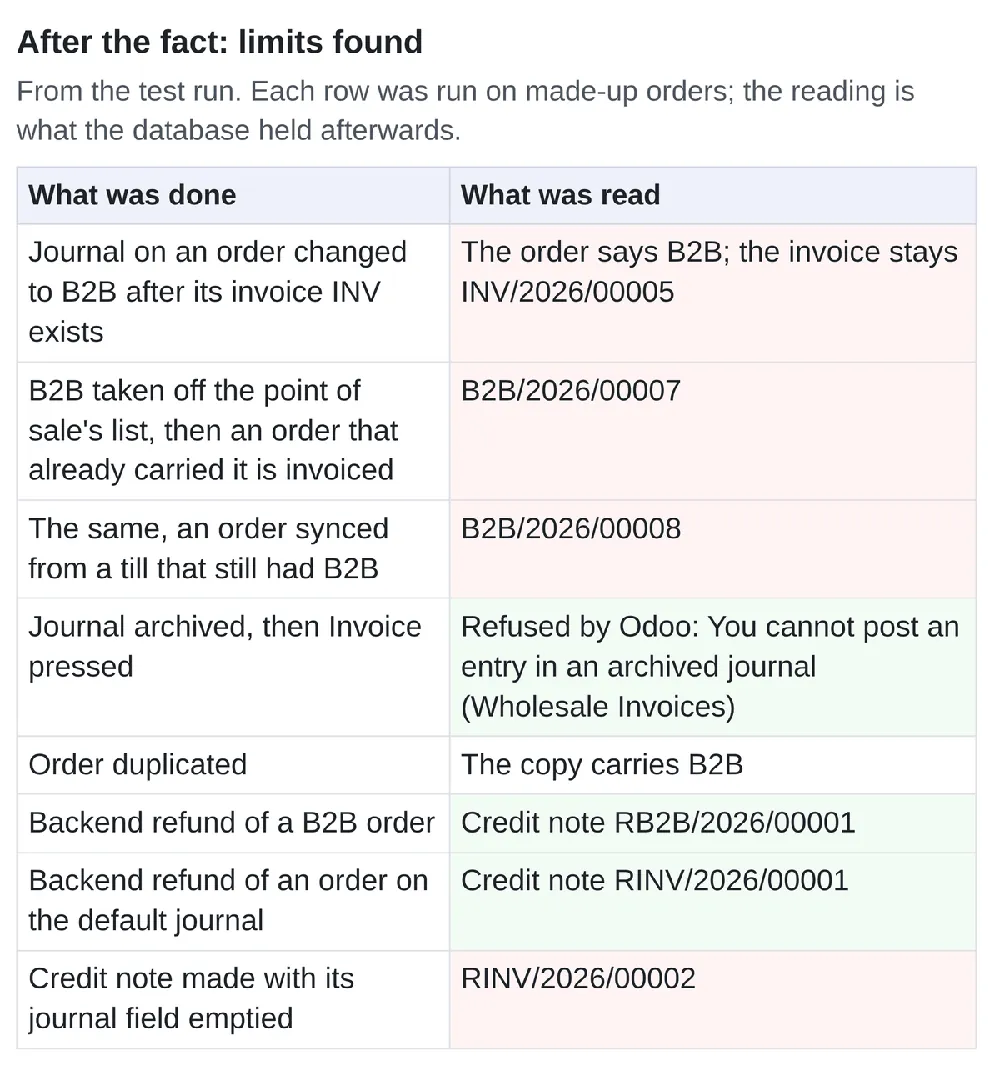
The list is only enforced by the till's selector and the order form: a sales journal of the same company and currency that is not on the list was accepted from a till sync (section 6).
The shop's settings: the default plus two other journals.
What was refused and what was accepted, from the test run. Generated from the test's readings, not a live screen.
2 The selector on the payment screen
Use it when the cashier knows which invoice the customer needs.Writes on the order
A cashier cannot choose between a tax invoice and a simplified invoice when there is only one series.
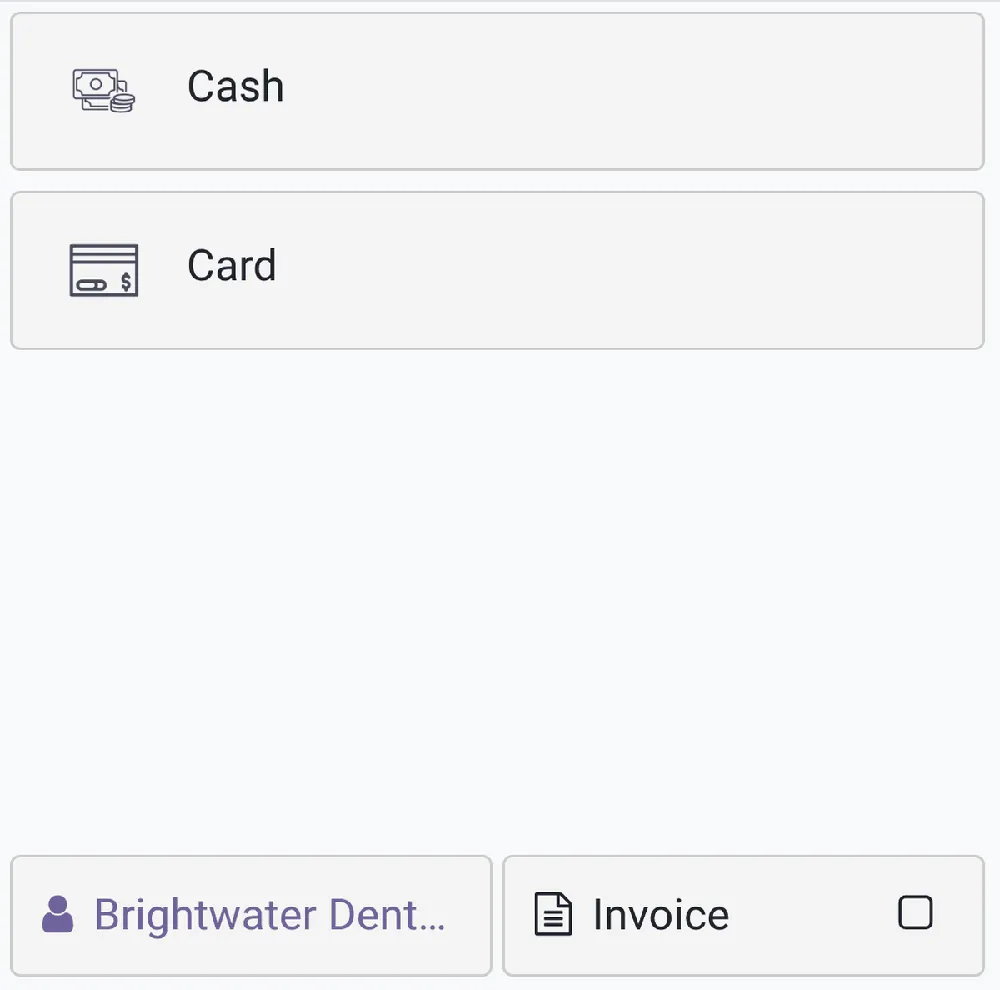
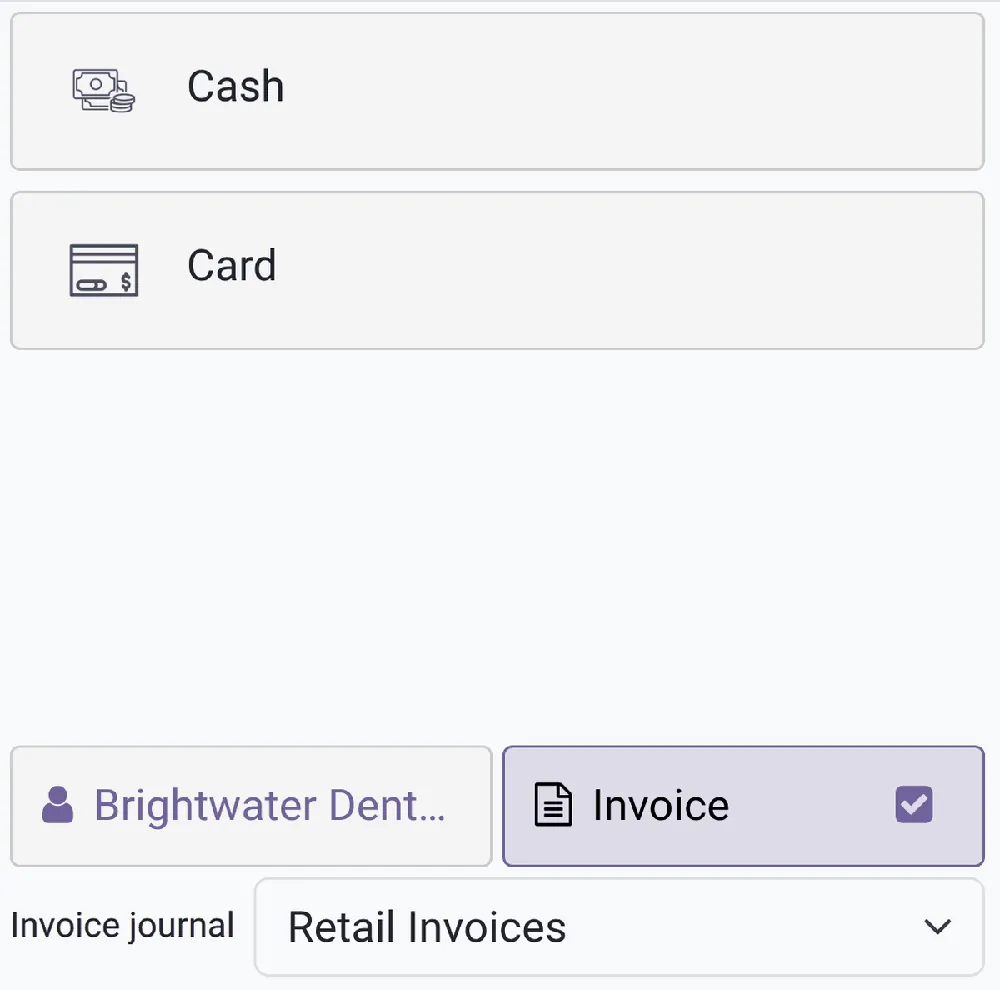
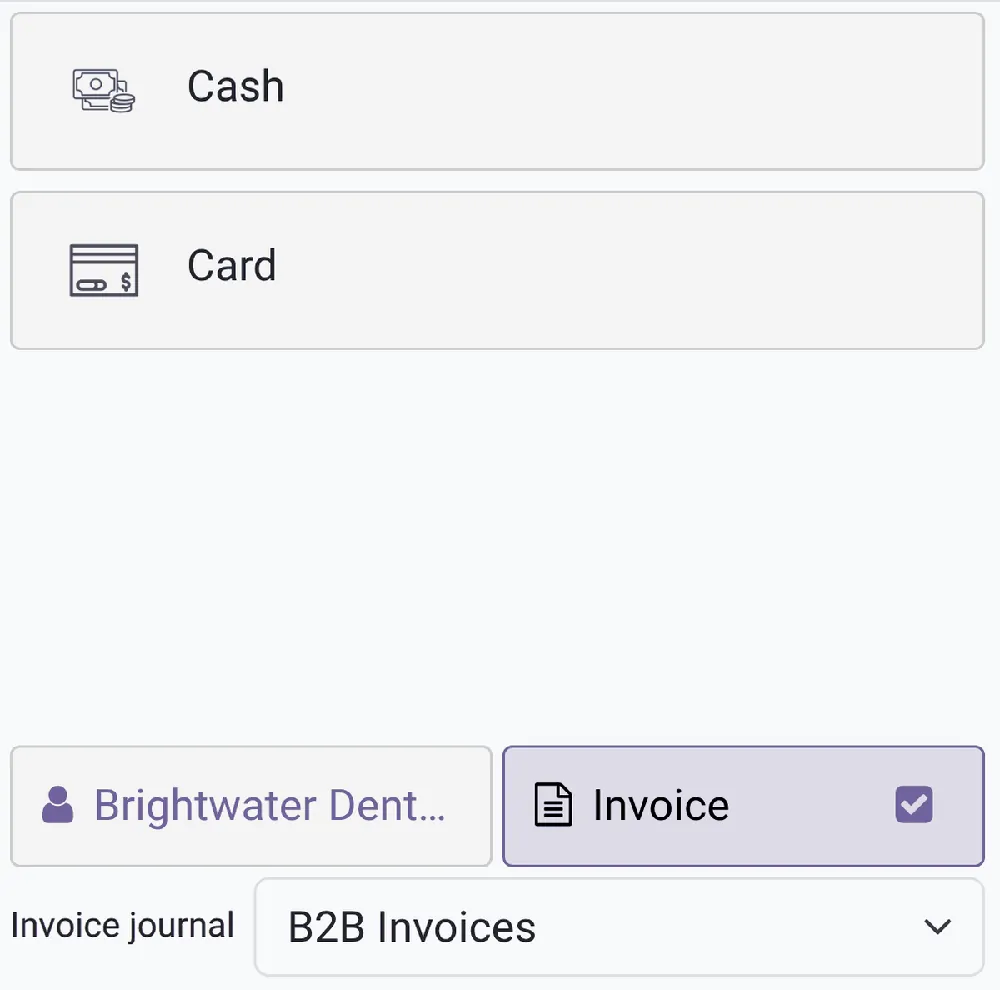
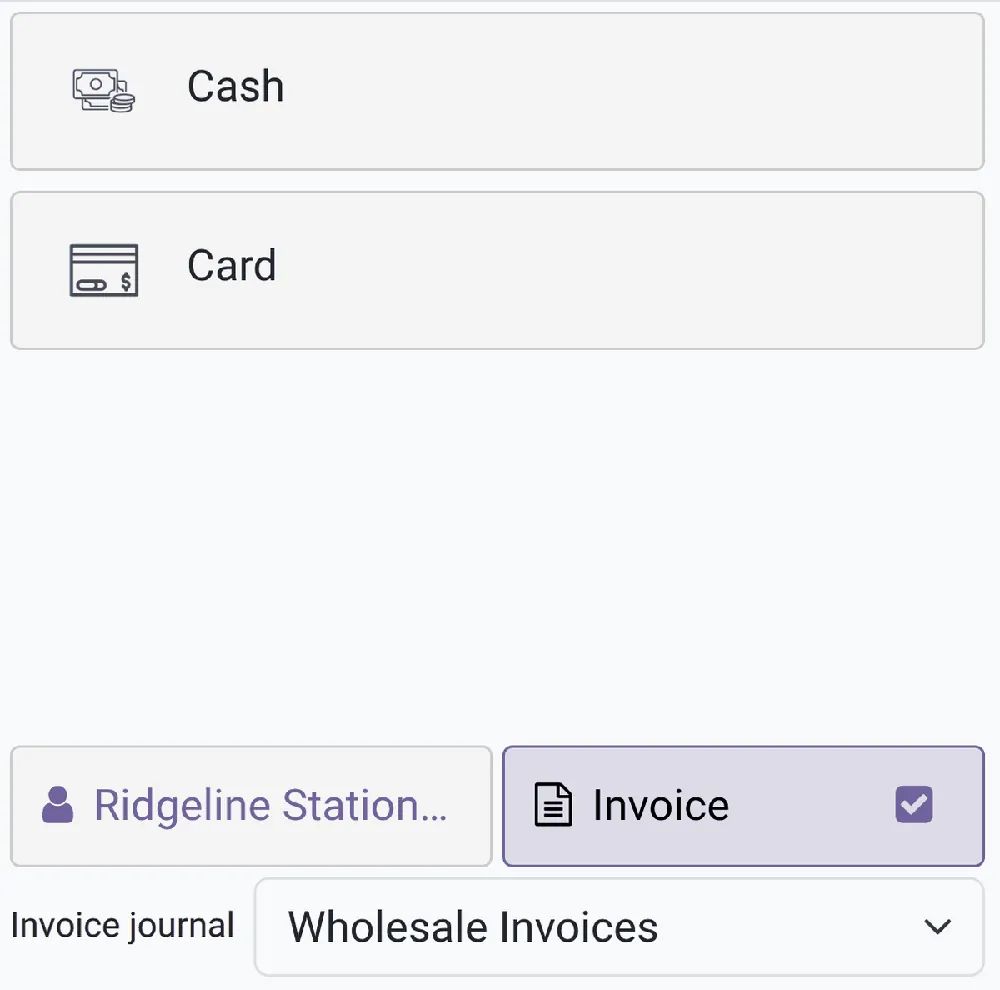
On the payment screen the selector appears when Invoice is ticked and the point of sale has more than one journal. It shows the point of sale's own journal first and selected, so a cashier who does nothing gets what Odoo does today. Unticking Invoice clears the pick, and ticking it again starts from the default. In the real session three orders were taken: the clinic on B2B Invoices, a private buyer on the default, and a reseller on Wholesale Invoices. The choice is saved on the order like any other order field, so an order paid while the till is offline keeps it until it syncs (the browser test checks one offline order).
The list of choices opens as the browser's own drop-down, which a headless screenshot cannot show, so the three states are shown instead. The app does not pick for the cashier.
Invoice not ticked: no selector.
Invoice ticked: the selector starts on the point of sale's own journal.
The cashier picked B2B Invoices.
A third order, picked Wholesale Invoices.
3 The invoice gets that journal's number
Use it when each series counts on its own.Writes invoices
A shared series cannot say which invoices went to business customers.
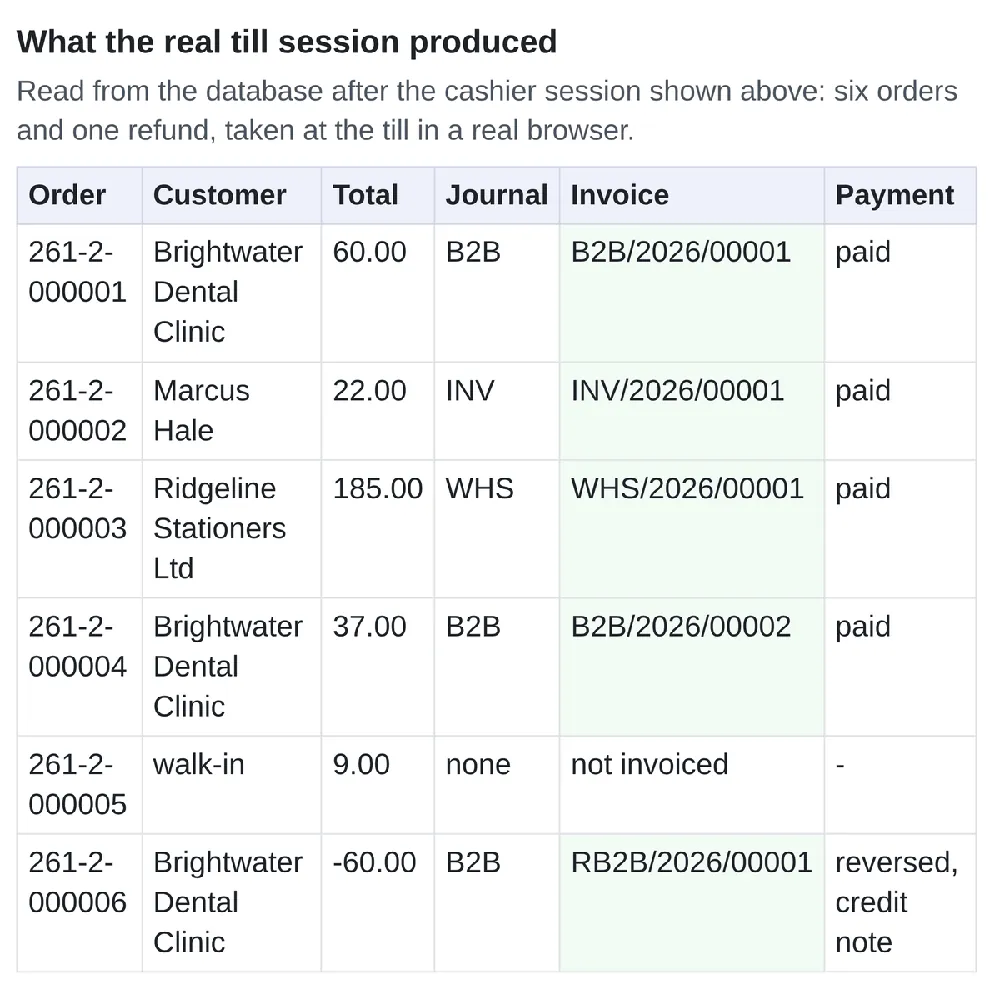
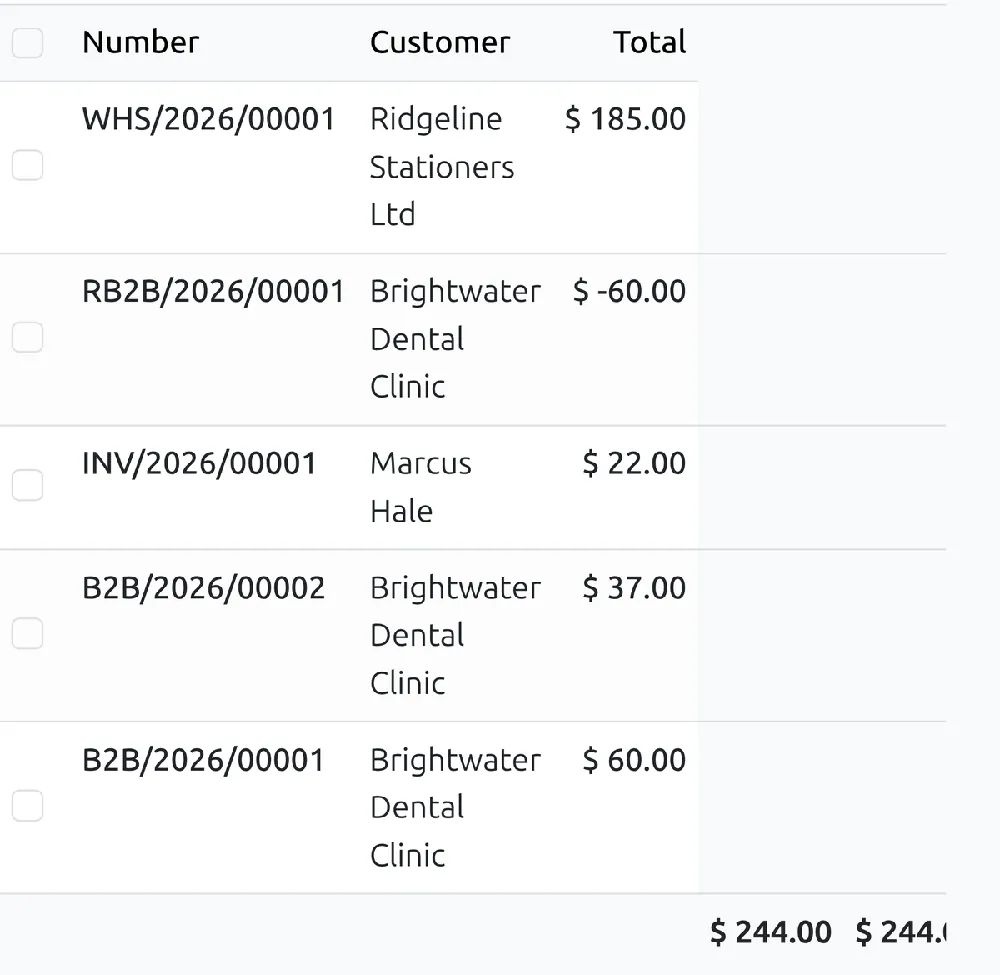
The invoice is created in the chosen journal and takes the next number of that journal's own sequence: the first two B2B orders read B2B/2026/00001 and B2B/2026/00002, the wholesale order WHS/2026/00001, and an order with no pick INV/2026/00001. The journal actually used is written back to the order, so the order list can filter on it. An order that is never invoiced keeps the field empty.
The app does not create journals, sequences or numbering rules; a localization that requires its own numbering was not tested.
Read from the database after the real session. Generated from the readings, not a live screen.
The back-office invoice list after the session (columns hidden to fit).
4 In the back office
Use it when you check, filter and invoice later.Reads orders
Which journal an order went to is invisible in the order list.
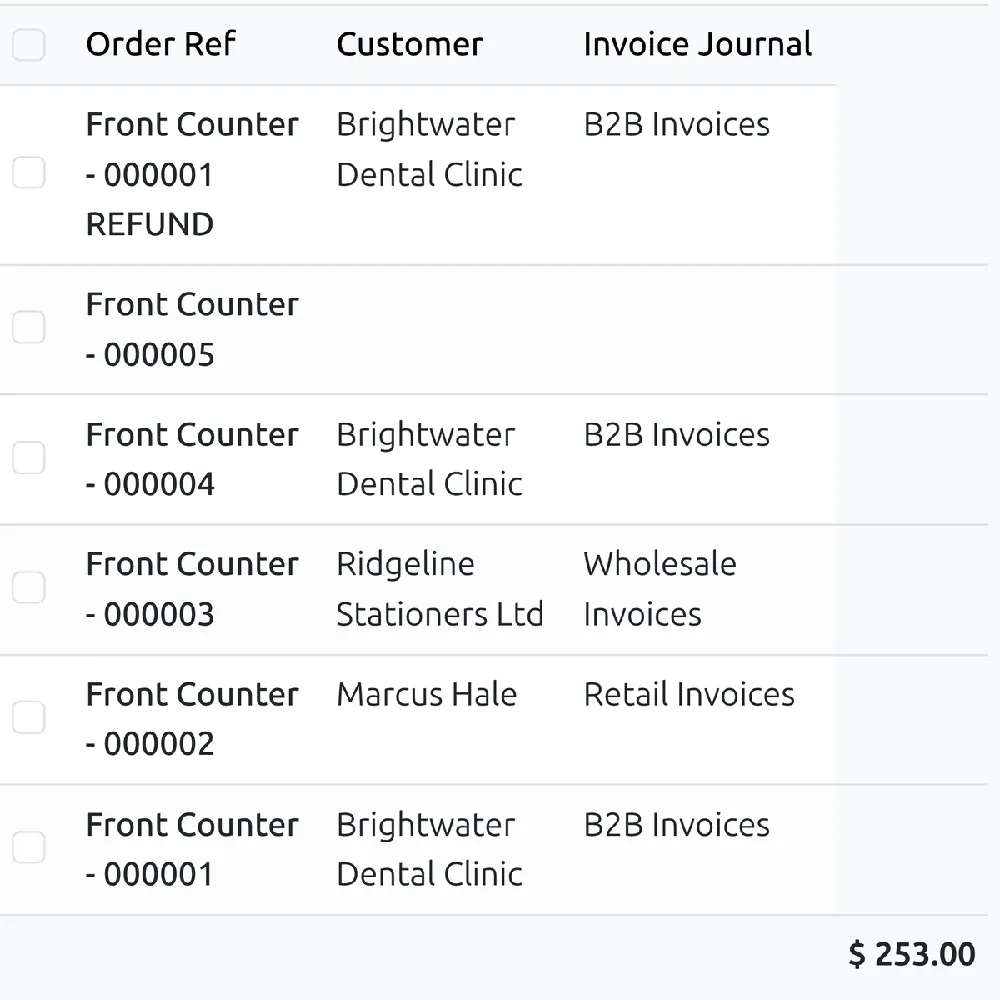
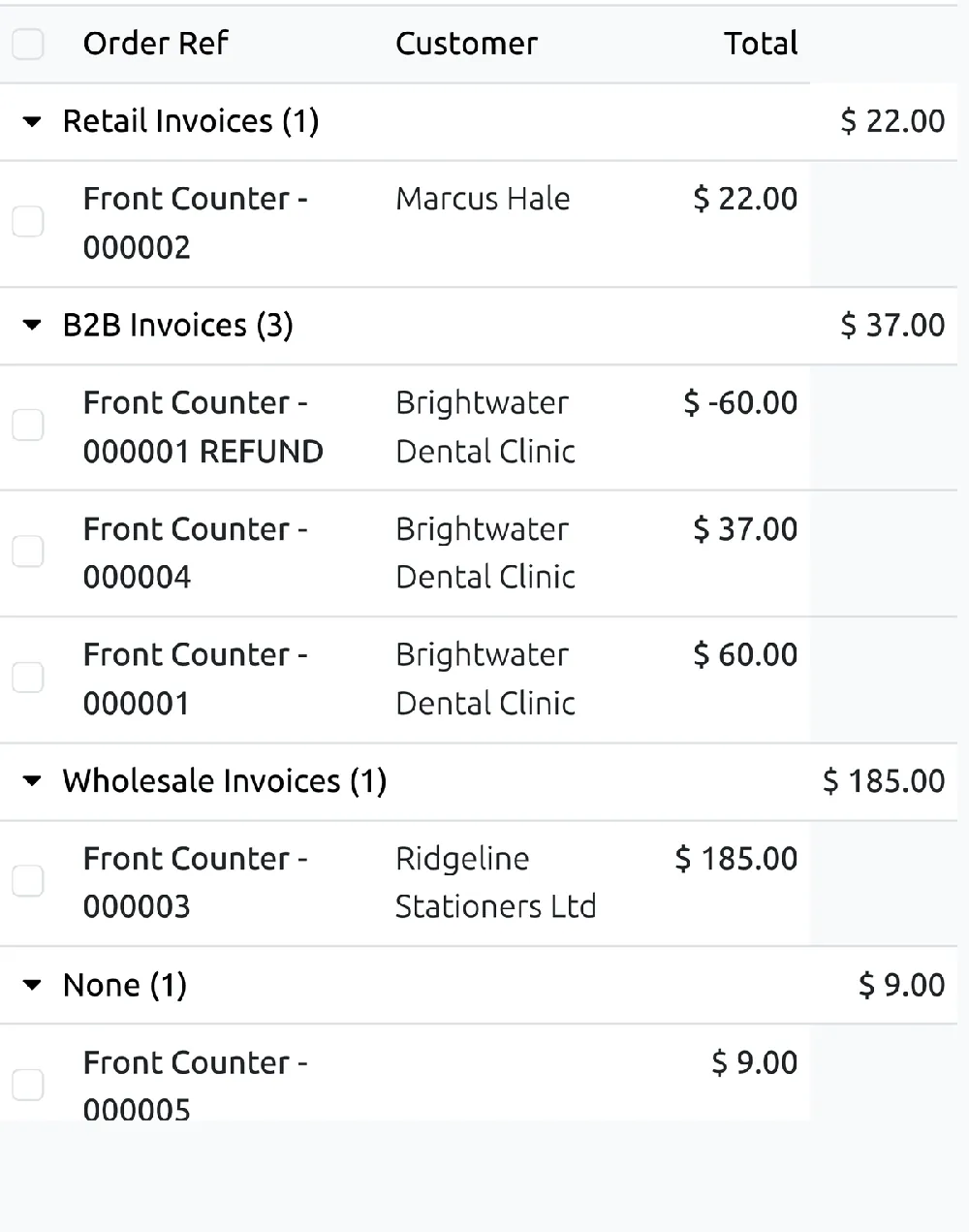
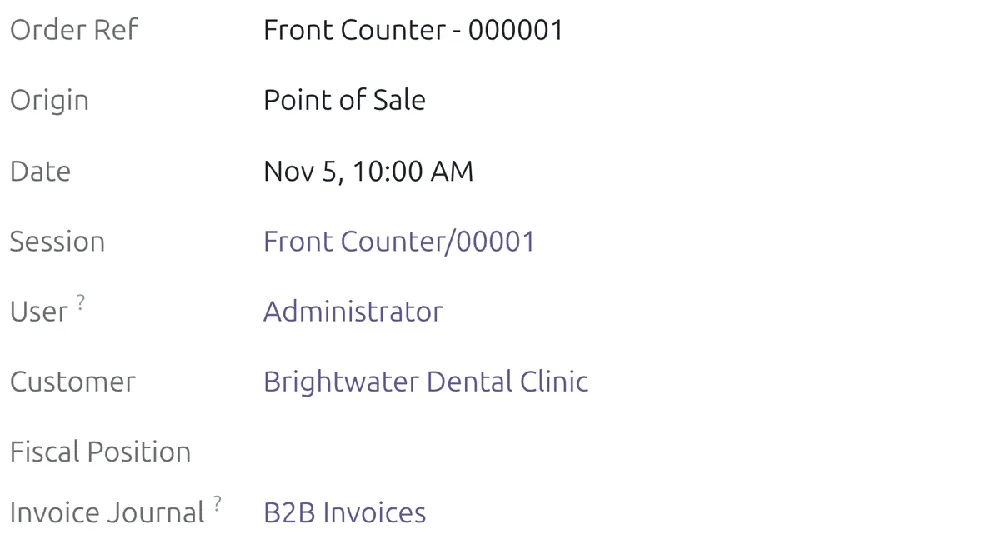
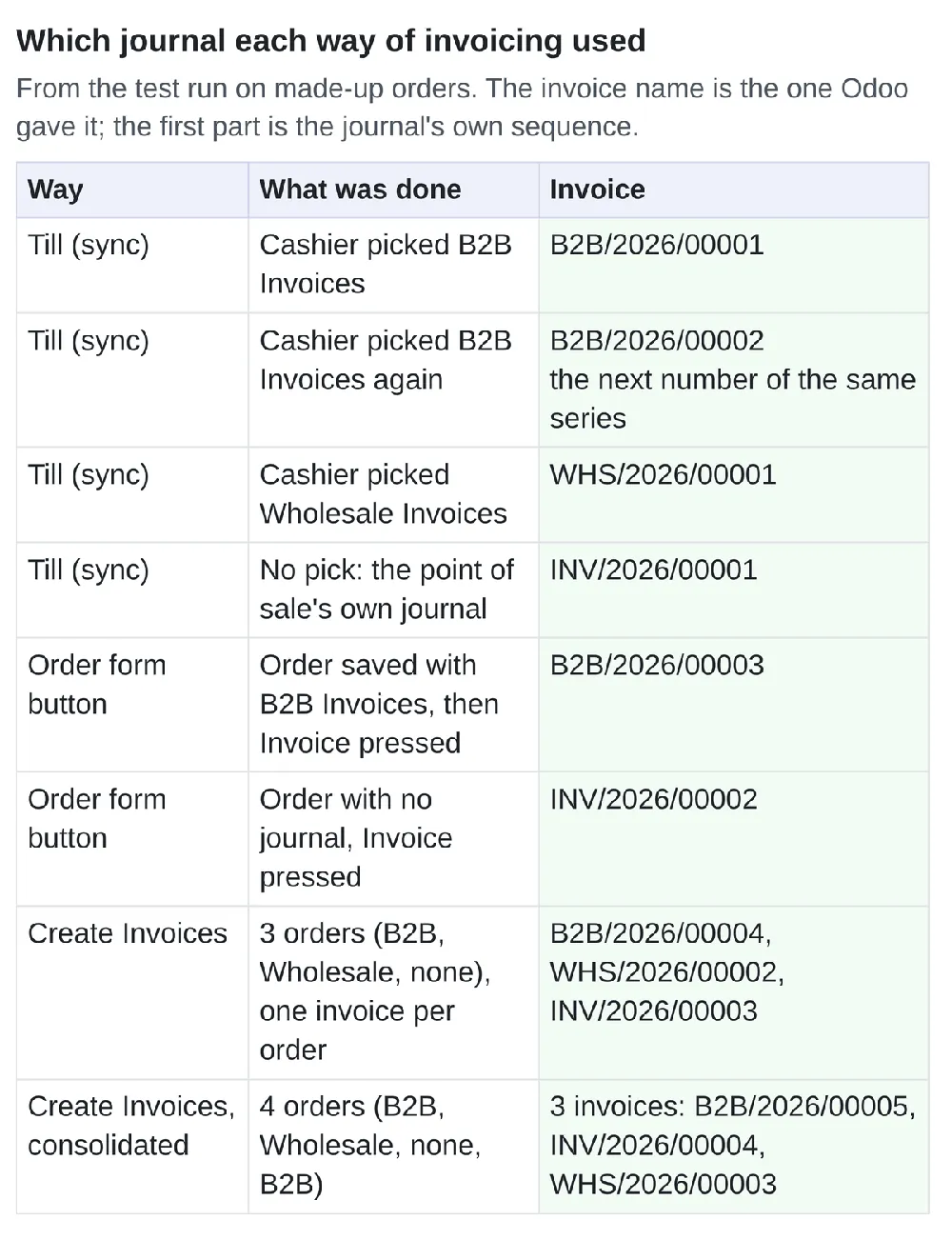
The journal is on the order form (read-only once the order has an invoice, and while it is a draft or cancelled), as a list column, a search field and a group-by Invoice Journal . Invoicing later from the order form's Invoice button, or with Create Invoices, uses the order's journal. One Create Invoices run that mixes journals gives one invoice per journal when billing is consolidated: four orders in three journals made three invoices.
An order that already has an invoice is not moved: changing the field through the ORM afterwards changes the order, not the invoice (section 6).
The order list; the walk-in order was not invoiced, so its journal is empty.
Grouped by Invoice Journal.
The order form of an invoiced order: the field is read-only.
Every way of invoicing, from the test run. Generated from the test's readings, not a live screen.
5 Refunds stay in the series
Use it when a credit note belongs with the invoice it reverses.Writes credit notes
A credit note in the default series is hard to match with the invoice it cancels.
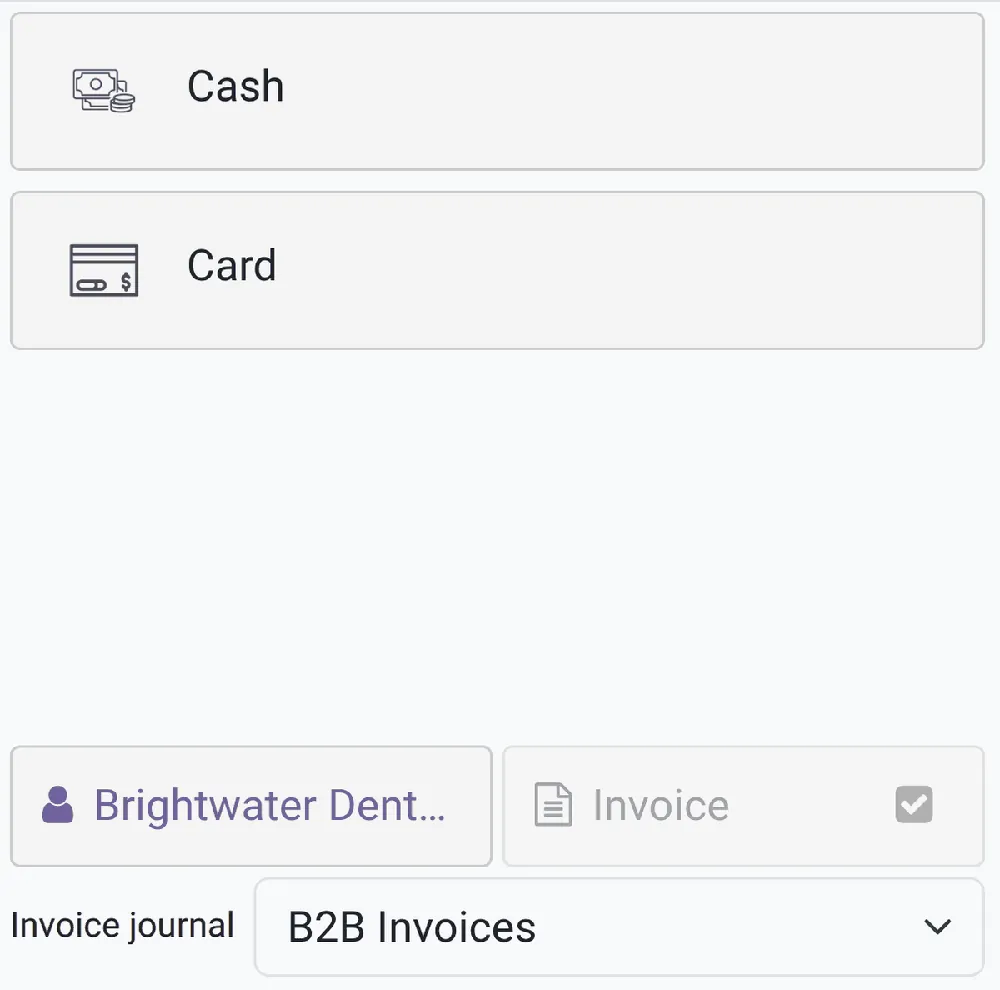
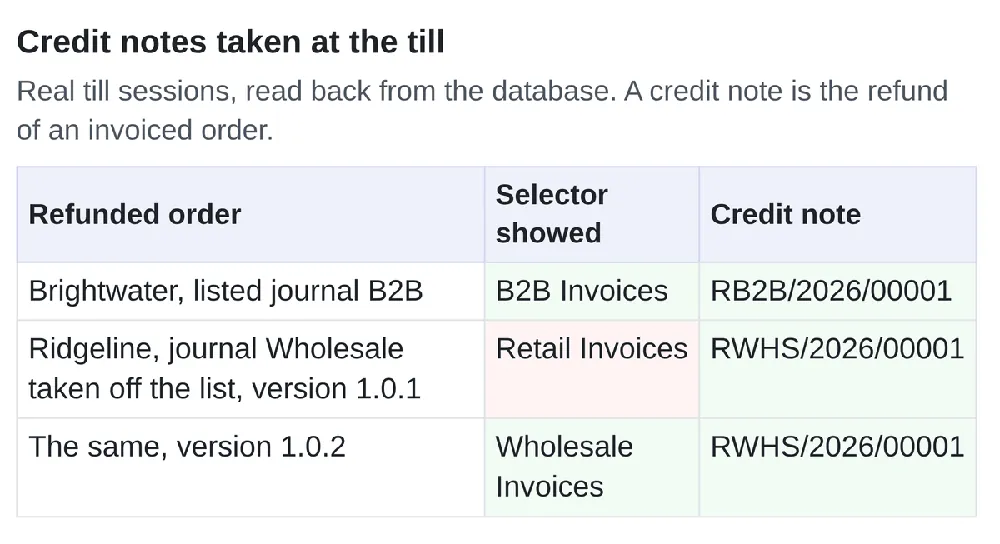
A refund keeps the journal of the order it refunds, and the credit note numbers in the same series (RB2B/2026/00001, RINV/2026/00001 from the order form). At the till a refund of an invoiced order is invoiced too, and the selector opens on the original's journal: in the real session the credit note for the clinic's B2B order went to RB2B/2026/00001.
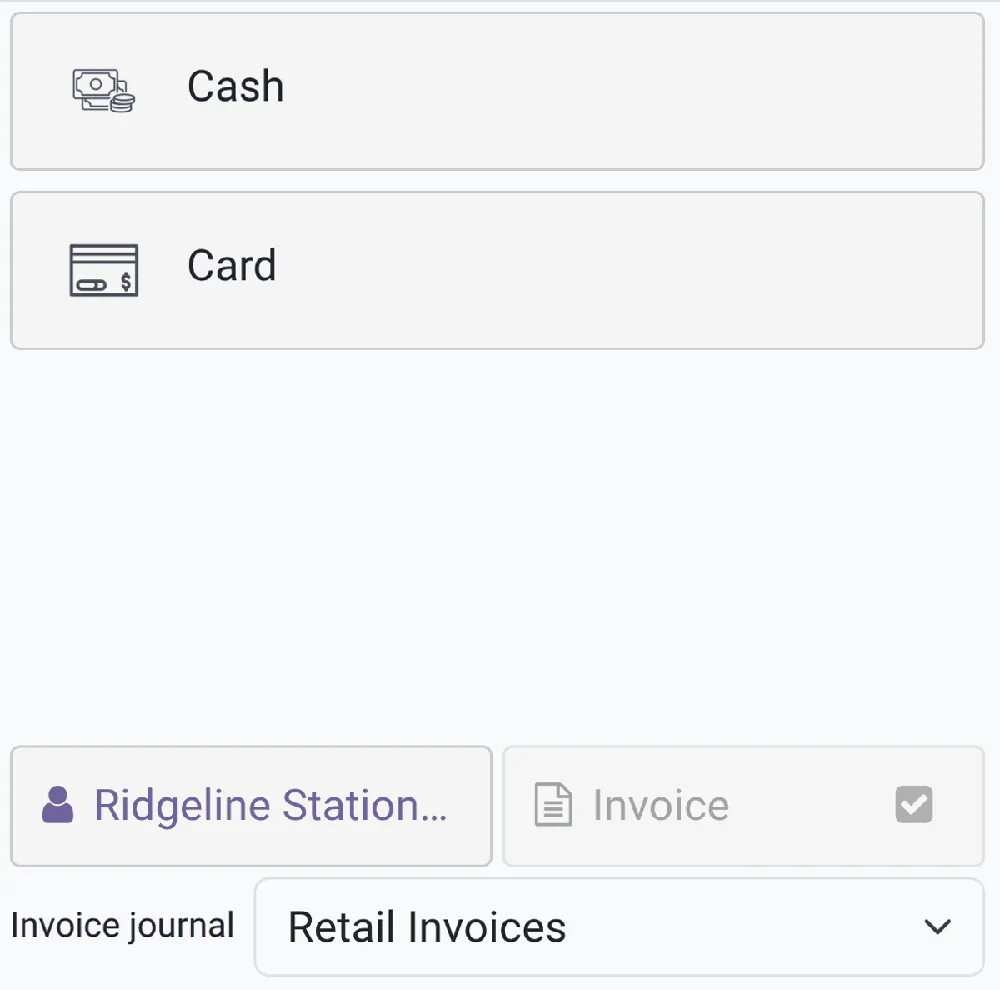
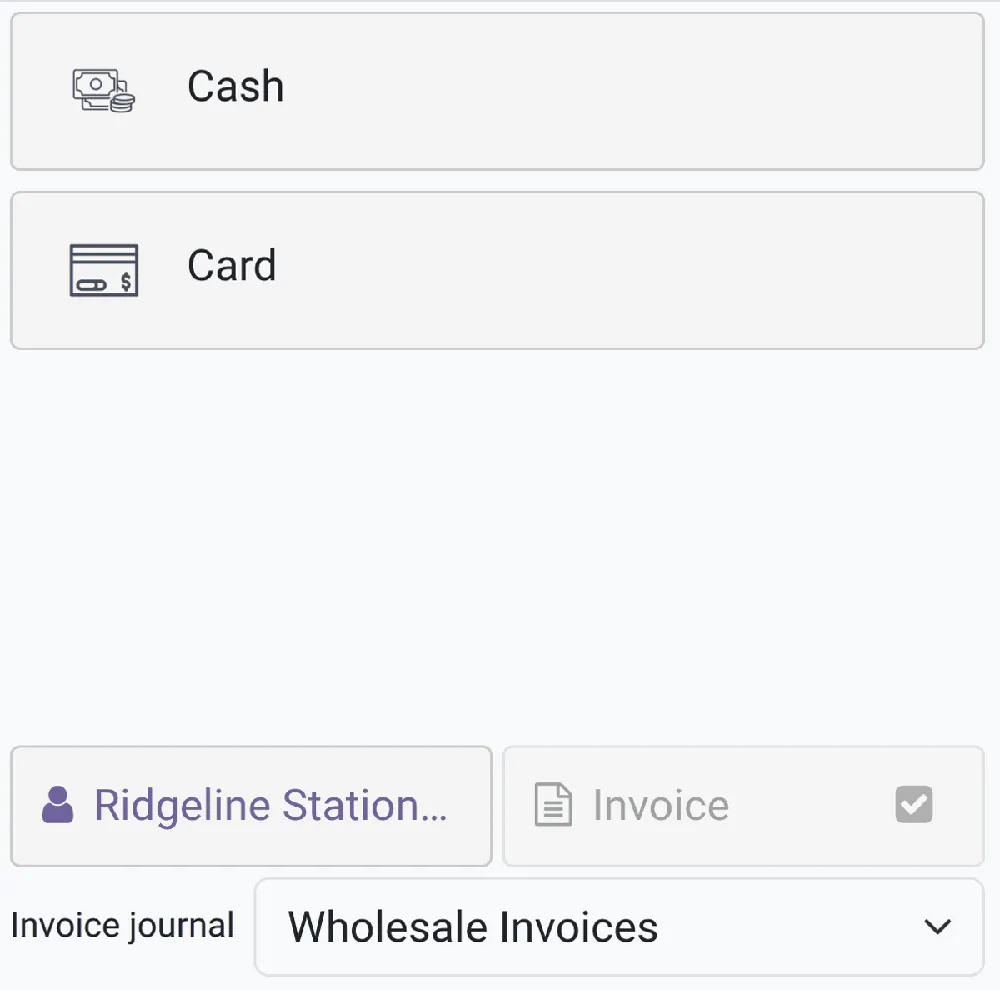
Defect found and fixed in 1.0.2. When the original order's journal was no longer one of the point of sale's choices (the reseller's order was Wholesale, and Wholesale was taken off the list), the selector on the credit note showed the first choice, Retail Invoices, while the credit note went to the original journal (RWHS/2026/00001). Money did not change, only what the cashier saw. The selector now lists the order's own journal and shows it. The test that catches it drives the real till in a browser and failed on the old code.
A credit note made with its journal field emptied goes to the point of sale's own journal (section 6).
The refund of the clinic's order opens on B2B Invoices.
Before (version 1.0.1): Wholesale was off the list and the selector read Retail Invoices.
After (version 1.0.2): the same refund reads Wholesale Invoices.
Credit notes from the real sessions, read back from the database.
6 Odd cases and limits
Use it when you know what the app leaves alone.Nothing written
A feature that touches invoice numbers should state where it stops.
Eight readings from the test run. Generated from the test's readings, not a live screen.
7 Closing the session, and size
Use it when end of day and a busy day.Nothing written
A feature on the invoicing path must not get in the way of closing the till or of volume.
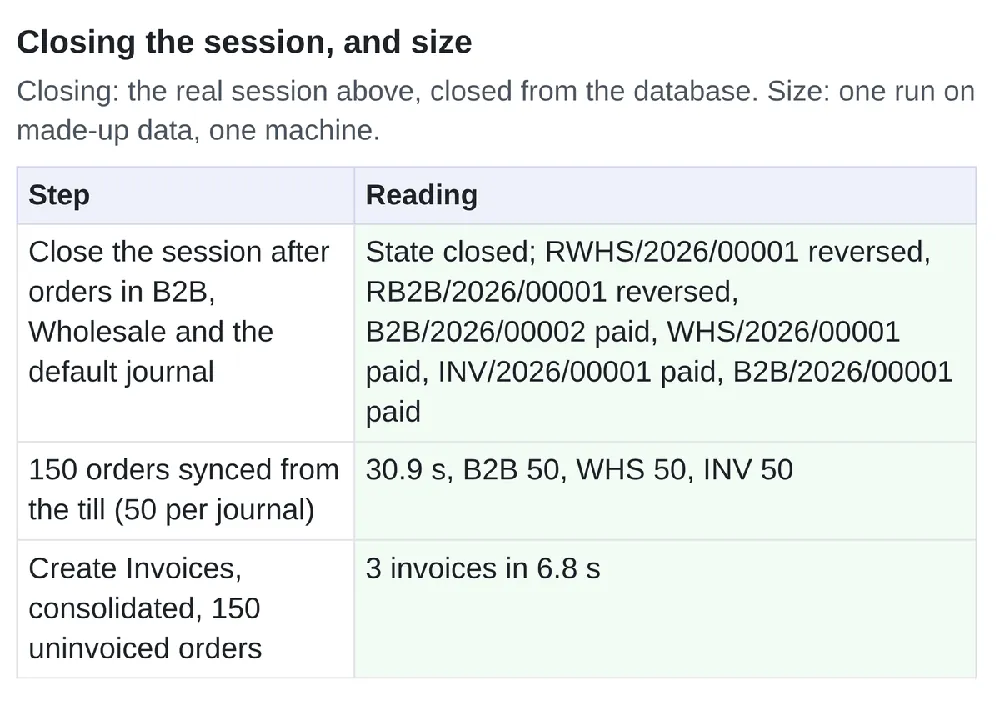
The real session was closed after orders in B2B, Wholesale and the default journal and one credit note: the session closed, the invoices stayed posted and paid, and the credit notes were posted. In the size run, 150 orders were synced one by one from the till (50 per journal) in about 30 seconds, and Create Invoices on 150 uninvoiced orders with consolidated billing made 3 invoices in 7 to 12 seconds. One run, one machine, made-up data.
The app does not change the session closing entry of orders that are not invoiced.
From the real session and the size run. Generated from the readings, not a live screen.
Screenshots
What it does not do
- This is the part to read before buying. Each line was tested on a throwaway Odoo 19 Community database.
- The test run and the mutation control, rendered as a table. Generated from the test logs, not a live screen.
Questions buyers ask
Does it change prices, taxes or payments?
No. The order is created by Odoo; only the journal of its invoice is chosen.
What does the cashier see?
Once Invoice is ticked and the point of sale has more than one journal, a selector under the customer and Invoice buttons, on the point of sale's own journal.
Does each journal keep its own numbers?
Yes: the invoice takes the next number of the chosen journal's own sequence. Creating journals and sequences is done in Accounting.
What happens on a refund?
The credit note keeps the original order's journal. A display defect on this (fixed in 1.0.2) showed the wrong journal in the selector when the original's journal was no longer on the list.
Can a cashier use a journal that is not on the list?
The selector does not offer it, but the server does not check the list: a till sync with another sales journal of the same company and currency was accepted.
Can I move an existing invoice to another journal?
No. Changing the order's journal after the invoice exists does not move the invoice.
Does it work on Odoo Online or Enterprise?
Not on Odoo Online (SaaS): third-party apps cannot be installed there. Enterprise and Odoo.sh were not tested.
Is anything sent outside Odoo?
No. The app makes no network call and has no scheduled action.
Requirements
- Odoo 19.0 or 20.0. The App Store sells each version separately, so buy the one that matches your database.
- Odoo.sh or On-Premise only. Third-party apps cannot be installed on Odoo Online (SaaS) databases. Check your hosting before buying.
- Module
mh_pos_invoice_journal, version 19.0.1.0.1, licensed OPL-1.