POS Order Import
Import past POS orders from an Excel or CSV file, with their lines and payments, after a dry run that lists every problem and creates nothing
Request a live demo · Odoo.sh or On-Premise only, not Odoo Online (SaaS).
0
records created by Check File: orders, sessions, entries, deliveries and stock were all unchanged after a check
11
different problems listed in one check of a 12-order test file, each with its row number
44
automated tests in the app, none failing (9 added in this version)
19 s
to import 1,500 orders (4,500 lines) in the test run; 6,000 orders took 105 s
Paid
every order arrives paid: no invoices, refunds, tips, lots or serials
Today
taxes are the product's rates on the day of the import, not on the order date
Moving to Odoo from another till, or typing in sales from a day the register was offline, means getting past orders into Point of Sale. This app adds an Import Orders wizard that reads a file with one row per order line, checks every order, and only then creates the orders as paid POS orders. This page walks through it with screenshots of an Odoo 19 database holding a made-up bakery, and with readings from real runs.
It writes POS orders that cannot be deleted afterwards, so this page also says exactly what it changes, what it leaves alone, and what it does not check.
Install it and an Import Orders entry appears under Point of Sale > Orders, plus a button on the POS Orders list, for users in the Point of Sale Administrator group. It needs only Odoo's Point of Sale app.
How it works
1 Check the file first
Use it when you have a file of past orders and want to know what is wrong with it before anything is written.Creates nothing
A generic import writes whatever rows it is given, and a mistake found a week later is a paid POS order that cannot be deleted.
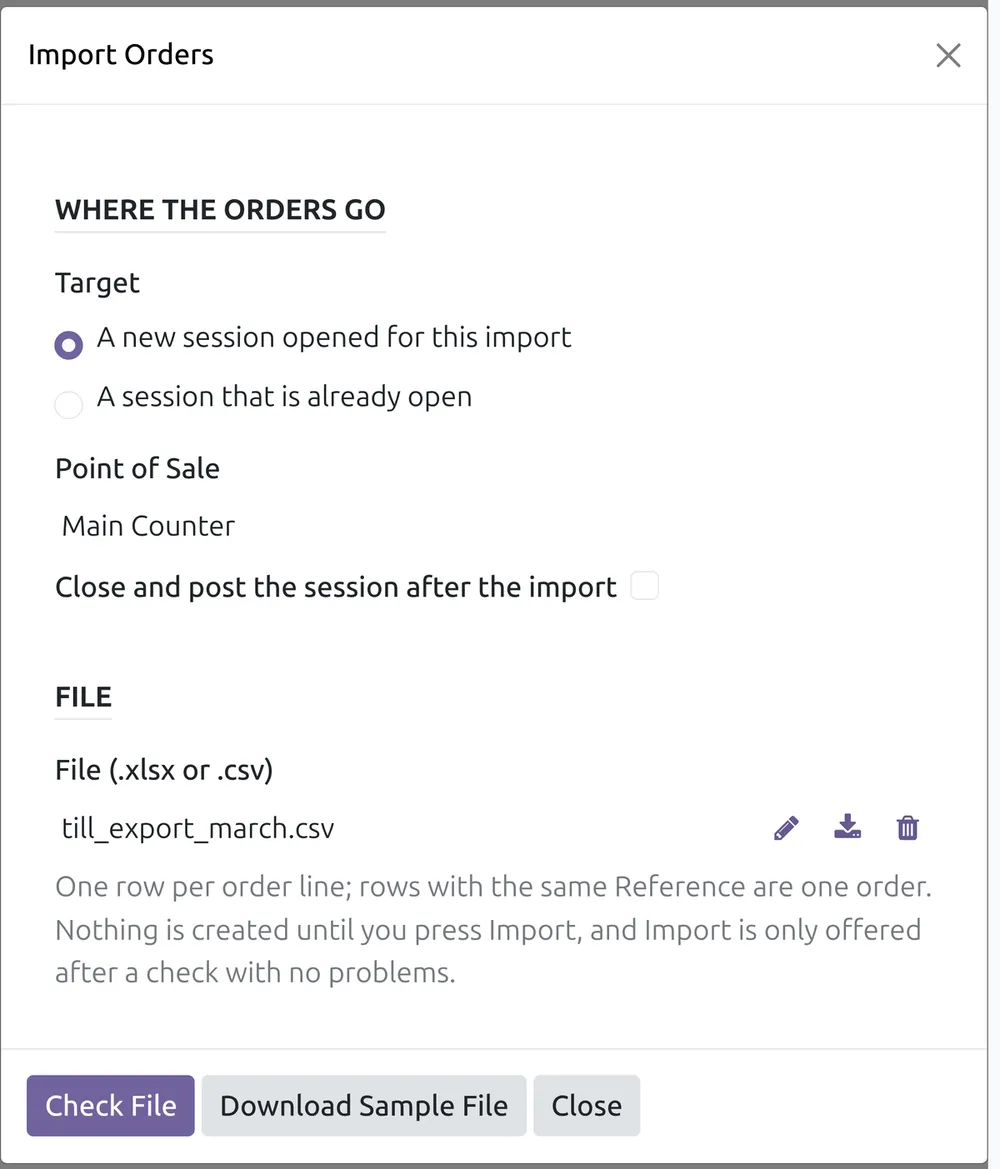
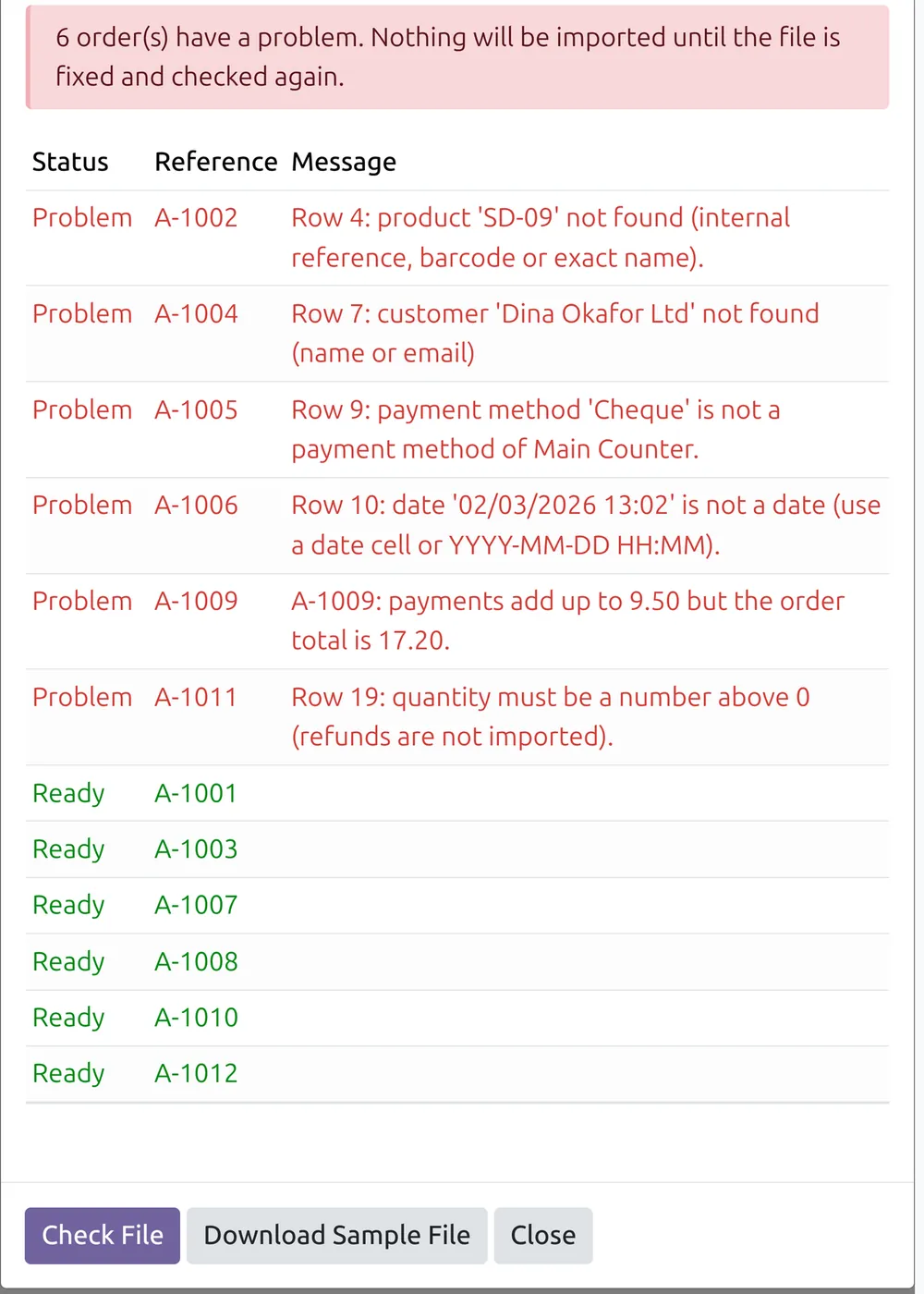
Open Point of Sale > Orders > Import Orders , choose where the orders go (a new session for a point of sale, or a session that is already open), upload the file and press Check File . The check reads the whole file and lists every order with Ready, Skipped or Problem, its date, customer, number of lines, total, payments and a message that names the row. Problems come first. Several problems in one order are all listed. The check creates no record at all: in the test run the counts of orders, sessions, entries, deliveries and stock were identical before and after.
Unknown products and customers, a payment method the point of sale does not have, a quantity of 0 or below (refunds are not imported), a negative price, a discount outside 0 to 100, a date that is not a date or is more than a day ahead, a missing Reference, a payment total that differs from the order total, and a Customer Account payment without a customer are all refused. A sample file with the right columns can be downloaded from the same dialog.
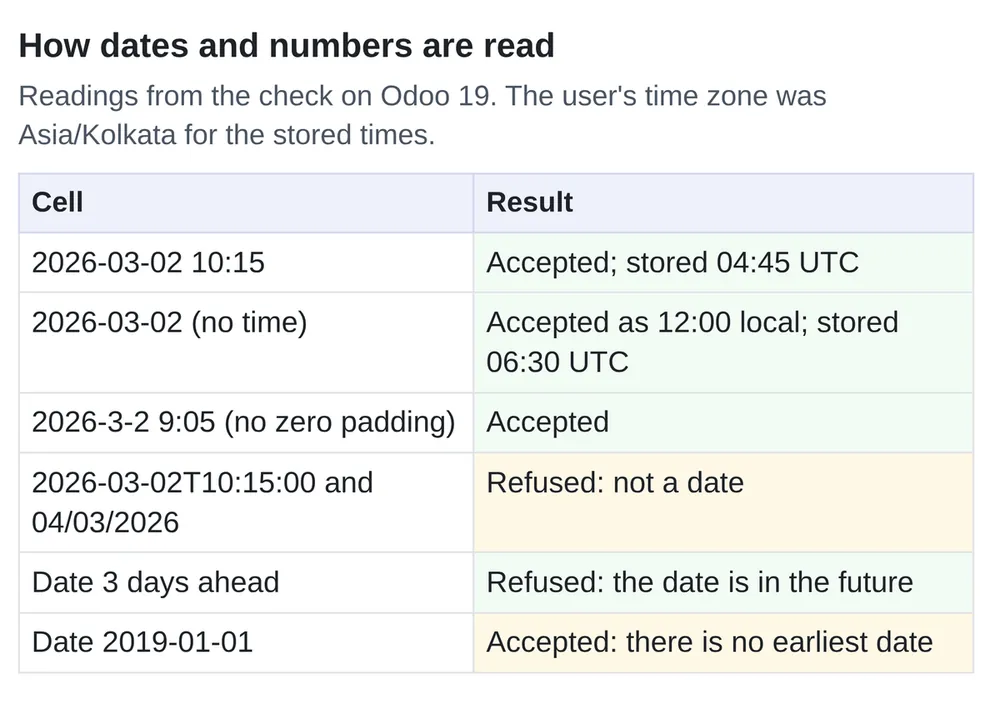
It does not guess: a date written 02/03/2026 is refused, never read as the 2nd of March or the 3rd of February. It does not check that the file came from the right place or that its prices are the prices you charged.
The dialog before the check: where the orders go, the file, and the buttons. Check File is the only way forward.
A check of the same export after six orders were edited to be wrong: each problem names its row, the other six stay Ready, and no Import button is offered.
2 What the file looks like
Use it when you are preparing the export from your old till.Reads .xlsx and .csv
Exports from other tills have their own column names, delimiters and number formats.
One row per order line; rows with the same Reference are one order, wherever they sit in the file. Columns are found by header name, in any order, in any case: Reference, Date, Customer, Product, Quantity, Unit Price, Discount, Payment Method, Payment Amount, with a few alternative names (Qty, Price, SKU, Receipt, Amount Paid). A row carries a line, a payment or both. Date and Customer belong to the order and may be written once.
Product is found by internal reference, then barcode, then exact name, in that order, with capitals mattering. A customer is found by full name or email, in any case. A payment method is found by name among those of the point of sale. A workbook is read from its first sheet only, with the header on the first non-blank row. A CSV file may use commas, semicolons or tabs; a semicolon file reads a comma as the decimal mark. Dates may be real Excel dates or YYYY-MM-DD HH:MM; a date without a time means 12:00, in your own time zone.
A decimal comma in a comma-separated file ("4,00") is refused. A comma counts as a thousands separator only in groups of three, as in 1,200.00. Quantities are kept to Odoo's two decimals.
It does not read a second sheet, a title row above the header (the check says which columns are missing), or a date written day-first. A numeric product code such as 007 typed as a number reaches the app as 7 and is not found; typed as text it is found.
How dates are read, from the check. Generated from real readings, not a live screen.
3 Import
Use it when the check is clean and you want the orders created.Writes paid orders
Importing should do exactly what the check promised, and nothing when a single order is wrong.
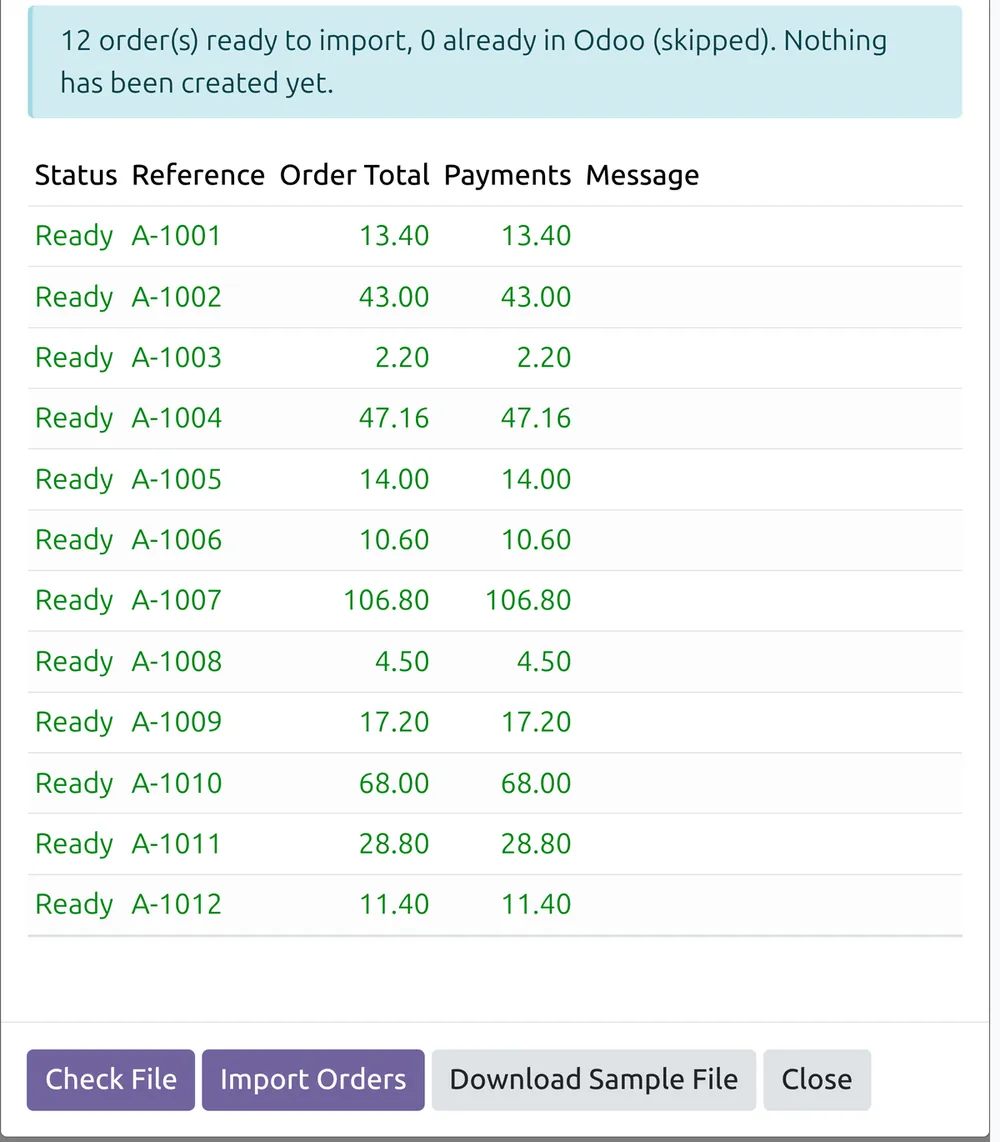
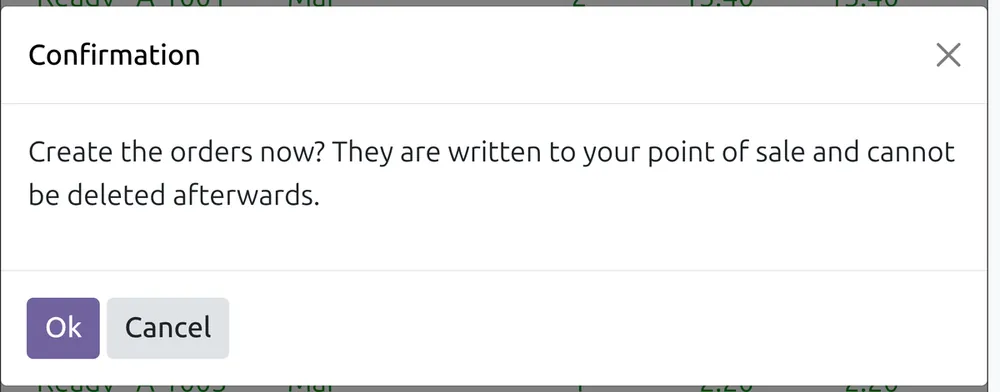
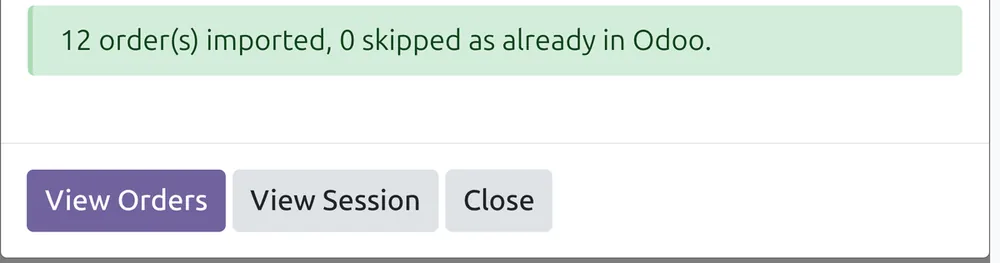
After a check with no problems, Import Orders appears. It asks for confirmation, repeats the whole check, creates the orders oldest first and shows the result with buttons to open the orders and the session. If anything is wrong at that second check, nothing is created. Each order is a Paid POS order dated as in the file with its lines, payments and Reference (kept as the Receipt Number). Odoo names the order from the point of sale and the part of the Reference after the last hyphen. The user who ran the import is the order's user.
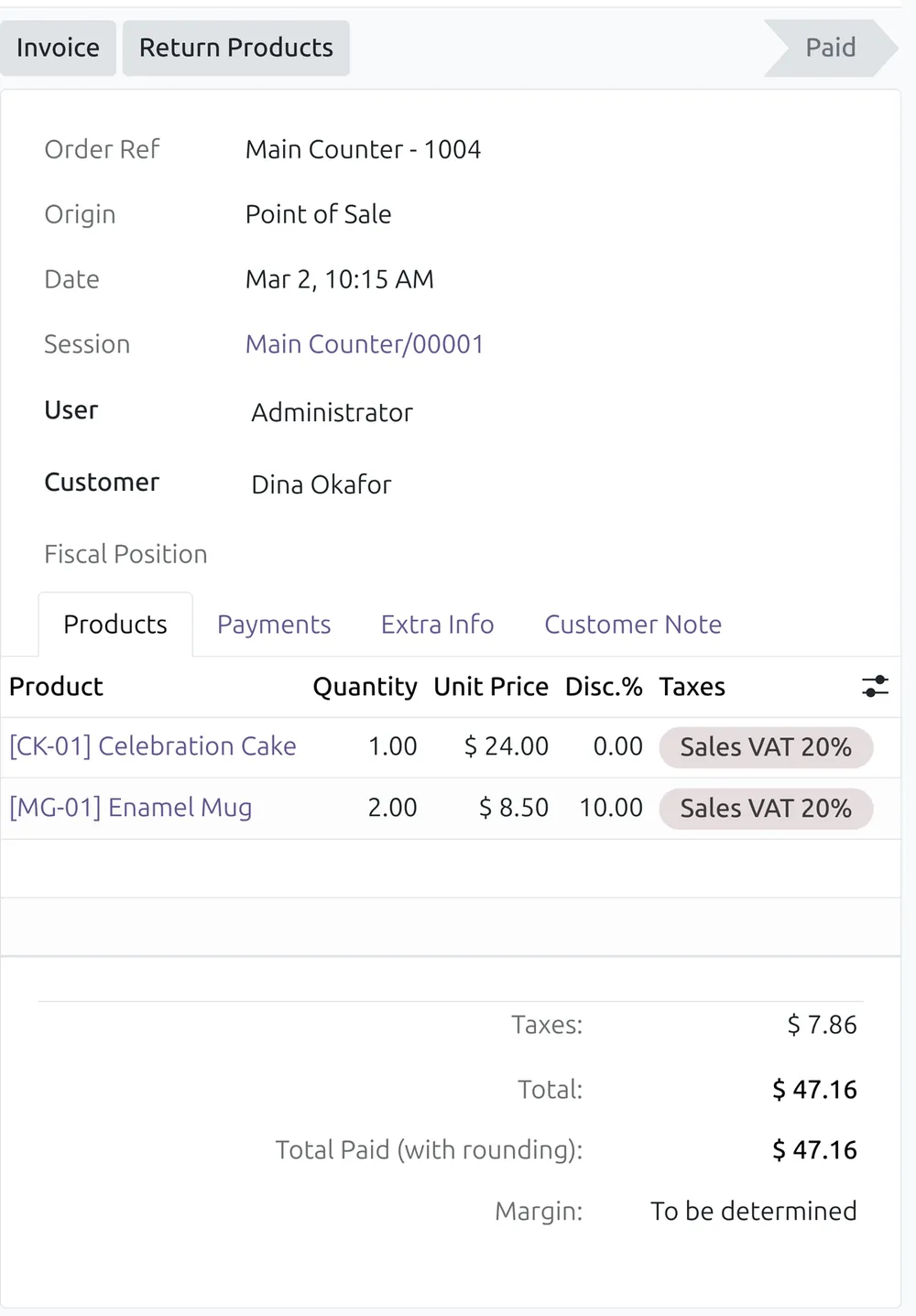
Taxes and totals come from Odoo's own POS calculation, from the product's customer taxes as they are today and the fiscal position (the customer's, when set). The total the check showed is the total created, and it matched an order Odoo made itself. Payments must add up to the total after cash rounding: change is not imported, and an overpayment is refused.
It does not import refunds, negative quantities, tips, invoices, lot or serial numbers, combos or restaurant tables. It does not create a customer, product or payment method: they must exist. Imported paid orders cannot be deleted.
A clean check of a 12-order export: 12 ready, nothing skipped, nothing created yet.
The confirmation before anything is written.
After the import.
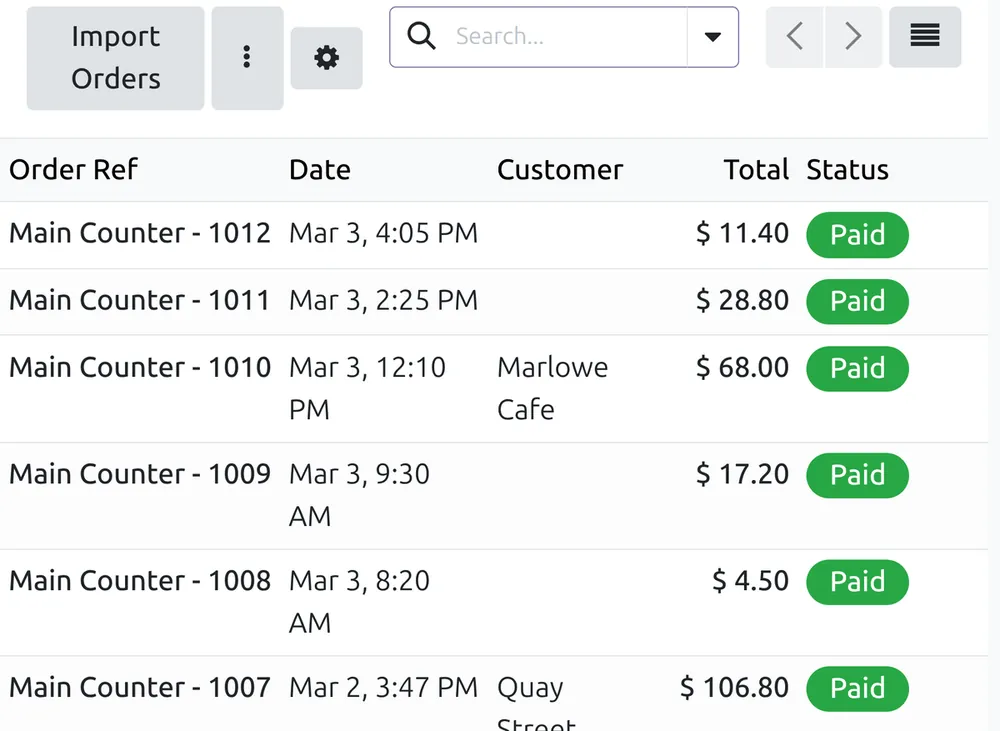
Point of Sale > Orders after the import: the button is in the list header, the orders are Paid and carry their file dates.
One imported order: its file date, customer, lines with the discount, taxes and total.
4 Sessions, stock and accounting
Use it when you need to know what the import does to stock and to the books.Writes a session
Past sales should not move today's stock, and the books should not receive a surprise.
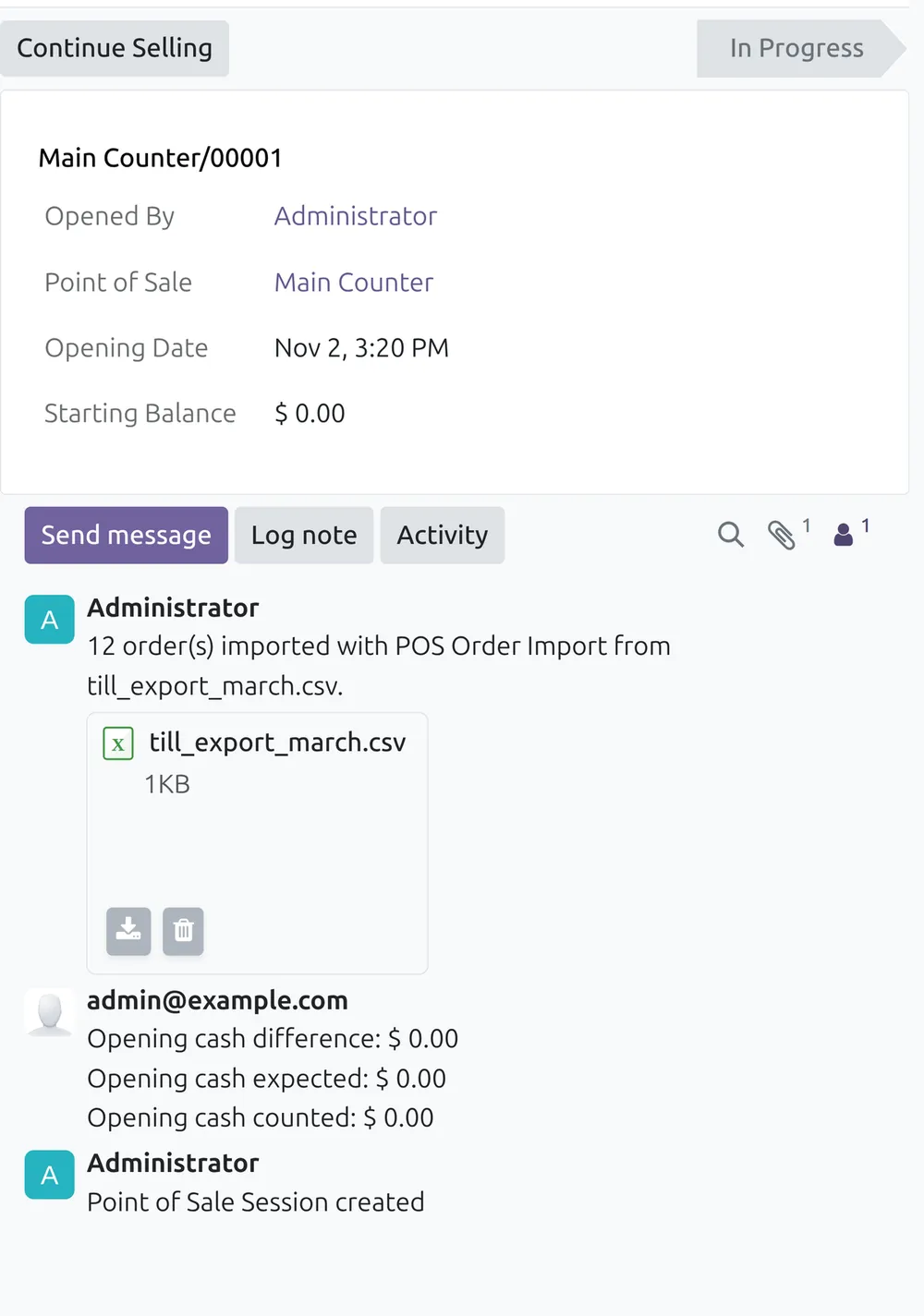
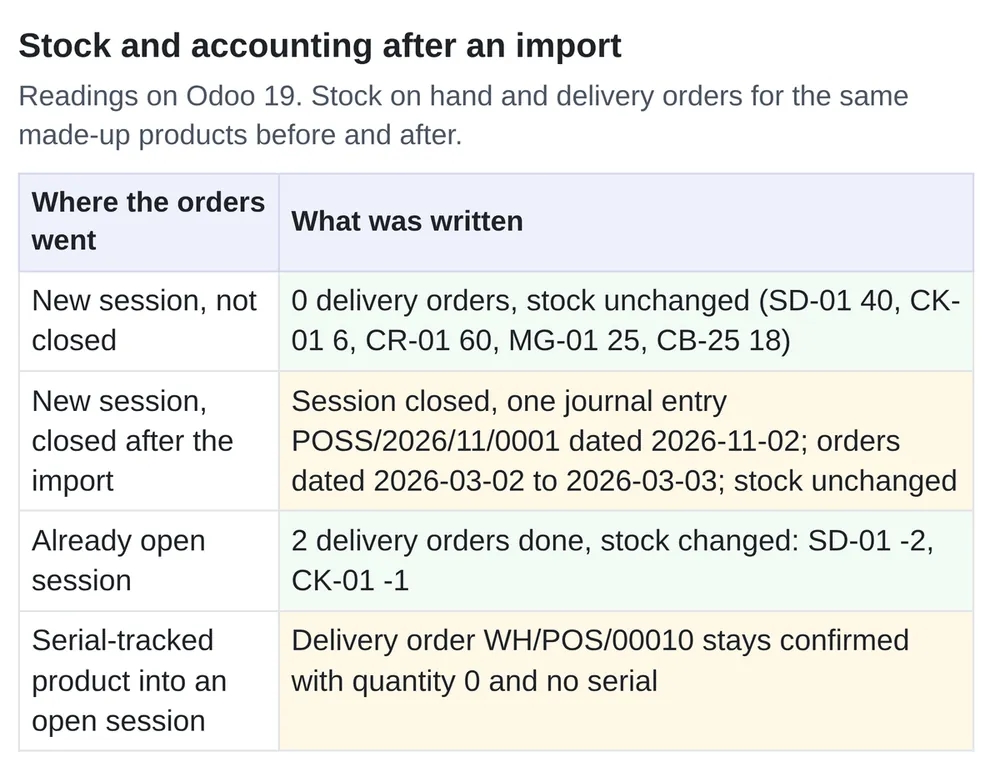
Orders go either into a new session the app opens (the point of sale must have no unclosed session) or into a session that is already open . In a new session no delivery order, stock move or cost is created, and stock on hand is unchanged. The session stays open unless you tick Close and post the session after the import; then Odoo closes it with its normal closing entry. That entry is dated the day you close the session, not the order dates (a test entry was dated 2026-11-02 for orders of 2026-03-02 and 03). In an open session the orders follow Odoo's normal stock rules: a done delivery per order and stock goes down. The file is kept as an attachment on a log note on the session.
A serial-tracked product in an open session leaves a delivery order in Confirmed with quantity 0 and no serial. Closing a session through the app needs no decision from Odoo; if Odoo asks for one, nothing is imported.
The new session after the import: still in progress, with the log note and the file attached.
Stock and accounting readings. Generated from real runs, not a live screen.
5 Importing the same file again
Use it when the import stopped half way in your head, or you are not sure what was loaded.Skips known orders
Re-running a file should never double the sales.
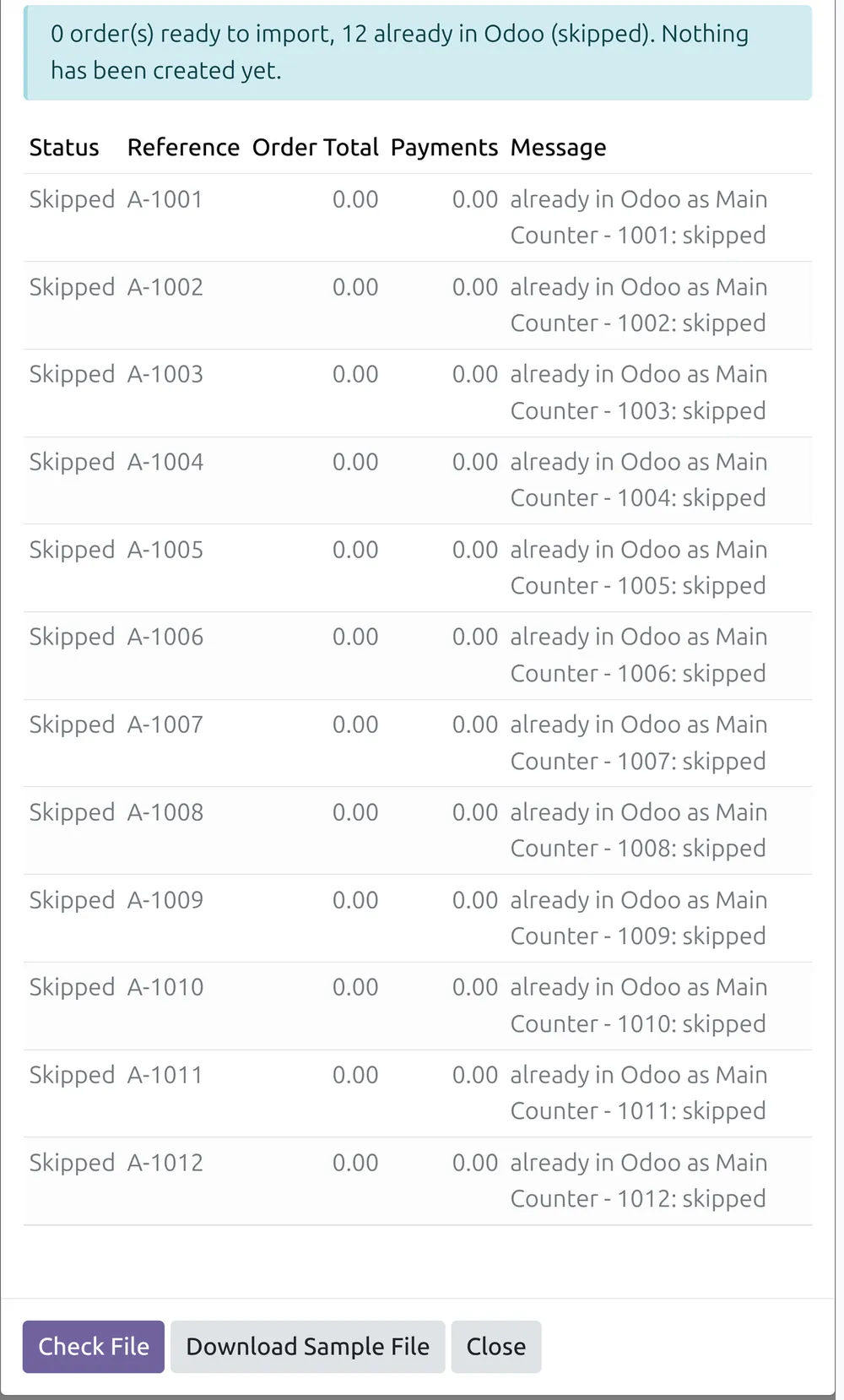
An order whose Reference already exists in the same point of sale is shown as Skipped, with the name of the order it matches, and is not read again. Running the 12-order file a second time gave 12 skipped and an error that there is nothing to import. The same Reference in another point of sale is not a duplicate. Skipped means untouched: a corrected file with the same Reference does not update the order.
The match is on the exact text of the Reference: r-1 is not R-1, and spaces around it are ignored. Rows with the same Reference inside one file are one order, so a file with every row pasted twice becomes orders with doubled lines and payments, and the check shows them Ready with the doubled total.
It does not repair or replace an order that is already in. Two References that end alike, such as A-1001 and B-1001, get the same order name.
The same file checked again after the import: everything is Skipped.
6 Big files
Use it when your history runs to thousands of orders.Measured
An import runs in one request, so a large file meets Odoo's request time limit.
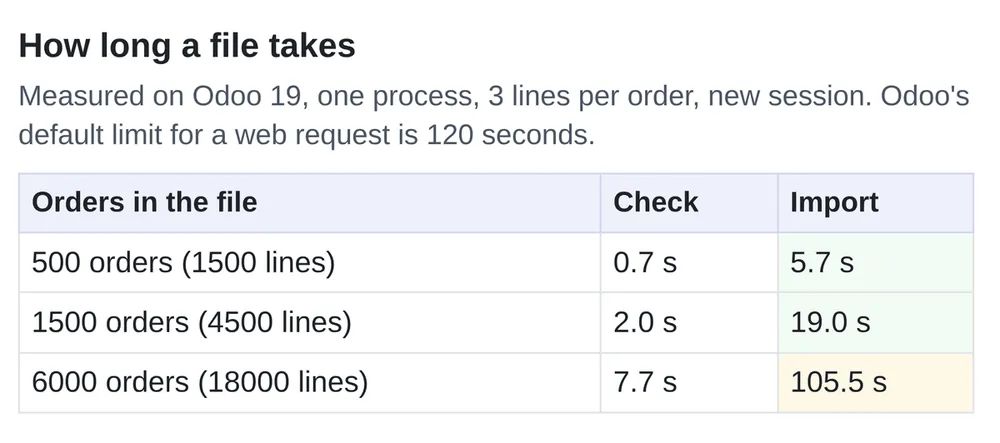
On the test machine a check of 1,500 orders took 2 seconds and the import 19 seconds; 6,000 orders took 8 and 105 seconds, close to Odoo's default 120-second limit for a web request. Split files of thousands of orders. If the request is cut off, the import is rolled back as a whole; this was not provoked in the test.
It does not import in the background or in parts.
Timings from the test run. Generated from real readings, not a live screen.
Screenshots
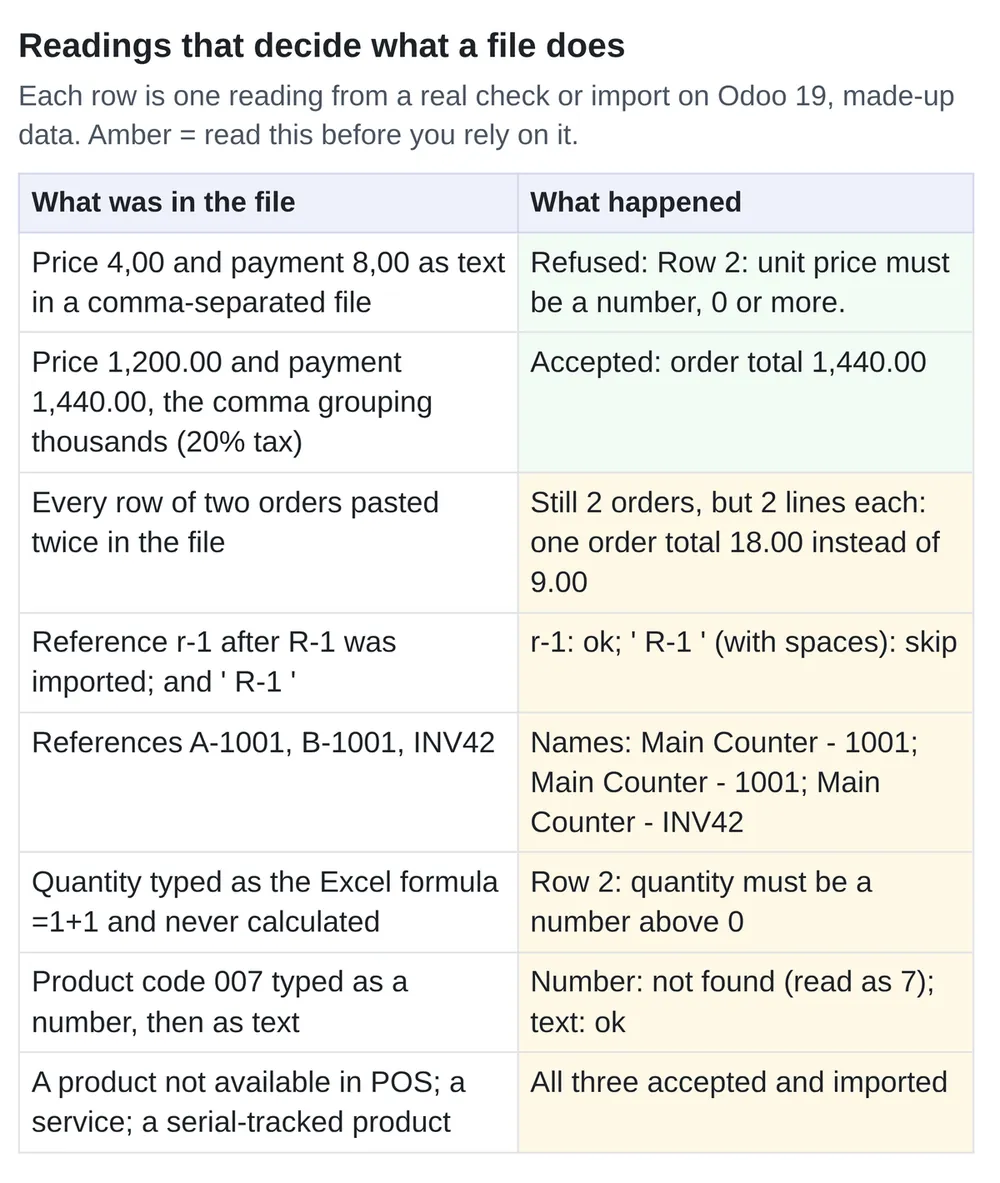
What it does not do
- This is the part to read before pressing Import Orders. Each line was tested.
- Eight readings from the test run, rendered as a table. Generated from real checks and imports on made-up data, not a live screen.
- These were measured in the test run or read from the code. None is fixed in this version except the decimal comma.
Questions buyers ask
Does it create anything when I press Check File?
No. A check reads the file and reports; the test counted orders, sessions, entries, deliveries and stock before and after and nothing changed.
Which files can it read?
An .xlsx workbook (first sheet) or a .csv with commas, semicolons or tabs. Columns are found by header name in any order.
Does it move stock?
Not in a new session. In an already open session the orders follow Odoo's normal stock rules, which on Odoo 20 need Point of Sale Stock.
Can I undo an import?
No. Imported orders are Paid and cannot be deleted. Check first and try a test database.
What happens if I import the same file twice?
Orders whose Reference is already in that point of sale are skipped and untouched. The match is case-sensitive.
Who can use it?
Users in the Point of Sale Administrator group.
Are refunds, invoices or lots imported?
No. Refunds, negative quantities, tips, invoices, lot or serial numbers, combos and restaurant tables are not imported.
How big a file can it take?
About 6,000 orders took 105 seconds, close to Odoo's default 120-second request limit. Split larger files.
Requirements
- Odoo 19.0 or 20.0. The App Store sells each version separately, so buy the one that matches your database.
- Odoo.sh or On-Premise only. Third-party apps cannot be installed on Odoo Online (SaaS) databases. Check your hosting before buying.
- Module
mh_pos_order_import, version 19.0.1.0.3, licensed OPL-1.