POS Line Pricelist
Set a different pricelist for one POS order line: its price is read from that pricelist and its name shows on the line and the receipt
Request a live demo · Odoo.sh or On-Premise only, not Odoo Online (SaaS).
8 of 8
lines of a real till session priced from a line pricelist equal Odoo's own pricelist price for that product, pricelist and quantity (made-up data)
18
readings of 6 products under 3 pricelists, taken at the till and checked against the server (section 2)
22
tests in the run, none failing, including browser tests of the till (11 added in this release)
0
network calls, scheduled actions, or changes to taxes, payments and the order's own pricelist
3
server-side limits recorded and pinned by tests, not fixed (section 8)
Not
checked: Enterprise, Odoo.sh, taxes, lot products, real combos and loyalty rewards, restaurant and kiosk (see Before you install)
In Odoo's Point of Sale the pricelist belongs to the whole order, so a counter that sells trade and retail prices in one basket types the trade prices by hand. With this app the cashier selects a line, presses Line Pricelist and picks one of the pricelists allowed for that point of sale; the line is priced from it and says so. This page walks through it with screenshots of a real cashier session on an Odoo 19 database holding a made-up building-supply trade counter, with readings from the till and the database, and with the limits found when it was tested.
A price is money, so this page also says what the app changes, what it keeps, and what it does not check.
Install it and Settings gain Line Pricelists (Allowed and Managers only), the Actions dialog of the product screen gains a Line Pricelist button, the line shows the pricelist's name, and Point of Sale > Reporting gains Line Pricelists . It needs Odoo's own Point of Sale and nothing else.
How it works
1. Allow pricelists on a point of sale
Use it when you run a trade counter next to retail.Writes settings
Odoo has no way to say which pricelists a cashier may use on a single line.
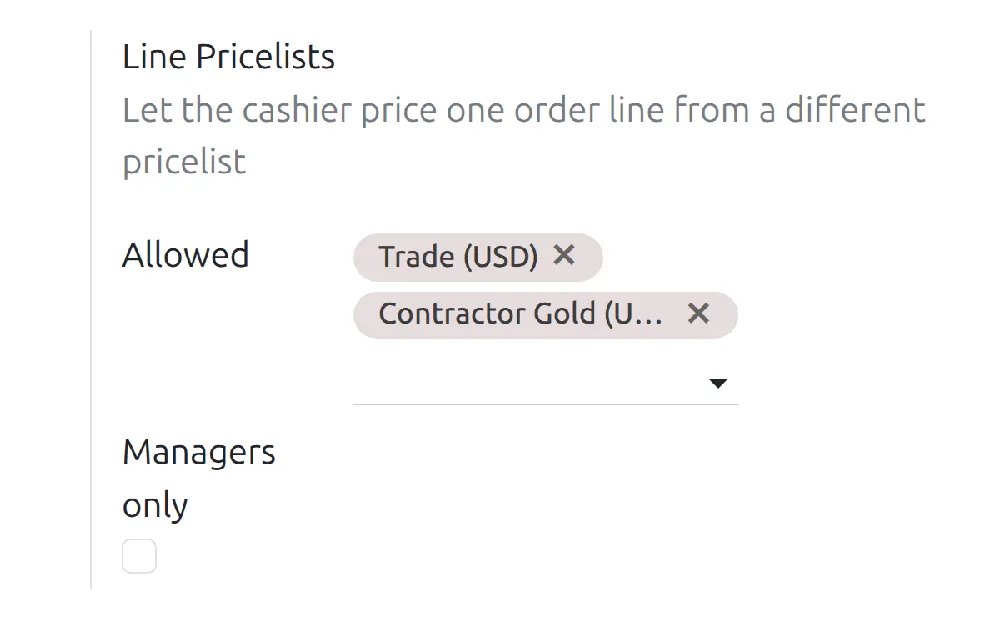
Open Point of Sale > Configuration > Settings, pick the point of sale and, under Pricing, the new block Line Pricelists shows when Pricelists are on. Allowed takes the pricelists a cashier may apply to one line; they must be among the pricelists available in that point of sale (a pricelist of another currency cannot be made available at all, Odoo's own check). Managers only offers the button to cashiers with the manager role only. With Allowed empty the button is not offered. In the demo Trade and Contractor Gold are allowed; Staff is available for whole orders but not on a line.
The list is a plain field of the point of sale, so whoever may write the point of sale may change it (section 8). Taking a pricelist off the available list is refused while it is an allowed line pricelist.
The block under Pricing: two allowed pricelists, Managers only off.
The button sits in the Actions dialog next to the order's own pricelist button.
2. Pick a pricelist for one line
Use it when one basket holds trade and retail prices.Writes on the order line
Typing trade prices by hand is slow and every typed price is a chance to give margin away.
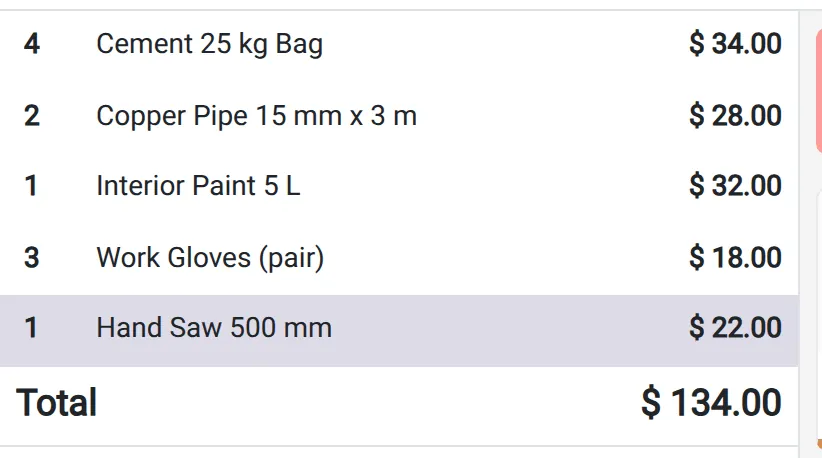
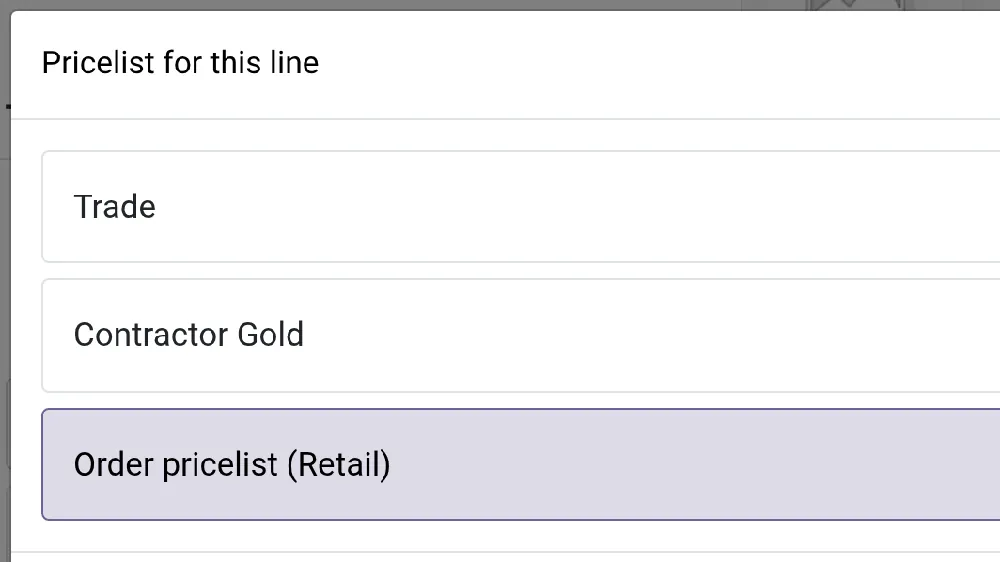
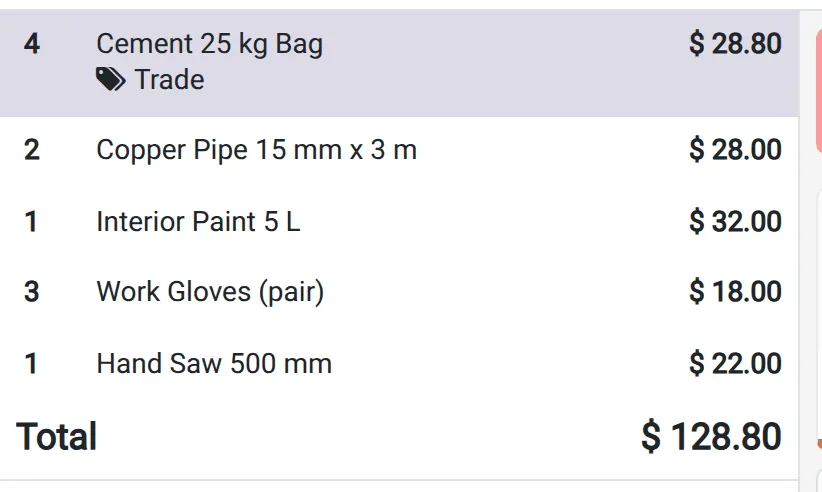
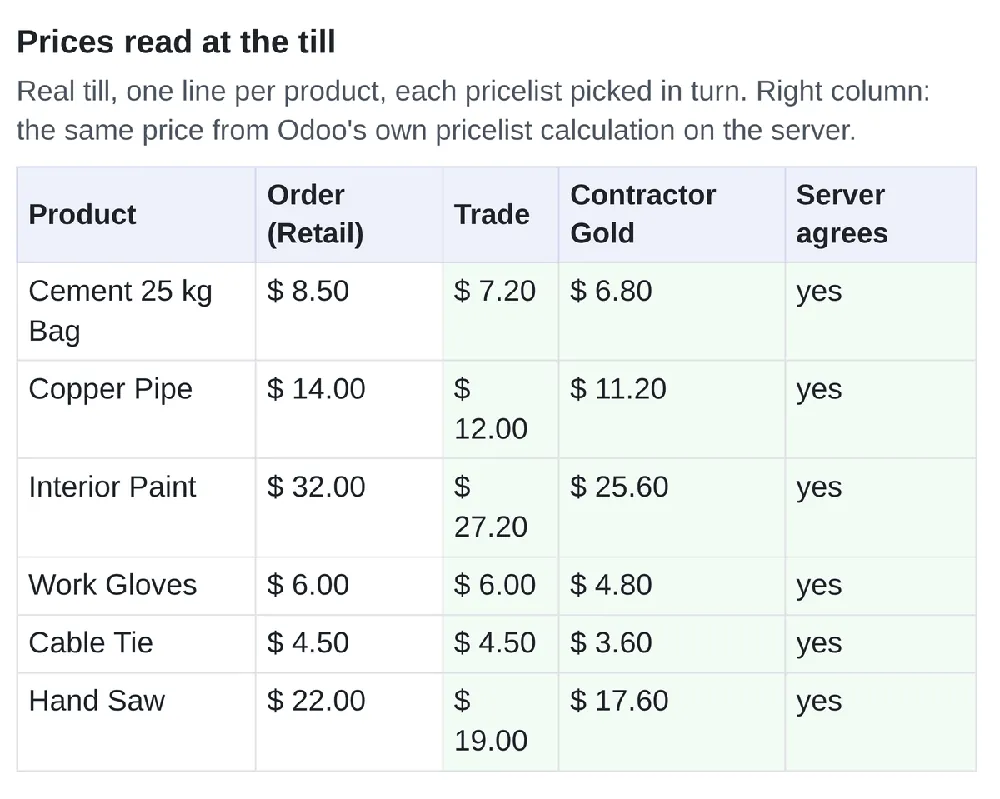
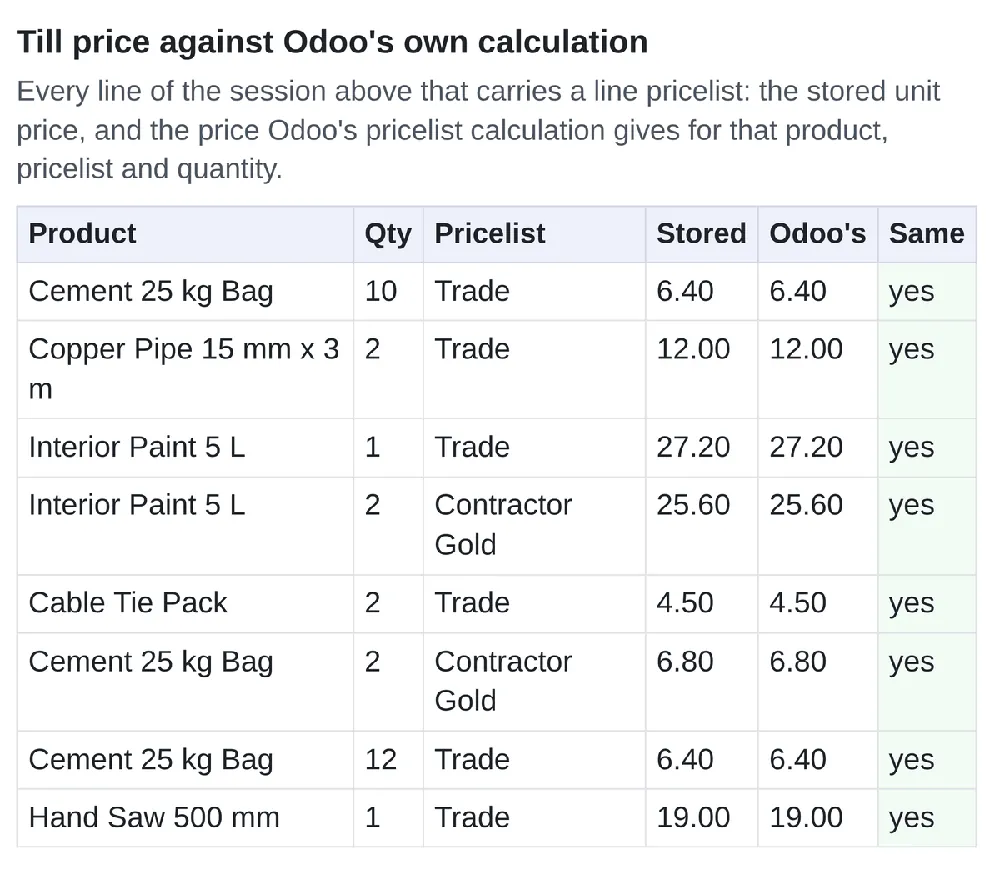
In the real session the order started with five lines at the order's own pricelist, Retail. Select the cement line, open Actions, press Line Pricelist: the choices are the allowed pricelists and Order pricelist (Retail) , the current one marked. Staff is not offered. Picking Trade priced the 4 bags at 7.20 each, and the line says Trade underneath. The price is Odoo's own pricelist calculation: all 18 readings of 6 products under Retail, Trade and Contractor Gold taken at the till equal the server's price, and so did all 8 lines of the session. A pricelist with no rule for a product gives its list price and the line still carries the name (gloves and cable ties on Trade read 6.00 and 4.50).
It does not create pricelists or rules and does not pick one for the cashier.
Before: everything on the order's pricelist.
The choices on a line. Staff, which is available for orders only, is not in the list.
After: 4 bags at 7.20 under Trade.
Real till readings of each product under each pricelist, next to the server's price. Generated from the readings, not a live screen.
3. Quantity breaks follow the line
Use it when the trade price drops with the quantity.Writes on the order line
A rule that depends on quantity should apply as soon as the line reaches it.
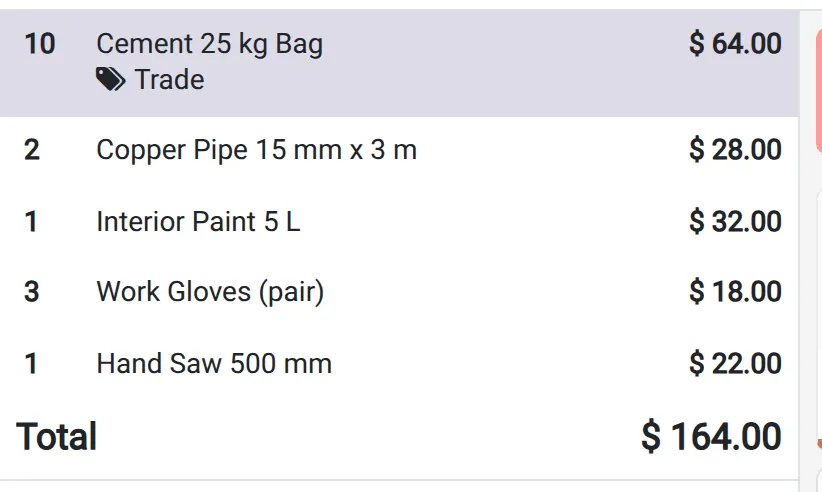
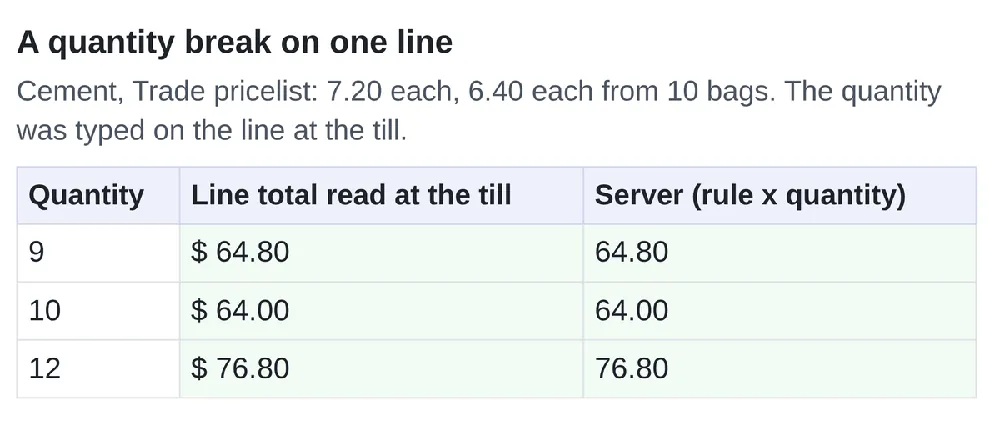
Changing the quantity prices the line again from the same pricelist. On Trade, cement is 7.20 each and 6.40 from 10 bags: typed at the till, 9 bags read 64.80, 10 read 64.00 and 12 read 76.80, matching the server. The break is read from the quantity of that one line.
It does not add up two lines of the same product to reach a break: a new line of a product does not merge into a line that has its own pricelist.
Typing 10 on the Trade line: 6.40 each.
Three quantities against the server. Generated from the readings, not a live screen.
4. The order and the customer leave the line alone
Use it when the customer or the order changes after a line was priced.Writes on the order line
Changing the order's pricelist usually reprices every line.
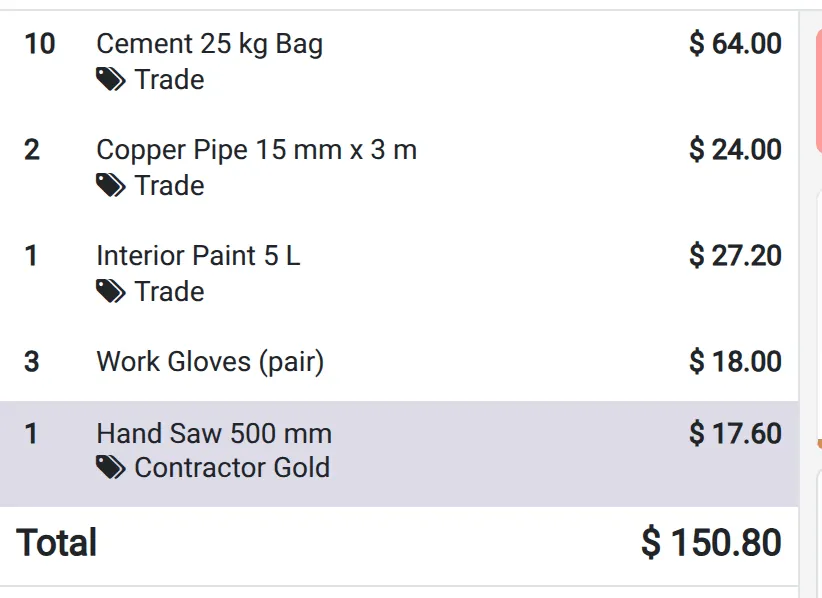
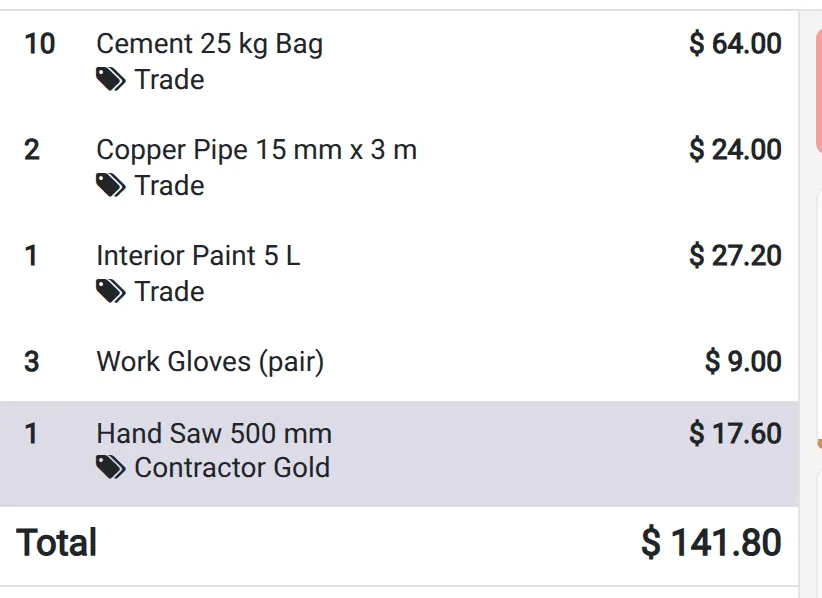
After the lines were priced the order was moved to Staff (50%). The gloves, still on the order's pricelist, dropped from 6.00 to 3.00 each; the Trade and Contractor Gold lines kept their prices. The same holds when a customer with a pricelist of their own is chosen (browser test). Picking Order pricelist on a line hands it back: all six products returned to their Retail price in the readings.
A line given a pricelist stays on it until the cashier changes it.
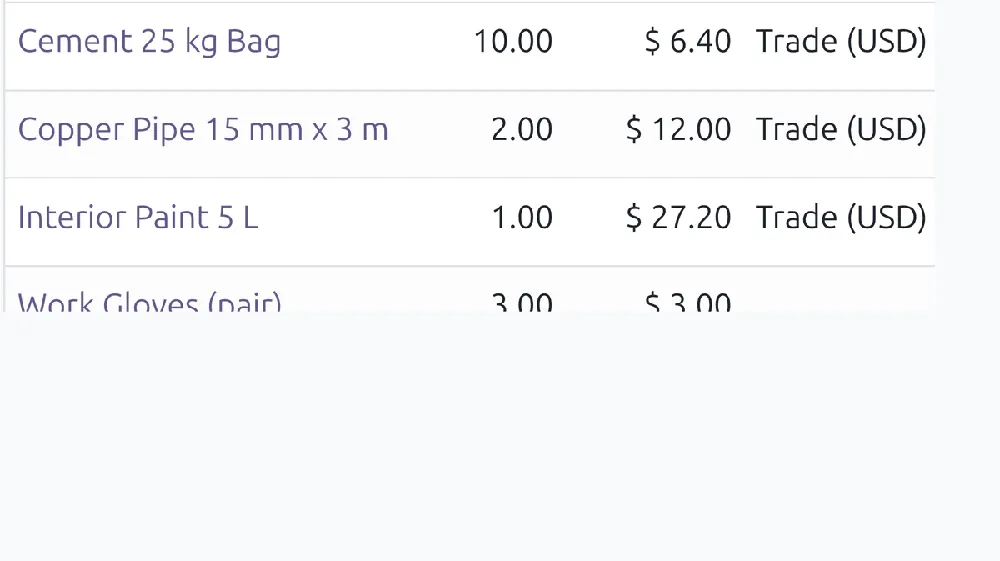
Four lines on a line pricelist, one on the order's.
After the order moves to Staff: only the gloves line changed.
5. A typed price wins; some lines are refused
Use it when the cashier needs a one-off price.Writes on the order line
A one-off price has to be possible, and some lines must not take a pricelist.
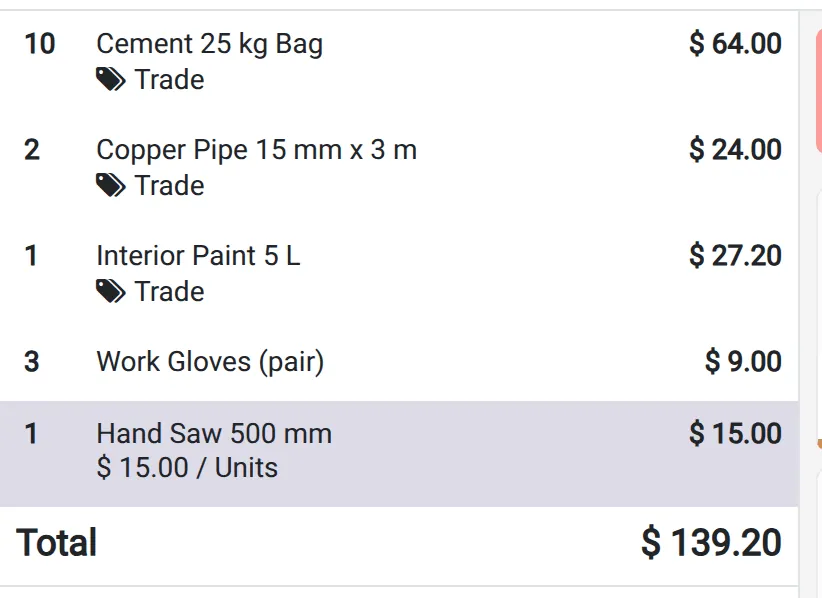
A price typed on the line replaces its line pricelist: the name disappears and the typed price stays (hand saw 17.60 on Contractor Gold, then 15.00 typed). Choosing a pricelist again replaces the typed price. The button is disabled for a refund line (negative quantity), a line with a negative price, a tip, a reward line and a combo parent or child; the tip, refund and negative price were driven through the till, the reward and combo cases were made by setting the till's flags in code.
It does not refuse a typed price; whether a cashier may type one is Odoo's Price Control.
After typing 15 on the saw line: the Contractor Gold label is gone.
6. On the receipt
Use it when the customer should see which price list applied.Writes nothing
A trade price on a receipt with no explanation raises questions.
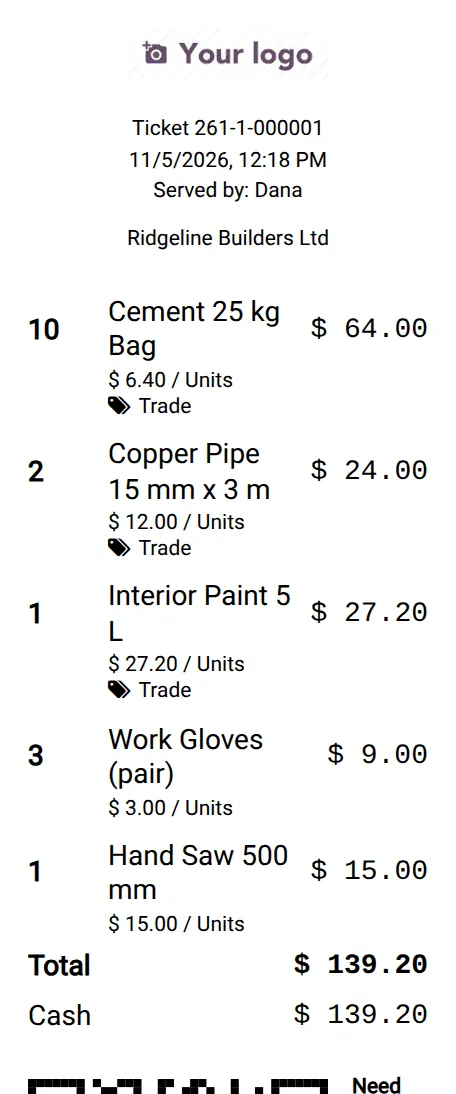
The receipt names the pricelist under each line that has one and only there. In the real session the cement, copper pipe and paint lines read Trade and the gloves line has no name.
The kitchen printer and the customer display were not looked at.
The receipt of the real session.
7. In the back office
Use it when you check which lines were priced this way.Reads orders
Which lines were priced from a line pricelist is invisible afterwards.
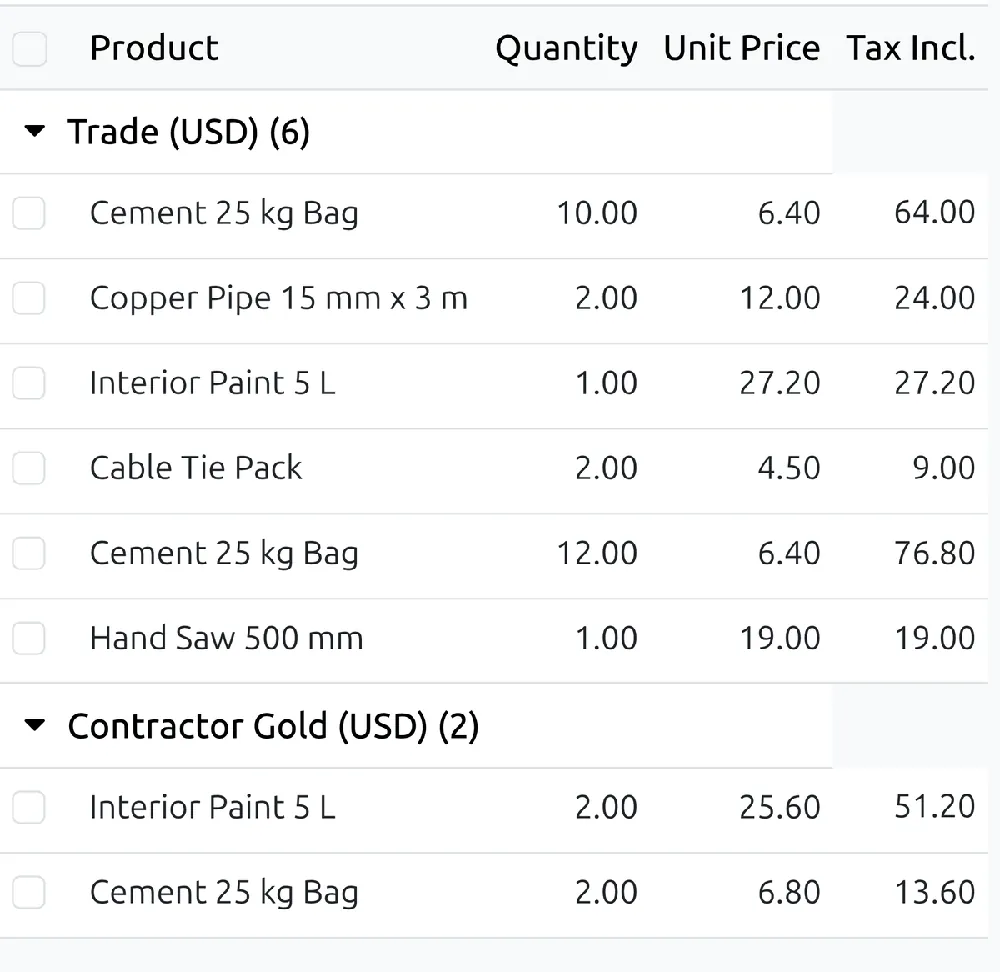
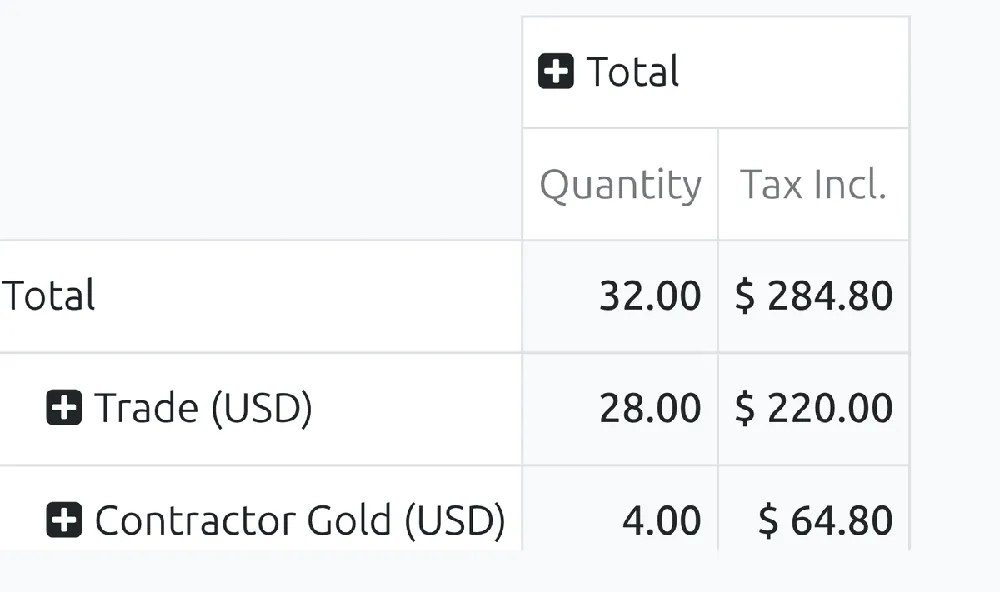
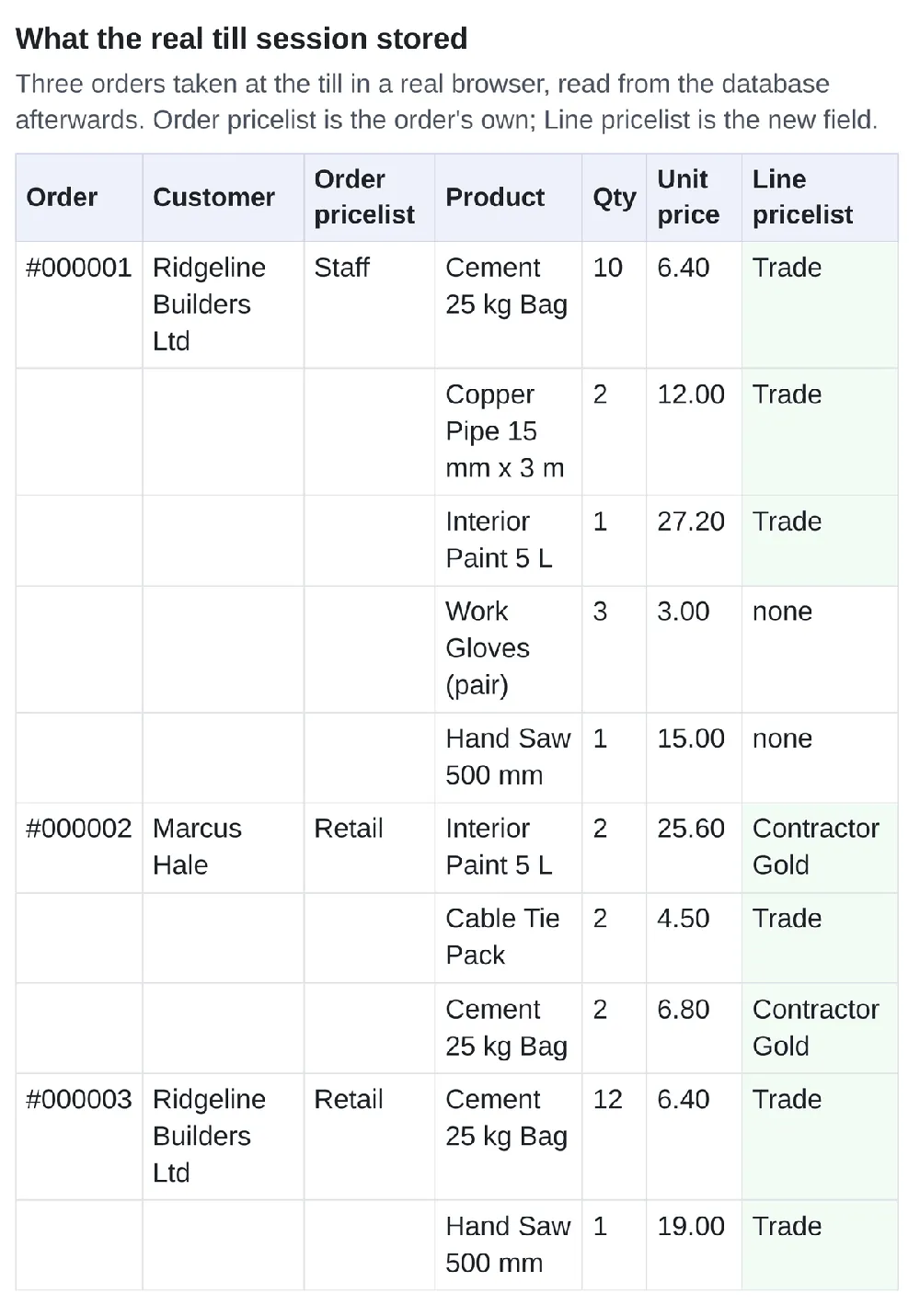
The order form's Products tab has a Line Pricelist column, and Point of Sale > Reporting > Line Pricelists lists and groups the lines that were priced this way (list and pivot, grouped by pricelist). The menu is for the Point of Sale Administrator group. The order keeps its own pricelist: order 1 of the session is on Staff with its lines on Trade.
The report counts lines, not rules: the line does not record which rule gave its price.
The order form's lines.
The report, grouped by Line Pricelist.
The pivot: quantity and total per pricelist.
Read from the database after the session. Generated from the readings, not a live screen.
The 8 lines, stored price against Odoo's own calculation. Generated from the readings, not a live screen.
8. Odd cases and limits
Use it when you know what the app leaves alone.Nothing written
A feature that touches a price should state where it stops.
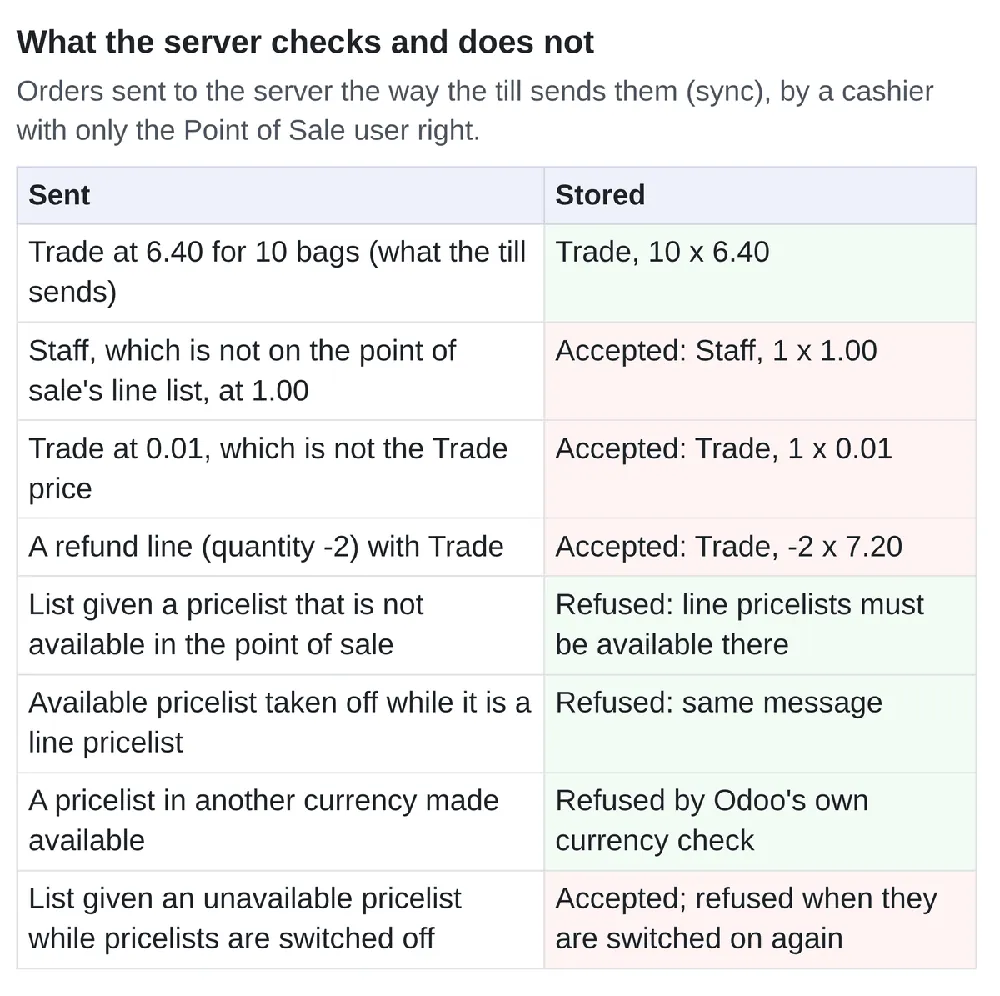
Eight cases from the test run. Generated from the readings, not a live screen.
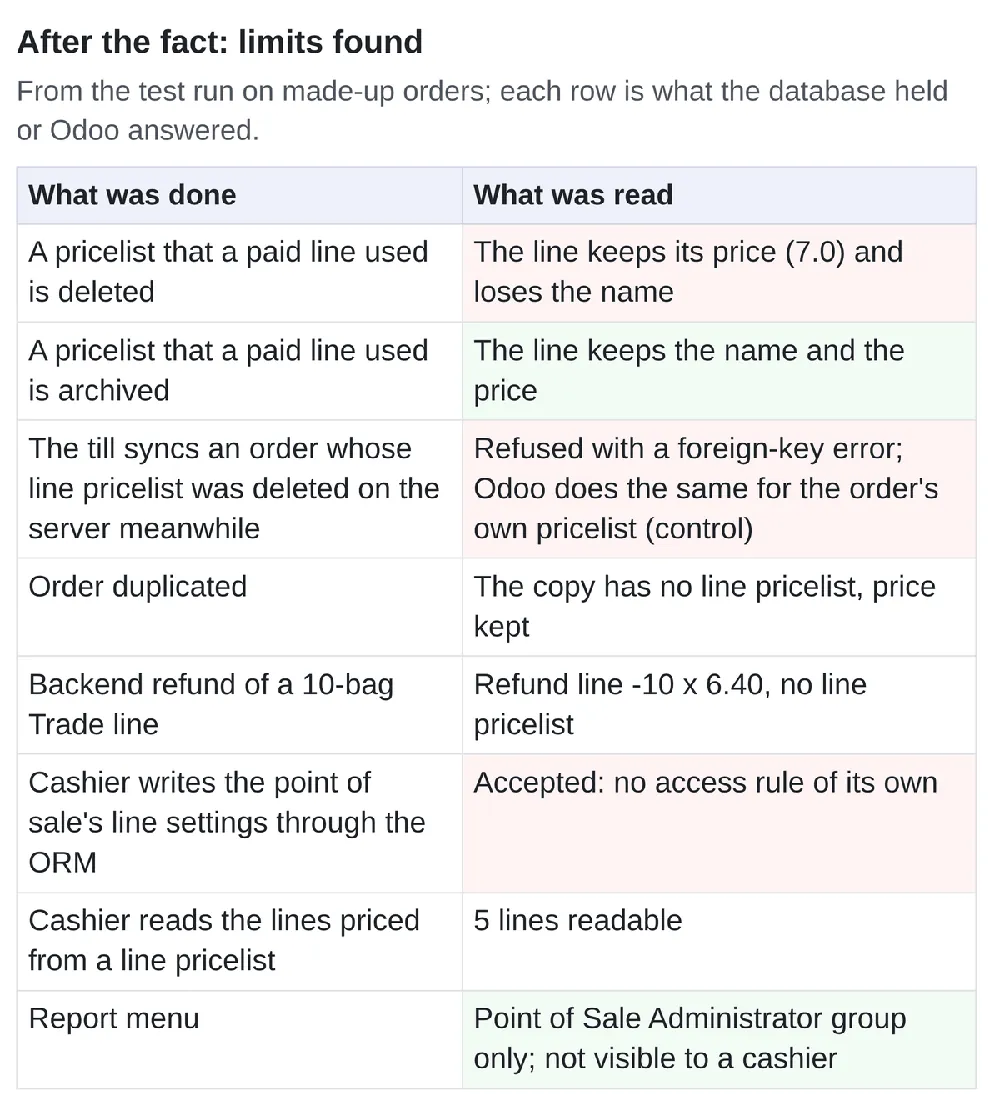
Eight readings from the test run. Generated from the readings, not a live screen.
Screenshots
What it does not do
- This is the part to read before buying. Each line was tested on a throwaway Odoo 19 Community database.
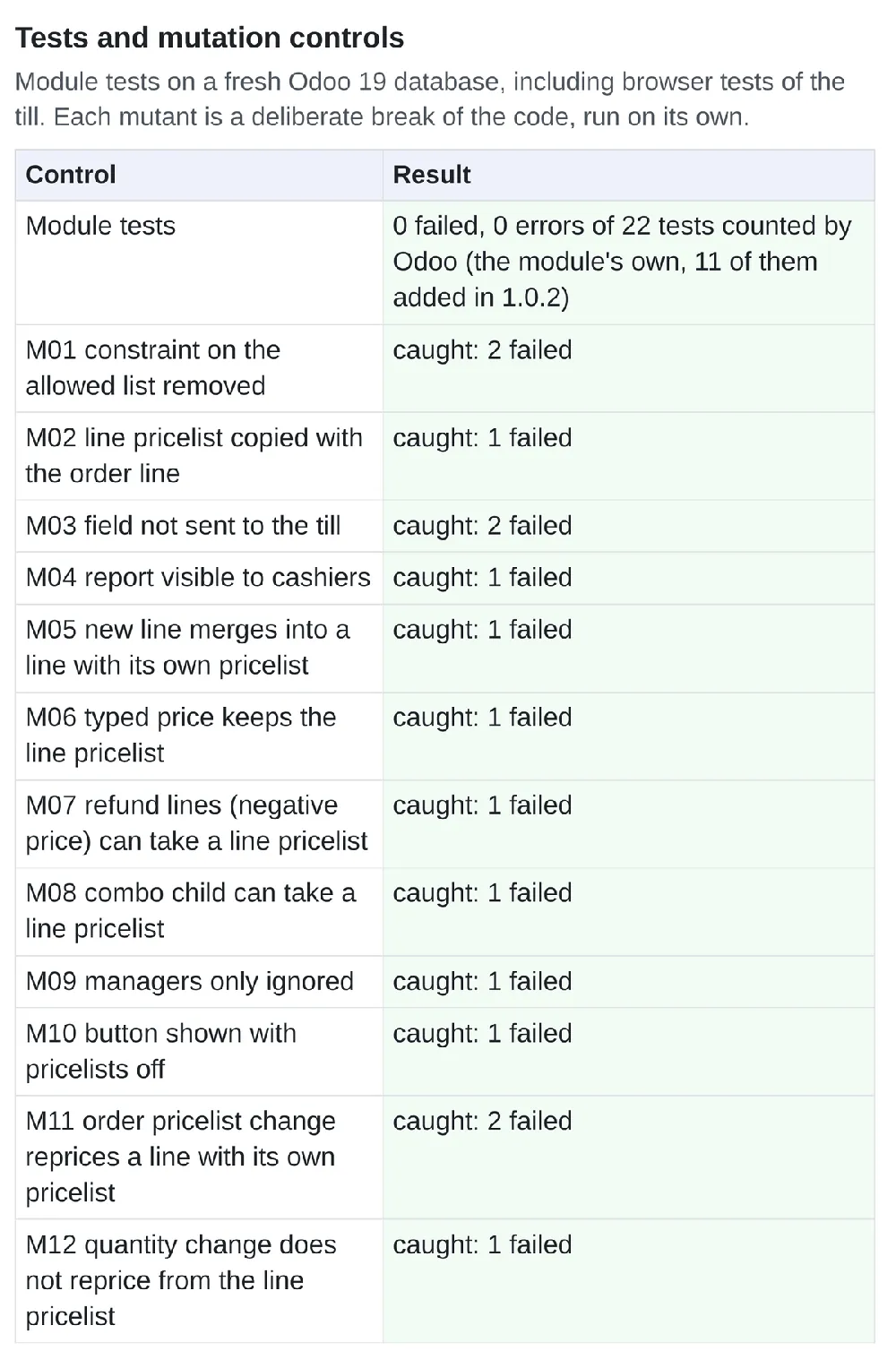
- The test run and the mutation control, rendered as a table. Generated from the readings, not a live screen.
Questions buyers ask
Does it change taxes, payments or the order's pricelist?
No. Only the unit price of a line that was given its own pricelist follows that pricelist.
What does the cashier see?
A Line Pricelist button in the Actions dialog. Pressing it lists the allowed pricelists and the order's own pricelist; the line then shows the pricelist's name.
Is the price the pricelist's own price?
Yes: it is read with the till's own pricelist calculation. All 8 lines of the real session equal Odoo's server-side price for that product, pricelist and quantity.
What happens when the quantity changes?
The line is priced again from the same pricelist, so a quantity break applies.
Can a cashier use a pricelist that is not on the allowed list?
The till does not offer it, but the server does not check: a sync with another pricelist and another price was accepted from a plain cashier.
Does it work on refunds, tips, rewards, discounts and combos?
The button is disabled for those lines at the till. The reward and combo cases were tested by setting flags in code, not with a real loyalty program or combo product.
Does it work on Odoo Online or Enterprise?
Not on Odoo Online (SaaS): third-party apps cannot be installed there. Enterprise and Odoo.sh were not tested.
Is anything sent outside Odoo?
No. The app makes no network call and has no scheduled action.
Requirements
- Odoo 19.0 or 20.0. The App Store sells each version separately, so buy the one that matches your database.
- Odoo.sh or On-Premise only. Third-party apps cannot be installed on Odoo Online (SaaS) databases. Check your hosting before buying.
- Module
mh_pos_line_pricelist, version 19.0.1.0.1, licensed OPL-1.