POS Purchase Order
Create a purchase order or RFQ from the POS cart: pick the vendor, order what the till is short of, and stay in the Point of Sale.
Request a live demo · Odoo.sh or On-Premise only, not Odoo Online (SaaS).
Free
App Store price, per Odoo version
19 · 20
Odoo versions, each sold on its own page
Odoo.sh
or On-Premise; not Odoo Online (SaaS)
1.0.1
version of mh_pos_purchase_order
The shelf is running short and the cashier has to leave the till, open the Purchase app and type the products again. Odoo's Point of Sale has no purchase button.
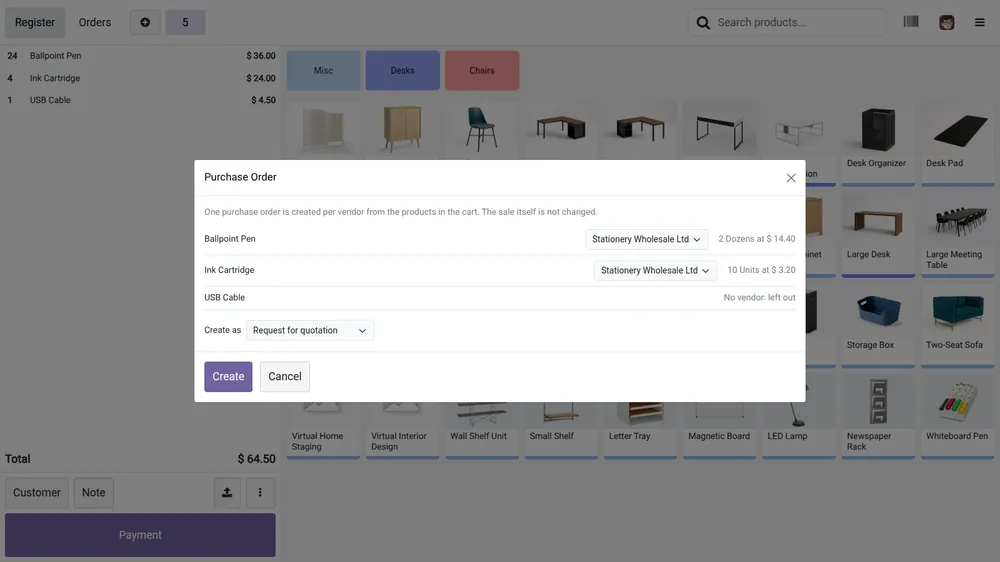
This app adds a Purchase Order button to the Point of Sale product screen (in the three-dot menu beside Customer and Note). It reads the products in the current cart and, for each one, finds the vendors listed on the product's Purchase tab. A popup shows a vendor for every line, the quantity, the unit and the price from that vendor line. Press Create and Odoo creates one request for quotation per vendor, or confirmed purchase orders if you choose that.
How it works
Vendor from the product
Each cart line gets the product's first vendor line by default. The dropdown lists only the vendors on that product's Purchase tab, so a line cannot be ordered from a vendor the product does not have. Choose Do not order to leave a line out.
Quantity, unit and price from the vendor line
The quantity is the cart quantity in the vendor line's unit (24 pieces become 2 dozen when the vendor sells by the dozen). Below the vendor's minimum quantity it is raised to that minimum. The price on the order line is the vendor line's price.
One order per vendor
Lines for the same vendor go on one purchase order, so three vendors give three orders. Choose Request for quotation or Confirmed purchase order. The new order's source document shows the shop and the receipt number.
The sale is not touched
Nothing is added to the POS order, no sale order is created and the cart stays as it was, so the customer in front of the till is not affected.
Checked on the server
The server refuses anyone who is not a Purchase user, and anyone who cannot open that Point of Sale or does not belong to its company. The purchase order is created as the cashier, in the shop's company, under Odoo's own access rules; it is not created with elevated rights.
Who it is for
Retail counters that restock from the till: a clerk sees the last bottle go and reorders it before the customer has left, and the buyer finds the RFQ waiting.
Screenshots
What it does not do
- A product with no vendor line is shown as No vendor and left out: the app never guesses a vendor. A vendor line that has expired or not started yet, belongs to another company, is for a different variant, belongs to an archived vendor, or sits on a product that cannot be purchased or is a service is not offered. It needs a connection to the server: offline it creates nothing and tells the cashier, and nothing is queued for later. Every press creates new purchase orders; it does not add to an existing one, and it does not link the order to the POS session (no smart button) or print anything. If your purchase settings require approval, a confirmed order may stop at To Approve, as Odoo decides. Some paid apps also link the order to the POS session; this one does not. Tested on a retail Point of Sale, not on restaurant floors.
Requirements
- Odoo 19.0 or 20.0. The App Store sells each version separately, so buy the one that matches your database.
- Odoo.sh or On-Premise only. Third-party apps cannot be installed on Odoo Online (SaaS) databases. Check your hosting before buying.
- Odoo 19 and 20, Community or Enterprise; installs Odoo's own Point of Sale and Purchase apps (point_of_sale, purchase). Third-party apps install on Odoo.sh or On-Premise only - they cannot be installed on Odoo Online (SaaS).
- Module
mh_pos_purchase_order, version 19.0.1.0.1, licensed OPL-1.