Product Tabs
Write shipping, returns or care text once and show it as a tab on the product pages it belongs to
Request a live demo · Odoo.sh or On-Premise only, not Odoo Online (SaaS).
40 of 40
random products got the same tab list, in the same order, as a separate recompute from the raw database tables (categories three levels deep)
Once
is how often you write a text: change it and every product page it reaches shows the new text on the next page load
25
automated tests in the app, none failing, with three browser tours; 15 were added for the behaviour and limits stated on this page
0
scripts of its own: tabs and the phone accordion are Odoo's built-in Bootstrap, and no page bundle mentions the app
2 ms
is the server time to find the tabs of one product, with 200 tabs and 2,000 products in the test database
Twice
is how often each tab text is in the page source: once for the desktop tabs and once for the phone accordion
The same shipping policy, returns note and care instructions belong on dozens of product pages. In Odoo you paste them into each product's description one at a time, and when the policy changes you edit every product again. Product Tabs adds a list of tabs under Website, eCommerce, Products: each has a title, a text, a position and a scope (all products, eCommerce categories or chosen products). On the shop's product page the tabs show under the description, as tabs on a wide screen and as an accordion on a phone. A product can be given its own text for a tab. This page walks through it with screenshots of an Odoo 19 database holding a made-up shop (Birchwood Home Goods), and with tables rendered from real readings of the same run; each picture says which it is.
This app changes what is shown on the product page, not how the shop sells. A tab belongs to the product, not to a variant, so every variant of a product shows the same tabs. Text is written in the back office, not in the website editor, and each text is sent twice to the browser, once for the tabs and once for the phone accordion.
Install it and you get one menu, Website, eCommerce, Products, Product Tabs, and a Product Tabs page on the product form. It needs only the Odoo eCommerce (website_sale) app.
How it works
What it keeps, what it changes, what it does not
Each line was tested or read in the code.
1 What the shopper sees
Use it when your shop repeats the same shipping, returns or care text on many product pages.Changes the page
Odoo gives each product its own description and no way to write a block once and show it on one category of products and not another.
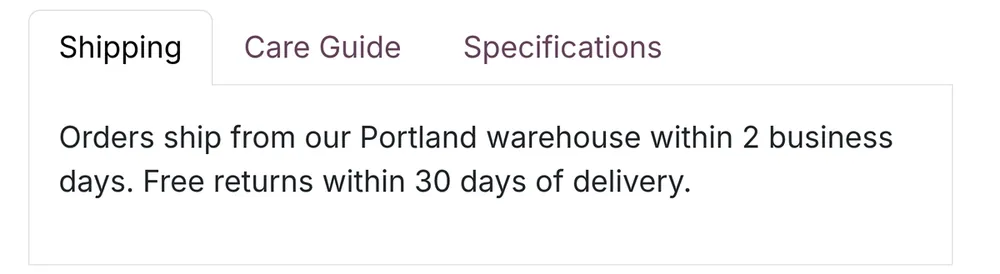
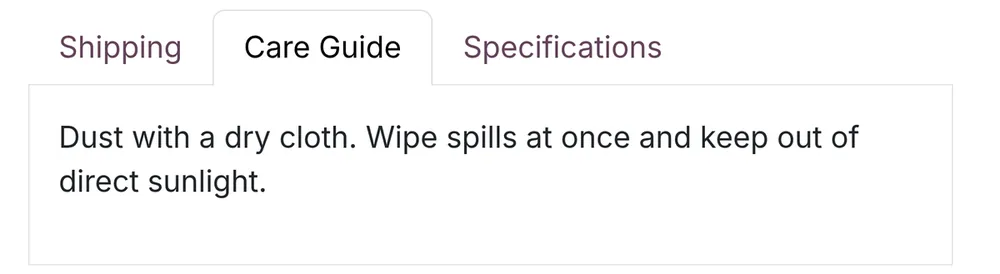
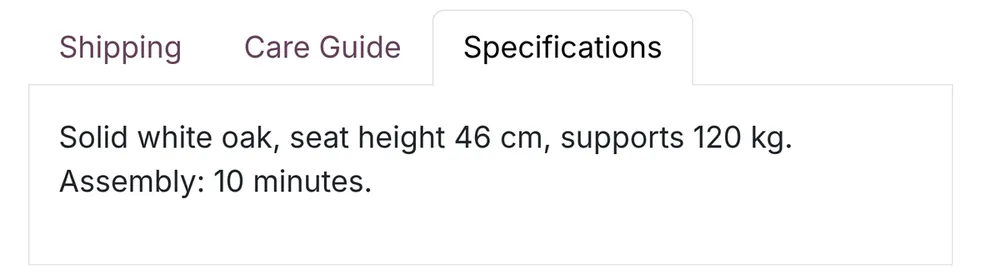
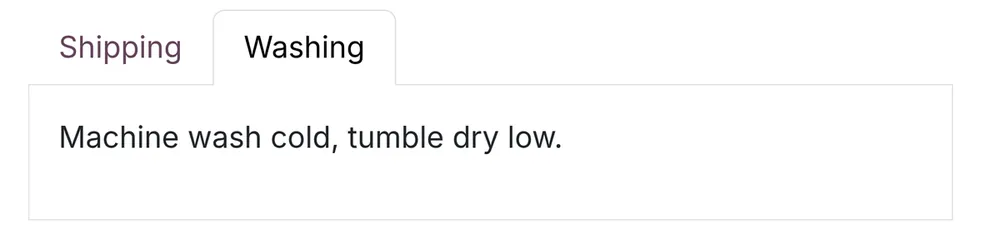
The pictures are the tab part of the product pages of Birchwood Home Goods, shot as a visitor with no login. The Oak Dining Chair, filed under Furniture / Chairs, shows three tabs: Shipping (for all products), Care Guide (a tab on Furniture, reached through the sub-category Chairs) and Specifications (a tab with no default text, shown because this chair has its own text). The Linen Throw, filed under Textiles, shows Shipping and Washing. The first tab is open when the page loads and a click shows another.
It does not add tabs to variants separately and does not use internal product categories.
The chair's page as a visitor: Shipping open first. Real Odoo screen (Odoo 19), tab part only, shot in a narrow column so the text stays readable.
Care Guide clicked: the tab on Furniture reaches the chair through its sub-category. Real Odoo screen.
Specifications clicked: the chair's own text, not a default. Real Odoo screen.
The Linen Throw: Shipping and Washing only, no Care Guide. Real Odoo screen.
2 A phone gets an accordion
Use it when most of your shoppers browse on a phone, where a row of tabs does not fit.Changes the page
A row of tabs that fits a desktop wraps badly on a narrow screen.
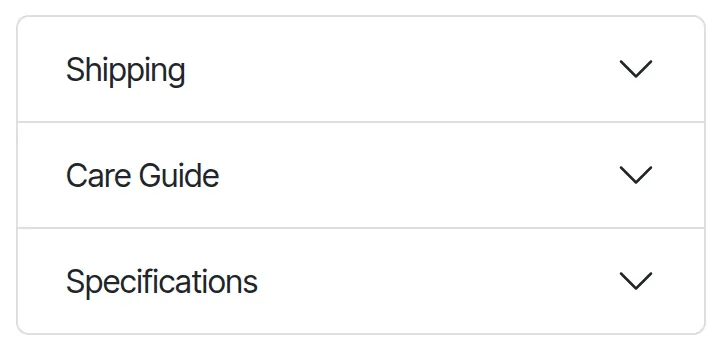
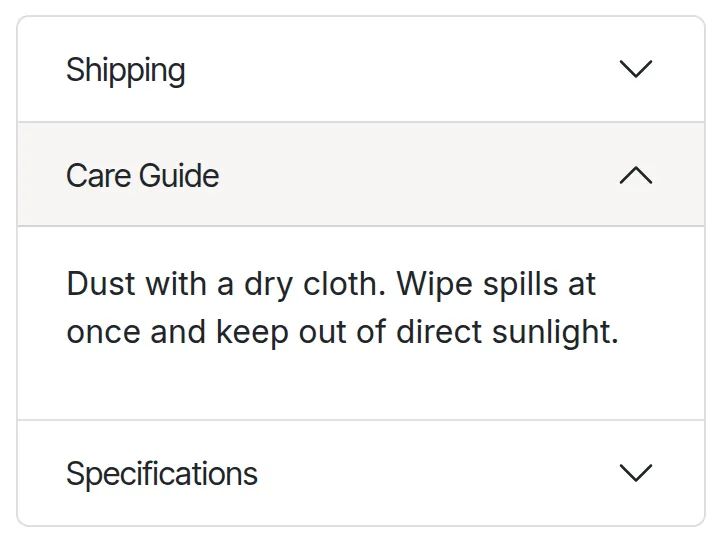
Below Bootstrap's medium width (768 px) the tab bar is hidden and the same texts show as an accordion, closed until a shopper opens an item. Both are plain Bootstrap already loaded on the website; no page bundle mentions the app. The pictures are the chair's page on a 375 px wide screen, closed and with Care Guide open, from a real headless Chrome at that width (not a real phone). A browser tour in the app's tests does the same on a 375 by 667 touch screen.
Only one phone layout was shot; other widths and real devices were not tested.
On a 375 px wide screen: three closed items. Real Odoo screen, accordion only.
Care Guide opened. Real Odoo screen.
3 Write it once, choose where it shows
Use it when you want to keep one shipping policy, not forty copies of it.Writes tabs
When a policy changes you edit every product again.
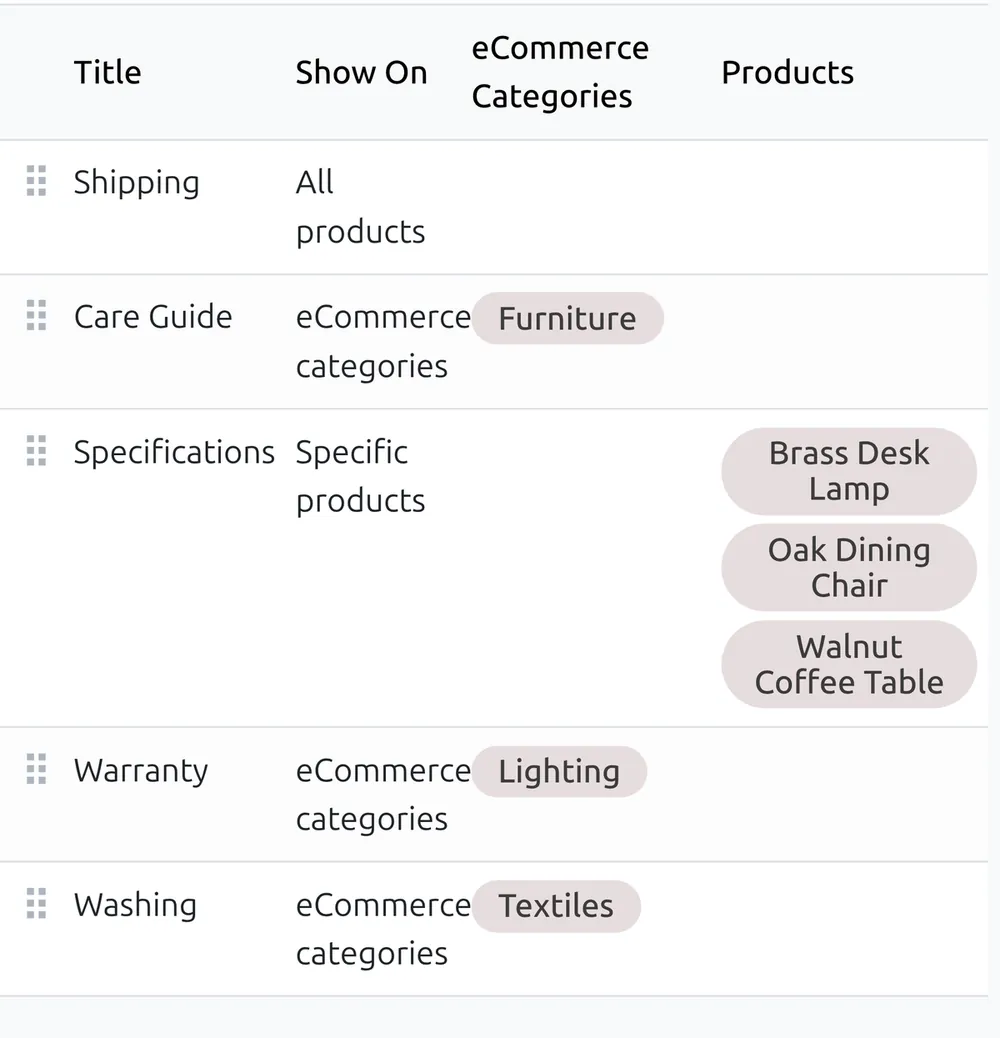
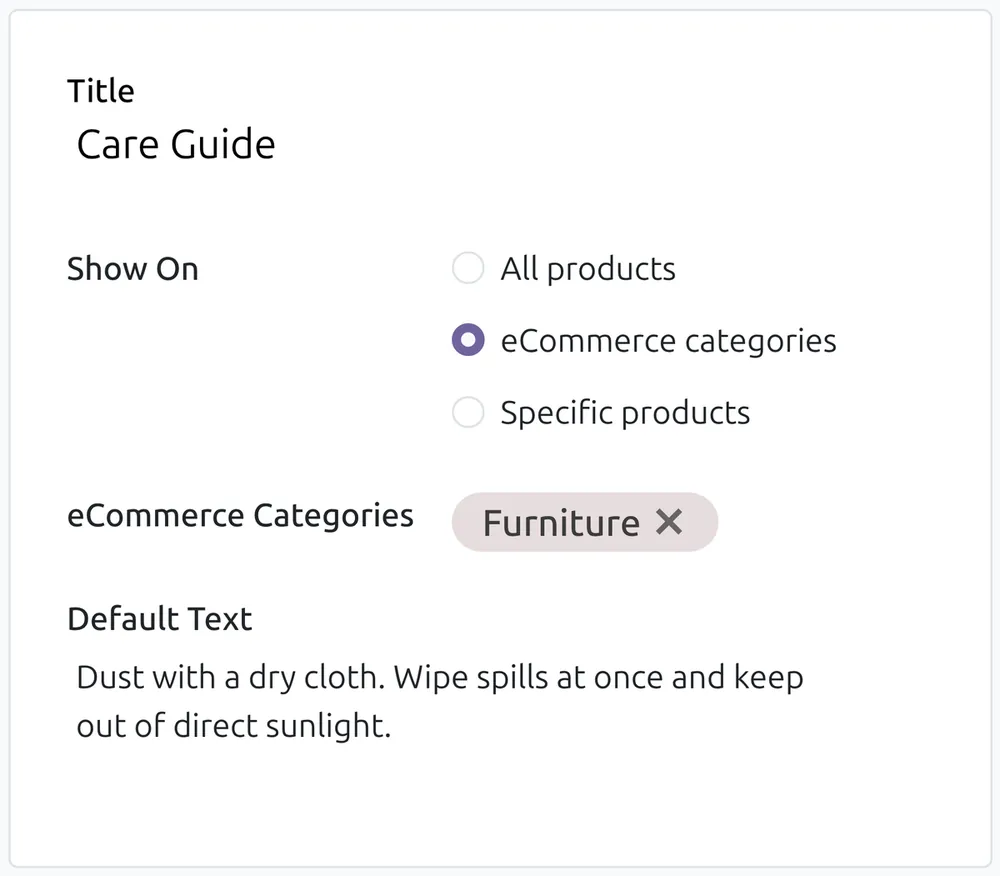
Website, eCommerce, Products, Product Tabs lists every tab with its position (drag to reorder), the scope and the categories or products it targets. The form has a title, a scope (All products, eCommerce categories or Specific products), the categories or products that scope needs, and the text. Change the text and every page it reaches shows it on the next page load; archive a tab and it is gone from the shop at once. With several websites a tab can be limited to one.
There is no draft or scheduled state: a saved, active tab is on the shop at the next page load.
The tab list. Real Odoo screen, the table cropped out of the list.
A tab on the category Furniture. Real Odoo screen, the form shown in one column.
4 Own text for one product
Use it when a Specifications tab must differ on every product.Writes texts
One block of text cannot describe a chair, a table and a lamp.
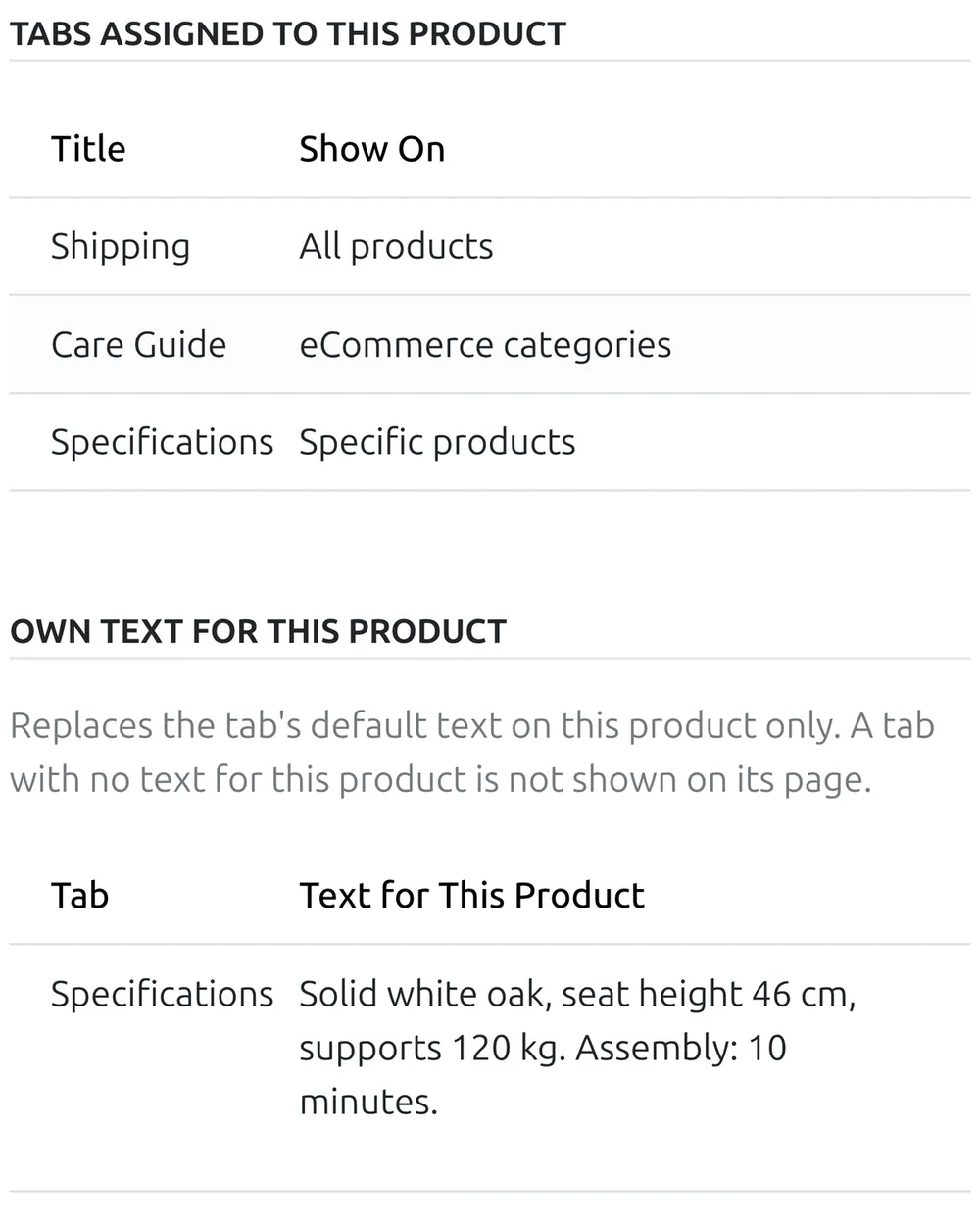
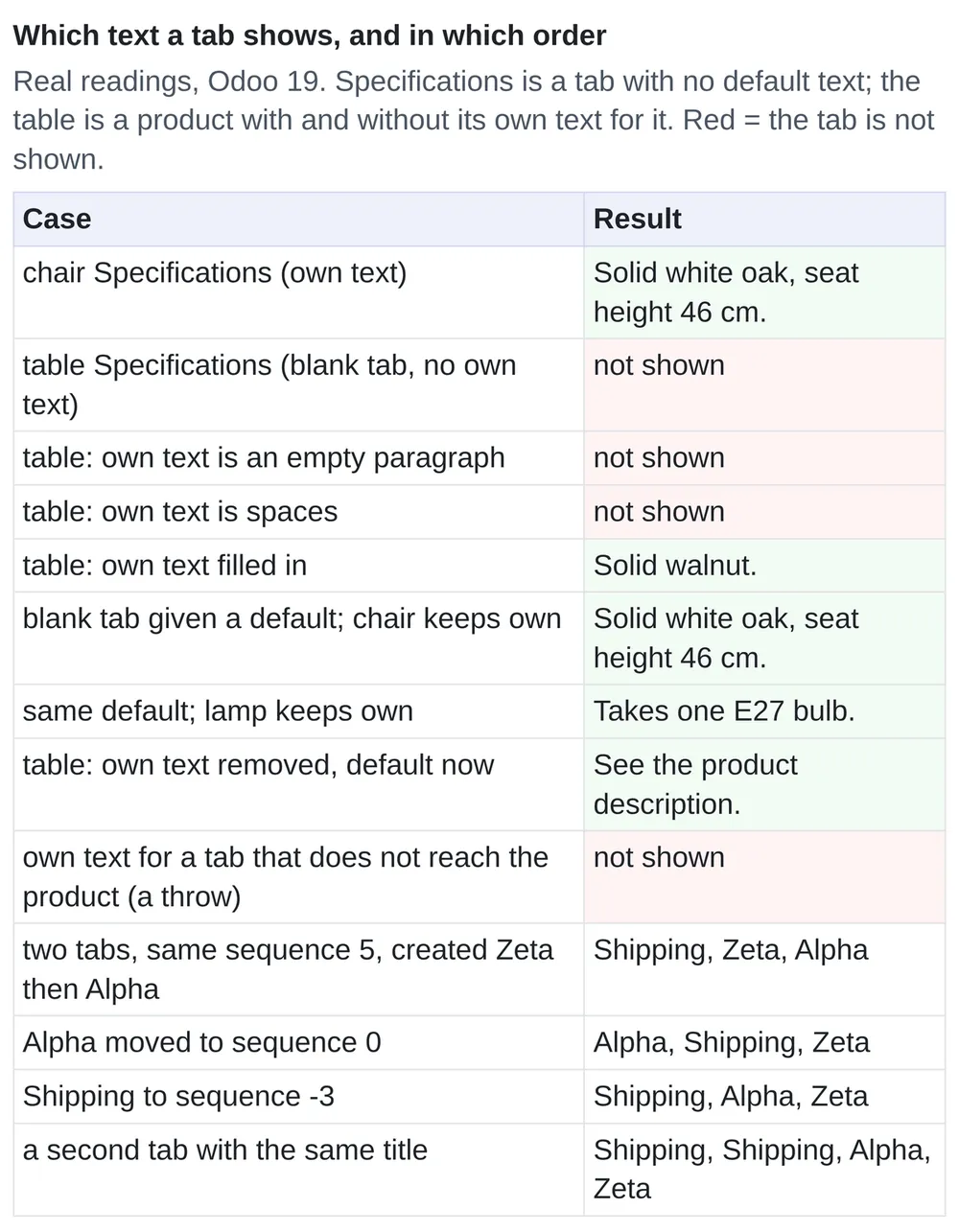
The product form gets a Product Tabs page: the tabs that reach the product (read-only) and a list of its own texts, each replacing a tab's default for this product only. Leave a tab's default text empty and it appears only on products that have their own text; the table shows the readings: an own text that is only an empty paragraph or spaces counts as empty and falls back to the default (or hides the tab); the first tab among equals follows the position, then creation order; a second tab with the same title is shown too.
A product has one own text per tab (a second is refused by the database).
The Product Tabs page on the chair. Real Odoo screen, the notebook page cropped.
Which text a tab shows. Evidence table from real readings.
5 Which products a tab reaches
Use it when you want to know exactly which pages show which tab.Read-only
A scope you cannot predict is one you cannot trust.
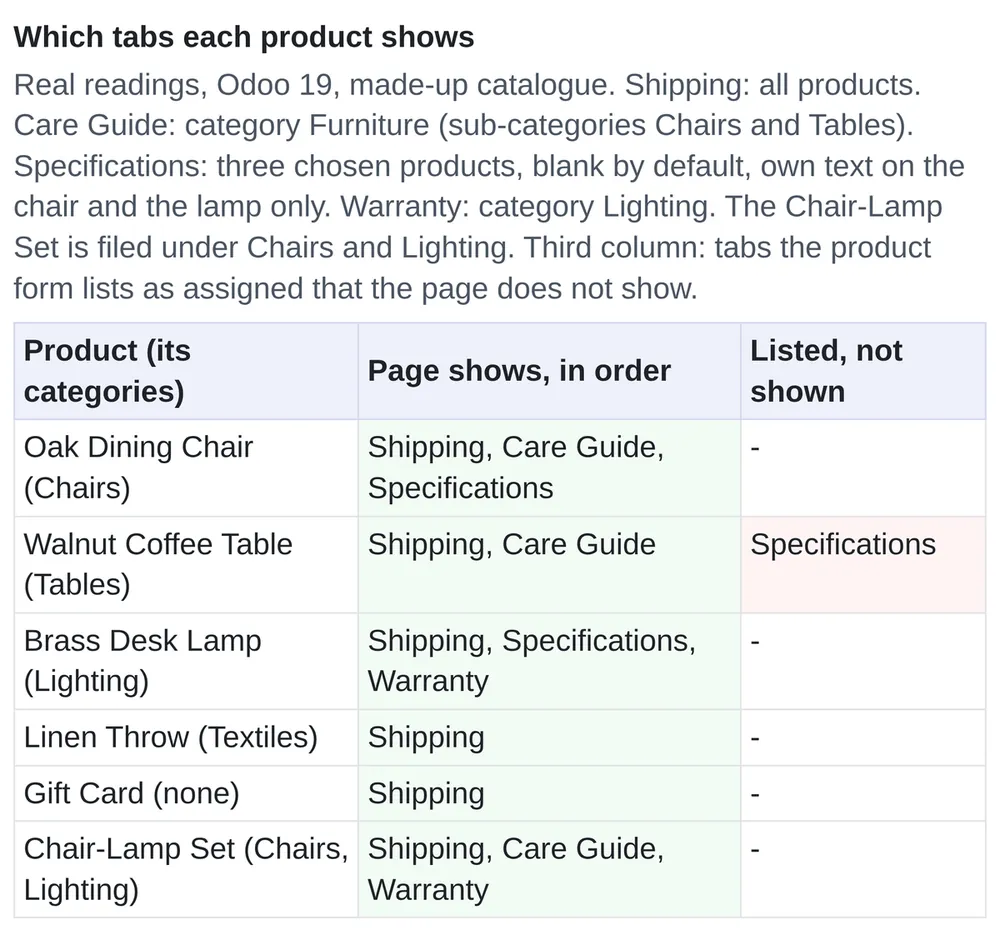
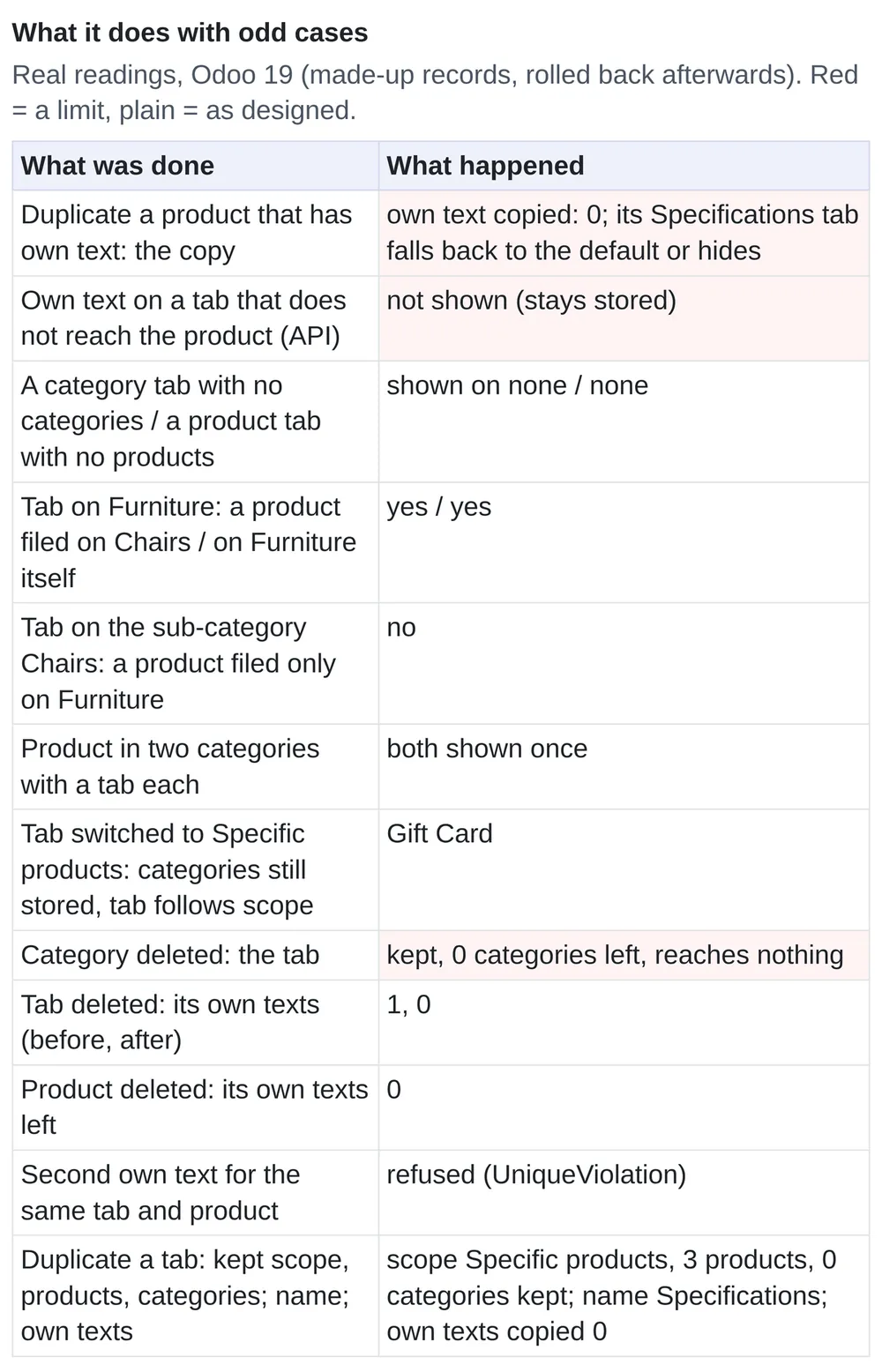
The first table is six products and what each page shows. A tab on a category also reaches products on any category below it (tested three levels deep) but not a product filed only on the parent. A product in two categories gets each tab once. Switching a tab's scope changes what it reaches at once and keeps the old choices stored. The second table is odd cases, including what a duplicated product and a deleted category do.
A tab with no categories or products chosen reaches nothing.
Which tabs each product shows. Evidence table from real readings.
Odd cases. Evidence table from real readings.
6 Websites, archive, companies and languages
Use it when you run more than one website, or sell in more than one language.Changes the page
A tab for one shop should not appear on another.
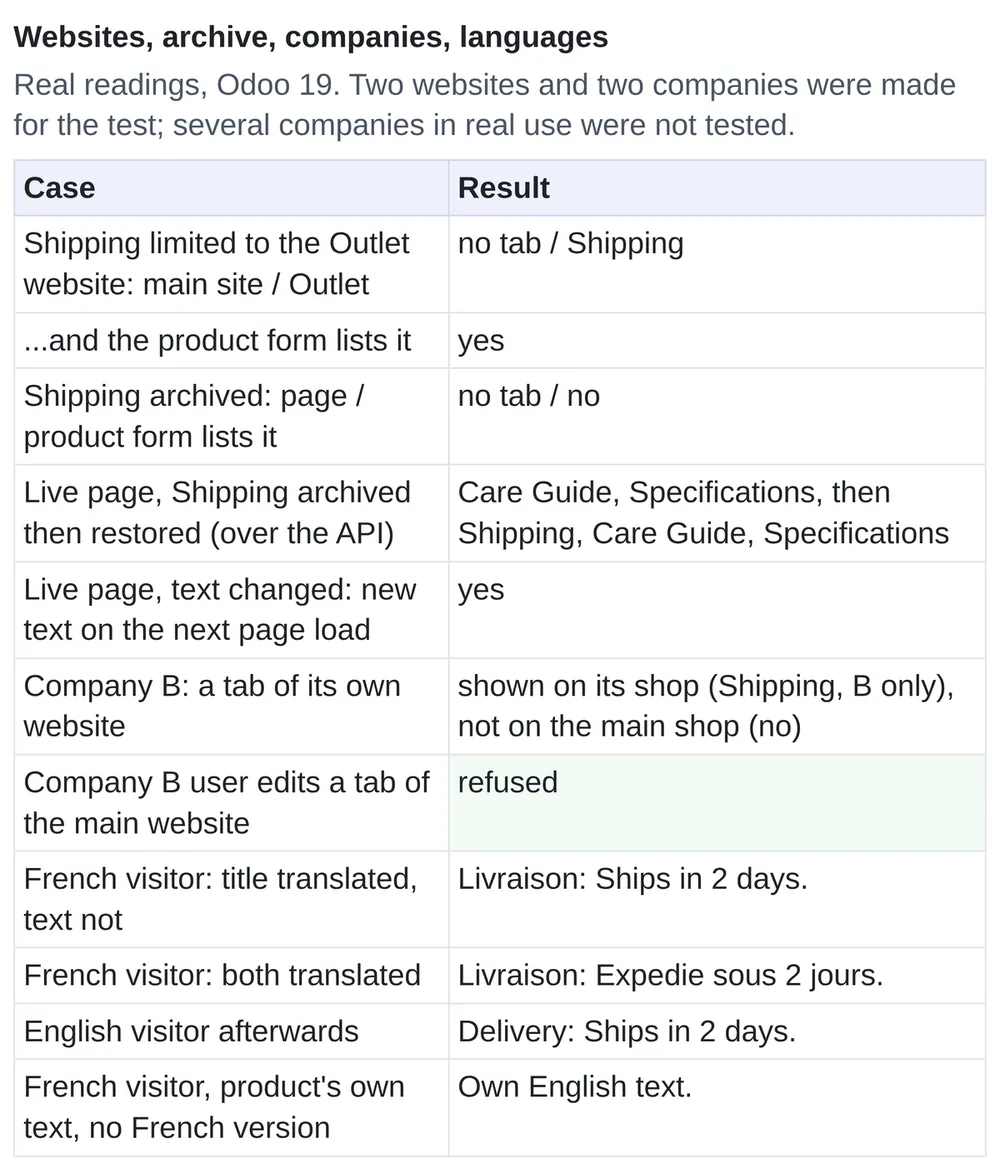
A tab can be limited to one website or left on all; archiving hides it everywhere without deleting it. The Product Tabs page on the product form lists a tab of any website, the shop page only those of its own website. A user of another company cannot see or edit the tabs of this company's website (tested with two companies). Titles and texts are translatable with Odoo's own tools: a visitor in a language that has only the title translated sees the translated title over the default-language text.
Several companies in real use were not tested.
Websites, archive, companies, languages. Evidence table from real readings.
7 Who can change tabs
Use it when you want to know who can write text that goes onto the shop.Read-only
Text on the shop is public, so who may edit it matters.
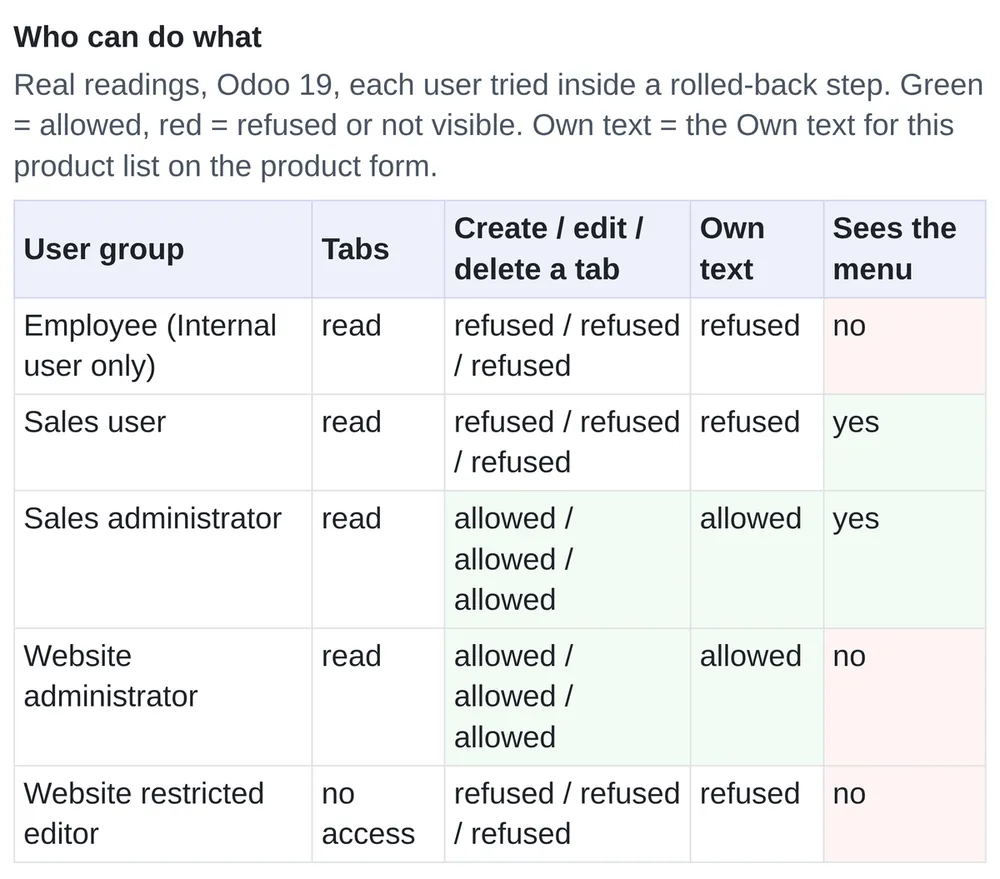
Every internal user can read tabs; only a Sales administrator and a Website administrator can create, change or delete them or the own texts. The Product Tabs menu sits under the eCommerce menu, which needs Sales rights, so a Website administrator without them has the right but not the menu. Visitors never read tabs through their own rights: the shop reads them on their behalf, only on the product page.
There is no approval step for text.
Who can do what. Evidence table from real readings (each user tried in a rolled-back step).
8 What the page carries
Use it when you want to know what a tab does to the page, and to its size.Read-only
Every tab adds its text to the HTML.
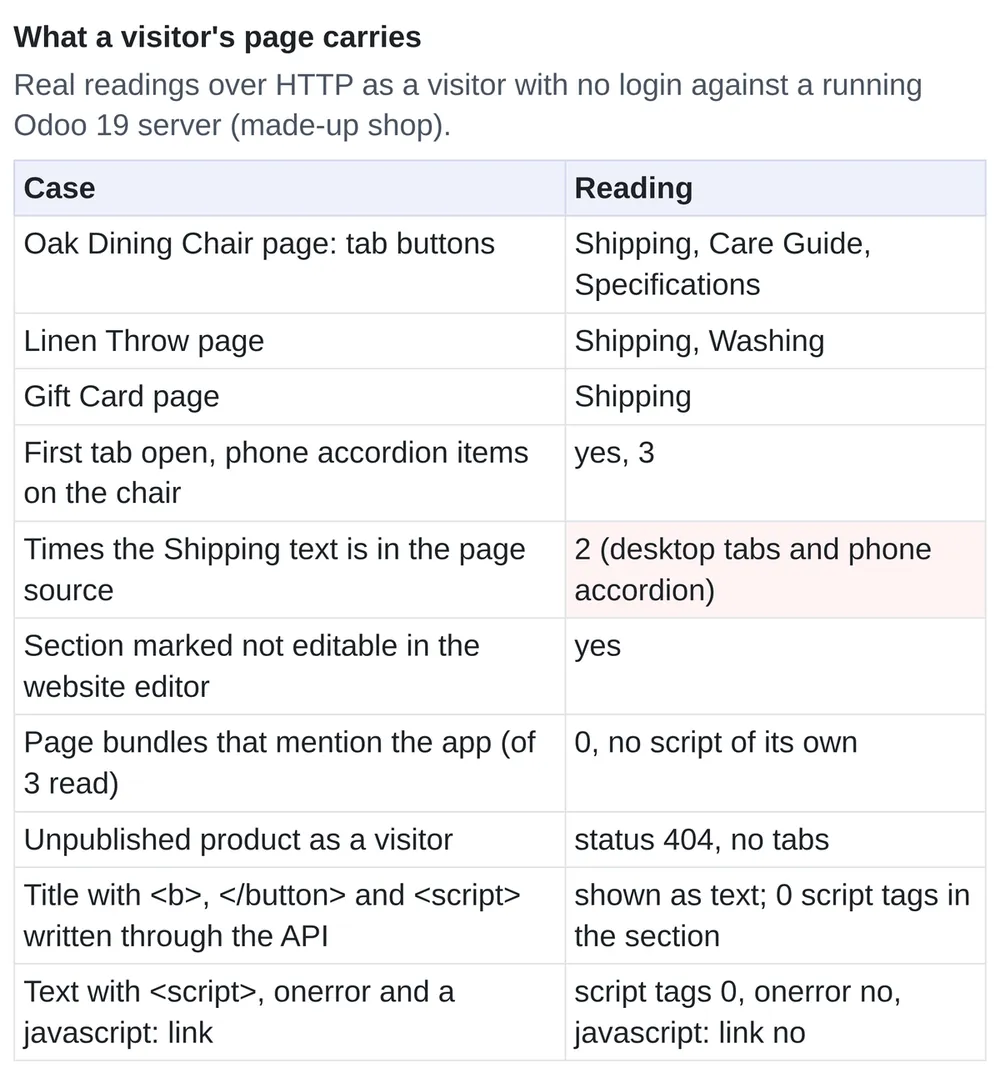
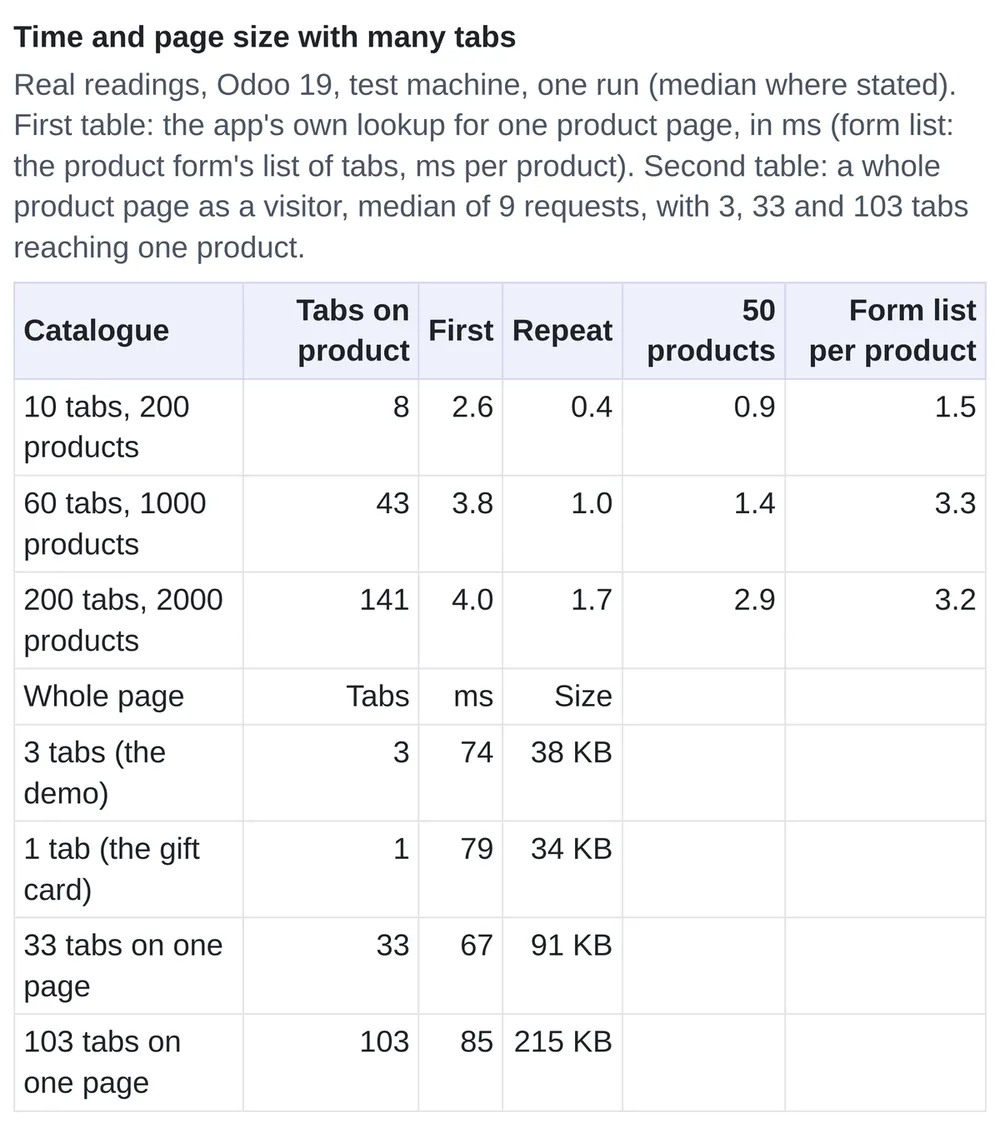
The first table is real readings over HTTP as a visitor: the tab buttons, the open first tab, the accordion items, the text twice in the source, no script of the app in any page bundle, an unpublished product answering 404, a title with markup shown as text and a text with a script, an onerror handler and a javascript link coming out clean. The second table is time and size: one product page with 3 tabs took 74 ms and 38 KB, with 103 tabs 85 ms and 215 KB (the extra weight is the text, twice); the app's own lookup for one product took 1.7 ms with 141 tabs on it.
A hundred tabs on one product make a heavy page; the app does not limit the number of tabs.
What a visitor's page carries. Evidence table (Odoo 19, over HTTP).
Time and size with many tabs. Evidence table (Odoo 19, test machine, one run).
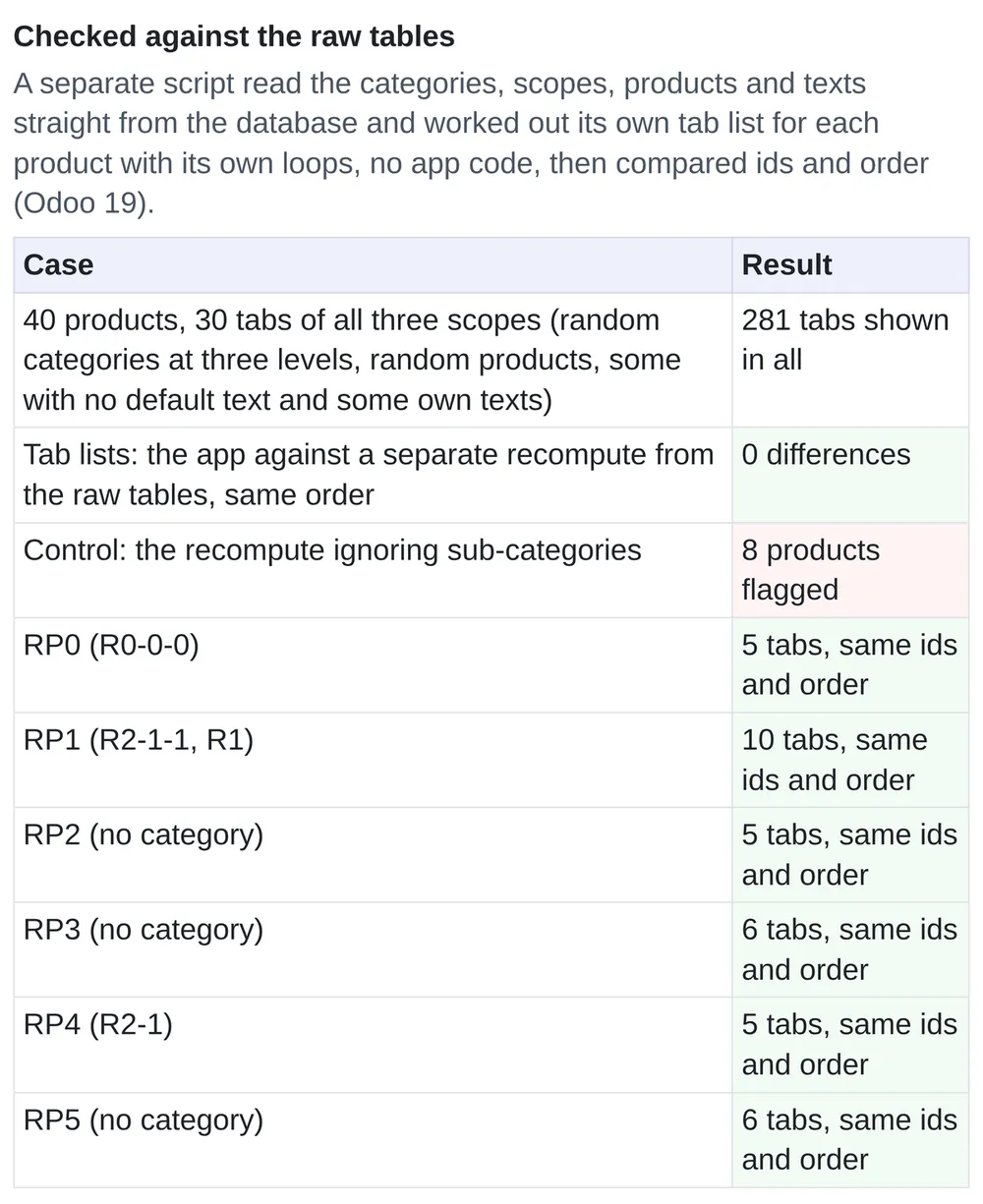
9 Checked against the raw tables
Use it when you want to know the scope logic is right before you rely on it.Read-only
A scope rule is only as good as its answer for every product.
A separate script made 40 random products (some without a category, some in two) and 30 random tabs of all three scopes over 21 categories three levels deep, some without a default text and with own texts. It read the tables straight from the database and worked out its own tab list for every product, no app code. The ids and the order matched for all 40 products. As a control the same check ignoring sub-categories flagged 8 of them.
What was checked. Evidence table (Odoo 19).
What changed in this version
Version 19.0.1.0.2 changes no behaviour of the app, so existing shops see the same tabs. It adds 15 automated tests (10 before, 25 now, counting as Odoo 19 does) that pin the behaviour and limits above, replaces the screenshots, the icon and the banner, and rewords the description and summary: the earlier text said "Community or Enterprise" and "adds no JavaScript to the shop", of which the first is not claimed here and the second is kept in the narrower form that no page bundle mentions the app. The demo video and the YouTube card are those of an earlier version and were not re-recorded or checked against the new text.
What it does not do
- Each of these was reproduced in a run on Odoo 19; none is fixed in this version, and each is pinned by a test that passes.
Requirements
- Odoo 19.0 or 20.0. The App Store sells each version separately, so buy the one that matches your database.
- Odoo.sh or On-Premise only. Third-party apps cannot be installed on Odoo Online (SaaS) databases. Check your hosting before buying.
- Module
mh_website_product_tabs, version 19.0.1.0.2, licensed OPL-1.