Purchase Approvals
Who may approve a purchase order depends on its amount: one tier, one approver group, one log of who approved what
Request a live demo · Odoo.sh or On-Premise only, not Odoo Online (SaaS).
24 of 24
order totals matched an independent recompute of the tier from the raw tier table (12 random, 12 at the thresholds; control: thresholds moved by 1.00 differed on 12 of 12)
1
tier decides per order: the highest amount the total reaches; a higher tier does not include the lower ones
21
automated tests in the app, none failing; 16 were added for what this page states
0.22 s
to approve 300 waiting orders in one call and write 300 log rows in the test run; larger data not tested
Fixed
in this version: any Purchase user could edit or forge approval log rows through the API; the log is now read-only for everyone
Not
a chain and not a notification: one approver decides and nobody is told an order is waiting (see the known limits)
Odoo's own Purchase app has one amount limit and one approver group. Purchase Approvals lets you set as many amount tiers as you need, each with its own approver group, for example 1,000 for team leads, 10,000 for managers and 50,000 for directors. The order total decides which tier applies, only a user of that tier's group may approve it, and every approval is written to an Approval Log. This page walks through it with screenshots of an Odoo 19 database holding a made-up joinery, three tiers and six made-up users, each logged in separately, and with tables rendered from real readings of the same run; each picture says which it is.
It is one approver from one tier, not a chain of approvals. This page also says where that bites: who sees the Approve button, what happens when a manager outside the tier presses it, requesters approving their own orders, changed amounts, and what the log keeps.
Install it and Approval Tiers and Approval Log appear under Purchase, Configuration. It needs only the Purchase app. With no tier, Odoo works as before.
How it works
What it keeps, what it changes, what it does not
Each line was tested or read in the code.
1 Set the tiers
Use it when you want the approver to depend on how much is being spent.Writes when saved
One amount limit and one group cannot say that a 2,000 order needs a team lead and a 60,000 order a director.
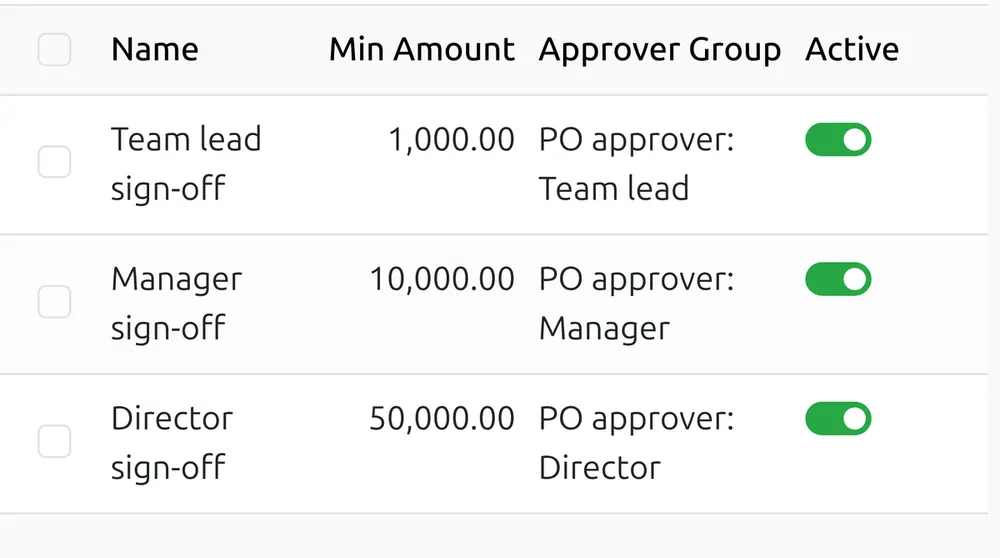
Open Purchase, Configuration, Approval Tiers (purchase managers only). Each line is a name, an amount, the approver group and an Active toggle; the list is editable. Here: Team lead sign-off from 1,000, Manager sign-off from 10,000, Director sign-off from 50,000, each with its own group (the groups were created for this made-up company). A tier is in force when the order total, with tax, is at or above its amount; archive a tier to switch it off. This is a screenshot from Odoo 19.
Two tiers can have the same amount (one wins, the app does not say which), a tier at 0 applies to every order, and tiers have no company.
The tiers of the made-up company. Real Odoo screen.
2 Orders above a tier wait for the right approver
Use it when a buyer confirms an order that is larger than they are allowed to approve.Changes the order state
Odoo's confirm button would let anyone in the Purchase Manager group approve any amount.
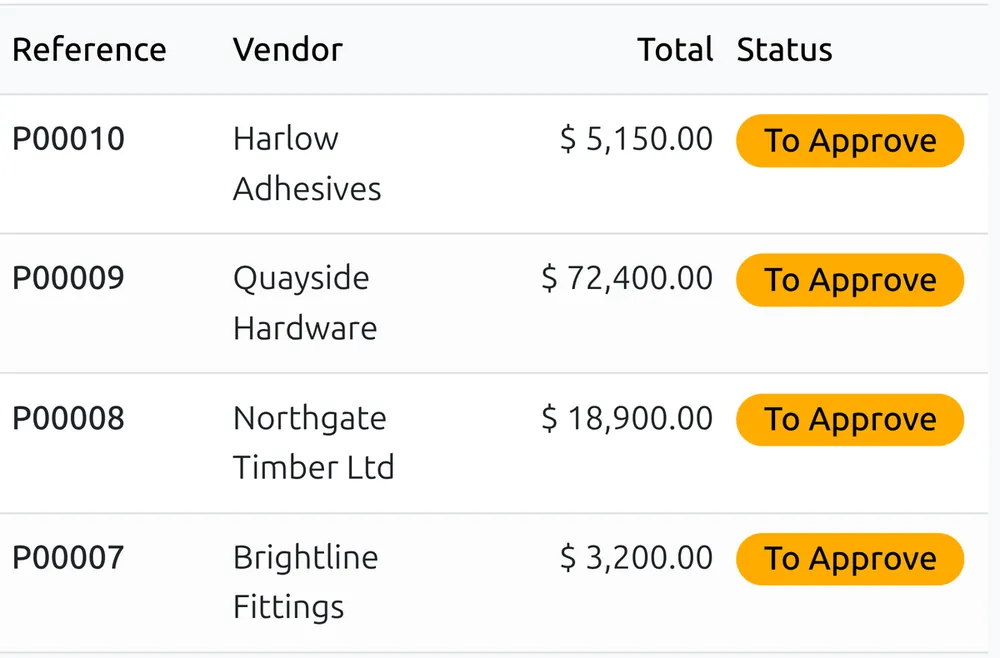
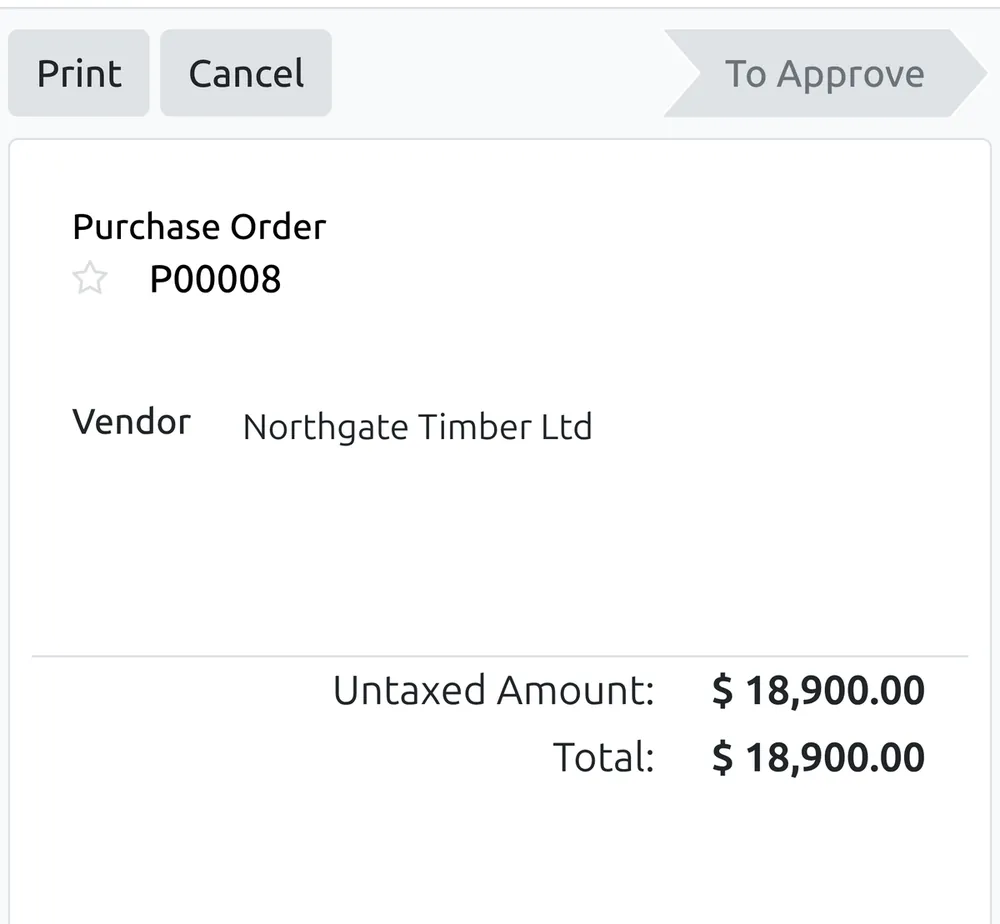
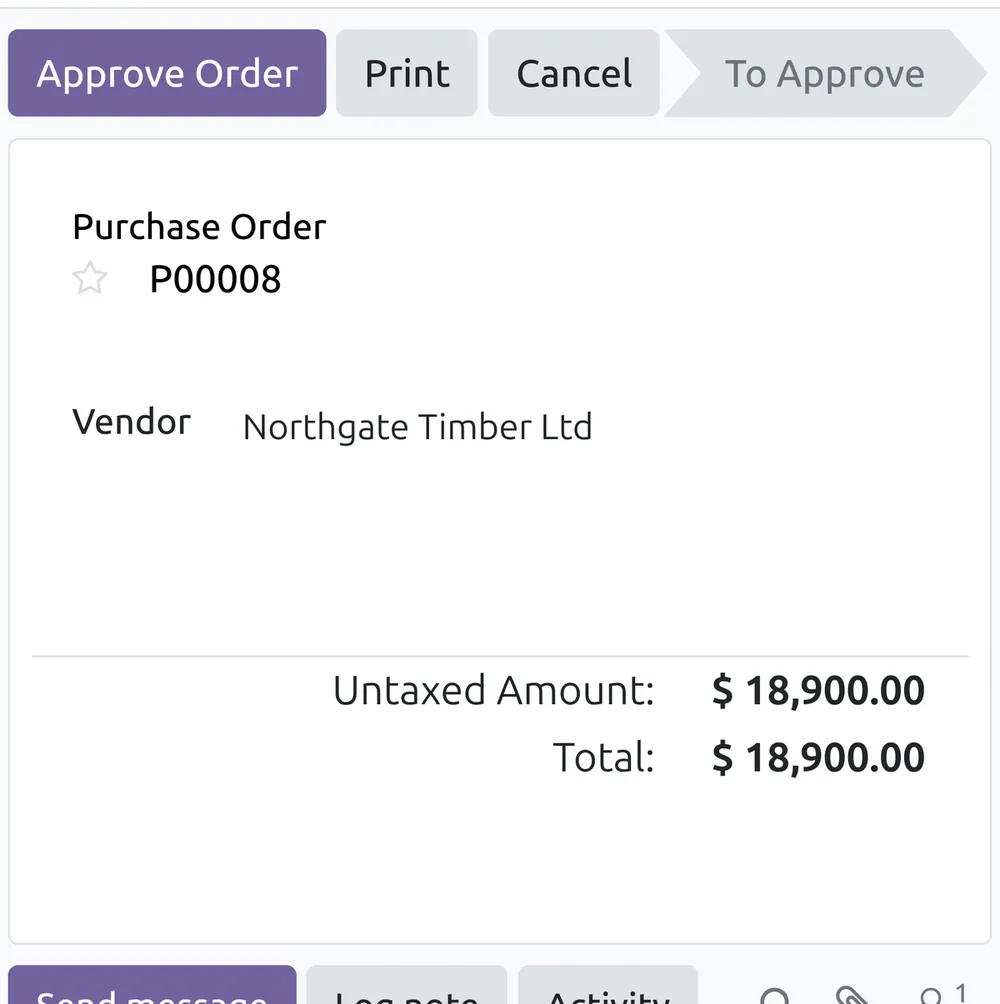
The buyer presses Confirm Order. If the buyer is not in the group of the tier that applies, the order goes to To Approve instead of Purchase Order; if the buyer is in that group, it is approved at once and logged. The first picture is the order list with only the four waiting orders shown (the other rows are hidden for the picture), the second is the waiting 18,900 order as the buyer sees it, with no Approve Order button. Nobody is notified: approvers find waiting orders by their status.
Confirming a draft is the only moment it goes to To Approve; a changed amount after approval asks for nothing new.
The four waiting orders. Real Odoo screen, other rows hidden for the picture.
The 18,900 order as the buyer, a Purchase user, sees it. Real Odoo screen.
3 Only the tier's own group may approve
Use it when you want to be sure that the right person, and only that person, can approve.Changes the order state
A manager pressing Approve on an order outside his tier would otherwise go through.
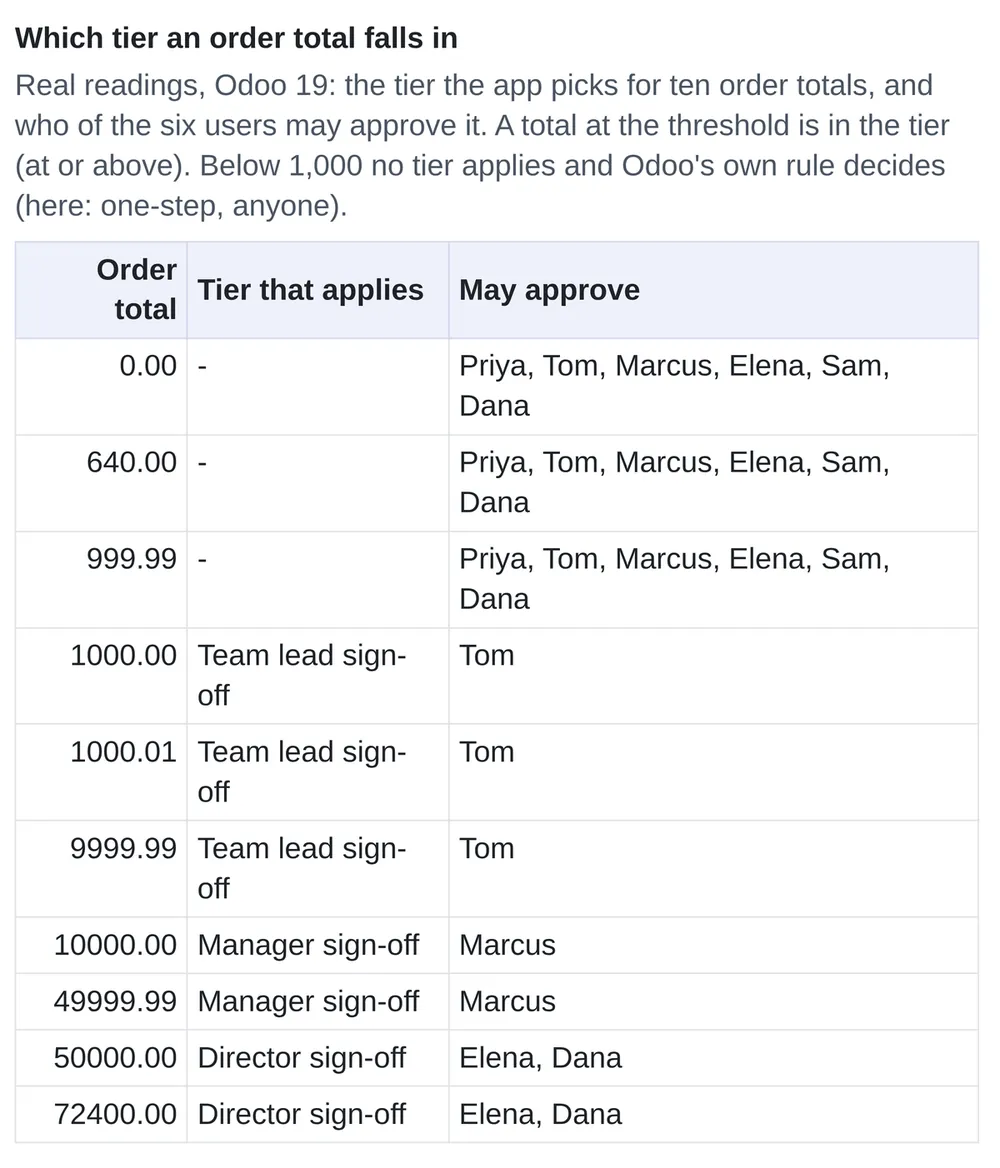
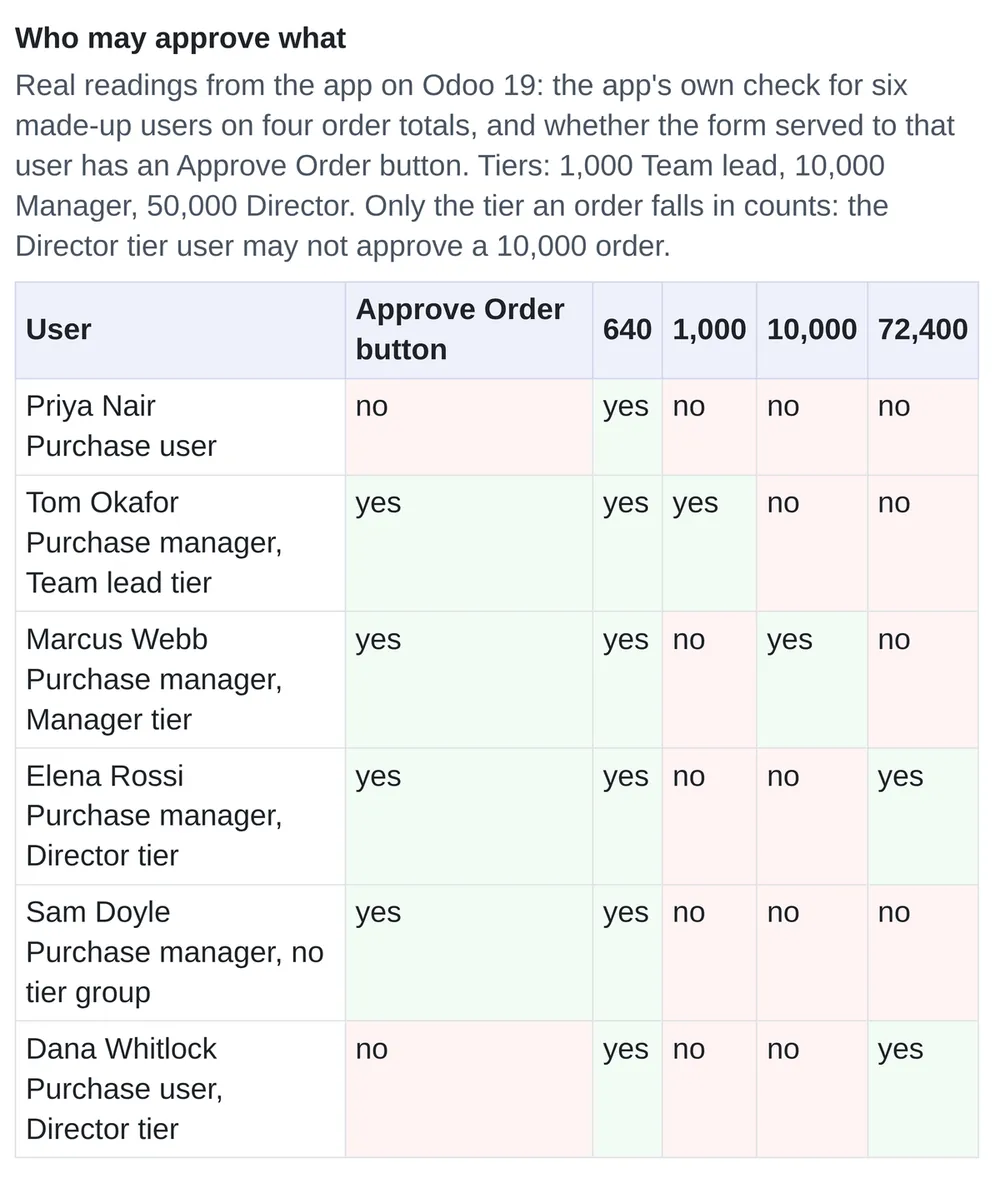
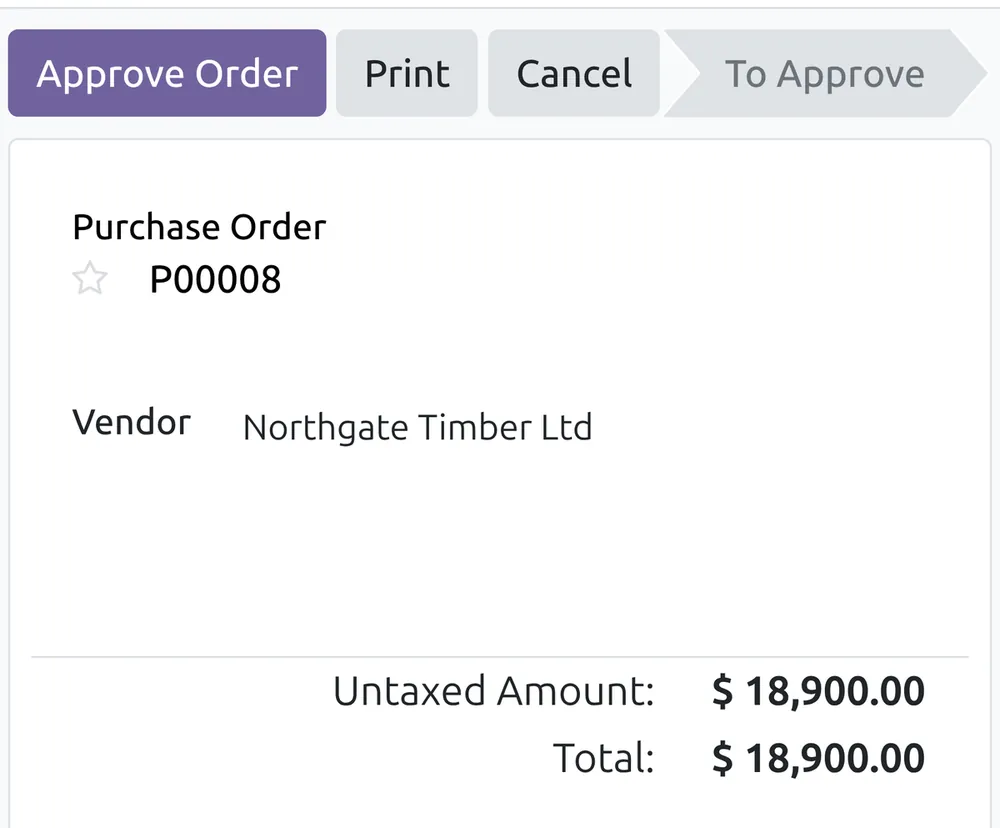
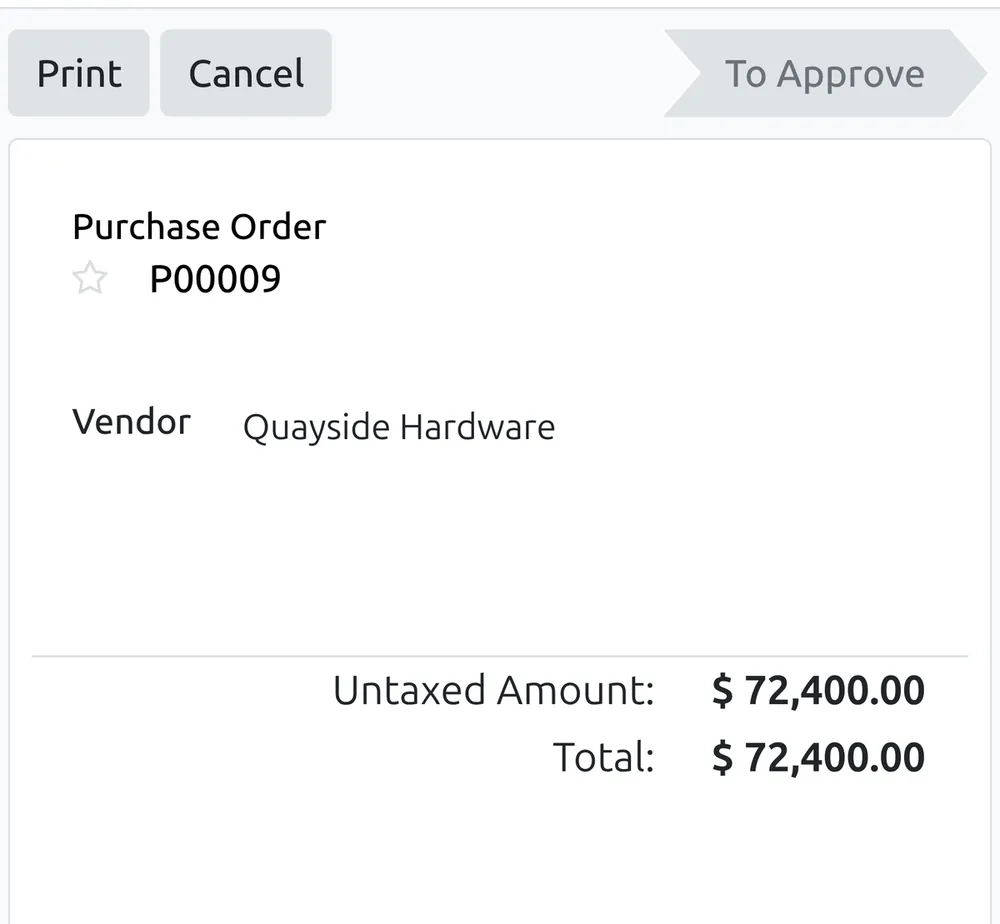
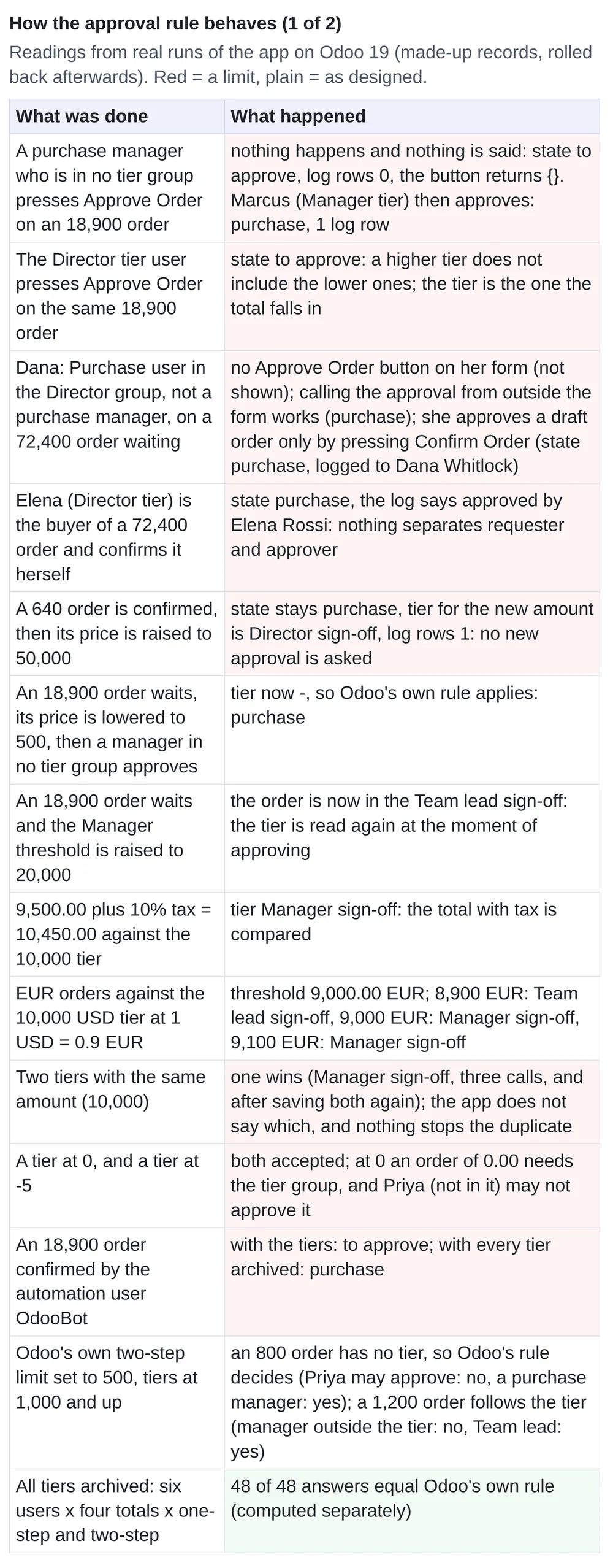
The highest tier the total reaches is the one that applies, and only a user in its group, or in a group that implies it, may approve. A Director tier user may not approve an 18,900 order, which is in the Manager tier. Marcus Webb, in the Manager tier and a purchase manager, sees Approve Order on the waiting order. Sam Doyle is a purchase manager in no tier group: he sees the same button, presses it, and the order stays To Approve with no message (third picture). Dana Whitlock is in the Director tier but is only a Purchase user, so Odoo does not show her the button at all on the 72,400 order (fourth picture); she can approve a draft order by pressing Confirm Order. The two tables are real readings.
It is not a chain: one approver from one tier. The tier is read again at the moment of approving, so a changed price or tier changes who may approve.
The tier for ten order totals. Evidence table.
Who may approve what. Evidence table.
The Manager tier user sees Approve Order. Real Odoo screen.
After a purchase manager in no tier group pressed Approve Order. Real Odoo screen.
A Director tier user who is only a Purchase user: no button. Real Odoo screen.
4 Every approval is logged
Use it when someone asks who approved a purchase and for how much.Read-only
Odoo's chatter records that the order changed status, but there is no list of approvals.
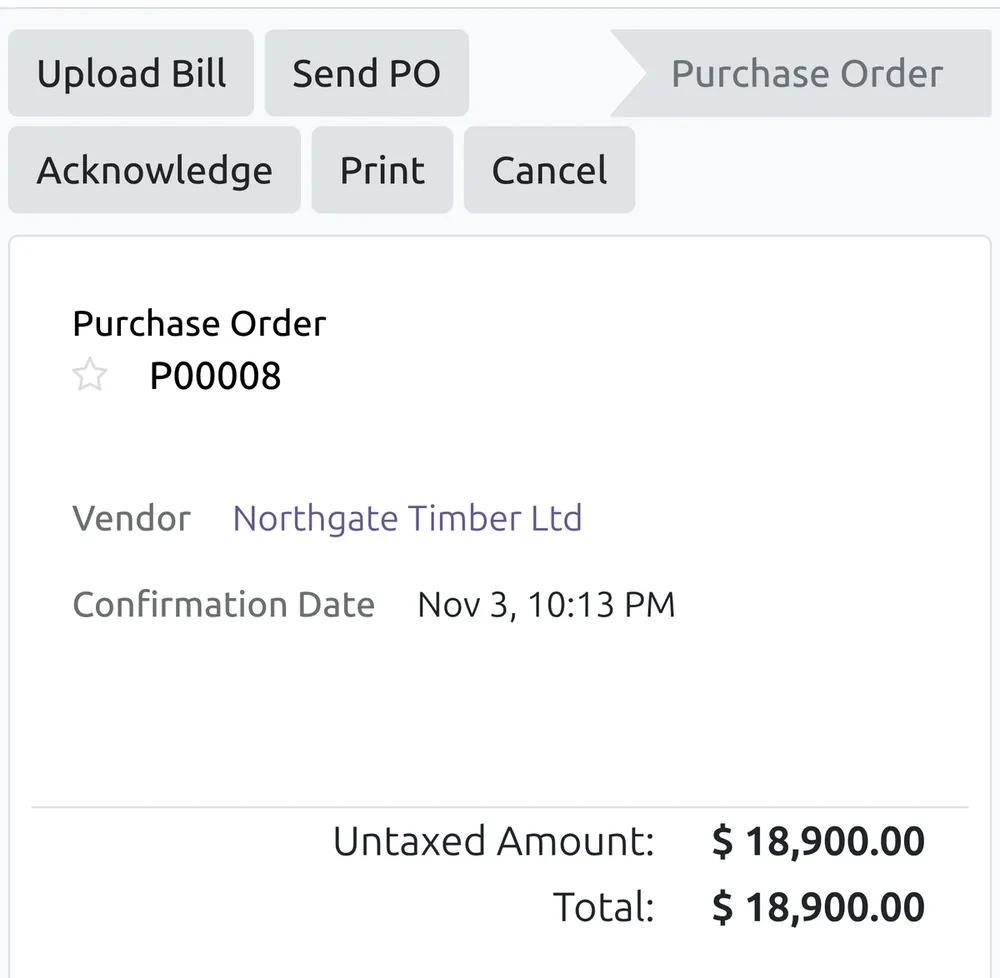
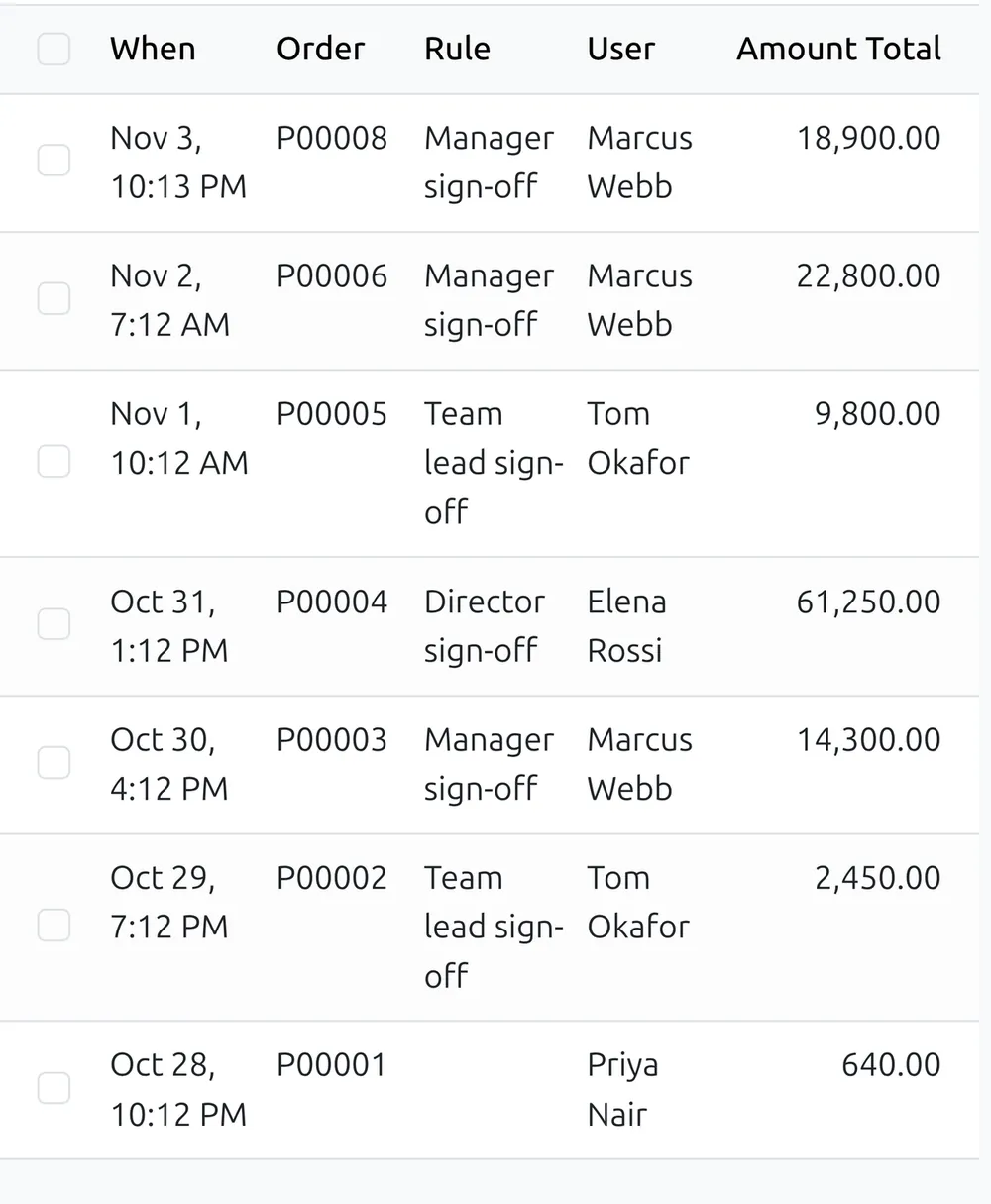
After Marcus pressed Approve Order, the order moved to Purchase Order (first picture) and a row was added to Purchase, Configuration, Approval Log: order, tier, approver, the order total and the time. The list cannot create, edit or delete, and since this version nobody can write a row through the API either. The log holds no copy of the tier, so renaming or deleting a tier changes the old rows, and a row goes with its order if the order is deleted. The dates in the picture were set for the made-up history.
Approving a cancelled order through the API brings it back and logs it; an order approved twice has two rows.
The same order after approval. Real Odoo screen.
The Approval Log. Real Odoo screen.
5 Checked against the raw table
Use it when you want to know the tier is picked correctly before you rely on it.Read-only
A wrong tier at the edge of an amount sends an order to the wrong approver.
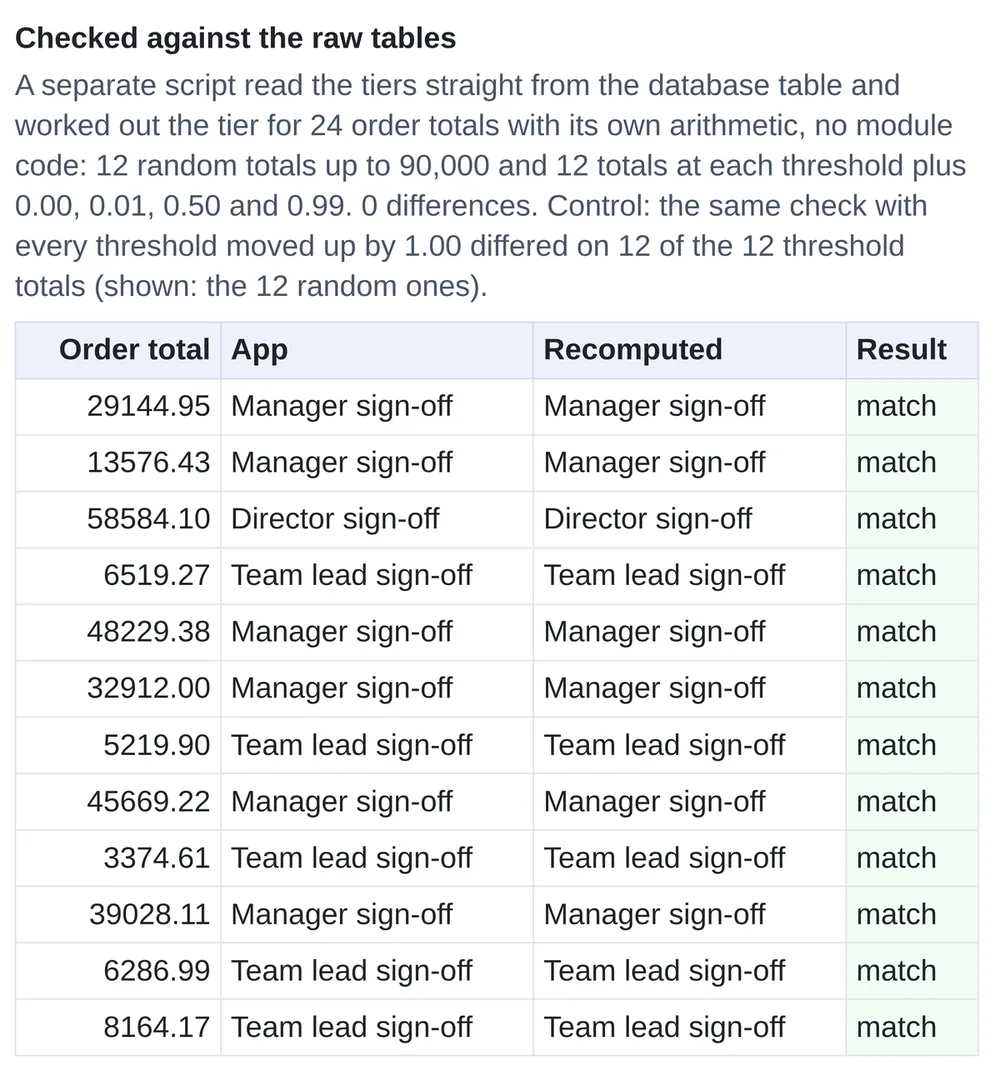
A separate script read the tiers straight from the database and worked out the tier of 24 order totals with its own arithmetic and no module code: 12 random totals and 12 at each threshold plus 0.00, 0.01, 0.50 and 0.99. All 24 matched, on Odoo 19 and Odoo 20. As a control the same check with every threshold moved up by 1.00 differed on all 12 threshold totals.
Twelve of the 24 totals shown, each matched. Evidence table.
What changed in this version
Version 1.0.8 fixes one security defect: until 1.0.7 any Purchase user could edit an Approval Log row or create a row naming anybody, through the API. The log is now read-only for every user and the app writes the row itself, as the approver; existing rows are unchanged and nothing else about approving changed. It also adds 16 automated tests for what this page states, rewrites the screenshots and the text, and removes the claim of a spending limit per approver (the limit is per tier group). The demo video of an earlier version is kept as it was and was not re-recorded.
Screenshots
What it does not do
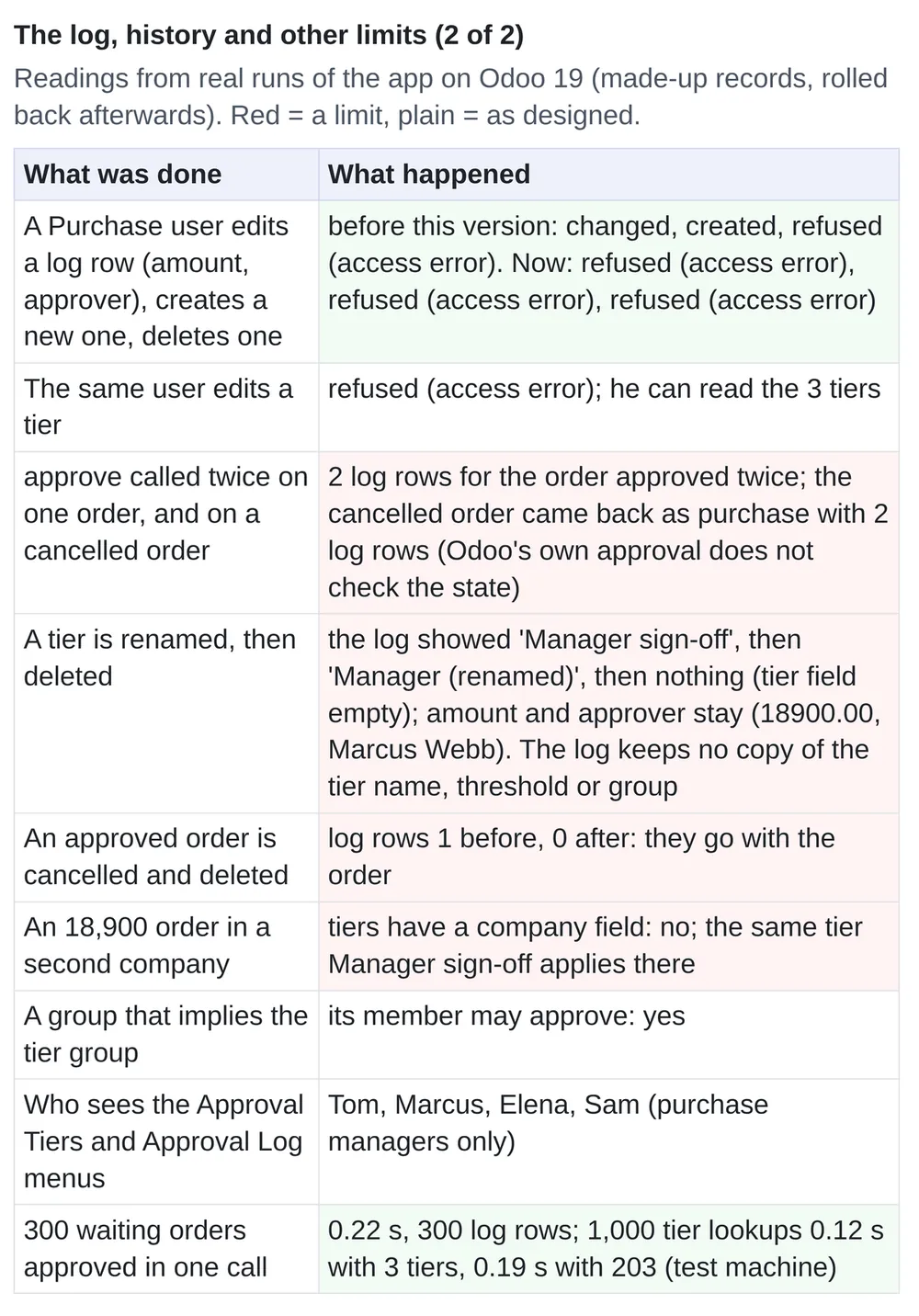
- Each of these was reproduced in a run of the app on Odoo 19 and is pinned by a test that passes; only the first row of the second table was changed in this version.
- Fourteen readings from real runs. Evidence table.
- Nine more readings. Evidence table.
Requirements
- Odoo 19.0 or 20.0. The App Store sells each version separately, so buy the one that matches your database.
- Odoo.sh or On-Premise only. Third-party apps cannot be installed on Odoo Online (SaaS) databases. Check your hosting before buying.
- Module
mh_purchase_multi_level_approval, version 19.0.1.0.9, licensed OPL-1.