Supplier Credit Limit
A credit limit per vendor on what you owe plus open purchase orders; an order that would go over waits for a purchase manager
Request a live demo · Odoo.sh or On-Premise only, not Odoo Online (SaaS).
9,700.01
an order one cent over a 60,000 limit goes to To Approve; 9,700.00, exactly at it, goes through
6 routes
tried as a buyer and all stopped: Confirm button, server action, mass action, import, API write and API create
72
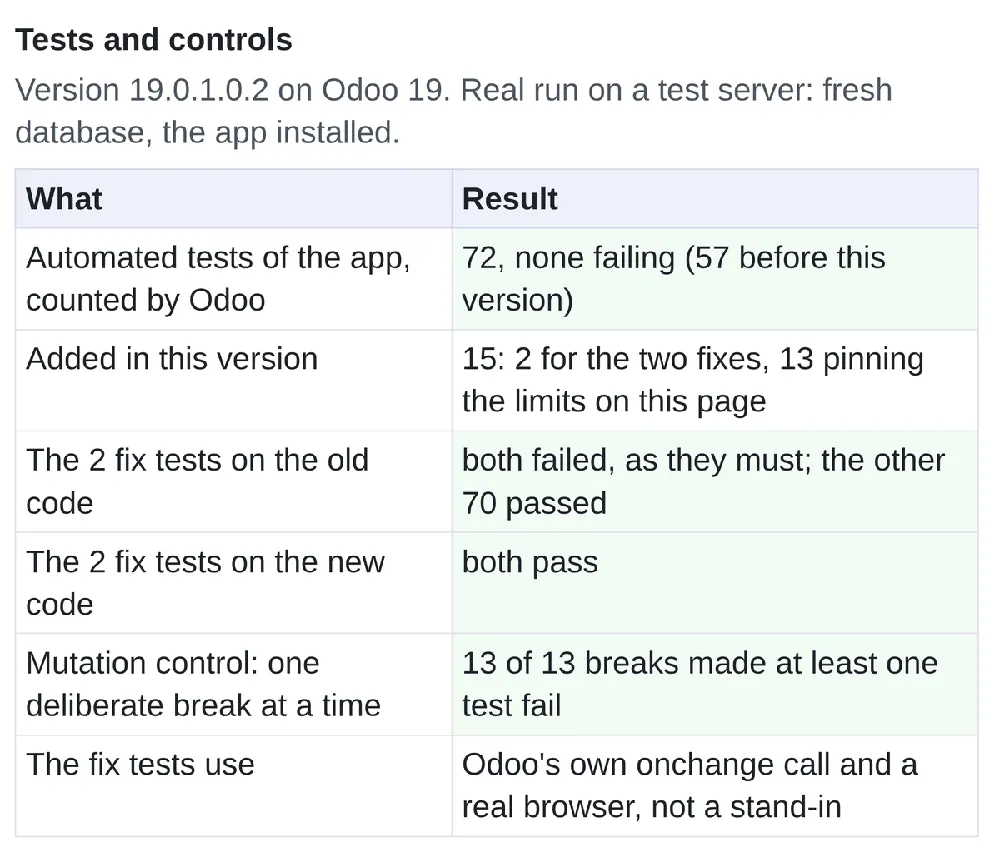
automated tests, none failing; 15 of them new in this version
13 of 13
deliberate breaks of the code each made at least one test fail
0.08 s
to read a vendor's figures with 3,000 open order lines and 300 bills; larger data not tested
2
display defects found while building this page, fixed in this version and listed below
Odoo's purchase app approves an order by its own amount against one threshold, the same for every vendor, and it does not know what you already owe. Five orders of 8,000 each pass a 10,000 threshold one at a time, and a vendor you agreed to owe at most 30,000 is owed 40,000. Supplier Credit Limit puts the limit on the vendor and checks it whenever an order is confirmed. This page walks through one vendor in an Odoo 19 database seeded with made-up data, each user logged in separately, says what is counted and what is not, and lists the defects found and fixed while checking it.
How it works
Why a limit on the vendor
An amount threshold looks at one order. What a vendor can be owed is the sum of everything you have not paid and everything you have ordered and not yet been billed for.
1 Set the limit on the vendor
Use it when you agree credit terms with a vendor and want one number to hold them to.Per company
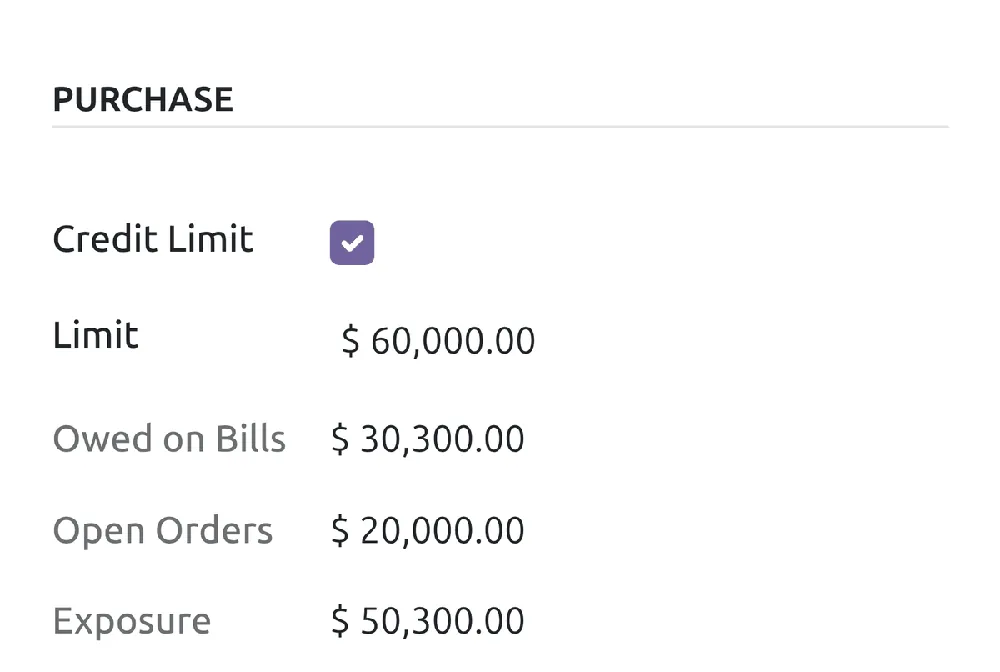
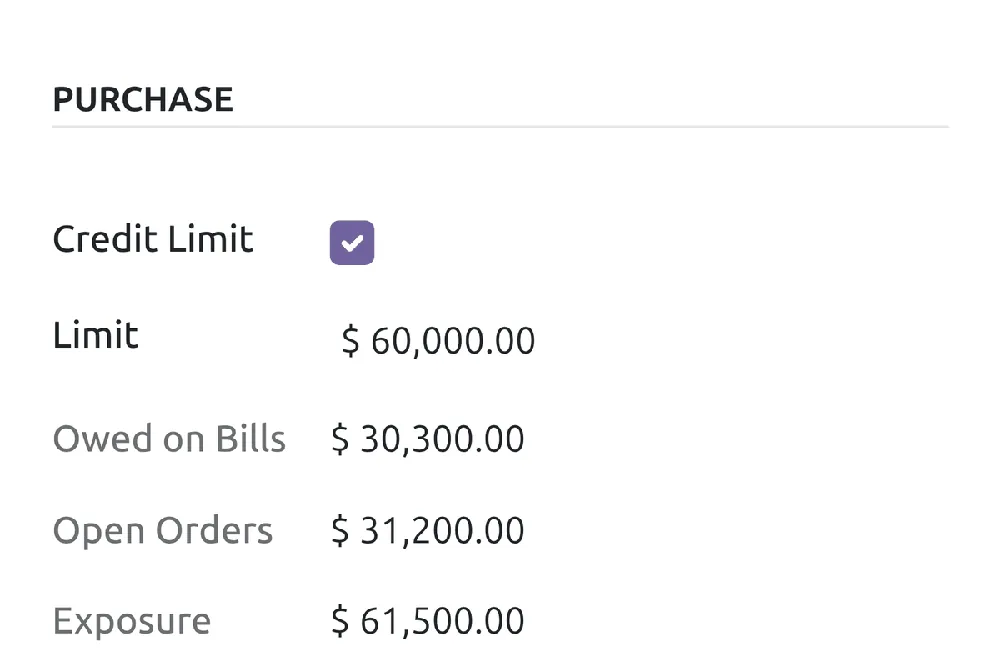
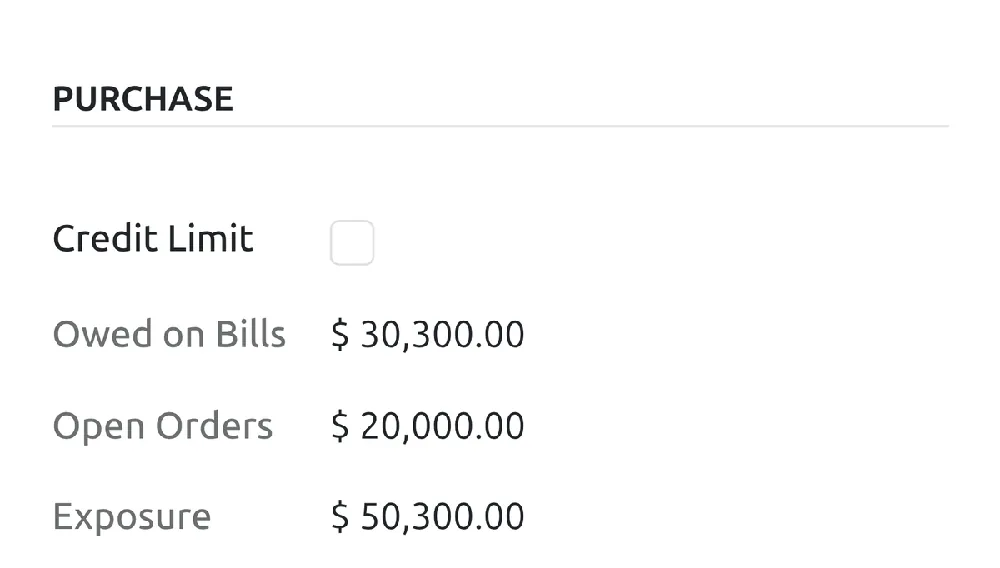
On the vendor, Sales & Purchase , section Purchase : a Credit Limit switch and the Limit , in the company currency, set per company. Below them three figures that cannot be edited: Owed on Bills , Open Orders and Exposure , so you can read the numbers before you set a limit. Northgate Steel Supply is limited to 60,000 and sits at 50,300.
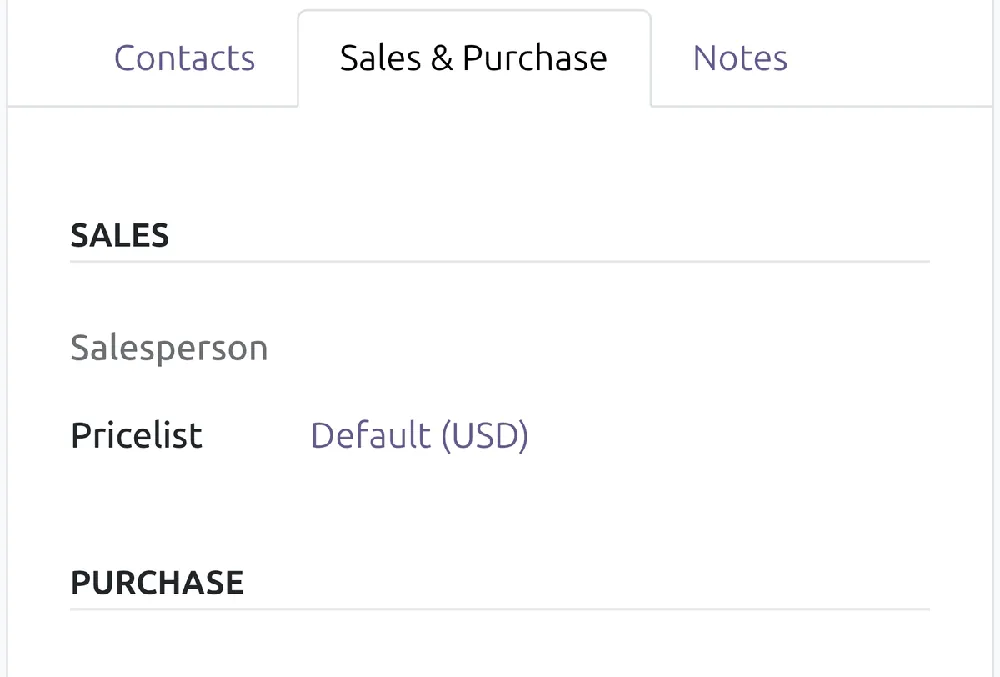
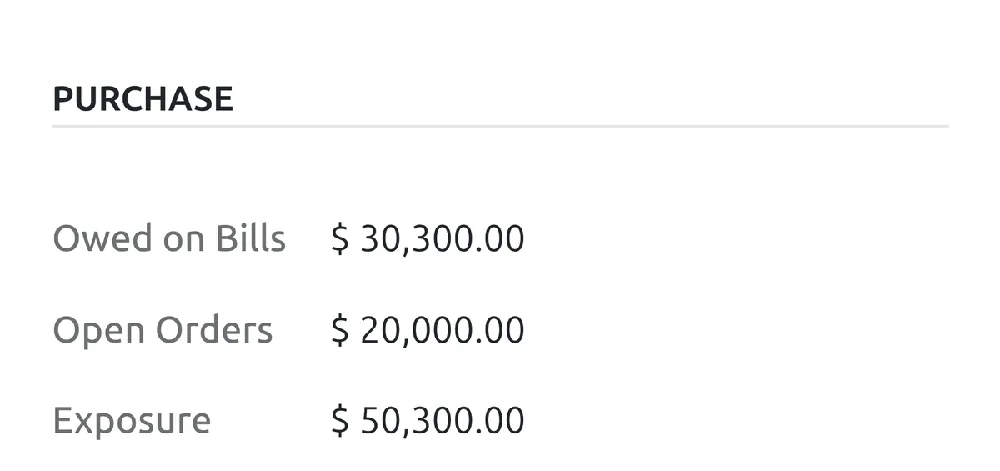
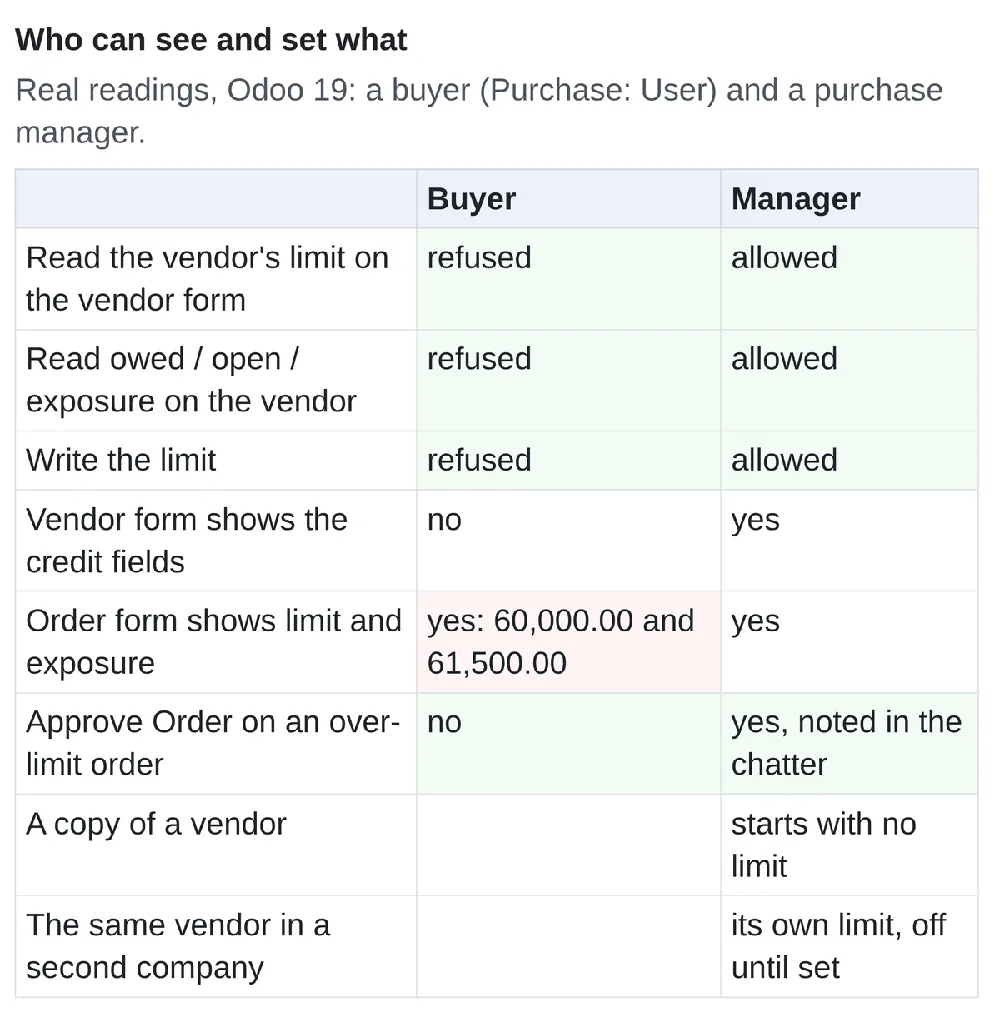
Only purchase managers see or set these fields. A buyer opens the same form and the Purchase section carries none of them.
The limit belongs to the vendor company. On a contact under a company the switch is not offered (this version, see section 7); the vendor's figures still are.
The vendor form for a purchase manager. Real Odoo screen.
The same vendor for a buyer. Real Odoo screen.
2 What counts
Use it when you want to know exactly which bills and orders make up the exposure.Read only
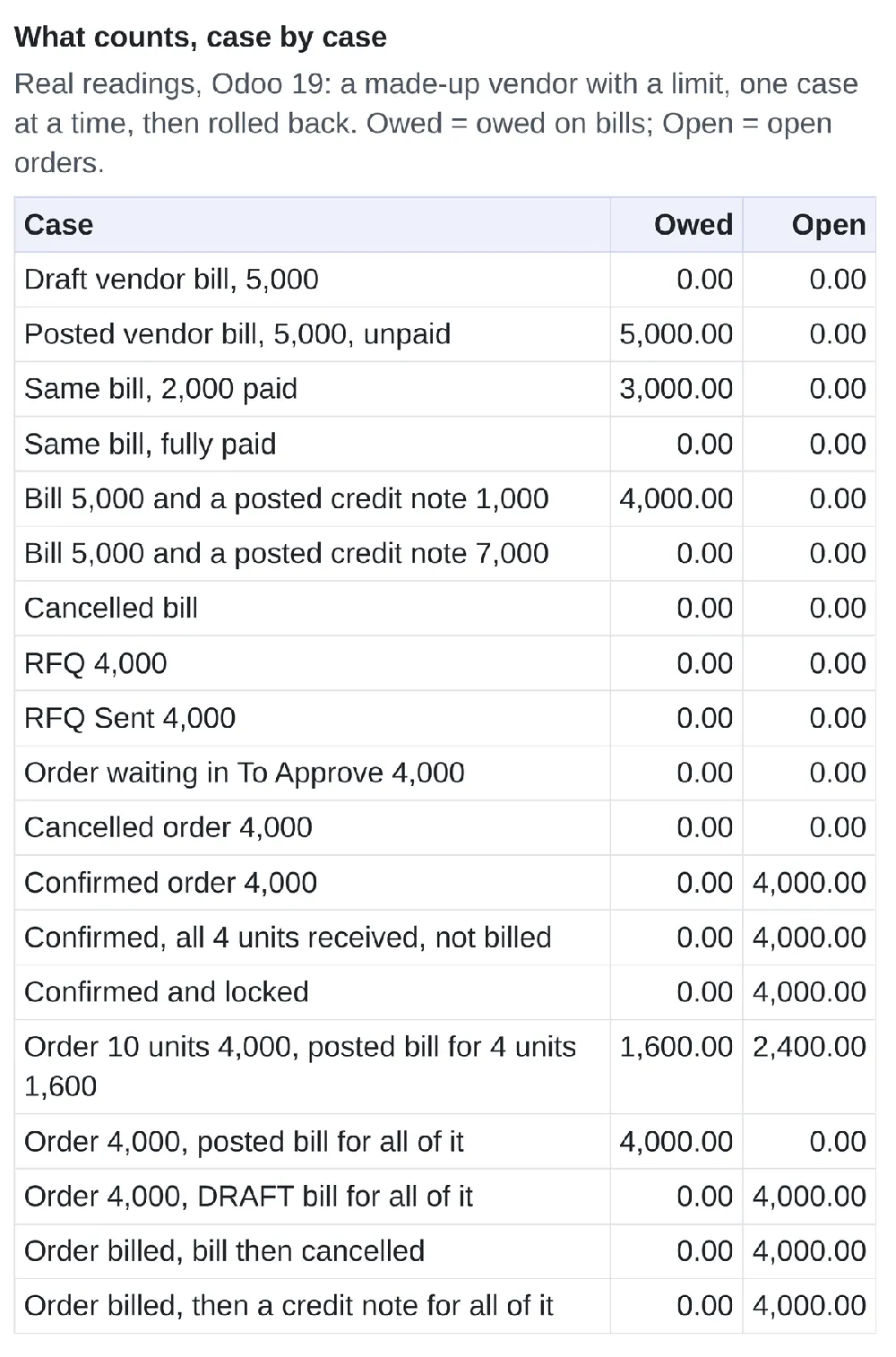
Owed on bills is the amount still due on posted vendor bills, minus posted credit notes still open, never below zero. Draft and cancelled bills, and paid bills, count nothing. Open orders are confirmed purchase orders for the part not yet billed, tax included; RFQs, sent RFQs, orders waiting in To Approve and cancelled orders count nothing, and received but not billed still counts. Only posted bills take quantity off an order, so a posted bill replaces its order and nothing is counted twice, and a draft bill does not make an order disappear.
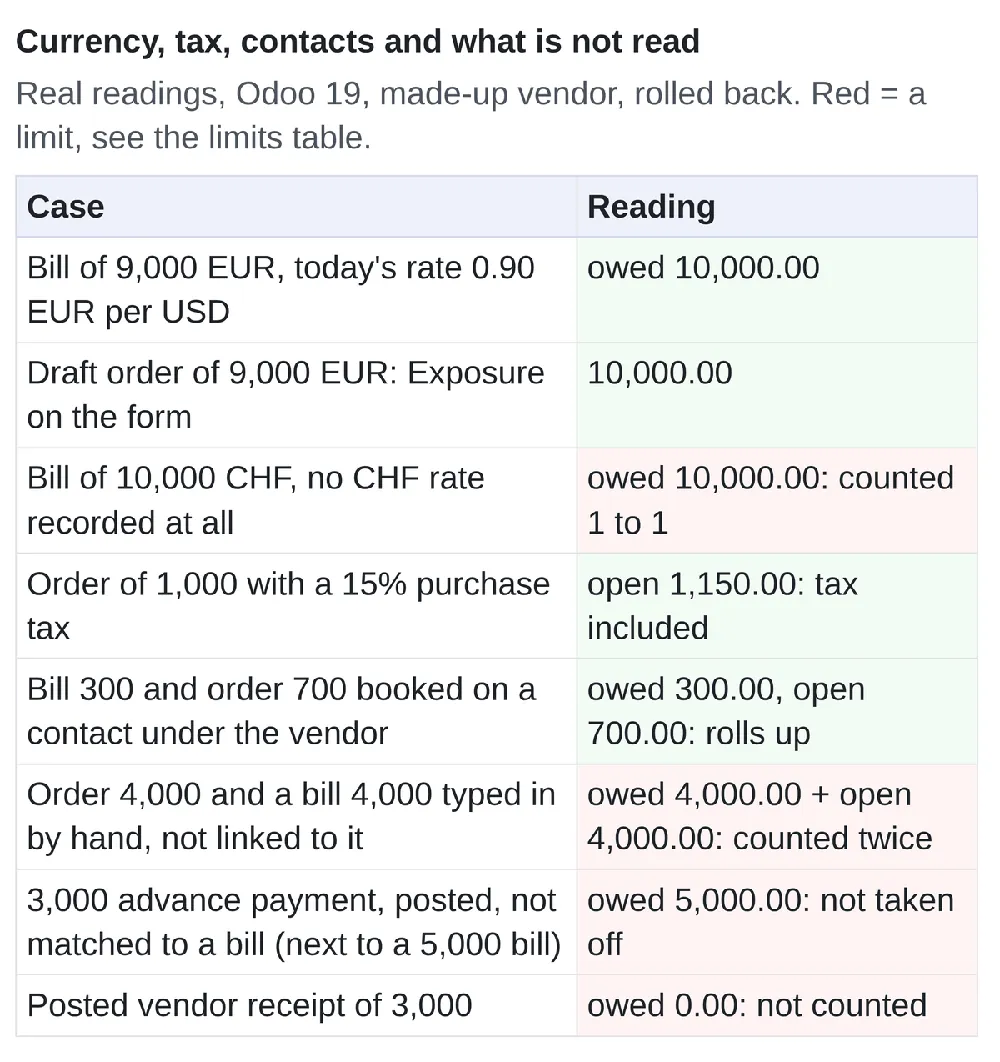
Contacts under a vendor company count with it. Only the current company counts. Amounts in another currency are converted at today's rate, not the rate of the bill or order date.
Nineteen cases, one at a time. Evidence table from real readings.
Currency, tax, contacts and what is not read. Evidence table from real readings.
3 An order that would go over
Use it when a buyer confirms an order that takes the vendor past the limit.Waits in To Approve
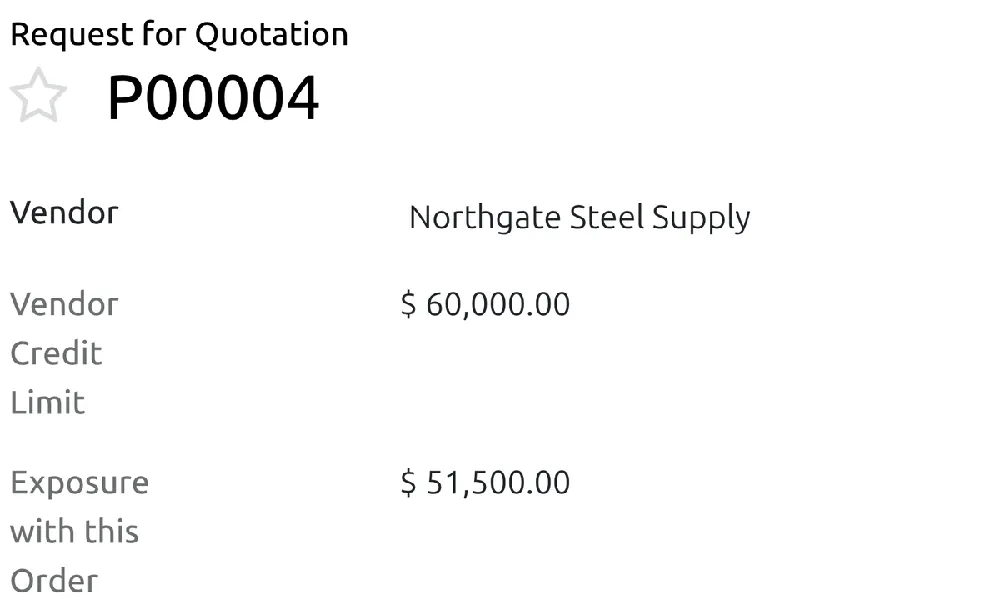
The order form shows the vendor's limit and the exposure with this order. Under the limit the order confirms as usual.
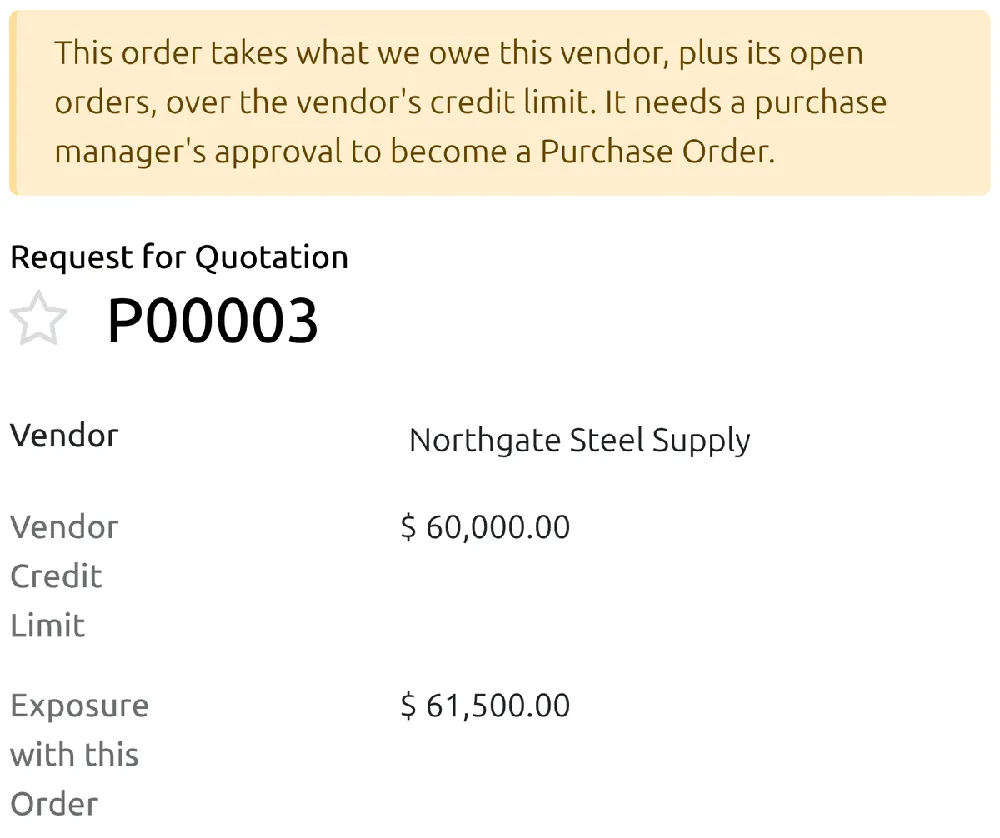
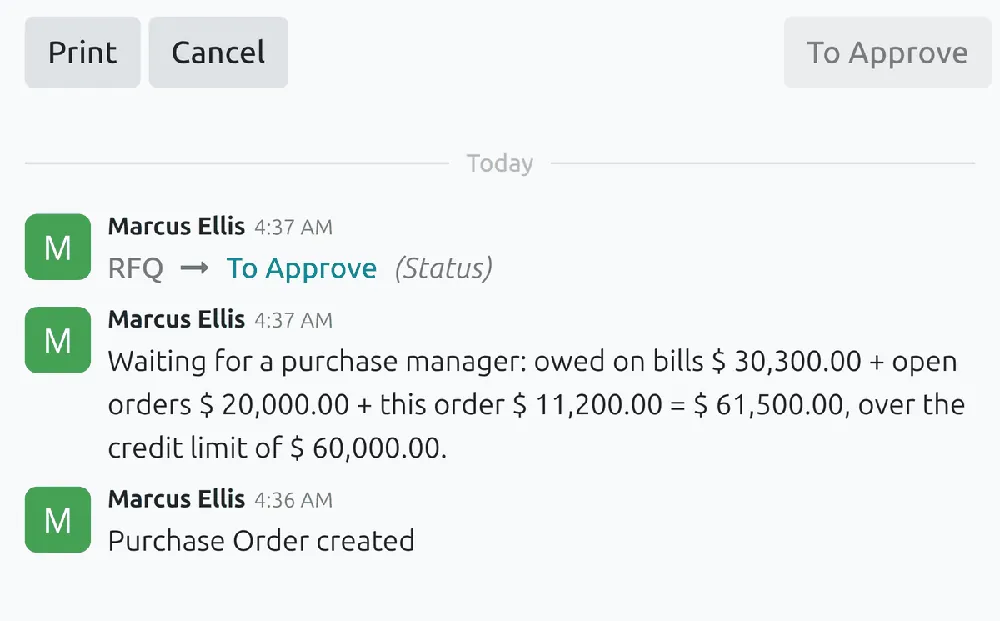
An order that would take the total over the limit shows a warning, and pressing Confirm Order sends it to To Approve instead of Purchase Order.
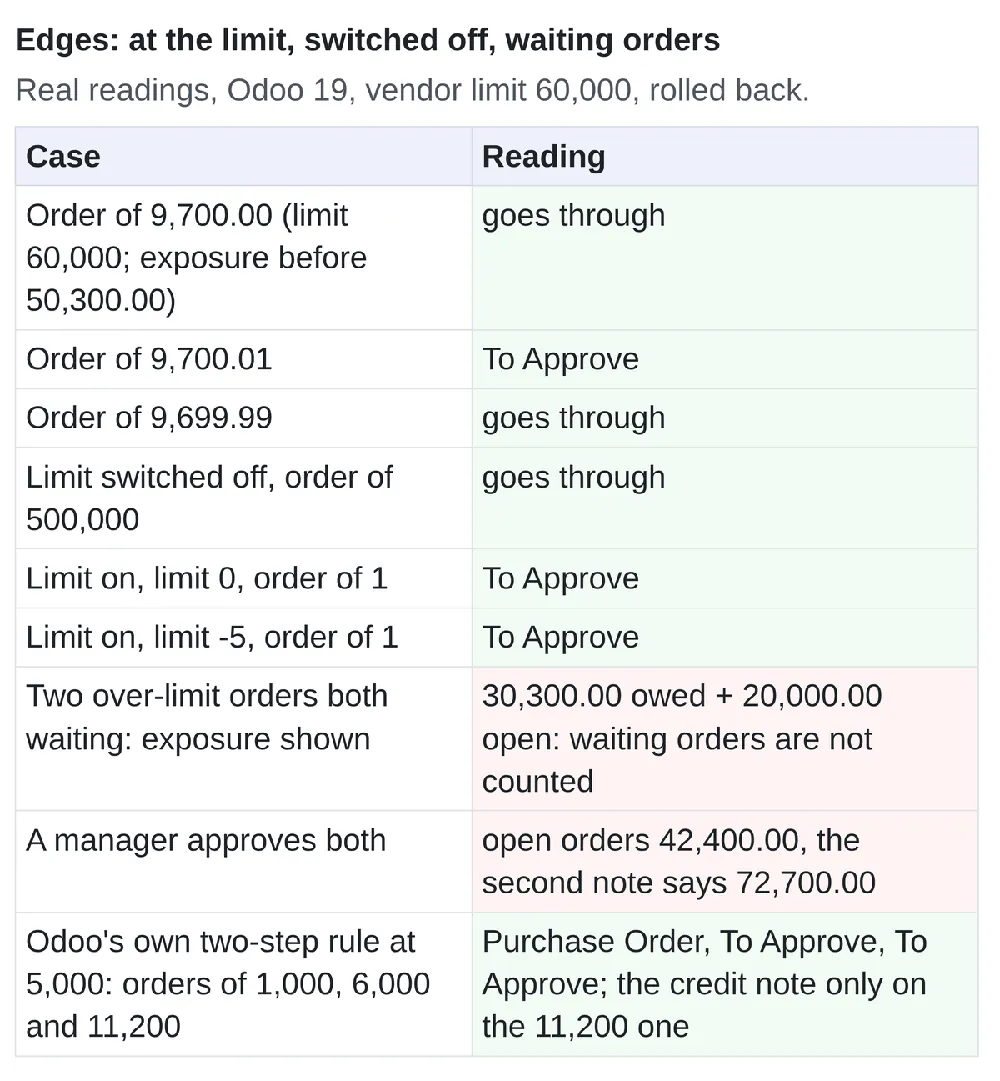
A total equal to the limit passes; one cent above does not. With the switch off there is no check; with the switch on and a limit of 0 every order waits.
A small order: 51,500 against 60,000. Real Odoo screen.
The order of 11,200: 61,500 against 60,000. Real Odoo screen.
After Confirm Order: the status and the numbers. Real Odoo screen.
Edges. Evidence table from real readings.
4 A purchase manager decides
Use it when an order is waiting and somebody with authority has to release or refuse it.Noted in the chatter
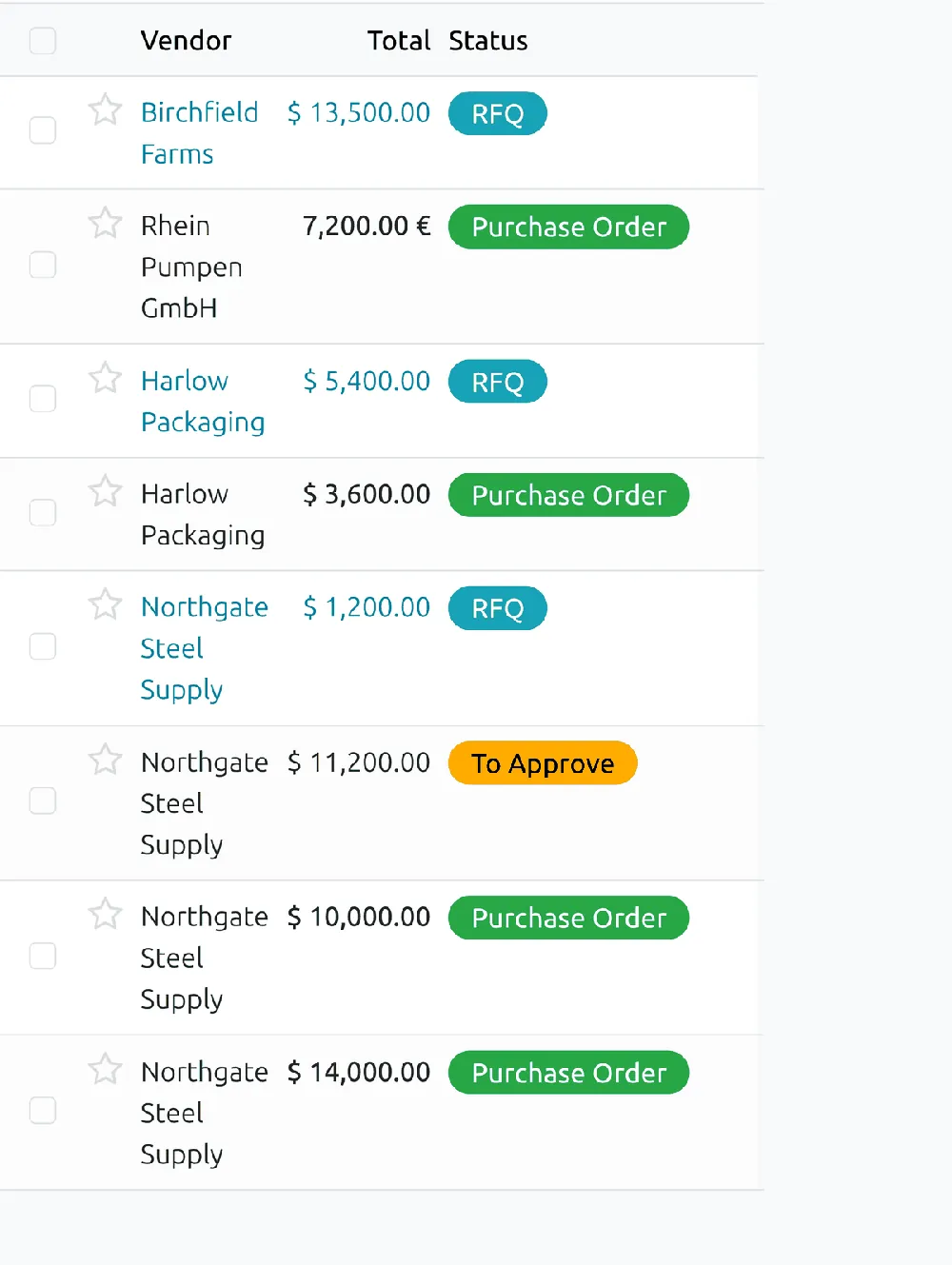
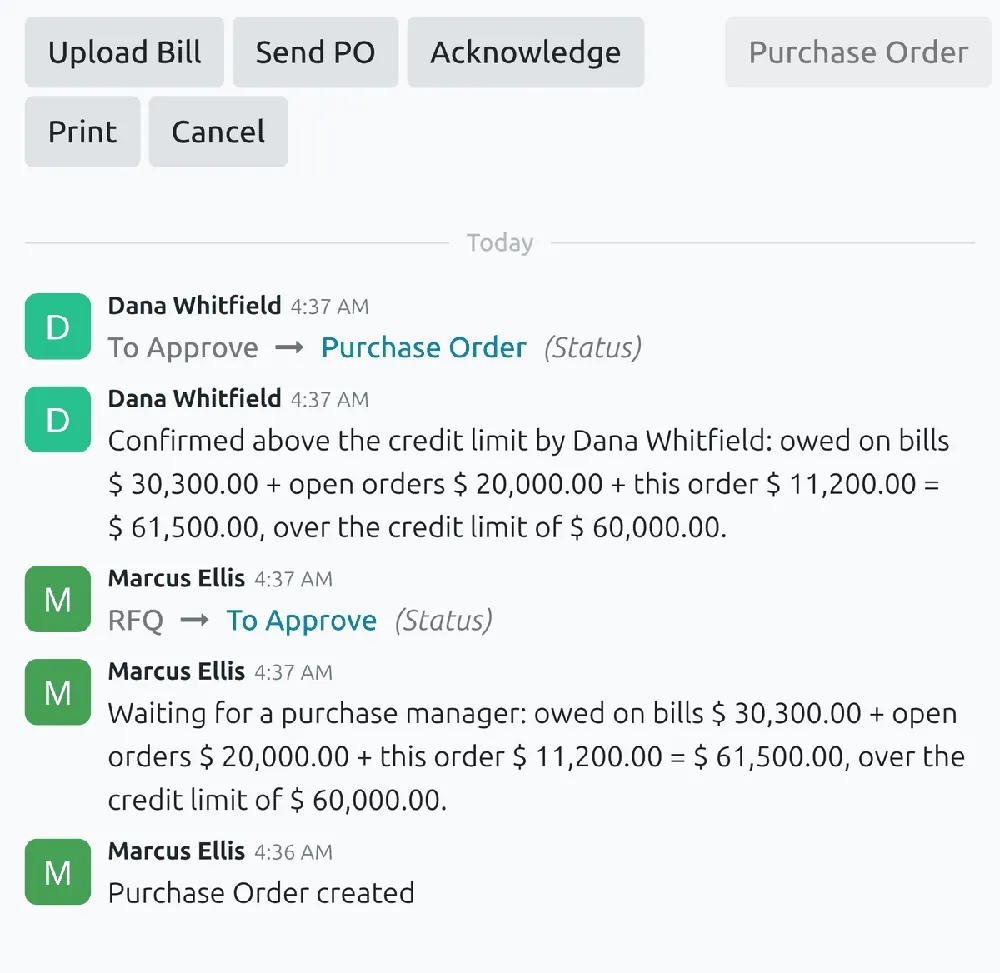
A purchase manager sees the order in the list with the status To Approve and releases it with Odoo's own Approve Order button. The chatter records who released it and the numbers at that moment. A purchase manager can also confirm an over-limit order directly; the note is the same.
The released order now counts as an open order, so the vendor's exposure is 61,500 and the next order is checked against that.
The order list: the 11,200 order waits, the others are Purchase Orders. Real Odoo screen.
After Approve Order. Real Odoo screen.
The vendor after the approval. Real Odoo screen.
5 Every way an order is confirmed
Use it when you need to know the limit does not depend on which button somebody presses.Tested as buyer and manager
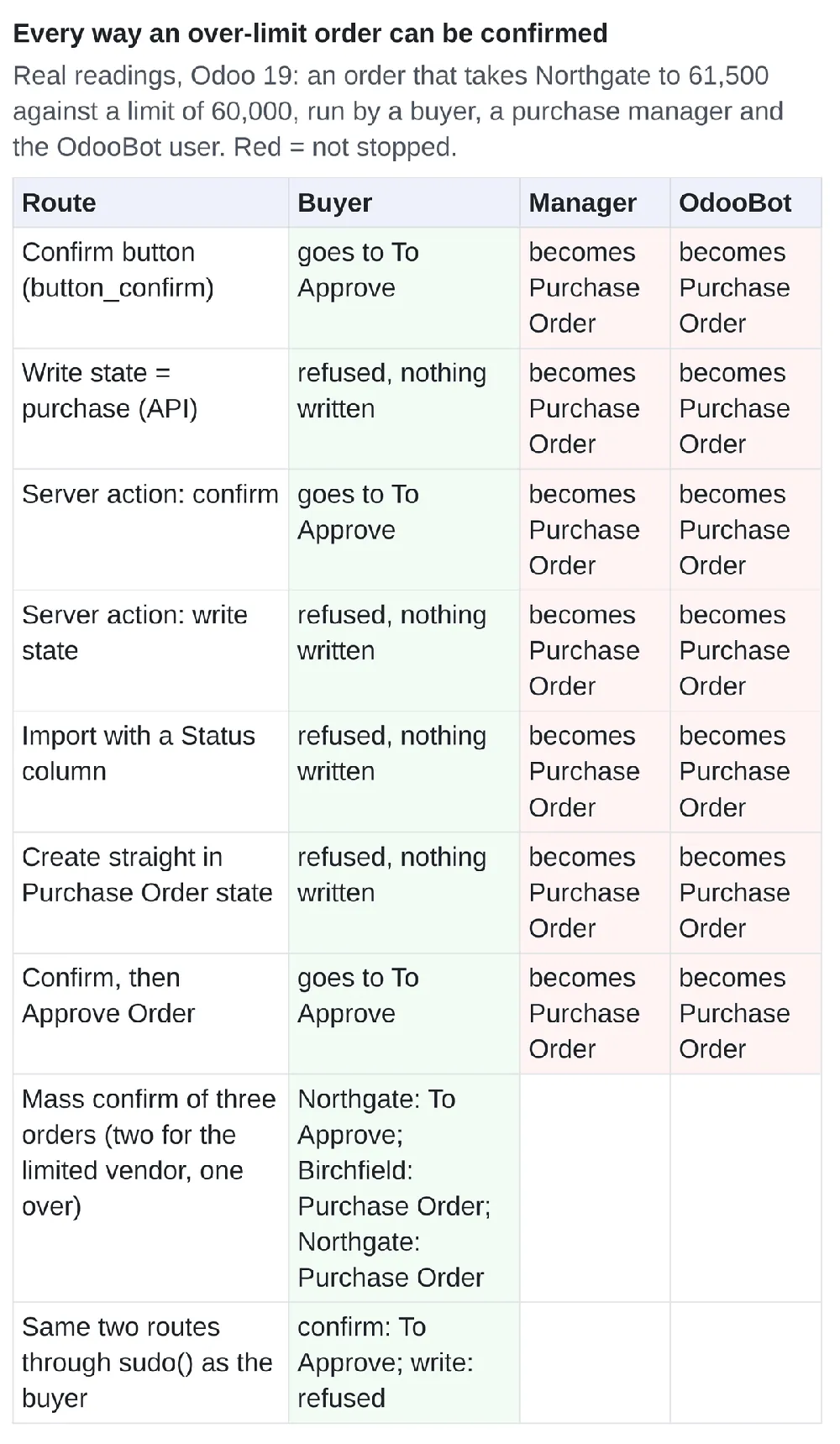
The check runs wherever an order becomes a Purchase Order. For a user who is not a purchase manager the Confirm Order button and a server action that confirms send the order to To Approve; a server action or API write of the status, an import with a Status column and a create straight in the Purchase Order state are refused with a message that names the order and the numbers, and nothing is written. A mass action on a list selection checks each order in turn. A purchase manager passes them all, and so does the OdooBot user; sudo() on a buyer does not lift the limit.
Seven routes, three users. Evidence table from real readings.
Anyone you make a purchase manager is not stopped by the limit, and neither is code that runs as the OdooBot user (scheduled actions, some automations). The limit is a control for buyers, not a lock.
6 Defects found, and where it stops
Use it when you are deciding whether this limit is enough for your purchasing.Tested limits
A contact under Northgate, before: the switch is offered. Real Odoo screen.
The same contact, after: the figures only. Real Odoo screen.
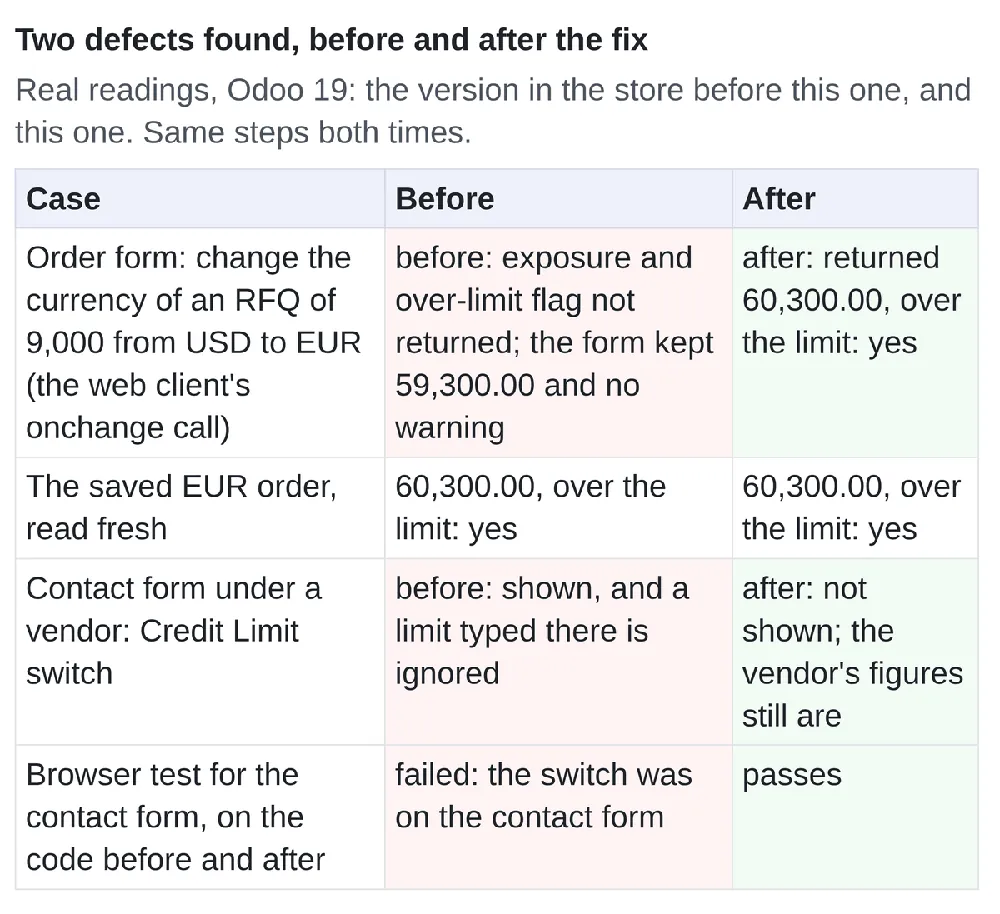
Before and after, same steps. Evidence table from real readings.
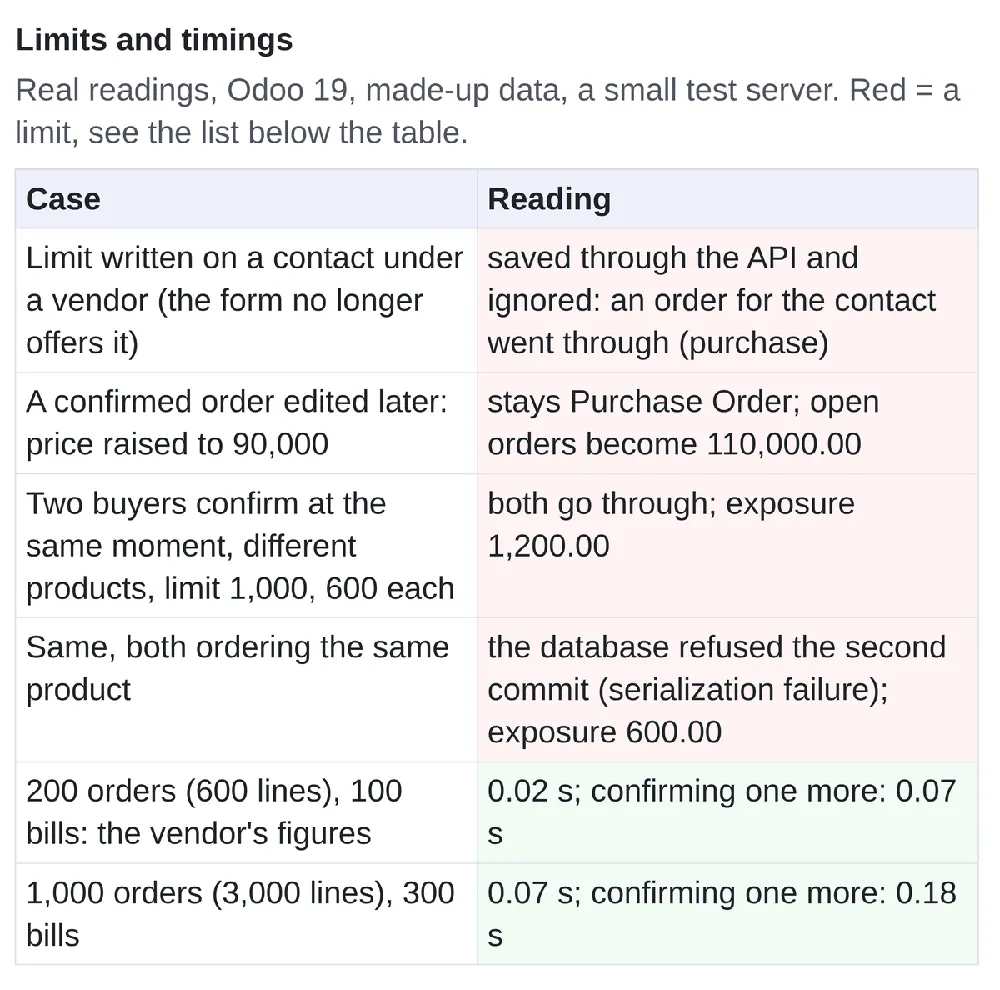
Limits and timings. Evidence table from real readings.
Who can use it
Purchase managers set the limit, see the figures on the vendor and release orders. Buyers (Purchase: User) create and confirm orders and are stopped by the limit.
Buyer and manager side by side. Evidence table from real readings.
How it differs from Purchase Approvals
Purchase Approvals (a separate paid app by us) routes an order through approval tiers by the order's own amount, each with an approver group. Supplier Credit Limit looks at the money owed to one vendor and needs no other app. Installed together, an order must pass both: a tier approver who is not a purchase manager cannot release an order over a vendor's credit limit (tested with both apps installed).
Screenshots
What it does not do
- The partner form (a switch, a limit and three figures for purchase managers), the purchase order form (a warning and two figures) and the way an order becomes a Purchase Order: for a user who is not a purchase manager an over-limit order cannot get there. It stores a switch and an amount per vendor and company, and a chatter note on each decision.
- Odoo's own Confirm Order and Approve Order buttons, its amount-based approval (the two work side by side), and every bill and order as they are. It adds no menu, no model, no report, no e-mail and makes no network call.
- Section 6, with real readings: a currency with no rate, an unlinked bill, an advance payment, waiting orders, editing after confirmation, two people at once, the OdooBot user, and 1,000 orders (3,000 lines) for one vendor.
- Odoo.sh, Odoo Enterprise, uninstall, other languages, the vendor portal, dropshipping and purchase agreements, more than 1,000 orders for one vendor, several companies in real use (two companies are covered by tests, not by screens).
- Tests, fix tests on the old code and mutation controls. Evidence table.
Requirements
- Odoo 19.0 or 20.0. The App Store sells each version separately, so buy the one that matches your database.
- Odoo.sh or On-Premise only. Third-party apps cannot be installed on Odoo Online (SaaS) databases. Check your hosting before buying.
- Module
mh_supplier_credit_limit, version 19.0.1.0.2, licensed OPL-1.