Purchase Product Docs
Product documents on purchase orders: a drawing or datasheet flagged on the product is attached to the RFQ email, or its pages are appended to the order PDF
Request a live demo · Odoo.sh or On-Premise only, not Odoo Online (SaaS).
0 of 40
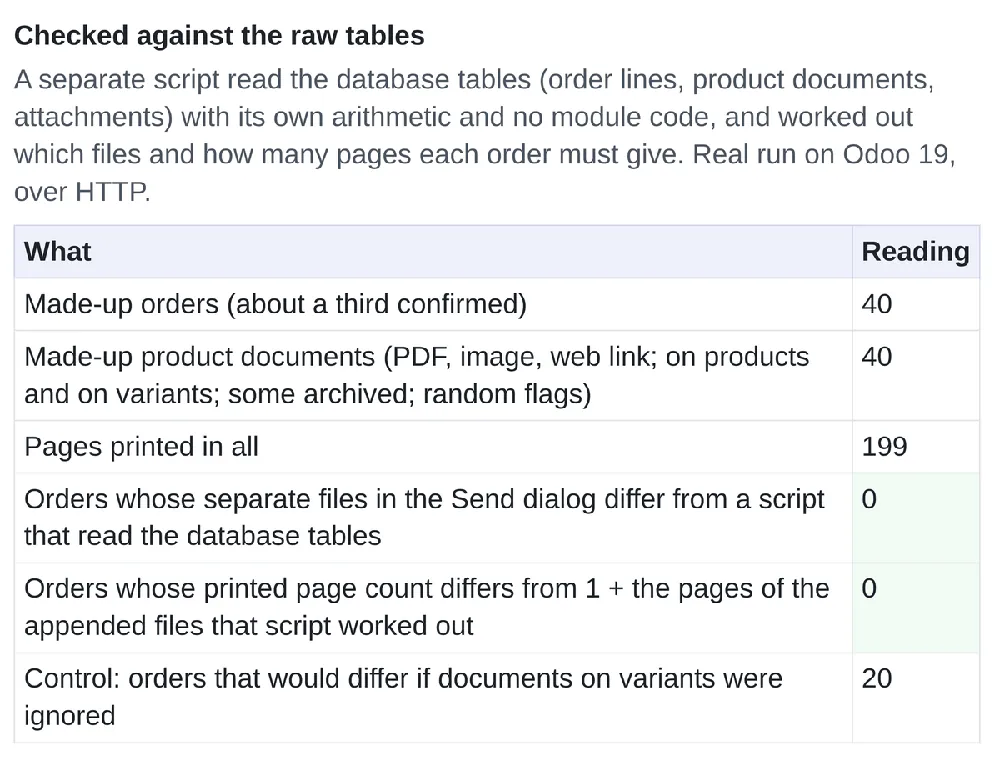
made-up orders where the files in the Send dialog or the pages of the printed PDF differed from what a separate script worked out from the raw database tables (control: ignoring documents on variants would give 20 differences)
3 settings
per document: Hidden (the default, so nothing changes until you choose), On RFQ and PO, On confirmed PO only; an extra tick appends an uploaded PDF to the order PDF
28
automated tests counted on this version, none failing; 13 were added for what this page states (15 before)
2.2 s
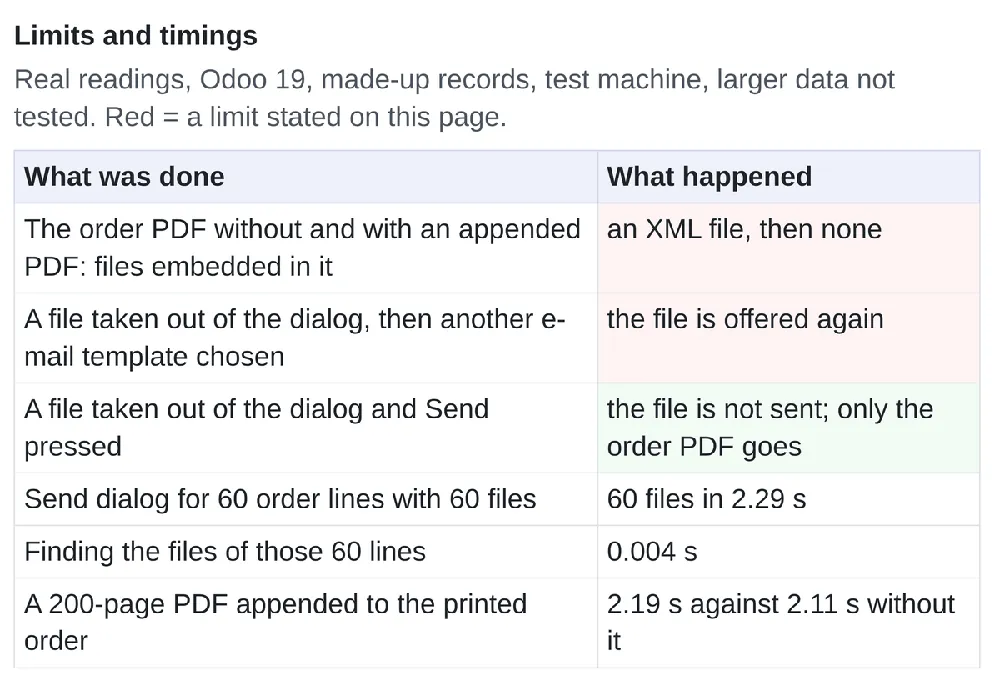
to print an order with a 200-page PDF appended (2.1 s without it); larger data not tested
Fixed
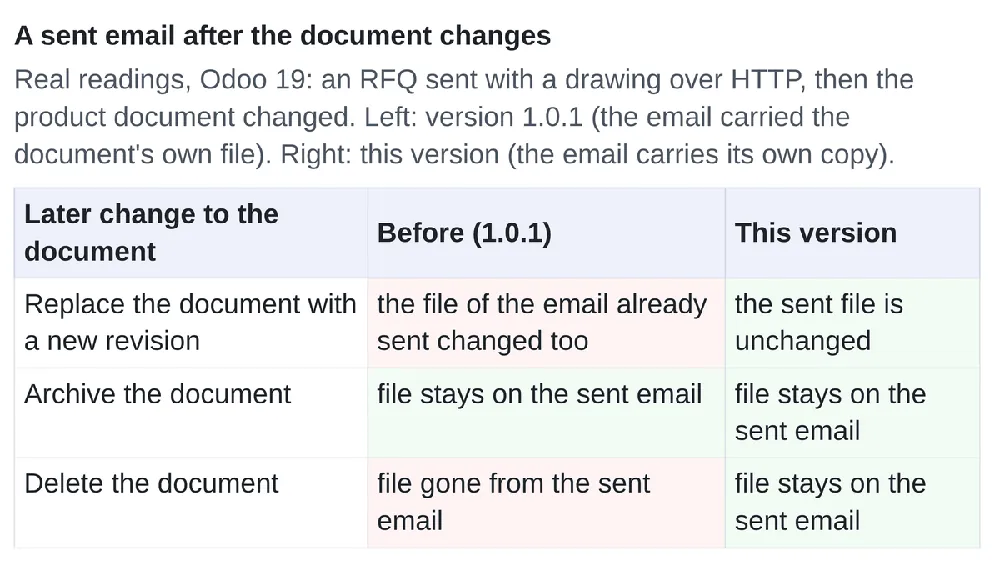
in this version: an email already sent changed or lost its file when the product document was replaced or deleted later; it now carries its own copy
Not
shown to vendors in the portal, no change to Odoo's Sales documents, and the e-invoicing XML inside the order PDF is dropped when a PDF is appended (see the known limits)
Odoo's Sales app can attach a product's documents to a quotation; the Purchase app cannot, so the drawing or datasheet that belongs with a part has to be found and attached to every request for quotation by hand. Purchase Product Docs adds the same switch to Purchase: on a product's document you choose when it goes out with an order, and the Send by Email dialog then already holds it. Ticking Append to PO PDF adds the pages of an uploaded PDF to the end of the order's own PDF. This page walks through it with screenshots of an Odoo 19 database holding a made-up machine shop buying bearings, shafts and seal kits, with the real PDF that Print returns and with tables rendered from real readings of the same run; each picture says which it is.
It is a per-document switch, not a document manager: it attaches the files of the ordered products and nothing else. This page also says where that bites: who may set the flag, which sending paths bring the files and which do not, and what happens to the e-invoicing XML.
Install it and each document of a product gets a Purchase setting (kanban card, list and form). It needs only the Purchase app.
How it works
1 Flag a document
Use it when the drawing or datasheet of a part should travel with every order for it.Changes records
Nobody remembers which file belongs with which part, so each RFQ is sent without it or with the wrong revision.
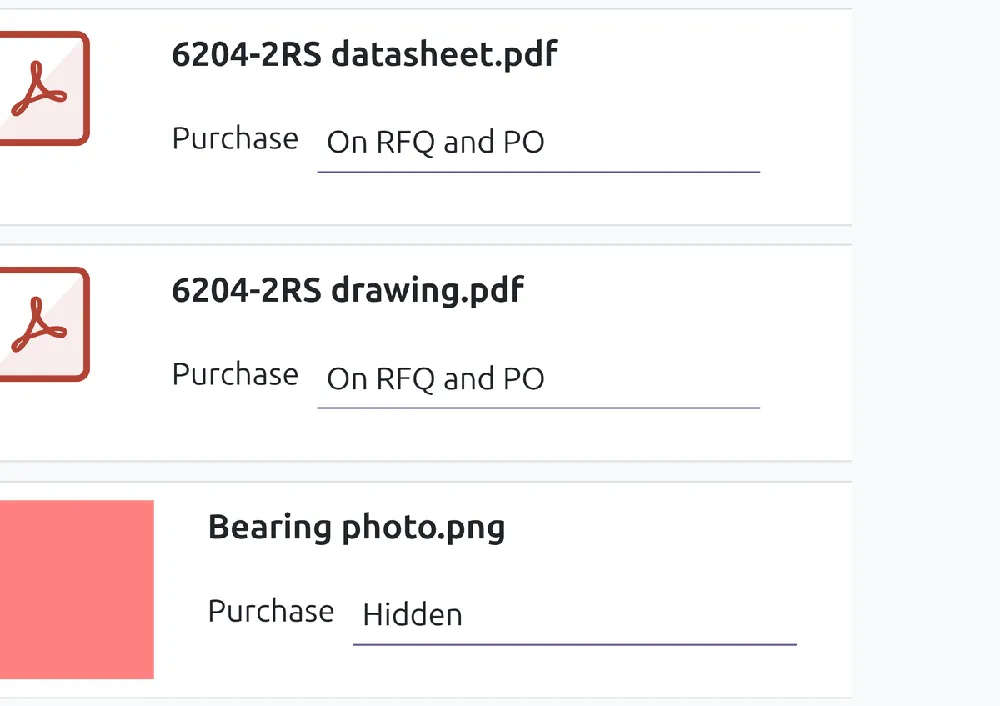
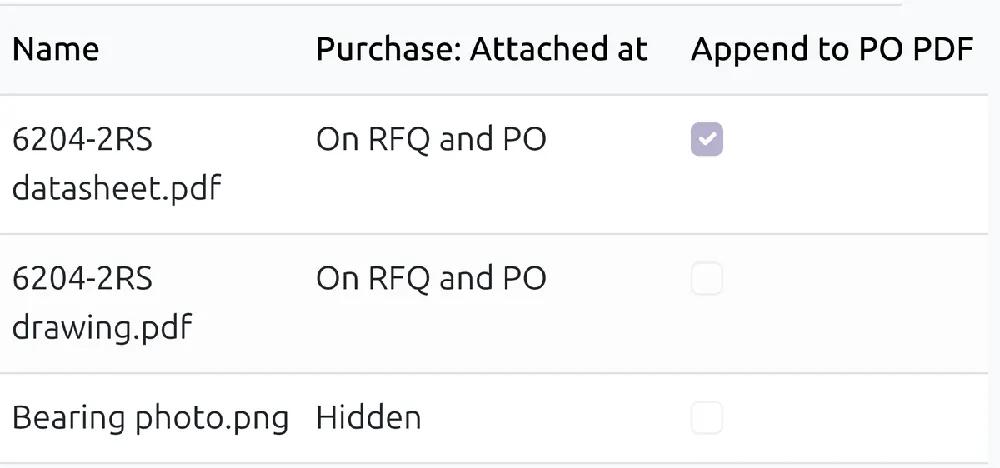
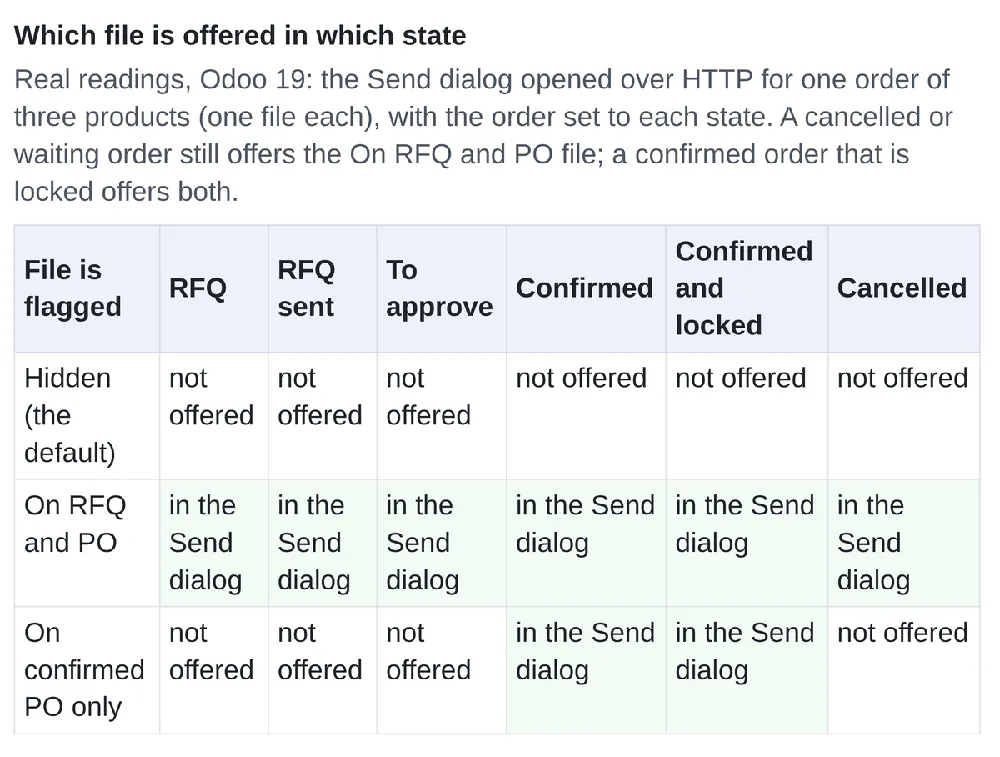
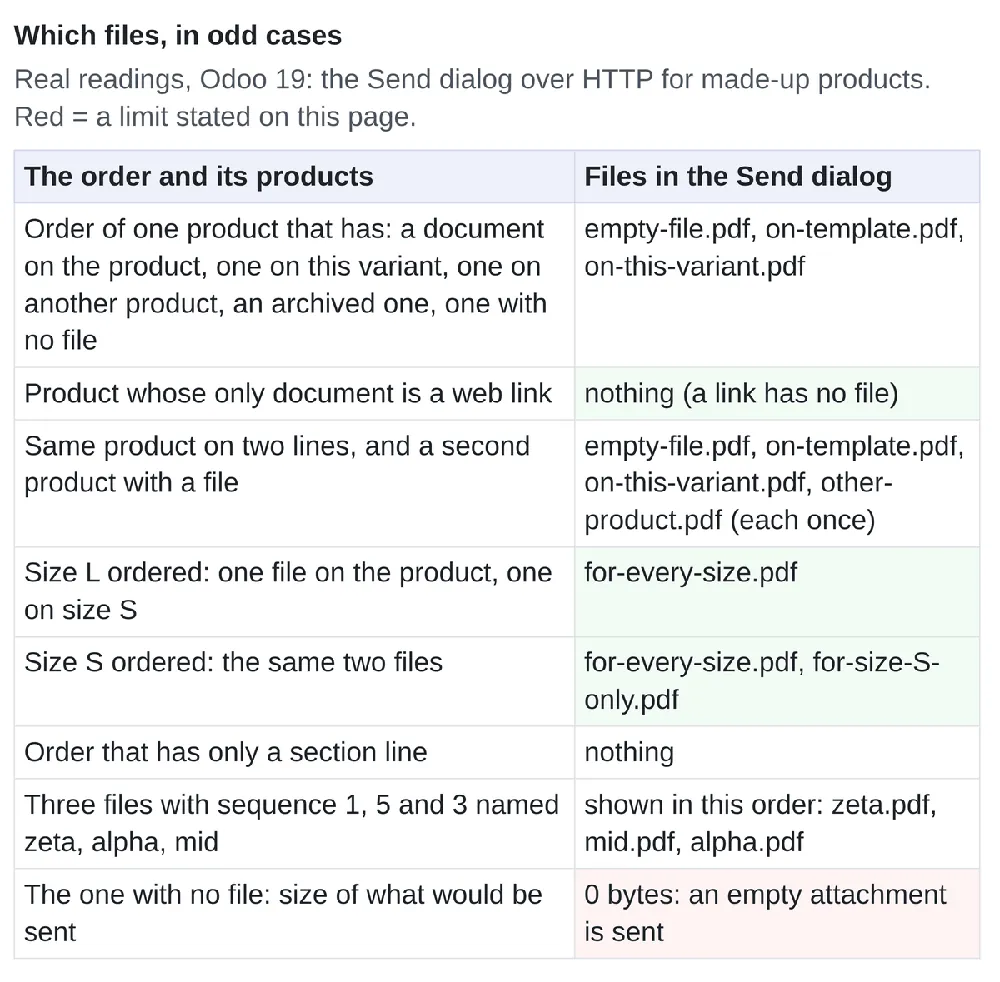
Open a product, Documents, and every card shows a Purchase setting (first picture): Hidden, On RFQ and PO, or On confirmed PO only. The list view (second picture) adds Append to PO PDF; it appears only once the setting is not Hidden. Documents belong to the product or to one variant of it: a document on the product goes with every variant, a document on a variant only with that variant. A document used by several order lines is sent once. The first table shows which file is offered in which order state; the second shows odd cases: web links, variants, archived and empty documents, and the order of the files.
A web link is skipped because it has no file. An archived document is not sent. A confirmed order that is still waiting for approval counts as not confirmed, so it gets only the On RFQ and PO files.
The product's documents with the Purchase setting. Real Odoo screen.
The same documents as a list, with the Append to PO PDF column. Real Odoo screen.
Which file is offered in which state. Evidence table.
Odd cases. Evidence table.
2 Send by Email
Use it when the vendor should get the drawing with the request without anyone attaching it.Changes records
The attachment step is manual, so it is the step that gets forgotten.
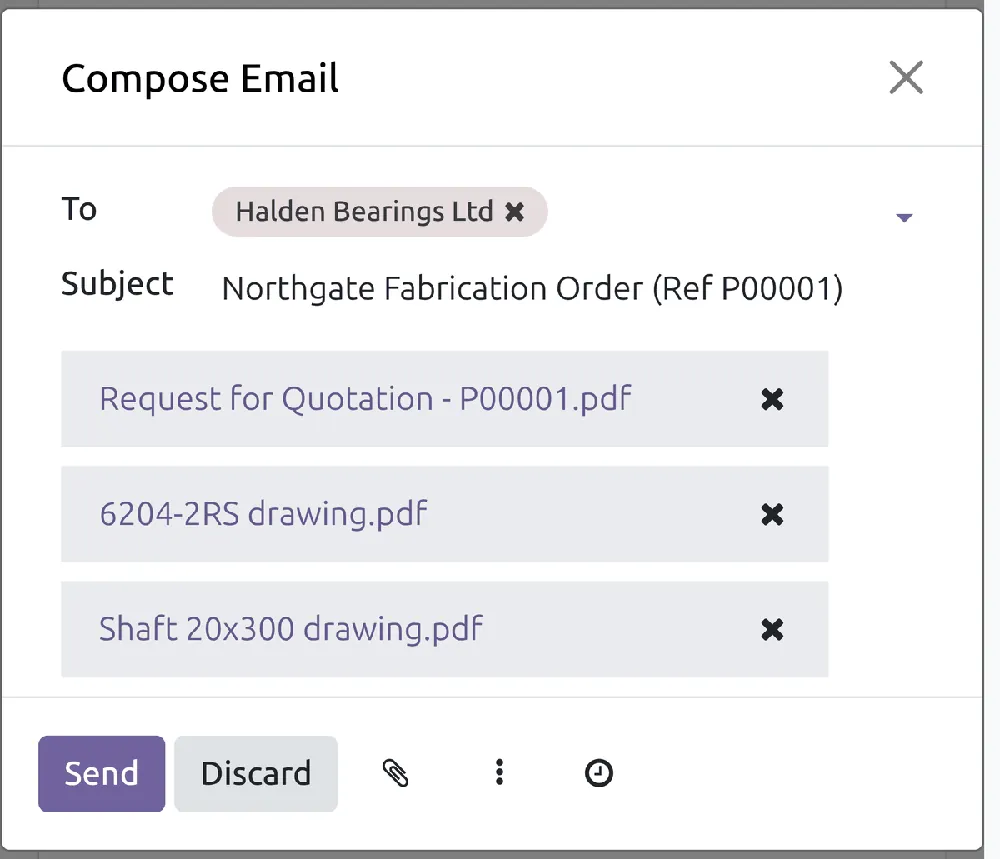
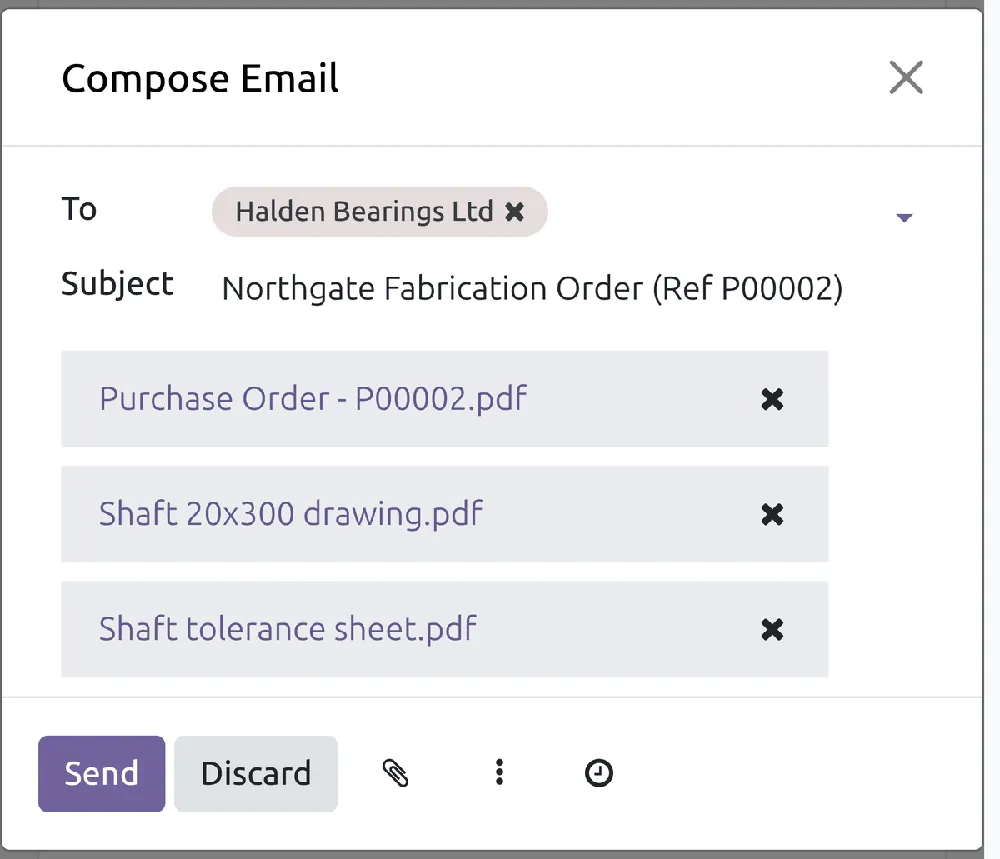
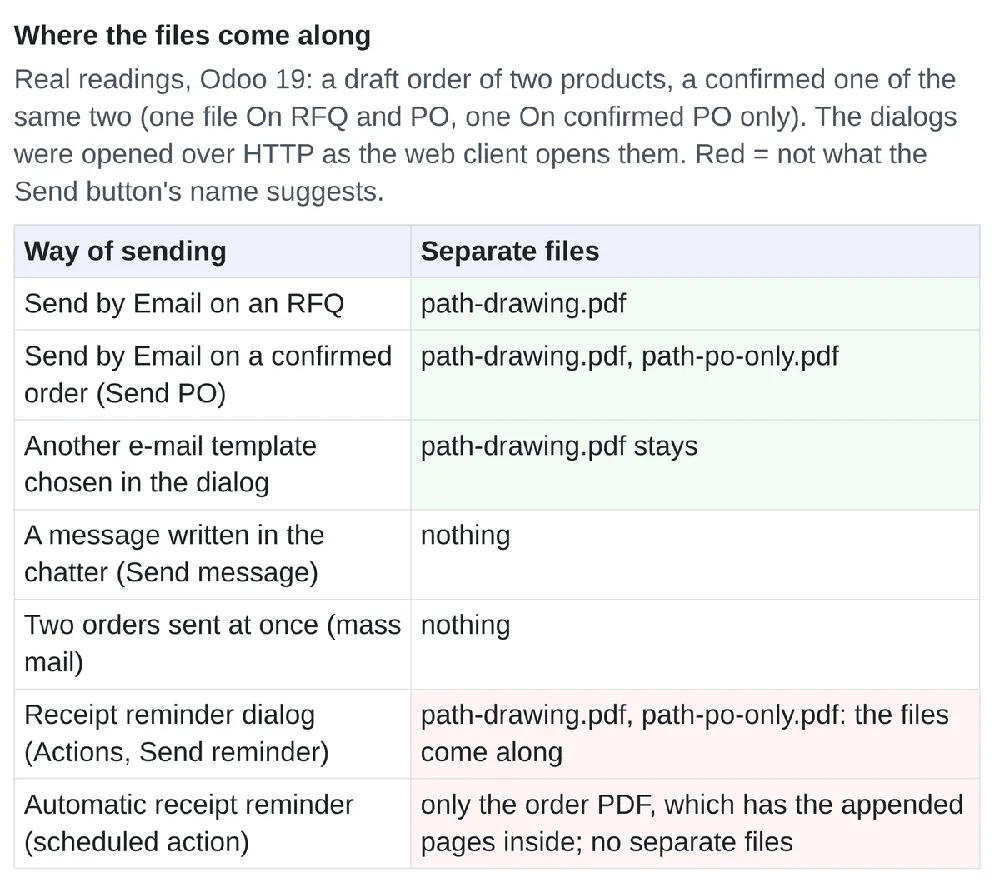
Click Send by Email on an RFQ and the flagged files of the ordered products are already in the dialog next to the order PDF (first picture: two drawings; the datasheet is appended inside the PDF instead, so it is not a separate chip). You can remove any of them before sending. On a confirmed order, Send by Email brings the On confirmed PO only files as well (second picture, with the message text cut from the picture). Choosing another e-mail template keeps the files; a file you removed by hand is offered again after a template change. The files are copies: when the email is sent they become attachments of the order, so replacing or deleting the product document later does not change that email. The table lists the sending paths.
A message written in the chatter, a mass send of several orders and the automatic receipt reminder bring no separate files. The Receipt reminder dialog does.
The Send dialog of an RFQ. Real Odoo screen, message text cut from the picture.
The dialog on a confirmed order. Real Odoo screen, message text cut from the picture.
Where the files come along. Evidence table.
3 Append pages to the PDF
Use it when terms, a datasheet or a drawing should be part of the order document itself.Changes the PDF
A vendor can ignore a separate attachment; pages inside the order PDF are harder to miss.
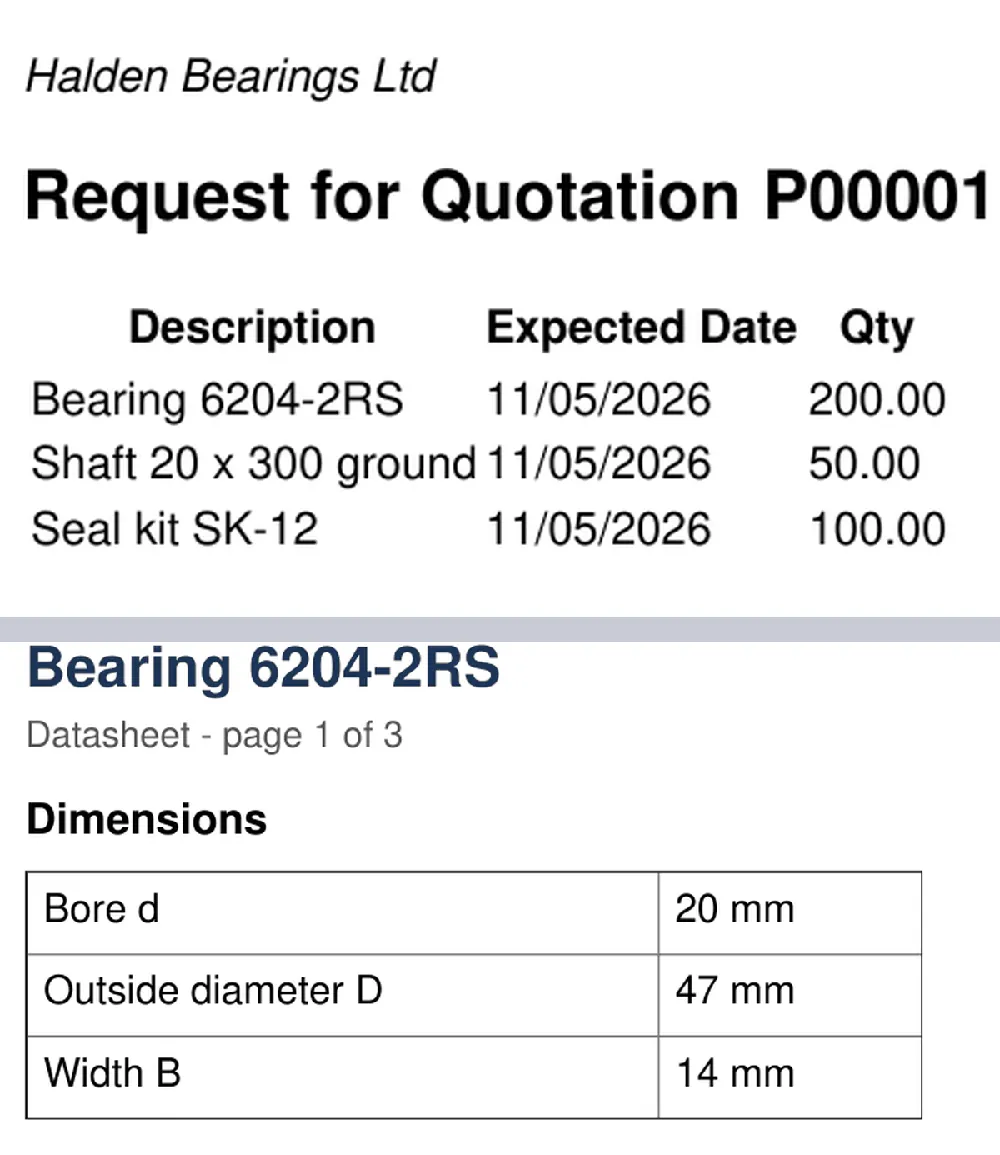
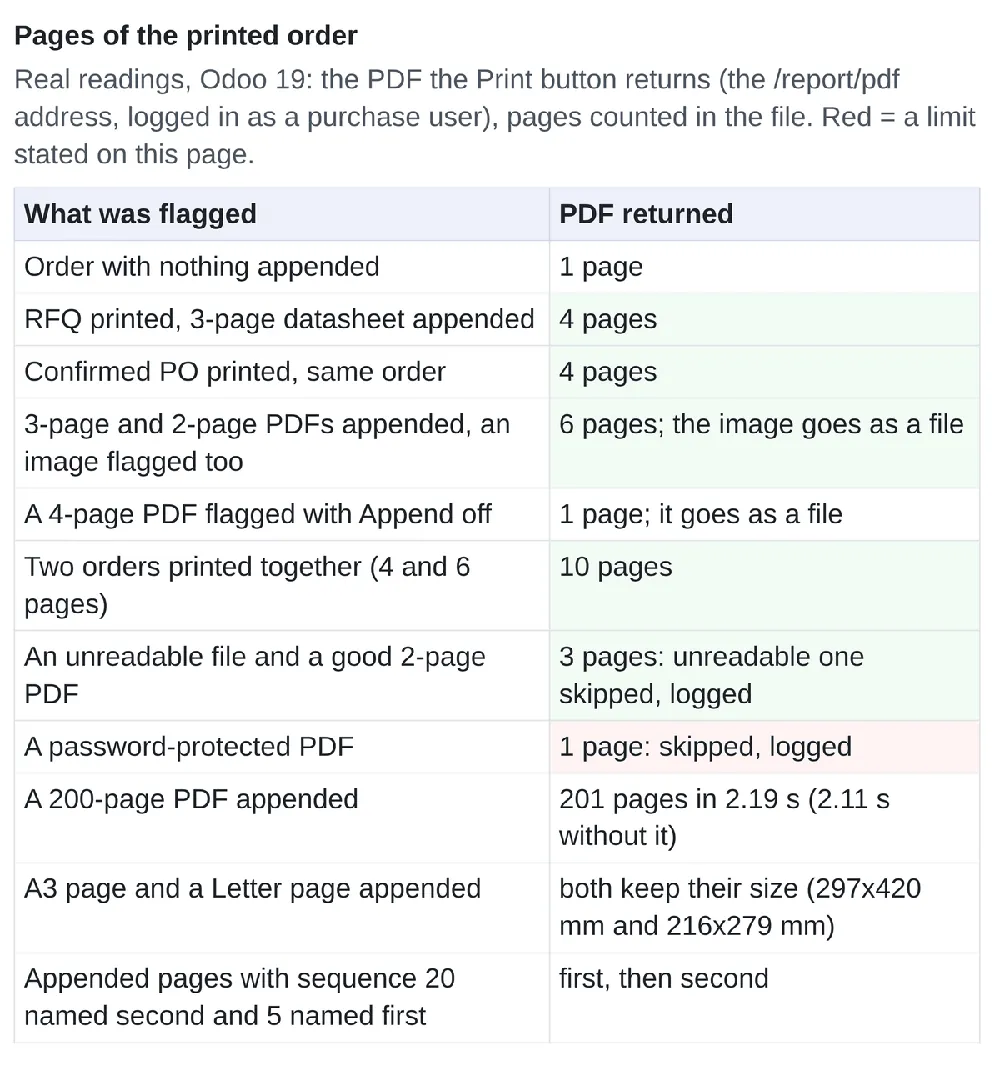
Tick Append to PO PDF on a document that is an uploaded PDF and its pages follow the order's own pages, both when you print the RFQ or purchase order and in the PDF attached to the email (the picture is the real RFQ PDF of this run, cropped: the order's own page, then the first appended page; it has four pages). Appended documents follow the document order (sequence), pages of other sizes keep their size, and an appended document is not also sent as a separate file. The table lists what 11 cases print.
Only PDFs are appended; images, Word and Excel files go as separate attachments even when ticked. A password-protected or unreadable PDF is skipped and logged, and the order still prints.
The PDF the Print button returns, rendered from the file and cropped. Real output, not a screen.
Pages of the printed order. Evidence table.
4 Who can set it, who gets the files
Use it when you need to know who maintains the flags and that buyers receive the files.Read-only
A flag nobody can change, or a file a buyer cannot see, defeats the point.
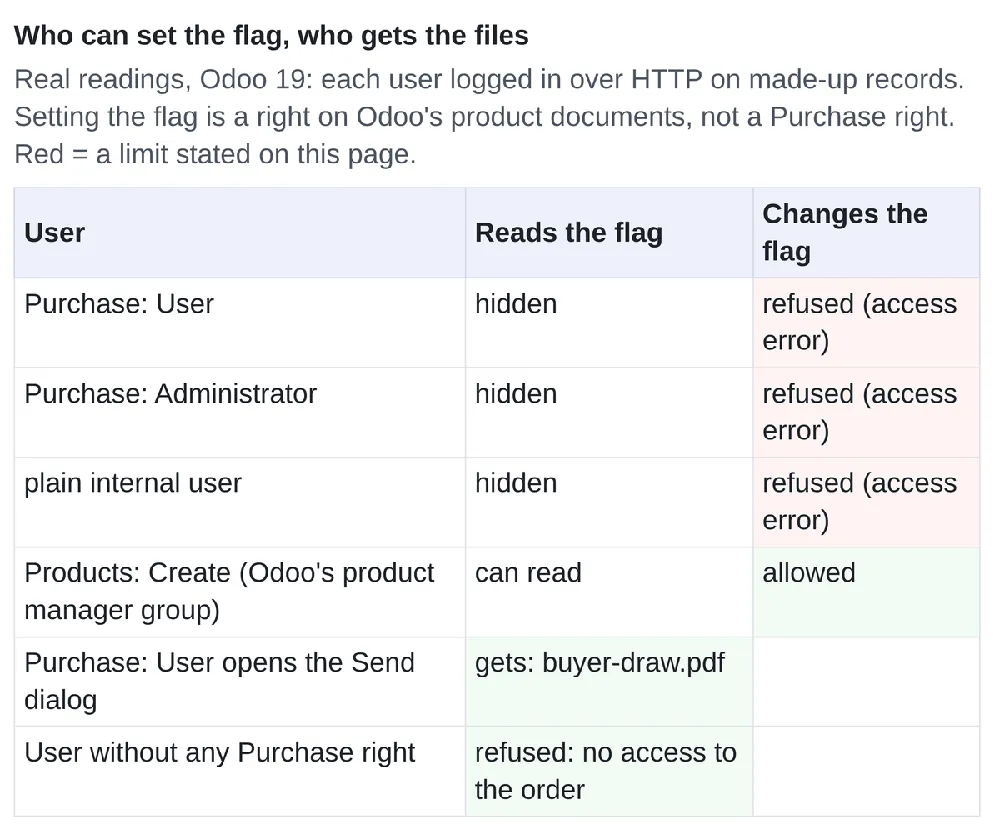
The flag is a field of Odoo's product document, so changing it needs Odoo's Products: Create right (the product manager group). A Purchase user and even a Purchase administrator can read it but not change it; the table shows each user logged in separately. A Purchase user who opens the Send dialog gets the files. Nobody without Purchase rights can open the dialog on an order.
It adds no groups of its own.
Who can set the flag. Evidence table.
5 Checked against the raw tables
Use it when you want to know the right files and pages come out before you rely on it.Read-only
A file missing from an RFQ, or one sent that should not be, is only noticed by the vendor.
A separate script read the database tables (order lines, product documents, attachments) with its own arithmetic and no module code, and worked out which separate files and how many pages each of 40 made-up orders must give, with 40 documents (PDFs, images and web links, on products and on variants, some archived, random settings). Each order was then opened in the Send dialog and printed over HTTP. 0 differences on Odoo 19. As a control, ignoring documents on variants would have given 20 differences.
The independent check. Evidence table.
What changed in this version
Version 1.0.2 fixes one defect: until 1.0.1 the Send dialog attached the product document's own file, so replacing the document with a new revision changed the file shown on the email already sent, and deleting the document removed it from that email. The dialog now attaches a copy that becomes an attachment of the order when the email is sent. Nothing else about flags, the PDF or the dialog changed. It also adds 13 automated tests (the sent-email tests go through the same RPC calls the web client makes, as a Purchase user, and the pinned limits above), rewrites the screenshots and the text, and removes two claims that were not checked (Odoo Enterprise, and that the e-invoicing XML is optional: it is installed with Purchase). The demo video of an earlier version is kept as it was and was not re-recorded.
Screenshots
What it does not do
- Each line was tested or read in the code.
- Each of these was reproduced in a run of the app on Odoo 19 and is pinned by a test that passes; the first row of the table was changed in this version.
- A sent email after the document changes. Evidence table.
- Limits and timings. Evidence table.
Requirements
- Odoo 19.0 or 20.0. The App Store sells each version separately, so buy the one that matches your database.
- Odoo.sh or On-Premise only. Third-party apps cannot be installed on Odoo Online (SaaS) databases. Check your hosting before buying.
- Module
mh_purchase_product_docs, version 19.0.1.0.1, licensed OPL-1.