Purchase Pricelists
A vendor says "list price minus 30% on tools": write that once as a rule instead of a price line per product
Request a live demo · Odoo.sh or On-Premise only, not Odoo Online (SaaS).
40 of 40
order lines matched an independent recompute from the raw tables over 16 random rules (which rule applied and the price)
1 rule
priced a 300-line order, where Odoo alone needs 300 vendor price lines (1.1 s to create the order on Odoo 19)
41
automated tests in the app, none failing; 10 were added, 3 for fixes and 7 for the limits stated on this page
2
small defects found and fixed in this version (a duplicated RFQ froze its price, a typed 0.00 was re-priced), both disclosed below
0
vendor price lines, products or vendor bills changed: it sets the price of RFQ and PO lines and nothing else
Not
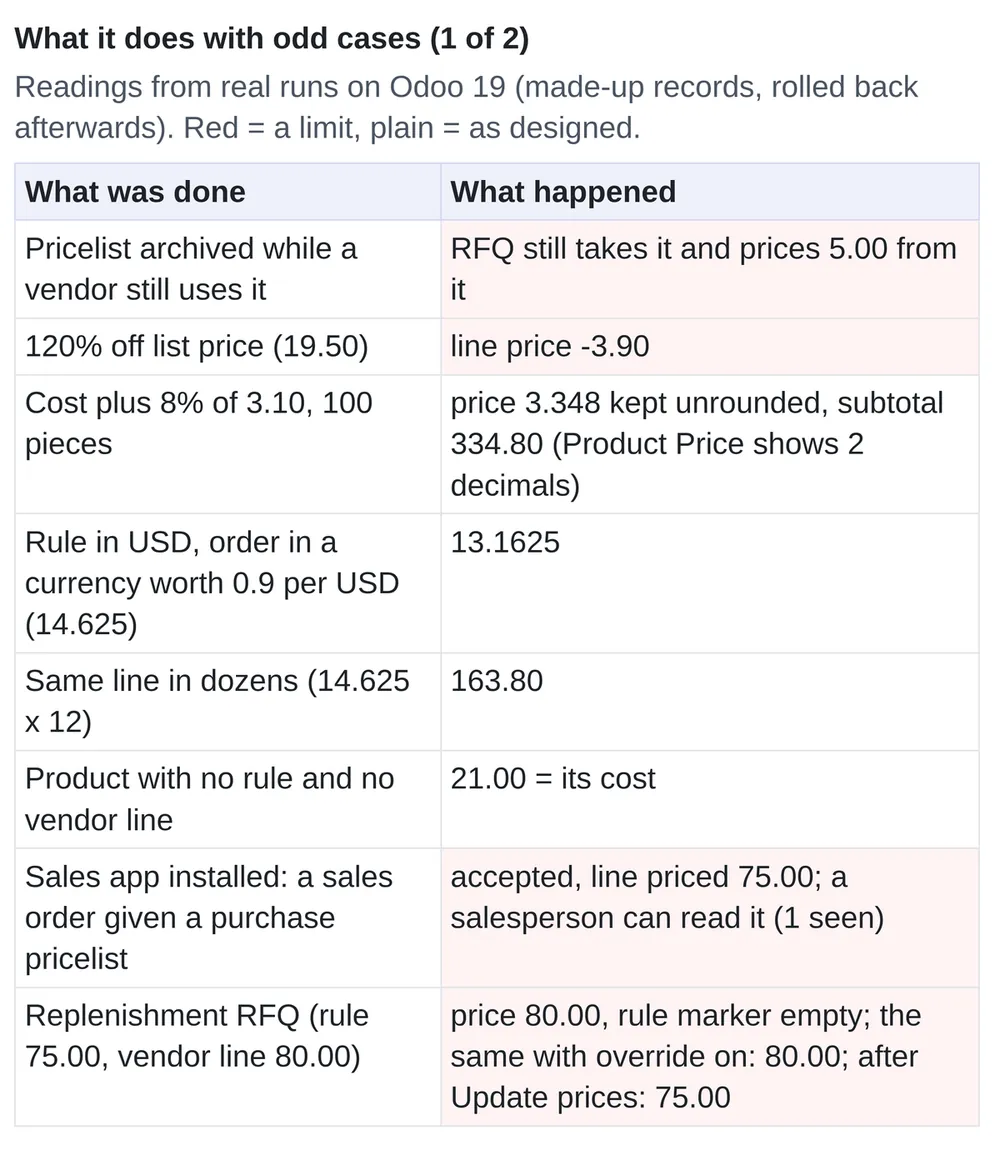
applied to orders made by replenishment, and visible to Sales when Sales is installed (see the known limits)
Odoo prices an RFQ line from one vendor price line per product and vendor. A supplier with 2,000 products on list price minus 30% needs 2,000 lines, and each change of terms means editing them all. Purchase Pricelists lets you give a vendor a pricelist of rules (by product, category or all products, percent off the list price or the cost, a fixed price, a minimum quantity, a date range) and prices the RFQ and PO lines from it. This page walks through it with screenshots of an Odoo 19 database holding a made-up workshop supplier and three made-up vendors, and with tables rendered from real readings of the same run; each picture says which it is.
A vendor price line that matches still wins, unless the pricelist is set to override it. The page also says where the app stops: orders made by replenishment, Update prices on old orders, what a typed price does, and what Sales users can see.
Install it and a Purchase Pricelists menu appears under Purchase, Configuration, a Purchase Pricelist field on the vendor form, and a Pricelist field with an Update prices button on RFQs and purchase orders. It needs only the Purchase app; Odoo's Pricelists setting does not have to be on.
How it works
What it keeps, what it changes, what it does not
Each line was tested or read in the code.
1 Write the vendor's terms once
Use it when a vendor gives you a percentage off its list or a fixed price for a group of products.Writes when saved
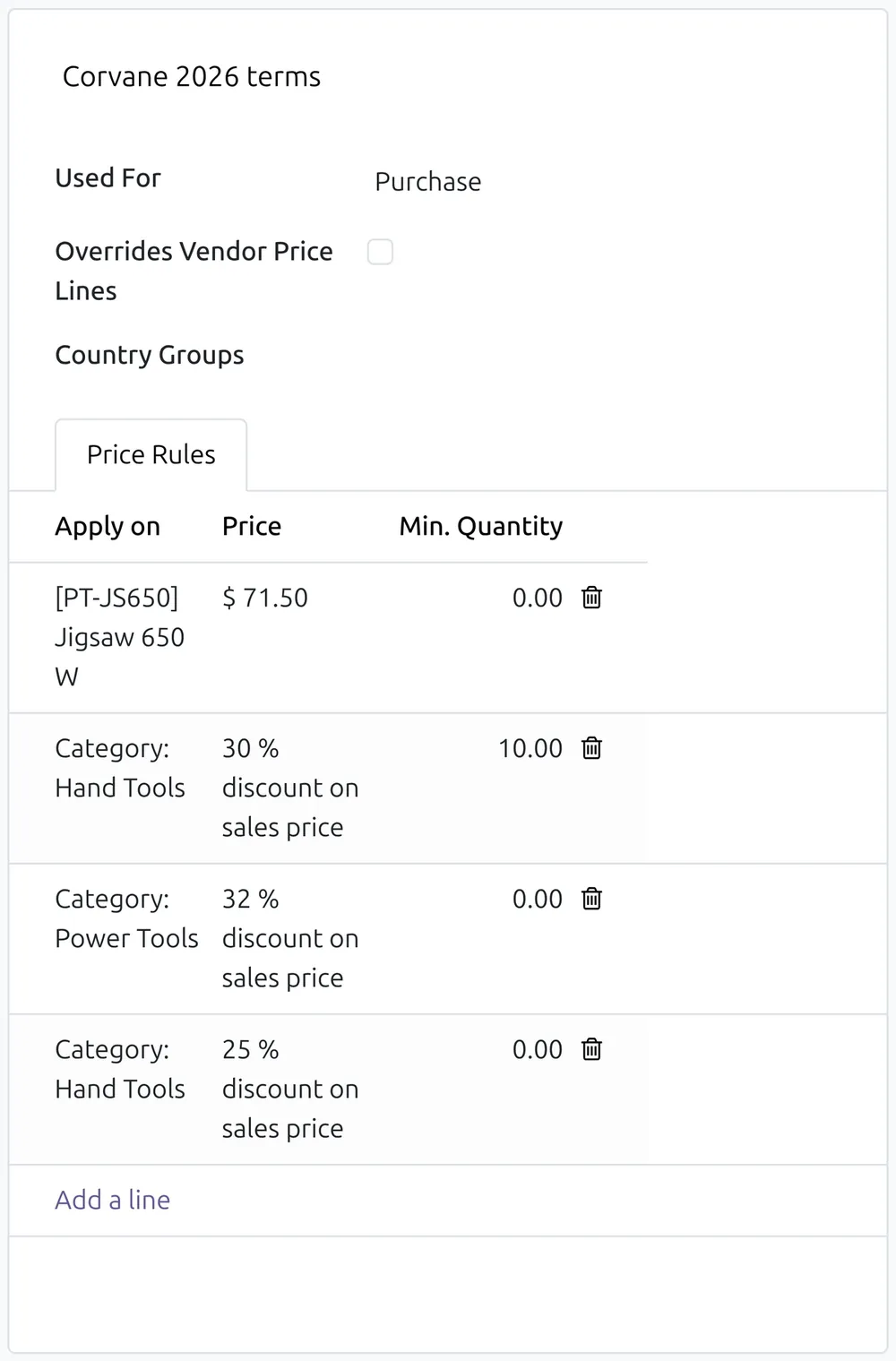
A supplier's terms are rules, not products: list price minus 32% on power tools, minus 25% on hand tools and minus 30% from ten pieces, a fixed price for one saw. Odoo only has a price line per product.
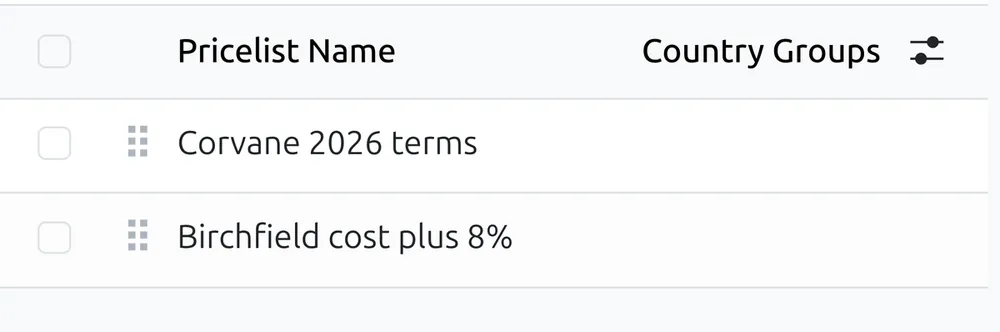
Open Purchase, Configuration, Purchase Pricelists. The list holds your purchase pricelists; opening one shows Odoo's own pricelist form with the Price Rules, plus two fields added by the app: Used For (Purchase) and Overrides Vendor Price Lines . A rule can be for a product, a category (child categories included) or all products, with a percentage off the list price or the cost, a percentage over the cost, a fixed price, rounding, a surcharge, a margin cap, a minimum quantity and a date range. The most specific rule wins. These are screenshots from Odoo 19; the rules list is shown without its date columns, which are empty here.
It does not copy rules from vendor price lists, and a purchase pricelist is not hidden from Sales (see the known limits).
The list of purchase pricelists. Real Odoo screen (Odoo 19).
One pricelist opened with its rules. Real Odoo screen.
2 Give the vendor a pricelist
Use it when you buy from the same vendor again and again on the same terms.Writes when saved
The terms belong to the vendor, not to each order.
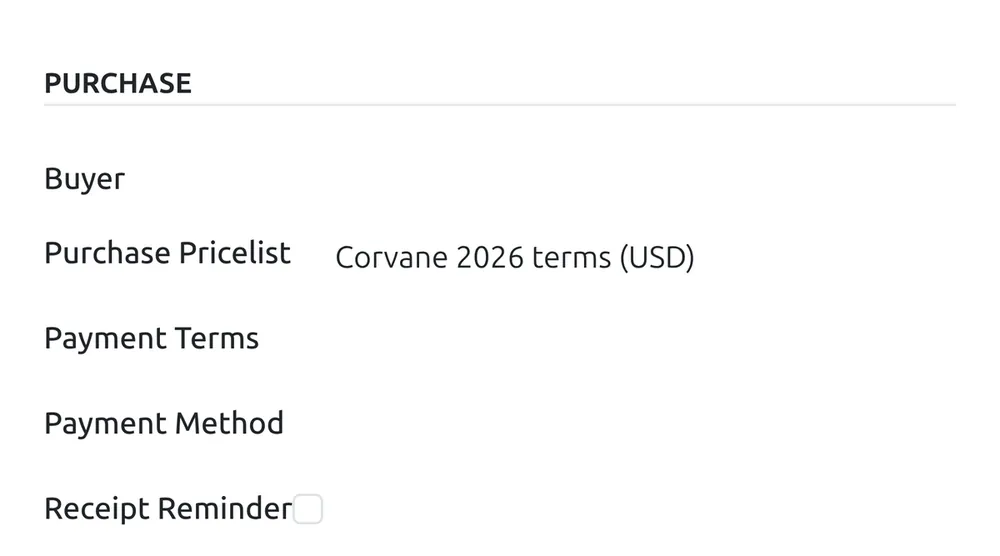
On the vendor form, Sales & Purchase tab, the Purchase section has a Purchase Pricelist field. New RFQs and orders to that vendor (or to one of its contacts) take it. The default is read per company. Changing the vendor's default later does not change orders already made.
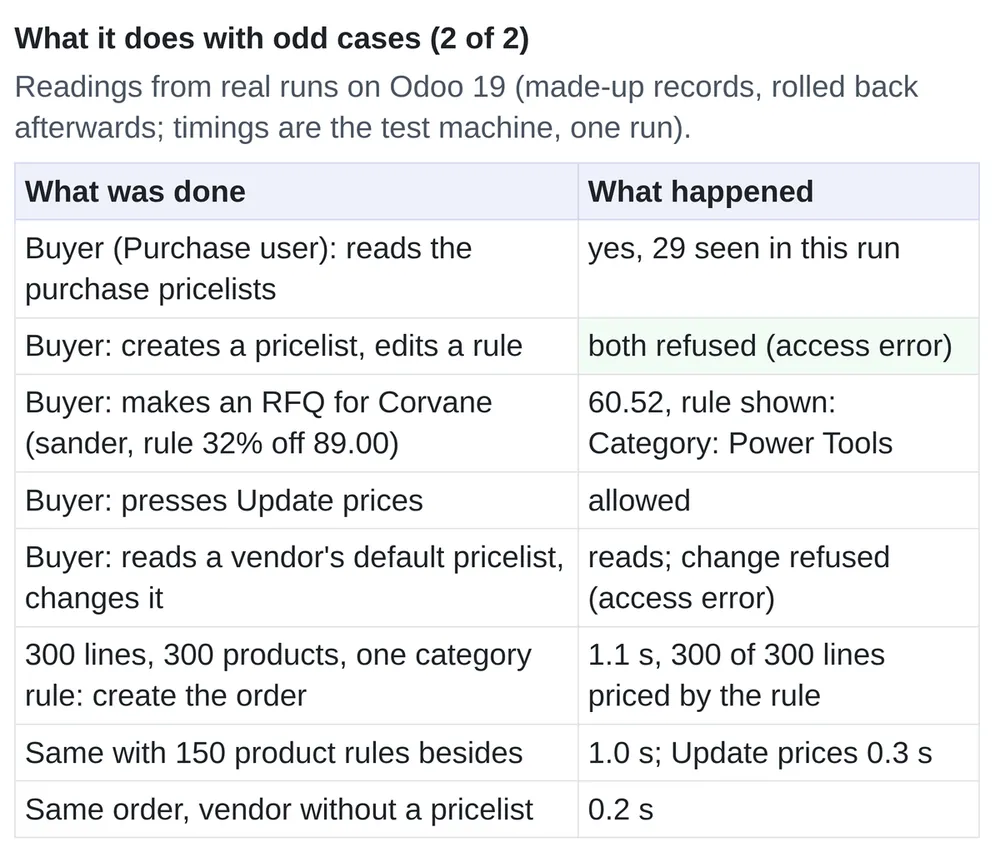
Only purchase managers can change it; a buyer reads it.
The vendor's default pricelist. Real Odoo screen.
3 RFQs and orders are priced from the rules
Use it when a buyer adds products to an RFQ and expects the agreed terms.Writes the price
Typing prices from a vendor's terms is slow and wrong sooner or later.
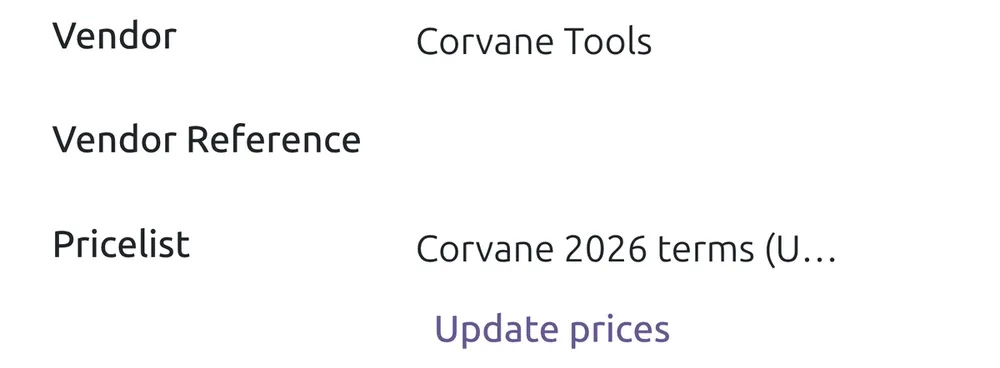
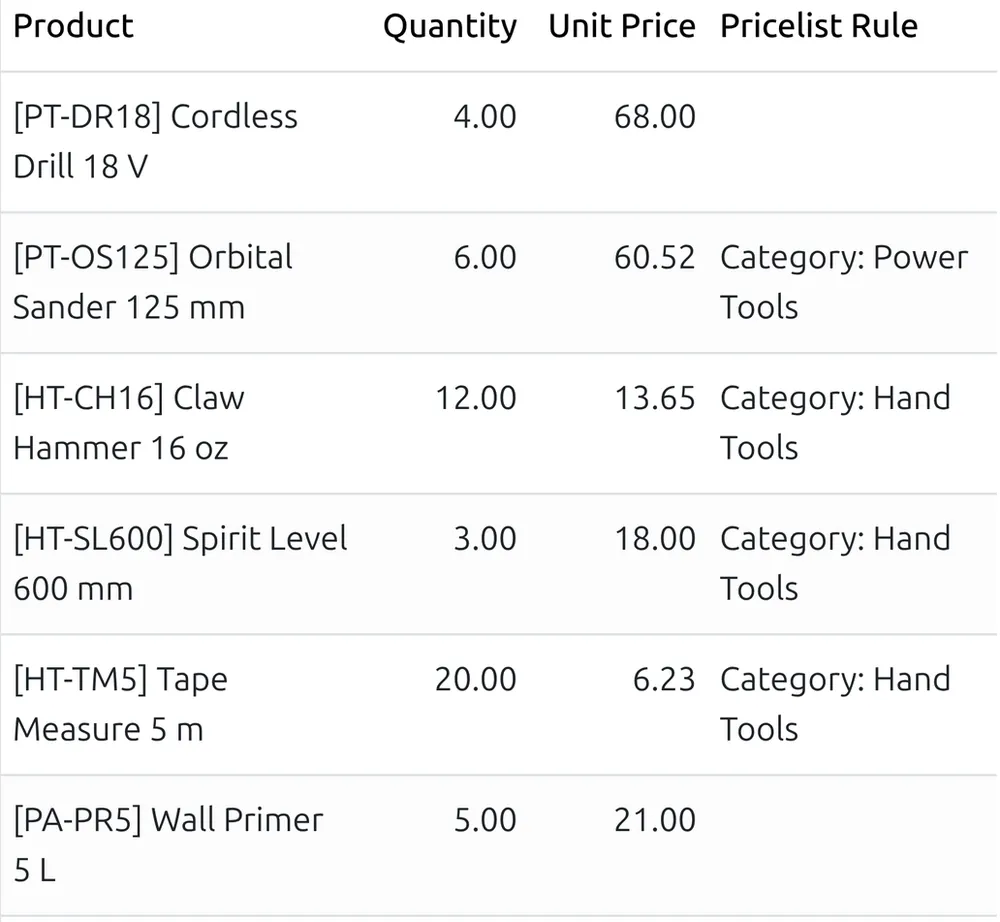
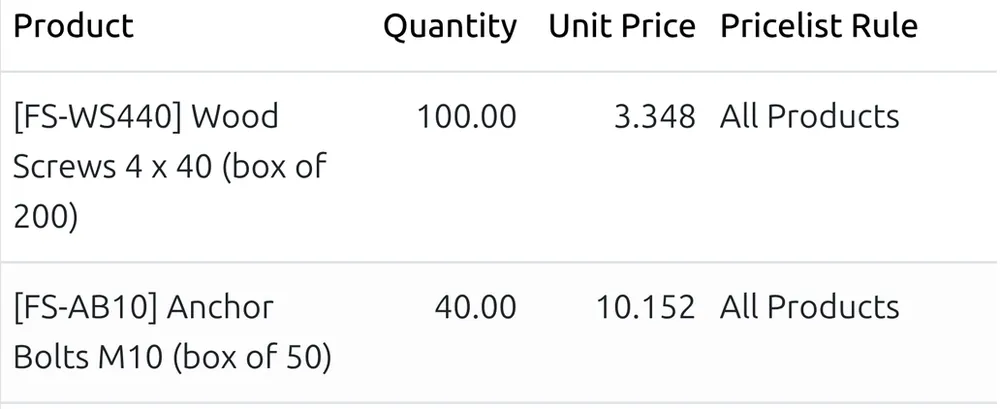
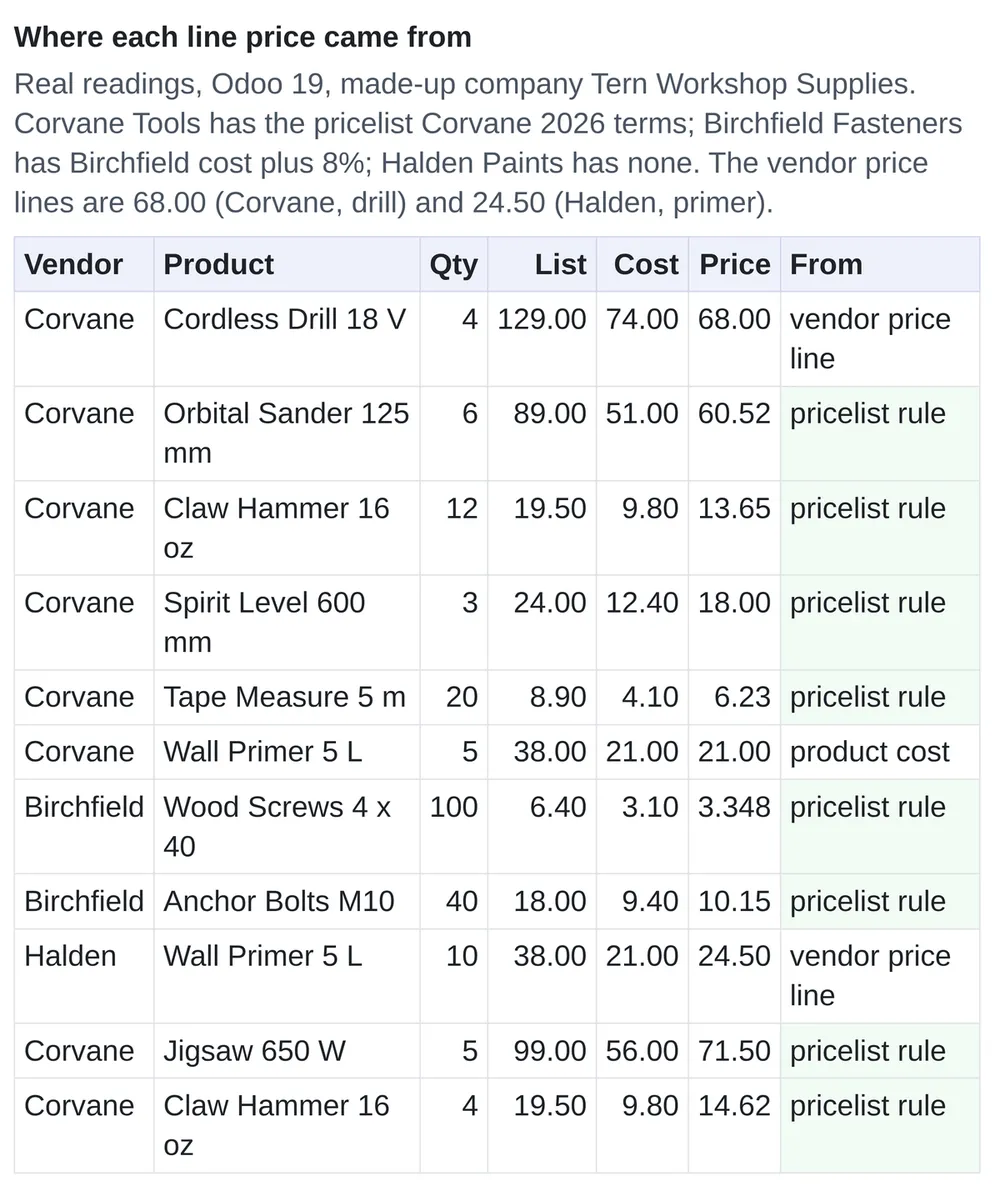
Make an RFQ to a vendor with a pricelist: the Pricelist field shows it, and each line is priced when you add the product or change its quantity. In the list below, the drill keeps its vendor price line of 68.00 (no rule shown), four lines come from rules, and the primer matches no rule and keeps its cost. The optional Pricelist Rule column names the rule that set each price (it is switched on from the column menu; the screenshot shows only the columns that matter). The vendor Birchfield, with a rule on all products of cost plus 8%, is the second picture. The table gives the arithmetic: the sander 89.00 less 32% is 60.52, 12 hammers at 25% off 19.50 would be 14.625 but the quantity break at 10 gives 13.65.
The price is kept unrounded: 3.348 stays 3.348 (the form shows 3.35) and a line of 100 totals 334.80.
The Pricelist field and the Update prices button on the RFQ. Real Odoo screen (Odoo 19).
Six lines of one RFQ with the Pricelist Rule column. Real Odoo screen.
A cost-plus rule on all products. Real Odoo screen.
Where every line price came from. Evidence table.
4 Which price wins
Use it when the vendor also has price lines on some products and you need to know which is used.Read-only
Two sources of price must not fight.
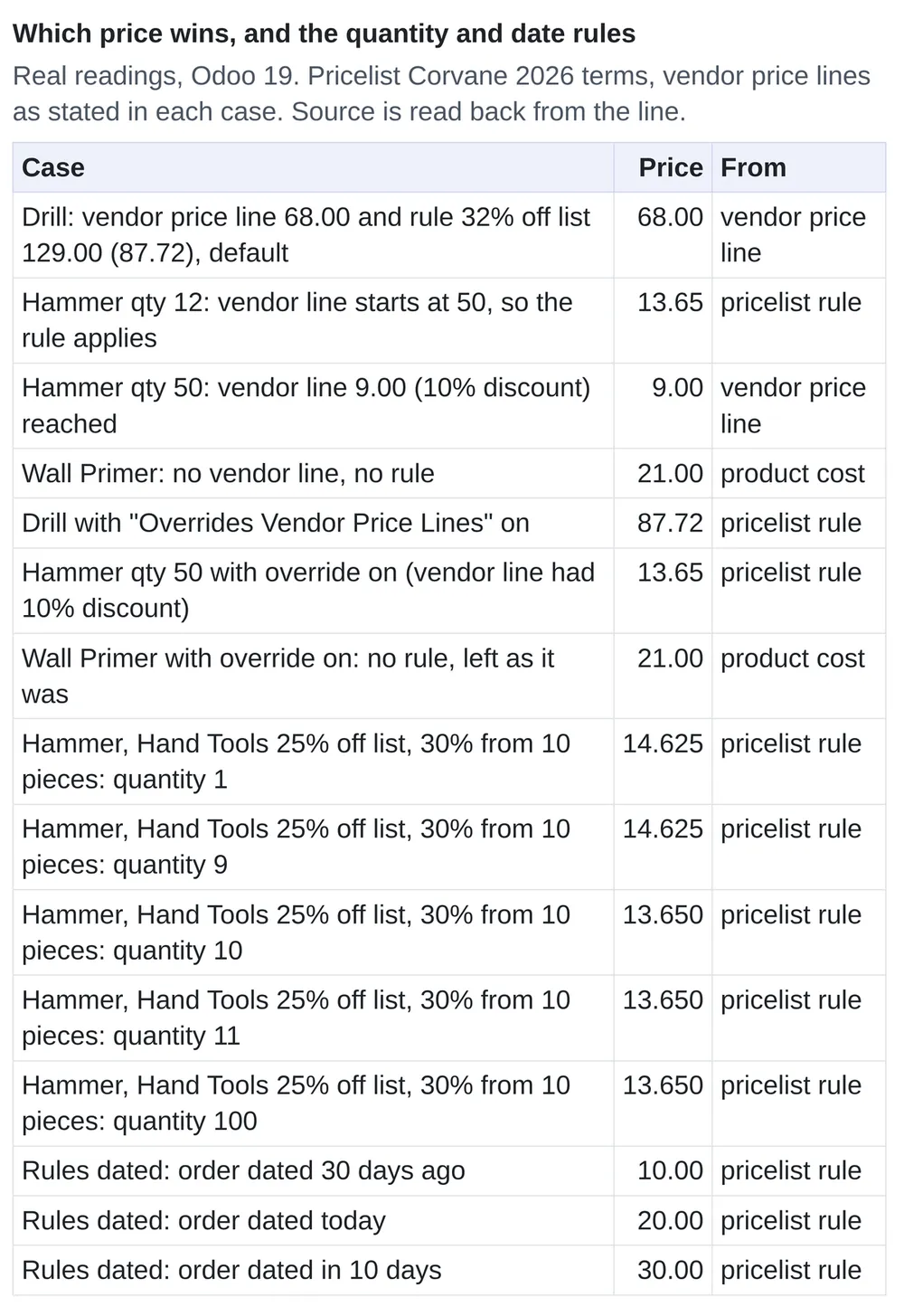
Order of use: 1. a vendor price line of the product that matches the quantity and date (Odoo's own), 2. a rule of the order's pricelist, 3. the product cost. Tick Overrides Vendor Price Lines and a matching rule wins over the vendor price line, and the vendor line's discount is cleared; a product with no matching rule keeps what it had. The rule picked also depends on the quantity (the largest minimum quantity reached) and on the order date for dated rules. The table has the readings.
The vendor price line stays higher priority even when it costs more than the rule, unless you tick the override.
Which price wins, and the quantity and date rules. Evidence table.
5 Every kind of rule, checked
Use it when the vendor's terms are not just one percentage.Read-only
Terms differ: percent off the list, percent over your cost, a fixed price, rounded to 0.50, capped.
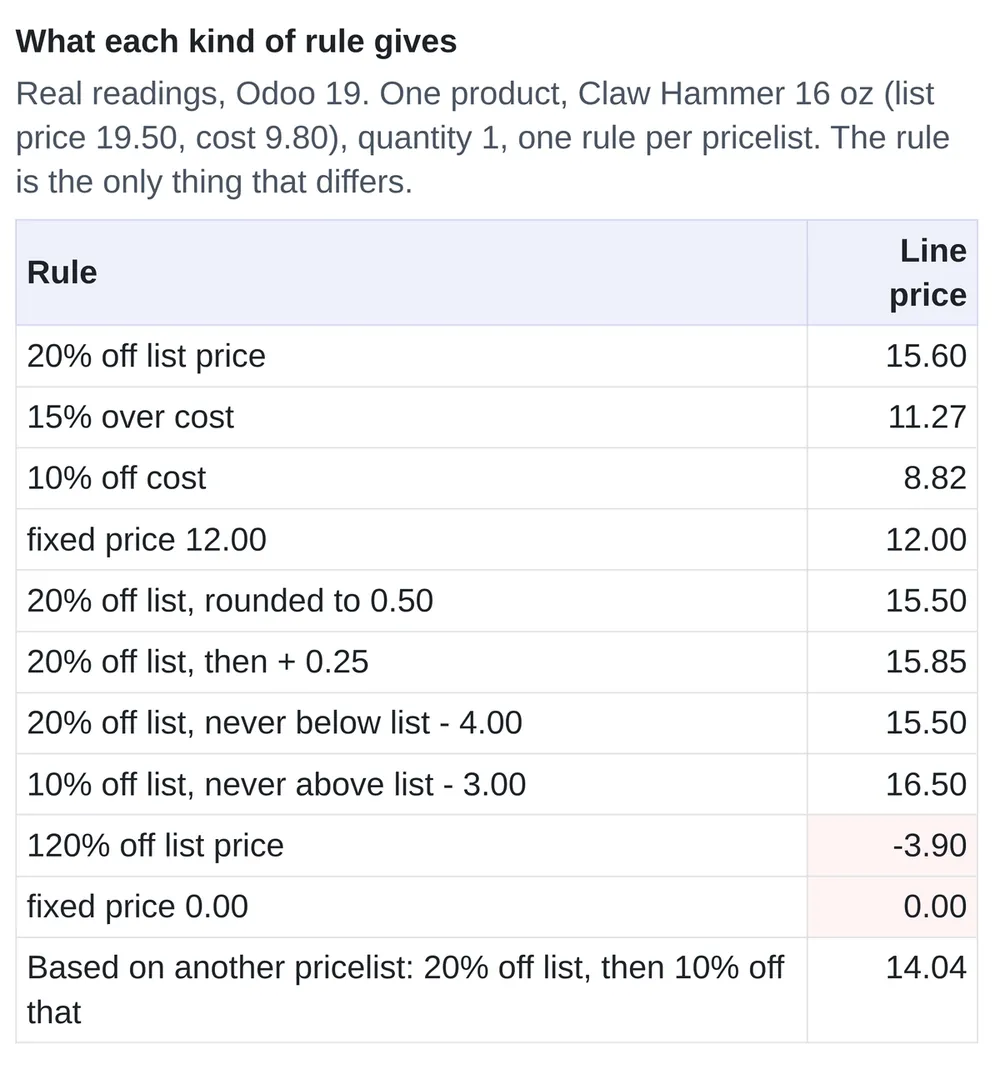
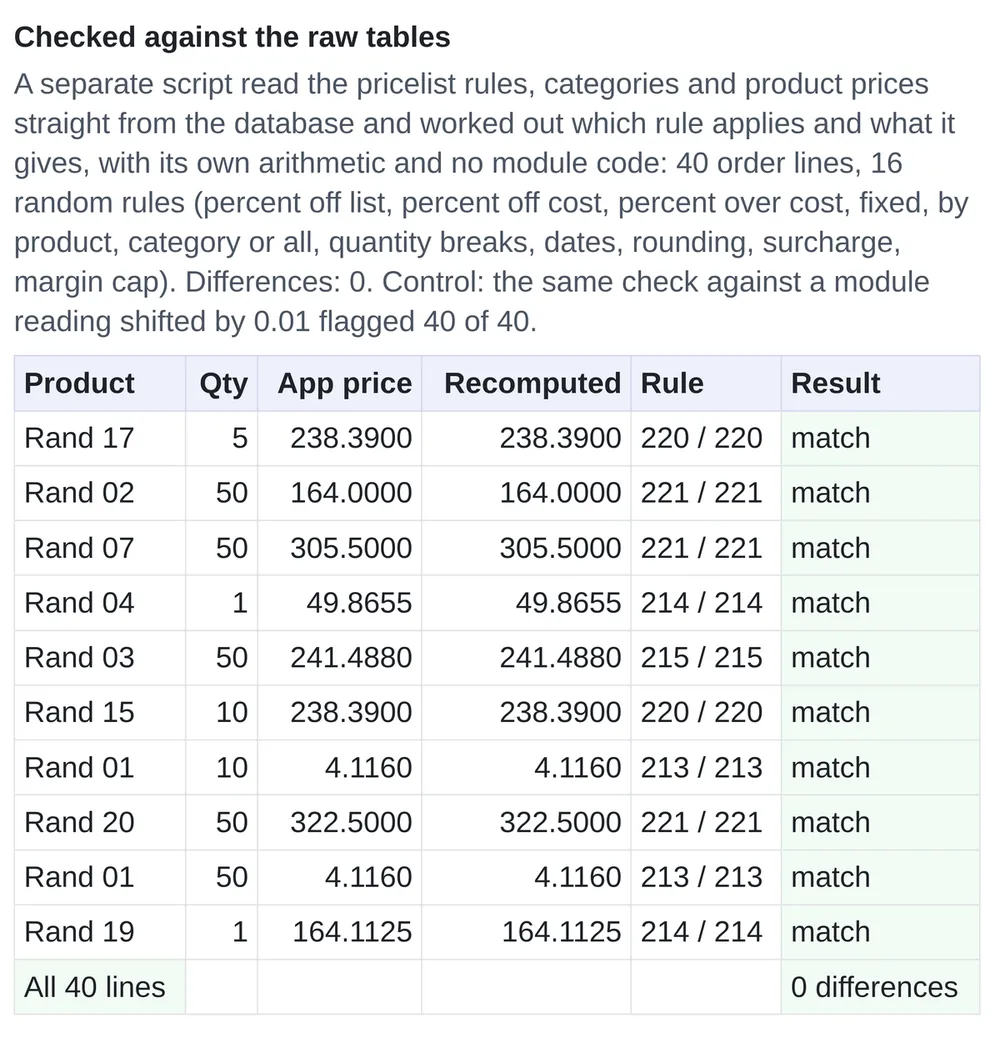
The rules are Odoo's own and the app asks Odoo's pricelist engine for the price, so they behave as in Odoo. The table gives one reading per kind of rule on one product (list price 19.50, cost 9.80). A separate check read the rules and product prices straight from the database and worked out the price with its own arithmetic for 40 lines over 16 random rules: 40 of 40 matched, and the same check shifted by 0.01 flagged all 40.
A rule can give a negative or zero price and nothing warns.
One reading per kind of rule. Evidence table.
40 of 40 lines matched the independent recompute. Evidence table.
6 When a price is refreshed
Use it when the vendor changes its terms or you change a rule while RFQs are open.Writes the price
A price that never refreshes is stale; one that refreshes silently overwrites what a buyer agreed on the phone.
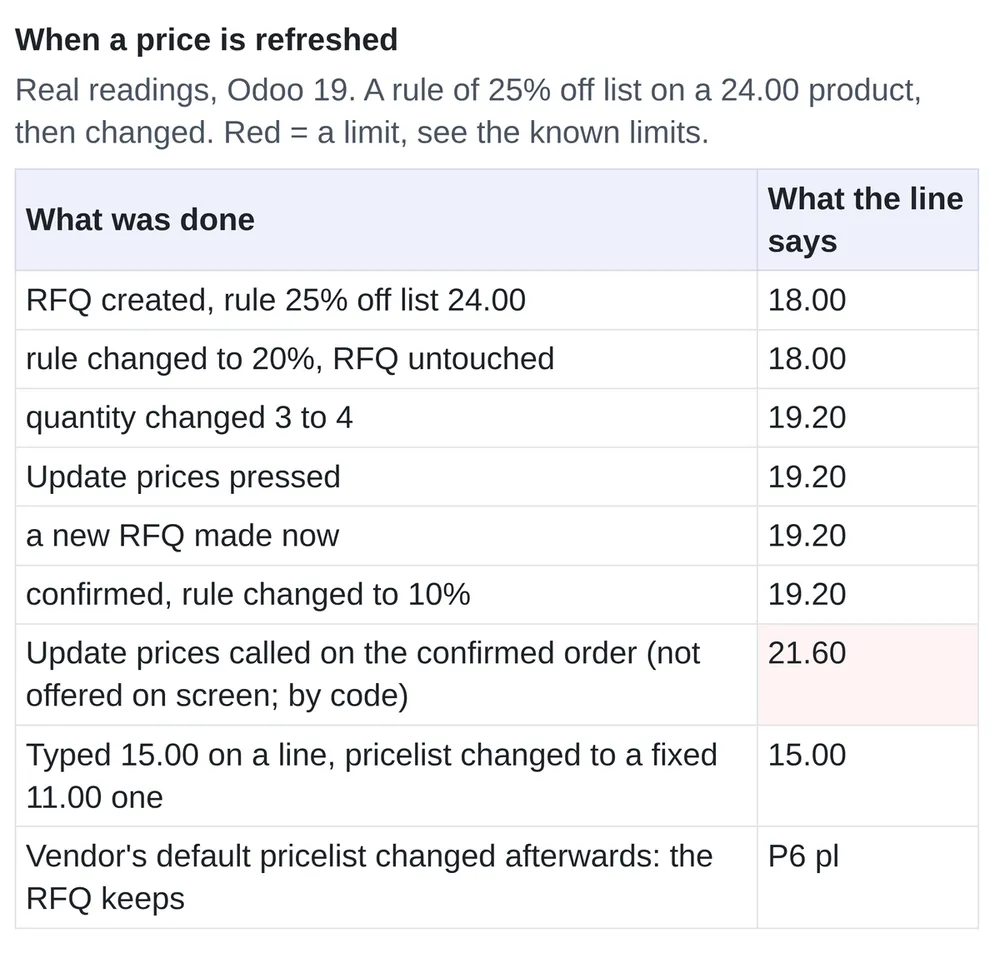
A line is re-priced when you add the product, change its quantity (a line whose price was not typed by hand), change the vendor or change the pricelist on the draft. A changed rule does not reach an open RFQ by itself: press Update prices next to the Pricelist field, which re-applies the pricelist to every line of the order and overwrites prices typed by hand where a rule applies. A price you typed survives a quantity change and a pricelist change. Confirming keeps the price.
On Odoo 19 a confirmed order's rule price is not frozen into a vendor price line (the app removes the line Odoo adds); the rule stays the source. The Update prices button is hidden on a confirmed order, but called by code it still re-prices it.
When a price changes and when it does not. Evidence table.
7 Two defects fixed in this version
Use it when you want to know what changed in behaviour.Read-only
Two small defects were found while checking this page against the code, and fixed.
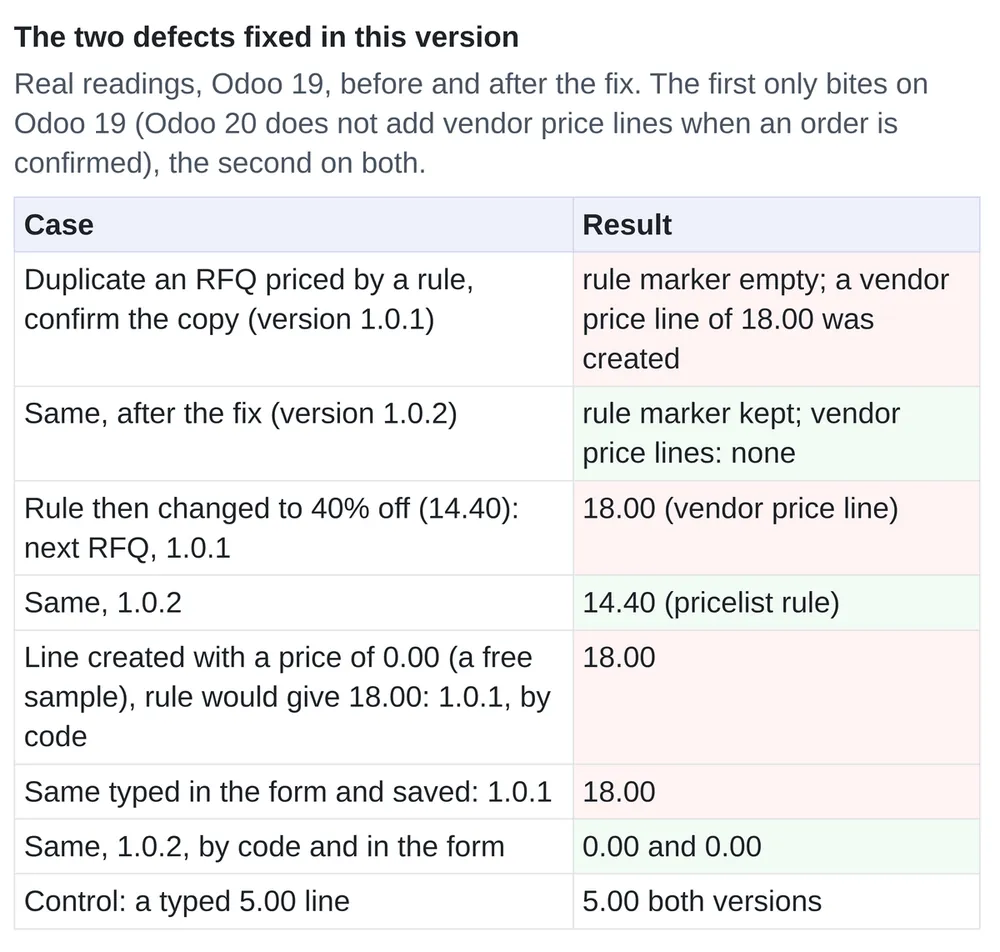
1. A duplicated RFQ froze its price. Duplicate on an RFQ priced by a rule lost the link to the rule, so confirming the copy stored the rule price as a vendor price line on Odoo 19, which then outranked the rule for every later order (a rule at 40% off read 18.00 instead of 14.40). Odoo 20 does not add vendor price lines on confirm, so there the Pricelist Rule column was only empty on the copy. 2. A price of 0.00 was re-priced. A line created with 0.00 (a free sample, typed in the form or given by code) was set to the rule price on save. Both now keep what was given. Each has a test that fails on the old code. No other behaviour changed.
Readings before and after each fix. Evidence table.
What changed in this version
Version 19.1.0.2 fixes two small defects (a duplicated RFQ froze its price into a vendor price line on Odoo 19 and lost its rule marker; a line created with 0.00 was re-priced from the rule) and adds ten automated tests, three for the fixes and seven for the limits above. It replaces the screenshots and the page text with checked ones and takes no feature out. The demo video of an earlier version is kept as it was and was not re-recorded.
Screenshots
What it does not do
- Each of these was reproduced in a run of the app on Odoo 19 and is pinned by a test that passes (the Sales and replenishment ones were read in a second database with those apps installed); none is changed in this version.
- Eight readings from real runs. Evidence table.
- Rights and timings. Evidence table.
Requirements
- Odoo 19.0 or 20.0. The App Store sells each version separately, so buy the one that matches your database.
- Odoo.sh or On-Premise only. Third-party apps cannot be installed on Odoo Online (SaaS) databases. Check your hosting before buying.
- Module
mh_purchase_pricelist, version 19.0.1.0.3, licensed OPL-1.