Purchase Order Labels
Purchase product labels: print barcode labels from purchase orders and RFQs in Odoo's own Print Labels, with the quantity taken from the order lines
Request a live demo · Odoo.sh or On-Premise only, not Odoo Online (SaaS).
Free
App Store price, per Odoo version
19 · 20
Odoo versions, each sold on its own page
Odoo.sh
or On-Premise; not Odoo Online (SaaS)
1.0.2
version of mh_purchase_order_labels
Goods arrive, and every item needs a barcode label before it goes on the shelf. Odoo prints product labels from products, receipts and manufacturing orders, but not from the purchase order. So the labels for an order are typed in product by product, quantity by quantity, or they wait until the receipt exists.
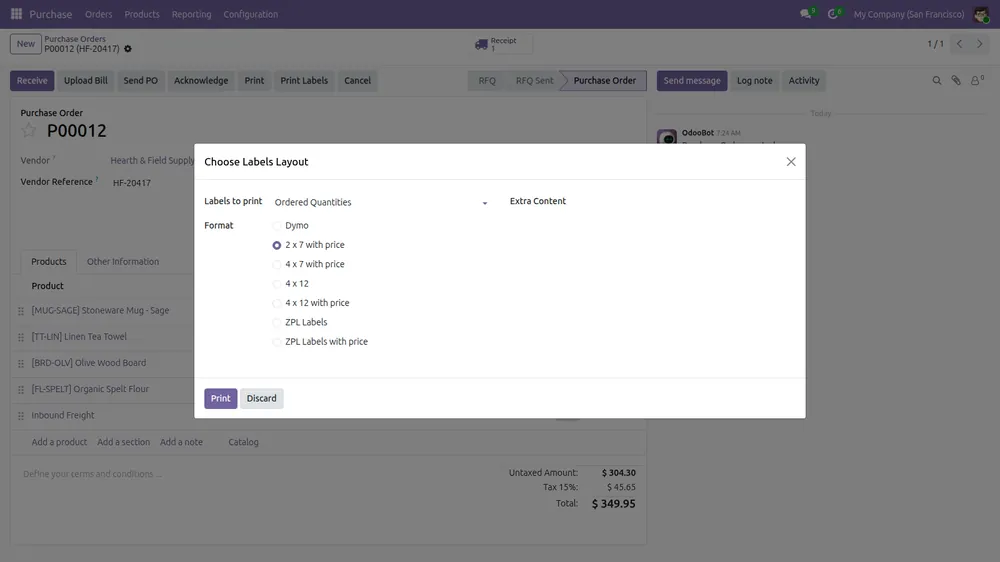
This adds a Print Labels button to RFQs and purchase orders, and a Print Labels action on the purchase order list. It opens Odoo's own Print Labels window, with the number of labels for each product already worked out from the order.
How it works
Odoo's own label window, opened from the order
There is no new label format and no new designer. Every format Odoo already offers in Print Labels is there, ZPL included, and the same Print button produces the same output. Only the choice of how many labels to print is added.
Ordered, received or custom
Ordered Quantities is the default: print the labels before the goods arrive, to be ready at the dock. Received Quantities prints only what has come in so far, for a delivery that arrives in parts. Custom is Odoo's own fixed number of copies per product.
How the number of labels is worked out
The line quantity is converted to the product's own unit of measure, and lines for the same product are added together, across every order you selected.
A product counted in units gets one label per unit, rounded up. That includes any unit defined from Units, such as Dozens or Pack of 6: 2 packs of 6 of a product kept in Units print 12 labels. A product measured by weight, length, volume or time gets one label, which is the rule Odoo itself uses when it prints labels from a receipt.
Several orders at once
Select orders in the list and choose Print Labels from the Actions menu. Quantities for the same product add up into one set of labels. Cancelled orders and service lines, such as freight, are left out.
Who it is for
Buyers and warehouse staff who label goods themselves when they arrive and would rather print the labels from the order than re-enter every product and quantity.
Screenshots
What it does not do
- It does not print lot or serial number labels. Those exist only once goods are received, and Odoo prints them from the receipt.
- It does not add label formats, sizes or designs. The formats are the ones Odoo already has.
- It does not print from sale orders. It works on RFQs and purchase orders only.
- It does not print packaging labels from order quantities. An order quantity counts product units, so the Odoo 20 Packaging option is offered with Custom copies only.
Requirements
- Odoo 19.0 or 20.0. The App Store sells each version separately, so buy the one that matches your database.
- Odoo.sh or On-Premise only. Third-party apps cannot be installed on Odoo Online (SaaS) databases. Check your hosting before buying.
- Odoo 19 and 20, Community or Enterprise. Needs Purchase and Inventory (purchase_stock). Third-party apps install on Odoo.sh or On-Premise only - they cannot be installed on Odoo Online.
- Module
mh_purchase_order_labels, version 19.0.1.0.2, licensed OPL-1.