Report Custom Fonts
Print invoices, quotations and delivery slips in your own TTF or OTF font
Request a live demo · Odoo.sh or On-Premise only, not Odoo Online (SaaS).
7 / 7
layout styles tested: each printed a quotation in the uploaded font only, header and footer included
1 file
TTF or OTF, up to 4 MB, uploaded once and chosen in the Document Layout window
27
automated tests, none failing; 8 of them new in this version
0
requests to the internet while a PDF is made: the font travels inside the report page
2
kinds of report keep their own font, named below
2
defects found while building this page, fixed in this version and listed below
Odoo's Document Layout window offers eight fixed fonts. A company that prints in a script those fonts lack, or in its brand typeface, is left with boxes or with the wrong look. Report Custom Fonts takes one font file, lets you pick it in the Document Layout window, and prints every PDF of that company in it. This page walks through two real quotations in an Odoo 19 database seeded with made-up data, shows the PDFs before and after, and lists the defects found and fixed while checking it.
How it works
Why a font file
Printed documents are what customers see. The font Odoo prints them in is one of eight, and a font that lacks a script leaves empty boxes.
1 Upload the font
Use it when a company wants its brand typeface or a script the standard fonts lack.Settings group only
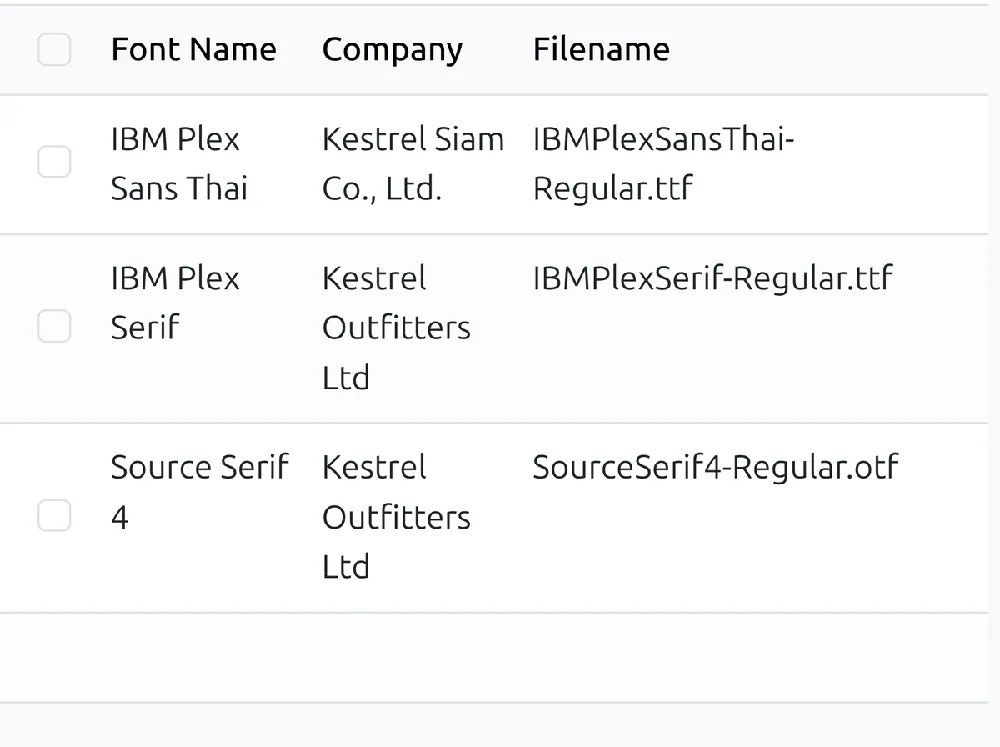
Open Settings > Report Fonts and create a font: a name and the file. Each company sees its own fonts.
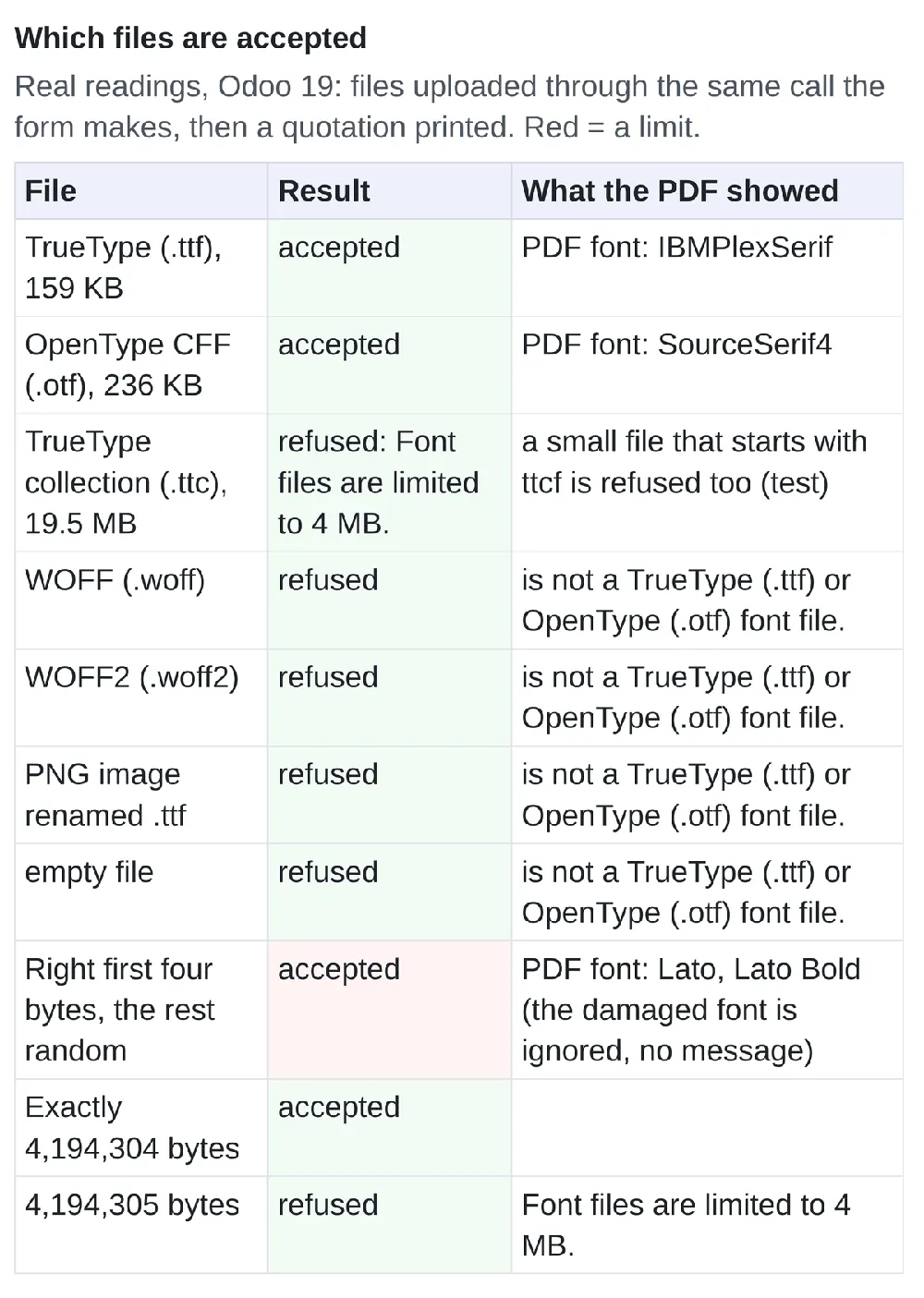
The file is read by its first bytes. These readings are from files uploaded through the same call the form makes.
Three fonts of two made-up companies.
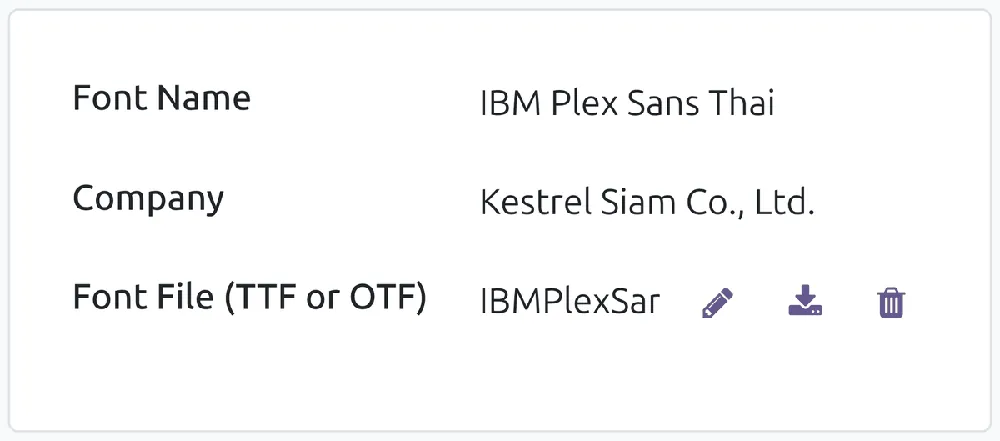
The form of the Thai font.
Accepted and refused files, with a damaged one.
Only the first four bytes are read. A damaged file that starts like a font is accepted, and the PDF then quietly prints in the standard font with no message.
2 Choose it in the Document Layout window
Use it when you want every PDF of the company to use the font.Writes the company
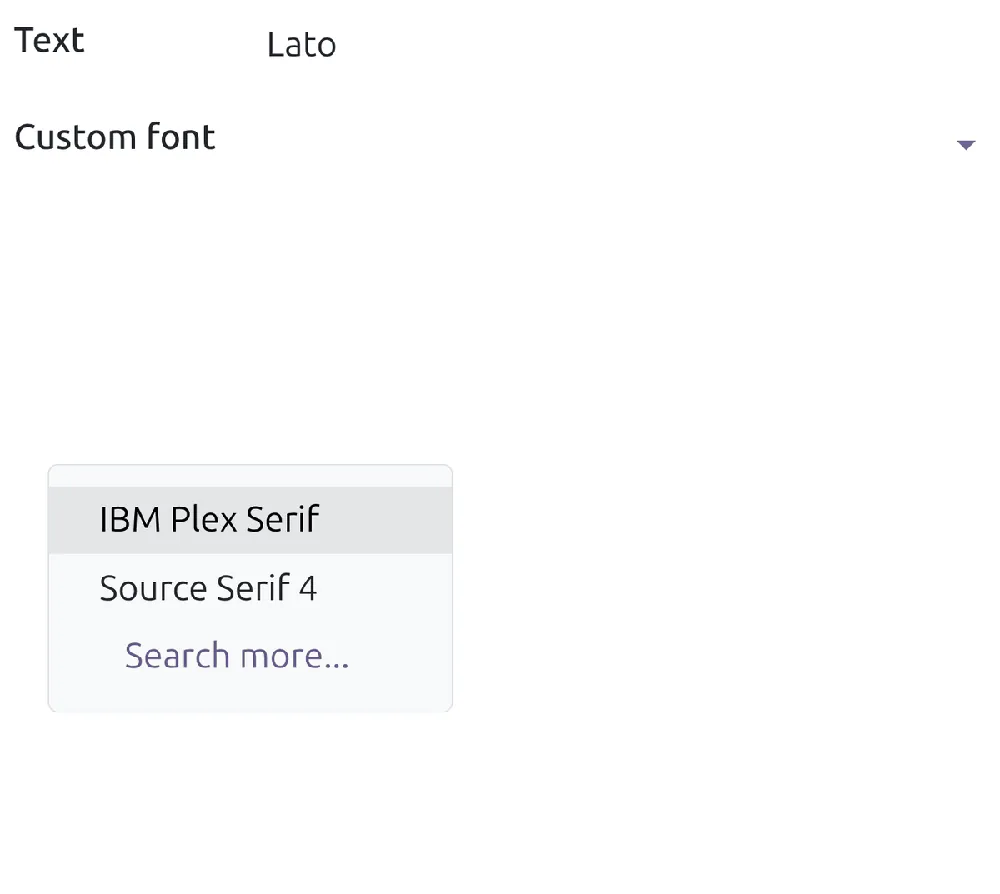
In Settings > Configure Document Layout a Custom font field sits next to Text . It lists the fonts of that company. Pick one and press Continue .
The font chosen under Text stays as the fallback for characters your font lacks. The preview inside the window keeps showing the standard font; the printed PDF shows yours.
Before: no custom font.
The company's fonts offered under the field.
After the pick, before Continue.


3 The PDF before and after
Use it when you want to see what a customer receives.Real PDFs
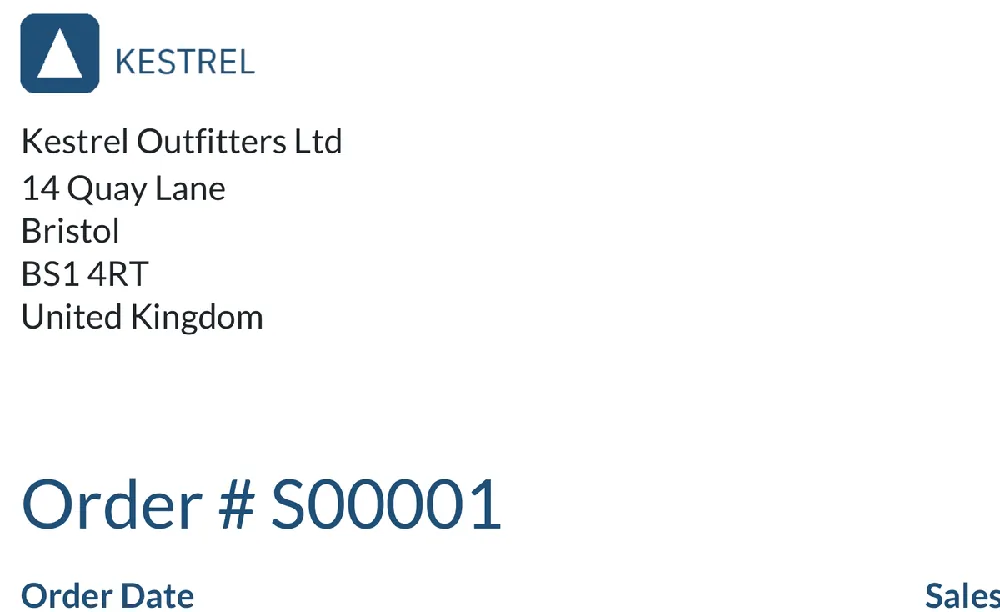
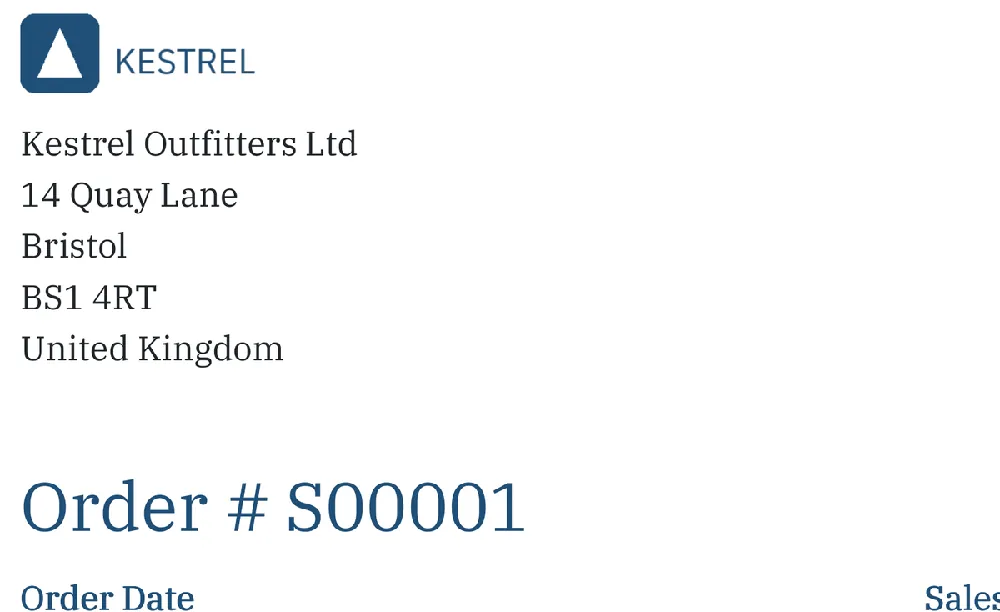
These are crops of the real PDFs the Print button returned, rendered from the files. First a Latin quotation in the standard Lato, then in IBM Plex Serif after the choice above (address block above, order title below, the gap cut).
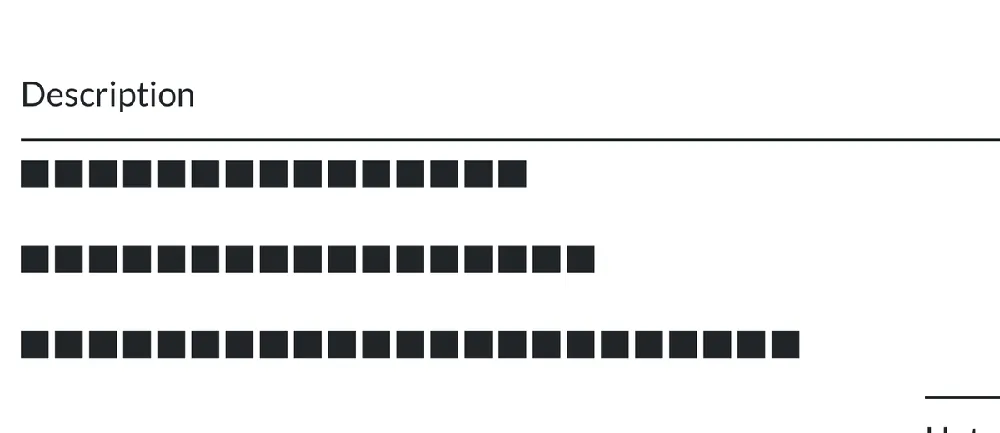
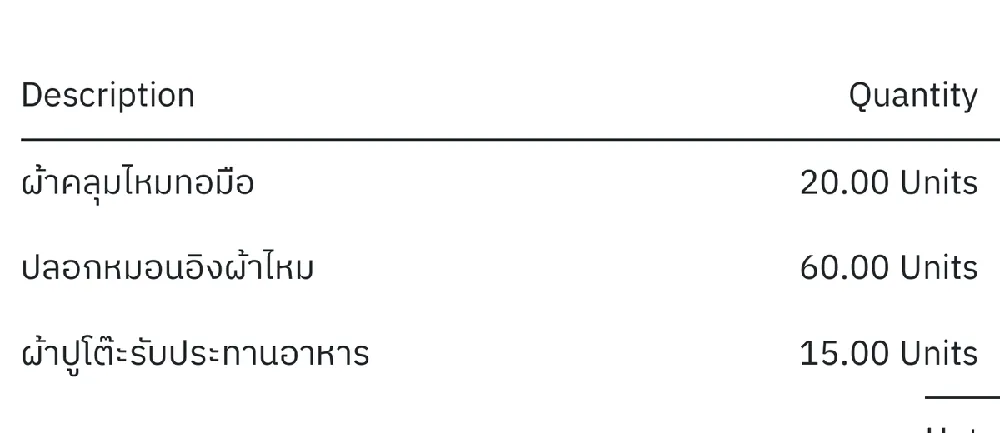
Then a quotation whose lines are written in Thai. The test server has no Thai font, so without the app the names print as black boxes. With a Thai font uploaded and chosen they print as Thai.
Whether a script shows as boxes depends on the fonts installed on your Odoo server; the app does not check coverage. A character your font lacks is drawn in the next font, as a Japanese line did in a test.
Before: Lato.
After: IBM Plex Serif.
Before: boxes.
After: Thai, in IBM Plex Sans Thai.
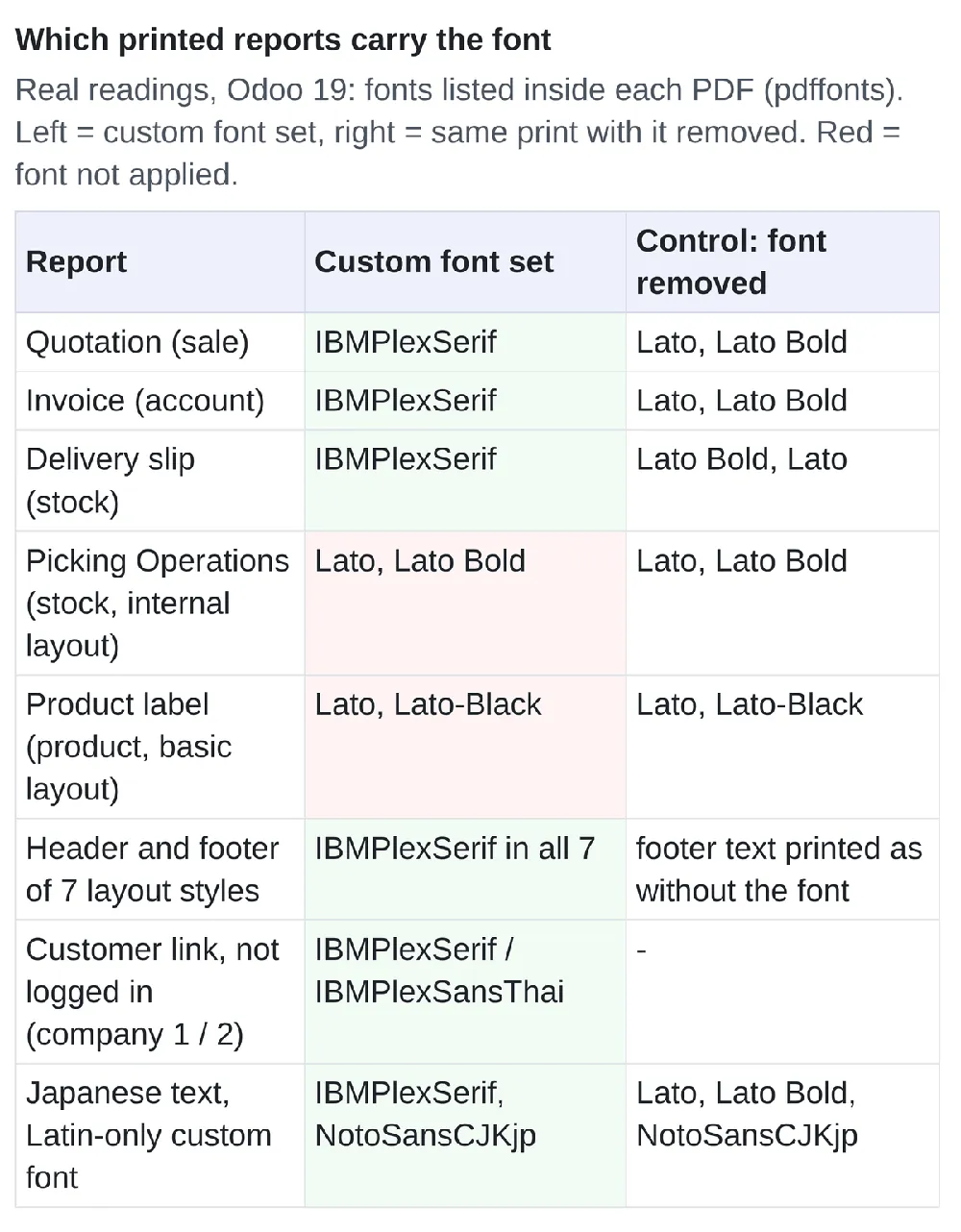
4 Which reports carry it
Use it when you are deciding whether this covers the documents you send.Tested per report
Each row is a real print with the font set and the same print with it removed; the fonts are read from inside the PDFs.
Reports that carry the font and two that do not.
5 Companies, size and time
Use it when you print for several companies or use a large font.Measured
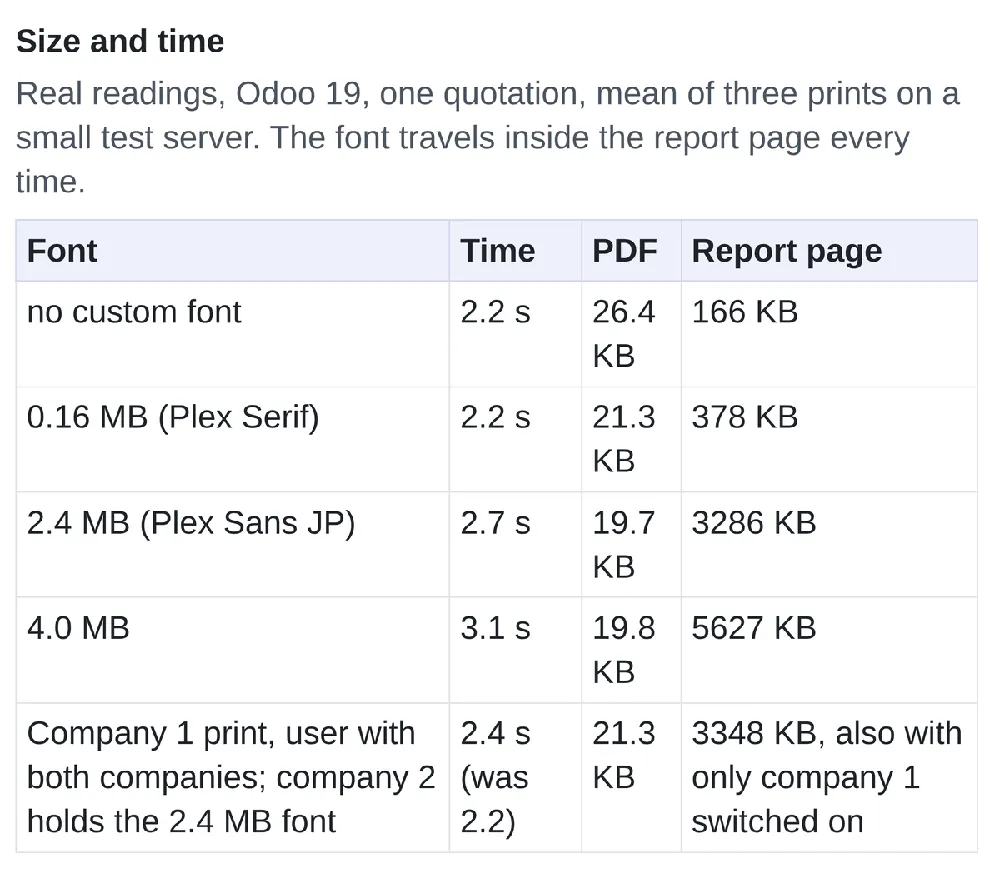
The file travels inside the report page every time. A small font costs nothing visible; a 4 MB font adds about a second to each PDF. The PDF stays small because only the glyphs used are kept.
Time and size.
A user who may use several companies gets every font of every one of them in each report page, even with one company switched on. A 2.4 MB font in company 2 made a company 1 page 3.3 MB.
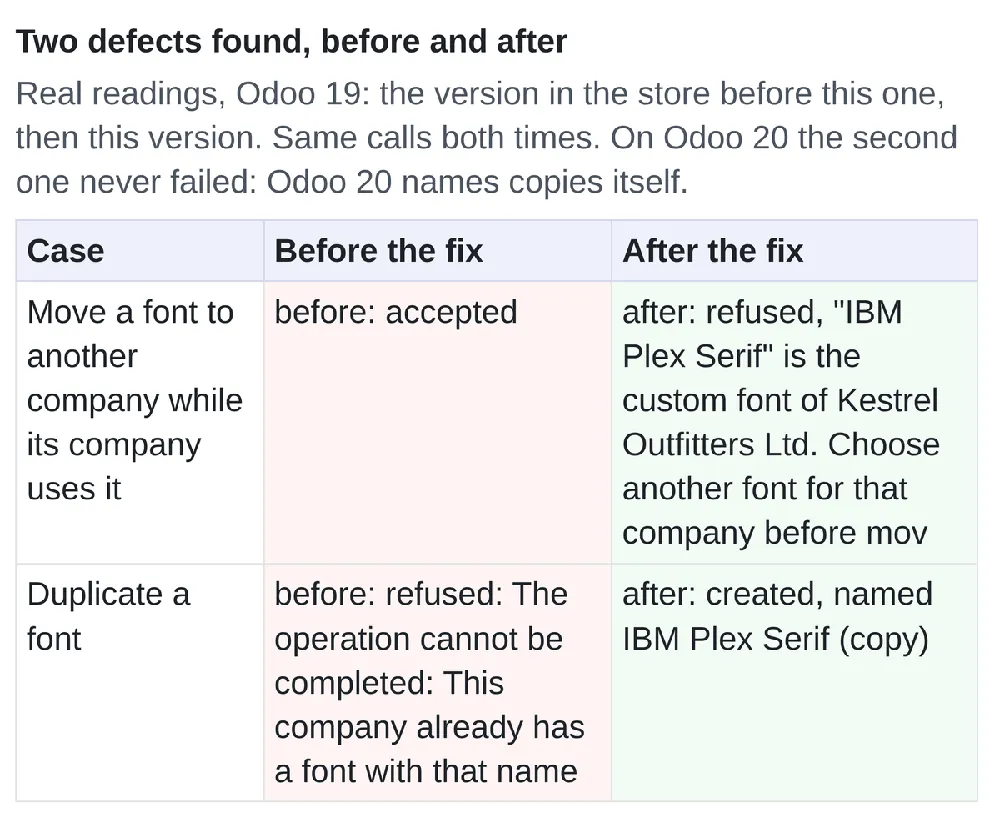
6 Defects found, and where it stops
Use it when you are deciding whether this covers your printing.Tested limits
Before and after, same calls.
Who can do what
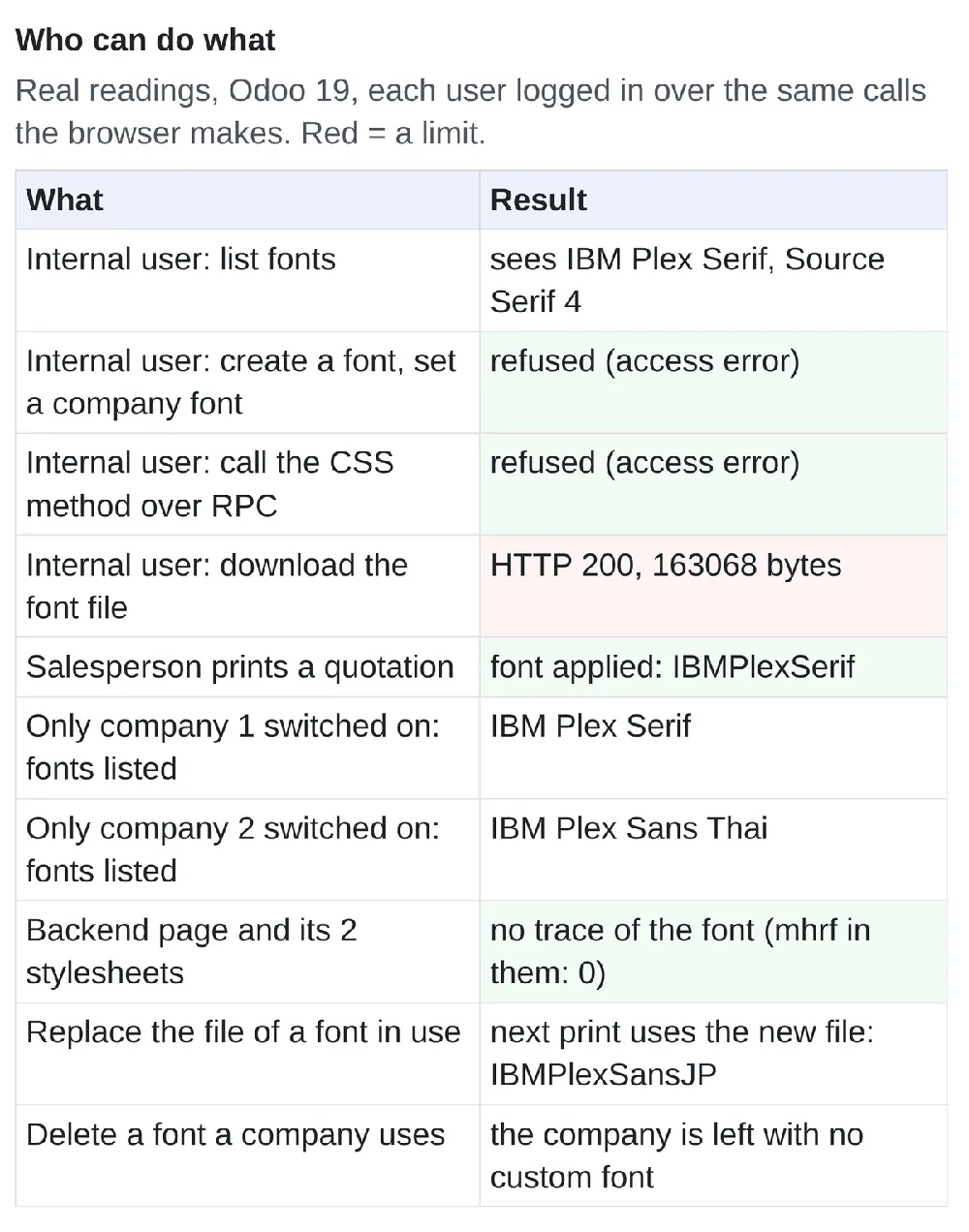
Only the Settings group creates fonts or chooses one. Internal users can read them and print in them.
Readings for an internal user, a salesperson and the administrator.
Screenshots
What it does not do
- It adds one list of fonts under Settings, one field on the company and a few lines of style in the report page. It adds nothing to the backend.
- Every other setting of the Document Layout window, and every report that does not use the company layout.
- In a test the module went, its table and company field were dropped, and the next quotation printed in Lato again. Whether the font files leave the file store was not checked.
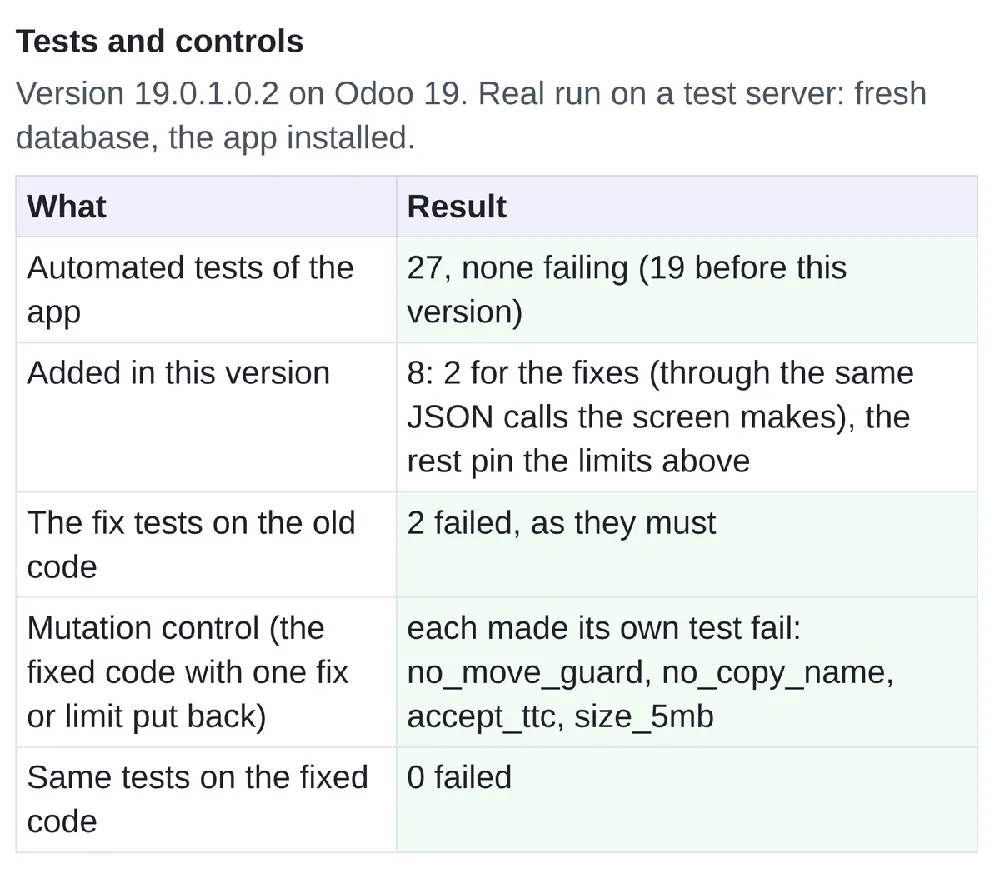
- Sections 1 to 6 with real readings: file kinds, the 4 MB cap, a damaged file, reports that keep their font, a second company, size and time, rights.
- Odoo.sh, Odoo Enterprise, right-to-left and Indic scripts through the app, PDFs attached to emails, Point of Sale and website reports, more than two companies, whether a font's licence allows embedding.
- Tests, fix tests on the old code and mutation controls.
Questions buyers ask
Can I use a font file of any kind?
TrueType (.ttf) and OpenType (.otf) files up to 4 MB. WOFF, WOFF2 and collections are refused.
Does it change the font of the Odoo backend?
No. It only changes PDF reports.
What does uninstalling do?
The PDFs go back to the standard font.
Who can use it?
The Settings group chooses fonts; every internal user prints in them.
Requirements
- Odoo 19.0 or 20.0. The App Store sells each version separately, so buy the one that matches your database.
- Odoo.sh or On-Premise only. Third-party apps cannot be installed on Odoo Online (SaaS) databases. Check your hosting before buying.
- Module
mh_report_custom_fonts, version 19.0.1.0.1, licensed OPL-1.