Scheduled Action Health
See which scheduled actions are failing, before Odoo quietly switches them off
The video below shows Scheduled Action Health running on a real Odoo 19 database. Want it driven against your own data, or a question answered first? Ask and we will set up a session.
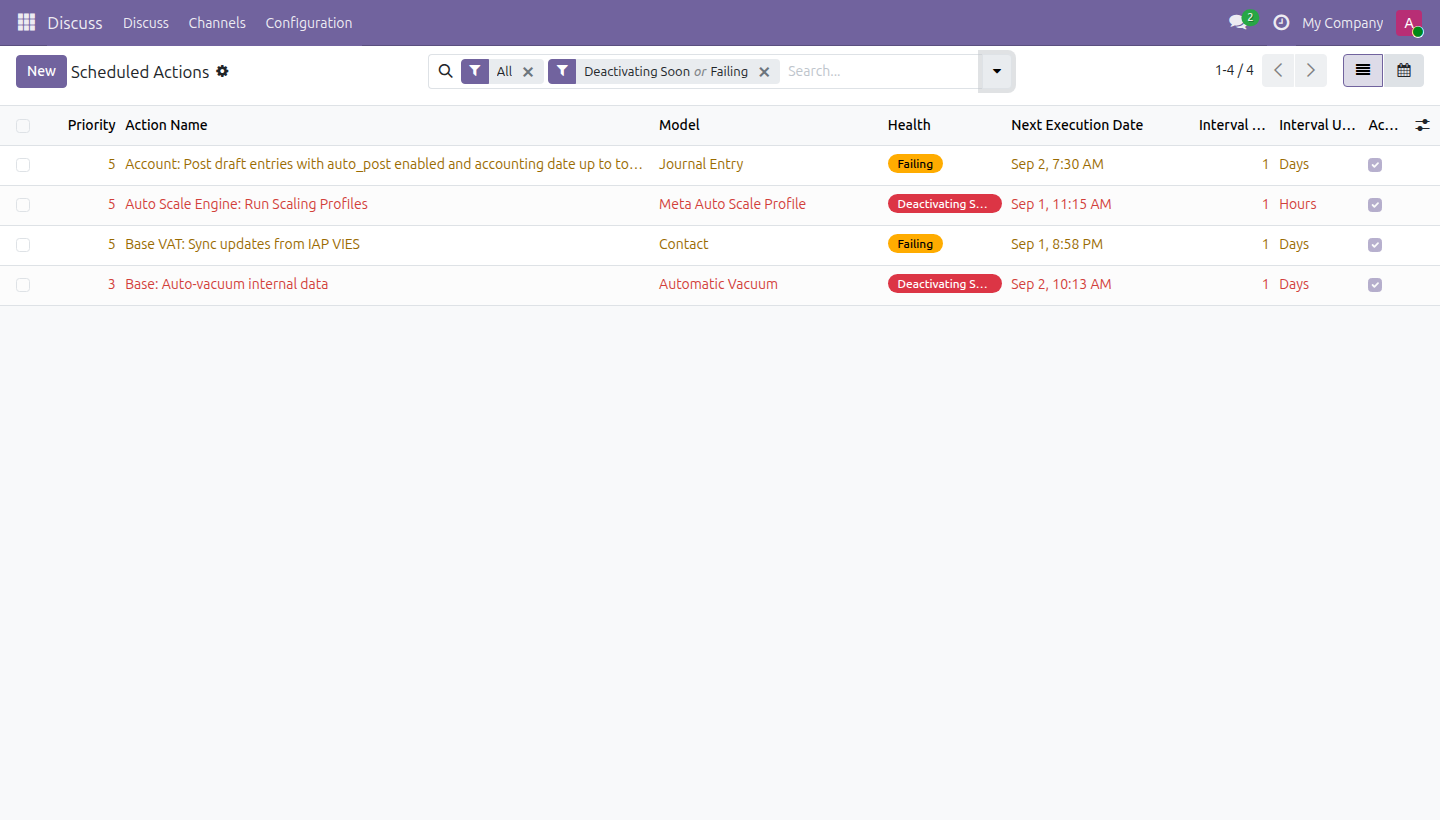
A scheduled action that raises does not tell anyone. The Scheduled Actions list shows a next execution date and an active toggle - so a job that has been failing every hour for a week looks exactly like a job that has been working perfectly all along.
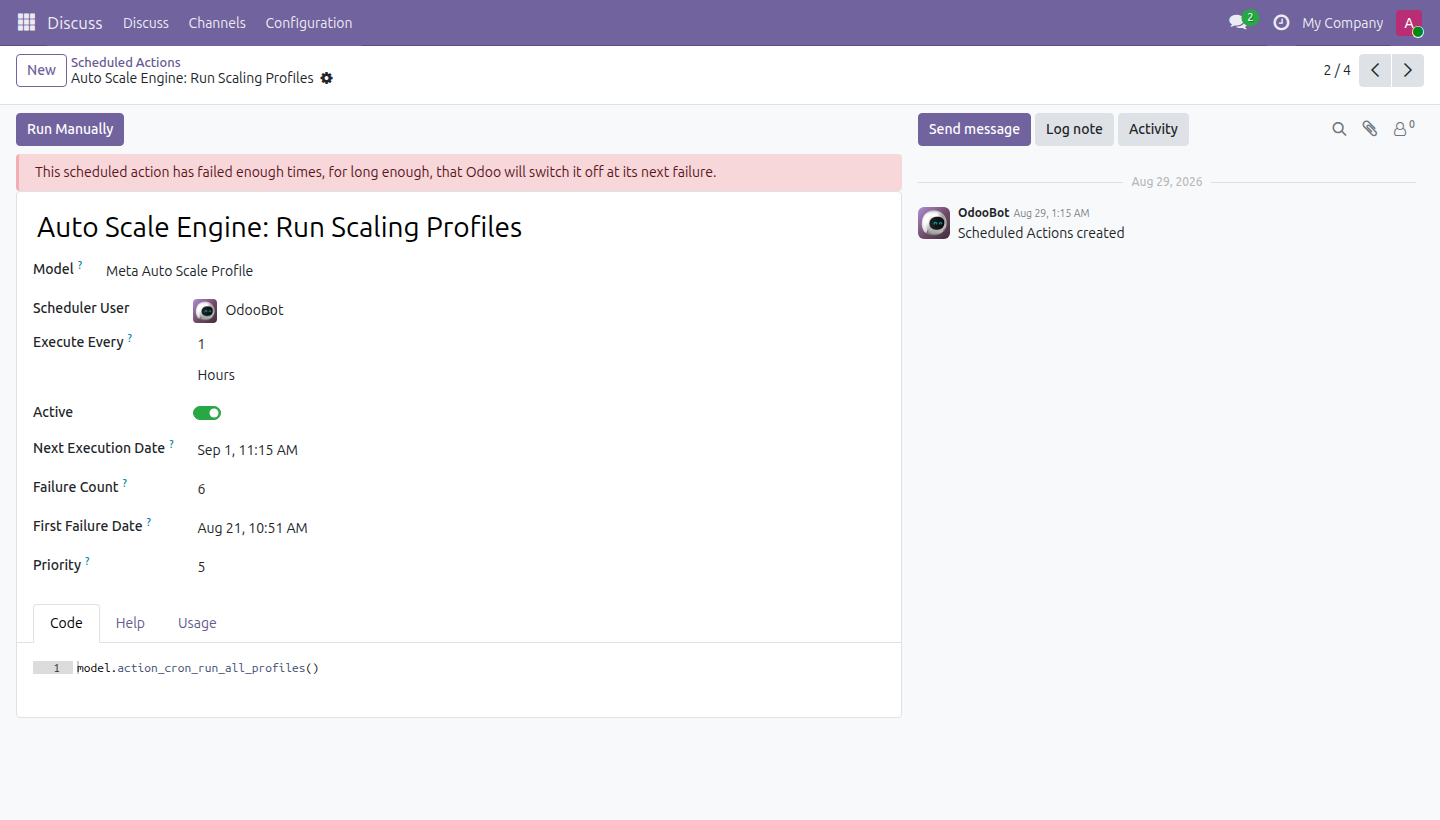
Odoo does count the failures. Since version 19 it records a consecutive failure count and the date of the first failure on the job itself, and uses them to switch the job off after five failures spread over seven days. It then displays neither field anywhere.
This app shows them.
What it does
The warning that matters
Deactivating Soon is not a guess - it means both of Odoo's own thresholds are already met, so the very next failure switches the job off. That is the moment worth catching.
Reads, never writes
No new logging, no wrapper around the scheduler, no extra table, no cron of its own. It reads what Odoo already records, and the thresholds come from Odoo's own constants rather than a copy - so the warning stays true if a future version changes them.
What it does not do
Odoo records that a job failed, not why - the traceback goes to the server log and nowhere else. This app takes you to the right job and the right time window; the log tells you the rest. It also cannot show a job that was already auto-deactivated, because Odoo resets both counters when it switches one off.
Screenshots
Requirements
- Odoo 19.0, Community or Enterprise.
- Odoo.sh or On-Premise only. Third-party apps cannot be installed on Odoo Online (SaaS) databases — check your hosting before buying.
- Module
mh_cron_health_badge, version 19.0.1.0.9, licensed OPL-1.
Related apps
Per-field anonymization, a legal hold override, and an append-only purge log - not a Data Recycle clone
Real WCAG violations, found in your rendered pages - not another overlay widget
The Article 33 72-hour clock starts the moment you log the incident