Shop Quantity Selector
A shopper who wants 12 of an item should not have to open its page first
Request a live demo · Odoo.sh or On-Premise only, not Odoo Online (SaaS).
1 box
per product tile on the shop grid, beside Odoo's own Add to Cart: type 12, press Add to Cart, 12 are in the cart
21
automated tests in the app, none failing, including browser tests on the real shop page; 9 were added in this version
9 of 9
deliberate breaks of the code were caught by the tests (the unchanged copy: 0 failed)
2
small defects found and fixed in this version (the shop's list layout, and a box that every screen reader heard as just Quantity), disclosed below
0
data sent anywhere, tables added or prices changed: one on/off setting per website
No
minimum, maximum or sold-in-multiples rule: whole numbers of 1 or more, with no upper limit (see the known limits)
Odoo's shop grid has a one-click Add to Cart that always adds one. To order twelve of the same item a customer opens the product page, types 12 and adds from there. Shop Quantity Selector puts a quantity box beside Add to Cart on the grid tiles where Odoo adds straight to the cart. The number typed is what goes into the cart, through Odoo's own add to cart, so the cart icon, the added-to-cart message, stock warnings and price-list quantity breaks behave as they do from the product page. This page walks through it with screenshots of an Odoo 19 database holding a made-up homeware shop, and with tables rendered from real readings of the same run; each picture says which it is.
The page also says where the app stops: it puts no box on products that open Odoo's configuration dialog, it has no maximum and no per-product rules, and it adds nothing to the product page or the cart.
Install it and the shop grid shows the box. It needs only the Website Sales app (website_sale) and adds one on/off setting under Website > Settings > eCommerce.
How it works
What it keeps, what it changes, what it does not
Each line was tested or read in the code or on the running shop.
1 A quantity box beside Add to Cart
Use it when your shoppers buy more than one of an item.Read-only for visitors
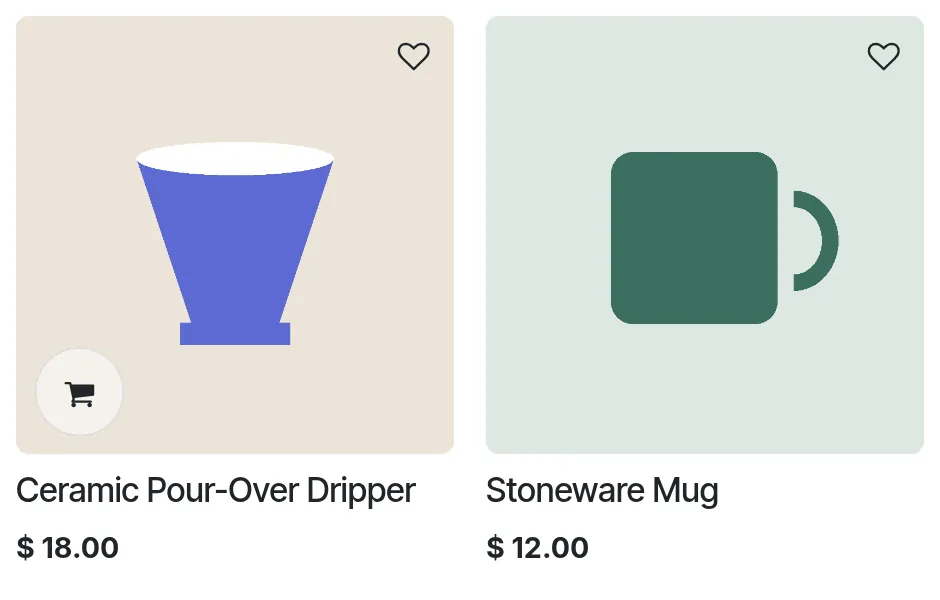
In Odoo's shop grid Add to Cart adds one unit. A shopper who wants 12 has to open the product, change the number and add. The first picture shows the grid with the app switched off, which is what Odoo does without it.
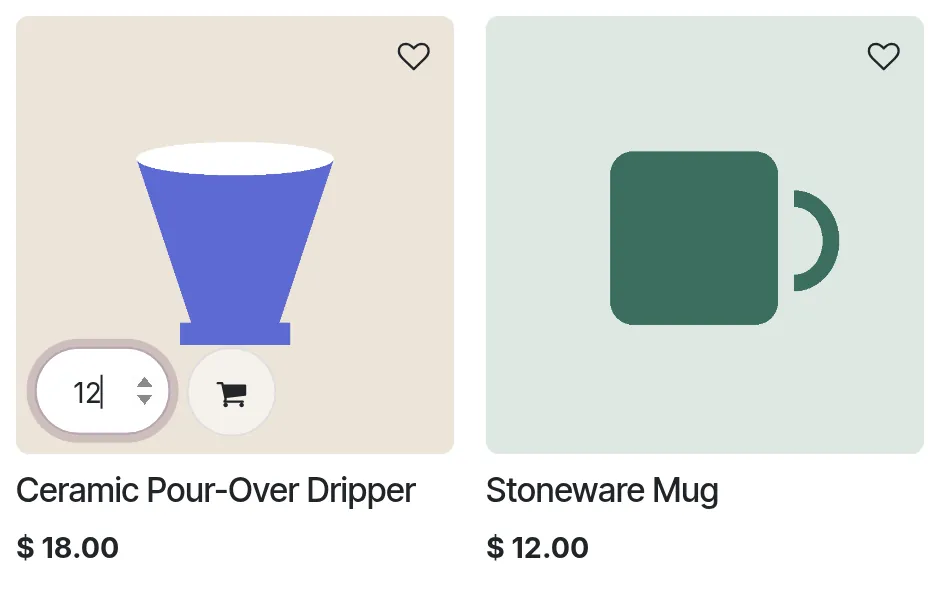
With the app on, the tile under the mouse shows a number box before the Add to Cart button. The second picture has 12 typed in the Ceramic Pour-Over Dripper's box. Pressing Add to Cart, or Enter in the box, puts 12 in the cart. Pictures are real Odoo 19 screens as an anonymous visitor, cropped to two tiles; the number was entered in the second picture by script, the key presses themselves are in the tables.
It does not replace Odoo's button: that button stays and adds the typed number, or 1.
Before: setting switched off, as stock Odoo. Real Odoo screen.
With the app: 12 typed in the box. Real Odoo screen.
2 What reaches the cart
Use it when you want to know that the number is a real cart quantity.Read-only
A number that only looks right on the grid would be worse than none.
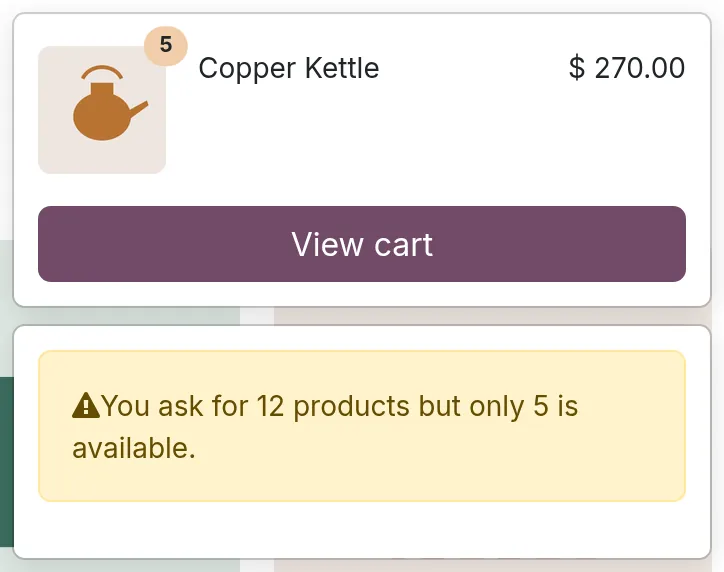
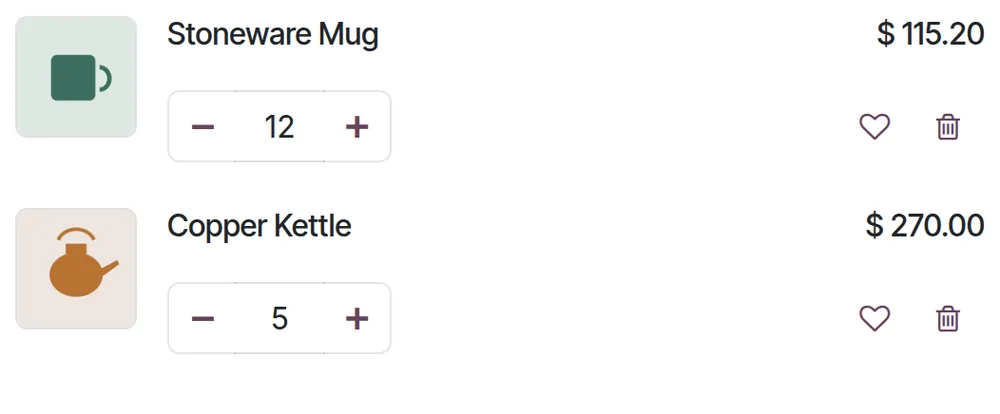
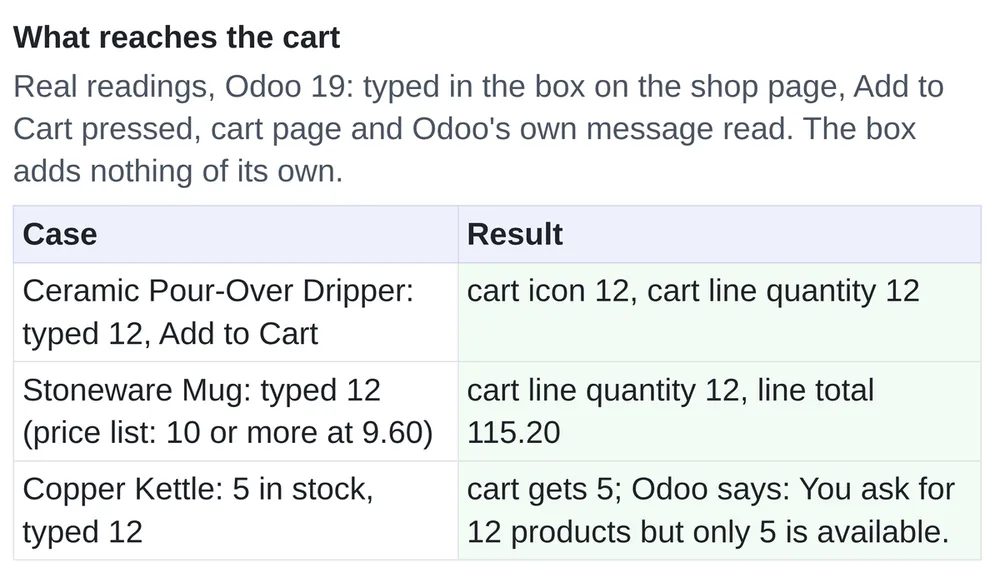
The number goes through Odoo's own add to cart, so everything downstream is Odoo's. In the pictures: 12 Stoneware Mugs were added from the grid and the price list's break for 10 or more applied (12 at 9.60 is 115.20); the Copper Kettle has 5 in stock and 12 were typed, so Odoo added 5 and said so (You ask for 12 products but only 5 is available.). The tables have the readings, including the cart icon.
It adds no stock check, price rule or message of its own.
12 typed, 5 in stock: Odoo's own message. Real Odoo screen.
The cart after both adds. Real Odoo screen.
What reaches the cart. Evidence table.
3 Which products get a box
Use it when your catalogue mixes plain products and products with options.Read-only
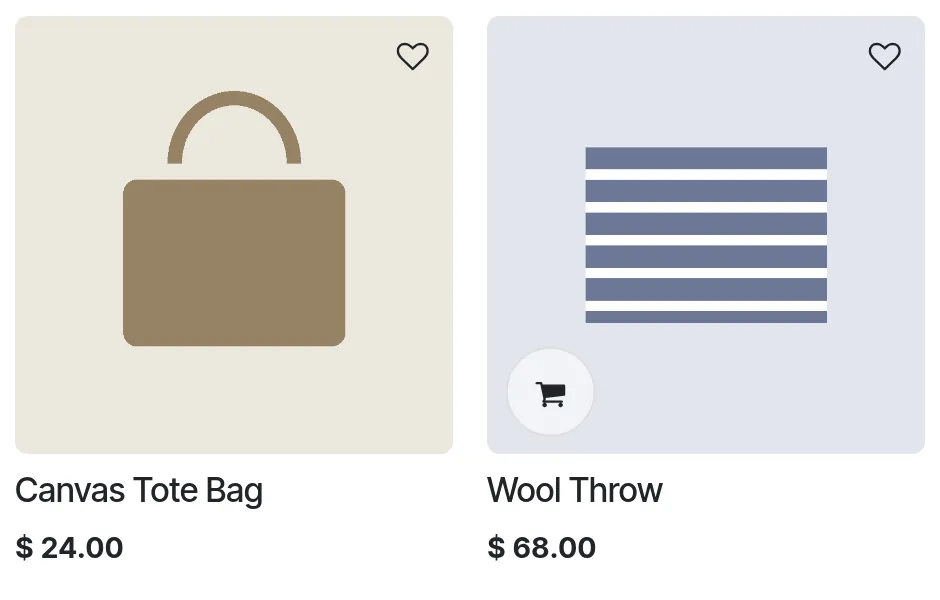
Odoo opens a configuration dialog for products with options, optional products, several units of measure or a combo. A box beside a button that opens a dialog would be misleading.
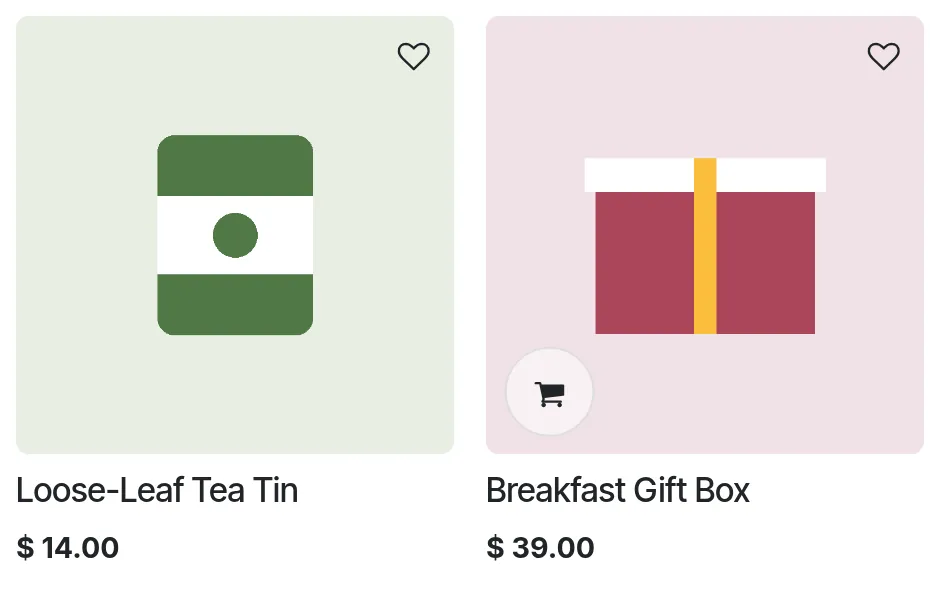
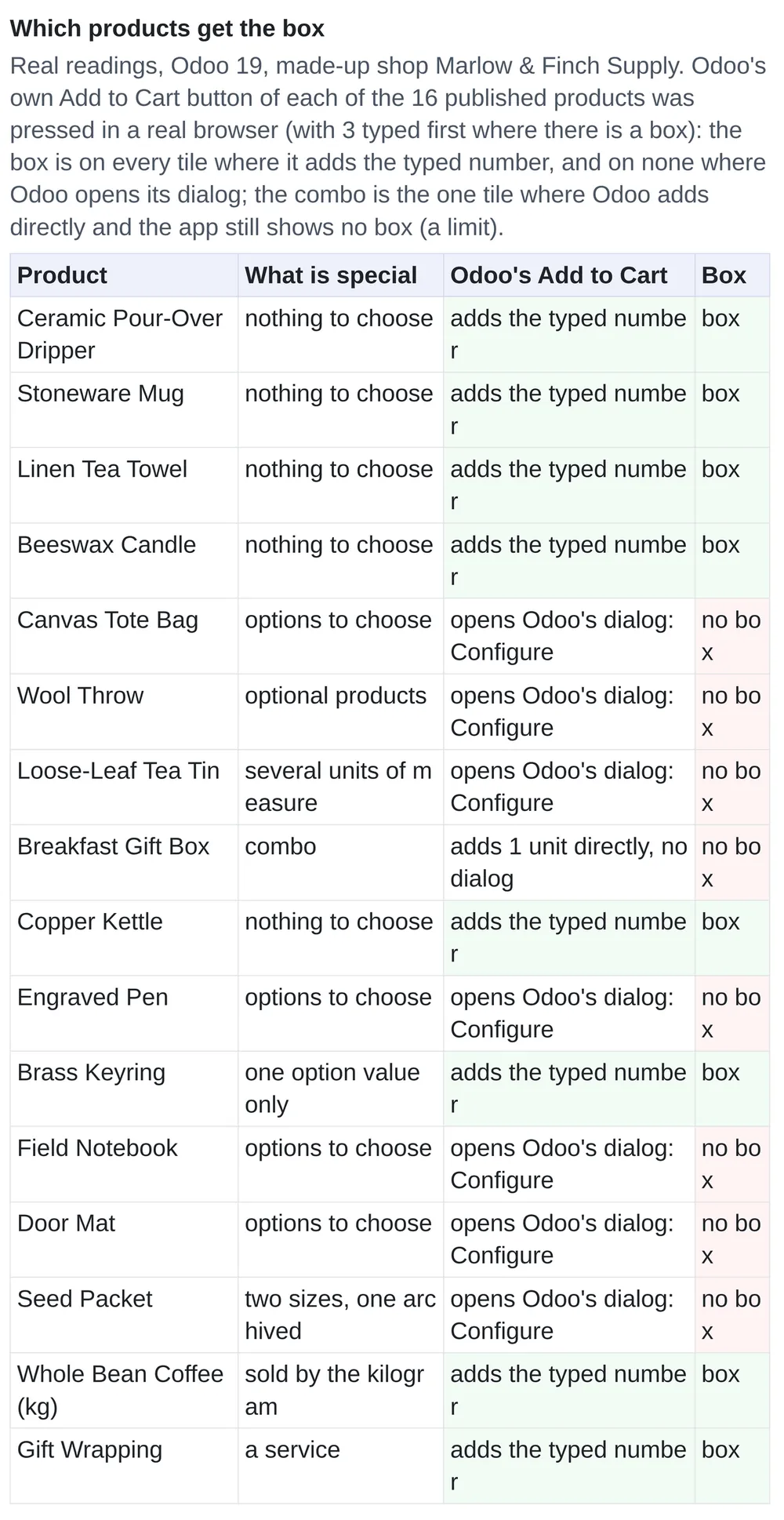
The box appears where Odoo's button adds straight to the cart, and nowhere Odoo opens its dialog. This was checked by pressing the real button on all 16 published products of the demo shop: a product with one option value, sold by the kilogram or a service gets a box (they add directly), while a product with a choice of options, a custom value, a no-variant option, a dynamic option, optional products or a pack unit keeps Odoo's button and its Configure dialog. A combo never gets a box , even though Odoo adds the demo combo (one item) straight to the cart with 1 unit; that is a limit. In the two pictures the hovered tile shows Odoo's button and no box.
There is no per-product switch: the box follows Odoo's own rule.
Products with options or optional products: no box. Real Odoo screen.
A pack unit and a combo: no box. Real Odoo screen.
Which products get the box. Evidence table.
4 What the number does
Use it when shoppers will type all sorts of things in a number box.Read-only
A box that accepts 0, -7 or 4.8 could put nonsense in the cart.
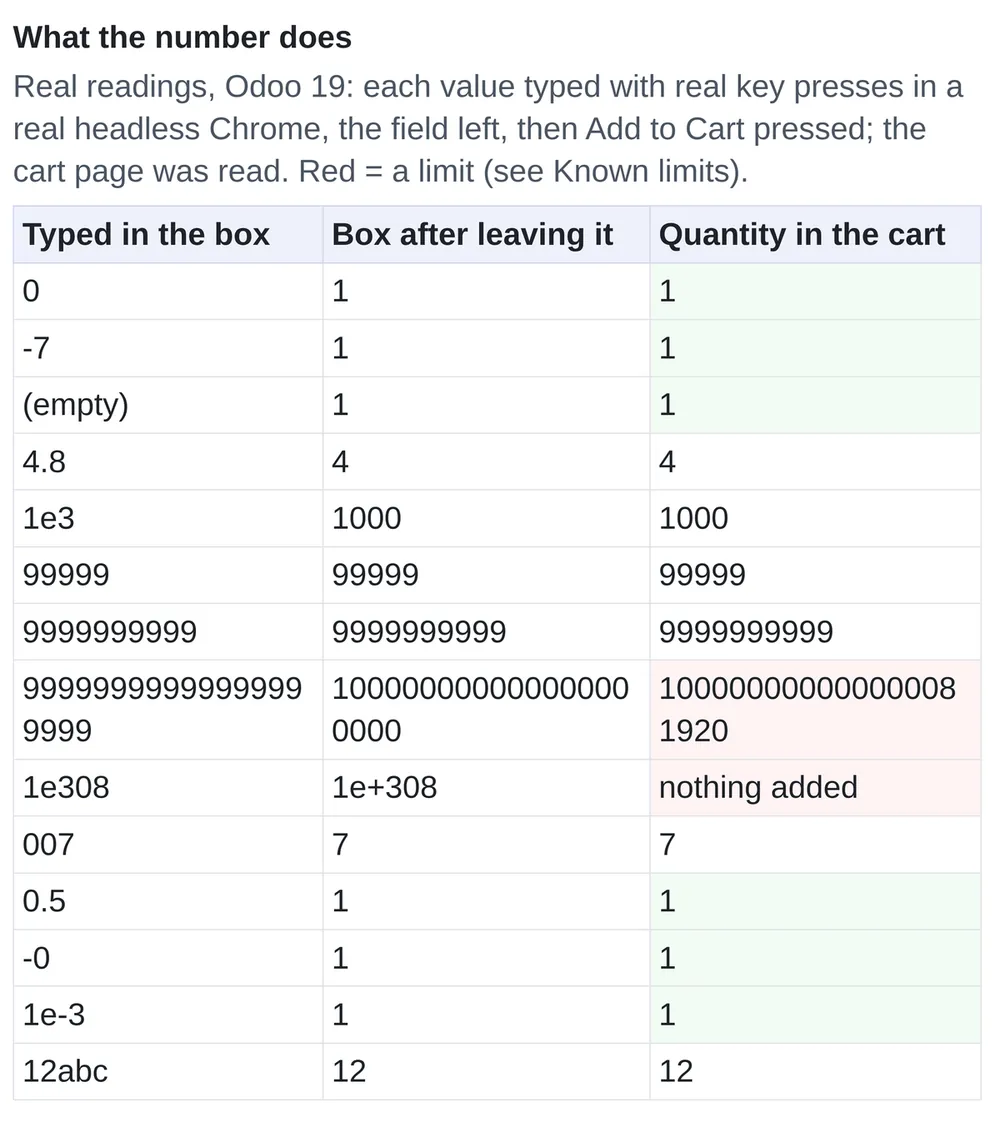
The box takes whole numbers of 1 or more. When it loses focus a 0, a negative number or an empty box becomes 1, and a fraction is cut (4.8 becomes 4). The table lists 14 values typed with real key presses and what the cart received. Enter in the box adds to the cart without leaving the page, and Tab then Enter on Odoo's button works too. There is no upper limit : a number with ten digits was added to the cart, a 20 digit number was added as 100000000000000081920 (a decimal rounding in the browser) and 1e308 added nothing and showed no message. They are limits, not changed in this version.
It has no minimum above 1, no maximum and no sold-in-multiples rule.
What the number does. Evidence table.
5 Where it shows
Use it when your shop does not use the default design.Read-only
Odoo's shop has several grid designs and the box has to fit each.
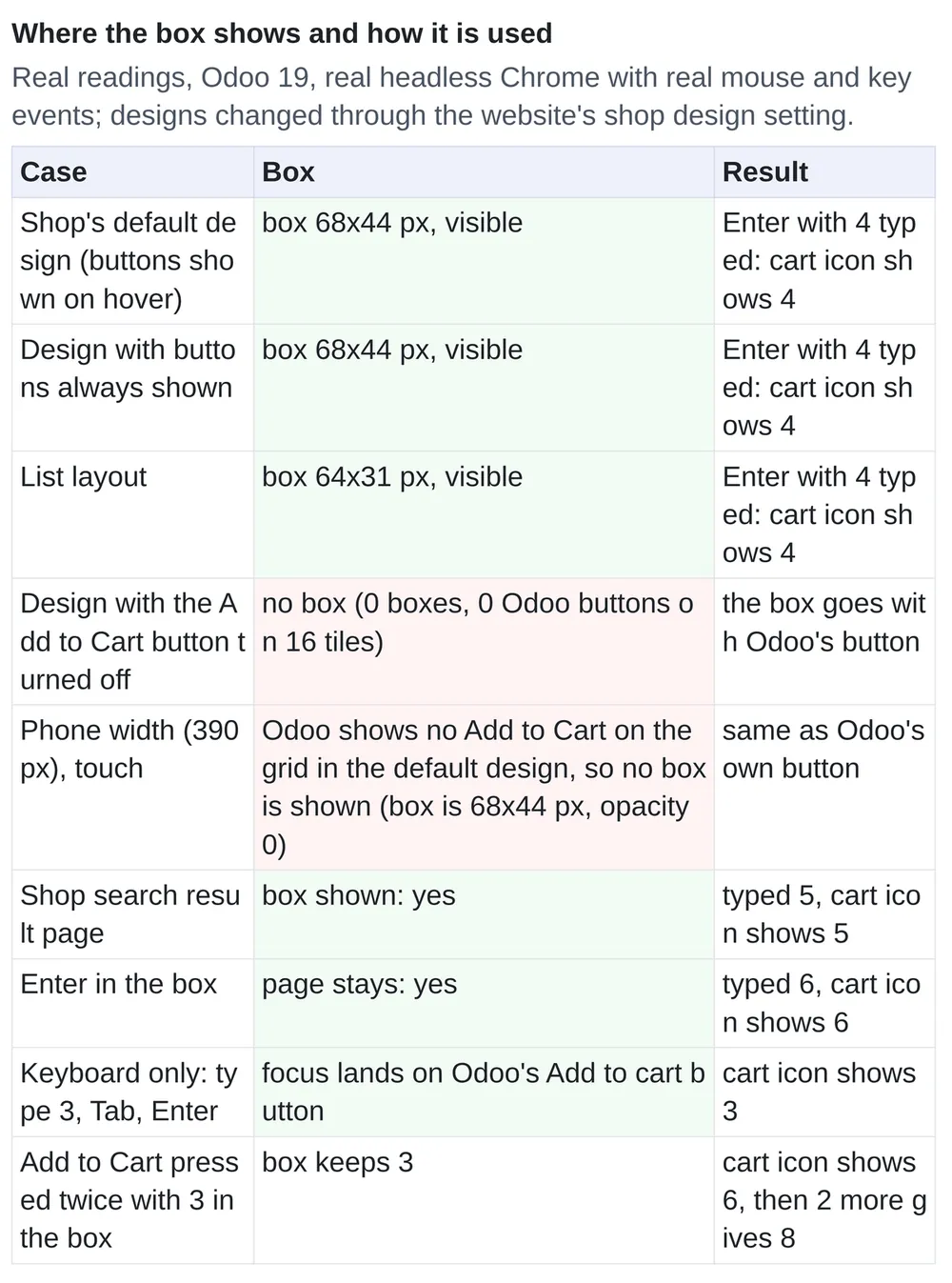
The box follows Odoo's button. In the default design (buttons appear when a tile is hovered), in the design with buttons always shown and in the list layout the box is on the tile and the typed number reaches the cart. In the list layout the box now sits on the same row as Add to Cart (section 7). A design that turns Add to Cart off shows no box. On a phone Odoo shows no button on the grid in the default design, so there is no box either. The shop search result page shows the box too. Enter, the keyboard route and adding twice were read in the same real browser.
It does not change the grid's design options.
Where the box shows. Evidence table.
6 Switch it off, and who can
Use it when you want the stock grid back on one website.Writes when saved
Some shops will want the plain grid on one website and the box on another.
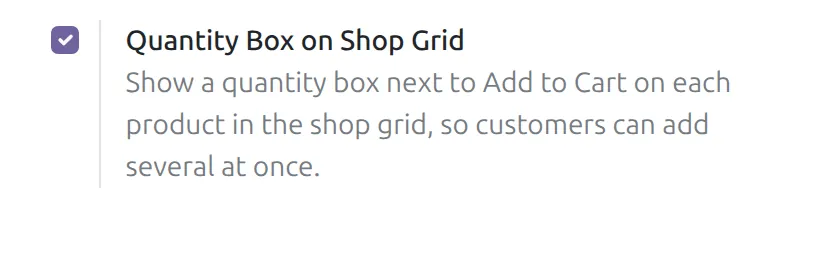
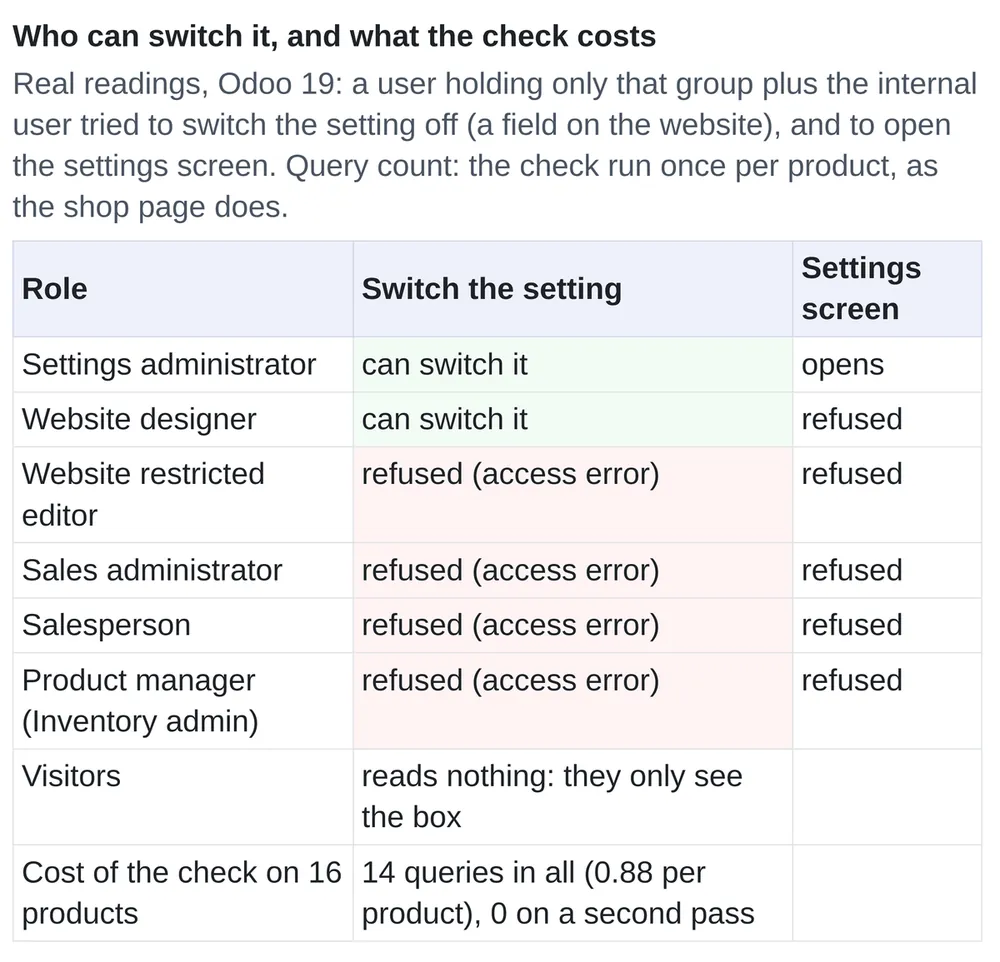
Under Website > Settings > eCommerce the setting Quantity Box on Shop Grid turns the box on or off for the website you are editing; it is on after install. With it off the tiles are Odoo's own. Settings administrators change it on that screen and Website designers can write it; a Sales administrator, a salesperson, a product manager and a restricted editor cannot. The check that decides whether a tile gets a box costs under one query per product on a cold cache and none after.
There is no setting per category or per product.
The setting. Real Odoo screen (cropped to the setting).
Who can switch it, and the cost. Evidence table.
7 Two defects fixed in this version
Use it when you want to know what changed in behaviour.Read-only
Two small defects were found while checking this page against a running shop, and fixed.
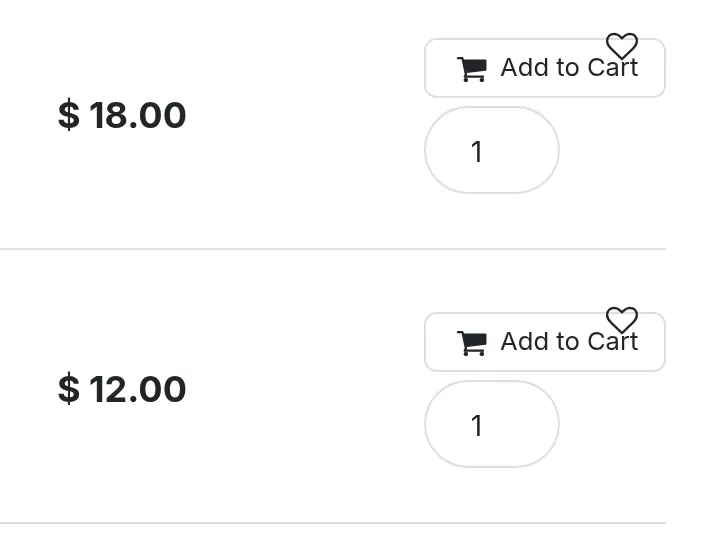
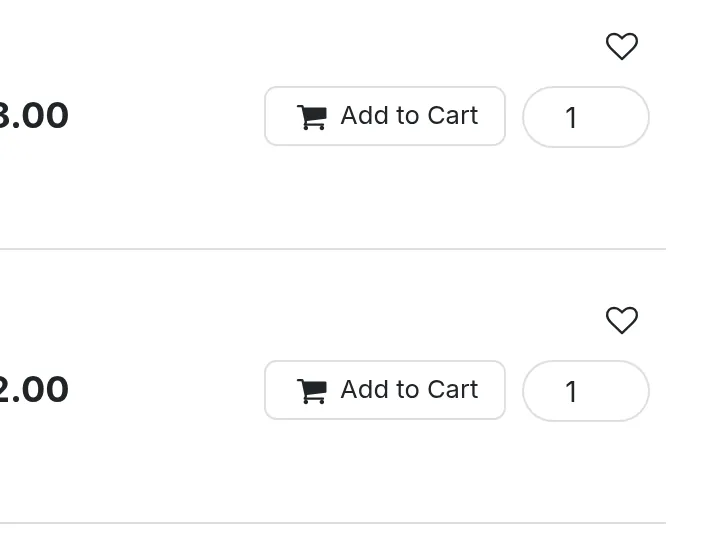
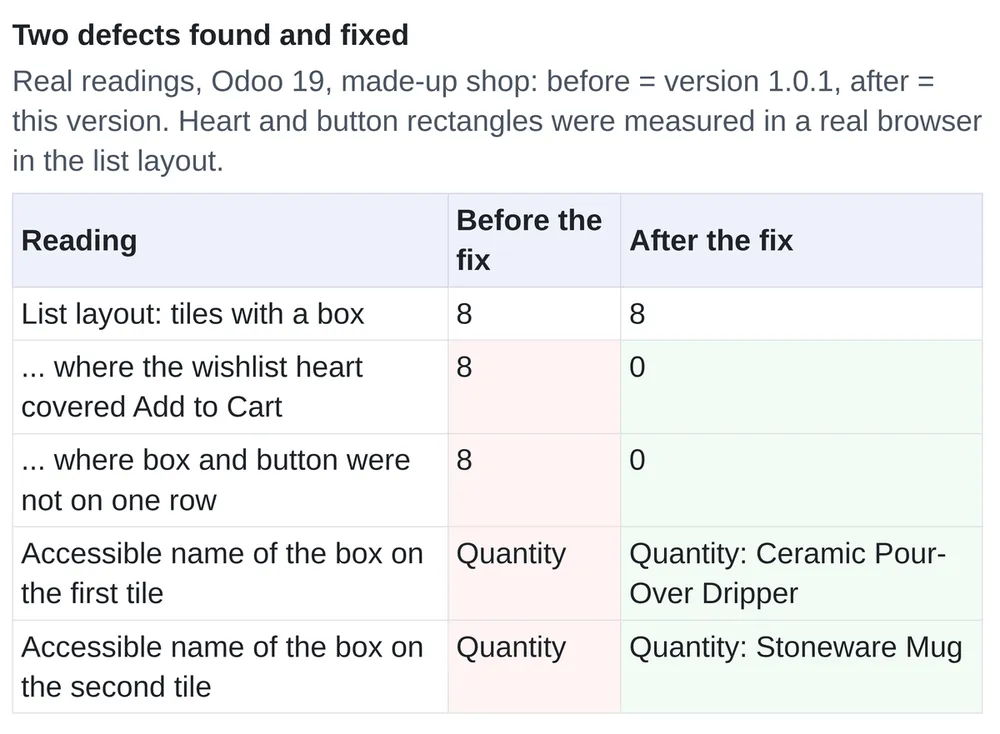
(1) In the shop's list layout Odoo stacks its buttons in a column, so the box sat above Add to Cart and the wishlist heart covered the button on every tile with a box (8 of 8 in the shop here). The box and the button now sit on one row and the heart no longer covers them. (2) The box was named just Quantity on every tile, so every tile announced the same name and nothing told the tiles apart; it is now Quantity: followed by the product name. The pictures show the list layout before and after; the table has the readings. Both are CSS and markup only; no data or price behaviour changed. Two tests fail on the old code and pass now.
Before (version 1.0.1): the heart covers Add to Cart and the box is under it. Real Odoo screen.
After (this version): one row, nothing covered. Real Odoo screen.
Before and after the two fixes. Evidence table.
What changed in this version
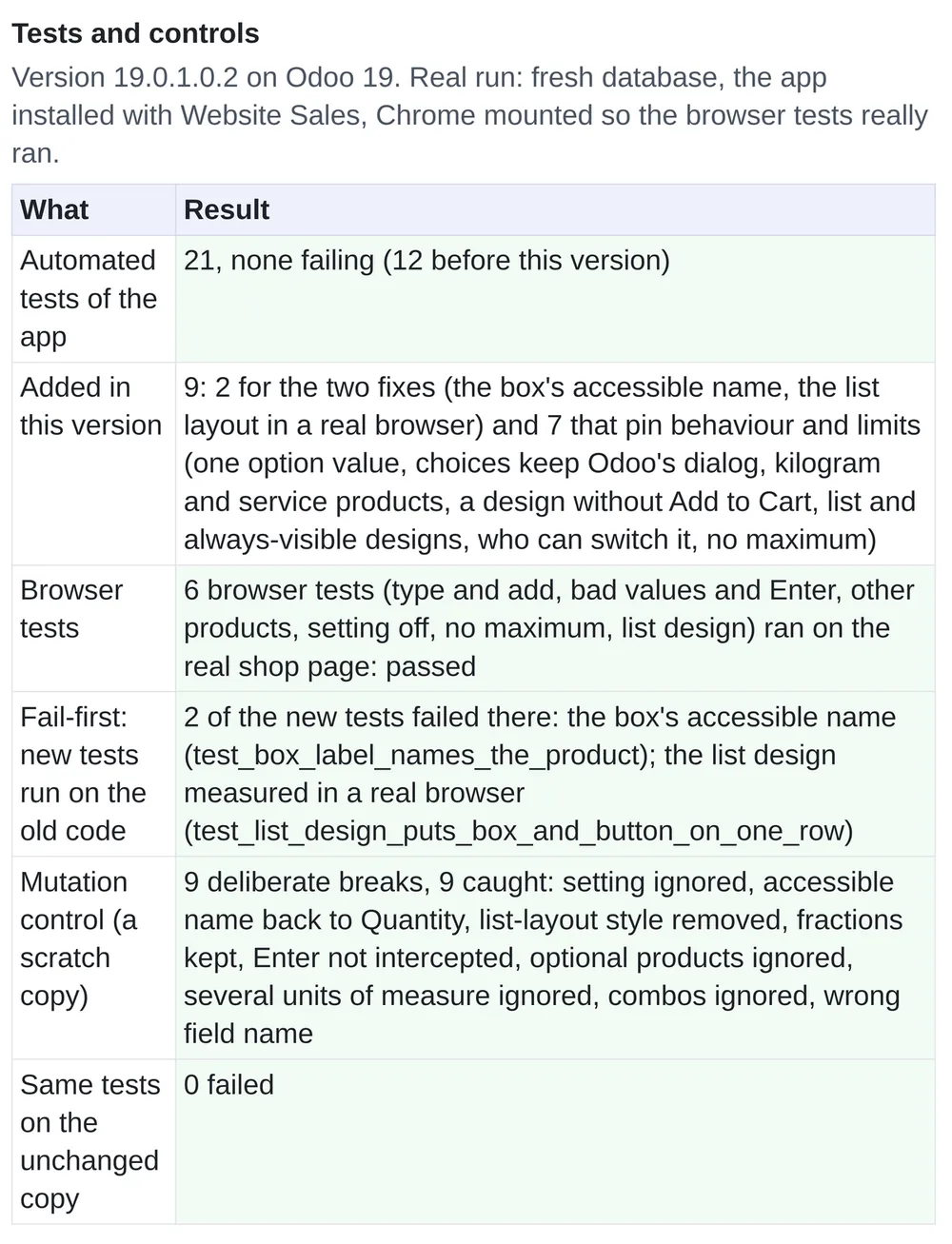
Version 19.1.0.2 fixes two small defects (the list layout, the box's accessible name) and adds 9 automated tests (12 before, 21 now): 2 for the fixes and 7 that pin the limits above. It replaces the screenshots and the page text with checked ones, adds a real-browser check of each claim, and takes no feature out. The stock tests now also skip cleanly when the stock module is not installed. The demo video of an earlier version is kept as it was and was not re-recorded.
Screenshots
What it does not do
- Each of these was reproduced on a running Odoo 19 shop or read in the code; none is changed in this version. The table below has the tests and controls.
- Tests and controls. Evidence table.
Requirements
- Odoo 19.0 or 20.0. The App Store sells each version separately, so buy the one that matches your database.
- Odoo.sh or On-Premise only. Third-party apps cannot be installed on Odoo Online (SaaS) databases. Check your hosting before buying.
- Module
mh_shop_quantity, version 19.0.1.0.1, licensed OPL-1.