Split Purchase Orders
Split RFQ, extract purchase lines and move lines between RFQs: tick lines into a new or existing RFQ, same vendor or another one, with the link noted on both orders
Request a live demo · Odoo.sh or On-Premise only, not Odoo Online (SaaS).
Free
App Store price, per Odoo version
19 · 20
Odoo versions, each sold on its own page
Odoo.sh
or On-Premise; not Odoo Online (SaaS)
1.0.1
version of mh_purchase_split
One RFQ holds lines that belong on two orders: some go to another vendor, some should be ordered separately, some were added to the wrong RFQ. Odoo can merge RFQs but has no way to cut one in two, so the lines are deleted and typed again on a new RFQ, with the quantities, taxes and analytic split typed again too.
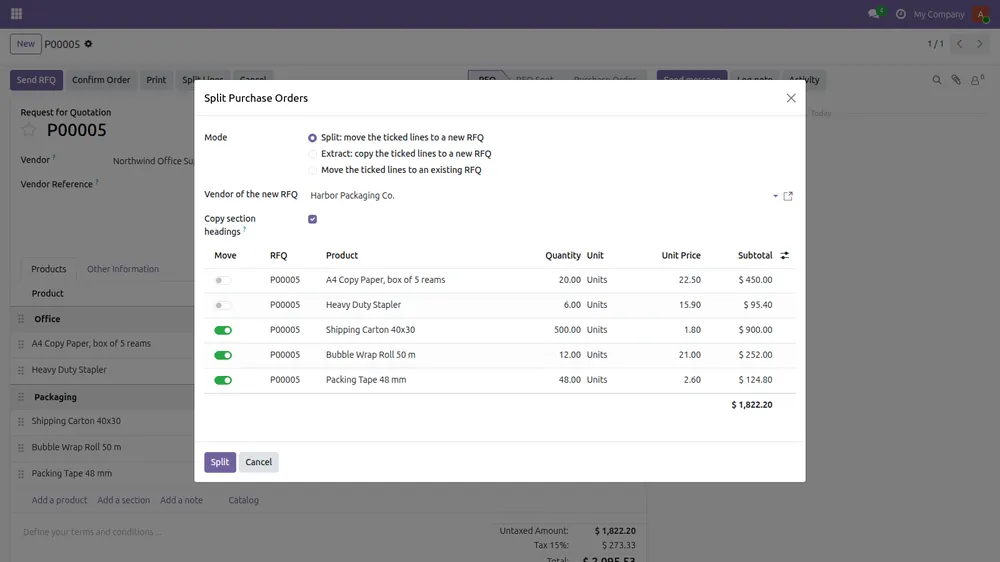
This adds a Split Lines button on draft and sent RFQs, and a Split Lines action on the purchase order list. You tick the lines, choose where they go, and press one button. The lines themselves move, so what was on them is still on them.
How it works
Split, extract or move
Split moves the ticked lines to a new RFQ. Extract copies them to a new RFQ and leaves the original as it is. Move puts them into an RFQ that already exists, any draft or sent RFQ of the same company. The new RFQ gets the next number of the purchase sequence and a vendor you choose: the same vendor or another one.
Several RFQs at once
Select RFQs in the list and choose Split Lines from the Actions menu. The wizard lists the lines of every selected RFQ, and the ticked ones go to one new RFQ, whose source document lists the RFQs they came from.
What stays on a moved line
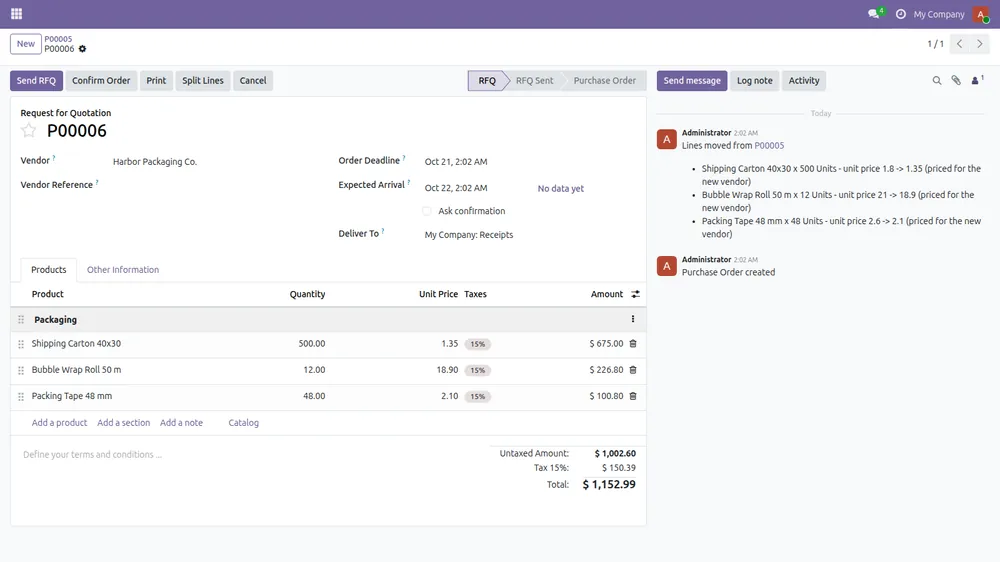
Quantity, unit of measure, taxes, analytic distribution, unit price, discount, expected date and description stay as they were when the vendor stays the same. A line moved to an existing RFQ is added after the lines already there. A note with a link is posted in the chatter of both RFQs, listing the lines.
Moving to another vendor
A line that goes to a different vendor is priced again, with Odoo's own rules: the new vendor's price list when it has one for the product, otherwise the product cost. A price typed by hand is not carried over. The chatter of the new RFQ lists the old and the new unit price of every line. Taxes and analytic distribution are kept as they are on the line. A new RFQ for another vendor takes that vendor's payment terms and fiscal position.
Sections
When the new RFQ is created, the section and subsection above each moved line are copied to it, once, in order. You can switch that off. The original headings stay on the original RFQ.
What is refused
Orders that are not RFQs. Confirmed, cancelled and locked orders are refused.
Lines already received or billed. A line with a received quantity, a vendor bill line or a stock move is refused, in every mode.
Another company or another currency. The destination must be in the same company and in the same currency as the ticked lines. A vendor invoiced in another currency gets no new RFQ from this app. With Odoo 20 the destination must also use the same tax-included or tax-excluded pricing.
Emptying an RFQ. Moving every product line out of an RFQ is refused, so no RFQ is left empty. Keep one line, use Extract, or cancel the RFQ.
Who it is for
Buyers who build one big RFQ and then find that part of it should go to another vendor, or who send a few lines out for a better quote and do not want to retype them.
Screenshots
What it does not do
- It does not split the quantity of a line. A line moves whole, or is copied whole.
- It does not split confirmed orders or orders that have receipts. That is a different job, with receipts and bills to unwind.
- It does not move notes or section headings by themselves. Notes stay where they are, and headings are copied, not moved.
- An extracted line is a new line. It is not linked to the replenishment rule, sale order or downstream move of the line it was copied from, which stays on the original.
- It does not merge RFQs. Odoo already does that.
Requirements
- Odoo 19.0 or 20.0. The App Store sells each version separately, so buy the one that matches your database.
- Odoo.sh or On-Premise only. Third-party apps cannot be installed on Odoo Online (SaaS) databases. Check your hosting before buying.
- Odoo 19 and 20, Community or Enterprise. Needs Purchase. Third-party apps install on Odoo.sh or On-Premise only - they cannot be installed on Odoo Online.
- Module
mh_purchase_split, version 19.0.1.0.1, licensed OPL-1.