Timesheet Approval
Employees submit the week, an approver approves or refuses it, and the hours of a submitted or approved week are locked
Request a live demo · Odoo.sh or On-Premise only, not Odoo Online (SaaS).
0 of 210
made-up timesheet lines were in a different submission than a separate script computed from the raw database tables (92 of them on a Sunday or a Monday; control: a Sunday-start week would split 28)
Mon-Sun
one submission per employee and week, always Monday to Sunday; hours, date, task, employee and project of a locked line cannot be changed
43
automated tests counted on this version, none failing; 9 were added for what this page states (34 before)
0.20 s
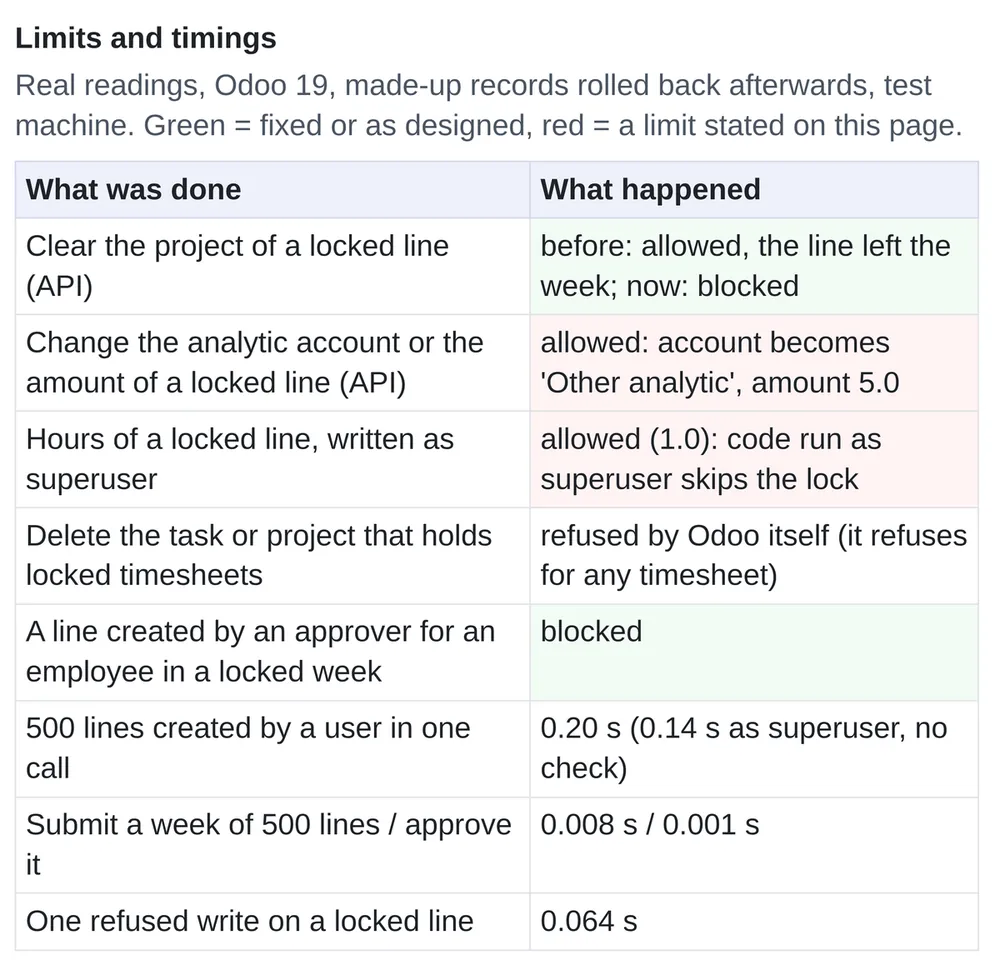
to create 500 timesheet lines in one call with the lock check on; larger data not tested
Fixed
in this version: the project of a locked timesheet could be cleared through the API, which took the hours out of the week
Not
multi-level: one approver decides, may be the employee himself or herself, and the lock can be bypassed by code run as superuser (see the known limits)
Odoo Community lets anybody edit a timesheet for ever. Timesheet Approval adds the missing review step: an employee hands in a Monday-to-Sunday week, an approver (Odoo's Timesheets group User: all timesheets) approves it or refuses it with a reason, and while the week is submitted or approved its timesheets cannot be changed or deleted and nothing can be added to it. This page walks through it with screenshots of an Odoo 19 database holding a made-up design studio, three employees and one approver, each logged in separately, and with tables rendered from real readings of the same run; each picture says which it is.
It is a weekly yes or no by one approver, not a multi-level workflow. This page also says where that bites: approvers can approve their own week, who is told what, and what the lock does not cover.
Install it and an Approval menu appears under Timesheets. It needs only the Timesheets app (hr_timesheet).
How it works
What it keeps, what it changes, what it does not
Each line was tested or read in the code.
1 Submit the week
Use it when you want every timesheet of a week handed in together instead of chasing people.Changes records
Nobody knows when an employee is finished with a week, and a timesheet can still be edited after it was reported.
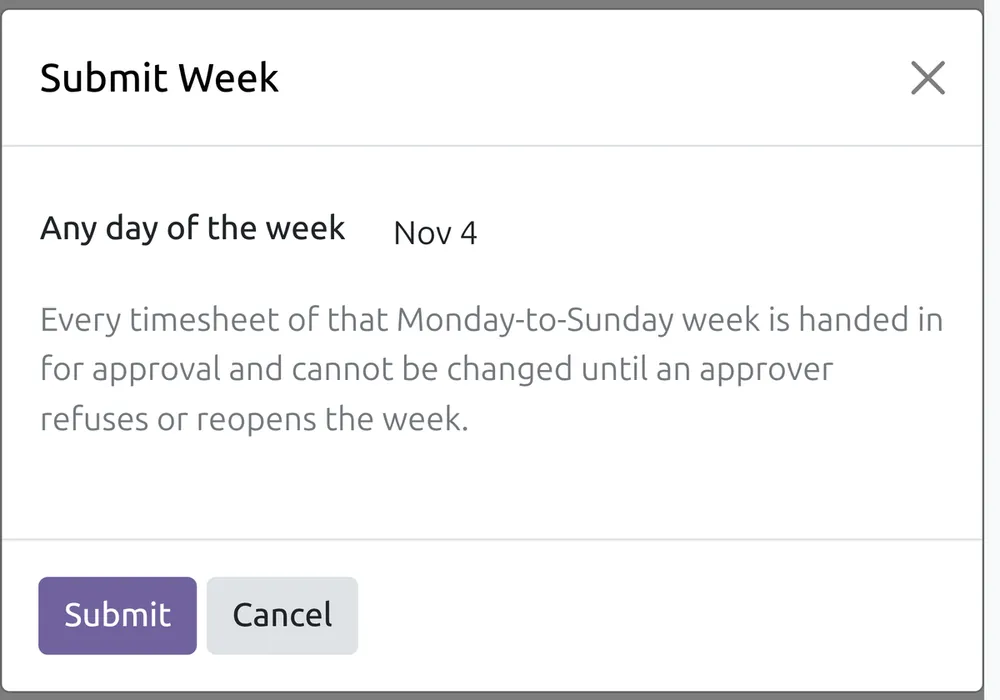
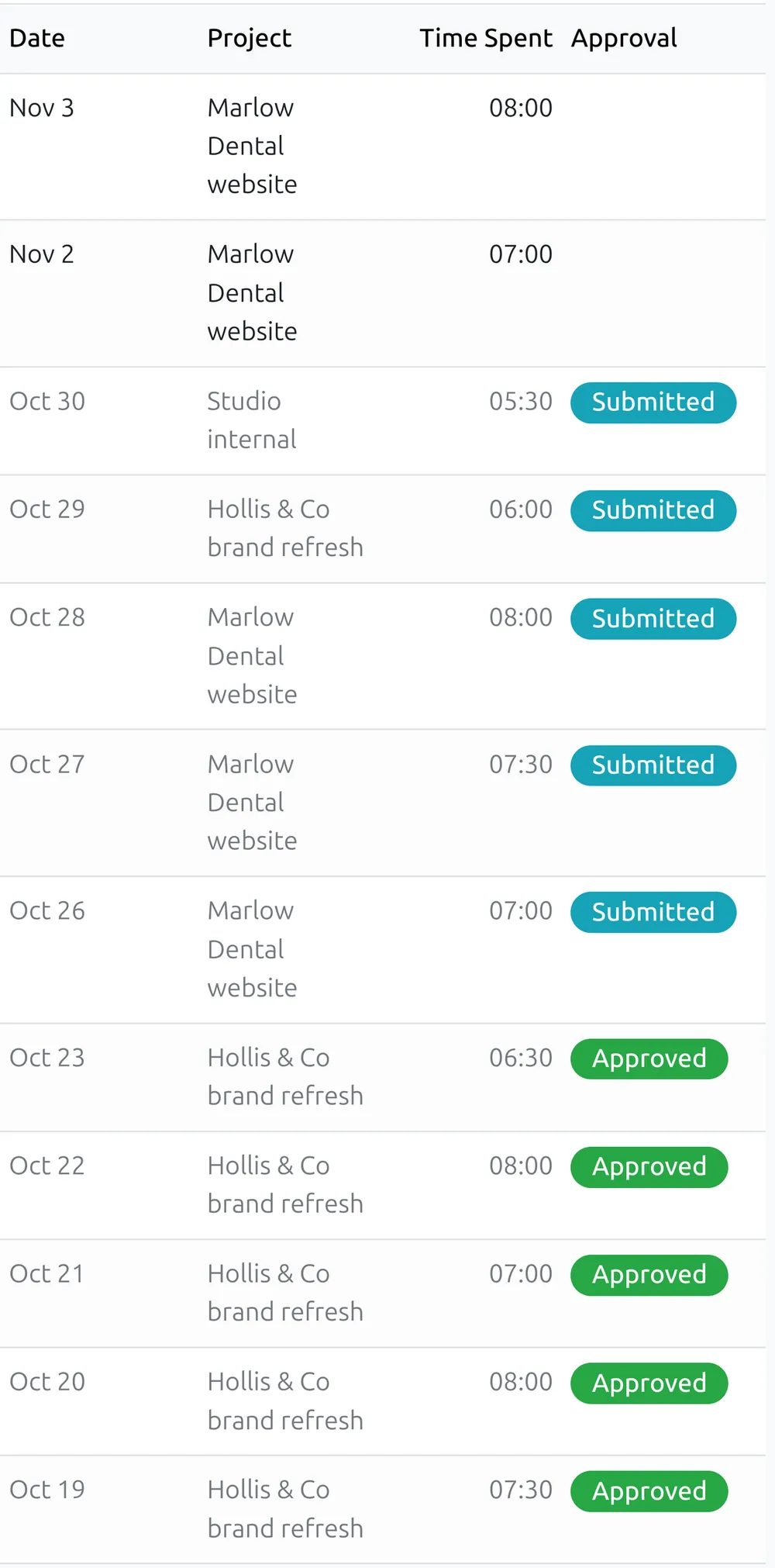
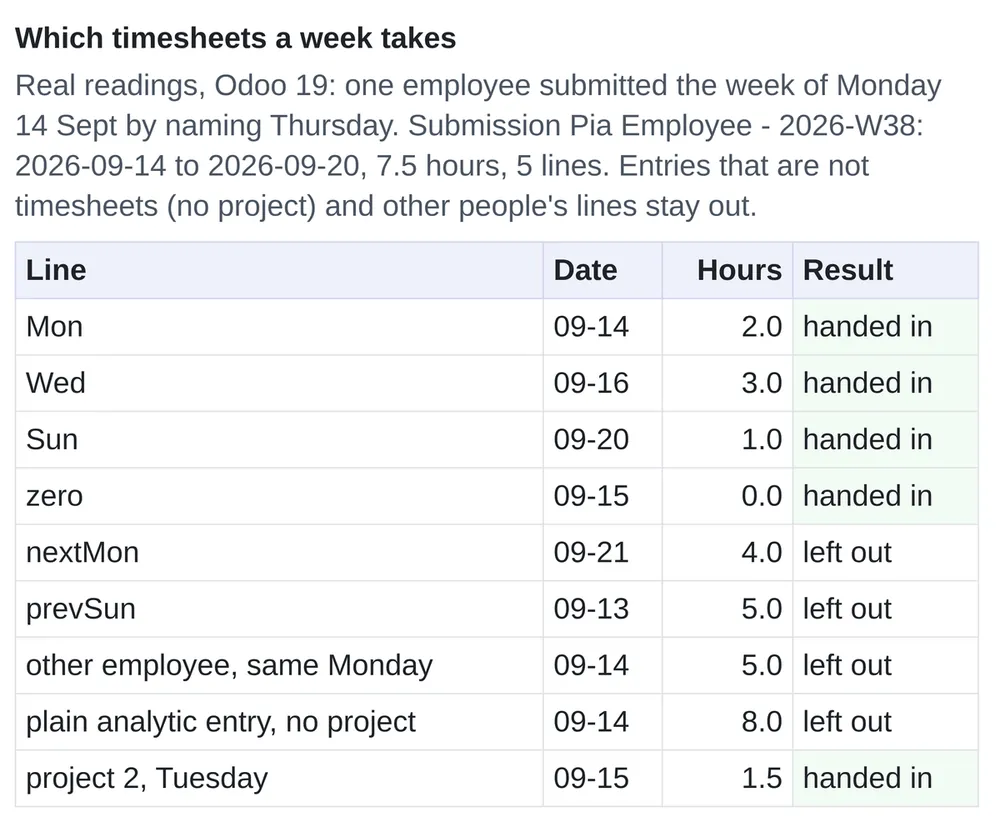
Open Timesheets, Approval, Submit Week, pick any day of the week (it opens on today) and press Submit. Every timesheet of that employee dated Monday to Sunday of that week becomes one submission with the state Submitted. Employees submit only their own week; an approver can submit any employee's. The first picture is the dialog; the second is the employee's timesheet list with an Approval column: Nina's week of 19 October is Approved, the week of 26 October is Submitted, and the two lines of 2 and 3 November are not submitted yet and still editable. The first table lists which lines of nine a week takes: entries without a project, other people's lines and other weeks stay out, a zero-hour line is handed in.
It will not submit a week twice, an empty week, or somebody else's week as an employee. A future week with a line can be submitted.
The Submit Week dialog. Real Odoo screen.
The employee's timesheets with the Approval badge. Real Odoo screen.
Which lines a submitted week takes. Evidence table.
2 The week is locked
Use it when you want the hours you approved to stay the hours that were approved.Blocks edits
An approved timesheet that can still be edited is not approved.
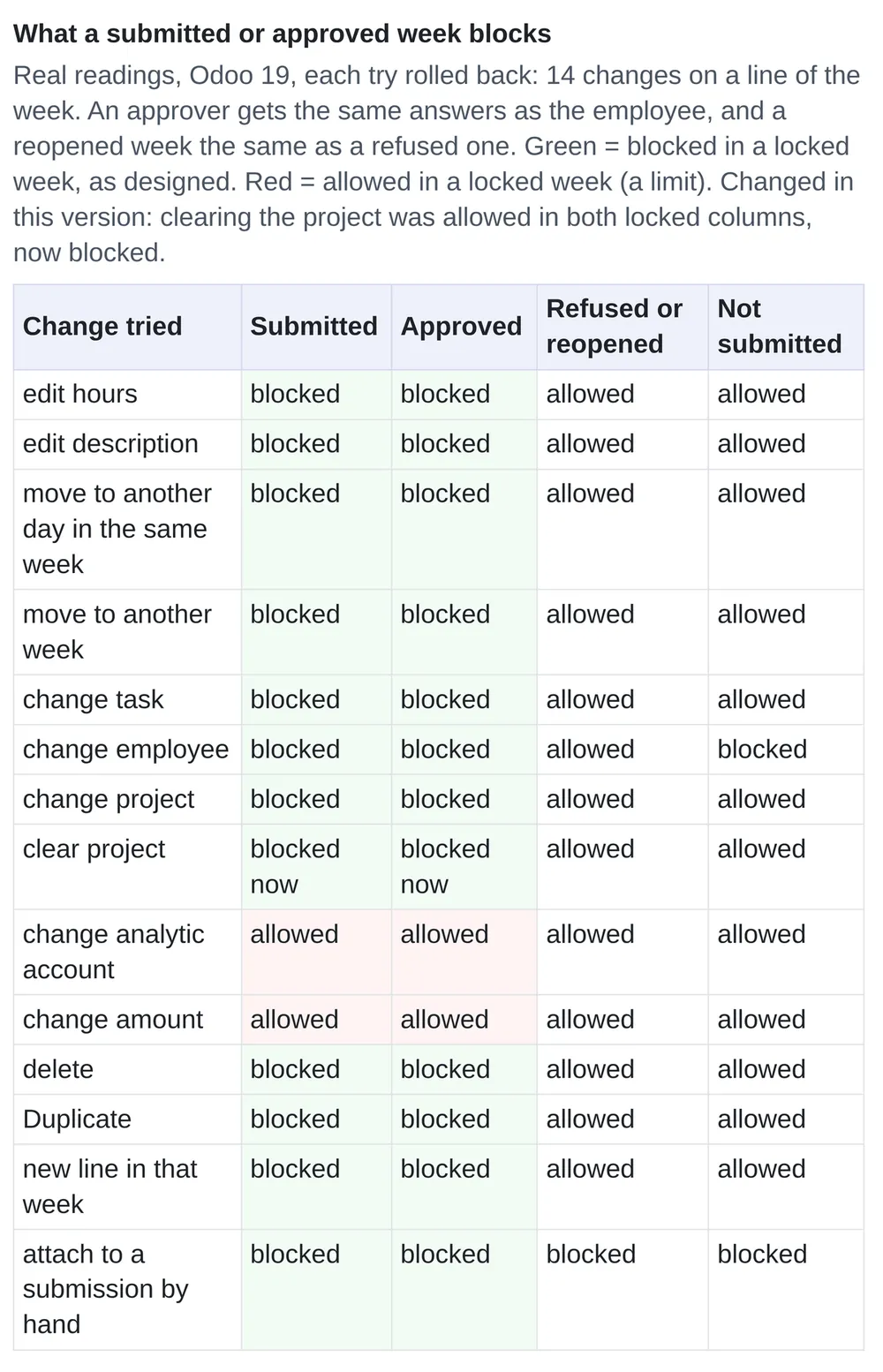
In a Submitted or Approved week the date, hours, description, task, employee and project of a timesheet cannot be changed, a timesheet cannot be deleted or duplicated, and no timesheet can be added to the week or moved into it. The check runs where a timesheet is saved, so it applies to every screen and to the API, for the employee and for an approver. This table is a real reading of 14 changes tried on a line in each state, rolled back afterwards. A refused or reopened week unlocks and the same changes are allowed again.
Changing the analytic account or the amount of a locked line through the API is still accepted, and code run as superuser skips the lock.
What a submitted or approved week blocks. Evidence table.
3 Approve, refuse or reopen
Use it when an approver has to sign off on the week or send it back.Changes records
A manager has no single place that lists what is waiting and no way to say why it is wrong.
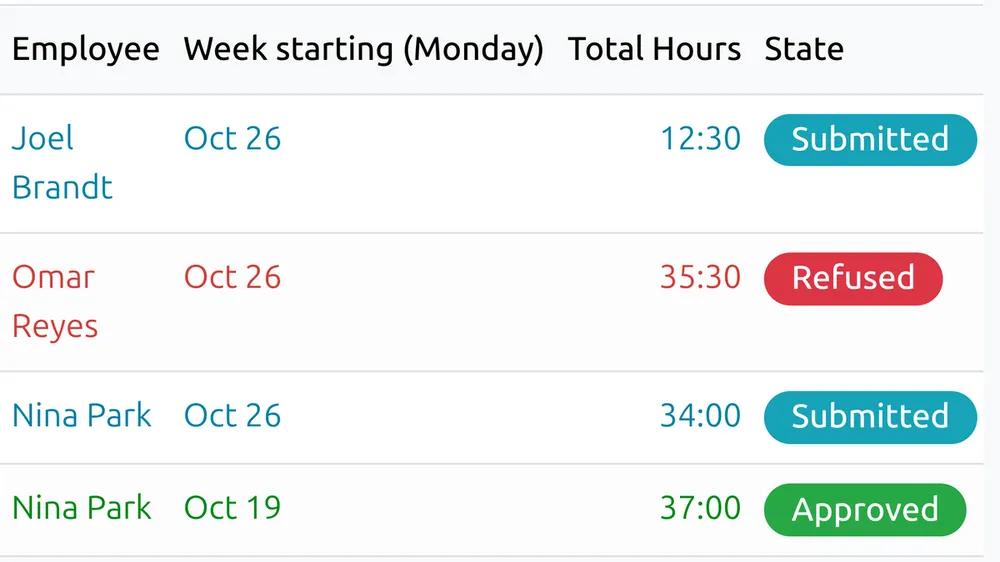
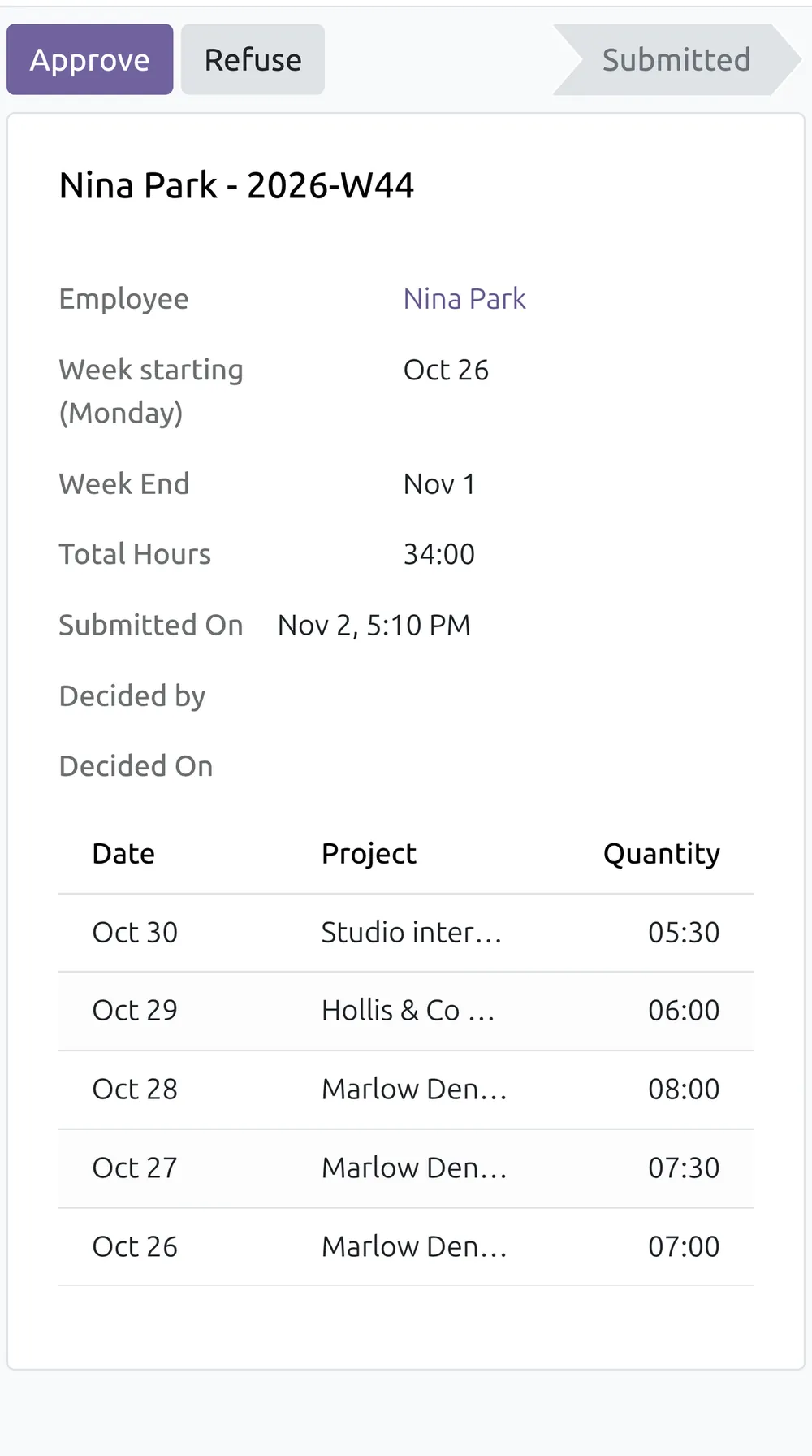
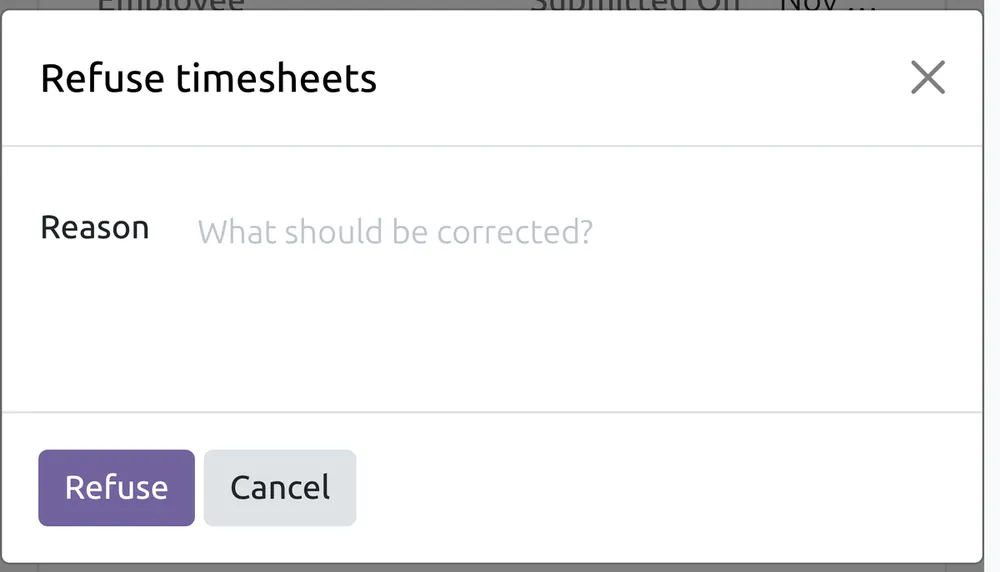
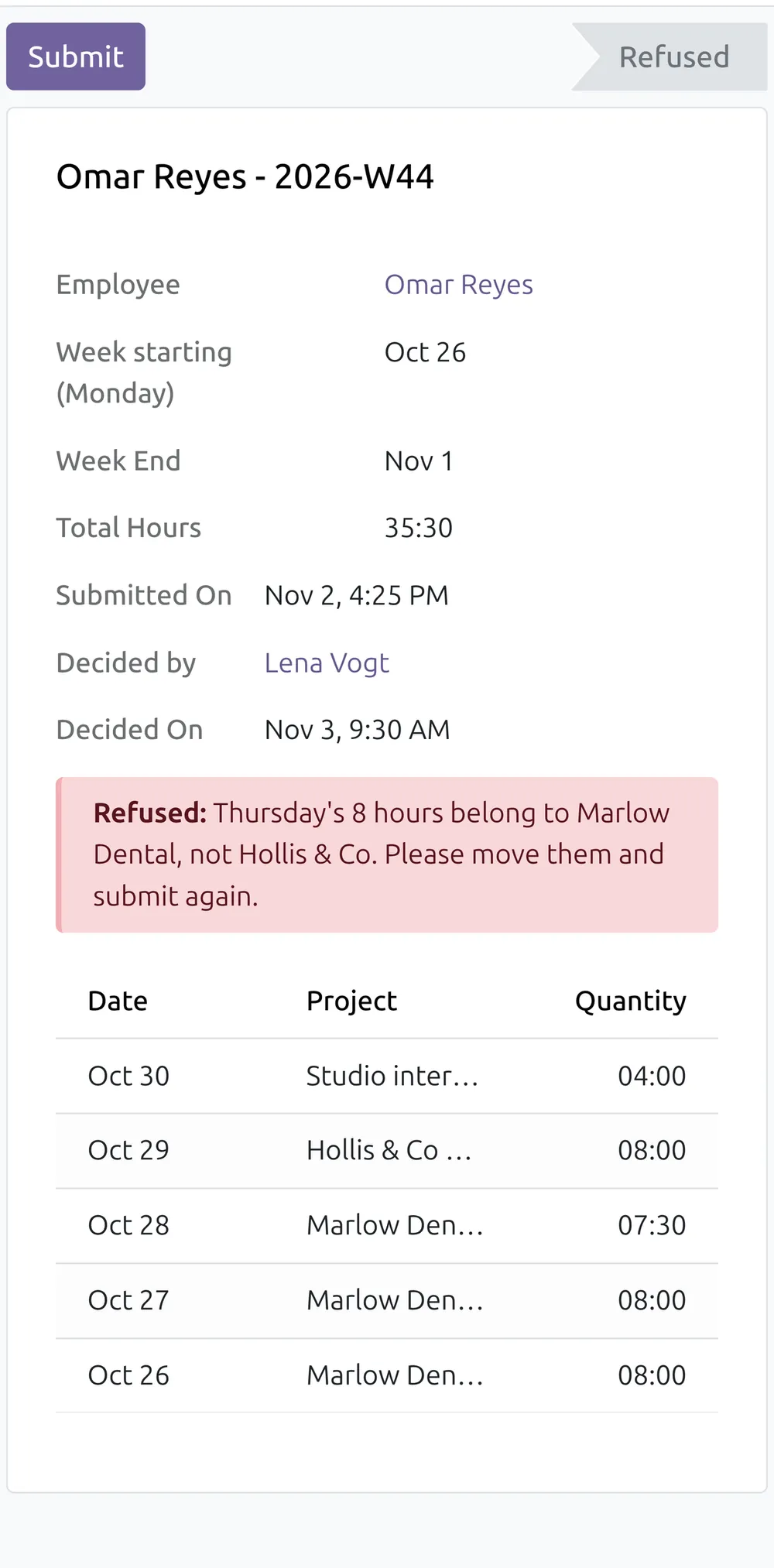
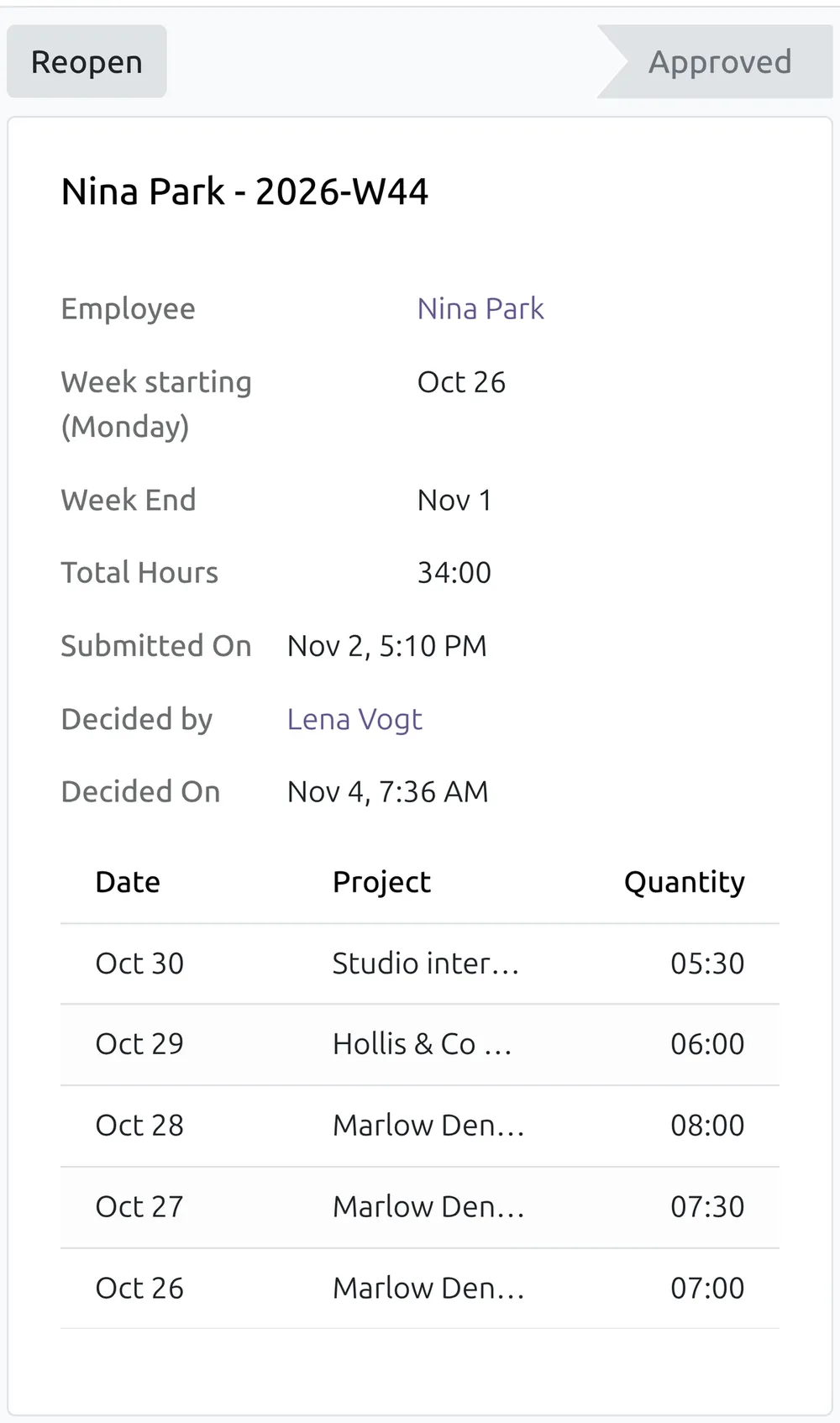
Approvers see Timesheets, Approval, To Approve and Weekly Submissions (the first picture shows all four made-up submissions: two waiting, one refused, one approved). Opening a waiting week shows its hours and the buttons Approve and Refuse (second picture). Refuse asks for a reason (third picture); an empty or blank reason is refused. The employee then sees the reason on the form with a Submit button (fourth picture) and can correct the lines and submit again, which clears the refusal. Approve records who and when (last picture) and leaves a Reopen button, which unlocks the week again.
An approver can approve his or her own week; the state can be written through the API without Reopen.
Weekly Submissions as an approver sees it. Real Odoo screen.
A waiting week as the approver sees it. Real Odoo screen.
Refuse asks for a reason. Real Odoo screen.
A refused week as the employee sees it. Real Odoo screen.
After Approve. Real Odoo screen, the approval was pressed for this picture.
4 Who may do what, and who is told
Use it when you need to know who can decide and who finds out.Read-only
Approval is only useful if employees cannot approve themselves and the right person hears about a submission.
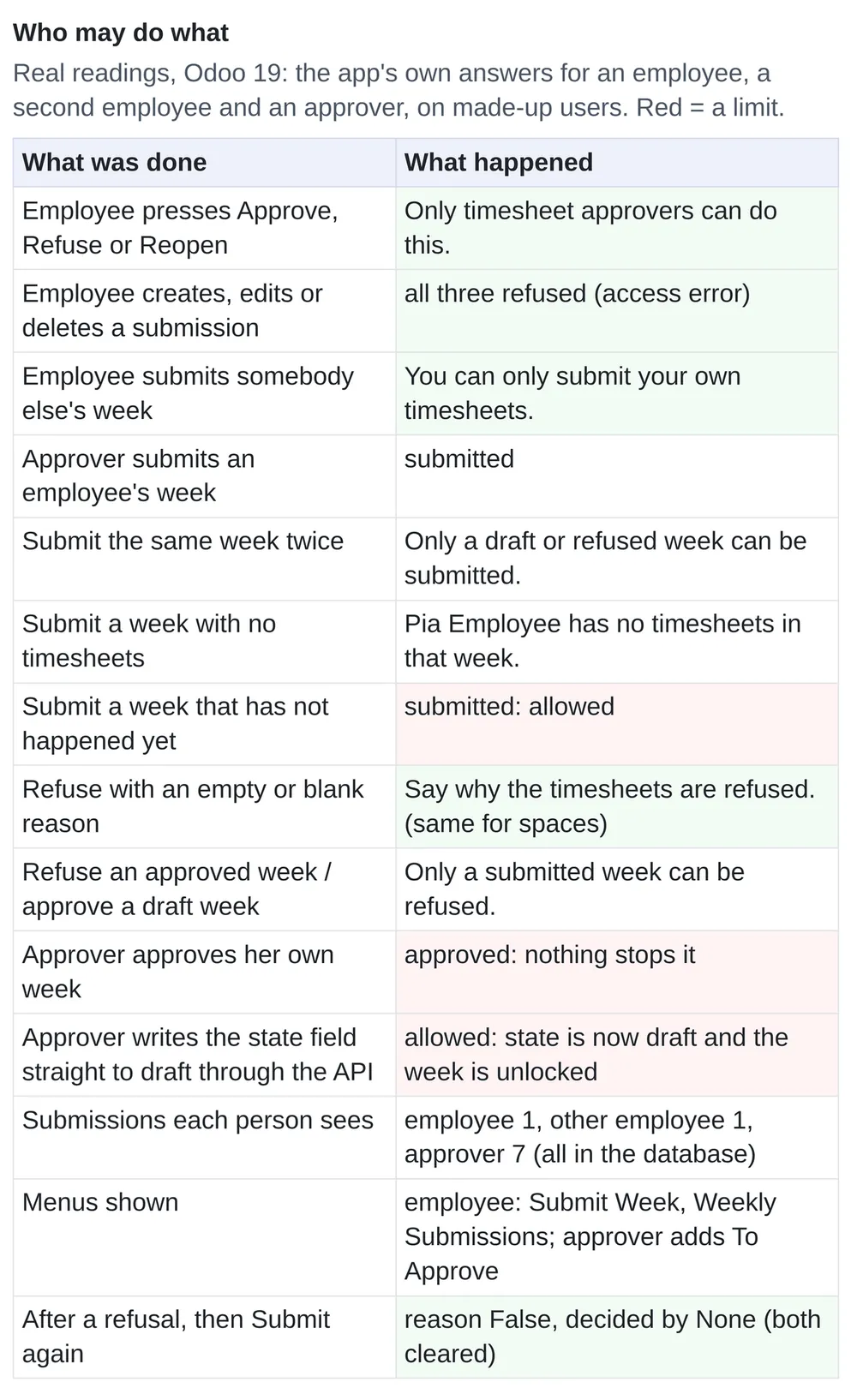
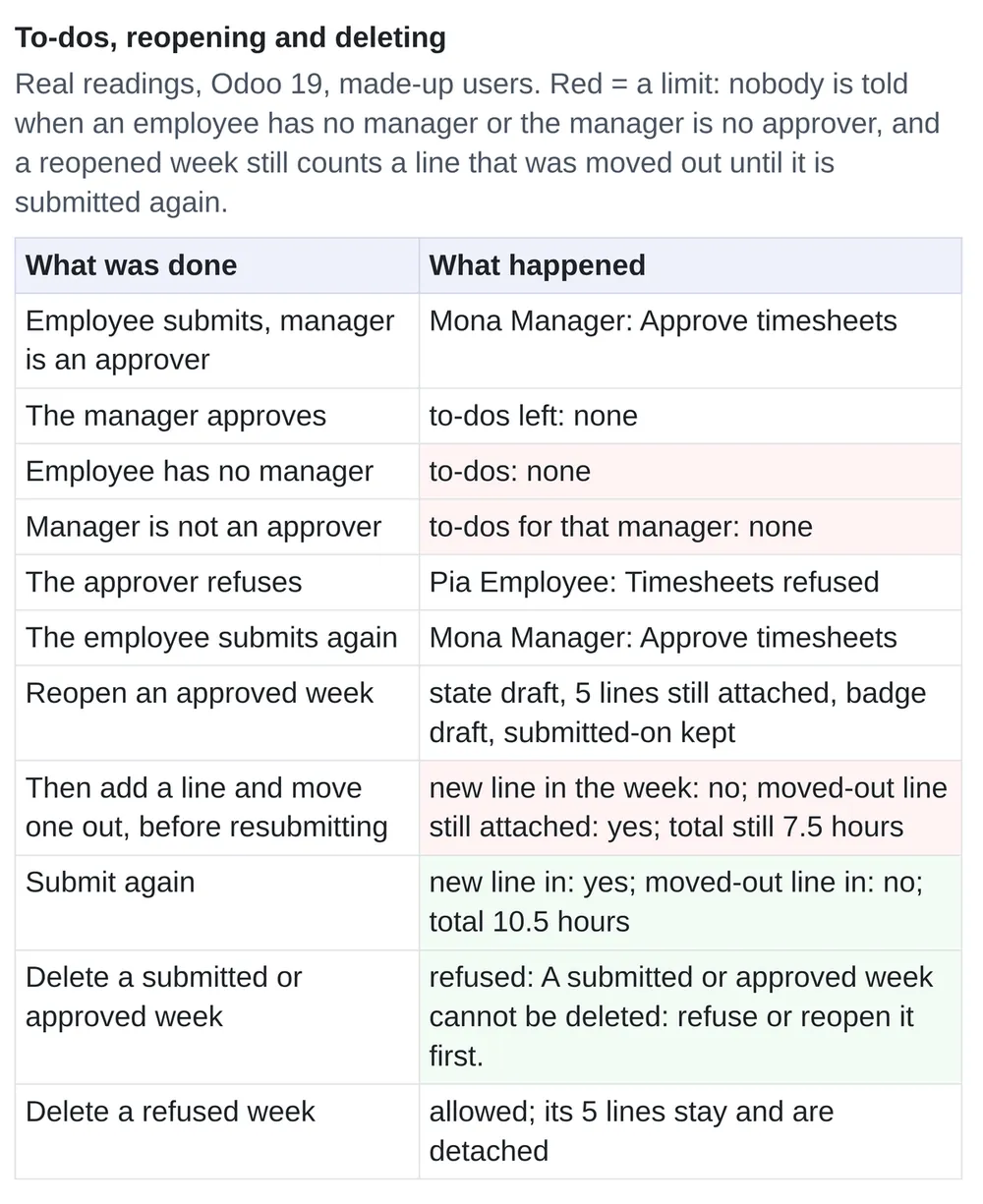
Employees cannot approve, refuse or reopen, and cannot create, change or delete a submission; they see only their own submissions and approvers see all. When a week is submitted the employee's manager gets a to-do to approve it, but only if that manager has a user and is a timesheet approver; when it is refused the employee gets a to-do with the reason. The two tables are real readings. Nobody is told when the employee has no manager or the manager is not an approver, and a reopened week still counts a line that was moved out until it is submitted again.
There is no e-mail, no escalation and no per-project approver.
Who may do what. Evidence table.
To-dos, reopening and deleting. Evidence table.
5 Checked against the raw tables
Use it when you want to know the week boundaries are right before you rely on the lock.Read-only
A line on a Sunday or a Monday landing in the wrong week would be locked or unlocked by mistake.
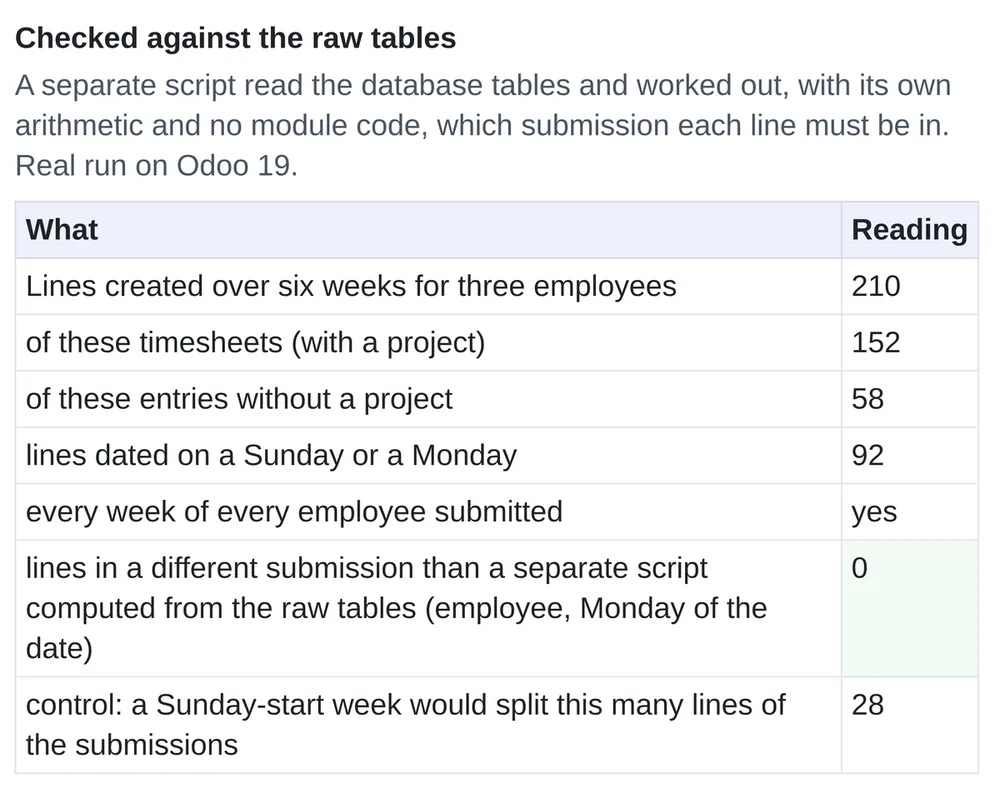
A separate script read the database tables and worked out, with its own arithmetic and no module code, which submission each of 210 made-up lines (152 timesheets, 58 entries without a project, 92 of them on a Sunday or a Monday) had to be in, across six weeks and three employees. 0 differences, on Odoo 19 and Odoo 20. As a control, a Sunday-start week would have split 28 of the lines.
The independent check. Evidence table.
What changed in this version
Version 1.0.2 fixes one defect: until 1.0.1 the project of a timesheet in a submitted or approved week could be cleared through the API, which turned the line into a plain analytic entry and took its hours out of the week while the submission still counted them. It is now refused, also for approvers; nothing else about submitting or approving changed. It also adds 9 automated tests for what this page states, fixes a browser test that only passed in the week its lines were dated, rewrites the screenshots and the text, and removes the claim that imports and the calendar are covered (the lock is in the save code; it was tested through the API and the list screens, not every screen). The demo video of an earlier version is kept as it was and was not re-recorded.
Screenshots
What it does not do
- Each of these was reproduced in a run of the app on Odoo 19 and is pinned by a test that passes; only the first was changed in this version.
- Limits and timings. Evidence table.
Requirements
- Odoo 19.0 or 20.0. The App Store sells each version separately, so buy the one that matches your database.
- Odoo.sh or On-Premise only. Third-party apps cannot be installed on Odoo Online (SaaS) databases. Check your hosting before buying.
- Module
mh_timesheet_approval, version 19.0.1.0.2, licensed OPL-1.