Variant Price Percent
Your desk costs 800 and Oak adds 12%: type the 12 once, and the extra follows when the price moves to 900
Request a live demo · Odoo.sh or On-Premise only, not Odoo Online (SaaS).
225 of 225
extra prices matched an independent recompute from the raw database columns, over 60 random products
10 of 10
pricelist and currency paths gave the same price as an extra typed by hand, at two Sales Prices
28
automated tests in the app, none failing; 14 were added, 8 of them pin the limits stated on this page
0
changes to the app's behaviour in this version; one defect in the tests was fixed (they failed on a plain install)
0.01 s
to change the Sales Price of a product with 500 variants and 45 percent values (test machine, Odoo 19)
Not
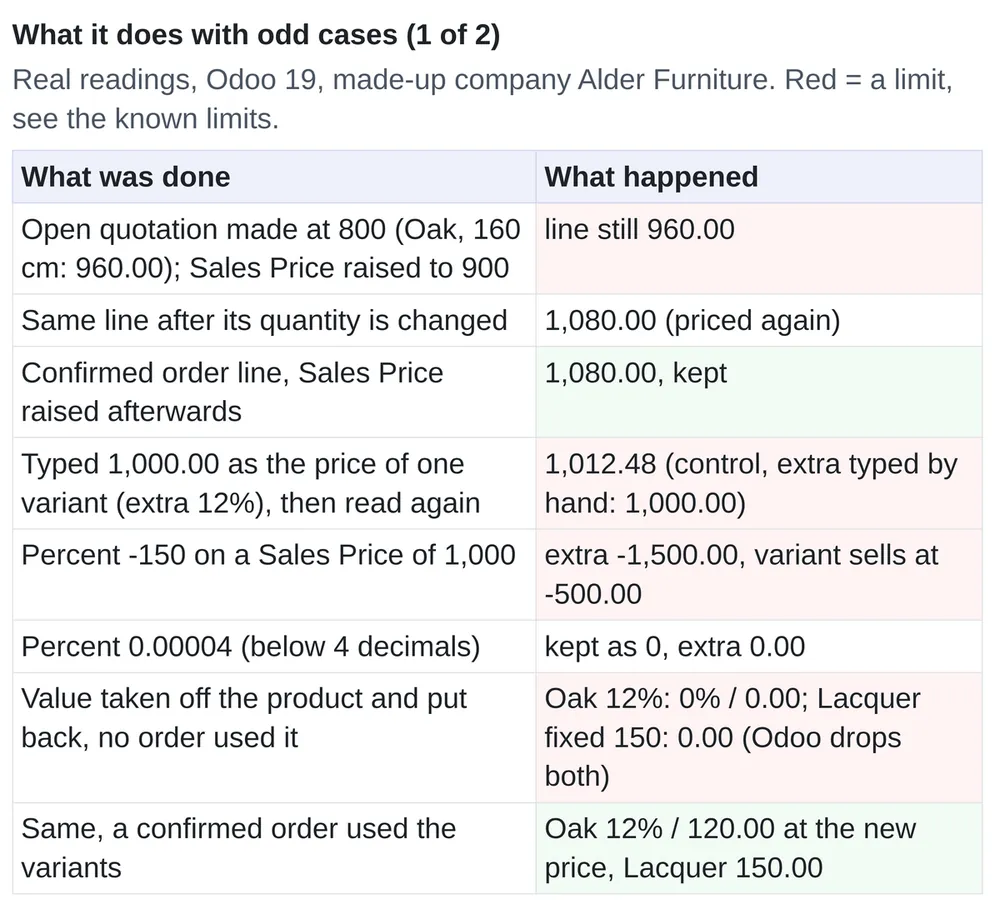
applied to prices already on an open quotation, and not blocked when a value makes a price negative (see the known limits)
In Odoo an attribute value on a product carries one fixed Extra Price, so a price change means re-typing the extra on every value of every product. Variant Price Percent adds an Extra Price (%) next to it. The Extra Price is then that percentage of the product's Sales Price, recalculated when the percentage or the Sales Price changes. Quotations, orders, pricelists and the shop keep reading the same Extra Price field. This page walks through it with screenshots of an Odoo 19 database holding a made-up furniture company, and with tables rendered from real readings of the same run; each picture says which it is.
The page also says where the app stops: an open quotation keeps its price until it is priced again, nothing blocks a percentage that makes a price negative, and a value taken off a product and put back loses its extra, as it does in Odoo.
Install it and the value list of every product (Configure on the Attributes & Variants tab) gains an Extra Price (%) column; there is no new menu and no setting. It needs only the Sales app.
How it works
What it keeps, what it changes, what it does not
Each line was tested or read in the code.
1 Type the percent once, per value
Use it when your options are priced as a share of the base price: Oak adds 12%, Walnut 25%.Writes when saved
A fixed extra goes stale the day the base price moves: the 96.00 for Oak was 12% of 800 and is wrong at 900.
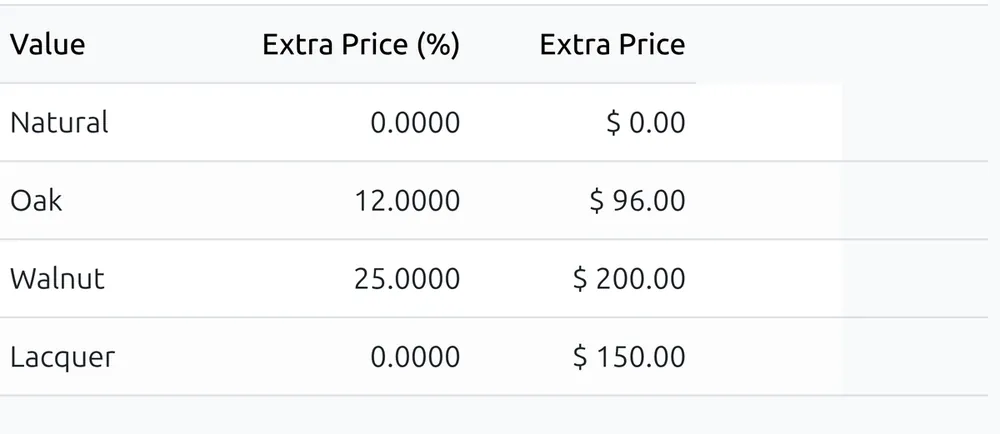
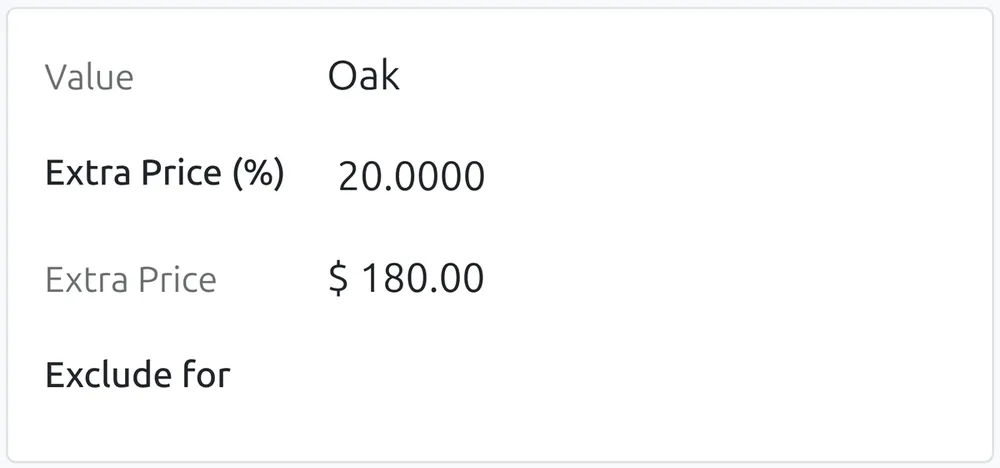
Open a product, the Attributes & Variants tab and press Configure on an attribute. The list has an Extra Price (%) column next to Extra Price. Here the desk is priced at 800: Oak 12% reads 96.00, Walnut 25% reads 200.00 and Lacquer keeps a fixed 150.00. A percentage can be positive or negative with 4 decimals; the amount is rounded to the product's currency. The second picture is a value being edited, not yet saved: with 20 typed, Extra Price already reads 160.00 and is greyed out (read-only while a percent is set). On Odoo 19 the row opens a form; this is that form.
A typed fixed Extra Price on its own replaces the percentage (see section 5); the percentage is of the Sales Price, never of a pricelist price.
The value list at a Sales Price of 800. Real Odoo screen (Odoo 19).
A percentage typed, not yet saved. Real Odoo screen.
2 Change the Sales Price, every extra follows
Use it when the base price moves and you do not want to touch every value.Writes the extra
Re-typing extras after every price change is slow and gets forgotten.
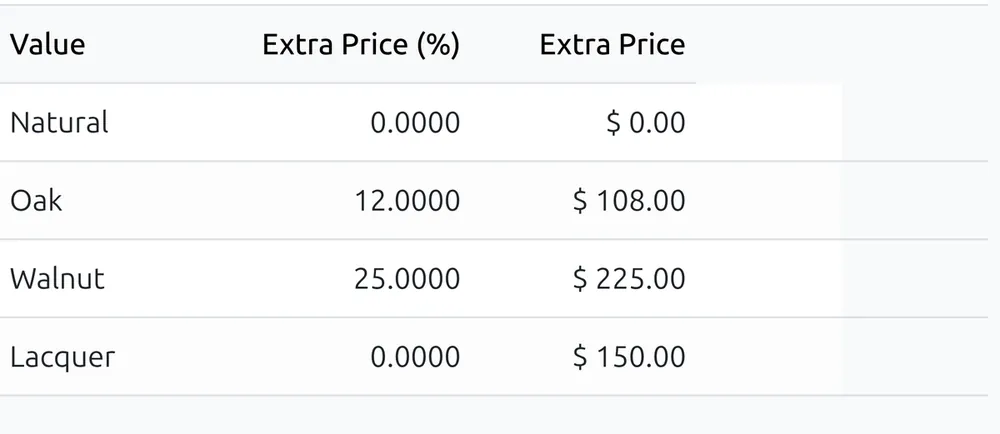
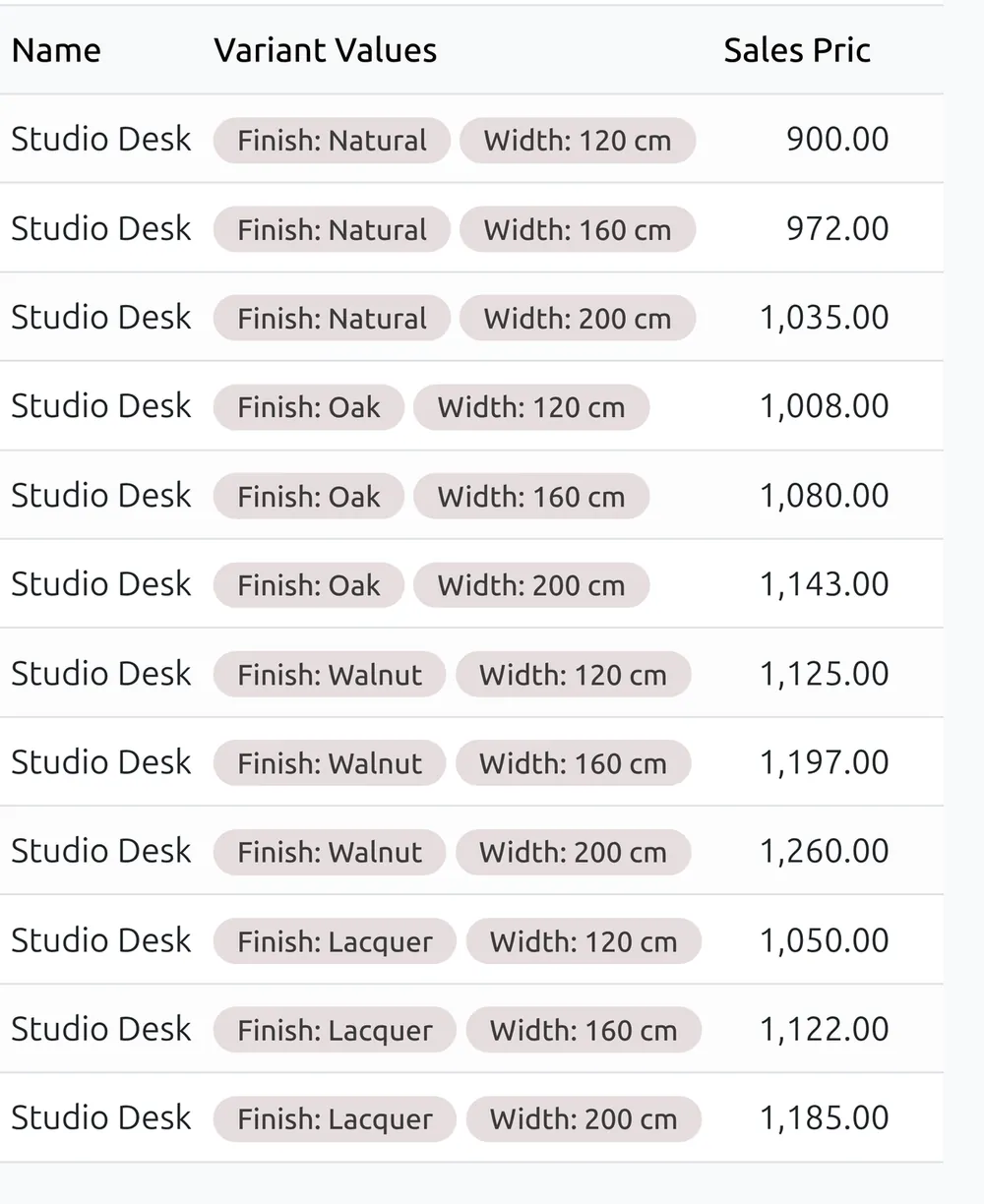
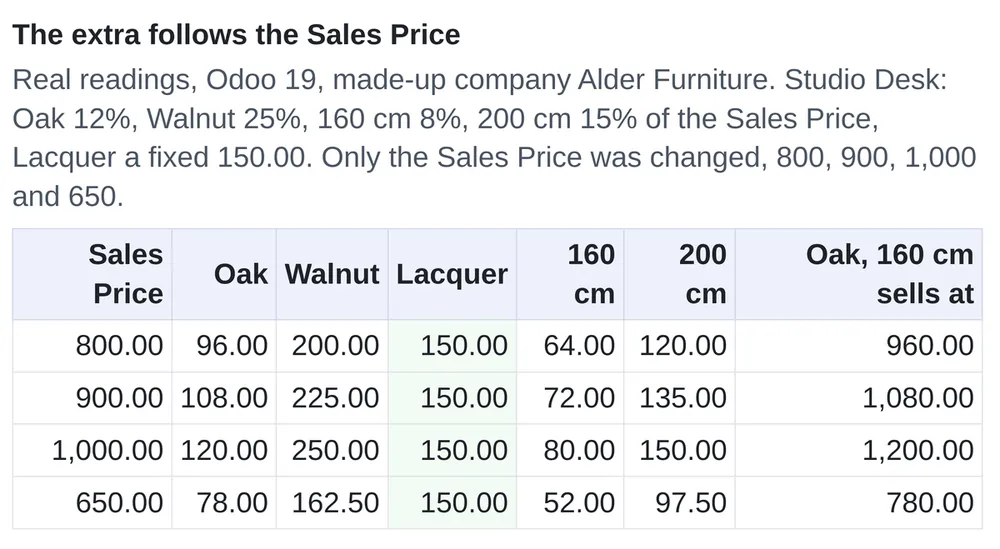
Change the product's Sales Price and every percentage extra is recalculated at once; the fixed Lacquer extra stays 150.00. The same list after the Sales Price went from 800 to 900 shows Oak 108.00 and Walnut 225.00. The variants list is the same product at 900, with the two attributes added together (Oak 12% and 160 cm 8% of 900 is 108 + 72, so 1,080.00). The table has four prices. Typing a price on a variant itself is a limit, see the known limits.
The value list after the Sales Price was raised to 900. Real Odoo screen.
Variants of the desk at 900, other products hidden for the picture. Real Odoo screen.
The extras at four Sales Prices. Evidence table.
3 Quotations, pricelists and the shop read the same field
Use it when you sell the variants and want one price everywhere.Read-only
A percentage that only shows in the product form is useless; the price has to reach the quotation, the pricelist and the shop.
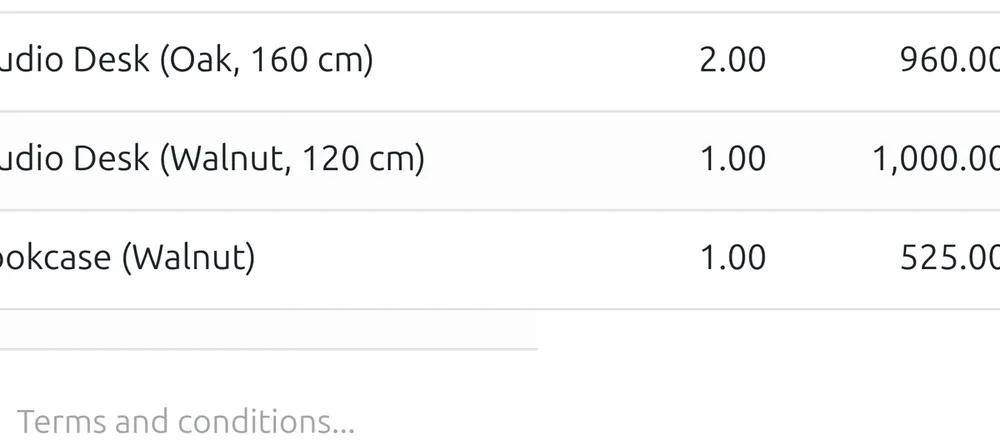
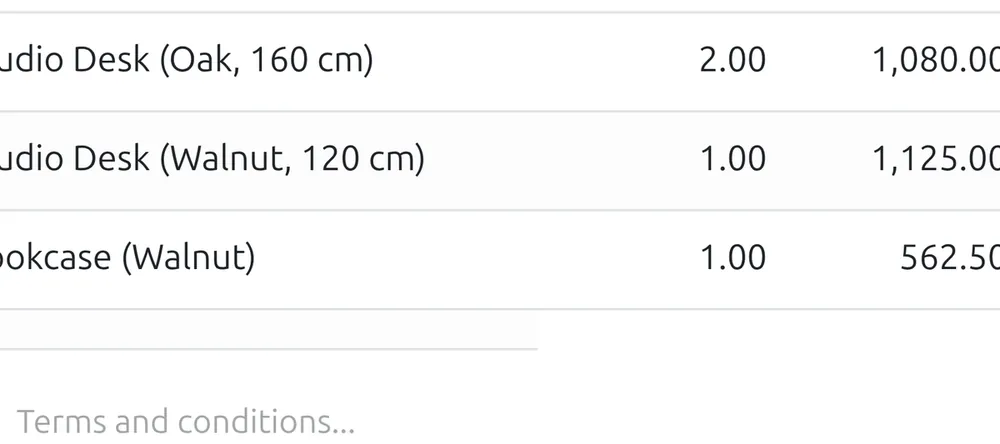
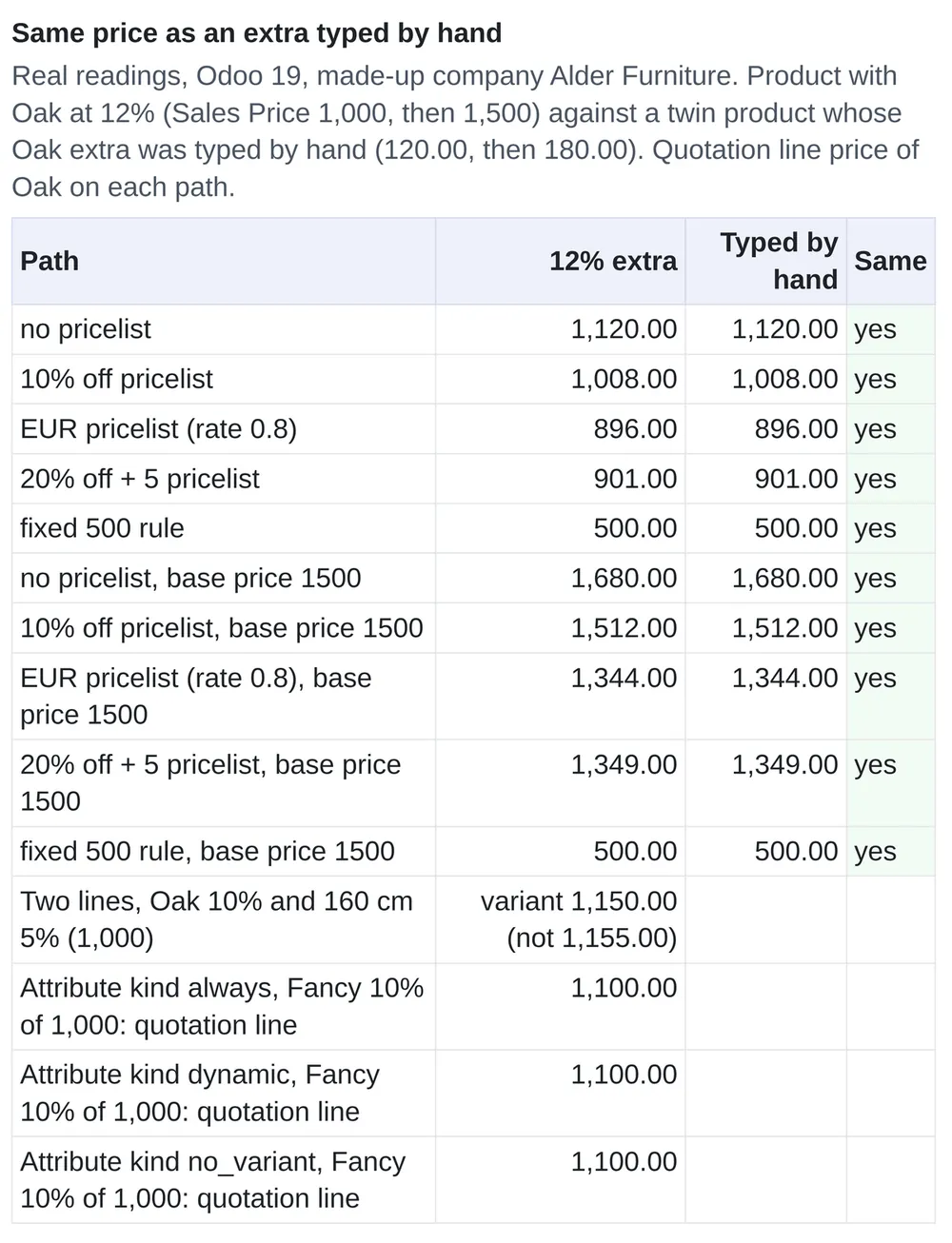
The app changes only the Extra Price amount, so everything that read it before keeps working. A quotation made at 800 shows 960.00 for Oak 160 cm; after the Sales Price went to 900 that open quotation still shows 960.00, and a new quotation shows 1,080.00. A confirmed order keeps the price it was confirmed at. The table compares a product with a 12% extra against a twin whose extra was typed by hand: the same price on no pricelist, a 10% off rule, a EUR pricelist, a formula rule and a fixed-price rule, at two Sales Prices; the shop's combination price and cart were checked by automated tests (browser tests with the website installed).
An open quotation does not follow the new Sales Price by itself; its line is priced again when its quantity changes.
The quotation made at 800, opened after the price went up. Real Odoo screen.
A new quotation at the new Sales Prices (the Bookcase went to 450 as well). Real Odoo screen.
Same price as an extra typed by hand, and the attribute kinds. Evidence table.
4 Rounding
Use it when you price in cents, or in a currency without decimals.Read-only
A percentage of an odd price must round the same way every time.
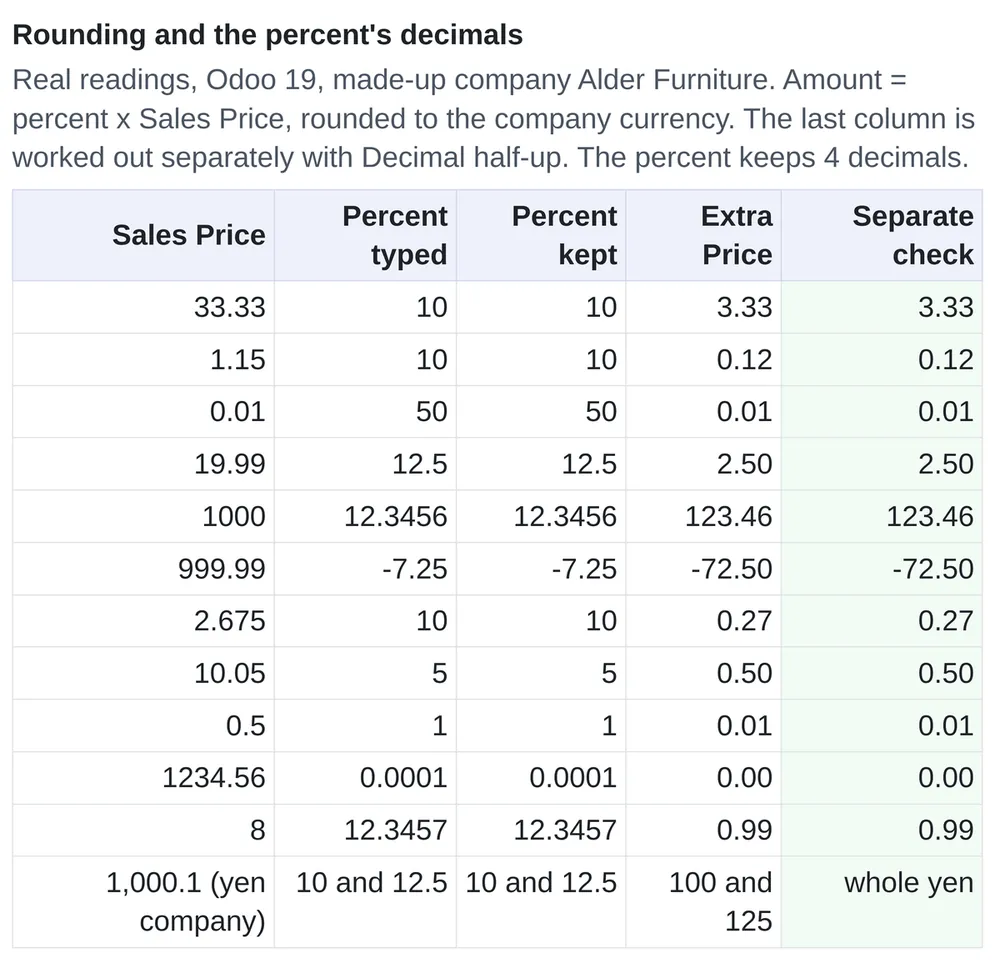
The amount is the percentage of the Sales Price rounded to the product's currency: 10% of 33.33 is 3.33, 12.5% of 19.99 is 2.50, and in a company on yen whole yen. The percentage itself keeps four decimals (12.34567 is kept as 12.3457; 0.00004 is kept as 0). The last column of the table was worked out separately with Decimal half-up.
Rounding readings. Evidence table.
5 Percent or fixed amount: the last thing you type wins
Use it when some values should stay a fixed amount.Writes when saved
A value must not be a percentage and a fixed amount at the same time.
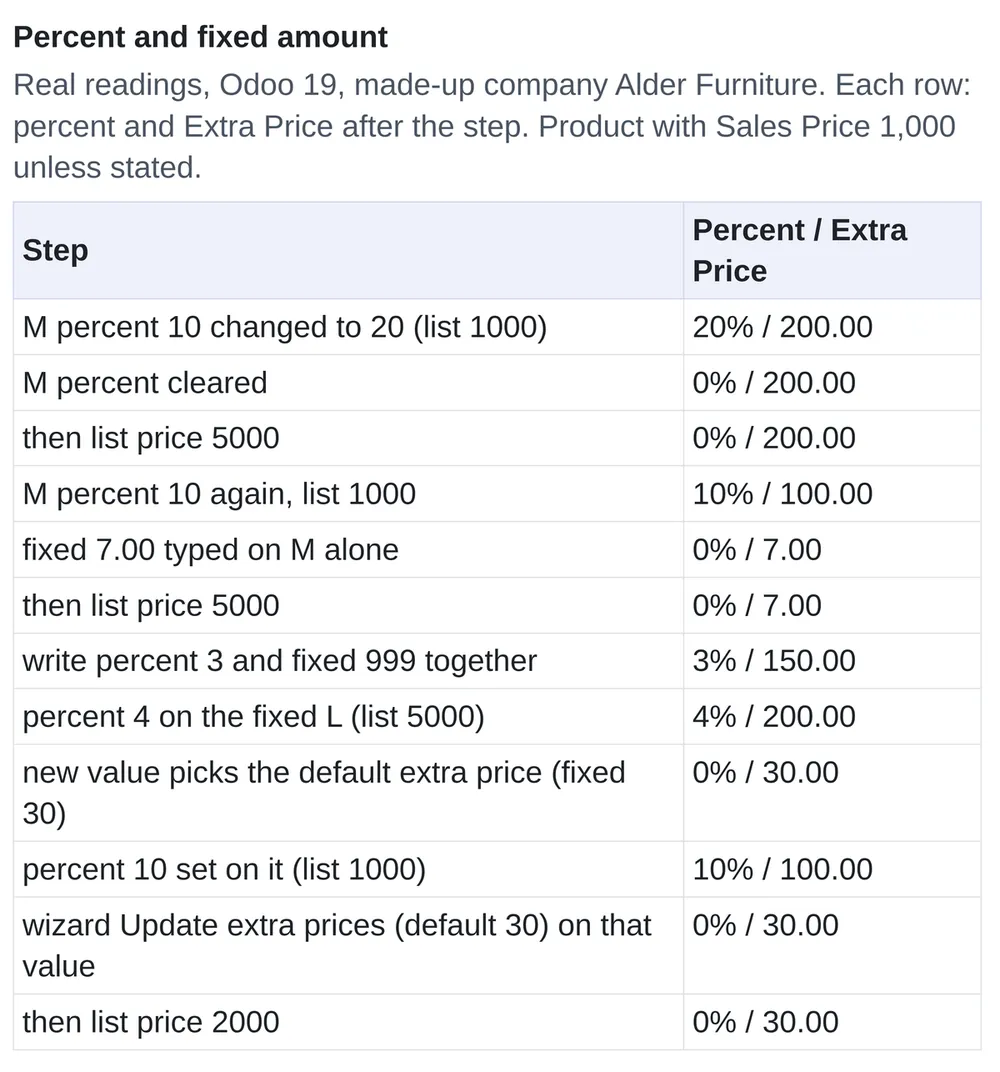
Clearing a percentage keeps the last amount as a fixed extra. Typing a fixed Extra Price on its own replaces the percentage. Writing both together keeps the percentage. A percentage set on a fixed value replaces the fixed amount. Odoo's default extra price on an attribute value is a fixed amount on a new value, and Odoo's Update extra prices button on the attribute replaces percentages with that default. The table has the readings. Duplicating a product keeps its percentages and recalculates them on the copy's Sales Price.
Percent against fixed, step by step. Evidence table.
6 Checked against the raw tables
Use it when you want proof the amounts are right.Read-only
A price you cannot recompute is a price you cannot trust.
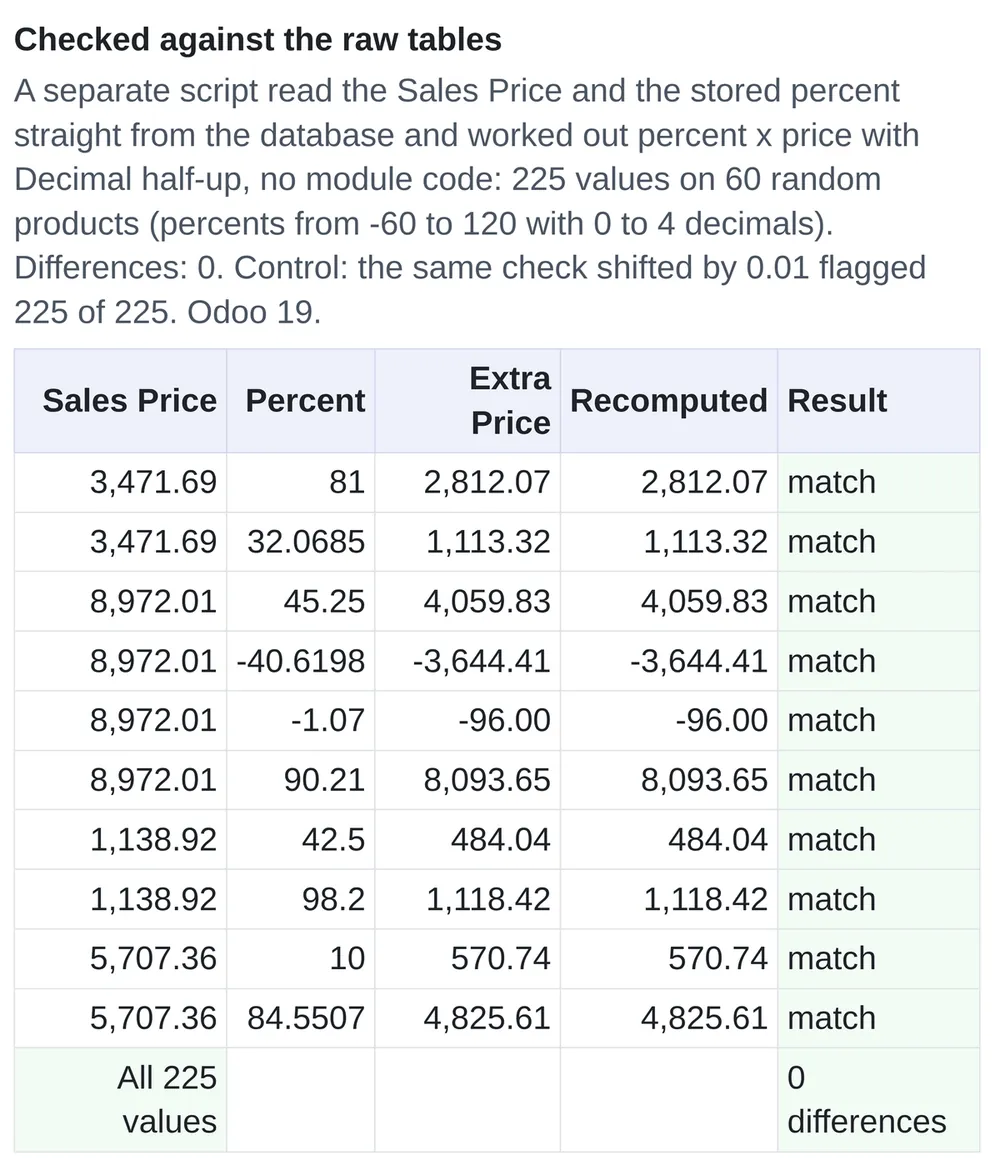
A separate script read the Sales Price and the stored percentage straight from the database and worked out percentage times price with its own arithmetic and no module code: 225 values on 60 random products, percentages from -60 to 120 with up to 4 decimals. Differences: 0. The same check shifted by 0.01 flagged all 225.
225 of 225 values matched. Evidence table.
What changed in this version
Version 19.1.0.2 changes no behaviour of the app. It fixes a defect in the tests (they failed on a plain install without the website) and adds 14 automated tests, 8 of which pin the limits above. It replaces the screenshots and the page text with checked ones and takes no feature out. The demo video of an earlier version is kept as it was and was not re-recorded.
Screenshots
What it does not do
- Each of these was reproduced in a run on Odoo 19 and is pinned by a test that passes; none is changed in this version.
- Seven readings from real runs. Evidence table.
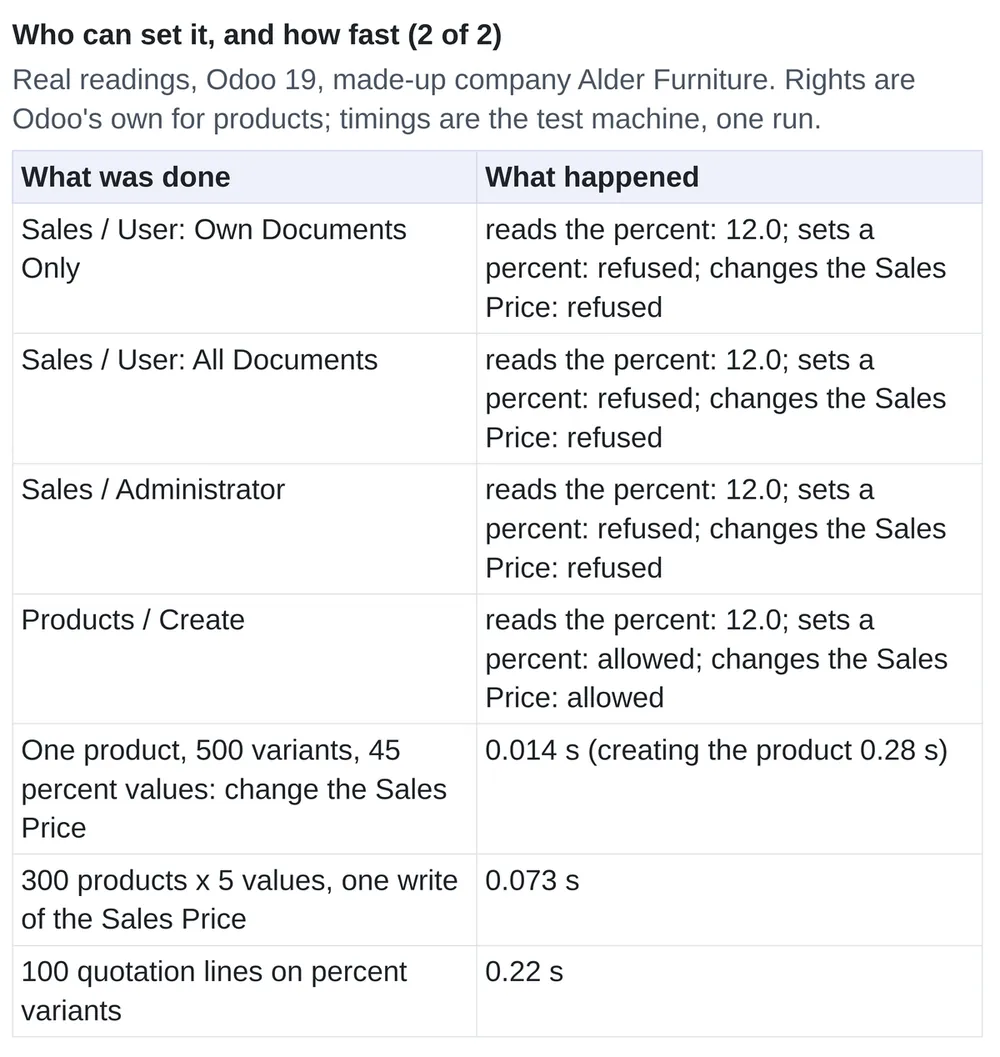
- Rights and timings. Evidence table.
Requirements
- Odoo 19.0 or 20.0. The App Store sells each version separately, so buy the one that matches your database.
- Odoo.sh or On-Premise only. Third-party apps cannot be installed on Odoo Online (SaaS) databases. Check your hosting before buying.
- Module
mh_variant_price_percent, version 19.0.1.0.2, licensed OPL-1.